How to Determine Outliers in Excel: Learn how to determine

You open a workbook, calculate an average, and the result looks wrong.
A campaign ROI sheet says performance was excellent, but one ad produced a result so unusual that it pulled the whole average upward. A sales report shows one region far above the rest, and later you discover somebody added an extra zero. A finance model spikes because one transaction landed in the wrong period. Those are all outliers. They can be mistakes, rare but real events, or signals that something unusual deserves attention.
If you're learning how to determine outliers in excel, the important idea is this: the goal isn't to delete strange values as fast as possible. The goal is to understand whether a value is distorting your analysis, and then decide what to do with it.
Spending too much time on Excel?
Elyx AI generates your formulas and automates your tasks in seconds.
Sign up →Why Hidden Outliers Can Invalidate Your Excel Analysis
A hidden outlier can subtly change the story your spreadsheet tells.
Say you're reviewing monthly campaign ROI. Most campaigns perform within a reasonable band, but one ad goes unusually high. If you only look at the average, that one result can make the whole channel look healthier than it really is. A manager might increase budget, expecting the same outcome again, even though the result was rare.
The same problem appears in finance. Revenue reporting, expense analysis, inventory reviews, and forecasting all depend on values that reflect reality. If one number is wrong, delayed, duplicated, or extreme, your summary metrics can point people in the wrong direction. That's one reason teams often try to standardize your revenue reporting process before they build analysis on top of exported Excel data.
Outliers are not always errors. Sometimes they reveal fraud, an operational exception, a one-time deal, or a successful campaign that deserves investigation. What matters is that you identify them before turning the data into a recommendation.
Practical rule: An outlier isn't just a weird number. It's a value that changes how people interpret the rest of the data.
That matters for day-to-day business work. If you clean data without checking for outliers, your dashboard may look polished but still be misleading. If you want a broader framework for making better choices from spreadsheet data, this guide on data-driven decision-making is a useful companion.
Three questions help frame the problem before you touch a formula:
- Is the value impossible? A negative quantity sold or a date far outside the reporting period usually signals bad data.
- Is the value unusual but valid? A large enterprise deal may be rare, but still real.
- Does the value affect the decision? Some outliers barely matter. Others completely reshape an average, trendline, or forecast.
Once you start thinking this way, outlier detection stops being a statistics exercise and becomes part of responsible analysis.
Method 1 The IQR Rule for Robust Detection
Averages can be misleading when a few values are unusually high or low. The IQR method gives you a steadier way to screen for outliers because it pays attention to the middle half of your data instead of letting extreme points pull the result around.
That makes it a strong first method for business data such as deal sizes, ad spend, refunds, and customer lifetime value, where the distribution often looks uneven.

What quartiles mean in plain language
Quartiles divide a sorted dataset into four parts. For the IQR rule, you only need two checkpoints:
- Q1, the point where roughly 25% of values fall below
- Q3, the point where roughly 75% of values fall below
The space between Q1 and Q3 is the interquartile range, or IQR. You can treat it as the band where the middle 50% of your data lives.
The formula is simple:
IQR = Q3 – Q1
From there, you create two limits, often called fences:
- Upper fence = Q3 + 1.5 × IQR
- Lower fence = Q1 – 1.5 × IQR
Any value outside those fences deserves a closer look.
Why does this work well? Because the method anchors itself to percentiles. If one sales row is 20 times larger than the rest, the average and standard deviation can shift a lot. Q1 and Q3 usually shift much less, so your baseline stays more stable.
How to calculate it in Excel
Assume your values are in column B.
Create these helper cells:
| Cell | Purpose | Formula |
|---|---|---|
| G1 | Q1 | =QUARTILE.INC(B:B,1) |
| H1 | Q3 | =QUARTILE.INC(B:B,3) |
| I1 | IQR | =H1-G1 |
| J1 | Upper fence | =H1+1.5*$I$1 |
| K1 | Lower fence | =G1-1.5*$I$1 |
Now flag each row with:
=OR(B3>$J$1,B3<$K$1)
If Excel returns TRUE, that value falls outside the expected range based on the middle 50% of the dataset.
If you want a quick refresher on how averages behave before comparing mean-based and percentile-based methods, this guide to the mean in Excel is a useful reference.
A quick example
Say your sales values are:
120, 125, 128, 130, 132, 135, 138, 500
The average rises sharply because of 500. The quartiles barely move. That is the key reason many analysts start with IQR on messy real-world data. It helps you spot the unusual value without letting that same value redefine what "normal" looks like.
Common points of confusion
A few Excel details trip people up here:
QUARTILE.INCvsQUARTILE.EXC. Either can work, but do not mix them in the same method. The formulas above useQUARTILE.INC, so keep that choice consistent.- A flagged value is not automatically bad data. It may be an error, or it may be the most important row in the sheet.
- Full-column references can create noise. If column B includes headers, notes, or blanks in a messy export, use a clean range like
B2:B500instead.
The IQR rule is a practical starting point because it gives you a clear statistical screen, works well on uneven data, and is easy to turn into a repeatable workflow in Excel. That matters in a guide like this one, where the goal is not only to calculate outliers manually, but also to build toward more visual, automated, and eventually AI-driven ways to handle the same job.
Method 2 Applying the Z-Score Test in Excel
The Z-score method answers a different question. Instead of asking how far a value sits from the middle 50% of the data, it asks how many standard deviations that value is from the mean.
This is useful when your data is closer to a normal distribution, such as measurement data, quality checks, or repeated operational values that cluster around a center.

The idea behind the formula
A Z-score standardizes each number so you can compare values on the same scale.
The formula is:
Z-score = (data point value – average) / standard deviation
In Excel terms, you first calculate the mean and standard deviation for the dataset, then apply that formula row by row.
Here is the setup if your data is in column B:
| Cell | Purpose | Formula |
|---|---|---|
| D1 | Mean | =AVERAGE(B:B) |
| E1 | Standard deviation | =STDEV.S(B:B) |
| F3 | Z-score | =(B3-$D$1)/$E$1 |
Copy the formula in F3 down the column.
How to flag outliers
Once each row has a Z-score, check whether its absolute value is above the standard cut-off.
Use this logic:
=ABS(F3)>3
A value with an absolute Z-score above 3 is treated as an outlier.
The verified guidance from Real Statistics states that the Excel process is to calculate the mean with =AVERAGE(B:B), the sample standard deviation with =STDEV.S(B:B), and the row-level Z-score with =(B3-mean)/stdev. That source also notes that the common threshold is |z| > 3, which corresponds to a ~0.3% probability in a normal distribution.
If you want a separate walk-through focused on the actual worksheet mechanics, this page on how to calculate z score is handy.
Where people usually slip up
The most common mistake is using the wrong standard deviation formula. For business datasets that represent a sample, STDEV.S is usually the right fit for this workflow.
Another issue is applying Z-scores to obviously skewed data. If your values bunch up at the low end and stretch upward, the result can be misleading. The verified guidance above notes that for skewed data, some users adjust the threshold to 2.5 in the referenced approach, but the bigger lesson is to examine the shape of the data before relying on this method.
Useful mindset: Z-scores are strongest when your data behaves roughly like a bell curve.
So when should you choose it?
- Use Z-score for measurement-style data with a stable center.
- Avoid it as your first option when you already know the sheet is highly skewed.
- Keep it for consistency if your team uses a standardized statistical rule across multiple files.
The Z-score method gives you a mathematically clean test. It works well when the data supports that assumption.
Method 3 Visualizing Outliers with Box Plots and Formatting
You open a sales report, and one value is so far above the rest that it changes the average, stretches the scale, and makes every other number look ordinary. In that moment, a visual check does something formulas alone cannot do. It shows whether a value is just a little unusual or sitting in a category of its own.
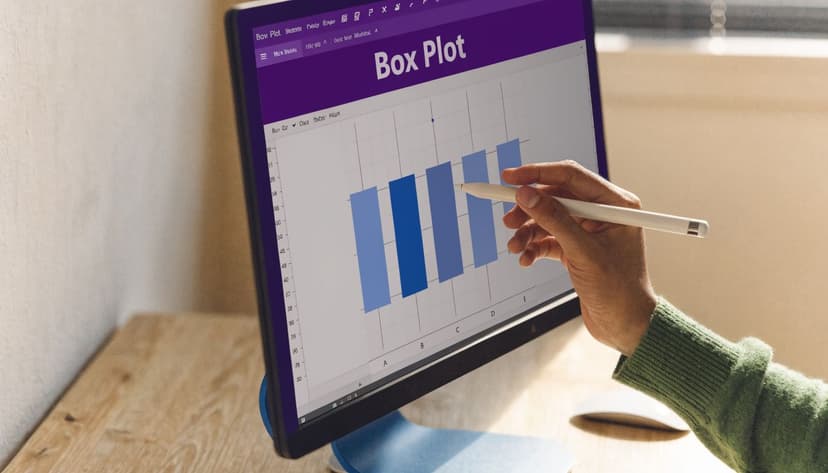
Use a Box and Whisker chart for a quick visual scan
A Box & Whisker chart gives you a fast read on spread, center, and isolated points. If the IQR method is your measuring tape, the box plot is the picture of what that measurement means. It helps you catch patterns before you start filtering rows.
To create one in Excel:
- Select your data range.
- Go to Insert.
- Open Charts.
- Choose Box & Whisker.
Excel marks unusually distant values in a way that lines up with the quartile logic from Method 1. That makes this chart a useful cross-check. You are not starting a new method from scratch. You are seeing the same idea in a format your eyes can scan in seconds.
If you want ideas for presenting flagged values after the analysis, this guide to Excel data visualization techniques shows useful charting approaches for reports and dashboards.
Add conditional formatting to highlight the exact cells
A chart helps you spot a problem area. Conditional formatting helps you find the exact records behind it.
If you already stored your lower fence in J1 and upper fence in K1, select the values in column B and create a new conditional formatting rule with this formula:
=OR(B3<$J$1,B3>$K$1)
This formula checks each cell in column B against the two boundaries. If a value falls below the lower fence or above the upper fence, Excel applies the format you choose.
That setup works like a highlighter pen on top of your statistics. The chart shows the shape of the distribution. The formatting points to the cells you may need to inspect, explain, correct, or exclude.
A simple setup usually works well:
- Fill color to make flagged cells stand out
- Bold font for printed reports or stakeholder reviews
- A helper column with TRUE/FALSE if later formulas need to reference the flagged rows
Use visuals to ask better questions
Visual detection is useful because outliers are not all the same.
One point may be a data entry mistake. Another may be a one-time promotion. A third may belong to a different product line and should be analyzed separately. The value of this method is not only that it helps you find extremes. It helps you decide what kind of extreme you are looking at.
This walkthrough is a good companion if you want to see the process on screen:
A practical review flow looks like this:
- First pass: Scan the box plot for isolated points and uneven spread
- Second pass: Use conditional formatting to mark the exact cells
- Third pass: Filter the highlighted rows and inspect the underlying records
This visual method fills an important gap in your Excel toolkit. Formulas give you rules. Charts give you context. Power Query, which comes next, helps you repeat the cleanup without rebuilding the process each time. And if your goal is to move from manual checking to a single repeatable workflow, that later automation step is where substantial productivity gain starts.
Method 4 Using Power Query for Automated Filtering
If you repeat the same cleanup every week, worksheet formulas start to feel heavy.
That's where Power Query becomes useful. Instead of rebuilding your outlier logic every time a new CSV or export arrives, you create a repeatable transformation flow. Then you refresh it when fresh data comes in.
Why Power Query changes the workflow
Formulas are great for exploration. Power Query is better for repeatability.
When you import recurring data, the actual time cost isn't just the math. It's all the small actions around it. Inserting helper columns, copying formulas down, checking ranges, and filtering flagged rows. Power Query turns those actions into a sequence of saved steps.
A typical workflow looks like this:
- Load your dataset into Power Query from Data > From Table/Range.
- Open the Power Query Editor.
- Review the target column and confirm the data type is correct.
- Use profiling features such as column distribution and statistics to inspect the spread.
- Create calculated boundaries based on your chosen rule.
- Filter out rows beyond those boundaries.
- Load the cleaned result back into Excel.
If you work with repeated imports, this kind of setup fits naturally with broader Excel automation workflows.
A practical way to use it
Power Query isn't as point-and-click friendly for outlier math as worksheet cells, so many analysts use a hybrid approach.
They calculate thresholds on a worksheet first, or in a reference table, then pull those thresholds into Power Query and apply filters against the imported rows. That gives you the best of both worlds. Transparent logic in the workbook, repeatable filtering in the query.
A common pattern is:
- Reference values in Excel for Q1, Q3, IQR, upper fence, and lower fence
- Import the raw data through Power Query
- Merge or reference the thresholds
- Filter the value column so only rows inside the acceptable range remain, or create a separate query that returns only flagged rows
Where Power Query helps most
Power Query is especially useful when your workbook has one of these traits:
| Situation | Why Power Query helps |
|---|---|
| Weekly exports | You can refresh instead of rebuilding formulas |
| Large datasets | It reduces manual copying and filtering |
| Shared reporting process | The steps are easier to repeat consistently |
| Raw files from multiple systems | It keeps cleanup rules in one place |
It also creates a cleaner audit trail. If someone asks how a row disappeared from the final report, you can show the query step that filtered it.
Review habit: Keep one query for cleaned data and another for flagged rows. That makes it easier to validate what was excluded.
Power Query doesn't remove the need for judgment. It removes repetitive mechanics. If your outlier detection process has become a weekly chore, this is often the point where Excel starts feeling much more manageable.
The Ultimate Method Automating Analysis with ElyxAI
Manual outlier detection works. It also creates a long chain of small tasks.
You calculate helper statistics, write formulas, copy them down, apply conditional formatting, maybe build a chart, maybe filter flagged rows, and then move them to a review sheet. Each step is reasonable. Together, they create friction.

One way to reduce that friction is to use an AI tool inside Excel that executes the workflow from a plain-language instruction. For example, Elyx AI is an Excel add-in that performs spreadsheet tasks directly from prompts rather than only suggesting formulas.
What a single prompt can handle
A practical prompt might look like this:
For the Revenue column, identify outliers using the Z-score method with a threshold of 3. Highlight the outlier cells and copy the full rows to a new sheet named Review.
That combines detection, formatting, and extraction in one request.
The verified guidance in this referenced explanation states that the Z-Score method uses a standard cut-off of an absolute score of 3, because values beyond that represent only ~0.3% of a standard normal distribution, and notes that tools like ElyxAI can automate the manual steps of calculating z-scores and highlighting the outliers.
Why this matters in real spreadsheet work
The value isn't that AI changes the statistical rule. The value is that it reduces handwork.
That's useful when you need to:
- Repeat the same process on fresh files
- Standardize the review flow across a team
- Avoid copy-down mistakes in long worksheets
- Turn analysis into action by moving flagged rows, formatting outputs, or preparing a review tab
If you're already thinking about connected systems, this broader category of integrated CRM and workflow automation tools shows how many teams now expect repetitive processes to run from simple instructions rather than manual steps.
A good prompt is specific. Name the column, state the method, define the threshold, and say what should happen to the flagged rows. That gives you a workflow that feels less like formula assembly and more like directing a process.
Conclusion 3 Smart Ways to Handle Outliers You Find
Finding an outlier is only half the job. The next question is what to do with it.
The right response depends on whether the value is wrong, irrelevant, or just extreme. Good analysts don't treat every outlier the same way.
Correct obvious errors
Some values are clearly bad inputs. A misplaced decimal, an extra zero, or a date in the wrong year shouldn't stay in the dataset just because a formula found it.
Check the original source if you can. If the value is a typo, correct it and keep a note of what changed.
Remove values with caution
Sometimes a flagged row doesn't belong in the analysis at all. It may come from a test transaction, a duplicate import, or a record outside the reporting scope.
If you remove it, document the reason. That matters when somebody asks why your totals don't match the raw export.
Transform legitimate extremes
A value can be real and still distort the analysis. In that case, deletion may be the wrong move.
You might cap the effect, separate that segment, or use a transformation that reduces skew. The point is to preserve the signal without letting one observation dominate the result.
The goal isn't to make data look tidy. It's to make the conclusion trustworthy.
If you're serious about learning how to determine outliers in excel, remember this final step. Detection gives you visibility. Judgment gives you a reliable analysis.
If you want Excel to carry out multi-step tasks from a plain-language instruction instead of making you assemble formulas, formatting, filtering, and review sheets by hand, take a look at Elyx AI. It works inside Excel and is built for people who know what they want done but don't want to spend their time on the mechanics.
Reading Excel tutorials to save time?
What if an AI did the work for you?
Describe what you need, Elyx executes it in Excel.
Sign up