AI Agent for Data Analysis: 7 Excel Workflows

Monday morning. You open Excel to “quickly” update last week’s report. Then the usual chain starts.
You fix broken dates from a CSV export. You clean customer names so the lookup works. You patch a few VLOOKUP formulas, convert them to XLOOKUP, rebuild a PivotTable, adjust a chart title, reapply number formats, and try to remember which columns your manager wanted hidden before sending the file. None of this is hard. It’s just slow, repetitive, and easy to get wrong when you’re rushing.
That’s where the idea of an ai agent for data analysis starts to matter. Not as a futuristic analytics platform. Not as another dashboard tool that asks your team to leave Excel and learn a new interface. But as a spreadsheet-native assistant that can work directly inside the file you already use.
Spending too much time on Excel?
Elyx AI generates your formulas and automates your tasks in seconds.
Sign up →That angle matters because most business users already live in spreadsheets. Current coverage often misses the adoption problem for the 1.2+ billion Excel users, even though natural language interfaces can raise analytics adoption from 26% to potentially 10x higher when they remove friction inside existing workflows, according to this analysis of AI agent adoption barriers in spreadsheet environments.
If you're comparing practical options for teams that want AI without rebuilding their whole stack, this guide to AI business tools for NZ startups is also useful because it frames automation around real operating constraints rather than hype.
A lot of teams have already started automating pieces of spreadsheet work with macros, Power Query, or templates. The next step is different. It’s not just automating one command. It’s asking for an outcome and having the system execute the workflow for you, directly in Excel, much like the examples discussed in Excel automation workflows.
The End of 100-Click Excel Reports
What busy teams are really dealing with
Most Excel reporting work isn’t analysis. It’s preparation.
You import data from different systems. You normalize text. You check whether blanks are real blanks or formula blanks. You fix totals that changed because one source added a new category. By the time the report is clean, half the energy is gone.
That’s why a spreadsheet-native agent feels so different from a chatbot or formula helper. Instead of saying, “Use a PivotTable and maybe add a slicer,” it can carry out the chain of actions inside the workbook.
Practical rule: If a task makes you click through the same sequence every week, it’s a strong candidate for an AI agent.
Why separate AI tools often stall
Standalone AI platforms can be powerful, but many business users never fully adopt them. They create one more place to log into, one more data flow to manage, and one more process to explain to colleagues.
Excel users usually don’t have a platform problem. They have a workflow problem. They need help where the work already happens.
That’s the core promise here. A spreadsheet-native ai agent for data analysis doesn’t ask you to abandon formulas, tables, or workbook habits. It sits close to the file, understands the workbook context, and handles the mechanical steps that consume your time.
For a finance team, that could mean turning a raw export into a board-ready budget pack. For marketing, it could mean cleaning campaign data and grouping performance by channel. For operations, it could mean refreshing a tracker, flagging anomalies, and formatting a summary tab for review.
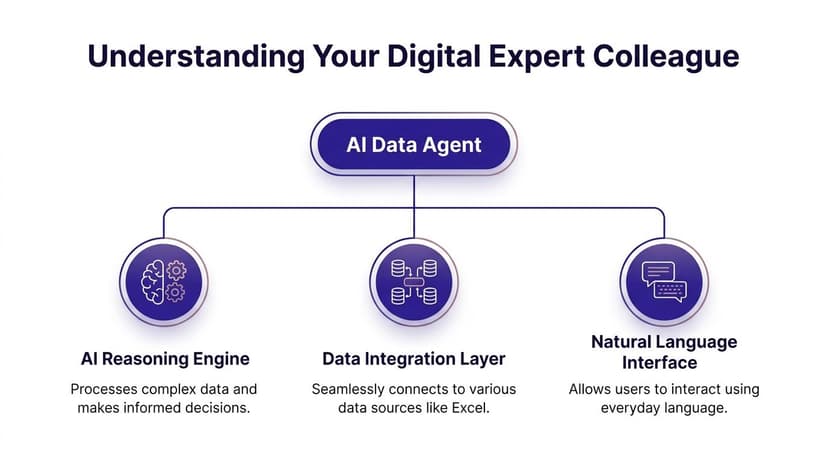
What Are the 3 Core Components of an AI Data Agent
The easiest way to understand an AI data agent is to think of it as a digital expert colleague. Not magic. Not a replacement for judgment. A colleague who can understand instructions, use tools, and carry a task through multiple steps without needing constant hand-holding.
Benchmarks cited by Zenlytic’s review of agentic analysis workflows report 50-70% reduction in analysis time when AI agents use large language models integrated with tool-calling and workflow orchestration to handle multi-step work.
If you want a product-level explanation focused on spreadsheets, this overview of what an Excel AI agent is gives a useful companion view.
The brain
The first component is the reasoning engine. This is the part that understands a request like:
“Group sales by region, compare this month to last month, flag the worst-performing segment, and build a summary chart.”
A normal formula can’t interpret that request. A traditional macro can, but only if someone wrote the exact steps in advance. The reasoning engine translates business language into an action plan.
Real spreadsheet requests are messy; people don’t ask for “run task 4B.” They ask for outcomes.
The toolbelt
The second component is the set of tools the agent can use.
In Excel terms, that can include actions such as:
- Creating structures: building tables, PivotTables, summary tabs, and charts
- Running spreadsheet logic: applying formulas, sorting, filtering, grouping, and formatting
- Preparing data: removing duplicates, standardizing labels, filling gaps, and spotting anomalies
Without tools, the AI only talks. With tools, it can act.
A good analogy is this. The language model is the consultant. The tools are the keyboard, mouse, formulas, and menu actions the consultant can use.
The autonomy
The third component is what turns a helper into an agent. Autonomy means the system can connect steps into a workflow.
Instead of stopping after one action, it can move from request to execution in sequence. Clean the data. Create the analysis. Build the visuals. Format the output. Then wait for your review.
That’s the leap most users care about. Not “can it explain a formula?” but “can it finish the job?”
A true agent doesn’t just answer your Excel question. It carries out the chain of work that usually follows the question.
3 Ways AI Agents Differ From Traditional BI and Formulas
Most spreadsheet users already have tools that work. Formulas work. PivotTables work. Traditional BI platforms work. So the question isn’t whether AI is interesting. It’s whether an ai agent for data analysis solves a different class of problem.
The short answer is yes. It changes the unit of work from single actions to whole workflows.
A side-by-side comparison
| Capability | Manual Excel (Formulas/Pivots) | AI Formula Generators | Autonomous AI Agent (e.g., ElyxAI) |
|---|---|---|---|
| How you work | You perform each step yourself | You ask for help writing formulas or steps | You describe the result you want |
| Best for | Structured recurring tasks you already know how to do | Getting unstuck on syntax or formulas | Multi-step workflows with setup, analysis, and formatting |
| Speed | Slows down as steps increase | Faster for one formula or one command | Faster when many steps must happen in order |
| Complexity handled | Limited by your time and skill | Limited to advice and generation | Can carry out connected actions across the workbook |
| Learning curve | High for advanced features | Moderate | Lower for non-technical users because the interface is conversational |
| Autonomy level | None | Low | High |
| Typical pain point | Repetition and error-prone manual work | You still have to execute the advice | You still need review and governance |
Traditional BI answers different questions
Business intelligence tools are strong when you need governed dashboards, centralized models, and broad reporting across teams. But many everyday spreadsheet jobs aren’t BI projects. They’re workbook tasks with a deadline.
A controller trying to reconcile a monthly variance file often doesn’t need a new dashboard. They need a cleaned sheet, a grouped summary, and a report tab that’s presentation-ready before lunch.
That’s one reason BI projects often struggle with adoption. The workflow gets separated from the tool people already trust. This breakdown is one of the themes behind why business intelligence projects fail.
Formula generators still leave the work on you
AI formula assistants help when you forget syntax. They’re useful. But they usually stop at suggestion.
If you ask, “How do I classify customers by spend band?” you might get an IFS formula. That’s better than searching forums. But you still have to insert the formula, test it, copy it down, format the output, build the summary, and explain the result.
That’s a productivity bump. It isn’t workflow automation.
Agents operate at the outcome level
The agent model is different because the request starts with the business goal.
A manager says, “Create a monthly sales pack.” An agent can interpret that as a chain. Aggregate by region. Compare periods. visualize results. Format pages. Prepare something readable.
That’s why the category matters. It doesn’t replace Excel. It changes how much manual operating work Excel requires.
7 Powerful AI Agent Workflows You Can Automate in Excel
The easiest way to judge an ai agent for data analysis is to look at daily work you already do. If the task has many repeatable steps, an agent can often compress it into one natural-language request.

If you want more examples of workbook-level automation, this roundup of AI Excel automation use cases shows the same shift from manual sequences to prompt-driven execution.
1. Clean a messy import
Manual version. You remove duplicates, trim spaces, fix date formats, standardize country names, convert text numbers, and check blank cells.
Agent version. You ask for the cleaned result.
Sample prompt
Clean this import. Remove duplicates, standardize dates to one format, trim extra spaces, convert numeric text to numbers, flag missing customer IDs, and create a new clean-data tab.
This is one of the best starting points because bad data creates errors downstream. If the first sheet is wrong, every lookup, chart, and summary can drift.
A useful Excel concept to know here is TRIM(). It removes extra spaces from text.
Formula: =TRIM(A2)
Detailed explanation:
- A2 is the cell containing the original text
- TRIM removes leading and trailing spaces
- It also reduces repeated internal spaces to a single space
- It doesn’t fix inconsistent spelling, which is why an agent can go beyond formulas by applying multiple cleanup actions together
2. Build a sales report with PivotTables and charts
Manual version. You create a table, insert a PivotTable, drag fields around, decide on sort order, add a chart, and then clean up labels.
Agent version. You describe the report.
Sample prompt
Create a sales report by region and product line, compare monthly totals, add a chart for trend by month, and format the summary tab for presentation.
Agents feel less like “AI” and more like delegation. You’re not asking how to create a PivotTable. You’re asking for the finished reporting package.
The biggest time savings usually come from removing setup work, not from speeding up one formula.
3. Create a forecasting model
Manual version. You choose a model, prepare time-series data, test assumptions, build scenarios, and format the output so someone else can read it.
Agent version. You start with the business question.
Sample prompt
Use historical monthly revenue to create a forecast tab for the next periods, highlight trend changes, and show a base case and conservative scenario.
In many teams, forecasting work gets delayed because the workbook preparation takes too long. The core value isn’t just prediction. It’s getting to a reviewable model faster.
4. Segment customers for marketing analysis
Manual version. You sort by spend, create threshold rules, assign categories, summarize by segment, and then build a chart or table.
Agent version. You define the segmentation logic in plain English.
Sample prompt
Segment customers into high, medium, and low spend groups, summarize count and revenue by segment, and add a chart showing each segment’s contribution.
If you were doing this by hand, you might use IFS().
Formula: =IFS(B2>=1000,"High",B2>=500,"Medium",TRUE,"Low")
Detailed explanation:
- B2>=1000,"High" assigns “High” when the value in B2 is at least 1000
- B2>=500,"Medium" checks the next threshold if the first one isn’t met
- TRUE,"Low" acts as the fallback result for everything else
IFS()is cleaner than nesting severalIF()functions, but an agent can apply the rule, summarize results, and prepare the final view in one pass
5. Turn a tracker into a project dashboard
Manual version. You count late tasks, summarize by owner, calculate completion status, build charts, and format status indicators.
Agent version. You ask for a management view.
Sample prompt
From this task tracker, create a dashboard showing tasks by status, overdue items by owner, completion trend, and a clean executive summary tab.
Project dashboards often fail because the underlying file is constantly changing. New statuses appear. Owners get renamed. Dates come in inconsistently. An agent can adapt the workbook structure faster than a brittle formula chain.
Here’s a simple formula often used in project files.
Formula: =COUNTIF(D:D,"Overdue")
Detailed explanation:
- D:D is the range being checked
- "Overdue" is the condition
COUNTIFreturns how many cells in column D match that label- It’s useful for one KPI, but a dashboard usually needs many related calculations and presentation steps beyond this single count
A short walkthrough helps here:
6. Run budget variance analysis
Manual version. You compare actuals to budget, calculate variance amounts, calculate variance percentages, sort large gaps, and add comments or flags.
Agent version. You describe the exception logic.
Sample prompt
Compare actual vs budget by department, calculate variance and variance percentage, highlight the largest unfavorable gaps, and create a summary table with commentary notes.
This is one of the strongest use cases for finance teams because the file often needs both accuracy and presentation quality. The workbook has to be analytically correct and easy for non-analysts to read.
A common formula here is:
Formula: =IFERROR((C2-B2)/B2,"")
Detailed explanation:
- C2-B2 calculates the variance amount between actual and budget
- (C2-B2)/B2 converts that variance into a percentage of budget
- IFERROR(…,"") prevents Excel from showing an error if the budget cell is blank or zero
- This works well, but an agent can also apply formatting, rank outliers, and write a readable summary around the calculation
7. Format raw data into a client-ready report
Manual version. You adjust column widths, apply brand colors, format headers, add totals, create section breaks, freeze panes, and tidy charts.
Agent version. You specify the style and audience.
Sample prompt
Turn this raw analysis into a professional report with clear section headers, company colors, formatted tables, executive summary text, and charts aligned for presentation.
This is an underrated use case because presentation work often happens at the end of a long analysis session, when people are most likely to rush.
One spreadsheet-native option for this kind of task is ElyxAI, an Excel add-in that executes multi-step workflows from a natural-language request inside the workbook. The practical point isn’t the brand. It’s the operating model. The closer the agent is to Excel, the less context-switching your team has to do.
4 Critical Factors for Secure AI Agent Implementation
Security questions usually show up right after people see what an agent can automate. That’s the correct instinct.
A major gap in most discussions is the Data Privacy and Governance Paradox. Teams want autonomous help, but they also need to know what data is being accessed, how actions are being carried out, and whether sensitive information stays under control. That governance gap is described clearly in MindStudio’s analysis of AI agents and sensitive data oversight.

For teams evaluating vendors more broadly, this guide on selecting IT companies for Web3 and AI is a practical reminder to assess implementation discipline, not just feature lists.
1. Keep data locality in mind
If your workbook contains payroll details, customer pricing, or client financials, where the data goes matters.
A privacy-first setup keeps the sensitive workbook content as close to the user environment as possible. For regulated teams, that’s often the first filter before usability even enters the conversation.
2. Use officially vetted deployment paths
An add-in installed through an official marketplace usually creates a cleaner review path for IT and compliance than a loosely distributed tool.
That doesn’t remove the need for internal due diligence. It does make procurement and technical validation more manageable.
3. Look for strong encryption and access discipline
Encryption language alone isn’t enough. Ask practical questions.
- Who can access workbook content
- What gets transmitted
- What gets stored
- Whether data is used for training
- How permissions are controlled inside the workflow
These aren’t “enterprise extras.” They’re baseline buying questions for finance, consulting, and operations teams.
4. Demand explainability
If an agent changes a workbook, users need to understand what happened.
A secure AI workflow isn’t only about blocking access. It’s also about making actions reviewable.
That means visible steps, understandable outputs, and enough transparency that a human can verify the result before relying on it. In spreadsheets, explainability is practical. Which sheet changed? Which columns were used? What rule produced the grouping? If the answer is opaque, trust drops fast.
How to Measure the ROI of Your AI Data Agent
The return on an ai agent for data analysis usually starts in the most boring place possible. Repetitive workbook labor.
According to Matillion’s review of AI agents in data analysis, organizations implementing these agents report 20% increases in productivity metrics. The same source cites cases where audit time fell from 14 days to 1 hour, with 99% cost savings.
Those are striking numbers, but your own ROI case should stay simple and workbook-specific.
Start with time that disappears every week
List one or two recurring Excel tasks:
- Monthly reporting packs
- Variance analysis
- Sales summaries
- Import cleanup
- Dashboard refreshes
Estimate how much analyst time goes into mechanical steps rather than judgment. Then ask a tougher question. What higher-value work is being delayed because skilled staff are still cleaning headers and rebuilding charts?
Count error reduction separately
A wrong formula in a financial report doesn’t just waste time. It creates rework, review cycles, and credibility costs.
When an agent handles repetitive setup consistently, the gain isn’t only speed. It’s fewer opportunities for small manual mistakes to slip into a high-visibility file.
Value the role shift
The strongest ROI often comes from changing what your team does all day.
Instead of acting as spreadsheet mechanics, analysts can spend more time on interpretation, follow-up questions, and scenario discussion. That’s the shift that matters. Better use of skilled people, not just faster clicking.
A practical way to frame the business case is to tie agent usage to broader cost reduction strategies in operations and reporting. If a workflow is frequent, manual, and review-heavy, it’s usually a strong ROI candidate.
Your First 3 Steps to Getting Started with an AI Agent
For many situations, a huge rollout isn't required to test this. Instead, one clear task, one safe environment, and one short trial are sufficient.

1. Pick one weekly Excel task
Choose something annoying and repeatable. Not mission-critical on day one. Good examples are cleanup of exported data, a standard monthly summary, or a tracker dashboard.
The best pilot task has a visible before-and-after. You should be able to say, “This used to take me a lot of clicking, and now it doesn’t.”
2. Use a trusted spreadsheet-native tool
Scaling is where many AI projects stall. Datagrid’s analysis of AI agent implementation notes that 90% of organizations face scaling challenges, while natural language interfaces can raise analytics adoption from 26% to potentially 10x higher for non-technical users.
That’s why installation path and ease of use matter. If the tool works inside Excel and speaks plain language, more people can use it.
3. Start with one concrete prompt
Don’t begin with “analyze this.” That’s too vague.
Use something like:
Clean duplicates, standardize date fields, build a monthly summary by department, and format the result for review.
Then inspect the output. Keep what works. Adjust what doesn’t. The point of the first run isn’t perfection. It’s learning how to delegate workbook work clearly.
Frequently Asked Questions About AI Agents for Excel
How is an AI agent different from Microsoft Copilot in Excel
The practical difference is autonomy.
Copilot-style tools often help with suggestions, formula generation, or single-step assistance. An AI agent is built to execute multi-step workflows from one request. That means it can move from cleanup to summary to formatting as one connected task inside the workbook.
Do I need to know how to code or write advanced formulas
No. That’s a big part of the appeal.
You still benefit from knowing Excel basics because you’ll review outputs more confidently. But the interface is natural language, so you can ask for outcomes in plain English instead of writing VBA, SQL, or nested formulas from scratch.
Is my financial or customer data safe
That depends on the product architecture and your deployment choices.
For sensitive workbooks, look for tools with privacy-first design, controlled data handling, clear permissions, strong encryption, and transparent workflow behavior. If a vendor can’t explain exactly what leaves your machine and what gets stored, keep looking.
If you spend hours each week cleaning data, rebuilding reports, and formatting the same workbook outputs, Elyx AI is worth a look. It’s an Excel add-in built for natural-language, multi-step spreadsheet work, so you can ask for the finished result instead of manually assembling it step by step.
Reading Excel tutorials to save time?
What if an AI did the work for you?
Describe what you need, Elyx executes it in Excel.
Sign up