A 6-Step Guide to Understanding Excel AI Agents

An Excel AI agent is like having a smart assistant sitting right inside your spreadsheet. It’s a tool designed to take a simple instruction from you and then handle complex, multi-step projects all on its own—from cleaning up messy data to building entire reports and charts.
1. Defining the Excel AI Agent

Let's say you've just exported a messy sales report from your CRM. Instead of blocking off an hour to fix it, you could just tell your AI agent: "Clean this up. Remove the duplicate entries, figure out the profit margin for each sale, and then build a dashboard showing our sales by region."
Spending too much time on Excel?
Elyx AI generates your formulas and automates your tasks in seconds.
Sign up →The agent gets to work and does all of it for you, right in the worksheet. This is the big idea behind an Excel AI agent. It's not just another formula generator or chart wizard; it’s a proactive partner that understands your end goal and handles the entire process to get you there.
3 Key Abilities of an Agent
To really get what makes these agents different, it helps to understand the idea of agentic workflows. Unlike simple AI tools, these agents are built with a few key abilities that allow them to work independently.
- 1. They Understand Your Data: The agent first looks at your spreadsheet to figure out its structure and what the data actually means.
- 2. They Form a Plan: Based on your request, it breaks the goal down into a series of logical steps.
- 3. They Execute Autonomously: It then carries out each step on its own—applying formulas, creating pivot tables, and formatting cells—without you needing to intervene.
The real change is how you work with your data. You go from being the one clicking every button and typing every formula to being a director who just clearly states the final outcome you want.
A Market Hungry for Efficiency
This move toward autonomous work isn't just a small trend; it's a significant shift in technology. The AI agent market was valued at USD 7.1 billion in 2025 and is on track to hit a massive USD 54.83 billion by 2032, growing at a rate of 33.91% each year. This incredible growth highlights just how much businesses are looking for tools that can take on complex tasks without constant oversight. You can get more details on this trend in the full report on AI agent market growth.
At its core, an Excel AI agent is built to solve a problem we all face: spending way too much time on repetitive spreadsheet work. If you'd like a broader overview of how AI is being used in spreadsheets, our guide on what is Excel AI is a great place to start.
2. The 3 Key Differences Between an AI Agent and Copilot
With all the buzz around AI, it's easy to wonder: is a dedicated AI agent just another name for Microsoft Copilot? While they’re both game-changers for Excel, they actually do very different jobs. Knowing how they differ is crucial for picking the right tool for what you need to get done.
A simple analogy can help. Think of Copilot as an incredibly capable first mate on your ship. You’re the captain, and it’s there to offer expert advice and execute specific commands. An AI agent, on the other hand, is more like an autonomous captain of its own specialized vessel. You give it a final destination, and it has the authority to plot the course and manage the entire journey itself.
1. Autonomy vs. Assistance
The biggest difference comes down to autonomy. Microsoft Copilot is designed to be a brilliant assistant. You ask it to perform a task—like suggesting a formula or building a chart—and it presents options for you to approve. It's a powerful collaborator that works alongside you.
An Excel AI agent is built for something else entirely: true end-to-end execution. You can give it a high-level goal, like, "Clean up this messy sales data, calculate the year-over-year growth for each region, and create a summary dashboard." From there, the agent plans and carries out every single step on its own, without you needing to micromanage the process. It's designed to take the entire workflow off your hands.
2. Broad Integration vs. Deep Specialization
Another key difference is their focus. Copilot is a generalist at its core, designed to work across the entire Microsoft 365 suite—Word, PowerPoint, Teams, and of course, Excel. Its real strength is bridging these applications, which makes it an amazing productivity booster for cross-platform work. If you want to see a direct comparison, you can explore our detailed breakdown.
In contrast, a dedicated agent like ElyxAI is a specialist. It lives and breathes spreadsheets. This intense focus means it's fine-tuned to handle the really tricky stuff—complex data transformations, advanced financial models, and multi-step report automation—with a level of expertise a generalist tool might struggle with. This deep specialization is what really defines an Excel AI agent.
3. Data Privacy and Architecture
Finally, the way they are built can have big implications for your data's privacy. While Microsoft has robust security, some dedicated AI agents are built using a privacy-first architecture. This design is a huge deal for anyone working with sensitive information.
With a privacy-first agent, only your instructions (the prompt) are sent to the cloud for analysis. The agent then performs all the work locally, on your own machine. Your actual spreadsheet data never leaves your computer.
For businesses handling confidential client lists or financial records, this local-first approach provides a critical layer of security and peace of mind. The technology enabling this often involves secure chat completion API endpoints that separate instructions from the data itself. Even with Copilot's deep integration, this in-workbook, privacy-focused analysis is why ElyxAI was recently ranked #1 among top AI agents for Excel.
3. How an Excel AI Agent Thinks: A 4-Step Breakdown
It’s easy to think of AI as some kind of "magic," but what’s happening inside an Excel AI agent is actually a very logical, step-by-step process. To really get a feel for how these tools work, it helps to peek behind the curtain.
Let's break down how an agent turns your plain-English request into a finished spreadsheet, all in a matter of seconds.
1. It All Starts With Your Goal
First, you tell the agent what you want to achieve. There’s no need to write code or know specific Excel functions. You simply type your goal into a chat box.
Think of a real-world task, like: "Analyze my Q3 sales data, calculate the profit margin for each product, and create a bar chart showing the top 5 most profitable items." You describe the end result, and the agent takes it from there.
2. The Agent Gets to Know Your Data
Next, the agent securely scans your open spreadsheet to understand the context. This is a critical step, and a major point for security—a well-designed agent does this entirely on your own computer. Your sensitive data never gets uploaded to a cloud server.
By reading your columns, headers, and data formats (like dates, currencies, or text), the agent gets a complete picture of what it's working with. This allows it to form a coherent plan instead of just guessing.
This is what truly separates an autonomous agent from a simple assistant or copilot. The agent can think for itself, while a copilot waits for your next command.
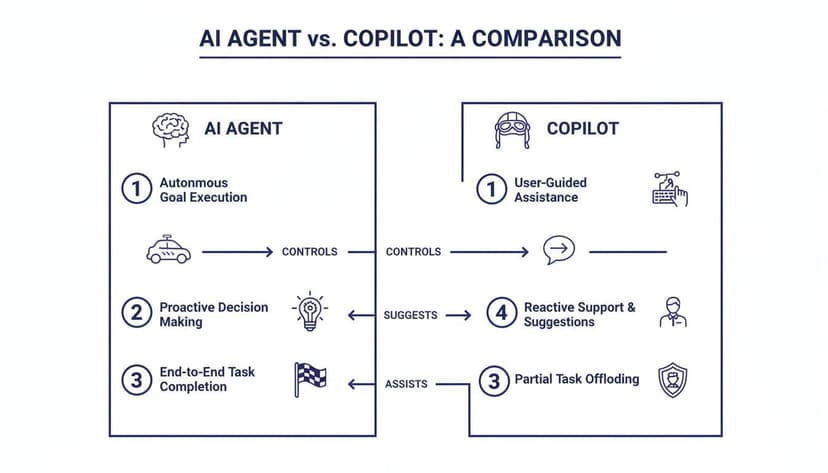
An agent can see the entire board and plan multiple moves ahead, while a copilot just helps you make the next move.
3. The AI Builds and Executes a Plan
This is where the real intelligence comes into play. The agent’s underlying Large Language Model (LLM) instantly creates a multi-step action plan to achieve your goal.
For our sales data example, the plan might look something like this:
- Step 1: Insert a new column named "Profit Margin."
- Step 2: Apply the formula
=([Sale Price] - [Cost]) / [Sale Price]to calculate the margin for every single row. - Step 3: Sort the entire table by the new "Profit Margin" column, from highest to lowest.
- Step 4: Filter the data to show only the top 5 rows.
- Step 5: Generate a new bar chart visualizing the product names and their margins.
The agent then carries out this entire sequence on its own, right in your workbook.
4. Your Finished Work Appears Instantly
In just a few moments, your spreadsheet is transformed. The calculations are done, the data is sorted, and a polished chart is sitting right there on your sheet, ready for your presentation. If it’s not quite perfect, you can simply ask for a change, like “Now, show me the bottom 5 products instead” or “Highlight any margins below 10% in red.”
You can get a better sense of the experience by seeing a real-world Excel AI tool in action.
This kind of accessible, powerful AI is why the market is expanding so quickly. The global market for AI Agents Frameworks was valued at USD 4,566 million in 2024 and is projected to explode to USD 49,140 million by 2034. This incredible growth shows just how much demand there is for bringing advanced AI out of the lab and into the tools we use every day, like Microsoft Excel. You can read more about this fast-growing market in the full market intelligence report.
4. The 3 Most Practical Use Cases for an AI Agent
Okay, the theory sounds great, but what does an AI agent actually do in a real spreadsheet? This isn't just about getting a quick formula suggestion. It's about giving the agent a complex goal and watching it execute a whole series of steps that would have eaten up your morning.
Here are 3 real-world examples of how people are using these agents to solve tedious problems and get hours back in their day.
1. Automated Data Cleaning
We've all been there. You get a data dump from your CRM or another system, and it's an absolute disaster. It's filled with inconsistent formatting, extra spaces, and duplicate rows. Manually cleaning it is one of the most mind-numbing tasks in Excel.
- The Scenario: A marketing team just exported 5,000 leads. The file is a mess—it has duplicate entries, random blank rows, and names and cities with jumbled capitalization.
- The Prompt: "Clean this data. Get rid of all duplicate and blank rows. Then, standardize the capitalization for the 'First Name' and 'City' columns so they look professional."
- The Result: The agent executes the entire workflow in seconds. A task that could have easily taken an hour of manual filtering and writing formulas like
=TRIM()and=PROPER()is done instantly.
2. Instant Financial Report Generation
Building a monthly financial summary from a list of raw transactions is a classic, multi-step headache. You have to sort everything, create subtotals for different categories, add up the totals, and then format it all into a clean, readable report.
- The Scenario: A small business owner has a spreadsheet with hundreds of individual transactions, each tagged with a date, category, and amount. They need to turn this raw data into a simple profit and loss (P&L) statement.
- The Prompt: "Create a monthly P&L report from this transaction data. Sum the totals for each category like 'Revenue,' 'Marketing,' and 'Salaries,' and then calculate the net profit. Format the final report professionally."
- The Result: The agent instantly builds a new, perfectly formatted table that summarizes all income and expenses, with a final net profit figure. A 45-minute chore becomes a 10-second request. For anyone wanting to level up their data skills, checking out an Excel AI tool is a great place to start.
3. Advanced Formula Application at Scale
Even experienced Excel users can find complex formulas tricky to write and debug, especially when applying them across thousands of rows. An AI agent handles this flawlessly. Consider the XLOOKUP function, a powerful tool for finding data.
- The Scenario: A logistics coordinator has two large tables. They need to pull the shipping status for 10,000 orders from a "Status" sheet into their main "Orders" sheet using the "Order ID" as the key.
- The Prompt: "In the 'Orders' sheet, create a new 'Status' column. Use the 'Order ID' to look up and pull in the matching shipping status from the 'Status' sheet."
- The Result & Formula: The agent writes and applies the correct formula to all 10,000 rows. The formula would look something like this:
=XLOOKUP([@[Order ID]], Status!A:A, Status!B:B, "Not Found")[@[Order ID]]: The value to look for (the order ID in the current row).Status!A:A: The column where the agent should look for the Order ID (on the Status sheet).Status!B:B: The column from which to return the corresponding value (the shipping status)."Not Found": What to display if no match is found.
This not only saves a huge amount of time but also prevents small, hard-to-spot errors.
5. ElyxAI: A Real Excel AI Agent in Action

It’s one thing to talk about what an AI agent is, but seeing one work is where it all clicks. So let's move from theory to a real-world scenario and see how a tool like ElyxAI actually operates as a true autonomous agent right inside your spreadsheet. This is what it looks like when the concept becomes a practical tool you can use every day.
Think about a common task: you've just exported a messy sheet of raw sales data. Your end goal is a clean, multi-step analysis that would normally take a good chunk of your afternoon.
From a Single Prompt to a Finished Report
With an AI agent, you don’t have to manually click through each step. You just give it one clear instruction in plain English, describing what you want the final result to be.
For example, you could tell ElyxAI:
"Take this raw sales data. Remove duplicates, create a new column for profit margin, build a pivot table showing sales by region, and format the report professionally."
Once you hit "Enter," you've kicked off an autonomous workflow. ElyxAI doesn't stop to ask you how to remove duplicates or what formula to use. It understands the entire sequence and gets to work, executing each step one after another—all within your active worksheet.
You're no longer doing the manual labor; you're simply providing the high-level direction and watching the agent carry it out.
How ElyxAI Executes the Plan
Behind the scenes, the agent follows a logical plan, much like a seasoned data analyst would. Here’s a simple breakdown of how it handles that request:
- Reads and Understands: First, ElyxAI scans your data to get its bearings. It identifies columns like "Sale Price" and "Cost" so it knows what it's working with. This all happens locally on your machine.
- Sequential Execution: It then starts tackling the to-do list you gave it. It finds and deletes duplicate rows, then inserts a new column for "Profit Margin" and correctly applies the formula
=(Sale Price - Cost) / Sale Priceall the way down. - Builds and Formats: With the clean data ready, it builds a brand-new pivot table to summarize sales by region. As a final touch, it applies professional formatting, making the report easy to read and ready for a presentation.
Perhaps the most important part of this whole process is its privacy-first design. Your sensitive spreadsheet data never leaves your computer. Only the text from your prompt is sent to be processed. This is a non-negotiable feature for anyone working with confidential information and is what makes ElyxAI a truly practical and secure Excel AI agent.
6. How to Get Started With Your First Excel AI Agent in 2 Steps
So, you're ready to see what an Excel AI agent can do and finally ditch all that manual grunt work? The good news is that getting started is much easier than you probably think. You don't need to be a tech wizard to go from curious reader to active user in just a few minutes.
1. Find and Install Your Agent via Microsoft AppSource
Your first stop should be the official Microsoft AppSource, which is basically Microsoft's own app store for tools that work with Office 365. Grabbing an add-in from here is the safest bet, as you know it’s been checked for security and will play nicely with Excel.
Just head over to AppSource and search for an Excel AI agent like ElyxAI. The installation itself is usually a quick, two-minute process that adds the agent's icon directly to your Excel ribbon. No complex setup, no fuss. If you want a more detailed guide, we've put together a full walkthrough on how to install an Excel AI add-in.
2. Craft Your First Effective Prompt
Once it's installed, click the icon to open a chat window. This is where the magic happens—telling the agent what you need. The trick to getting amazing results is being crystal clear about your goal. Simply saying "analyze my data" is too vague. Instead, tell it what the finished product should look like.
For your first try, be specific. Here are a few ideas:
- For cleaning data: "Remove all the blank rows and any duplicate entries from this list."
- For quick analysis: "Calculate the average sale amount for each month in this sheet."
- For building a report: "Create a pivot table that shows total sales for each salesperson."
Think of it like you're giving instructions to a new, incredibly fast assistant. The clearer you are about the end goal, the better and faster the AI can give you exactly what you're looking for.
Most of the top agents, including ElyxAI, offer a free trial without requiring a credit card. This is the perfect way to test out all the features and see the benefits for yourself with zero risk. It’s a great opportunity to experience firsthand how much time you can get back.
Ready to see how an autonomous AI agent can genuinely change your daily grind in Excel? See how Elyx AI handles complex requests with a single command, saving users hours every week. Start your free trial today at getelyxai.com.
Reading Excel tutorials to save time?
What if an AI did the work for you?
Describe what you need, Elyx executes it in Excel.
Sign up