7 Ways AI Excel Automation Can Transform Your Workflow

Picture this: your work week, but without the hours spent wrestling with messy data, fighting with pivot tables, or desperately searching for the right formula. With AI Excel automation, this isn't some far-off dream. It's happening right now, completely changing how we work with spreadsheets. Think of modern AI add-ins as a smart assistant sitting next to you, ready to turn your plain English commands into finished tasks.

Stop Wasting Time on Repetitive Excel Tasks
If you’ve ever felt a huge chunk of your day vanishes into the black hole of repetitive Excel work, you're definitely not alone. The real problem for most of us is the sheer amount of time we spend on manual data prep instead of actual, meaningful analysis.
Spending too much time on Excel?
Elyx AI generates your formulas and automates your tasks in seconds.
Sign up →Tasks like removing duplicates, standardizing formats, and building reports from scratch eat up hours that could be spent making smart decisions.
This is exactly where AI automation tools like Elyx AI step in. They act like an expert colleague who understands your goal and just gets it done—instantly. Instead of clicking through a dozen steps yourself, the AI handles the entire workflow for you.
The True Cost of Manual Excel Work
That time drain isn't just an annoyance; it has a real impact on the bottom line. Every hour spent on a task an AI could finish in seconds is an hour you didn't spend on high-value work like forecasting, talking to clients, or big-picture planning. The whole point of AI assistance is to get rid of that friction.
This isn't a niche trend, either. The AI automation market is set to grow to an incredible USD 1,144.83 billion by 2033, according to research from Grand View Research. That kind of growth is fueled by massive adoption—a stunning 88% of organizations are already using AI in some part of their business.
With AI automation, your focus shifts from how to do something in Excel to what you want to achieve. This simple change empowers you to reclaim hours each week, transforming Excel from a chore into a powerful strategic ally.
This guide will show you exactly how to make that happen. We'll walk through practical applications, from automated reporting to instant data visualizations, giving you the skills to make AI work for you. If you're looking for a quick fix, you might also want to check out our article on getting instant Excel AI help.
Manual Effort vs AI-Powered Excel Automation
To put this in perspective, let's look at the real-world time savings. I’ve put together a quick comparison based on common tasks I see people struggling with every day. The difference is night and day.
| Task | Manual Effort (Estimated Time) | With AI Automation (Estimated Time) | Time Saved |
|---|---|---|---|
| Data Cleaning (duplicates, formatting) | 30-60 minutes | 1-2 minutes | ~95% |
| Creating a Pivot Table & Chart | 10-15 minutes | < 1 minute | ~90% |
| Writing Complex Formulas (VLOOKUP, etc.) | 5-20 minutes | < 1 minute | ~95% |
| Generating a Summary Report | 1-2 hours | 5-10 minutes | ~90% |
The numbers speak for themselves. The cumulative time saved across a week or a month is substantial, freeing you up to focus on work that truly matters.
Getting Started with AI Automation in Excel
Jumping into AI for Excel might sound complicated, but it's actually much simpler than you think. The biggest step isn't learning to code or memorizing formulas; it’s just picking the right tool and getting it installed, which is both quick and secure.
You can grab a trusted add-in like Elyx AI right from the official Microsoft AppSource. The whole process takes less than two minutes. It just slots right into your Excel ribbon, feeling like it was always meant to be there.
But installing it is the easy part. Where this really changes your workday is when you start giving it tasks. You don't need to be an Excel guru. The entire point of AI Excel automation is that it understands plain English, turning your goals into results without you ever having to write a formula.
Your First AI-Powered Task
Let's walk through a common headache. Picture a messy sales sheet you just downloaded—it's got inconsistent dates, blank rows scattered everywhere, and duplicate orders clogging it up. Cleaning that by hand would take forever.
Instead, just pop open the AI add-in and tell it what data to work on by highlighting the cells. Then, you simply type what you want to happen.
Prompt Example: "Clean this data. Remove all duplicate rows based on the 'Order ID' column. Then, delete any rows that are completely blank. Finally, format the 'Sale Date' column to DD-MM-YYYY format."
In seconds, the AI gets it done. It runs through the whole process that would’ve required you to mess with filters, the "Remove Duplicates" tool, and the "Format Cells" dialog box. This is where you see the real power: you stop worrying about the how and just focus on the what. For more ideas on getting started, our complete Excel AI for beginners guide has some great extra tips.
Security and Privacy from the Start
Of course, you’re probably wondering if your data is safe. It's a fair question, especially with sensitive information. A well-built AI tool is designed with privacy as a top priority.
The best add-ins are built to ensure your spreadsheet data never actually leaves your computer.
- Only your plain-text instructions (your prompt) are sent to the AI model.
- The AI sends back a set of instructions, which your local copy of Excel then executes.
- Your spreadsheet file is never uploaded, stored, or used to train any models.
This setup gives you enterprise-grade security from the get-go. While most of us can get everything we need from a secure add-in, some projects require a totally custom-built solution. In those rare cases, you might need to hire python developers to create bespoke tools and AI models. For day-to-day Excel work, though, a good add-in is all the firepower you need.
How to Automate a Full Workflow with a Single Prompt
Running one-off AI commands is helpful, but the real time-saver is when you get AI to handle an entire workflow from start to finish. This is where it stops being just a tool and starts feeling like a capable assistant—one that can take a high-level goal and just get it done.
You don’t need a complicated process. It really boils down to three simple stages: install the tool, write a clear prompt, and get the finished result.
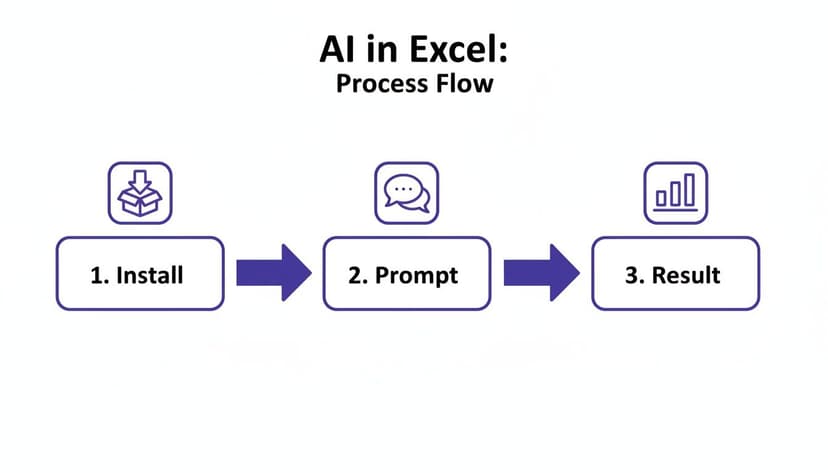
This simple flow is what makes it so powerful. You provide the instructions, and the AI handles all the tedious clicking, formula writing, and formatting for you.
From Messy Data to Polished Report
We’ve all been there. You get a raw data export, and it's a mess. It's full of blank rows, has duplicate entries from a system glitch, and your boss wants a professional-looking summary in the next hour. Doing that by hand is a classic time sink.
With an AI add-in like Elyx AI, you can tackle that entire sequence with one single request.
Prompt Example: "Clean this raw sales data by removing duplicates and blank rows, then create a pivot table showing sales by region and product category. Next, generate a bar chart from the results and format the report using our company's blue and gray color scheme."
This is the kind of multi-step task that would normally have you jumping between different tabs and features in Excel. For the AI, it's just a logical sequence of commands.
How the AI Executes the Workflow
When you send that prompt, the AI doesn't just see a jumble of words. It intelligently maps out an action plan and gets to work, right inside your spreadsheet.
First, it tackles the data cleaning. It scans the sheet, zaps any completely empty rows, and then hunts down and removes duplicate entries to make sure your numbers are accurate.
Next comes the analysis. The AI builds a pivot table from your newly cleaned data, correctly placing 'Region' and 'Product Category' where they need to go and summing the 'Sales' figures.
Then, it creates the visualization. It knows a bar chart is the best way to compare those sales categories, so it generates one based on the pivot table.
Finally, it handles the formatting. The AI applies the 'blue and gray' colors you asked for, giving you a polished report that’s ready to share. No more fiddling with chart colors and table styles.
This is exactly why the intelligent automation market is taking off. Companies are quickly realizing how much time can be saved by automating this kind of repetitive work. Elyx AI is a perfect example, with over 700+ financial analysts and controllers using it to save 3+ hours every week.
For more ideas on what you can offload to AI, check out our guide on automating repetitive tasks in Excel.
7 Essential AI Prompts for Financial and Data Analysts
The video below gives a great overview of what's possible, but getting great results from an AI assistant in Excel all comes down to one thing: how you ask.
Think of it like giving instructions to a new junior analyst. If you're vague, you get vague results. But if you're crystal clear about the data, the context, and exactly what you want to see, you get back something precise and immediately useful. This is the secret to making AI Excel automation actually work for you.
I've put together seven of my go-to prompts that I use all the time with tools like Elyx AI. You can copy and paste them directly to start saving yourself hours on common finance and data tasks.
And it’s not just us—this shift is happening everywhere. The generative AI market is on a rocket ship, expected to hit USD 91.57 billion by 2026 and potentially USD 400 billion by 2030. It's no wonder that 88% of organizations are already using AI in some capacity, especially in finance. If you're interested in the numbers behind this boom, you can read the full generative AI research here.
3 Prompts for Data Cleaning and Financial Reporting
Let's start with the basics. These first three prompts are designed to handle the foundational work—getting your data clean and pulling together standard reports.
Data Cleaning and Standardization
Clean the data in range A1:G500. Remove any duplicate rows based on 'Invoice ID'. Fill any blank cells in the 'Amount' column with 0. Standardize the 'Date' column to MM/DD/YYYY format.
Monthly Financial Summary Report
Using the transaction data in the 'Transactions' sheet, create a summary report on a new sheet named 'Monthly Summary'. Calculate total revenue, total expenses, and net profit for last month. Present these three key metrics at the top, then add a table breaking down expenses by category.
Sales Trend Analysis and Forecasting
Analyze the monthly sales data in range A1:B36. Identify the year-over-year growth rate. Then, generate a simple linear forecast for the next six months. Present the results in a new sheet with the historical data, the forecast data, and a line chart visualizing both.
4 Prompts for Deeper Analysis and Dashboards
Once your data is in good shape, you can move on to the more interesting stuff. These next prompts tackle more complex analysis, segmentation, and building out dashboards.
For those looking to take this even further, we have a complete guide on using Excel and AI for financial modeling that you might find helpful.
Customer Segmentation Analysis
Segment the customers in the 'Customer Data' sheet into three groups based on 'Total Spend' and 'Purchase Frequency': High-Value, Mid-Value, and Low-Value. Create a new column named 'Customer Segment' and label each customer accordingly. Then create a pie chart showing the percentage of customers in each segment.
Project KPI Dashboard Creation
Create a simple KPI dashboard on a new sheet. From the 'Projects' tab, calculate and display these three metrics: 'Overall Project Completion %', 'Number of On-Time Projects', and 'Average Budget Overrun %'. Use clear headings and a clean design for each KPI.
Budget vs. Actuals Variance Analysis
Compare the 'Budget' and 'Actuals' columns in the 'Finance' sheet. Calculate the variance and the variance percentage for each line item. Add two new columns for these calculations. Use conditional formatting to highlight any negative variance in red.
ROI Calculation for Marketing Campaigns
Let's tackle a common task for marketers and financial analysts. Imagine you have a sheet with campaign costs and the sales generated. To calculate the Return on Investment (ROI), you would traditionally use a formula.Here is an example prompt you can use:
From the data in the 'Campaigns' sheet, calculate the Return on Investment (ROI) for each marketing campaign. The formula is
=(Sales - Cost) / Cost. Create a new column named 'ROI' and format it as a percentage. Finally, create a bar chart that ranks the campaigns from highest to lowest ROI.Formula Explanation:
(Sales - Cost): This calculates the net profit from the campaign. For a row, it would be(C2 - B2)if Sales are in column C and Cost is in column B./ Cost: This divides the net profit by the initial investment (Cost).- The full formula for a single cell, like D2, would be
= (C2 - B2) / B2. The AI will apply this logic to the entire column for you.
How to Measure Your Return on Investment in 3 Steps
Let's be honest: a new tool is only worth your time if it actually makes a difference. When you start using AI for your Excel work, you're not just looking to shave off a few minutes here and there. You're looking for a real, measurable boost to your productivity and, ultimately, the company's bottom line. But how do you prove it?
It’s not as complicated as it sounds. I’ve found it helps to build your business case by focusing on three specific areas where AI really pays off. This simple framework will help you calculate the return on investment (ROI) for yourself or your entire team.
Step 1: Calculate the Value of Time Saved
The most direct and easiest metric to track is the time you get back. It's the most obvious win. From what I’ve seen, professionals using tools like Elyx AI consistently save 3+ hours per week. To put a dollar amount on that, you just need to figure out the monetary value of that saved time.
First, you’ll need an employee’s hourly rate. Let’s take a simple example: an analyst earning an $80,000 salary is making roughly $40 per hour.
Here’s how the math breaks down:
- Weekly Time Saved: 3 hours
- Hourly Rate: $40
- Weekly Savings per Employee: 3 hours × $40/hour = $120
- Annual Savings per Employee: $120/week × 52 weeks = $6,240
That's a clear financial gain from just one person. Now, imagine scaling that across a small team of five. The annual savings suddenly jump to over $31,000, which more than justifies the cost of any AI tool.
Step 2: Quantify the Cost of Error Reduction
We’ve all been there—staring at a massive spreadsheet, trying to find that one mistake. Manual data entry and writing complex formulas are breeding grounds for human error. A single misplaced decimal or a buggy VLOOKUP can derail an entire report, leading to bad decisions that have real financial consequences.
By automating tasks like data cleaning, formatting, and analysis, you're not just working faster—you're working smarter and safer. This dramatically cuts down the risk of manual mistakes, which in turn prevents costly rework and bad strategies based on faulty numbers.
Think about how much time is wasted just hunting for errors. AI automation essentially acts as a built-in quality control system, giving you more accurate and consistent results every single time. While it's harder to put a precise number on this, the value of improved data integrity is massive.
Step 3: Recognize the Value of Increased Analytical Capacity
This is where things get really interesting. The biggest benefit—though the hardest to measure directly—is the mental shift from doing tedious work to thinking strategically. When you’re no longer buried in repetitive tasks, you free up brainpower for the high-value analysis that actually moves the needle.
Instead of just prepping data, you can finally focus on:
- Spotting new trends before anyone else.
- Building more accurate sales and budget forecasts.
- Answering those big-picture business questions that you never had time to tackle before.
This changes your role from a "data mechanic" to a strategic partner for the business. While you can find many strategies for cost reduction, one of the best is simply letting your team focus on work that generates revenue, not just reports. The value here isn’t just in the hours saved, but in the new opportunities and insights you bring to the table.
Of course. Here is the rewritten section, designed to sound like it was written by an experienced human expert.
4 Common Questions About AI in Excel
When I talk to people about using AI for Excel, a few questions always come up. The idea sounds great, but you need to know it's secure, practical, and actually better than the old way of doing things. Let's get into the most common concerns I hear.
1. Is My Data Safe When Using an AI Excel Add-in?
This is the big one, and rightly so. The short answer is yes, as long as you use a privacy-focused tool. With an add-in like Elyx AI, your spreadsheet data is completely secure because it never leaves your computer.
Here’s the simple breakdown: the add-in only sends your text instructions—your prompt—to the AI. The AI figures out the steps and sends those instructions back to your computer, where Excel does all the work. Your actual file is never uploaded or stored anywhere else. All that back-and-forth communication is also locked down with AES-256 encryption.
A good rule of thumb is to always stick with official add-ins from the Microsoft AppSource. This means Microsoft has already vetted the tool for security and compliance, so you can be confident your sensitive client or financial data is staying put.
2. How Is This Different From Using Microsoft Copilot or ChatGPT?
The difference boils down to execution versus explanation. When you ask ChatGPT or Microsoft Copilot for help with Excel, they usually explain what to do. They might give you a complex formula to copy-paste or a list of manual steps to follow, but you’re still the one doing the work.
An agentic AI tool like Elyx AI is built differently. It executes the entire task for you.
Think of it this way:
- ChatGPT/Copilot: Tells you how to create a pivot table from your sales data.
- Elyx AI: You ask for a sales report, and it actually builds the pivot table, creates a chart from it, and formats the whole thing for you.
It's the difference between a coach drawing up a play and a star player who just goes out and scores the goal.
3. What Kind of Excel Skills Do I Need?
This is the best part: you barely need any. These tools are designed to close the gap between what you want to do and your technical know-how. You don't have to be a wizard with VLOOKUP, INDEX/MATCH, or pivot table settings anymore.
All you need is the ability to clearly describe your goal in plain English. If you can explain what you need to a coworker, you can use an AI automation tool. This opens the door for everyone on your team—beginners can suddenly run advanced analyses, and Excel pros can finally automate their most mind-numbing tasks.
4. Can the AI Handle Very Large or Complex Datasets?
Yes, absolutely. The AI models these tools run on are more than capable of handling complexity. For example, Elyx AI uses a model called Claude 3.5 Sonnet, which is great at understanding the structure and context of huge datasets with tens of thousands of rows.
Since the AI just sends instructions and your computer does the heavy lifting, performance really depends on your machine and Excel's own limitations. For most business scenarios, the AI can chew through tasks that would take a person hours, like cleaning up thousands of messy cells or finding patterns you might have missed.
Ready to stop wasting time on repetitive Excel tasks and start focusing on what matters? Elyx AI acts as your autonomous expert, handling everything from data cleaning to report generation with a single command. Start your free 7-day trial today and reclaim hours of your week.
Reading Excel tutorials to save time?
What if an AI did the work for you?
Describe what you need, Elyx executes it in Excel.
Sign up