11 Ways to Get Excel AI Help and Save Hours Weekly

Let's be honest—we've all been there. Staring at a massive, messy spreadsheet, knowing you're about to lose hours of your day to mind-numbing manual work. Getting Excel AI help is about changing that story. It means bringing artificial intelligence right into your worksheet to handle the tedious stuff for you, like cleaning up data, writing formulas, and building reports.
This way, you can stop being a data janitor and start being a data analyst. You leave with new skills and practical solutions, not just superficial text.
Why You Need Excel AI Help in 2026

Spending too much time on Excel?
Elyx AI generates your formulas and automates your tasks in seconds.
Sign up →The days of wrestling with VLOOKUPs and manually formatting every single cell are quickly coming to an end. Excel is still the king, but how we use it is fundamentally changing. The real bottleneck for most of us isn't a lack of data; it's the sheer lack of time to figure out what it all means.
This is where AI stops being a "nice-to-have" and becomes a critical part of your workflow. It directly attacks the most common productivity killers that lead to burnout and costly mistakes.
- Endless Data Cleaning: I’ve seen people spend 80% of their time just fixing typos, deleting duplicates, and trying to get dates into a single, consistent format. It's a soul-crushing but necessary evil.
- Formula Wizardry: Crafting the perfect nested formula with
INDEXandMATCHoften feels like a guessing game. You know what you want to do, but getting Excel to cooperate can be a frustrating exercise in trial and error. - Repetitive Reporting: If you've ever had to build the same weekly or monthly report from scratch, you know how monotonous it is. Creating pivot tables, tweaking charts, and applying branding feels like Groundhog Day.
The real win here is reclaiming your time for strategic work. Instead of getting stuck on "How do I build this pivot table?" you can finally start asking, "What is this data telling me about the business?"
The Undeniable Power of AI in Excel
Excel isn’t going anywhere. With over 1.2 billion users worldwide in 2026, it's the undisputed champion for everything from simple lists to complex financial models. What's changing is that AI is turning it into a genuine powerhouse for analysis.
The market reflects this shift. The global data analytics software market, which Excel practically owns, was valued at $60.5 billion in 2025 and is projected to hit an incredible $143.1 billion by 2035. This trend is especially pronounced in finance, where the ongoing AI Banking Revolution shows how machine learning is becoming essential.
To really see the difference, let’s compare the old way with the new way.
A Practical Comparison: Manual Methods vs. AI Solutions
This table shows the real-world difference between traditional Excel work and using an AI-powered solution like ElyxAI, highlighting the impact on time, accuracy, and complexity.
| Task | Manual Excel Method | Time Spent | AI-Powered Method (with ElyxAI) | Time Spent |
|---|---|---|---|---|
| Standardizing 5,000 Addresses | Using TRIM, PROPER, and complex TEXTSPLIT formulas. Manually fixing what the formulas miss. |
2-3 hours | Prompt: "Standardize all addresses in column C to 'Street, City' format." | < 2 minutes |
| Generating a Sales Summary | Create multiple SUMIF formulas, build a PivotTable from scratch, create a chart, and format the report. |
30-45 mins | Prompt: "Summarize sales by region and create a bar chart." | < 1 minute |
| Finding Duplicate Customer IDs | Use Conditional Formatting to highlight duplicates, then manually filter and delete the extra rows, risking errors. | 15-20 mins | Prompt: "Find and remove all duplicate rows based on Customer ID." | < 30 seconds |
The numbers speak for themselves. The time savings are massive, but it's also about reducing the mental load and the risk of human error.
Ultimately, integrating AI into your spreadsheets is about making a crucial career shift: moving from being an Excel operator to becoming a true Excel analyst. Adopting AI assistance is no longer optional—it's what will keep you efficient and competitive.
If you're wondering where to start, our guide on which AI can do Excel tasks for you is a great next step.
3 Ways People Use Standalone AI (Like ChatGPT) for Excel
When you think of getting AI help for Excel, your first thought is probably ChatGPT. It's become the go-to for millions, and a lot of us who are deep in spreadsheets have turned to it for a hand. Even though it's not built into Excel, using an external AI tool often feels like having a formula expert sitting right next to you, ready to tackle whatever you throw at it.
But here's a fascinating insight from a recent Acuity Training survey: there's a huge gap in awareness. While an impressive 63% of advanced Excel users have already brought AI into their workflow—with 59% of them choosing ChatGPT—only 41% of all users even know this is possible. For beginners, that number plummets to just 20%. It shows just how many people are still missing out.
So, how are people actually using these tools to solve concrete problems? I've seen three main approaches pop up again and again. Let's walk through them, along with the very real limitations you'll hit.
1. Generating Complex Formulas
This is the most common starting point. Instead of spending twenty minutes trying to remember how to nest three different functions, you can just describe the problem in plain English.
For example, say you need to classify sales amounts in column D into "High," "Medium," or "Low." You might ask ChatGPT:
"Give me an Excel formula that returns 'High' if the value in D2 is over 1000, 'Medium' if it's between 500 and 1000, and 'Low' if it's under 500."
The AI will generate the formula:=IF(D2>1000, "High", IF(D2>=500, "Medium", "Low"))
Explanation:
IF(D2>1000, "High", ...): This first part checks if the value in cell D2 is greater than 1000. If it is, it returns "High".... IF(D2>=500, "Medium", "Low")): If the first condition is false, this nestedIFfunction checks if the value in D2 is greater than or equal to 500. If true, it returns "Medium". If false, it returns "Low".
This is fantastic for solving one-off headaches or for finally learning the proper syntax for a function you’ve been avoiding.
2. Getting Step-by-Step Instructions
Sometimes a single formula isn't enough—you need the whole recipe. This is where you can ask an AI to act as a personal tutor, walking you through a multi-step process.
You could try a prompt like: "Explain how to create a pivot table in Excel that shows sales by region and month, and then tell me how to add a slicer to filter by salesperson." The AI will break it all down into simple, manageable steps. It’s like having a guide lead you through the Excel menus without having to hunt for the right buttons yourself. If you're just getting started with this, our beginner's guide on using ChatGPT for Excel is a great next read.
3. Brainstorming VBA Scripts
When you have a repetitive task that formulas just can't handle, Visual Basic for Applications (VBA) is your answer. But let's be honest, writing scripts can feel intimidating. This is where a standalone AI can be a great brainstorming partner.
You can ask it to generate code for a specific workflow. Something like, "Write a VBA script that loops through all worksheets in my workbook, unhides them, and then prints each one to a separate PDF." The AI provides the code, which you can then tweak and drop into the VBA editor. Just like that, a tedious manual process becomes a one-click job.
The Major Downside: Here's the catch with all of this—it's clunky. You’re constantly jumping between your browser and Excel, copying and pasting prompts and answers. It breaks your focus. Plus, these external tools can't see or interact with your data directly, which creates a huge privacy concern if you're tempted to upload any sensitive information.
3 Built-In Microsoft Excel AI Features You Already Have
While dedicated AI add-ins can definitely take your spreadsheets to the next level, you might be sitting on some powerful Excel AI help already. Microsoft has quietly slipped some smart features right into the Home tab, giving you quick wins on common data tasks without installing a thing.
It's surprising how many people I see miss these tools. Once you know where to look, you can start saving a ton of time. Let's dig into three of these built-in helpers you can use right now to change how you handle your data.
1. Analyze Data for Instant Insights
This is probably the most powerful—and most overlooked—AI feature baked into Excel. You can find Analyze Data on the Home tab, and it basically works like a data analyst on-call. With just one click, it scans your data and suggests pivot tables, charts, and key trends you might have otherwise missed.
Let's say you're looking at a table of monthly sales with columns for Region, Product, Salesperson, and Total Sales. Instead of wrestling with pivot tables from scratch, you can just:
- Click anywhere inside your data.
- Hit the Analyze Data button on the Home ribbon.
- Instantly, a panel pops up with ready-made charts and summaries, like "Sales by Region" or "Count of Products with the highest sales."
You can even ask it questions in plain English. Try typing "top 5 salespeople by total sales," and it will build the chart or table for you on the spot. It’s perfect for getting a quick feel for your numbers.
I always use Analyze Data as my first step. You can go from a raw spreadsheet to a dashboard of insights in less than a minute. It’s the best way to get a high-level overview before you start a deeper analysis.
2. Flash Fill for Intelligent Data Parsing
How many hours have you wasted splitting or combining data? Think about taking a column of full names and trying to break it into First Name and Last Name columns. Flash Fill makes that kind of tedious work a thing of the past by spotting patterns and doing the heavy lifting for you.
Here’s a classic example of how it works:
- Imagine column A has a list of company email addresses, like
[email protected]. - In the next column, you just want the username (
john.doe). So, in the first empty cell (B2), you manually type "john.doe". - As soon as you start typing the next username in cell B3, Flash Fill jumps in, recognizes what you're doing, and shows a grayed-out preview of all the other usernames.
- Just hit Enter, and the whole column fills in. No more fighting with
LEFT,RIGHT, orFINDformulas.
This is your go-to for all sorts of data cleaning and formatting jobs that used to be a real headache.
3. Forecast Sheet for Trend Prediction
Every business needs to look ahead, but forecasting often feels like it requires a statistics degree. Excel’s Forecast Sheet tool, found on the Data tab, makes it much more accessible. It uses the reliable Exponential Smoothing (ETS) algorithm to project future values based on your past data.
If you have time-based data, like monthly sales figures, the Forecast Sheet can generate a new worksheet in seconds. This sheet will include a table of predicted values along with a chart that clearly shows your historical data, the forecast itself, and the confidence intervals. It's a fantastic way to quickly get sales projections or figure out future inventory needs without getting lost in complex models.
5 Ways an AI Add-In Can Automate Your Entire Workflow
While Excel's built-in features and other standalone AI tools can certainly give you a hand, the real productivity leap happens when you bring an integrated solution into the mix. Think of a dedicated AI add-in, like ElyxAI, less as a separate tool and more like an expert analyst sitting right inside your spreadsheet.
Instead of just spitting out formulas or giving you step-by-step instructions, it does the heavy lifting for you. This is a game-changer. Suddenly, you can hand off entire task sequences that used to eat up an hour or more of your day. Let's look at five common workflows that an AI add-in can completely automate.
1. Cleaning Up Complex Data with a Single Command
Let's be honest: messy data is the biggest time-drain for just about anyone who uses Excel. An AI add-in is brilliant at understanding plain-English instructions to fix inconsistent entries, get rid of duplicates, and standardize formats across thousands of rows in an instant.
Imagine you're handed a sales report with jumbled addresses, mixed-up dates, and extra spaces everywhere. Instead of wrestling with a dozen different functions, you can just tell the AI: "Clean this sales data, standardize all dates to MM/DD/YYYY, and format the addresses to 'Street, City, State'." The AI takes it from there, saving you from having to touch a single TRIM, PROPER, or TEXTSPLIT formula.
2. Generating Complex Formulas You Don’t Have to Write
Ever spent 20 minutes staring at your screen, trying to get an INDEX, MATCH, and IFERROR combination to work just right? With an AI assistant, that frustration is a thing of the past. It can build those tricky, multi-layered formulas just from you describing your goal.
For a practical example, let's say you have a table of products and want to find the price of a specific item from a separate price list. You could use this formula:=XLOOKUP(B2, PriceList!A:A, PriceList!B:B, "Not Found")
Explanation:
XLOOKUP(...): A modern and flexible lookup function.B2: The value you're looking for (e.g., a Product ID).PriceList!A:A: The column where you're searching for the Product ID (on the 'PriceList' sheet).PriceList!B:B: The column from which to return a value (the price)."Not Found": The text to display if no match is found.
With an AI add-in, you simply type: "Create a formula that looks up the sales price for the Product ID in column B from the 'PriceList' sheet." The AI not only generates the formula but can place it directly into the correct cell and autofill it for you.
This shift turns you from a formula writer into a results director. You focus on the 'what,' and the AI handles the 'how'—a massive leap in efficiency.
3. Building Pivot Tables and Charts from a Simple Description
Creating reports often feels like a repetitive chore: make a pivot table, adjust it, create a chart, tweak it, repeat. A true AI agent automates this whole dance. You just describe the report you have in mind, and it will build all the pieces for you.
The process of turning raw data into clear, visual insights is exactly what these tools are designed for.
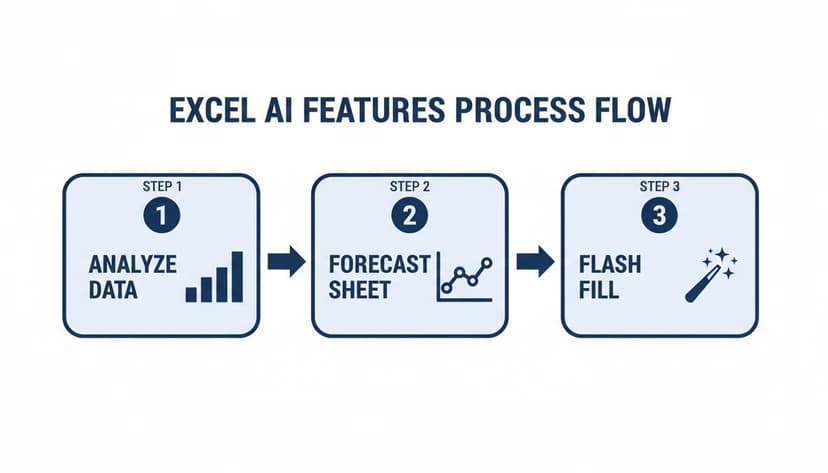
Think of native features like Analyze Data or Forecast Sheet as the building blocks. A fully integrated AI add-in takes these concepts and puts them on steroids, creating comprehensive reports all on its own.
4. Applying Professional Formatting Instantly
A clean, polished report isn't just about looks—it’s about credibility and readability. But who has time to manually apply brand colors, resize every column, and format all the headers? You can delegate all of that to your AI assistant.
Just tell it to, "Format this report with our company brand colors and apply professional table styling," and watch it instantly transform your wall of numbers into a presentation-ready document.
5. Combining All Steps into One Fluid Workflow
This is where the real magic happens. A single, well-crafted prompt can replace an entire hour of manual, step-by-step work. The growth in AI data management is redefining what excel ai help truly means. The market, which was $38.27 billion in 2025, grew to $46.82 billion in 2026 and is expected to hit a staggering $234.95 billion by 2034. ElyxAI is a perfect example of this trend, executing complex, multi-step tasks from a single instruction. You can read more about the future of AI data management to see where this is all heading.
For instance, you could give your AI a complete workflow instruction like this:
"Analyze this sales data. Remove duplicates based on Order ID, create a pivot table showing total sales by region, generate a bar chart for the results, and format the entire report professionally."
The AI handles every single step for you, in order. If you're ready to see this in action for yourself, our guide on how to install an Excel AI add-in will help you get started.
Is It Safe to Use AI with Your Company’s Excel Data?

Let's be honest. The idea of feeding your company's sensitive data to an AI can be unnerving. When you're looking for Excel AI help, the single most important question you should ask is: where does my data actually go? The answer really separates the secure tools from the risky ones.
The main difference comes down to how the tool is built. Many general-purpose AIs, like ChatGPT, are cloud-based. To use them, you have to upload your data to their servers. This means your private customer lists, financial reports, or internal sales figures are leaving your network, which is a major red flag for any confidential information.
The "Privacy-First" Approach
This is where a dedicated Excel add-in like ElyxAI takes a completely different path. Its entire design is built on one simple, powerful rule: your Excel data stays on your computer. Always.
Think of it as a secure bubble around your spreadsheet. The only thing sent to the AI model is your instruction—the prompt you type in plain English. The AI gets the command, but it never sees the actual data it's working on.
This security-first model means your sensitive information is never uploaded, never stored on a third-party server, and never used to train other AI models. Your financials, customer PII, and company plans stay right where they belong: securely on your machine.
2 Key Trust Signals: Verification and Encryption
Beyond the basic architecture, there are a couple of other things I always look for. A trustworthy AI tool should have some kind of official verification. For example, add-ins that are available on the Microsoft AppSource have been vetted by Microsoft for security and compliance. It’s like a stamp of approval that the tool meets professional standards.
And of course, any communication that does happen (like sending your prompts) needs to be locked down with enterprise-grade encryption. This is non-negotiable for protecting your instructions from being intercepted. If you want to go a step further, it's always a good idea to learn how to encrypt an Excel file for maximum security.
By sticking with a tool that keeps your data local, has official verification, and uses strong encryption, you get all the power of AI without the security headaches. You can get the help you need, fast, while keeping your company's information completely safe.
How to Measure the ROI of Your New AI Assistant
Bringing any new tool into your workflow has to be about more than just a cool new feature. It has to make a real difference. When it comes to Excel AI help, the most immediate return you'll see is on your most valuable resource: your time.
Let's get practical and talk about how you can actually measure the value an AI assistant like ElyxAI brings to your business.
We consistently see users getting back 3+ hours every single week. That's not an exaggeration. It’s the time they used to lose to tedious, repetitive tasks that can now be automated. Think about that for a moment. For a professional earning a standard salary, saving three hours a week translates into a significant financial gain month after month.
A Simple Formula for Calculating Your Time-Based ROI
It’s surprisingly easy to put a number on this. Picture an analyst who spends a good chunk of their day cleaning up messy data, wrestling with VLOOKUPs, or building the same weekly reports from scratch. By handing that work over to an AI, the return becomes crystal clear.
Here's how to run the numbers for your own team:
- Time Saved per Week: 3 hours (a conservative starting point)
- Weeks in a Year: 50 (leaving room for a little time off)
- Total Hours Saved Annually: 3 hours/week × 50 weeks = 150 hours
Now, just attach an hourly rate to that number. Even a modest one shows you're reclaiming thousands of dollars in productivity every year, for just one employee.
This is about more than just the bottom line. It's about shifting your team's focus from mind-numbing manual work to the high-level strategic thinking that actually moves the needle.
3 Hidden Value Benefits Beyond Time
While the time savings are easy to count, some of the most powerful benefits are a little harder to quantify but deliver incredible long-term value.
What else do you gain?
- Fewer Mistakes: An AI doesn't have a "bad day" or make a copy-paste error at 4:45 PM on a Friday. Your data becomes more reliable, which means your decisions are based on solid ground—preventing costly missteps.
- Faster Answers: When you can pull insights from your data in minutes instead of hours, your whole business gets faster. You can react to market shifts or spot internal trends while they still matter.
- A More Strategic Team: Freeing your people from the grind of spreadsheet maintenance isn't just a relief; it's an investment. It empowers them to do what they were hired for: analyze information, find opportunities, and drive growth.
This blend of direct time savings and strategic benefits creates a powerful case for embracing AI in Excel. When you explore different strategies for cost reduction, you'll see how efficiency gains like these have a direct and lasting impact.
3 Frequently Asked Questions About Excel AI Help
It's completely normal to have a few questions before letting AI touch your important spreadsheet data. Let's walk through some of the most common concerns we hear from professionals who are thinking about getting AI help in Excel.
1. Can AI Really Handle Complex and Messy Excel Data?
I get this question all the time, and it’s a fair one. The answer depends on the AI you're using. While basic AI tools might stumble over messy data, more advanced add-ins like ElyxAI are built for exactly this kind of chaos.
They're specifically trained to understand the context of a spreadsheet. This means they can easily spot and remove duplicates, standardize inconsistent formatting, or fill in gaps from a single, simple instruction. Honestly, this is where these tools prove their worth, tackling the tedious data-cleaning tasks that used to eat up hours of our time.
2. Is Using an AI Add-In Secure for My Company’s Financial Data?
This is a big one, and the answer is yes—but only if you choose a tool built with privacy at its core. This is a critical point to understand.
Look for an add-in like ElyxAI that follows a security-first design, where your Excel file and all the data within it never leave your computer.
The only thing sent to the AI model is your plain-text instruction or prompt. Your data stays local. A tool that is officially verified by Microsoft AppSource and uses enterprise-grade encryption is the gold standard, ensuring your sensitive information stays confidential and is never used for training other models.
3. Will I Need to Learn New Formulas or Code to Use Excel AI?
Not at all, and that’s the real beauty of it. The entire point of modern Excel AI is to get you away from memorizing complex formulas or messing with VBA scripts. You just talk to the AI in plain English, the same way you’d ask a colleague for help.
For instance, you can just describe what you want to see:
- "Create a sales dashboard with a bar chart for each region."
- "Find all entries with missing zip codes and highlight them in yellow."
The AI does all the heavy lifting behind the scenes. This frees you up to focus on what the data is telling you instead of getting bogged down in how to make the spreadsheet work. It makes powerful analysis accessible to anyone.
Ready to stop wrestling with spreadsheets and start getting answers? Elyx AI acts as your personal data analyst, turning entire workflows into single instructions. Go from a messy dataset to a presentation-ready report in seconds.
Start your free 7-day trial and see how many hours you save this week.
Reading Excel tutorials to save time?
What if an AI did the work for you?
Describe what you need, Elyx executes it in Excel.
Sign up