7 Ways to Master Excel AI ChatGPT for Unmatched Productivity

We’ve all been there. Staring at a messy data export, knowing exactly what the final report needs to look like, but dreading the hours of formula wrangling and manual formatting ahead. It's a universal frustration for anyone who works with spreadsheets.
But what if you could skip all that tedious work and just describe the outcome you want? A new wave of Excel AI ChatGPT tools is changing the game entirely. We're moving away from performing tasks by hand and toward simply telling an AI agent what to do, a shift that’s already saving professionals hours every single week.
1. The End of Manual Excel Work Is Here

Spending too much time on Excel?
Elyx AI generates your formulas and automates your tasks in seconds.
Sign up →If you've ever lost an afternoon wrestling with a VLOOKUP that just wouldn't cooperate, you get it. The gap between knowing what you want and making Excel do it can be huge. This guide is all about how autonomous AI agents, like ElyxAI, are closing that gap by going way beyond simple formula suggestions.
Instead of just asking for a formula, you can now give a single command in plain English. Imagine typing, "Clean this dataset, create a sales dashboard by region, and format it professionally." Then, you just sit back and watch as the AI executes the entire multi-step analysis for you.
From AI Helpers to 2 Types of Autonomous Agents
This change mirrors a bigger trend in how we use AI. At first, AI tools were just smart add-ons to our existing workflows—like an AI that suggests a formula, but you still have to plug it in and do the rest.
The real leap forward is with agentic workflows, where the AI takes over the entire process. You state the goal, and the AI figures out the steps, carries them out in the right order, and hands you the finished product.
The goal is to shift from manual task execution to automated workflow completion. Instead of you doing ten small steps, you give one command and let the AI handle the mechanics. This frees you up to focus on strategy, not syntax.
To see what this looks like in practice, here’s a quick comparison of the old way versus the new way.
2 Ways to Work: Traditional Excel vs. Excel With an AI Agent
This table shows just how different the workflow becomes when an AI agent handles the heavy lifting.
| Task | Traditional Excel Method | Excel with AI Agent (ElyxAI) |
|---|---|---|
| Data Cleaning | Manually find & replace errors, remove duplicates, fix formatting. | "Clean this dataset." The AI automatically handles inconsistencies. |
| Pivot Table Creation | Click through the PivotTable wizard, drag and drop fields. | "Create a pivot table showing sales by region and product." |
| Chart Visualization | Select data, choose a chart type, and manually format every element. | "Build a bar chart from this pivot table and format it with company colors." |
| Multi-Step Analysis | Perform each step sequentially, saving intermediate files. | "Analyze sales, identify the top 3 regions, and create a summary report." |
As you can see, the AI agent doesn't just speed things up—it fundamentally changes how you approach your work in Excel.
This isn't just a niche idea; it’s a massive economic shift. The rapid adoption of generative AI in data-heavy industries proves its value. Market forecasts show the industry soaring from USD 103.58 billion in 2025 to over USD 1,260.15 billion by 2034.
The same principle of reclaiming time applies everywhere. For instance, this excellent AI podcast summarizer guide shows how AI is eliminating the manual work of listening and taking notes. It’s all about letting technology handle the grunt work so you can focus on what matters.
2. Your 3-Minute Setup for an Excel AI Agent

You can get a powerful Excel AI ChatGPT tool up and running in less time than it takes to brew a pot of coffee. We're talking about a 3-minute setup, with no complex installs or calls to the IT department. Modern AI add-ins are built to integrate right into the Excel you use every day.
The journey starts in the official Microsoft AppSource, which is the only place I recommend getting Excel add-ins. It's Microsoft's own marketplace, meaning anything you find there has been checked for security and reliability.
For a tool like ElyxAI, you just click "Get it now," and it adds itself directly to your Excel ribbon. From there, you just open the AI side panel and start telling it what to do. You never have to leave your spreadsheet.
1 Simple Focus on Data Privacy and Security
I know what you're thinking: "What happens to my data?" It's the first question everyone asks, and for good reason. When you're working with sensitive business information, you have to be sure it's secure. With a privacy-focused AI agent, your spreadsheet data never leaves your computer.
This is the most important feature to look for. Here’s how it works:
- Local Processing: All the number-crunching and data handling happens right on your local machine. Your spreadsheet file stays put.
- Instruction-Only Transmission: The only thing sent to the AI model is the text command you type, like "Create a pivot table summarizing sales by region." The actual sales figures aren't sent.
- No Data Storage: Your prompts and your data are never saved or used for AI training. This guarantees complete confidentiality.
This setup gives the AI the instructions it needs to execute a task without ever "seeing" the raw data in your worksheet.
This privacy-first approach is what makes it possible to confidently use AI with sensitive financial, sales, or HR data. Your information stays exactly where it belongs: on your device.
2 Layers of Fortified Enterprise-Grade Encryption
On top of the privacy-by-design architecture, any communication that does happen is locked down with multiple layers of serious encryption. This creates a secure tunnel between Excel and the AI model, making it practically impossible for anyone to intercept the instructions you send.
Two technologies make this happen, and they're the same ones trusted by banks and governments:
- AES-256 Encryption: This is the gold standard for symmetric encryption. It’s used to protect top-secret information around the globe.
- TLS 1.3 Protocol: As the latest version of Transport Layer Security, it encrypts all data while it's in transit across the internet, protecting it from prying eyes.
This combination means you get all the benefits of AI automation without ever putting your company's confidential data at risk. You can analyze reports, clean up lists, and build charts knowing your information is protected from start to finish.
3. 9 Powerful Prompts to Automate Your Excel Workflows
The real key to making an Excel AI ChatGPT tool work for you isn't about learning complex code—it's about learning how to ask the right questions. The quality of your prompt directly shapes the quality of the automation you get back. Forget vague ideas; being specific is your new best friend.
This is where autonomous agents like ElyxAI really shine. You give it a clear, detailed instruction, and the AI handles a whole multi-step job from start to finish. I've put together nine prompts I use regularly that solve common headaches for analysts, marketers, and managers. Feel free to copy, paste, and tweak them for your own data.
3 Prompts for Data Cleaning and Preparation
Before you can even think about analysis, your data has to be clean. This is often the most tedious part of any Excel project, but it’s a perfect job to hand off to an AI agent.
1. The Universal Cleanup
This is a great starting point for almost any dataset.
"In the active sheet, find and remove all duplicate rows based on the 'Order ID' column. Then, trim all leading and trailing whitespace from the 'Product Name' and 'Customer Name' columns. Finally, format the 'Order Date' column to 'MM/DD/YYYY' format."
2. Standardizing Text Data
Inconsistent entries can ruin your analysis. This prompt fixes that in seconds.
"Scan the 'Country' column and standardize the entries. For example, change 'USA', 'U.S.', and 'United States' to 'United States'. Do the same for 'UK' and 'United Kingdom'. Then, convert the entire 'Category' column to proper case."
3. Handling Missing Values
Blank cells can be tricky. Here’s how you can tell the AI to fill them intelligently.
"Identify all blank cells in the 'Sales' and 'Units Sold' columns. For any blank cell in 'Sales', fill it with the average value of that column. For blanks in 'Units Sold', fill them with 0."
3 Prompts for Analysis and Reporting
Once your data is sparkling clean, you can get to the fun part: finding insights. These prompts show the AI how to build entire reports from a single command.
Here's a look at the ElyxAI interface where you'd type in these prompts.
As you can see, it's just a clean, simple chat panel right inside Excel, so you can give commands without breaking your focus.
1. Regional Sales Dashboard
This one builds a mini-dashboard from scratch.
"Create a new sheet named 'Sales Dashboard'. In it, build a pivot table showing total revenue by 'Region' and 'Product Category'. Next to the pivot table, create a bar chart visualizing the total revenue for each region."
2. Top Performer Analysis
Quickly identify who your stars are without manually sorting and filtering.
"Analyze the data in the 'Sales Reps' sheet. Identify the top 5 sales reps by total 'Contract Value'. Create a summary table with their name, total contract value, and average deal size. Highlight the top performer in green."
3. Monthly Trend Report
Perfect for end-of-month reporting.
"Summarize the sales data by month. Create a line chart that shows the total sales trend from January to December. Add a trendline to the chart to visualize the growth trajectory."
The ability to use AI like ChatGPT in Excel has been a massive productivity boost for data analysts and finance pros. In fact, 88% of companies now use AI, a jump from 78% in 2024, with 66% reporting real productivity gains. Tools like ElyxAI, which run complex workflows from a simple sentence, are saving users over 3 hours every week on repetitive tasks.
3 Prompts for Formatting and Presentation
A well-formatted report isn't just about looks—it's easier to understand and feels more professional. You can just tell the AI how you want your spreadsheet to look and let it do all the tedious clicking.
If you want to go deeper, check out our guide on how to automate repetitive tasks in Excel.
1. Applying Brand Guidelines
Keep your reports consistent with your company's branding.
"Format the report on the 'Q3 Summary' sheet. Set the header row font to 'Arial', size 14, and bold. Use the hex color '#1D3557' for the header background and white for the font color. Apply alternating row colors to the rest of the table using a light gray."
2. Conditional Formatting for KPIs
Make key metrics pop with visual cues.
"In the 'Performance' column, apply conditional formatting. Highlight all cells with a value above 90% in green, values between 70% and 90% in yellow, and values below 70% in red."
3. Preparing for Presentation
This prompt gets your sheet ready to be shared or printed in one go.
"On the active sheet, auto-fit all column widths to ensure all data is visible. Set the print area to fit the entire table on one page in landscape orientation. Finally, freeze the top row so it remains visible when scrolling."
4. 5 Advanced Techniques for Complex Data Analysis
Once you get the hang of basic prompts, you can start handing off entire analytical projects to an Excel AI ChatGPT tool. This is where things get really interesting. We're talking about the kind of multi-step tasks that would normally keep an analyst busy for hours—now done with a single, well-thought-out instruction.
Let's say you have sales data scattered across two different tabs, maybe 'Q1 Sales' and 'Q2 Sales'. The old way involves a lot of clicking: manually combining the sheets, running calculations, and then building charts. With an autonomous AI agent, you can bypass all of that.
1. From Raw Data to Dashboard in One Go
Instead of doing it all by hand, you can give your AI assistant one comprehensive command.
Try something like this:
"Combine the data from the 'Q1 Sales' and 'Q2 Sales' sheets. Once that's done, find the top 5 performing products by total revenue. Then, build a dashboard on a new sheet with two charts: a bar chart for the top 5 products and a line chart showing our monthly sales trends for the first half of the year."
An AI agent like ElyxAI just runs with it. It figures out how to merge the data, calculates the revenue, spots the top performers, and creates both charts—all from that one request. No further babysitting required.
This simple workflow shows how it works behind the scenes. You prompt, the AI analyzes, and it generates the report.
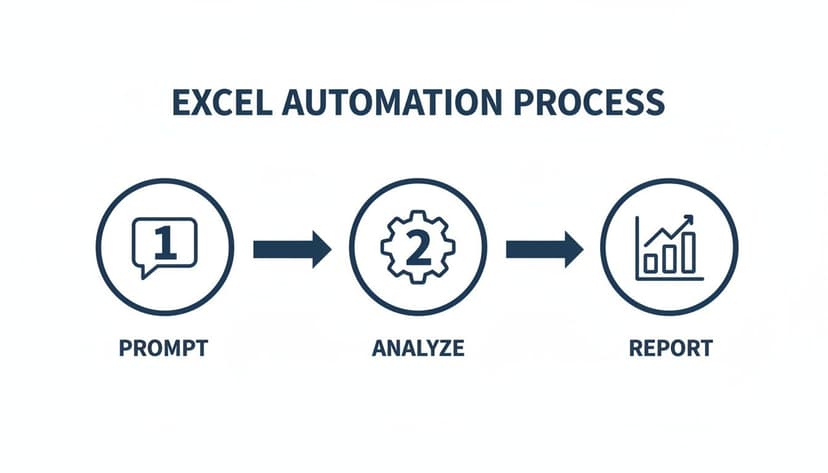
It’s a three-stage process: the AI understands your plain-English instruction, does the heavy lifting with the data, and then delivers the final report or visual.
2. Generating Quick Forecasting Models
Forecasting is another area where I've found this to be a massive time-saver. Forget wrestling with complex statistical formulas. You can just ask the AI to build the model for you.
- Example Prompt:
"Take the historical monthly sales from the 'Sales History' sheet. I need a 12-month sales forecast using an exponential smoothing model. Put the results in a new table, and plot both the historical and forecasted data on the same line chart."
3. Running a Cohort Analysis
Anyone who's tried to build a cohort analysis in Excel knows how painful it can be. It's a fantastic tool for understanding customer retention, but the setup is tedious. An AI agent makes this almost trivial. You just describe the logic, and it builds the retention grid for you.
A single, clear instruction can replace dozens of manual clicks, formulas, and formatting tweaks. This is the real value of an autonomous agent: it handles the "how" so you can focus on the "what."
4. Creating Interactive Dashboards
You can even tell the AI to make your reports interactive. By asking for features like Slicers, you can build a dashboard that lets your team filter and explore the data themselves, even if they have zero Excel skills.
- Example Prompt:
"Create a pivot table and chart from the 'Transaction Data' sheet showing sales by 'Category' and 'Country'. Then, add a slicer so we can filter the whole dashboard by 'Year'."
5. Performing Exploratory Data Analysis
Sometimes, you don't really know what you're looking for. You can point your AI assistant at a dataset and ask it to just… explore. It can automatically run an analysis to find hidden patterns and interesting relationships in your data. If you want to go deeper on this topic, you can learn more about what is exploratory data analysis in our detailed guide.
- Example Prompt:
"Run an exploratory analysis on our customer dataset. Find any interesting correlations between 'Age', 'Income', and 'Purchase Frequency'. Give me a quick summary of what you find, along with a few charts to back it up."
5. Comparing the 3 Main Types of Excel AI in 2026
If you're looking for a ChatGPT-style AI for Excel, you’ve probably noticed the market is getting crowded. It's tough to tell what's hype and what will actually save you time. The good news is that all the options fall into one of three buckets: a direct ChatGPT API integration, Microsoft Copilot, or a dedicated autonomous agent like ElyxAI.
Picking the right one comes down to what you actually need to do. Are you just looking for a bit of help writing formulas? Or do you need something that can take a project from messy raw data to a finished dashboard all on its own? Let's dig into how they really differ in terms of performance, security, and what they can truly accomplish.
It’s All About How the Work Gets Done
The explosion of AI in Excel really kicked off after the ChatGPT frenzy of 2022-2023. It tapped into a deep frustration every Excel user knows: spending hours on manual, repetitive tasks. Now, with global AI spending hitting $244 billion in 2025 and expected to jump another 27.7% to $312 billion in 2026, we’re seeing tools that can finally handle entire workflows from a simple English sentence. You can find more on this growth in this detailed AI market analysis.
The real difference isn't the AI model, but how it works with you. Some tools are assistants that help you with one step at a time, like finding the right formula. Others are true agents that you can give a goal to, and they’ll figure out all the steps to get it done. It's the difference between hiring a helper and hiring a project manager.
To make this crystal clear, here’s a side-by-side look at the three approaches.
A 3-Way Comparison: ChatGPT API vs. Copilot vs. ElyxAI
Choosing the right AI for Excel can feel like a big decision, but breaking it down by function, security, and ease of use makes it much simpler. The table below compares a DIY ChatGPT API setup, Microsoft's built-in Copilot, and an autonomous agent like ElyxAI to help you see which one fits your work style.
| Feature | ChatGPT API Integration | Microsoft Copilot | ElyxAI (Autonomous Agent) |
|---|---|---|---|
| Core Function | Generates formulas and explains concepts. | Suggests formulas and insights on selected data. | Executes complete, multi-step workflows from a single prompt. |
| Ease of Use | Requires technical setup (API keys, scripting). | Natively integrated but requires data selection first. | Plug-and-play add-in, works with natural language. |
| Data Security | Can expose data if not configured properly. | Secure within the Microsoft 365 ecosystem. | Privacy-first design; data never leaves your computer. |
| Best For | Developers and tech-savvy users building custom tools. | Quick suggestions and basic analysis on existing tables. | Complex tasks: data cleaning, analysis, and reporting in one go. |
As you can see, a direct ChatGPT API integration offers a ton of flexibility, but it's not for the faint of heart. You'll need some technical know-how to set it up and, more importantly, to ensure your data stays secure. On the other hand, Microsoft Copilot is incredibly convenient and secure, but it still needs you to be in the driver's seat, selecting data and telling it what to do next.
An autonomous agent like ElyxAI is a completely different beast. It’s built to understand a high-level goal, like "Analyze Q4 sales data, identify the top 5 products by region, and build a summary dashboard." From there, it works on its own to clean the data, create pivot tables, generate charts, and apply formatting—all without you needing to select a single cell. For a deeper dive into what makes these tools tick, check out our guide on which AI can truly handle Excel tasks. This agent-based model is what closes the gap between simply getting help and actually automating your work, especially for bigger, more complex business challenges.
6. Your 3 Top Questions About AI in Excel Answered
Whenever I show people how to use AI inside Excel, a few key questions always pop up. It's completely normal to wonder about security, what the AI can actually do, and how it stacks up against the tools you already use.
Let's tackle those common questions head-on. My goal is to give you the clear, straightforward answers you need to start using AI with confidence.
1. Is My Data Secure When Using an AI in Excel?
This is the number one question I get, and for good reason. The short answer is yes, but only if you choose an AI tool built with privacy as a priority.
Take a privacy-first agent like Elyx AI. It’s designed so your spreadsheet data never, ever leaves your computer.
Here’s how that works, broken down simply:
- Everything Stays Local: The AI add-in does all its work directly on your machine. Your spreadsheet is never uploaded to a server.
- Only Instructions Are Sent: The only thing sent to the AI model is the text of your command, like "clean up the 'Address' column." Your actual data—the addresses themselves—stays on your device.
- Zero Data Storage: None of your data or your text prompts are saved or used to train the AI model later. This ensures total confidentiality.
2. Can Excel AI Handle Very Specific or Custom Formulas?
Absolutely. In fact, this is where these tools really start to feel like magic. While any AI can spit out a basic SUMIFS or VLOOKUP, the real power comes from its ability to understand your intent and build complex, custom formulas from scratch.
You can just describe what you need in plain English. For example, instead of struggling with syntax, you can ask for a business outcome:
"Create a formula in cell G2 that calculates the average sale price for 'Product Z' in the 'North' region during Q3, using data from the 'SalesData' sheet."
The AI interprets this request and generates the precise formula needed, likely an AVERAGEIFS function, without you needing to remember the order of the arguments.
Here is the formula the AI would generate:
=AVERAGEIFS(SalesData!$D:$D, SalesData!$A:$A, "Product Z", SalesData!$B:$B, "North", SalesData!$C:$C, ">=2024-07-01", SalesData!$C:$C, "<=2024-09-30")
Formula Explanation:
=AVERAGEIFS(...): This function calculates the average of a range that meets multiple criteria.SalesData!$D:$D: This is the range to average (the sale prices).SalesData!$A:$A, "Product Z": This is the first criterion, where the product column must equal "Product Z".SalesData!$B:$B, "North": This is the second criterion, where the region column must equal "North".SalesData!$C:$C, ">=2024-07-01"andSalesData!$C:$C, "<=2024-09-30": These two criteria filter the dates to only include Q3.
The big shift here is moving from knowing formula syntax to simply describing your business logic. The AI handles the tricky technical parts, even for multi-step calculations you might not know how to write on your own.
3. Can These AI Tools Work Across Multiple Files or Sheets?
Working across multiple sheets within the same workbook is a core strength of autonomous AI agents. They're built for multi-step tasks, and that often means pulling data from different places before running an analysis.
A prompt like, "Combine the sales data from the 'Q1 Sales' and 'Q2 Sales' sheets, then create a summary pivot table," is a perfect example. This is a routine task for an agent that would otherwise involve a lot of manual copying and pasting.
Working across separate files is a bit more complex and not as common yet, but consolidating information from multiple sheets is a huge time-saver and a standard feature.
Ready to stop wrestling with formulas and start automating your work? Elyx AI acts as your personal data analyst inside Excel, executing complex tasks from a single command. Save hours each week and transform how you work with data. Start your free 7-day trial and experience true automation today at https://getelyxai.com.
Reading Excel tutorials to save time?
What if an AI did the work for you?
Describe what you need, Elyx executes it in Excel.
Sign up