Which AI Can Do Excel? A Guide to 7 Game-Changing Tools for 2026

If you're asking, "which AI can do Excel?" you've probably realized there isn't just one answer. It's less about finding a single magic tool and more about understanding what kind of help you need. The options range from simple AI formula generators to autonomous AI agents like ElyxAI that can run an entire analysis from one instruction.
Think of it like a toolbox. You wouldn't use a sledgehammer to hang a picture frame, right? The same logic applies here—the best choice depends entirely on the job at hand.
The 5 Main Types of AI That Can Do Excel Work

Spending too much time on Excel?
Elyx AI generates your formulas and automates your tasks in seconds.
Sign up →To find the right AI for your spreadsheets, you first need to know what’s out there. The market is buzzing with new tools, but they really boil down to five main categories, each built to solve a different kind of problem. Picking the wrong type of tool will only lead to headaches, but the right one can genuinely give you hours back in your week.
Let’s walk through these five types. This will give you a clear map to navigate the options and match the right AI to your specific needs, whether that’s just getting unstuck on a tricky formula or automating your entire monthly reporting process.
Understanding The 5-Part AI For Excel Toolbox
You can think of these tools on a spectrum, moving from simple, guided assistance all the way to full, hands-off automation.
- 1. AI Formula Generators: These are your go-to when you know what you want to do but can't remember the exact formula. You type something like "sum all values in column B if column A says 'Sales'," and it spits out the correct Excel formula. They’re great for quick, one-off problems.
- 2. Integrated Chatbot Assistants: Tools like Microsoft Copilot fall into this category. They work like a guide sitting next to you, answering questions and performing simple actions inside Excel. The catch is they need you to direct every single step.
- 3. External Data Analysis Platforms: These are powerful tools that live outside of Excel. You upload a CSV or data file to their website, and their AI will run complex analyses, create charts, and build models for you. The work happens on their platform, not directly in your spreadsheet.
- 4. AI-Powered Add-ins: These are plugins that bolt a specific, advanced skill onto Excel. Think of add-ins for things like sentiment analysis on customer feedback or sophisticated financial forecasting—tasks that go way beyond Excel's built-in functions.
- 5. Fully Autonomous AI Agents: This is the most advanced category, and it’s where tools like ElyxAI shine. An autonomous agent understands a high-level goal, like "Create a sales report for Q3." From that single command, it can execute a whole series of steps—cleaning data, creating pivots, and building charts—all by itself, directly in your file.
To help you decide, here’s a quick breakdown of which tool type works best for different situations.
A Quick 5-Point Guide to AI for Excel Tool Types
Use this table to quickly identify which type of AI tool is best suited for your specific Excel challenges.
| AI Tool Type | Primary Function | Best For | Example Use Case |
|---|---|---|---|
| Formula Generator | Translates plain language into formulas. | Users who need quick formula help without learning syntax. | "How do I find the average of a range if it meets a condition?" |
| Chatbot Assistant | Answers questions and performs simple, guided tasks. | Getting step-by-step guidance and explanations within Excel. | "Show me how to create a pivot table from this data." |
| External Platform | Performs analysis and visualization outside of Excel. | Complex data modeling and analysis without altering the source file. | Uploading a large dataset to find hidden trends and correlations. |
| AI Add-in | Adds a specialized skill to Excel. | Users who need a specific, advanced function, like forecasting. | Running a sentiment analysis on a column of customer reviews. |
| Autonomous Agent | Executes multi-step workflows from a single command. | Automating entire reports and complex, repetitive tasks. | "Analyze my monthly sales data and create a summary dashboard." |
Ultimately, choosing a tool comes down to trust. It's a lot like the conversations happening in accounting about trusting a robot with your books. You need a tool that is not only capable but also secure and reliable.
To see what a dedicated AI for Excel can really do, take a look at our guide on how an Excel AI agent in our detailed article can transform your day-to-day work.
Autonomous AI Agents: The Future of Spreadsheet Productivity in 2 Steps

While formula generators and chatbots are helpful guides, the most powerful answer to the question "which AI can do Excel?" is an autonomous AI agent. These tools are a completely different breed. They don't just give you hints; they do the heavy lifting for you.
Think of it like this: instead of an assistant who tells you how to build a pivot table, you get an expert who just builds it for you. That's the magic of an autonomous AI agent.
This type of AI is built to understand your ultimate goal and then figure out all the steps needed to get there. You just give it a command in plain English, and the agent gets to work, managing the entire process right inside your spreadsheet.
1. From Instruction to Execution
The real game-changer is that an agent like ElyxAI understands the intent behind your words, not just the words themselves. This is a huge deal. Instead of you having to map out every single click and formula, the AI builds that roadmap on its own.
For instance, you could tell it something complex, like:
"Analyze this Q4 sales data, identify the top 3 performing products, remove all duplicate entries, and create a presentation-ready summary with a bar chart."
An autonomous agent reads that, nods, and then does it all—cleaning the data, running the analysis, creating the chart, and tidying up the formatting. It handles the whole multi-step project from that one request, without you needing to intervene. It’s the difference between a map and a chauffeur. To dig deeper, learn more about the specifics of an Excel AI agent in our detailed article.
This isn't just a niche tool; it's where the business world is heading. Agentic AI—systems that can manage complex tasks on their own—is the fastest-growing segment in enterprise tech. The market is set to skyrocket from USD 5.25 billion in 2024 to a staggering USD 199.05 billion by 2034. Businesses are already seeing massive returns; U.S. companies report an average ROI of 192% from agentic AI, which is nearly three times what they get from older automation tools. You can explore more about these agentic AI statistics and their market impact.
2. The True Value of Autonomy
The most immediate benefit? You get your time back. A lot of it. The tedious, repetitive tasks that eat up your day can be wrapped up in minutes.
Think about what it takes to build a standard monthly report:
- Importing messy raw data.
- Cleaning up errors and inconsistencies.
- Merging sheets from different sources.
- Building pivot tables to find the key numbers.
- Creating charts to make the data easy to understand.
- Formatting everything to look professional.
An autonomous agent can run through that entire checklist for you. This frees you up to do what you do best: think. Instead of being stuck in the weeds of how to build the report, you can focus on what the report is telling you—finding insights, spotting trends, and making smarter decisions. It lets the AI handle the grunt work so you can focus on strategy.
4 Key Criteria for Choosing Your Excel AI
With a flood of new tools all promising to handle your Excel work, figuring out which AI to pick can be tough. The key isn't to find the one with the longest feature list. It's about finding the one that actually solves your day-to-day problems and gives you the most time back.
I like to think of it like hiring a new team member. You wouldn't just glance at their resume and call it a day, right? You'd want to understand how they work, if you can trust them with important information, and how well they’ll fit in with your current process. The same logic applies here. Let's walk through four key things to look for.
1. Autonomy Versus Assistance
The first question is the most important: Do you need a guide, or do you need a doer?
A lot of AI tools out there are built to be assistants. They'll generate a formula for you, explain a pivot table, or answer a question. That’s great for learning or tackling a one-off problem, but you still have to do all the clicking, copying, and pasting yourself.
An autonomous agent, on the other hand, is a doer. You give it a goal—like "create a weekly sales report from this data"—and it handles the entire workflow from start to finish. It’s the difference between an AI that tells you how to build a house and one that just builds it for you. If your goal is to save serious time, autonomy is everything.
2. Data Security and Privacy
Your spreadsheets are probably filled with sensitive information—financials, customer lists, company strategy. So, a critical question is: where does that data go when you use an AI? This is non-negotiable. Many tools will send your entire file to an outside server for processing, which can open up all sorts of privacy and security holes.
The gold standard for a secure Excel AI is one that processes everything locally. This means the AI gets your instructions, but your spreadsheet data never, ever leaves your computer. This approach keeps your information completely confidential and under your control.
Before you commit to any tool, dig into its data policy. You want to see clear language about local processing and data protection.
3. Seamless Integration
How well does the tool actually work inside Excel? The best AI should feel like it was always a part of the program, not some clunky third-party app you have to switch back and forth to. A clean integration lets you stay in your spreadsheet and keep your focus.
If the tool forces you to jump between windows or learn a confusing new interface, it's adding friction, not removing it. My advice is to look for an official Microsoft add-in that you can install easily and access from a simple panel right within Excel.
4. True Return on Investment
Finally, think about the real return on your investment, and I mean that in hours saved. A formula generator might save you 30 seconds here and there, which is nice. But an autonomous agent that completely automates a two-hour weekly report? That saves you over eight hours a month.
To help you sort through the options, check out our comparative guide to the top Excel AI tools available.
As you look at different tools, ask yourself these questions:
- How much time am I really spending on repetitive Excel tasks each week?
- Will this tool just help with small steps, or can it automate a whole process?
- Is the time I get back worth the cost?
The biggest wins come from tools that deliver true automation. They're the ones that free you from tedious manual work so you can finally focus on strategy and analysis.
To make this clearer, let's break down the main types of AI tools you'll find for Excel. Each one serves a different purpose, and knowing the difference will help you choose the right one for your specific needs.
3 Types of AI for Excel Tools Compared
| Tool Type | Primary Function | Autonomy Level | Best For |
|---|---|---|---|
| Formula Generators | Creates Excel formulas based on text descriptions. | Low: You still have to apply the formula and build the logic. | Quick lookups, learning new functions, or solving a single-cell problem. |
| Chatbots & Assistants | Answers questions, explains concepts, and provides step-by-step instructions. | Low: Acts as a guide, but you perform all the actions. | Learning Excel, troubleshooting errors, getting ideas for data analysis. |
| Autonomous Agents | Executes multi-step tasks from start to finish based on a high-level goal. | High: Takes an instruction and performs the entire workflow independently. | Automating entire reports, cleaning large datasets, and saving significant time. |
Ultimately, a formula generator is like a dictionary, and a chatbot is like a tutor. An autonomous agent, however, is like having an experienced assistant who can take a task off your plate entirely.
It’s one thing to talk about what an AI can do in Excel, but seeing it in action is what really makes the lightbulb go on. Let's walk through a common business scenario to show you how this technology moves from a cool idea to a serious time-saver.
Picture a marketing manager who just got a raw data dump from a recent campaign. They need to figure out what worked and what didn't, and they need a clean, professional report for a meeting that's happening way too soon.
Doing this the old way is a familiar headache. For example, to calculate Cost Per Lead, you would need to manually insert a new column, name it, and then type a formula like =D2/C2. You'd then have to drag that formula down for every row in your dataset. That’s easily 15+ clicks and several minutes of intense focus, and that’s if you don’t make any mistakes along the way. With an autonomous AI agent like ElyxAI, that entire process boils down to a single instruction.
The 1-Sentence Command
Instead of grinding through each step manually, the manager simply opens the AI panel inside Excel and types out their end goal in plain English:
"Clean this data by removing duplicates, calculate the cost per lead for each campaign, create a bar chart comparing campaign performance, and format the report professionally."
This is where the magic happens. The AI doesn't need to be handheld through the process. It understands the entire workflow from that one sentence and gets to work on its own.
The 5-Step Autonomous Workflow
So, what does the AI actually do behind the scenes? An agent like ElyxAI breaks down that command and executes the whole task in five seamless steps, turning a chore into a one-click job.
Data Cleaning: First, the agent scans the worksheet, instantly finding and removing all the duplicate rows. This step alone ensures your analysis starts from a foundation of clean, accurate data, without you having to run the "Remove Duplicates" tool yourself.
Formula Calculation: Next, it creates a new column and cleverly names it "Cost Per Lead." The agent then writes the correct formula (
=Cost/Leads) and applies it to every single row, calculating this critical KPI for all campaigns in an instant. This saves you from the tedious task of typing a formula and manually dragging it down the column.Data Visualization: The AI understands you need to compare performance, so it generates a crisp, easy-to-read bar chart. This chart visualizes the cost per lead for each campaign, making it immediately obvious which ones are your winners and losers.
Professional Formatting: No one likes an ugly spreadsheet. The agent finishes by tidying everything up. It applies a clean, professional style to the data table, adjusts the column widths for readability, and makes sure the chart is perfectly placed and labeled.
Final Output: In less than a minute, you have a polished, analysis-ready report right there in your worksheet. The job is done.
This workflow really brings to life the key factors you should consider when choosing an AI for your team.
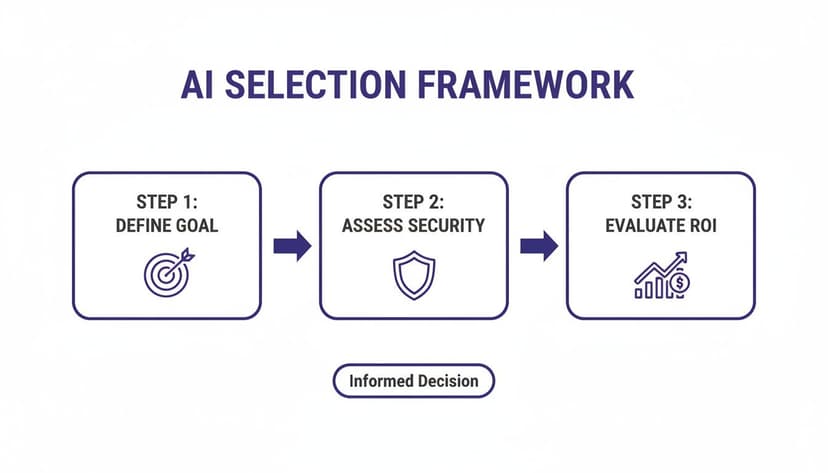
As you can see, the best choice always starts with a clear goal and is grounded in practical things like security and return on investment. This is the difference between an AI that just helps a little and one that delivers true automation. To see more ways to put these ideas into practice, check out our guide on how to use Excel AI tools effectively.
The difference is night and day: a 10-minute manual task with lots of room for error versus a single command that gets it done right, right away. This is the real power of an AI agent—it frees you from the mechanics so you can focus on what the data is actually telling you.
3 Other AI Tools for Excel and When to Use Them
While an autonomous AI agent is a game-changer for handling complex Excel workflows, it’s not always the only tool you might need in your toolkit. To give you the full picture, let's walk through three other popular options and pinpoint exactly when they shine. Knowing the strengths and weaknesses of each helps you pick the right tool for the right job, every time.
Choosing wisely is becoming more important as the AI software market keeps growing. The global market is expected to jump from USD 26.65 billion in 2025 to over USD 88.19 billion by 2034. What's even more interesting for Excel pros is that the no-code AI part of this market is projected to grow by an incredible 33% CAGR in that same timeframe. This signals a huge shift toward making AI accessible for everyone in business, not just data scientists. You can dig into the numbers in this report on the AI software platform market.
1. Microsoft Copilot
When to use it: Think of Microsoft Copilot as your all-around assistant for the entire Microsoft 365 world. It's incredibly handy if your tasks jump between apps—like asking it to help draft an email in Outlook, build a presentation in PowerPoint, and then ask a simple question about your Excel data.
The catch? Its power as a generalist is also its biggest weakness inside Excel. It’s great for quick, one-off actions like bolding a row or asking for step-by-step instructions. But when it comes to executing a complex, multi-step analysis from start to finish, it just doesn't have the deep, specialized focus to do it on its own.
2. Dedicated AI Formula Generators
When to use it: These tools are lifesavers when you’re stuck on a specific formula. You simply type what you want to do in plain English—like "find the total sales for the North region in Q2"—and it spits out the exact Excel formula. Let's say you need to combine a first name in cell A2 and a last name in B2. Instead of trying to remember the syntax, you can ask for the formula.
The tool would provide:=CONCATENATE(A2, " ", B2)
CONCATENATEis the Excel function that joins text strings together.A2is the first text string (the first name)." "is the second text string, which adds a space between the names.B2is the third text string (the last name).
They are fantastic for learning, too, helping you finally get the hang of tricky functions. The limitation is pretty clear, though: they only give you the formula. You still have to plug it in, build out the rest of your analysis, and handle all the other steps yourself.
Key Takeaway: Formula generators and assistants are like asking a local for directions. They can point you in the right direction, but you still have to drive the car. An autonomous agent is like a chauffeur who just needs your destination and handles the entire trip for you.
3. External Data Analysis Platforms
When to use it: These platforms are built for heavy-duty statistical work that goes far beyond what Excel can do out of the box. They are a go-to for data scientists or analysts who need to run advanced models. You typically upload your dataset to their website and let the platform do the complex number-crunching.
For the average Excel user, the main downside is that all the work happens outside of your spreadsheet. This makes them impractical for tasks that need to be done directly within your existing reports or daily workflows.
While these tools are all useful guides in their own right, an autonomous agent is simply a better choice for professionals who need to run complex, multi-step tasks efficiently. If you're ready to master that approach, our guide on achieving greater Excel automation is the perfect place to start.
Ready to Put AI to Work in Your Spreadsheets?
We've covered a lot of ground, showing you what’s possible when you bring true AI into Excel. The real magic, though, happens when you stop just reading about it and start doing it. It’s about trading in those hours of tedious, manual work for more time spent on the strategic thinking that actually moves the needle.
This isn't just a niche trend. The AI automation market is set to hit an incredible USD 169.46 billion by 2026, growing at a 31.4% clip each year. Big companies are already all-in, and you can see the full AI automation market trends for yourself to understand the scale of this shift. If you want a broader look at what's out there, this list of the 12 best AI tools for productivity in 2026 is a great resource.
At the end of the day, it comes down to this: most tools just give you hints. An autonomous agent actually does the work for you.
Why not see for yourself? Give ElyxAI a shot with a free trial. You can get it up and running in about two minutes. It’s a completely risk-free way to see just how much of your day you can get back.
3 Frequently Asked Questions About AI in Excel
Before jumping in with a new tool, it's natural to have questions. Let's tackle some of the most common ones that professionals have when they're thinking about bringing AI into their Excel workflow.
1. Is My Data Safe When Using an AI Add-In for Excel?
This is probably the most important question of all, and for good reason. The answer really depends on the tool you choose. Many AI add-ins work by sending your spreadsheet data to an outside server to figure things out, which can open the door to privacy and security issues.
However, the best tools are built with privacy as the top priority. An autonomous agent like ElyxAI is designed to run everything directly on your own computer. Your sensitive information never leaves your machine, which means it stays completely confidential. You get the power of AI without the risk.
2. How Is an AI Agent Different From Microsoft Copilot?
Think of it as the difference between a family doctor and a brain surgeon. Microsoft Copilot is a fantastic generalist—it's designed to help you across all Microsoft 365 apps, like writing a draft in Word or making a slide in PowerPoint. It's great for quick questions and simple, one-off tasks in Excel.
An autonomous AI agent, on the other hand, is a specialist built for one thing: mastering complex Excel workflows. It's designed from the ground up to handle tricky, multi-step data projects entirely within your spreadsheet. For deep analysis, messy data cleanup, or building a full report from scratch, a specialist simply has a much deeper set of skills.
3. Can AI Create Complex Reports Across Multiple Sheets?
Absolutely, and this is where a truly advanced AI agent really shines. Most basic AI tools, like a formula generator or a simple chatbot, are stuck working on a single task on a single worksheet.
A powerful autonomous agent can see the bigger picture. You can give it a command that involves the entire workbook, like, "Summarize the sales from the 'Q1 Data' and 'Q2 Data' sheets, then create a new 'H1 Summary' dashboard." The ability to pull together information from different places is what separates a simple helper from a true data partner.
Ready to see what a specialized, secure, and autonomous AI can do for you? ElyxAI was built to handle these complex tasks. Experience the difference firsthand by starting your free trial today.
Reading Excel tutorials to save time?
What if an AI did the work for you?
Describe what you need, Elyx executes it in Excel.
Sign up