How to Encrypt an Excel File Safely and Protect Your Data

When you need to encrypt an Excel file, the quickest way is right inside the application itself. Just head to File > Info > Protect Workbook > Encrypt with Password. This simple action does more than just lock your file; it uses strong encryption to scramble the contents so they’re completely unreadable without the password. In a data-driven world, this isn't an abstract IT problem—it's a fundamental skill for anyone handling important information.
This guide provides a practical, step-by-step approach to securing your spreadsheets, explaining not just the 'how' but also the 'why' behind each method. You'll leave knowing exactly how to protect your sensitive data, whether you're working alone or sharing files with a team.
The High Stakes of Unprotected Spreadsheets
Spending too much time on Excel?
Elyx AI generates your formulas and automates your tasks in seconds.
Sign up →In a world running on data, leaving an Excel file unprotected is like leaving your front door wide open. Spreadsheets are often the unsung heroes of daily operations, but they're also a massive concentration of risk. Think about what we routinely stash away in those .xlsx files.
They frequently contain some of a company's most sensitive information, turning them into prime targets for cybercriminals and accidental leaks alike.
We’re talking about things like:
- Personally Identifiable Information (PII): Full client lists with names, addresses, and contact details.
- Financial Models: The secret sauce—detailed forecasts, budgets, and proprietary valuation formulas.
- Confidential Business Plans: Strategic roadmaps, new product details, and deep-dive competitive analysis.
- HR and Payroll Data: Employee salaries, social security numbers, and performance reviews.
If that kind of data gets out, the fallout can be brutal. We’re talking financial losses, a damaged reputation, and even hefty regulatory fines. Learning to encrypt an Excel file isn't just a neat trick; it’s a fundamental business practice.
A Favorite Target for Cyber Attacks
Attackers know exactly what kind of gold is hiding in our spreadsheets. It’s no surprise that Microsoft Office documents have become a favorite way in for them. In fact, recent cybersecurity data shows that Excel sheets made up a staggering 10.4% of all malicious file attachments used in cyberattacks. That should be a wake-up call for any organization that relies on them.
This vulnerability shows why we need more than just a good firewall. A solid understanding of Data Loss Prevention (DLP) strategies will make it clear just how vital encryption is for stopping sensitive data from walking out the door.
More Than Just a Password
It's crucial to understand the difference between basic protection and real encryption. When you use the "Encrypt with Password" feature, you're not just putting a simple lock on the file. Modern versions of Excel use powerful cryptographic standards like AES (Advanced Encryption Standard) to completely scramble the data.
Without the password, the file's contents are nothing but unintelligible gibberish.
An encrypted file is only as secure as the policies that govern it. Strong passwords, secure sharing protocols, and regular backups are the pillars that support any technical encryption method.
This is a world away from just protecting a worksheet to prevent accidental edits. That feature stops mistakes, not malicious attacks. For example, imagine you have a sales dashboard and want to prevent someone from accidentally deleting the SUMIF formulas that calculate regional totals.
Here's a typical SUMIF formula you might protect:
=SUMIF(A2:A100, "North", C2:C100)
Formula Explanation:
A2:A100: This is the range of cells containing the region names."North": This is the criterion. The formula will only sum values for rows where the region is "North".C2:C100: This is the sum range, containing the sales figures to be added up.
Protecting the sheet locks this formula down, but it doesn't secure the underlying data if the file is stolen. By using strong encryption, you’re building a critical line of defense. It ensures that even if a file ends up in the wrong hands, the information inside remains safe and confidential.
Using Excel's Built-In Encryption Tools
Sometimes the best tool for the job is the one you already have. When it comes to protecting your spreadsheets, Microsoft has built some surprisingly powerful encryption features right into Excel. You don’t need to be a security guru or buy extra software to get started.
This built-in feature is your first and most direct line of defense. It transforms a standard, vulnerable spreadsheet into a locked-down file that only authorized people can open. The process is straightforward, which is great because security that’s too complicated often gets ignored.
Encrypting Your Entire Excel File
For truly sensitive information—think financial records, client lists, or strategic business plans—you'll want to encrypt the entire workbook. This is the strongest option Excel offers. It locks the whole file, making it completely unreadable to anyone without the password.
Getting this done is quick and easy. Just follow this path inside Excel:
- Head over to the File tab in the top-left corner.
- Click on Info from the menu on the left.
- Select the Protect Workbook button.
- From the dropdown menu that appears, choose Encrypt with Password.
Excel will then ask you to create and confirm a password. Take a moment here to choose a strong one—something unique that you'll either remember or store safely in a password manager. Once you save the file, it's officially encrypted.
It's worth knowing what’s happening under the hood. Modern versions of Excel (2013 and newer) use AES-256 encryption, a military-grade standard. This isn't just a simple password gate; it's a powerful algorithm that scrambles your data into an unreadable mess for anyone who doesn't have the key.
This commitment to serious security is an ongoing priority for Microsoft. For instance, Microsoft Purview Information Protection has now made AES-256 the default for all Microsoft 365 documents. This shift reflects a broader industry understanding that robust encryption is no longer optional—it's essential.
Differentiating Between Protection Levels
Excel uses the word "protection" in a few different ways, and it’s crucial to understand the distinction. Encrypting the entire file is about security, while other "protection" features are more about usability—preventing accidental edits or maintaining a specific layout.
Knowing which tool to grab for which job is key. You wouldn't use a screwdriver to hammer a nail, and you shouldn't use "Protect Sheet" when what you really need is full-blown encryption.
One thing you absolutely must remember about Excel's built-in encryption: there is no password recovery. If you lose or forget the password, that file is gone for good. Microsoft can't help you get back in.
This is a classic double-edged sword. It means the security is airtight, with no backdoors for anyone to exploit. But it also means the responsibility for managing that password rests entirely on you.
Excel Protection Levels at a Glance
To help clarify the options, here’s a quick comparison of the protection levels available right within Excel and when you should use each one.
| Protection Type | What It Secures | Best For | Security Level |
|---|---|---|---|
| Encrypt with Password | The entire file | Securing confidential or sensitive data | High |
| Protect Current Sheet | Cells on a single worksheet | Preventing accidental edits to formulas or layouts | Low |
| Protect Workbook Structure | The ability to add/delete/rename sheets | Maintaining the overall structure of a workbook | Low |
These tools are all useful in their own right, but they serve very different purposes. When your primary goal is to encrypt an Excel file and keep its contents confidential, always use Encrypt with Password from the File > Info menu. That's the only one that provides true security.
Of course, many modern workflows rely on more than just manual data entry. Integrating add-ins can make your work much more efficient, and it’s important to make sure your security measures don't get in the way. For a deeper look at how these integrations work, check out our guide on how to manage Excel add-ins. Properly securing your files is the foundation of a safe and productive analytics environment.
Advanced Encryption Beyond Excel Passwords
While Excel's built-in encryption is a fantastic first line of defense, some situations just call for more firepower. When you're worried about things like a stolen laptop or need to send sensitive files across different platforms, it's time to look beyond Excel and use the security tools built into your operating system or even some specialized third-party software.
These methods essentially move the security perimeter. Instead of just locking the file, you're securing the entire environment it lives in. Think of it as upgrading from a lock on a single diary to securing the entire room it's kept in.
Using Your Operating System for File Security
One of the most powerful—and often overlooked—ways to encrypt an Excel file is to use the tools that came with your computer. These features are designed to secure your data at the disk level, making your files completely unreadable if your computer is ever lost, stolen, or accessed by someone without permission.
For those on Windows, you have two excellent options right out of the box:
- Encrypting File System (EFS): This feature lets you encrypt individual files and folders on an NTFS drive. When you turn on EFS for a file, it's tied directly to your user account. To you, the file opens and works normally. But if another user—even an administrator—tries to peek, all they'll see is garbled, useless data. It's perfect for protecting specific sensitive files on a shared computer.
- BitLocker Drive Encryption: Instead of protecting one file at a time, BitLocker locks down your entire hard drive. This is what's known as "full-disk encryption," and it's your ultimate safeguard against physical theft. If someone swipes your laptop, they can't just pop out the hard drive and read your data on another machine. The entire drive is a cryptographic puzzle they won't be able to solve.
The beauty of EFS and BitLocker is that they’re invisible to you during normal use but create a formidable barrier for outsiders. They protect your data even if your Excel password is weak or somehow compromised.
When to Use Third-Party Encryption Tools
Sometimes your security needs go beyond your own device, especially when you're sharing files or collaborating with people who use different operating systems like macOS or Linux. This is where dedicated third-party encryption software really proves its worth.
Imagine you need to send a project folder to a client. It's filled with sensitive Excel files, Word docs, and PDFs. Emailing them one by one, each with a different password, is a clunky and insecure mess. A much better approach is to use a tool like 7-Zip or VeraCrypt.
These tools let you create a single, encrypted archive (like a .zip or .7z file). You can pack all your project files into this secure container, protect it with one strong AES-256 encryption password, and then send it off. The recipient just needs the free software and the password you provide to access everything inside.
Using third-party tools is a game-changer for cross-platform compatibility. An encrypted archive made with 7-Zip on Windows can easily be opened on a Mac or Linux machine with the right software, bypassing the headaches that OS-specific encryption can cause.
Making the Right Choice for Your Needs
So, should you use your OS tools or a third-party app? There's no single right answer. It all comes down to your specific workflow and what you're trying to protect against.
Here’s a simple way to think about it:
| Security Method | Best For | Key Advantage |
|---|---|---|
| Windows EFS | Protecting specific files/folders on a shared PC | Tied to your user account; seamless for you, locked for others. |
| BitLocker | Securing an entire device against physical theft | Full-disk encryption protects everything automatically. |
| Third-Party Tools | Securely sharing multiple files or ensuring cross-platform access | Creates portable, encrypted containers that work anywhere. |
Honestly, the strongest protection comes from layering these methods. You might use BitLocker to secure your whole laptop, Excel's password to protect a critical financial model, and 7-Zip to securely send a batch of reports to a colleague. Mastering these advanced methods shifts your data security from being reactive to proactive, keeping your sensitive information locked down no matter where it is. And for those who deal with complex datasets, pairing these security practices with some of the best data transformation tools can ensure your data is not only secure but also clean and reliable from the very beginning.
How AI Data Analysis Impacts Your Security
Encrypting your Excel file is a fantastic start—it locks down your data when it's at rest. But what happens when you need to work with that data using powerful AI tools? True security must cover the entire lifecycle of your data, from storage to analysis. Many users worry that using AI means uploading sensitive spreadsheets to a remote server, creating a new vulnerability. This is a valid concern, but privacy-first AI tools are designed to solve this exact problem.
Keeping Your Data on Your Device
Some tools, like Elyx.AI, were built from the ground up to process your information locally, right on your own machine. This is a crucial distinction. It means your actual data—the sales figures, client names, and confidential formulas—never leaves the safety of your computer.
Think of it this way: instead of sending your entire file out, the tool only sends anonymized, generic instructions to the AI model. It's like asking an expert for advice on a problem without ever showing them the sensitive document itself. All the heavy lifting happens locally, so your data stays exactly where it belongs.
This on-device approach is becoming the new standard. Just look at the numbers: the database encryption market was valued at USD 795.35 million in 2021 and is projected to hit USD 3,881.72 million by 2027. That's an annual growth rate of over 30%. This isn't just a trend; it's a clear signal that businesses are demanding security be baked into the new technologies they adopt.
The Role of End-to-End Encryption in AI Tools
Even when your computer sends out those anonymized instructions, that communication needs to be locked down tight. This is where multiple layers of enterprise-grade encryption create a secure tunnel between Excel and the AI service.
The best solutions use a powerful one-two punch to guarantee end-to-end security for everything that goes back and forth:
- AES-256 Encryption: This is the gold standard for symmetric encryption, the same workhorse we recommend for protecting the files themselves. It’s used to scramble the data packets into unreadable code.
- TLS 1.3: As the latest protocol for securing internet traffic, Transport Layer Security makes sure no one can eavesdrop or mess with the data as it travels across the network.
This combination ensures every interaction you have with the AI is completely private. It elevates a tool like Elyx.AI from just a productivity add-on to a trusted partner that helps maintain data integrity while you're pulling insights. For businesses that need to meet strict compliance, looking into AI-powered risk detection and ISO 27001 standards can offer great context on how this fits into a bigger security picture.
Here's the bottom line: When you choose an AI tool built with a privacy-first mindset, you're making sure your efforts to encrypt an Excel file aren't immediately undone the second you start analyzing it. Security needs to be seamless, from storage all the way through analysis.
This chart can help you map out which encryption method makes the most sense for your situation.
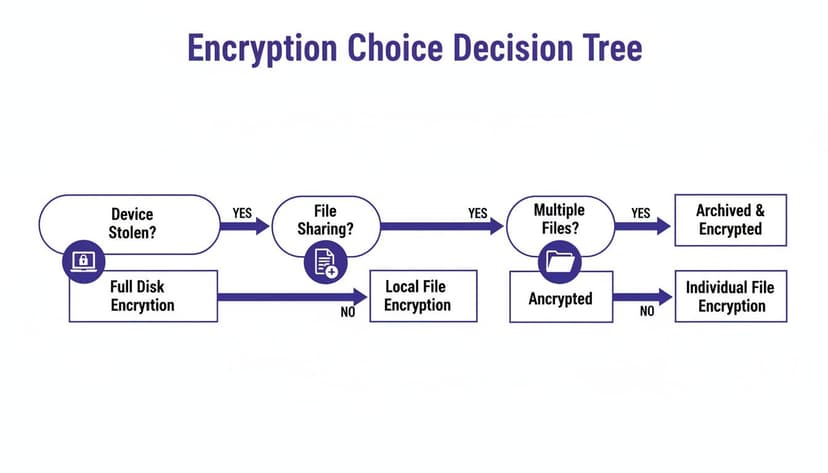
As you can see, Excel’s built-in encryption is great for securing the file itself, but if you're worried about someone stealing your laptop or sharing files insecurely, you might need to step up to OS-level protection or even a third-party solution.
Bringing AI into your workflow shouldn't feel like a security risk. Once you understand how a tool handles your data, you can use these powerful assistants with confidence. If you want to dive deeper into how this all works, check out our guide on using AI in Excel. Knowing the mechanics empowers you to protect your sensitive information without sacrificing analytical power.
Best Practices for Managing Encrypted Files
So, you’ve managed to encrypt an Excel file. That’s a great first step, but it’s only half the battle. The real challenge is managing that security over the long haul. An encrypted file is only as strong as the human habits and company policies surrounding it, and even the best encryption can be undone by a simple mistake.
Think of it this way: you’ve built a high-tech vault for your data. But if you leave the key under the doormat or scribble the combination on a sticky note, the vault is pretty much useless. This is where having a solid game plan for managing your locked-down spreadsheets is crucial.
Create and Manage Strong Passwords
The password is your one and only key to that encrypted data, so it absolutely has to be a strong one. Weak, guessable passwords like "Password123" or "Q1_Report" are the digital equivalent of that doormat key. You need a fortress.
Here’s how to build one:
- Length is Strength: Always aim for at least 12-16 characters. Each character you add makes it exponentially harder for a brute-force attack to succeed.
- Complexity is Key: A good password is a jumbled mess. Mix uppercase and lowercase letters, numbers, and symbols (like !, @, #, $).
- Uniqueness is a Must: Never, ever reuse passwords. If one account gets compromised, a unique password means the breach won't cascade to your sensitive Excel files.
Keeping track of dozens of unique, complex passwords is a nightmare, I know. That's why a password manager is non-negotiable for anyone serious about security. Tools like Bitwarden, 1Password, or LastPass generate and store rock-solid passwords for you. All you have to remember is one master password to unlock the vault.
Securely Share Encrypted Files and Passwords
Sharing an encrypted file brings up a new problem: how do you get the password to the right person without compromising it? Emailing the password right along with the file completely defeats the purpose. If a hacker intercepts that one email, they get both the lockbox and the key.
The golden rule is to use a separate and secure communication channel for the password. It’s a simple step, but it creates a massive hurdle for anyone trying to snoop.
Never send the password and the encrypted file together. This is the single most common mistake that negates all your security efforts. Always use a different method to transmit the password.
For instance, you could email the encrypted Excel file, but then share the password using a completely different method:
- A secure messaging app like Signal or WhatsApp.
- A quick phone call or a face-to-face conversation.
- A shared, secure vault within your team's password manager.
By separating the channels, an attacker would have to compromise two different systems to get everything they need—a much, much harder task.
Understand the Reality of Password Recovery
When you use Excel's built-in encryption, you need to accept one harsh truth: there is no password recovery option. If you lose or forget the password, that data is gone. Forever. Microsoft doesn't keep a spare key and has no backdoor to help you.
This is intentional. The lack of a recovery mechanism is what makes the encryption so secure. But it also puts all the responsibility squarely on your shoulders. This is why having strong internal policies is so important.
Your team needs clear guidelines for:
- Password Management: Make it mandatory to use a shared enterprise password manager.
- Data Backups: Regularly back up both encrypted and unencrypted versions of critical files to a secure, access-controlled location.
- Key Custody: For incredibly sensitive files, consider a "key holder" protocol where a designated person or a multi-person team holds the password. This ensures access isn't dependent on a single employee who might forget it or leave the company.
Putting these practices in place ensures that your efforts to encrypt an Excel file are backed by smart habits and solid policies, preventing human error from becoming your biggest security flaw.
Your Top Excel Encryption Questions Answered
Jumping into file security can feel a little overwhelming, and it's natural to have questions. Getting the details right is crucial for making sure your data is actually secure. Let's tackle some of the most common questions people have when they start to encrypt an Excel file.
What Happens if I Forget the Password to My Encrypted Excel File?
This is the big one, and the answer is blunt: you're out of luck. For any modern version of Excel, which uses powerful AES-256 encryption, there is no backdoor. Microsoft doesn't keep a copy of your password and has no way to help you recover a file you've locked. That's what makes the encryption so strong in the first place.
This is exactly why a good password manager is a non-negotiable tool. It's also smart to keep regular backups of the unencrypted file in a secure, separate location. You might see third-party tools online claiming they can crack Excel passwords, but they stand no chance against modern encryption standards.
Is Protecting a Worksheet the Same as Encrypting the File?
This is a really common mix-up, but the difference is night and day from a security standpoint.
- Protecting a worksheet (an option you'll find under the
Reviewtab) is mostly about preventing mistakes. It stops people from accidentally typing over formulas or changing cell values. It does not encrypt anything. The data is still fully visible, and this type of protection can often be removed without much effort. - Encrypting the entire file (done via
File > Info > Encrypt with Password) is the real deal. It uses cryptography to scramble the entire contents of the workbook, making it completely unreadable to anyone who doesn't have the password. This protects against both prying eyes and unwanted edits.
Think of it this way: worksheet protection is like putting up a "Wet Paint" sign. File encryption is like locking the file in a bank vault.
Does Excel Encryption Work the Same on a Mac as on Windows?
Yep, the core security is exactly the same. Both modern Excel for Mac and Excel for Windows use the same tough AES-256 bit encryption. This is great news because it means your security is consistent and you won't run into compatibility issues.
You can encrypt a file on your Windows machine at work and open it seamlessly on your Mac at home, as long as you have the password. The menus for setting the password might look a little different depending on the OS, but the strength of the lock is identical.
Your data's security shouldn't depend on which operating system you use. The standardization of AES-256 across platforms ensures that a protected file remains protected, no matter where it's opened. To learn more about how different tools maintain security, you can explore our detailed privacy policy and data handling practices.
What's the Safest Way to Share an Encrypted Excel File and the Password?
Here’s the golden rule: never send the password in the same message as the file. If you attach the encrypted file to an email and then write the password in the body of that same email, you’ve just handed a thief both the locked box and the key to open it.
A much safer approach is to use two different channels.
- First, email the encrypted Excel file to your colleague.
- Then, send them the password through a completely separate channel. A secure messaging app like Signal, a quick text message, or even a phone call works perfectly.
For teams that need to do this regularly, the best practice is to use a shared password manager. It gives everyone who needs it access to the credentials without ever having to send them over an insecure channel like email.
Ready to stop wasting hours on tedious Excel tasks and focus on analysis? Elyx.AI is an AI assistant that lives inside your spreadsheet, autonomously handling everything from data cleaning and formatting to creating complex reports from a single instruction. Experience the future of spreadsheet productivity.
Start your free 7-day trial at https://getelyxai.com and save hours every week.
Reading Excel tutorials to save time?
What if an AI did the work for you?
Describe what you need, Elyx executes it in Excel.
Sign up