7 Ways to remove duplicates excel (2026 Guide)

You open a workbook to build a report. The file looks normal at first, then the problems start showing up. The same customer appears twice with slightly different notes. A sales export includes repeated order lines. An inventory list has item codes copied more than once.
That's when duplicate data stops being a minor annoyance and starts affecting decisions. Totals can be inflated. Filters become misleading. Pivot tables get noisy. If you're doing anything downstream, from reconciliation to reporting to payment prep, bad deduplication logic can create more work than it saves. Teams that automate SEPA XML from Excel run into this exact issue because duplicate supplier or payment rows can break trust in the final output.
The good news is that remove duplicates excel isn't one feature. It's a set of options, and each one fits a different kind of job. Some methods are fast and destructive. Some are safer and reviewable. Some are built for recurring workflows. If you want a visual first pass before deleting anything, it also helps to understand how to identify duplicates in Excel before you commit to cleanup.
Spending too much time on Excel?
Elyx AI generates your formulas and automates your tasks in seconds.
Sign up →Duplicate removal is never just about deleting rows. It's about deciding what counts as the same record.
Introduction The Duplicate Data Dilemma
A duplicate is only obvious until you look closely.
If two rows have the same email address but different notes, are they duplicates? If two sales rows match on customer and date but have different amounts, should one stay? In practice, most Excel errors happen because someone removes duplicates before defining the business key.
Why duplicate rows cause real reporting problems
Excel doesn't know your business rules. It only knows the columns you tell it to compare. That means the essential work isn't clicking a button. It's deciding whether uniqueness should be based on:
- A single field like email, invoice number, or SKU
- A combination of fields like date + agent + customer
- A full-row match when every selected column should be identical
That distinction matters. If you compare too few columns, you can delete legitimate records. If you compare too many, near-duplicates stay in the file and keep polluting your report.
The 7 methods that actually matter
In day-to-day Excel work, these are the approaches worth knowing:
- Remove Duplicates for quick permanent cleanup
- Conditional Formatting for visual review
- UNIQUE for dynamic unique lists
- COUNTIF helper columns for auditable tagging
- Advanced Filter for a non-destructive unique extract
- Power Query for repeatable refreshable cleanup
- AI or VBA automation when the workflow is bigger than one action
The first one is often used. That's fine for a one-off sheet. It's a poor choice for recurring operational work.
2 Quickest Methods to Find and Delete Duplicates
For a one-time cleanup, Excel's built-in tools are usually enough. The key is choosing between speed and safety.
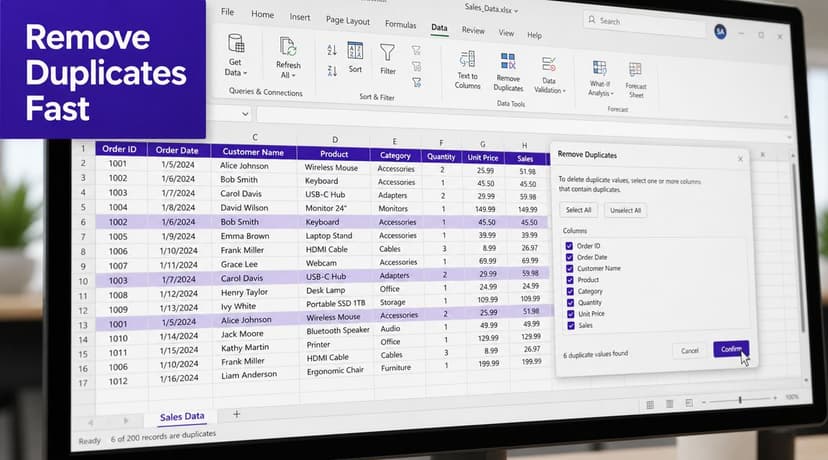
Remove Duplicates when you're ready to commit
The built-in command is the fastest route. Microsoft documents it under Data > Data Tools > Remove Duplicates, and the command is row-based, meaning Excel removes the entire row based on the key columns you select in the dialog. Microsoft also notes that outlines or subtotals should be removed first because they can interfere with row-level comparison logic, as explained in Microsoft's duplicate removal guidance.
That row-based behavior is where people get caught. If you check only Email, Excel still deletes full rows where the email repeats. It doesn't just clear the repeated cell.
A practical workflow looks like this:
- Copy the sheet first so you have a rollback option.
- Click anywhere in the dataset or select the full table.
- Go to Data > Remove Duplicates.
- Check only the columns that define uniqueness.
- Run it and review the result immediately.
Practical rule: If the data affects finance, compliance, customer records, or audit trails, don't make Remove Duplicates your first move on the original sheet.
A good example is a CRM export with columns for Name, Email, Company, and Notes. If email is the unique identifier, check Email only. If the same person can appear in multiple companies, Email + Company may be the key. The button is simple. The logic isn't.
If you need a deeper walkthrough of sorting, isolating, and narrowing repeated values before deletion, this guide on filtering duplicates in Excel is useful.
Use Conditional Formatting when you need to see the problem first
Conditional Formatting is the safer choice when you don't fully trust the data. It highlights duplicates without removing anything, which makes it ideal for inspection.
Use it like this:
- Select the target range where duplicates may exist
- Go to Home > Conditional Formatting
- Choose Highlight Cells Rules > Duplicate Values
- Apply a visible format so repeated values stand out
This method works well when you're auditing a single column such as email addresses, invoice IDs, or product codes. It's less useful when duplicates depend on a combination of columns, because the visual signal can become misleading unless you build a helper key first.
A short video demo helps if you want to see the click path in action:
Which of the two should you choose
Use Remove Duplicates when the file is static, the key columns are clear, and you want a quick cleanup.
Use Conditional Formatting when any of these are true:
- You're still validating the logic
- You need to show someone else what will be removed
- You suspect near-duplicates, not exact duplicates
- You want to inspect the first occurrence before deciding what to keep
The fastest method is often not the safest one. In Excel, that trade-off shows up immediately with duplicate removal.
Using Formulas for Dynamic Duplicate Removal
Formulas are better when you don't want to destroy the source data. They let you stage a clean result beside the original table, review it, and keep the logic visible.
That's the big shift in modern Excel. Duplicate handling has moved from one-time manual cleanup toward formula-based workflows. The introduction of UNIQUE alongside established methods like COUNTIF makes it possible to build repeatable deduplication directly in the workbook, as described in Excel University's overview of duplicate-removal methods.
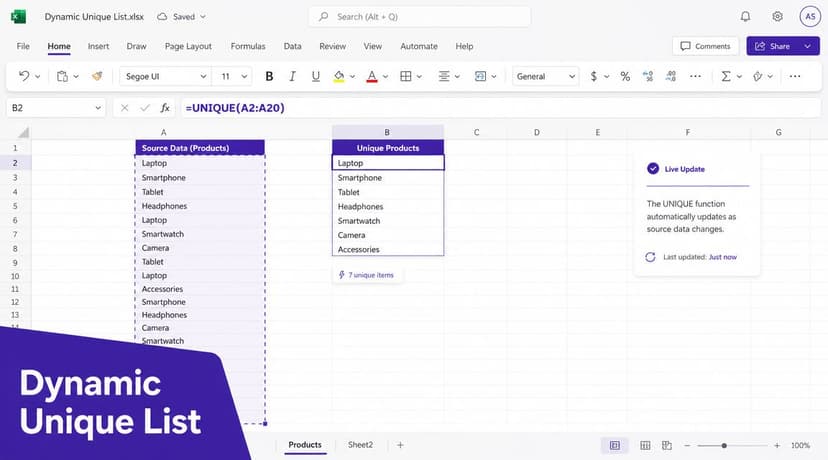
Use UNIQUE when you want a live clean list
If you're on Microsoft 365, UNIQUE is the cleanest formula option.
The syntax is:
=UNIQUE(array, [by_col], [exactly_once])
Here's what each argument does:
- array is the range you want to deduplicate
- by_col tells Excel whether to compare by columns instead of rows
- exactly_once returns values that appear only once when set appropriately
For a simple unique customer list from column A:
=UNIQUE(A2:A100)
This returns each distinct value once. It doesn't change the original data. If new rows are added to the source range, the unique output updates.
For unique rows across multiple columns:
=UNIQUE(A2:C100)
That tells Excel to evaluate the row combinations across columns A through C. If the same full combination repeats, the spilled output only shows one instance.
Here's why this matters in real reporting work:
- Monthly exports change but the formula result updates
- Source data stays intact for audit or troubleshooting
- The clean list can feed another report without manual rework
Keep the raw export on one sheet and spill the UNIQUE result onto another. That separation makes errors easier to catch.
Use COUNTIF when you need control and auditability
COUNTIF is older, more manual, and still extremely useful. It doesn't remove duplicates by itself. It tags them.
A classic formula is:
=COUNTIF($A$2:$A$20,A2)
This counts how many times the current value in A2 appears in the full range A2:A20.
Detailed breakdown:
COUNTIF(starts the counting function$A$2:$A$20is the fixed comparison rangeA2is the current row's value- The dollar signs lock the range when you copy the formula down
If the result is:
- 1, the value appears once
- More than 1, it's duplicated somewhere in the range
That's useful for a single-column check. But its true power appears when you create a helper key.
For example, if duplicates should be defined by Date + Agent + Email, add a helper column:
=A2&B2&C2
Then count the helper key:
=COUNTIF($D$2:$D$100,D2)
Now you can filter the count column to show anything above 1 and review the repeated records before deleting anything.
When formulas beat the built-in button
Formula methods are stronger in these situations:
- You need a non-destructive workflow
- Someone else will review the output
- The file is updated regularly
- You want a visible audit trail
- Duplicates depend on a custom business key
They're weaker when you just need a quick final cleanup on a static file. That's where the built-in command is still faster.
A practical formula pattern that works well
When I'm cleaning production data, the low-risk pattern is simple:
- Tag duplicates with a helper formula.
- Filter the helper column.
- Check whether the repeated rows are duplicates.
- Build a unique output with UNIQUE if needed.
- Only then decide whether any rows should be permanently removed.
That process takes longer than clicking one button. It also avoids accidental data loss, which is usually the more expensive mistake.
Building Repeatable Workflows with Power Query
Manual deduplication breaks down the moment the same task comes back every week. If finance sends a fresh export every month, or sales drops a new CSV into a folder, the issue isn't how to remove duplicates once. The issue is how to remove them the same way every time.
That's where Power Query changes the conversation.
Power Query turns cleanup into a process
Power Query lets you import data, transform it, remove duplicates, and load the cleaned result back into Excel. The important part is that Excel records those actions as steps. You don't repeat the cleanup manually. You refresh the query.
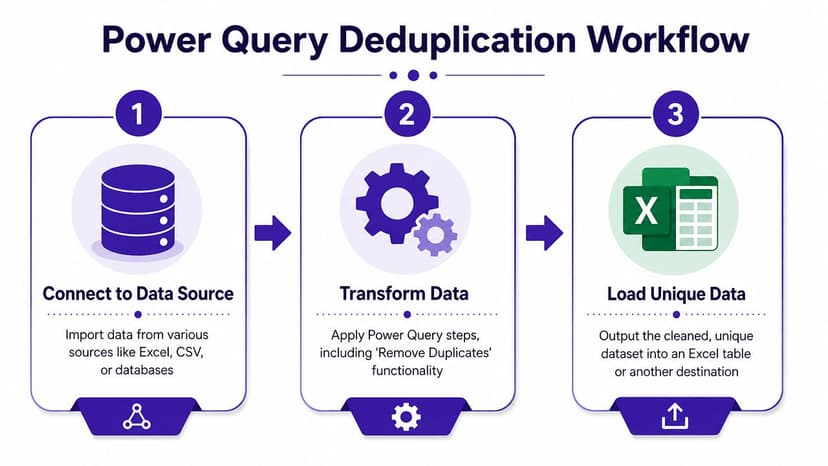
A typical flow looks like this:
- Load the source data into Power Query
- Select the business-key columns that define duplicates
- Use Remove Duplicates in the query editor
- Close and load the result into a worksheet or data model
- Refresh next time instead of rebuilding the logic
If you're still getting familiar with the tool, this introduction to Excel queries and Power Query workflows gives useful context.
Why Power Query is the professional choice for recurring reports
For ongoing work, Power Query has a major advantage. It can append multiple tables and then remove duplicates as part of one refreshable workflow, which makes it especially useful for recurring tasks like monthly sales exports or dashboard refreshes, as demonstrated in this Power Query deduplication walkthrough on YouTube.
That matters because recurring duplicate problems usually come from consolidation. One branch sends a file. Another branch sends a similar file. Someone appends them and suddenly the same customer, product, or transaction appears more than once. In Power Query, append and deduplicate can live in the same pipeline.
If you're doing the same cleanup more than once, you're not cleaning data anymore. You're maintaining a process, and Power Query is built for that.
What Power Query does better than formulas
Formulas are transparent and easy to audit inside a sheet. Power Query is stronger when the data-prep chain has several steps:
- Importing from multiple files
- Renaming columns
- Changing data types
- Appending tables
- Removing duplicates
- Reloading clean output on refresh
The main trade-off is that Power Query is less immediate for quick ad hoc edits. If you just need to strip repeated emails from a one-off list, launching a query can feel like overkill. But for repeated reporting cycles, it's usually the right level of structure.
A Comparison of Duplicate Removal Techniques
Pick the method based on the cost of a wrong delete.
Deleting duplicate promo codes from a disposable export is low risk. Deduplicating customers, invoices, or support logs is different. In those cases, the central consideration is not how to remove duplicates in Excel. It is how much proof, control, and repeatability the job requires before anything gets deleted.
Three decisions usually settle it.
First, decide whether the source data must stay untouched. If the answer is yes, avoid the built-in Remove Duplicates command as your first move. Formula-based checks, Advanced Filter, and query-based approaches let you inspect the result before you commit.
Second, define what “duplicate” means in business terms. Analysts often use COUNTIF() with filtering to tag records before removing them because the logic stays visible in the sheet and can be reviewed with the team, as shown in DataCamp's tutorial on removing duplicates in Excel.
Third, ask whether the task will happen again next week or next month. If it will, convenience matters less than having a process someone else can rerun without guessing what you did.
Full-row matches versus business-key duplicates
Duplicate projects often fail when the worksheet has repeated rows, but the business does not define duplicates by the whole row.
A full-row match means every chosen field is identical. Excel handles that easily. A business-key duplicate means only selected columns matter, such as Customer ID + Invoice Date, while notes, timestamps, or statuses may vary. If you choose the wrong columns, Excel will remove valid records or keep the duplicates you need to retain.
Formatting makes this harder. Extra spaces, mixed case, inconsistent date formats, and text-number mismatches can break duplicate logic before you ever press delete. That's why experienced analysts standardize fields and test the key first. It is a basic part of data cleaning and normalization before deduplication.
Duplicate Removal Method Comparison
| Method | Best For | Destructive? | Automation |
|---|---|---|---|
| Remove Duplicates | Fast cleanup of a static dataset | Yes | Low |
| Conditional Formatting | Visual review before action | No | Low |
| UNIQUE | Dynamic list of distinct values or rows | No | Medium |
| COUNTIF helper column | Auditable duplicate tagging and filtering | No | Medium |
| Advanced Filter | Extracting a unique list without changing source data | No | Low |
| Power Query | Recurring imports and refreshable cleanup | No to source data, yes to transformed output | High |
| VBA or AI workflow | Custom or end-to-end spreadsheet tasks | Depends on setup | High |
What usually works best
Use Remove Duplicates when the file is temporary and the duplicate definition is obvious.
Use Conditional Formatting when a human should review the collisions before any record is dropped.
Use UNIQUE or a COUNTIF helper column when the workbook needs to stay live, the source range changes, or someone will ask how the duplicates were identified.
Use Power Query when deduplication is one step inside a larger prep flow and the process needs to be rerun cleanly.
Use VBA when the retention rules are highly specific and your team can maintain the code. Use an AI workflow such as ElyxAI when you want the whole job handled from a prompt, including key selection, cleanup, deduplication, and downstream formatting. That is the practical difference. Traditional Excel methods make you choose and configure the tool yourself. AI starts closer to the business instruction and executes the workflow around it.
If the duplicate rule needs a meeting to explain it, keep that rule visible in formulas, helper columns, query steps, or an AI prompt log before deleting anything.
The Future Automated Deduplication with AI and VBA
VBA used to be the natural next step when Excel's built-in tools weren't enough. It still has a place. If you need custom retention rules, special matching logic, or a macro tied to a button, VBA can do the job.
The problem is maintenance. Someone has to write the code, test it, update it, and explain it when the workbook changes.

AI changes the effort required from the user
The newer model is closer to delegation than coding. Instead of deciding whether to use Remove Duplicates, UNIQUE, helper columns, or Power Query, you describe the outcome in plain language and let the system perform the steps.
That's the interesting shift with AI tools built inside Excel. For example, AI-based Excel data cleaning tools can handle duplicate removal as part of a broader cleanup flow rather than as an isolated command. In practical terms, that means a user can ask for duplicate rows to be removed based on selected fields, while also cleaning formatting, preparing summaries, or building a final report.
Where VBA still fits and where AI fits better
VBA is still useful when:
- Your workbook already depends on macros
- The logic is highly specific
- You need deterministic scripted behavior inside one file
AI fits better when:
- The user knows the goal but not the method
- The cleanup is part of a larger workflow
- Different files need different logic
- You want Excel execution from a natural-language request
One example is Elyx AI, an Excel add-in that can execute spreadsheet workflows from a prompt rather than only suggesting formulas. In duplicate-removal work, that changes the job from tool selection to outcome definition.
“Remove duplicate rows based on email, keep the first record, then prepare a clean summary table” is a workflow request, not a formula question.
That's where remove duplicates excel starts becoming less about button clicks and more about workflow design.
If duplicate cleanup keeps pulling you out of analysis mode, Elyx AI is one way to handle the full Excel workflow from a plain-language request inside the workbook. Instead of choosing between formulas, Power Query, or manual cleanup each time, you describe the result you want and review the output directly in Excel.
Reading Excel tutorials to save time?
What if an AI did the work for you?
Describe what you need, Elyx executes it in Excel.
Sign up