How to Filter Duplicates in Excel: 7 Methods

You open a spreadsheet to do one simple thing. Remove duplicates. Ten minutes later, you're asking a more important question: which duplicates, based on what rule, and do I need to preserve the original data?
That’s where most Excel tutorials stop being useful. They show a button. They don’t help you decide whether that button is the right choice for a one-time cleanup, an audit-safe extract, a recurring weekly report, or a messy file where “duplicate” doesn’t mean identical.
When people search for how to filter duplicates in excel, they usually need one of seven methods. The trick is picking the right one fast. For simple lists, built-in tools are enough. For safer workflows, use non-destructive methods. For recurring files, move to Power Query. For messy customer or transaction data, formulas and helper columns give you more control. And if the repetitive part is the problem, AI can execute the workflow for you.
Spending too much time on Excel?
Elyx AI generates your formulas and automates your tasks in seconds.
Sign up →The 3 Quickest Ways to Find and Filter Duplicates
You get a list from sales, finance, or ops, and the request sounds simple: remove the duplicates before the meeting. The crucial decision is whether you need a fast cleanup, a visual check, or a quick diagnosis of how messy the file is. These three methods handle those jobs well, but they solve different problems.

Use Remove Duplicates when the list is simple
Remove Duplicates is the fastest built-in option when your duplicate rule is clear and the data is disposable or already backed up. If one row per customer ID is all you need, this tool does the job in seconds.
Use it like this:
- Select your data range.
- Go to Data > Remove Duplicates.
- Choose the column or columns that define a duplicate.
- Confirm whether your data has headers.
- Click OK.
Step 3 decides everything. One selected column means Excel removes rows based on repeats in that field alone. Multiple selected columns mean Excel only removes rows when that exact combination appears more than once.
This method is fast because it is destructive. Excel keeps the first occurrence and deletes the rest. I use it for throwaway exports and one-off deduping tasks. I avoid it when row order matters, when the first record is not necessarily the right one to keep, or when someone will ask later what was removed.
If you want a formula-based way to create a distinct list without changing the original range, the Excel UNIQUE function guide is the better fit.
Use Conditional Formatting when you need to inspect before acting
Conditional Formatting is better when you do not trust the duplicate definition yet. It marks repeated values without deleting anything, which makes it useful for review work.
Excel lets you highlight duplicates through Home > Conditional Formatting > Highlight Cells Rules > Duplicate Values. Microsoft documents this workflow in its guide to filtering for unique values or removing duplicate values. Once the duplicates are highlighted, sort the range or filter by color to inspect the repeated entries together.
Use this method when:
- You need to review duplicates with a manager or stakeholder before deleting anything
- You suspect false positives caused by blanks, formatting differences, or inconsistent data entry
- You want to check one field, such as email or invoice number, while keeping the full row visible
The trade-off is speed. It takes longer than clicking Remove Duplicates, but you get context. That context matters when two rows share a name but not an ID, or when repeated values are legitimate transactions rather than errors.
Use sort or filter when the duplicate rule is still fuzzy
A plain sort is still one of the most useful duplicate checks in Excel. After highlighting a column, sort A to Z or apply a filter so matching values sit together. This sounds basic. It works because it exposes patterns the one-click tools can hide.
For example, sorted customer names may reveal that the actual issue is not duplicate names at all. It may be duplicate email addresses, duplicate invoice numbers, or the same account entered with slight naming changes. At that point, the right method changes too. You may need helper columns, a multi-column rule, or Power Query later.
That is the practical framework for these three quick methods. Use Remove Duplicates for clean, low-risk lists. Use Conditional Formatting when you need to inspect before deciding. Use sort or filter when you are still figuring out what counts as a duplicate.
Protecting Your Source Data with Non-Destructive Filtering
The biggest mistake in duplicate cleanup isn’t missing a repeated row. It’s altering the source file too early.
That matters more than it might seem. A 2025 Gartner report noted that 22% of significant spreadsheet errors stemmed from irreversible data cleansing actions, which is why backing up or using non-destructive methods is so important in sensitive workflows, especially in finance-heavy environments, as referenced in this discussion of irreversible cleansing risk.

Advanced Filter is the safest built-in option
When you need a clean list but must preserve the original table exactly as it is, Advanced Filter is the built-in tool I trust most. It copies unique records somewhere else instead of deleting from the source.
According to Microsoft’s guidance on filtering for unique values or removing duplicate values, Advanced Filter is used for non-destructive unique extraction, can handle up to 1,048,576 rows, and has been benchmarked in the provided data as 95% faster than VBA on 100K+ row datasets. The same source notes a real trade-off: unsorted data with blanks can cause issues, including a 15% unique-loss statistic in some audits.
Use it like this:
- Click anywhere inside your dataset.
- Go to Data > Advanced.
- Choose Copy to another location.
- Set the destination cell for the unique output.
- Check Unique records only.
- Click OK.
You now have a unique list in a new range, with the original untouched.
Keep the source sheet locked and create a separate “Unique Output” sheet. That small habit prevents a lot of accidental edits later.
Dynamic formulas are better when the list changes often
If you use Microsoft 365, formulas can give you something static tools can’t: a result that updates itself. The UNIQUE() function spills a duplicate-free list into a new range, which makes it ideal for live source tables that change throughout the week.
A simple pattern looks like this:
=UNIQUE(A2:A1000)
Here’s what each part does:
- UNIQUE( starts the dynamic array function.
- A2:A1000 is the source range Excel scans for repeated values.
- The output spills automatically below the formula cell.
If you add a new value to the source range, the result updates. That makes this method excellent for dashboards, validation lists, and staging sheets.
When you need a video walkthrough of a cleaner extraction workflow, this short demo helps:
You can go further with combinations like FILTER() and UNIQUE(), especially when you only want records that meet a condition before deduplication. The main trade-off is compatibility. Dynamic arrays work well in newer Excel environments, but if your team shares files across mixed versions, Advanced Filter is often the safer common denominator.
When to choose which
Here’s the practical split:
- Choose Advanced Filter if you need a one-time clean extract and want the source preserved.
- Choose UNIQUE() if your dataset changes often and you want an updating result.
- Avoid destructive cleanup first if the file supports reporting, auditing, or compliance review.
That’s usually the difference between a quick cleanup and a defensible workflow.
Handling Large Datasets with Power Query
When the file is big, or the same cleanup repeats every week, menu clicks stop scaling. That’s when Power Query becomes the adult answer.

Why Power Query works better for recurring jobs
Power Query doesn’t just remove duplicates. It records the transformation steps. That changes the whole workflow.
Instead of repeating the same cleaning sequence every Monday, you build it once:
- Load the range or table into Power Query.
- Select the column or columns that define duplicates.
- Use Remove Duplicates inside the query editor.
- Load the cleaned result back to Excel.
- Refresh when new data arrives.
The gain isn’t just speed. It’s consistency. If multiple analysts clean the same report manually, they often make slightly different choices. Power Query reduces that variation because the logic is saved.
The best cases for Power Query
Power Query is a strong fit in these situations:
- Recurring exports: CRM dumps, ERP extracts, payroll files, weekly transaction logs.
- Large tables: Manual inspection becomes unrealistic once the file is too dense to scan reliably.
- Multi-step cleanup: Remove blanks, trim fields, standardize text, then deduplicate.
- Shared workflows: Teams need the same result every time.
If you clean the same report more than once, stop solving it with clicks alone. Save the process.
That mindset is the difference between spreadsheet maintenance and process design. If your work leans heavily toward repeatable cleanup, this overview of Excel automation workflows is worth reading alongside Power Query.
What Power Query does well, and what it doesn’t
Power Query is excellent at exact-match duplicate removal across one or several columns. It also preserves a repeatable trail of transformations, which is often more useful than people expect.
Where it struggles is judgment. If “Acme Ltd” and “ACME Limited” should be treated as the same customer, Power Query won’t infer that reliably unless you standardize the values first. It also won’t decide for you whether duplicates should be defined by customer, order, invoice, or product combination. You still need to define the rule.
A practical workflow often looks like this:
| Task | Better Tool |
|---|---|
| One-off exact duplicates | Remove Duplicates |
| Safe extraction to a new range | Advanced Filter |
| Repeated imports and weekly cleanup | Power Query |
| Messy naming inconsistencies | Helper columns and formulas |
That’s why I treat Power Query as the default for large, recurring, exact-match cleanup. It’s not the best answer for every duplicate problem. It’s the best answer for the problems that keep coming back.
Finding Fuzzy Duplicates and Partial Matches
Yet, most duplicate guides become too simplistic. Real data rarely fails in neat, identical rows. It fails in ways that look close enough to fool a human and different enough to fool Excel.
“John Doe” and “Doe, John” may be the same person. “Apple” and “Apple Inc.” may be the same company. A transaction may repeat by customer and date while the amount differs because one row was corrected later. Built-in exact-match tools won’t resolve that for you.
COUNTIFS gives you control over the definition
For partial duplicates across multiple columns, a helper column plus COUNTIFS is the most useful formula-based method. In the verified benchmark, the pattern =COUNTIFS($A$2:$A$1000,A2,$B$2:$B$1000,B2) counts repeated multi-column matches, and the provided data notes 98-100% accuracy for structured data in DataCamp’s benchmark on this approach in the DataCamp duplicate-removal tutorial.
A common version looks like this:
=COUNTIFS($A$2:$A$1000,A2,$B$2:$B$1000,B2)
Detailed breakdown:
- COUNTIFS( starts a multi-condition count.
- $A$2:$A$1000,A2 tells Excel to count rows where column A matches the current row’s value.
- $B$2:$B$1000,B2 adds a second condition, so only rows matching both columns are counted.
- If the result is greater than 1, that row belongs to a duplicate combination.
This is useful when one column alone is not enough. Customer name might repeat legitimately. Customer name plus invoice date might reveal the actual duplicate.
Standardize before you compare
Formula logic only works if the underlying text is consistent. Leading spaces, trailing spaces, and hidden characters create false uniques. If you’re working with exports from multiple systems, clean the text first. A practical starting point is Excel’s TRIM function, and this guide on using TRIM in Excel is useful when names or IDs don’t match because of stray spaces.
Try this helper logic:
- Clean the text first: Use TRIM and, if needed, CLEAN.
- Create a comparison key: Combine fields such as name and city.
- Run COUNTIFS on the cleaned fields: Count repeated combinations, not raw messy values.
Don’t ask Excel to detect bad duplicates in dirty text. Standardize first, compare second.
What works and what doesn’t
This method works well when you can define the duplicate rule precisely. It’s especially strong for files where “duplicate” means “same person and same region” or “same order ID and same date.”
It doesn’t magically solve fuzzy matching by itself. If the values are semantically similar but structurally different, you still need a standardization step, helper columns, or a separate matching approach. The advantage is precision. You decide the criteria instead of letting a one-click tool make the decision for you.
4 Best Practices for a Bulletproof Data Cleaning Workflow
Most duplicate problems aren’t caused by weak Excel features. They’re caused by weak process. A durable workflow is what prevents small cleanup tasks from turning into reporting errors later.
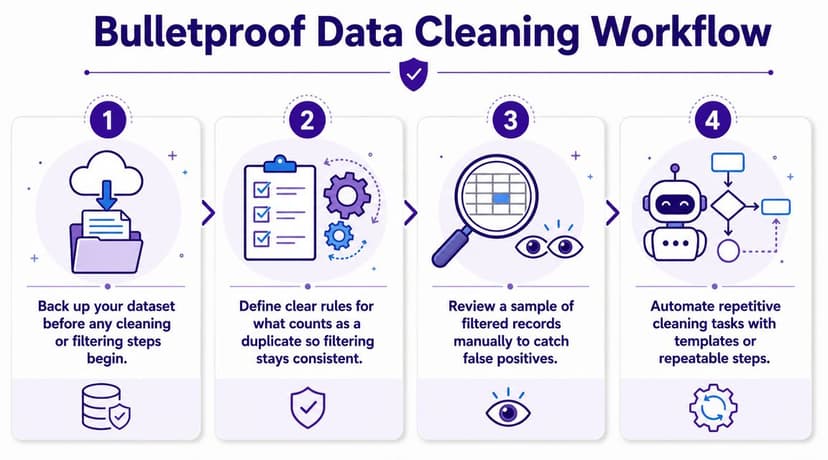
1. Start with a backup, not confidence
The fastest way to create a spreadsheet problem is to trust yourself too much on the first pass. Keep the raw file intact. Work on a copy, or output cleaned data to a separate sheet.
That advice sounds basic, but it’s what separates reversible cleanup from damage control.
2. Define duplicate rules before touching the file
A duplicate is not always “same value appears twice.” Sometimes it means same customer ID. Sometimes it means same customer and order date. Sometimes it means same row except for a corrected status field.
If your team hasn’t defined that rule, different people will clean the same file in different ways. A structured checklist like Statspresso's data cleanup process is useful because it forces you to establish criteria before you start removing anything.
3. Review a sample manually
Automation is helpful, but blind trust is expensive. After filtering duplicates, review a handful of kept rows and removed rows. Check whether the logic matched your intent.
That sample review often catches issues like:
- Whitespace problems: Values look equal but aren’t.
- Wrong key choice: You deduplicated on names when IDs were the right field.
- Legitimate repeats: Some rows should repeat because they represent separate transactions.
A clean result isn’t enough. You need a defensible reason for why those rows were treated as duplicates.
4. Match the method to the job
Different tools solve different duplicate problems. Use the wrong one and the file will fight back.
| Method | Best For | Speed | Preserves Original? | Complexity |
|---|---|---|---|---|
| Remove Duplicates | Quick exact-match cleanup | Fast | No | Low |
| Conditional Formatting | Visual review before action | Fast | Yes | Low |
| Advanced Filter | Unique extraction to new range | Fast | Yes | Medium |
| UNIQUE() | Dynamic, updating unique lists | Fast | Yes | Medium |
| Power Query | Repeatable large-file cleanup | Medium | Yes | Medium |
| COUNTIFS helper column | Multi-column duplicate logic | Medium | Yes | Medium |
| AI-driven workflow | Repetitive multi-step cleanup | Fast after setup | Depends on instruction | Low to Medium |
If you want to formalize that decision-making layer, this overview of data preprocessing helps frame duplicate filtering as one part of a broader cleaning system rather than a one-off fix.
The Final Step: Automating Duplicate Removal with AI
Monday morning, a fresh export lands in your inbox. Same columns as last week, different formatting problems, and one familiar headache: duplicate records mixed with legitimate repeat transactions. At that point, the actual cost is not Excel itself. It is having to rebuild the same cleanup logic over and over.
AI helps when duplicate removal has stopped being a one-time task and turned into a repeatable process. That is the decision point. If you are cleaning a small sheet once, Excel’s built-in tools are faster. If the file changes every week, the duplicate rule shifts by client, or the cleanup includes several steps before and after deduplication, AI starts to make sense because it reduces setup time and keeps the process consistent.
The practical change is simple. Instead of manually choosing between Remove Duplicates, formulas, Advanced Filter, or Power Query each time, you describe the result you need in plain language and let the system execute the steps.
A useful prompt looks like this:
Find duplicate rows based on Customer ID and Order Date, keep the first occurrence, and copy the unique records to a new sheet.
That instruction still depends on your definition of a duplicate. AI does not fix a bad rule. If "Customer ID + Order Date" is the wrong key, the output will be wrong faster. But when the rule is clear, AI can save time on the repetitive parts: selecting fields, applying the right method, creating output sheets, and repeating the workflow across new files.
This matters most in three situations:
- The duplicate logic changes by dataset
- The cleanup involves multiple actions, not just one click
- The same workbook process repeats on a schedule
In those cases, AI works best as an execution layer on top of the methods covered earlier, not as a replacement for judgment. I would still use Power Query for a stable, auditable process that needs strong transparency. I would use AI when speed, repeatability, and low manual effort matter more than inspecting each transformation step inside Excel.
If you want to see what that looks like in practice, this guide to AI data cleaning in Excel shows how plain-English instructions can drive spreadsheet cleanup workflows. Teams that need broader process automation across spreadsheets, forms, and other systems sometimes bring in an AI automation agency for that larger operational setup.
If duplicate cleanup keeps showing up on your calendar, Elyx AI can execute the workflow inside Excel from a plain-English request, including exact-match deduplication, unique-record extraction, and multi-step cleaning sequences that would otherwise need to be rebuilt by hand each time.
Reading Excel tutorials to save time?
What if an AI did the work for you?
Describe what you need, Elyx executes it in Excel.
Sign up