7 Essential Steps for Excel AI Data Cleaning in Your Workflow

If you’ve ever found yourself staring at a hopelessly messy Excel sheet, you know the feeling. That sinking realization that you’re about to lose hours of your day to tedious, mind-numbing data cleaning. We've all been there, wrestling with a tangled mess of formulas just to get our data into a usable state.
But that entire routine is starting to feel like a relic of the past. Excel AI data cleaning is here, and it’s turning that manual grind into a simple conversation, giving you back a huge chunk of your workweek.
3 Reasons Manual Data Cleaning in Excel is Ending

Spending too much time on Excel?
Elyx AI generates your formulas and automates your tasks in seconds.
Sign up →For as long as most of us can remember, cleaning data in Excel meant rolling up our sleeves for a fight. You’d get a raw data file and immediately spot the tell-tale signs of a long afternoon ahead: inconsistent date formats, hidden extra spaces, typos, and duplicate rows scattered everywhere.
The old-school fix was always a frustrating gauntlet of manual edits and nested formulas. You’d use the TRIM function to zap extra spaces, VLOOKUP to patch together different datasets, and a maze of IF statements to standardize your categories. It wasn't just slow—it was a major roadblock that kept you from the real work of analysis.
1. A New Approach with an AI Agent
Now, AI agents that live directly inside Excel are completely changing how this works. Instead of doing all the heavy lifting yourself, you just tell the AI what you need in plain English. This is exactly what tools like ElyxAI do. Think of it as an autonomous assistant that understands your goals and gets the job done.
Imagine just typing: "Remove all duplicate rows based on the 'Email' column, standardize all dates in column F to MM/DD/YYYY format, and trim leading and trailing spaces from all text." The AI doesn't just give you a formula—it actually performs every single one of those tasks for you in seconds.
This isn't some small, incremental update. It’s a complete rethinking of the data cleaning workflow. Professionals everywhere are dealing with more data than ever, and the old manual methods just can't keep up. It's no surprise the global data cleaning tools market is expected to jump from $3.09 billion in 2024 to $6.78 billion by 2029. This growth highlights a simple truth: manual cleaning is becoming obsolete.
2. Reclaiming Your Time and Focus
The most valuable thing Excel AI data cleaning gives you is your time back. People who've made the switch report saving 3+ hours per week on tasks that an AI can now handle from a single instruction. You can learn more about how an Excel AI assistant can reshape your daily work.
This recovered time is where the real magic happens. It frees you up to focus on what actually matters: interpreting your data, discovering insights, and making smart, strategic decisions. Understanding why an AI data entry service is more efficient than manual work is a great way to see just how much time can be saved.
In the next few sections, we’ll walk through exactly how to put this new workflow into practice. We'll turn your messy spreadsheets into clean, analysis-ready assets in minutes, not hours.
3 Steps to Get Your Spreadsheet Ready for AI Analysis
Before you unleash an AI on your data, a little bit of prep work goes a long way. Think of it as setting the table before a big meal—it makes everything that follows run much smoother and ensures you get the results you're after. These aren't cleaning tasks just yet, but they're the essential groundwork that helps tools like ElyxAI work their magic without tripping up.
The absolute first rule, and something I tell everyone, is to never work on your original file. Seriously. Always make a copy. This is your safety net, your get-out-of-jail-free card. It lets you experiment and even make mistakes without worrying about messing up your source data. A quick file duplication is all it takes.
1. Format Your Data as an Excel Table
Next up, you need to give your data some proper structure. AI tools are much smarter when they can tell exactly where your dataset begins and ends. The best way to do this? Format your data as an official Excel Table.
If your data is just sitting in a loose range of cells, converting it is a breeze:
- Click anywhere inside your data.
- Hit Ctrl+T on your keyboard (or find the
Tablebutton on theInserttab). - Just make sure the "My table has headers" box is checked if you have column titles.
Turning your data into a Table makes it a self-contained object that an AI can easily target. It also adds other handy Excel features, like automatically expanding when you add new rows, which is just good practice anyway.
When you format your data as a Table, you're essentially drawing a clear boundary around it. This tells the AI, "Hey, focus on this," which prevents it from getting confused and applying changes to the wrong cells.
2. Use Clear and Descriptive Column Headers
Finally, spend a minute on your column headers. The AI reads these titles to understand the context of each column. Vague headers like "Data_1" or "Notes" are a recipe for confusion and can lead to the AI making the wrong assumptions.
Good headers don't have to be long, just descriptive. For instance:
- Change "Amt" to "Invoice Amount".
- Instead of "Loc," try "Store Location".
- Swap "Date" for "Order Date".
This simple clarity helps the AI grasp the meaning of the data, not just the text. This is especially important for complex tasks like filling in missing information based on logic. For example, if you've pulled data from various documents, clean headers are non-negotiable. If you're struggling with that initial data extraction, our guide on how to convert PDF files to Excel using AI can help you start with a much cleaner, more structured dataset from the get-go.
With these three things done—a backup file created, your data in an Excel Table, and your headers clarified—you’ve properly set the stage for successful Excel AI data cleaning. Now you're ready to get into the really powerful stuff.
7 Data Cleaning Tasks an AI Agent Can Automate
Alright, now that your data is prepped and ready, let's get to the fun part. This is where you see what an AI agent can truly do. Forget about wrestling with complicated formulas. The future of Excel AI data cleaning is all about giving simple, clear instructions in plain English.
Here are seven of the most common data headaches I see and how you can fix them in seconds.
1. Removing Duplicates
Let's start with the most common culprit: duplicates. Extra entries can completely throw off your analysis, inflate counts, and lead to some seriously misleading reports.
Imagine you have a customer list where the same person appears multiple times. Instead of manually hunting them down, you can just tell the AI:
Remove all duplicate rows based on the 'Email' column, keeping the first entry.
Just like that, the AI scans the column and cleans up the redundant rows. You’re left with a perfectly unique list.
2. Trimming Extra Spaces
Here’s a sneaky one. Hidden spaces at the beginning or end of a cell are a classic data quality problem. They’re nearly impossible to spot with the naked eye, but they prevent proper sorting and matching. The traditional solution involves the TRIM formula.
Formula: =TRIM(A2)
Explanation: This formula removes all leading and trailing spaces from the text in cell A2. You would then need to copy this formula down for all relevant cells and paste the results as values.
Now, you can just ask your AI:
Trim all leading and trailing whitespace from the 'Product Name' and 'Category' columns.
All those invisible spaces vanish, and your data becomes instantly consistent.
3. Standardizing Text Case
Inconsistent capitalization is another common headache. Think of a 'Country' column with "USA," "usa," and "U.s.A." all mixed together. To fix this, you would typically use the UPPER, LOWER, or PROPER formulas.
Formula: =PROPER(A2)
Explanation: This formula converts the text in cell A2 to "Proper Case," where the first letter of each word is capitalized. You could use =UPPER(A2) for all uppercase or =LOWER(A2) for all lowercase.
With an AI, you can simply give a command like:
Change all text in the 'Country' column to uppercase.
Every entry becomes uniform, ensuring your data groups and filters exactly as it should.
4. Correcting Date Formats
When you pull data from different systems, you often end up with a mess of date formats: MM/DD/YYYY, DD-MM-YY, YYYY.MM.DD. This makes it impossible to sort your data chronologically or perform any timeline analysis.
With an AI, you can standardize them all with one instruction:
Standardize all dates in the 'Order Date' column to 'MM/DD/YYYY' format.
The AI is smart enough to recognize the different variations and convert them all to the single, consistent format you need.
The real magic isn't just doing one task at a time; it's chaining them together. With a tool like ElyxAI, you can combine these steps into a single request: "Remove duplicates by 'Email', trim whitespace from all columns, and standardize 'Country' to uppercase." This is where you really start automating your entire workflow.
5. Splitting Text into Columns
Sometimes, you have important data crammed into a single cell. A classic example is a "Full Name" column that you need to separate into 'First Name' and 'Last Name' for things like mail merges.
Instead of fiddling with "Text to Columns," just tell the AI what you want:
Split the 'Full Name' column into two new columns named 'First Name' and 'Last Name'.
The AI instantly creates the new columns and intelligently populates them. You can get a better sense of how this works by seeing how an AI assistant for Excel interprets commands like these.
6. Correcting Data Types
This one is a silent killer for accurate calculations. Numbers stored as text look like numbers, but your SUM() formula will return an error or zero. It’s incredibly frustrating.
If your 'Sales' column isn't adding up, the fix is simple:
Convert the 'Sales' column to a number format.
The AI changes the data type for the whole column, making it ready for any math you need to do.
7. Tidying Up Financial Data
For anyone working with financial records, data integrity is everything. An AI agent can be a massive help here, automating tasks that are usually tedious and prone to error. This could be anything from flagging unreconciled transactions to fixing miscategorized expenses, much like what professional QuickBooks cleanup services do.
For example, if your expense sheet has inconsistent vendor names, you can clean it up fast.
In the 'Vendor' column, standardize all entries for 'Microsoft Inc' and 'MSFT' to 'Microsoft'.
With that simple prompt, all the variations are unified, giving you clean, reliable data for your financial reports.
Manual vs AI Data Cleaning: 5 Key Differences
To really see the difference, it's helpful to compare the old way with the new. The table below shows how complex Excel formulas can be replaced by simple, intuitive natural language prompts with an AI agent like ElyxAI.
| Data Cleaning Task | Traditional Excel Method (Formula) | ElyxAI Natural Language Prompt |
|---|---|---|
| Remove Duplicates | Data > Remove Duplicates (multi-step UI) |
Remove duplicate rows based on the 'Email' column. |
| Trim Whitespace | =TRIM(A2) (applied to one cell, then dragged) |
Trim whitespace from the 'Product Name' column. |
| Standardize Case | =UPPER(A2) or =PROPER(A2) |
Change text in the 'Country' column to uppercase. |
| Split Text | Data > Text to Columns (multi-step wizard) |
Split 'Full Name' into 'First Name' and 'Last Name' columns. |
| Change Data Type | Select Column > Format Cells > Number |
Convert the 'Sales' column to a number format. |
As you can see, the shift is from knowing which formula to use to simply describing the outcome you want. This makes data cleaning faster, more accessible, and a lot less intimidating.
Once you've taken care of the basics like duplicates and formatting, it's time to tackle the trickier problems that can really throw a wrench in your analysis: missing values and outliers.
In the past, the go-to move for dealing with these issues was often just deleting the problematic rows. But that means losing valuable information, which is something we should only do as a last resort. An AI assistant gives you a much smarter way to handle these gaps.
2 Advanced AI Techniques for Data Cleaning
Missing data doesn't have to be a dead end. With a simple instruction, you can have your AI tool make logical inferences to keep your dataset intact.
1. Intelligently Filling in the Blanks
I see this all the time in sales reports where the 'Region' column has a few blank cells. Deleting those rows would also remove the sales figures and dates associated with them. Instead, you can just tell the AI what to do.
You’d say something like:For every row where the 'Region' column is blank, fill it with the text 'Unknown'.
Just like that, you've preserved the rest of the data. This same idea works wonders for numerical information. Let's say you have an employee list with a few missing salary figures. A great approach is to use a statistical fix.
You could prompt the AI with:Find the average salary from the 'Salary' column and fill in any blank cells in that same column with the calculated average.
This is a data science technique called mean imputation, but you don't need to know the name or the complex formula. You just describe what you want, and the AI handles the calculation.
Missing data often points to a bigger issue in how information is collected. But when you're up against a deadline, you need a practical way to get your data ready for analysis. Using an AI to fill gaps based on averages or context is a huge improvement over just deleting rows and losing good data.
2. Finding and Dealing with Outliers
Outliers are another classic data headache. These are the oddball values that are so far from the norm they can completely skew your averages and charts. Think of a single $1,000,000 sale in a dataset where the average transaction is only $100.
Hunting for these outliers manually in a huge spreadsheet is like looking for a needle in a haystack. This is where an AI assistant really shines. You can ask it to flag these potential errors for you, so you can review them without endless sorting and filtering.
For example, in a list of customer order values, you could use a prompt to zero in on the extremes:
Identify all rows in the 'Order Value' column that are more than three standard deviations from the average and highlight them in yellow.
The AI will run the statistical analysis and apply the formatting in seconds, instantly showing you which values need a second look. From there, you can decide if it's a typo, a legitimate but unusual sale, or something that needs to be removed.
It’s the perfect example of AI acting as a capable assistant, not just a blind automation tool. By letting it handle these more complex cleaning tasks, you can be much more confident in the reliability of your final analysis.
If you're interested in creating these kinds of powerful statistical checks yourself, an AI formula generator for Excel can be an incredibly helpful tool to learn from.
2 Ways to Check the AI's Work and Keep Your Data Safe
Letting an AI loose on your spreadsheet can feel like a leap of faith. How do you know it did the job right? And more importantly, how can you be sure your sensitive information stays private? These aren't afterthoughts; they're central to using AI responsibly in Excel.
After the AI has finished its cleaning run, you need to verify its work. The good news is you don't have to scroll through thousands of rows looking for changes. The easiest way to check is to just ask the AI what it did.
1. How to Double-Check the Changes
Think of it as a quick conversation to audit the results. For example, let's say you just had the AI clean up a messy 'Region' column. Instead of manually checking, you can fire off a quick follow-up prompt:
Show me a count of the unique values in the 'Region' column, both before and after you cleaned it.
The AI can then instantly report back that "USA," "U.S.A.," and "United States" have all been neatly consolidated into a single, standard entry. This back-and-forth gives you a quick and clear confirmation that the AI understood your instructions perfectly.
A huge mistake I see people make is just trusting the AI blindly. Always do a spot-check. A simple prompt like, "How many duplicate rows did you remove?" or "Give me a summary of the changes you made" is your instant audit trail. It keeps you in control and gives you peace of mind.
2. What About Data Privacy?
Accuracy is one thing, but security is another. This is especially true if you’re working with confidential client lists or financial data. The privacy question all comes down to how the AI tool is built. Many tools require you to upload your entire Excel file to an external server, which can be a serious security risk.
Fortunately, some tools are designed with a privacy-first approach. ElyxAI, for instance, operates on a fundamentally different principle: your Excel file and all the data inside it never leave your computer.
Here’s how that works in practice:
- You type a command in plain English, like "Standardize all company names."
- Only the text of your instruction—not your data—is sent to the AI model to figure out the task.
- The AI sends back a set of instructions, which are then carried out locally on your machine, inside your copy of Excel.
The entire process is secured with enterprise-grade encryption like AES-256 and TLS 1.3. This model gives you all the power of AI without the security headaches. For anyone in finance, consulting, or management, this isn't just a feature; it's a necessity for bringing AI into your daily workflow.
A 3-Step Repeatable AI Cleaning Workflow
Okay, we’ve covered the individual tasks. Now, let’s tie them into a practical, repeatable workflow you can use on any project. The goal here isn't to just learn a few AI tricks; it's to develop a consistent habit for turning messy data into something you can actually trust and use.
Before you let the AI touch anything, a little prep work goes a long way. Always start by saving a copy of your original file—this is your safety net. Then, make sure your data is formatted as an official Excel Table (just select your data and press Ctrl+T). This simple step makes it much easier for the AI to understand and work with your dataset.
With your data prepped, you can start chaining commands together. Instead of asking the AI to do one thing at a time, you can give it a multi-step prompt that handles several cleaning jobs at once.
Here’s what a single, powerful instruction might look like:
First, remove all duplicate rows based on the 'Customer ID' column. Next, trim all extra spaces from every column in the table. Then, standardize the text in the 'Country' column to uppercase. Finally, convert the 'Sale Amount' column to a number format.
3 Steps to Command, Verify, and Secure Your Data
Giving the command is only half the battle. Once the AI has done its work, you need to shift into validation mode. Trust, but verify. This is where you confirm the changes are correct and that the integrity of your data is intact.
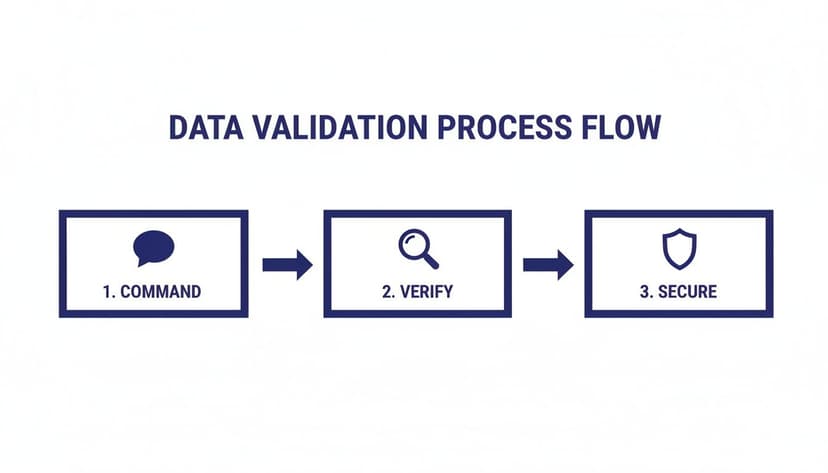
Think of it as a simple feedback loop. After you give the command, you follow up with questions to double-check the results. For example, you could ask, “How many duplicate rows were removed?” or “Show me a summary of the 'Country' column.” This conversational check-in ensures the AI understood you correctly.
This approach transforms a tedious manual chore into an efficient conversation. By combining actions and then quickly verifying them, you save a ton of time. This same principle of instructing and validating is a core concept in broader AI automation.
Ultimately, this final verification step is what builds your confidence. It’s how you know for sure that your data is clean, accurate, and ready for analysis.
4 Common Questions About AI Data Cleaning in Excel, Answered
When I talk to people about using AI inside Excel, a few key questions always pop up. It makes sense—we're all a bit cautious when it comes to new tech, especially when our company's data is on the line. Let's walk through some of the most common concerns I hear about Excel AI data cleaning.
1. "But Can It Actually Handle My Giant Datasets?"
This is a big one. We've all been there: you try to run a simple formula on a massive file, and Excel just freezes. The good news is that AI add-ins like ElyxAI are built for this exact problem.
Think of it this way: instead of forcing Excel to do the heavy lifting with complex array formulas on 100,000 rows, the AI tool processes your request in the background. It figures out the solution and then applies the clean, final result back to your sheet. This avoids the performance lag that makes manual cleaning so painful. It's a much smarter way to work.
2. "Is It Safe? I Can't Risk My Company's Confidential Data."
Your data's security is non-negotiable, and the answer here really depends on the specific tool you're using. Some tools require you to upload your entire file to their servers, which is a major red flag for sensitive information.
I always recommend tools with a privacy-first architecture, like ElyxAI. Here’s how that works:
- Your Excel file and all the data inside it never leave your local computer.
- The only thing sent to the AI model is your plain-text instruction, like "standardize all the state names in column F."
- The AI sends back the necessary steps, and the changes happen directly on your machine.
This is a crucial difference. ElyxAI uses enterprise-grade AES-256 and TLS 1.3 encryption, so you can confidently clean sensitive financial reports or client lists without worrying about your data being exposed.
3. "What Happens If the AI Messes Up?"
This is a totally fair question. No one wants an AI to go rogue and scramble their data. The key is to have a simple safety net in place, which is easy to do.
First, a pro tip I always follow: always work on a copy of your original dataset. This should be standard practice for any major data work, AI-assisted or not. It gives you a risk-free sandbox to experiment in.
Second, a good AI tool should feel like a partner, not a black box. With ElyxAI, you can audit the work with follow-up questions. After it runs a task, just ask, "How many rows did you remove?" or "Give me a summary of the 'Category' column." You get an instant confirmation of what changed.
And remember, you’re still in Excel. You always have the ultimate override button: Undo (Ctrl+Z). If you don't like a change, one keystroke reverts it instantly. You're always in control.
4. "Do I Need to Be an Excel Guru to Use This?"
Not at all. In fact, that's the whole point. Tools like ElyxAI are designed to level the playing field, giving everyone the power of an Excel expert without the steep learning curve.
Instead of wrestling with nested INDEX, MATCH, or VLOOKUP functions, you just describe what you need in plain English. If you can write an email asking a coworker to clean up a column, you have all the skill you need to command the AI. It makes powerful data cleaning accessible to your entire team, not just the spreadsheet wizards.
Ready to stop wrestling with formulas and start automating your work? With Elyx AI, you can reclaim hours of your week by transforming your messy spreadsheets into clean, analysis-ready assets with simple English commands. Try ElyxAI for free and see how much time you can save.
Reading Excel tutorials to save time?
What if an AI did the work for you?
Describe what you need, Elyx executes it in Excel.
Sign up