How to Identify Duplicates in Excel: 7 Proven Methods

A duplicate problem usually shows up at the worst possible moment. You open a workbook to build a pivot table, check totals by region, and the numbers don't reconcile. Then you scroll and see it. The same customer appears twice. The same invoice appears three times. One row looks identical except for a typo, another has the same business record split across slightly different entries.
That’s why how to identify duplicates in Excel is more than a cleanup trick. It’s a reporting skill. If you catch duplicates early, your totals, lookups, dashboards, and imports stay reliable. If you miss them, every downstream result becomes questionable.
The right method depends on what you need. Sometimes a fast visual check is enough. Sometimes you need formula-driven precision across multiple fields. And for recurring files, manual cleanup stops making sense. If duplicate issues spill beyond Excel into contact databases and outreach lists, a practical guide on how to remove duplicate contacts is useful for seeing how the same quality problem plays out in operational systems. The same principle applies inside spreadsheets too: clean data first, analysis second.
Spending too much time on Excel?
Elyx AI generates your formulas and automates your tasks in seconds.
Sign up →Good duplicate handling also sits inside a broader data prep workflow. If you want the bigger picture around structuring, cleaning, and validating raw data before analysis, this overview of data preprocessing in Excel workflows adds useful context.
The Hidden Costs of Duplicate Data
Duplicate data rarely looks dramatic. It looks ordinary. That’s what makes it dangerous.
A sales workbook with repeated customer rows can inflate revenue summaries. An HR sheet with duplicate employee-skill combinations can create upload errors. A finance export with repeated invoice lines can make a reconciliation look broken when the actual issue is simple duplication, not accounting logic.
Where duplicates hurt most
Three failures show up again and again:
- Reporting errors: Pivot tables, SUMIFS formulas, and dashboards count the same business event more than once.
- Import problems: CRM, HRIS, and finance tools often reject or mishandle repeated records.
- Trust loss: Once people spot bad totals, they stop trusting the workbook, even after you fix it.
Practical rule: Don’t delete anything until you know what kind of duplicate you’re looking at. A repeated value is not always a repeated record.
That distinction matters. If the same customer name appears twice with different order numbers, that may be valid. If the same customer name and same order number appear twice, that’s much more likely to be a true duplicate. Excel gives you ways to handle both cases, but not with a single one-size-fits-all button.
Why quick fixes often backfire
The most common mistake is using the first obvious tool and treating the result as final. Highlighting duplicates can show noise, not truth. Removing duplicates can delete valid rows if you choose the wrong columns. Manual scanning works for small sheets, but it falls apart once records get more varied.
That’s why the best approach is layered. Start with a visual check when speed matters. Move to formulas when logic matters. Use automation when the same problem keeps returning.
3 Quick Visual Methods for Fast Checks
When you need an answer fast, visual tools are the best starting point. They won’t solve every duplicate problem, but they help you assess the file quickly before you commit to deeper cleanup.

Conditional Formatting for instant detection
If you want to see repeated values immediately, use Conditional Formatting.
Select the range, go to Home > Conditional Formatting > Highlight Cells Rules > Duplicate Values, then choose a format color. Excel will mark repeated entries right away.
This works well for a fast audit of one field such as email, invoice ID, or customer code. It’s especially useful when someone has asked, “Do we have a duplicate issue in this column?” and you need an answer in seconds.
Its weakness is context. It checks the selected values, not your business definition of a duplicate. If you highlight names, Excel will mark every repeated name, even when those rows represent different transactions.
- Use it for: single-column scans, sanity checks, and quick workbook reviews.
- Avoid relying on it for: multi-field record validation or delete decisions.
- Best habit: duplicate the worksheet first, then highlight on the copy.
If you want another fast Excel review tool for first-pass analysis, this guide to Excel Quick Analysis features fits well with the same rapid-check mindset.
Remove Duplicates for fast cleanup
The built-in Remove Duplicates command is the blunt instrument. It’s fast, but it changes the data.
Select your table, go to Data > Remove Duplicates, and choose the columns Excel should use to define a duplicate. If two rows match on those selected fields, Excel keeps one and removes the others.
This is excellent when your duplicate rule is clear. For example, if a raw export should contain one row per unique order ID, this tool is often enough. It’s less safe when duplicate logic is nuanced.
Work on a copied sheet, not the original. Remove Duplicates is efficient, but once rows are gone, your review path gets much narrower.
A good pattern is simple:
- Copy the sheet
- Run Remove Duplicates
- Compare row counts
- Spot-check removed cases before accepting the result
A short walkthrough can help if you want to see the menu flow in action.
Sort and scan for small or sensitive lists
Sorting still matters. For smaller datasets, or when every record needs human review, sort by the key field and inspect repeated values side by side.
If you sort a customer list by email or an invoice file by vendor name and amount, duplicates naturally group together. That makes it easier to see whether the rows are identical or just similar.
This method is slow compared with formulas, but it gives you judgment. That matters when two rows look close but shouldn’t be merged.
| Method | Speed | Risk | Best use |
|---|---|---|---|
| Conditional Formatting | Fast | Low | Visual scan of one field |
| Remove Duplicates | Fast | High | Immediate cleanup on copied data |
| Sort and scan | Moderate | Low | Manual review of small or sensitive files |
4 Powerful Formula-Based Approaches for Precision
Visual methods are good for inspection. Formulas are better when you need repeatable logic, helper columns, and filtered results you can audit.
The foundation is COUNTIF. Microsoft documents it as a core way to find duplicate values, and the function has been available since Excel 97. A formula such as =COUNTIF($A$2:$A$8,A2)>1 returns TRUE when the current cell appears more than once. Microsoft also notes that COUNTIF can process very large ranges efficiently, and for multi-column checks COUNTIFS is the critical extension. In the same guidance, duplicate combinations such as Employee ID plus Skill are highlighted as important for preventing upload errors in system-bound datasets.

COUNTIF for one-column duplicates
Use this when one column defines uniqueness.
Formula
=COUNTIF($A$2:$A$100,A2)>1
How it works
- $A$2:$A$100 locks the lookup range.
- A2 is the current value being tested.
- >1 converts the count into TRUE or FALSE.
If the value in A2 appears more than once in the full range, Excel returns TRUE. Fill the formula down a helper column and filter to TRUE values.
This is still the cleanest starting point for many duplicate checks. If you want a refresher on building and adapting this formula, this COUNTIF Excel formula guide is a useful reference.
COUNTIFS for duplicate records across columns
Use COUNTIFS when a duplicate is defined by more than one field.
Formula
=COUNTIFS(A:A,A2,B:B,B2)
Suppose column A contains Employee ID and column B contains Skill. This formula counts rows where both conditions match the current row. If the result is greater than 1, that record combination appears more than once.
That’s a major step up from simple highlighting because it reflects actual record logic. In operational files, a repeated first name means little. A repeated Employee ID plus Skill combination is often the actual issue.
Audit rule: If a system import depends on multiple columns, your duplicate test should depend on those same columns.
UNIQUE for a clean distinct list
If your goal isn’t just to flag duplicates but to produce a clean list of distinct values, UNIQUE is the fastest modern formula approach in current Excel versions.
Formula
=UNIQUE(A2:A100)
This spills a list of unique values from the selected range into adjacent cells. It doesn’t label duplicates directly. It creates a deduplicated output list.
That makes it useful for reporting layers. You can keep the raw data intact on one sheet and create a separate clean dimension list on another. For example, a unique customer list, vendor list, or product list.
FILTER with COUNTIF to return duplicate rows
If you want Excel to display only the duplicates, combine FILTER with a duplicate test.
Example concept
=FILTER(A2:C100,COUNTIF(A2:A100,A2:A100)>1)
The exact structure may vary depending on your sheet layout and Excel version, but the logic is straightforward. COUNTIF creates a duplicate test array, and FILTER returns only rows where the condition is TRUE.
This is one of the most practical modern approaches because it separates detection from action. You can review duplicate rows in a clean output area before deleting or merging anything.
| Formula method | Best for | Main strength | Main trade-off |
|---|---|---|---|
| COUNTIF | One-column duplicate checks | Simple and reliable | Limited to one criterion |
| COUNTIFS | Multi-column duplicate logic | Better business accuracy | Slightly more setup |
| UNIQUE | Distinct output lists | Fast clean list creation | Doesn’t explain which rows were duplicates |
| FILTER + COUNTIF | Review duplicate rows separately | Great for auditing | Requires modern Excel functions |
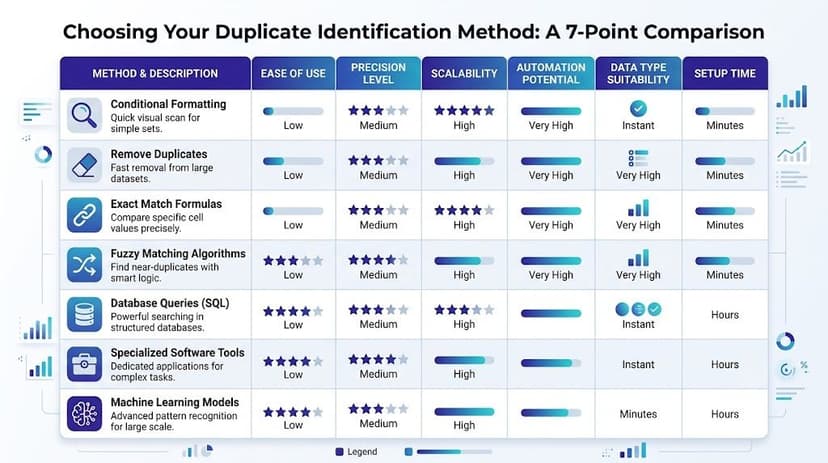
Choosing Your Method A 7-Point Comparison
The right duplicate method depends on one question first. What are you trying to protect? Speed, accuracy, reversibility, or repeatability.
A quick scan before a meeting calls for one tool. A finance import with record-level rules calls for another. A monthly process should almost never rely on manual effort if the same file structure keeps returning.
Decision matrix for real-world use
| Method | Ease of use | Precision | Changes original data | Handles multi-column logic | Good for recurring work |
|---|---|---|---|---|---|
| Conditional Formatting | High | Low to moderate | No | Limited | No |
| Remove Duplicates | High | Moderate | Yes | Yes, if configured carefully | Limited |
| Sort and scan | Moderate | Moderate | No | Manually | No |
| COUNTIF | Moderate | Strong for one field | No | No | Yes |
| COUNTIFS | Moderate | Strong | No | Yes | Yes |
| UNIQUE / FILTER | Moderate | Strong for review outputs | No | Can support structured review | Yes |
| Power Query | Lower at first | Strong | No | Strong | Yes |
Simple rules for choosing fast
Use these rules when you don’t want to overthink the choice:
- Need a quick answer today: start with Conditional Formatting.
- Need a one-time cleanup on clear duplicate keys: use Remove Duplicates on a copied sheet.
- Need to inspect edge cases carefully: sort and scan.
- Need an auditable helper column: use COUNTIF.
- Need duplicate logic across fields: use COUNTIFS.
- Need a clean output range without touching source data: use UNIQUE or FILTER.
- Need repeatable cleanup every time new data arrives: build it in Power Query.
What usually works best
In practice, most experienced Excel users combine methods instead of choosing only one.
A common workflow looks like this:
- Highlight quickly to estimate the problem.
- Use formulas to define duplicates correctly.
- Review flagged rows in a separate output.
- Apply removal or automation only after the logic is proven.
That sequence is slower than pressing one button, but it reduces bad deletions and makes your reasoning easier to explain to colleagues.
If someone else will inherit the workbook, choose the method they can audit later, not just the one you can execute fastest now.
2 Advanced & Automated Solutions Power Query & AI
When duplicate cleanup happens every week or every month, manual methods start wasting time. That’s the point where Excel’s automation tools become more valuable than one-off fixes.
Power Query for repeatable, non-destructive cleanup
Power Query is the strongest built-in option for recurring duplicate handling. You import or connect to the source data, shape it inside the query editor, remove or isolate duplicates based on chosen columns, and load the cleaned result back into Excel.
The key advantage is repeatability. Your source data stays intact, and your cleanup steps are saved as a process. The next time a new export arrives, you refresh the query instead of rebuilding the logic.
That matters when duplicate identification is part of a reporting pipeline, not just a one-time rescue job. If you’re building core spreadsheet capability beyond formulas, this overview of essential Excel advanced skills like Power Query is a practical companion.

A good Power Query setup is especially useful when:
- Files arrive on a schedule: weekly exports, monthly ledgers, recurring CRM extracts.
- You need traceability: steps stay visible in the query rather than hidden in ad hoc edits.
- You want safer cleanup: the source sheet isn’t manually edited row by row.
AI for natural-language duplicate workflows
There’s also a newer pattern. Instead of building formulas or query steps yourself, you describe the task in plain language and let an Excel AI tool execute it.
For example, Excel AI data cleaning workflows can help users describe duplicate rules in business terms rather than formula syntax. Elyx AI is one example of this approach inside Excel. It acts as an add-in that can execute spreadsheet workflows from a natural-language request, such as identifying duplicate rows based on selected fields, highlighting them, and preparing the sheet for review.
That changes the job from writing mechanics to defining rules clearly. You still need to know what counts as a duplicate. You just don’t have to build every step manually.
Automation doesn’t remove judgment. It removes repeated clicks after you’ve made the judgment.
Trade-offs between the two
Power Query is stronger when you want a saved transformation pipeline that you can refresh repeatedly. AI is more flexible when the task changes often and you want to express the logic in plain English.
If the workbook structure is stable, I’d lean toward Power Query. If the structure changes and the business rule changes with it, AI can reduce setup friction.
Beyond Identification 5 Strategies for Cleaning Duplicates
Finding duplicates is only half the job. The harder question is what you should do with them next.
The wrong cleanup decision can remove valid records, wipe out useful notes, or collapse two rows that should stay separate. That’s why cleanup needs a strategy, not just a detection method.
Five ways to handle duplicates safely
Delete exact duplicates
If two rows are exactly identical across all relevant fields, deleting the extra copy is usually safe. This is the simplest case and often the first that comes to mind.Merge partial duplicates
Sometimes duplicate records contain different useful fields. One row has the phone number, the other has the updated account owner. In that case, deletion loses information. Merge first, then remove the leftover duplicate.Keep one canonical record
In customer or vendor data, define a rule for which record survives. Maybe you keep the newest update, the most complete row, or the one from the trusted source system.Archive before removing
For finance, HR, and audit-sensitive files, don’t hard-delete immediately. Move duplicate rows to a review or archive tab so you can prove what changed.Review edge cases manually
Similar-looking rows aren’t always duplicates. A repeated customer ID with a different amount or different date may signal a real business event, not bad data.
The mistake many tutorials miss
A major problem in real files is duplicate logic across non-adjacent fields. As Excel Easy’s duplicate examples note, a critical gap in many tutorials is handling duplicates across multiple non-contiguous columns, such as matching Customer ID in column A with Invoice Amount in column G. Basic COUNTIF and simple highlighting fail in that situation, which is why professionals often end up building complicated formulas or doing manual lookups.
That’s the moment where simplistic cleanup becomes risky. If your duplicate rule depends on fields that aren’t next to each other, or only applies under certain conditions, basic visual methods can mislead you.
A practical cleanup standard
Use this sequence when accuracy is critical:
- Define the duplicate rule clearly: value duplicate, row duplicate, or business duplicate.
- Separate detection from deletion: flag first, review second, remove last.
- Preserve an original copy: always.
- Document the rule you used: especially in shared workbooks.
- Organize the cleaned output: a structured sheet is easier to trust and maintain. This guide on how to organize data in Excel helps with that final step.
Good cleanup keeps the evidence trail. Great cleanup also leaves the next analyst with a process they can understand.
Duplicate cleanup is one of those Excel tasks that seems small until it starts breaking reports, imports, and decisions. If you want a faster way to handle that work directly inside Excel, Elyx AI is one option for turning plain-language requests into executed spreadsheet workflows, including duplicate identification and broader data cleaning steps.
Reading Excel tutorials to save time?
What if an AI did the work for you?
Describe what you need, Elyx executes it in Excel.
Sign up