How to Compress Excel Files & Boost Performance

You know the file. It opens slowly, scrolls with a lag, recalculates at the worst moment, and takes far too long to save. Then someone asks you to email it, and suddenly the spreadsheet that “worked fine yesterday” becomes a problem.
That usually means the workbook is carrying more than real business data. It’s carrying image bloat, excess formatting, hidden ranges, stale caches, or a file format that isn’t doing you any favors. If you want to learn how to compress excel files properly, the fastest path is not one magic button. It’s a sequence of decisions, starting with quick wins and ending with structural cleanup.
Why Your Excel Files Are So Large and How to Fix It
Large Excel files rarely expand due to a single factor. They grow as minor habits accumulate. A dashboard might include several pasted screenshots. A worksheet often features formatting applied across entire columns. A pivot report is frequently duplicated. Someone might drag a formula far beyond the actual dataset, causing Excel to treat an enormous empty range as a functional part of the workbook.
Spending too much time on Excel?
Elyx AI generates your formulas and automates your tasks in seconds.
Sign up →That’s why compression works best when you treat it as both a storage problem and a spreadsheet design problem. You can often shrink a workbook fast, but if the underlying model is messy, the file will swell again the next time someone updates it.
A useful way to think about it is in layers:
- Layer 1, fast cosmetic fixes. Compress images, remove excess formatting, and save in a smarter format.
- Layer 2, workbook hygiene. Remove hidden content, reset oversized used ranges, and clean pivot-related baggage.
- Layer 3, structural repair. Simplify formulas, archive stale data, and separate reporting from raw data storage.
Practical rule: If a workbook keeps getting large again after every monthly refresh, compression isn't the root fix. The model needs cleanup.
That same mindset applies to messy datasets in general. If your workbook has bloated because too much raw data is being pushed into a spreadsheet without structure, this guide on data munging in Excel workflows is worth reading alongside file compression.
The goal isn’t just a smaller file. It’s a workbook that opens faster, recalculates more predictably, and is easier for the next person to trust.
2 Quick Wins for Immediate File Size Reduction
If I need a smaller workbook in the next few minutes, I start with two things. First, images. Second, formatting. These are the easiest fixes, and they often remove size that serves no analytical purpose.
Compress every picture in the workbook
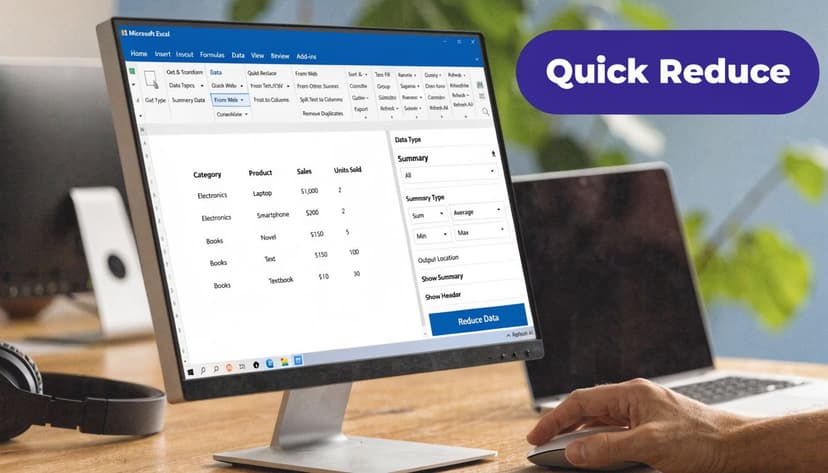
Pictures are one of the biggest offenders in report-heavy files. Excel’s built-in image compression tool can reduce embedded picture sizes by 50 to 90%, and images often account for 70 to 80% of bloat in visual-heavy workbooks, according to DataCamp’s guide to reducing Excel file size. The same source notes a Microsoft benchmark where a 220KB photo dropped to 33KB, an 85% reduction.
Use Excel’s built-in tool like this:
- Click any picture in the workbook.
- Open the Picture Format tab.
- Select Compress Pictures.
- Uncheck “Apply only to this picture” so Excel processes all workbook images.
- Check “Delete cropped areas of pictures”.
- Choose a lower resolution that matches the actual use case.
A simple decision table helps:
| Use case | Setting to choose |
|---|---|
| Screen sharing, email, internal review | Web or lower screen-friendly resolution |
| Printed handouts | Print quality only if the output needs it |
| Dashboard with screenshots | Compress aggressively unless users need to zoom deeply |
If a workbook is only used on screen, keeping full-resolution images is usually wasted file size.
Keep the original visuals outside Excel if they matter. Inside the workbook, optimize for usability, not archival quality.
Strip excess formatting that no one sees
Formatting bloat is sneaky because the sheet can look normal while the file underneath gets heavy. This happens when users apply fills, borders, fonts, or conditional formatting to entire columns, large blank ranges, or copied sheets.
The practical cleanup is simple:
- Select oversized blank ranges and use Home > Clear > Clear Formats
- Check whole-column formatting on sheets where only a small region contains real data
- Review copied tabs that may carry old styling rules no one needs
- Reduce conditional formatting sprawl if rules have spread far beyond the active table
A good way to spot this is visual. Click somewhere in the data area, then press Ctrl+End. If Excel jumps far beyond where your sheet should end, formatting may be inflating the used range.
If your workbook problems start before compression, during exploration and profiling, this broader article on exploratory data analysis in Excel helps you catch messy patterns earlier.
What usually doesn’t work? Tiny manual edits across random cells. If formatting is the issue, clean ranges in bulk. Don’t spend half an hour fixing one border at a time.
3 Data Hygiene Methods for Deep Cleaning Your Workbook
Fast fixes help, but deep reductions usually come from cleaning what Excel is still storing behind the scenes. This is the part most users skip, and it’s often where the workbook gets healthier, not just smaller.
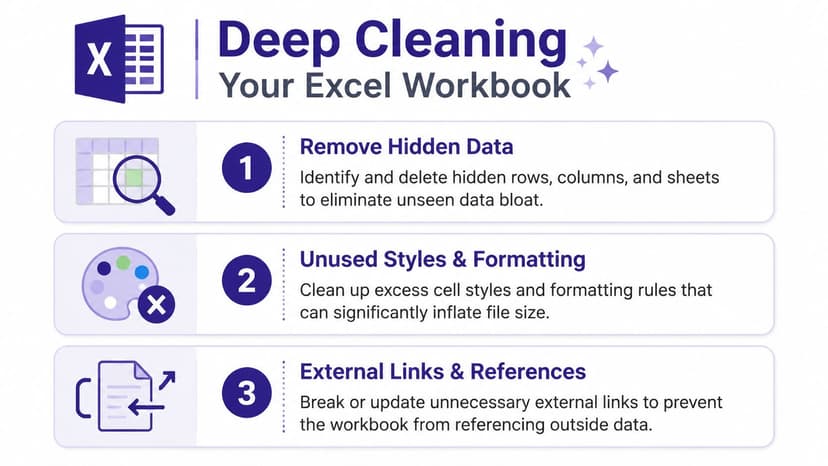
A lot of file-size advice stays focused on compression as a technical trick. That misses the bigger issue. As Macabacus points out in its Excel optimization guide, a 50MB file might be compressed to 15MB, but the underlying cause can still be poor data modeling or redundant formulas.
Reset the last cell and remove ghost ranges
Excel tracks a “used range” for every sheet. If someone formatted row 500000 once, or pasted data and later deleted it, Excel may still think that area matters.
Check it like this:
- Open a worksheet.
- Press Ctrl+End.
- Look at where Excel lands.
If the cursor jumps far below or to the right of your real data, you likely have ghost rows or columns in the used range.
Clean them carefully:
- Select the empty rows below your true dataset
- Delete the rows, don’t just clear them
- Select the empty columns to the right
- Delete those too
- Save, close, and reopen the workbook
That last step matters because Excel often recalculates the actual used range on reopen.
Clear PivotTable cache where it makes sense
PivotTables are efficient for analysis, but they also store hidden data in the workbook. In reporting files with several pivots, that hidden cache can become a major chunk of the file.
For each PivotTable you want to optimize:
- Right-click inside the PivotTable
- Open PivotTable Options
- Go to the Data tab
- Uncheck Save source data with file
- Check Refresh data when opening file
This is a smart move for internal reports that refresh from a trusted source. It’s a bad move if the workbook needs to travel offline and still remain fully editable.
A smaller pivot-heavy file is great, but not if the next user opens it on a plane and loses the ability to refresh or inspect the source properly.
Hunt down hidden sheets and forgotten content
Old workbooks collect debris. Hidden tabs, hidden columns, archived snapshots, old import sheets, and outdated staging tables often stay in the file long after the report layout changes.
Use this quick review:
- Unhide worksheets and inspect anything that appears
- Select surrounding columns and rows to reveal hidden areas
- Look for old report versions copied into the same workbook
- Check named ranges and external references if a sheet still seems strangely heavy
Structural thinking matters. Compression is useful, but it shouldn’t become a bandage for weak workbook design. If the file keeps carrying old intermediate data that should live elsewhere, the right answer may be cleanup, archiving, or redesign.
For teams dealing with repeated workbook cleanup, this guide on AI-powered Excel data cleaning is a good next read because the file-size problem often starts with dirty spreadsheet structure, not with saving options.
Choosing the Right File Format With 2 Key Options
Sometimes the easiest way to compress an Excel file is to stop saving it in the default format. The file type changes how Excel stores the workbook, and that choice has real consequences for size, speed, sharing, and compatibility.

Save as XLSB for heavy internal workbooks
If a workbook has large datasets, formulas, pivots, or embedded content, .xlsb is often the best practical answer.
Microsoft’s documentation says the Excel Binary Workbook format (.xlsb), introduced in 2007, can reduce file sizes by 50 to 75% compared to .xlsx, and real-world benchmarks for spreadsheets with more than 10,000 rows show reductions of 40 to 60%, including one example where a 50MB file dropped to under 20MB in Microsoft’s Excel file size guidance.
Use it like this:
- Open the workbook.
- Click File > Save As.
- Choose Excel Binary Workbook (*.xlsb).
- Save a copy first if you need to preserve the original .xlsx version.
This format is especially useful for:
- Internal BI reporting
- Finance models with many formulas
- Large operational workbooks
- Files that open and save too slowly in .xlsx
Use ZIP only for transport or archive
ZIP compression still has a place, but it’s narrower than many people think. It’s fine when you need to send a workbook by email or archive an old version. It’s poor for active collaboration.
Here’s the trade-off in plain terms:
| Option | Best for | Main drawback |
|---|---|---|
| .xlsb | Ongoing Excel work on large files | Less friendly with some non-Microsoft tools |
| .zip | Sending or archiving a finished file | Recipients must extract it before editing |
| .xlsx | Broad compatibility and standard sharing | Often larger for data-heavy workbooks |
This short walkthrough is useful if you want to see file-format choices in action:
The mistake I see most often is zipping a workbook that’s still changing daily. That creates friction immediately. People download copies, rename them, forget to extract the latest version, and version control gets messy fast.
If your file is mostly raw tabular data and you don’t need formulas, formatting, or pivots, exporting specific tabs to CSV can also make sense. Not because CSV is “compressed” in the Excel sense, but because it strips away workbook overhead entirely. It’s a portability choice, not a presentation choice.
Advanced Compression Techniques for Power Users
Once the easy wins are done, the remaining gains usually come from reducing what Excel has to maintain every time the workbook changes. That means formula design, cache behavior, and smarter automation.
Replace volatile formulas where possible
Some formulas make Excel recalculate more often than necessary. In large models, that can make a workbook feel heavier even when the file size itself isn’t exploding.
Functions such as OFFSET, INDIRECT, and NOW() are common examples of formulas that trigger frequent recalculation. Where the model allows it, replacing them with more stable structures can make the workbook easier to work with.
A common example is swapping a volatile dynamic reference for INDEX.
Instead of building a range with a more volatile approach, many analysts can restructure logic with formulas like:
=INDEX($B$2:$B$1000, MATCH(E2, $A$2:$A$1000, 0))
How it works:
MATCH(E2, $A$2:$A$1000, 0)finds the position of the lookup value in column AINDEX($B$2:$B$1000, ...)returns the corresponding value from column B- The formula stays readable and avoids some of the instability that comes from more volatile indirection patterns
This doesn’t magically compress a file by itself, but it often reduces workbook strain. That matters in big reporting files.
Use VBA for repetitive cleanup
If you repeat the same cleanup every week, automate it. Even a small macro can remove repetitive clicking.
Here’s a simple VBA example that loops through each worksheet and resets the used range by touching it, then saves the workbook:
Sub TouchUsedRange()
    Dim ws As Worksheet
    For Each ws In ThisWorkbook.Worksheets
        ws.UsedRange
    Next ws
    ThisWorkbook.Save
End Sub
What this does:
For Each ws In ThisWorkbook.Worksheetsloops through every sheetws.UsedRangeforces Excel to reevaluate that worksheet’s used rangeThisWorkbook.Savewrites the current state back to disk
This won’t replace manual cleanup of ghost rows and columns, but it’s useful after you’ve already trimmed the workbook.
Know when XLSB is the technical winner
For data-heavy workbooks, .xlsb remains the strongest save-format option. Microassist notes that the format uses a BIFF12 binary stream, which is efficient but less interoperable than XML, and that 75% of compatibility issues arise with pre-2007 Excel or non-Microsoft apps in Microassist’s Excel compression tips.
That trade-off is why I use a simple rule:
If the workbook stays inside a Microsoft-heavy environment, XLSB is usually worth testing. If the file has to move through mixed tools, keep a clean XLSX version available.
Build cleaner imports before the file gets big
A lot of workbook bloat starts upstream. Raw exports land in Excel with extra columns, duplicated logic, and staging tabs that never get cleaned up.
Power Query helps because it gives you a more disciplined import path. Filter early. Keep only needed columns. Remove duplicates before the data reaches calculation sheets. Store transformation logic in one refreshable query instead of scattering cleanup formulas across multiple tabs.
If part of your job is regularly pulling data into Excel from outside systems, this article on extracting data from Excel and structuring it for reuse pairs well with compression work. Better extraction habits usually lead to smaller, calmer workbooks.
Automating Your Cleanup Workflow with AI
Manual cleanup works. It also burns time.
By the time you’ve compressed pictures, checked Ctrl+End, deleted empty ranges, reviewed hidden sheets, tested save formats, and cleaned formula logic, you’ve done a real maintenance task. That’s fine for one workbook. It’s not a great system when a team generates new reports constantly.

Where manual compression breaks down
The biggest problem with manual compression isn’t just effort. It’s inconsistency. One analyst remembers to compress images. Another saves as .xlsb. Someone else zips the file and emails it around. The workbook gets smaller, but the process gets messier.
That matters because file-size tactics can create workflow issues. DataCamp notes that manual ZIP compression introduces collaboration friction because recipients must extract the file before editing, which increases the risk of version confusion in shared workbook environments in its discussion of Excel file-size reduction and collaboration trade-offs.
That’s the part many guides skip. A smaller file is not always a better workflow.
What AI should automate
The best use of AI here isn’t “tell me what button to click.” It’s executing a multi-step cleanup routine reliably.
A useful Excel AI workflow can handle tasks such as:
- Compressing workbook images to an appropriate screen-friendly setting
- Removing empty rows and columns beyond the actual dataset
- Standardizing formatting so copied styles don’t keep spreading
- Flagging hidden sheets or suspicious ranges for review
- Choosing the right save output based on how the workbook will be used
That’s where automation changes the job. Instead of training every user to remember every maintenance step, you establish a repeatable workflow.
The practical benefit for teams
For individuals, automated cleanup removes tedious work. For teams, it creates consistency.
A finance team can apply the same cleanup logic before month-end packs go out. An operations team can standardize recurring status reports. A BI analyst can clean incoming workbooks before using them as sources for dashboards.
The win isn't just speed. It's getting the same cleanup result every time, instead of whatever a tired user happens to remember at 6:30 p.m.
If you’re already using AI in Excel for repetitive tasks, this article on Excel automation workflows with AI is the natural next step. Compression is a good use case because it combines repetitive clicks, judgment calls, and file-management discipline.
The deeper point is simple. Excel file compression shouldn’t live as a last-minute rescue move. It works better as part of a standing workflow that keeps workbooks lean from the moment data enters the file.
If you want that workflow inside Excel, Elyx AI is built for it. Instead of explaining the steps, it can execute full spreadsheet tasks from a plain-language request, including cleanup, formatting, reporting, and other repetitive workbook work that usually eats up your day.
Reading Excel tutorials to save time?
What if an AI did the work for you?
Describe what you need, Elyx executes it in Excel.
Sign up