5 Fast Methods for Opening VBA in Excel

Every Monday, the same spreadsheet lands in your inbox. The columns are out of order. Dates came in as text. Currency formats are inconsistent. Someone added three blank rows in the middle of the data for no useful reason.
If you've ever fixed that report by hand, you've already felt the problem that VBA was built to solve.
Opening VBA in Excel is the small move that gives you access to Excel's built-in automation engine. Once you're inside, you can record macros, write simple scripts, and tell Excel to repeat tasks the same way every time. For a new analyst, that often marks the moment Excel stops being just a worksheet and starts acting like a real workbench.
Spending too much time on Excel?
Elyx AI generates your formulas and automates your tasks in seconds.
Sign up →Why You Still Need to Know About Opening VBA
VBA stands for Visual Basic for Applications. In Excel, it lives behind the familiar grid and gives you a way to automate repetitive work. That matters because a lot of spreadsheet pain isn't analytical at all. It's cleanup, formatting, copying, renaming, sorting, and rebuilding the same report structure again and again.
The VBA Editor, primarily accessed through Alt + F11, was introduced with Excel 5.0 in 1993 and turned Excel into a programming environment. Microsoft data also shows that VBA macros save professionals an average of 3+ hours weekly on work like pivot tables and trend analysis, as summarized in this history of VBA in Excel.
That explains why learning the first step matters. You can't edit a macro, inspect workbook code, or build even a tiny automation unless you know how to get into the editor.
A familiar analyst problem
Say your sales file arrives with these issues every week:
- Broken dates: Text dates won't sort properly.
- Messy headers: Column names change from one export to the next.
- Repeated formatting work: You keep applying the same number formats and colors.
- Manual summaries: You rebuild the same pivot table from scratch.
These are classic candidates for automation. If you want a broader, non-Excel-specific view of repetitive workflow relief, Simply Tech Today's automation tips give useful context on where automation saves time across office work.
Practical rule: If you perform the same Excel sequence more than a few times, it's worth learning whether VBA can handle it.
There's another reason to understand the manual side first. When you know how traditional Excel automation works, newer tools make more sense too. If you're comparing classic macros with newer spreadsheet automation approaches, this guide to AI automation in Excel is a useful next read.
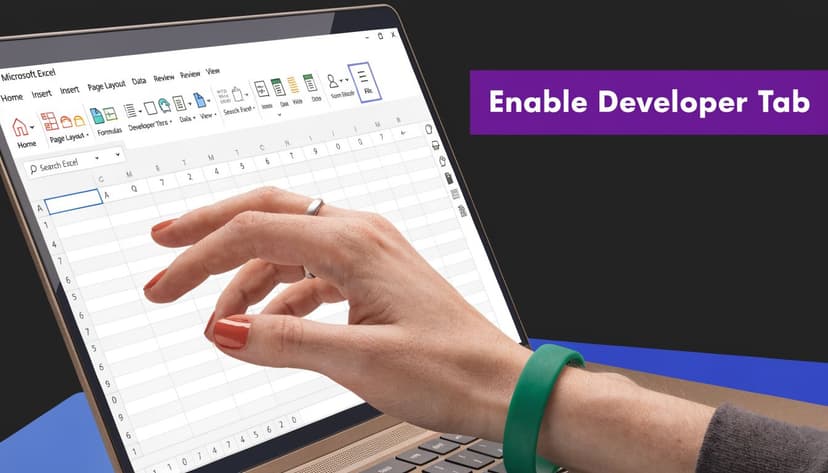
Your First Step Enabling the Developer Tab
If you're new to Excel automation, the Developer tab can seem oddly missing. That's normal. Excel hides it by default because most users never touch macros, form controls, or code.
With the ribbon interface introduced in Excel 2007, enabling the Developer tab became the standard route into VBA. It's now a critical first step for 65% of data analysts working on complex automation tasks, based on the Microsoft-linked summary in this Analysis ToolPak and Excel automation reference.
On Windows
Follow this once, and the tab stays available:
- Click File.
- Choose Options.
- Select Customize Ribbon.
- In the right-hand list of main tabs, check Developer.
- Click OK.
You should now see Developer on the ribbon next to your other tabs.
On Mac
The idea is the same, even if the menus look a little different:
- Open Excel
- Go to Preferences or Excel settings
- Open the ribbon customization area
- Turn on Developer
If you don't see the exact wording from a Windows tutorial, don't panic. Mac menus vary slightly by version, but the goal is the same: add the Developer tab to the ribbon so the Visual Basic button becomes visible.
Why this tab matters
The Developer tab isn't just for opening the editor. It's your control panel for automation work. From there you can:
- Open Visual Basic: Launch the editor without memorizing shortcuts.
- Record a macro: Let Excel capture a task while you perform it.
- Manage add-ins: Useful when advanced tools extend Excel's capabilities.
- Insert controls: Buttons, checkboxes, and other interactive elements for worksheets.
Think of the Developer tab as your front door into Excel's advanced features. If it isn't visible, Excel feels like it has no automation tools at all.
For beginners, this is usually the least confusing way to start opening VBA in Excel because it gives you a visible path instead of relying on keyboard memory.
3 Quickest Ways to Open the VBA Editor
Some methods are faster. Some are easier to remember. Some are best when you want to jump directly into a specific worksheet's code. That's why it's worth knowing more than one way.
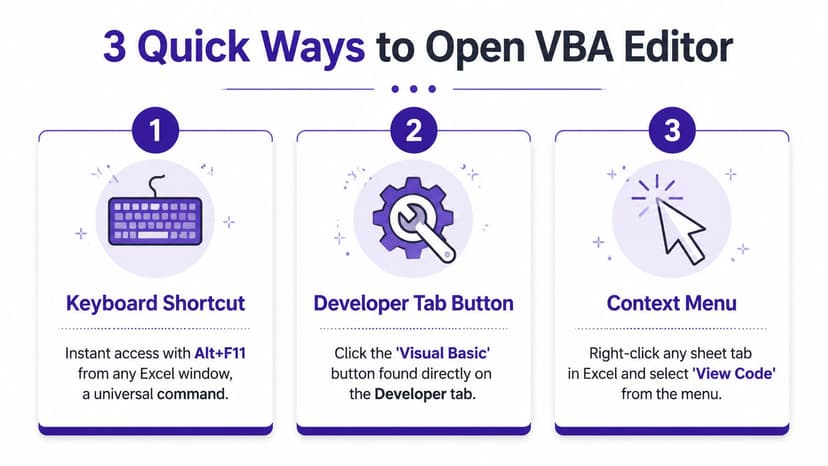
Method 1 with the keyboard shortcut
On Windows, press Alt + F11.
On Mac, use Option + F11 if your keyboard setup supports it.
This is the fastest way. You can trigger it from almost anywhere inside Excel, and it opens the Visual Basic Editor directly. Analysts who work in Excel all day usually end up relying on this method because it removes menu hunting.
Use this method when:
- you want the quickest route
- you already know you'll be writing or debugging code
- you switch into the editor often during the day
If the shortcut doesn't appear to work on a laptop, check whether your function keys require an extra Fn key press. That's a common source of confusion.
Method 2 from the Developer tab
This is the most visible method.
Click Developer on the ribbon, then click Visual Basic.
That's it.
This route is ideal when you're still learning because it confirms you're in the right place. It also helps when you're following a tutorial and want to match what you see on screen with the steps being described.
A good rule is simple:
| Method | Best use case |
|---|---|
| Alt + F11 | Speed and frequent use |
| Developer > Visual Basic | First-time setup and learning |
| View Code from a sheet tab | Jumping into sheet-specific code |
Method 3 from the worksheet context menu
This method is more targeted.
Right-click any worksheet tab at the bottom of Excel, then choose View Code. Excel opens the editor and drops you straight into that worksheet's code window.
Use this when you need code that belongs to a particular sheet, such as:
- reacting when a user changes a cell
- running an event when the worksheet is activated
- attaching logic to one sheet instead of the whole workbook
Many beginners first notice an important VBA idea. Not all code belongs in the same place. A general-purpose macro usually lives in a module, while sheet events belong behind that specific worksheet.
If you right-click a sheet tab and choose View Code, you're not opening a blank macro area. You're opening the code space tied to that one sheet.
Which method should you pick
If you're just starting, use the Developer tab first. It's clearer.
If you're practicing daily, switch to Alt + F11 and build the habit. If you're troubleshooting something that happens only on one worksheet, use View Code.
After you get comfortable with these entry points, the next challenge is knowing what you're looking at once the editor opens. If you also need help opening code connected to other files, this walkthrough on opening a workbook with VBA is a practical follow-up.
Navigating the VBA Editor and Key Windows
The first time the editor opens, it can look more technical than Excel itself. That's normal. You don't need to understand every menu to become useful in VBA. You only need to recognize a few windows and what each one is for.
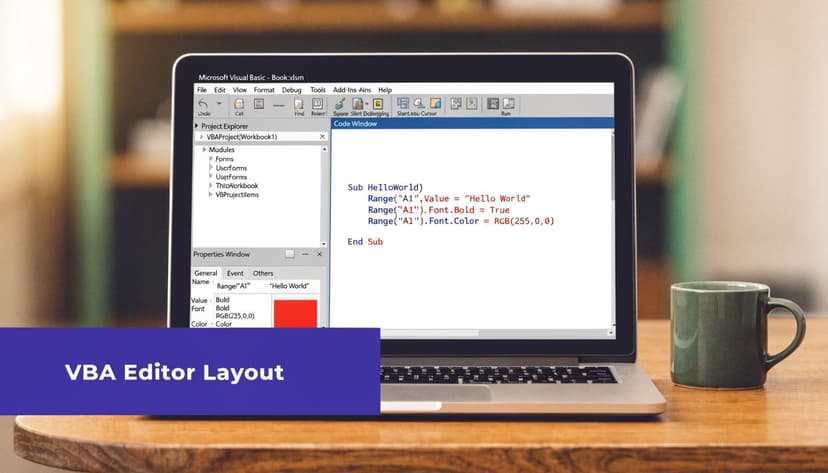
The three windows that matter most
Start with these:
Project Explorer
This is your file tree. It lists open workbooks and the objects inside them, such as worksheets, ThisWorkbook, and modules.Properties window
This shows settings for the object you've selected. If you click a worksheet in Project Explorer, its properties appear here.Code window
You write or read VBA code in this window. Double-click a module or worksheet object to open its code.
A simple way to think about it is this: Project Explorer helps you find the right object, Properties lets you inspect it, and the Code window lets you tell it what to do.
A small habit that prevents big mistakes
When you insert a standard module and start typing code, put this at the top:
Option Explicit
Expert users often do this because it forces variable declaration and can reduce runtime errors by as much as 60%, according to Microsoft's best-practice guidance summarized in this VBA tutorial reference.
That line matters more than it looks. Without it, VBA may accept misspelled variable names and give you confusing results later.
A beginner's macro often fails for simple reasons, not advanced ones. A misspelled variable can waste more time than the actual task you're automating.
One quick test inside a new module
To create your first simple procedure:
- In the editor, go to Insert > Module
- Type this code:
Option Explicit

Sub HelloVBA()
    MsgBox "VBA is working"
End Sub
- Click inside the procedure
- Press F5 to run it
If the message box appears, your setup is working.
If you're editing existing code and want a practical look at how macros are structured, this guide on editing Excel macros pairs well with your first tour of the editor.
A visual walkthrough can also help once you've seen the interface in person:
Essential Security Settings and Common Hurdles
A lot of "VBA doesn't work" problems aren't really coding problems. They're security settings.
Excel is cautious with macros because macros can run actions automatically. That's useful when the file is trusted and risky when it isn't. So if you open the editor successfully but nothing runs, check security before you debug the code itself.

The macro setting most people need
In Excel, go to:
File > Options > Trust Center > Trust Center Settings > Macro Settings
For most users, the practical choice is Disable all macros with notification.
That setting means Excel blocks macros by default, but gives you a chance to enable them when you trust the workbook. It strikes a reasonable balance between usability and safety.
The setting many guides forget
There's another checkbox that matters for some add-ins, integrations, and advanced automation setups:
Trust access to the VBA project object model
If that option is off, certain tools can't interact properly with VBA projects even if ordinary macros are allowed. Microsoft data from 2025 indicates that 25% of all VBA errors come from disabled programmatic access, and the problem increased after 2024 security changes enforced macro opt-ins by default, as described in this Trust access guidance for Excel VBA environments.
Common hurdles you can check quickly
The file type is wrong
If you save a workbook as .xlsx, VBA code won't be preserved. Use a macro-enabled format such as .xlsm.The workbook came from email or download
Excel may open it in a protected state. Look for a security warning near the top of the workbook.You're editing in the wrong code location
A general macro belongs in a module. Worksheet event code belongs under that worksheet object.Your company blocks unsigned macros
This is common in managed environments. If you're on a corporate machine, your IT policies may override local settings.
Good security practice in Excel follows the same logic as good application security elsewhere. You allow trusted processes, restrict unknown ones, and avoid broad permissions unless there's a clear reason. For a wider view of that mindset, this article on proactive software development security is worth reading.
If you want simple examples to test whether your macro environment is functioning, these sample Excel macros can help you isolate whether the issue is the code or the security setup.
Platform Differences and The Future of Automation
A common frustration sounds like this: "I can open the workbook in my browser, so why can't I open the VBA editor there too?"
Because VBA is a desktop feature. It isn't supported in Excel Online or in the mobile apps. That limitation affects 40% of Excel users who work on web or mobile platforms, according to Microsoft's 2025 usage statistics as summarized in this guide on VBA editor access limitations.
That changes how you plan your workflow. If your process depends on VBA, you'll need the desktop version of Excel for editing and running code. Cloud-first teams often discover this only after building a workbook that behaves differently across devices.
The bigger shift is practical, not philosophical. Spreadsheet automation is moving beyond manual scripting alone. VBA is still useful, especially for desktop analysts who need control inside legacy workbooks. But many users now want automation that starts from plain language instead of code, especially when they work across modern environments where VBA isn't available. If you're exploring that direction, this overview of an Excel AI alternative to VBA is a good place to continue.
If you're ready to stop spending hours on repetitive Excel work, Elyx AI gives you a different path. Instead of opening the VBA editor, writing macros, and troubleshooting security settings, you can describe the task in plain language inside Excel and let the agent carry out the workflow for you. It's a practical option when manual coding becomes the bottleneck.
Reading Excel tutorials to save time?
What if an AI did the work for you?
Describe what you need, Elyx executes it in Excel.
Sign up