How to Delete a Chart in Excel: 7 Core Methods

You're probably looking at a chart that won't go away. Maybe it's covering your data, maybe it's left over from an old report, or maybe you clicked it and Excel keeps selecting a bar, title, or legend instead of the whole thing.
The good news is that deleting a chart in Excel is usually simple once you know what kind of chart you're dealing with. Some charts sit on top of a worksheet as objects. Others live on their own sheet tab. And if you're using Excel for the web, the usual keyboard shortcut may not respond the way you expect.
If you've searched how to delete a chart in excel, this guide will walk you through the fastest fixes first, then the cleaner methods for bulk deletion, web and Mac differences, automation with VBA, and the troubleshooting steps that save a lot of frustration.
Spending too much time on Excel?
Elyx AI generates your formulas and automates your tasks in seconds.
Sign up →Your 3 Quickest Ways to Delete a Single Excel Chart
When a worksheet feels cluttered, users often try the obvious move. Click the chart and press Delete. That works, but only if you've selected the entire chart object.
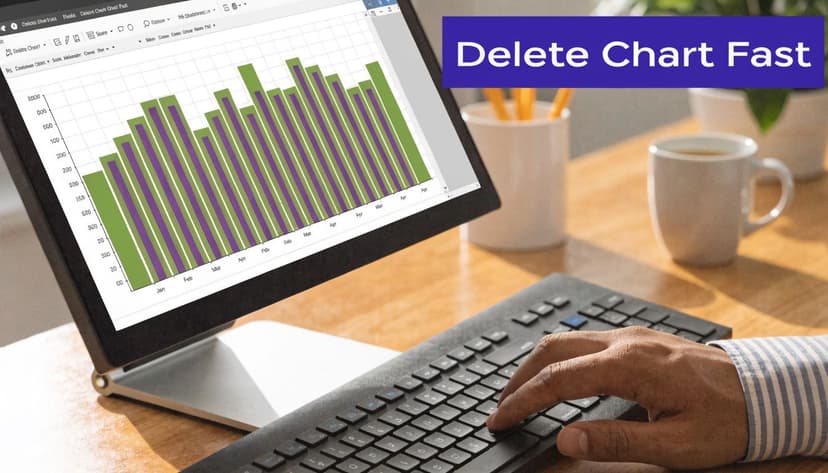
Press Delete after selecting the chart border
For charts embedded on a worksheet, the key detail is where you click. You need to click the outer edge of the chart so Excel selects the full object. According to Microsoft-aligned training data, clicking inside the chart first and then trying to delete fails in 35% of novice attempts because Excel selects an element such as a single bar or label instead of the container, while the Selection Pane offers a 100% reliable selection method (Microsoft chart deletion guidance).
Use this sequence:
- Click the chart's border, not the bars, line, legend, or title.
- Look for the resize handles around the outside.
- Press Delete on your keyboard.
If the chart disappears, you deleted the object only. Your source data stays in the worksheet.
Practical rule: If Excel highlights one series or one chart label, press Esc, then click the outer border again.
Use the right click menu when the keyboard method feels awkward
Some users prefer the mouse because it confirms what Excel thinks is selected. Right-clicking can also help when the Delete key seems unresponsive.
Try this:
- Select the whole chart first: Click the outer frame.
- Open the context menu: Right-click the selected chart.
- Choose the delete command if shown: On some versions, Excel exposes a direct delete option through the context menu.
This is especially helpful when you're cleaning up a dashboard and don't want to risk deleting the wrong item.
If you're editing project visuals and charts in the same workbook, this is also a good time to simplify the rest of the layout. A practical example is this Excel Kanban board tutorial, which shows how visual elements can quickly crowd a sheet if they aren't organized well.
Delete a chart sheet instead of an embedded chart
A chart sheet is different. It isn't floating on a worksheet. It lives on its own tab, like a worksheet tab, but the tab contains only the chart.
You delete it this way:
- Right-click the chart sheet tab
- Click Delete
- Confirm if Excel asks
That removes the entire chart sheet. It's a different action from deleting an embedded chart from a worksheet, so make sure you're deleting the right thing.
If your chart still needs a small fix rather than full removal, adjusting titles can be enough. This guide on adding a chart title in Excel is useful when clarity is the issue, not the chart itself.
How to Efficiently Delete Multiple Charts at Once
Deleting one chart is easy. Deleting several charts on a crowded worksheet is where people lose time.
The usual instinct is to click one chart, hold Ctrl, click the others, and press Delete. That can work. But it gets unreliable fast when charts overlap, sit close together, or compete with shapes and images.
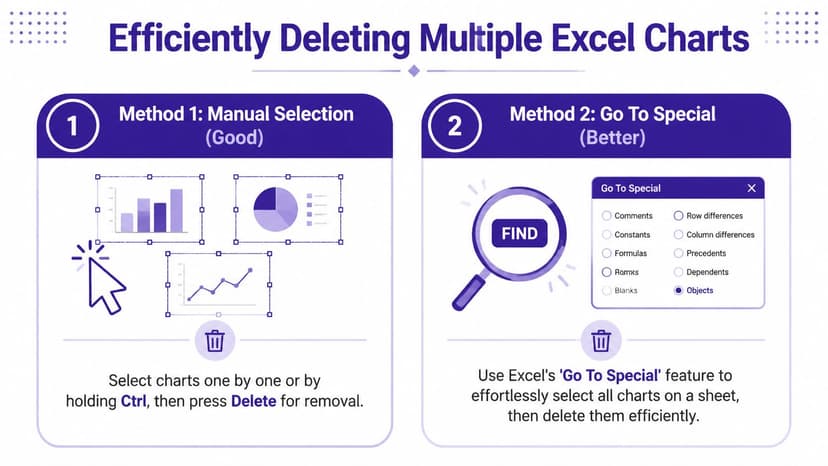
Manual selection works for simple sheets
If the worksheet only has a few separate charts, use manual multi-select.
- Click the first chart carefully: Make sure the full object is selected.
- Hold Ctrl: Keep it pressed while clicking other charts.
- Press Delete: Excel removes all selected chart objects together.
This is fine for a small report. It's less comfortable on busy dashboards where charts overlap or sit behind other objects.
The Selection Pane is the cleaner method
When I train Excel users, this is the method that usually changes how they work with objects.
Open the Selection Pane like this:
- Go to Home
- Choose Find & Select
- Click Selection Pane
Excel then shows a list of objects on the sheet. You can click chart names from the list instead of trying to grab them on the canvas.
Here's why that matters:
| Method | Best for | Main issue |
|---|---|---|
| Ctrl + click | A few visible charts | Easy to misclick |
| Selection Pane | Busy or overlapping objects | Slightly less familiar at first |
When charts overlap, selecting from a list is often faster than trying to click through layers on the sheet.
Once the Selection Pane is open, you can:
- Identify chart objects clearly: Excel lists them as separate objects.
- Select several items in sequence: Use Ctrl while clicking names in the pane.
- Delete with confidence: Press Delete after selecting the exact objects you want gone.
This approach is also useful when a sheet contains text boxes, arrows, and dashboard elements mixed with charts. You stop guessing what Excel is about to remove.
If you work heavily with reports and dashboards, good chart management matters as much as chart creation. This article on Excel data visualization is a strong companion because it helps you decide what should stay visible and what should be removed.
A fast fallback for object-heavy sheets
If a chart seems impossible to click, don't keep fighting the canvas. Open the Selection Pane and select it there.
That single habit solves a lot of “Excel won't let me delete this chart” problems.
Deleting Charts in Excel for the Web and on a Mac
Many tutorials assume you're using Excel on Windows desktop. That's where confusion starts.
If you're in Excel for the web, the normal Delete key may do nothing even when the chart looks selected. That's not you making a mistake. It's a platform difference.
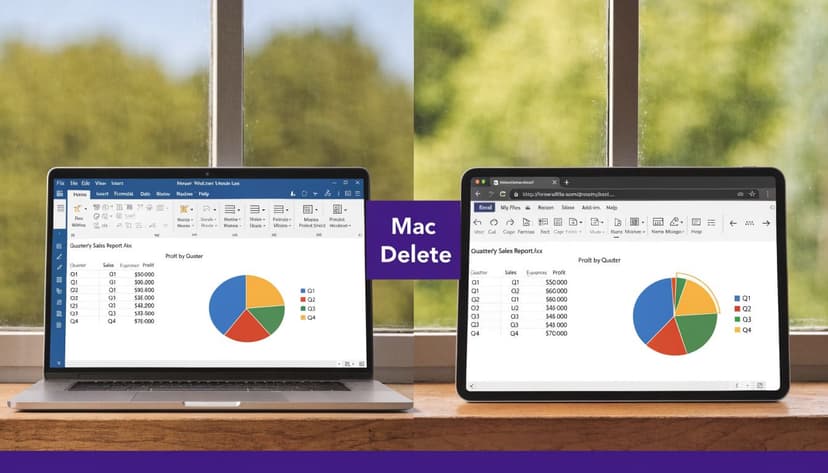
Excel for the web needs a different habit
An underserved area in Excel documentation is chart deletion on web and mobile apps, whose usage is growing 25% year over year. For Excel Online, the reliable method is to right-click the chart and select “Delete” from the context menu because the Delete key is often unresponsive in browser environments (Ajelix guide on deleting charts).
So if you're in a browser, use this process:
- Click the chart so it becomes active.
- Right-click the chart.
- Choose Delete from the menu.
That's the version-specific fix many users need.
If the keyboard shortcut doesn't work in Excel Online, switch to the right-click menu first. It's usually the fastest path.
On Mac, the core method is familiar
On Mac, deleting an embedded chart is generally similar to desktop Excel on Windows. Select the full chart object, then use the keyboard delete action or the context menu.
The important part is still object selection. If you select only a chart element, Excel will edit that element instead of removing the whole chart.
A simple check helps here:
- Handles around the outer frame means the whole chart is selected
- One bar, one line, or one title highlighted means only a piece is selected
Shared files can add confusion
When you work in OneDrive or SharePoint, another user may have left formatting, comments, or extra objects behind. That can make a chart feel harder to remove because the workbook has several interactive layers.
If your file is also getting bulky while you collaborate, this guide on how to compress Excel files can help reduce friction in shared workbooks.
2 Automated Ways to Delete Charts with AI and VBA
Manual deletion is fine when you have one worksheet and a few charts. It stops being practical when you inherit a reporting workbook full of old visuals.
That's where automation makes sense. In Excel, the classic route is VBA. A newer route is using an AI agent inside Excel that executes workbook actions from plain language instructions.

VBA is powerful when you need bulk deletion
A standard VBA macro can delete over 1,000 chart objects in under 2 seconds on an average business machine. That matters in enterprise files where 40% of worksheets are protected, which blocks manual deletion but can be bypassed programmatically with VBA or an advanced AI agent (YouTube benchmark and workflow reference).
If you want to delete all embedded charts in the active workbook, a simple macro looks like this:
Sub DeleteAllCharts()
    Dim ws As Worksheet
    Dim co As ChartObject

    For Each ws In ActiveWorkbook.Worksheets
        For Each co In ws.ChartObjects
            co.Delete
        Next co
    Next ws
End Sub
Here's what each part does:
Dim ws As Worksheetdeclares a worksheet variable so Excel can loop through each sheet.Dim co As ChartObjectdeclares a variable for each embedded chart object.For Each ws In ActiveWorkbook.Worksheetstells Excel to inspect every worksheet in the current workbook.For Each co In ws.ChartObjectslooks at every embedded chart on that worksheet.co.Deleteremoves the chart object.Nextmoves to the next chart, then the next sheet.
This macro deletes embedded charts. It doesn't remove source data.
VBA has friction that many users don't want
VBA is effective, but it asks a lot from casual users. You need the Developer tab, access to the Visual Basic Editor, and enough confidence to run code safely.
It also needs extra care if:
- Sheets are protected: You may have to unprotect them first.
- Chart sheets exist: Those need separate handling.
- You need selective deletion: For example, only pie charts or only charts on one sheet.
That's why many teams look for less technical automation. Instead of writing macros manually, they prefer tools that generate or execute the workbook action from a natural-language request.
If that interests you, this guide on an Excel AI macro generator is worth reading because it shows how AI can reduce the coding barrier without removing control.
AI tools change who can automate Excel
The practical advantage of AI-based automation is accessibility. A user can describe the task in ordinary language instead of building loops and object references manually.
For example, someone might request:
Delete every chart on the current worksheet except the sales summary chart.
That kind of instruction is easier to review than a VBA block if you're not comfortable reading code. VBA is still the traditional backbone for automation. AI makes the action easier to request and refine.
4 Essential Tips for Chart Deletion Troubleshooting
Sometimes the chart still won't delete. When that happens, the issue is usually selection, protection, or object confusion.
Undo immediately if you removed the wrong chart
Excel deletion is often easy to reverse right away.
- Use Ctrl+Z on Windows: This restores the last action.
- Use Undo on Mac: Same idea, different keyboard habits depending on your setup.
- Act quickly: Undo is simplest before you make several more edits.
If you removed a chart sheet by mistake, Undo is your first recovery move.
Check whether the worksheet is protected
Protection can block deletion even when you've selected the chart correctly. If commands seem greyed out or Excel refuses the action, review sheet protection settings.
Look under the Review tab for protection controls. If the sheet is managed by someone else, you may need permission before changing objects.
Use the Selection Pane to find stubborn objects
Some charts are hard to click because they're buried under other items or their borders are hard to grab. The Selection Pane helps identify hidden or awkward objects without guessing.
This is also a good time to clean up extras like shapes and text boxes that were built around the chart. If you're rebuilding visuals after cleanup, these templates for charts in Excel can save time.
Make a copy before bulk cleanup
When you're deleting many charts, especially in a shared or client-facing workbook, save a backup copy first. That gives you a safe fallback if you remove something important or discover the workbook depended on a chart for layout or presentation.
Save a duplicate workbook before any large delete operation. It's the simplest insurance policy in Excel.
If you want to remove charts, clean data, rebuild reports, or automate repetitive spreadsheet work without wrestling with Excel mechanics, Elyx AI is worth trying. It works inside Excel, lets you give plain-English instructions, and handles multi-step tasks directly in the workbook so you can spend more time analyzing and less time clicking through menus.
Reading Excel tutorials to save time?
What if an AI did the work for you?
Describe what you need, Elyx executes it in Excel.
Sign up