7 Steps to Automate Your Workflow With an Excel AI Macro Generator

If you've ever lost a weekend wrestling with a tangled VBA script or a monster nested formula, you know the feeling. An excel ai macro generator is like having a seasoned analyst right beside you, ready to run entire workflows from a simple, plain-English request. Those days of manual drudgery are finally over.
2 Reasons Why Manual Excel Work Is Ending

The age of spending hours on tedious spreadsheet tasks is officially drawing to a close. Instead of just suggesting a formula or outlining steps, this new wave of AI agents, like ElyxAI, actually does the work for you. It's a direct solution to the time we all waste on repetitive work, letting you get back to the strategic analysis that really matters.
Spending too much time on Excel?
Elyx AI generates your formulas and automates your tasks in seconds.
Sign up →This isn't a small change; it’s a fundamental shift in how we interact with data. Many of us in the industry saw this coming, especially around 2025, which analysts started calling 'the year of AI agents'. By early 2026, tools like Microsoft Copilot and Anthropic’s Claude for Excel became staples in the modern analyst's toolkit. You can see a great breakdown of the top 10 AI agents for Excel analysis on O-mega.ai.
Instead of writing scripts, you can now just "talk" to your spreadsheet. Think about telling Excel to clean up a messy sales export, create a pivot table summarizing regional performance, and then build a chart to visualize the results—all from one instruction.
An AI macro generator doesn’t just help you work faster; it changes the nature of the work itself. It transforms you from a data manipulator into a data strategist, allowing you to ask bigger questions and get answers in minutes, not hours.
To show you just how much of a difference this makes, here’s a quick look at how a common workflow changes.
A 4-Step Comparison: Traditional Excel vs. AI Macro Generator
| Task | Traditional Method (Manual/VBA) | AI Macro Generator (e.g., ElyxAI) |
|---|---|---|
| Data Cleaning | 30-60 mins of formulas (TRIM, PROPER) or Find/Replace | 1-2 mins with a prompt like "clean up this data" |
| Pivot Table Creation | 5-15 mins of dragging and dropping fields | 1 min with a prompt like "summarize sales by region" |
| Chart Generation | 5-10 mins of selecting data and formatting the chart | 1 min with a prompt like "create a bar chart of the pivot table" |
| Report Formatting | 10-20 mins of manual formatting (colors, fonts, borders) | 1-2 mins with a prompt like "format this report professionally" |
| Total Time | ~1.5 Hours | ~5 Minutes |
As you can see, the time savings are immediate and substantial. This guide will walk you through how to use these tools to execute complex, multi-step workflows from a single command.
3 Key Benefits of an AI-Powered Workflow
The advantages go well beyond just getting your time back. Bringing an AI agent into your Excel routine offers some serious upgrades to how you work.
- Fewer Costly Errors: We've all made a mistake in a complex formula or missed a step in manual data entry. An AI follows your instructions precisely every time, which means more accurate and reliable reports.
- No More Gatekeeping: You no longer need to be a VBA wizard or a "formula guru" to run advanced analyses. If you can clearly describe what you want, the AI can build it for you, opening up powerful capabilities to everyone on the team.
- Get to the "So What?" Faster: By automating the grunt work of data prep and report building, you can jump from raw numbers to real insights in a fraction of the time. This means you can react faster and make better, more informed decisions.
Your First 2 Minutes: Installing the AI Assistant

You can get an Excel AI macro generator up and running in less time than it takes to brew a pot of coffee. Seriously, we’re talking about a 2-minute process.
Finding a good tool like ElyxAI on the official Microsoft AppSource is your first move. This is a big deal because it means the add-in has been vetted for security and reliability. Once you click to install, it adds a new chat panel directly into your Excel interface. No messy configurations or setup wizards. Just connect your account, and you're good to go.
If you want a more detailed walkthrough, you can find one in our guide on how to install an Excel AI add-in.
But for most finance and analytics pros, the immediate question is about data security. It’s the number one concern, and for good reason.
1 Critical Point on How Your Data Stays Secure
Here's the most important part: a well-designed tool like ElyxAI keeps your data on your machine. Always. The only thing sent to the AI model is the text command you type into the chat box—not your actual spreadsheet contents.
This architecture is everything. It means you can work with sensitive client reports or confidential financial projections without worrying about data leaks.
With a privacy-first model, you get all the benefits of powerful AI automation without ever compromising the confidentiality of your data. This is non-negotiable for modern business.
This security-by-design approach makes it easy to trust the tool from day one. If you're looking to see what this looks like in practice, exploring specific Thareja AI Assistant products can show you how this applies to real workflows.
With the add-in installed and your account linked, you've essentially hired an autonomous assistant. The AI chat panel is now sitting in your sidebar, waiting for you to type your first prompt and change how you work in Excel.
3 Principles for Writing Prompts That Actually Work
Here’s the deal with any Excel AI macro generator: the results you get are a direct reflection of the instructions you give. Getting this right is less about learning to code and more about learning how to talk to a very literal-minded assistant.
The secret isn't complicated language. It's being crystal clear. A vague request like "clean my data" is a recipe for frustration because the AI has to guess what you mean. A great prompt, on the other hand, is like a perfect project brief. It lays out the exact steps, saving you from a mountain of manual clicks.
Let's break down three ways to write prompts that nail the task on the first try, turning complex spreadsheet work into a simple conversation.
1. Get Specific: Give the AI Context and Intent
Your first and most important job is to be incredibly specific. The AI needs to know more than just what to do; it needs to understand the context. Think of it as pointing to the exact spot on the map instead of just naming the city.
A weak prompt sounds like this:
"Clean up the sales data."
What does "clean" even mean here? Are we removing duplicates? Fixing typos? Getting rid of weird formatting? The AI is left guessing, and its guess probably won't be what you wanted.
Now, here’s a prompt that works, including a practical Excel formula example:
"In the 'Q3 Sales' sheet, look at the data in range A2:G500. Remove all duplicate rows based on the 'Order ID' in Column A. Then, trim extra spaces and apply proper case to the 'Customer Name' in Column B."
This prompt leaves no room for error. Manually, this would involve using a formula like =PROPER(TRIM(B2)) and dragging it down the column. The prompt does this for you instantly. If you want to dive deeper into how to structure commands like this, check out our guide on AI and ChatGPT in Excel.
2. Chain Your Commands to Build a Full Workflow
This is where the magic really happens. A good AI tool can string together multiple steps from a single instruction. Instead of asking for one thing at a time, you can automate an entire reporting process in one go.
For instance, a project manager could give this single command:
"Go to the 'Project Tracker' sheet. I need a pivot table on a new sheet that summarizes 'Hours Logged' by 'Team Member' and 'Task Category'. Then, create a stacked bar chart based on that pivot table. To finish, format the whole report with a professional blue and gray color scheme."
With just one prompt, the AI is told to:
- Find the source data.
- Build a specific pivot table.
- Generate a chart from it.
- Apply a clean, professional look.
That one sentence just replaced 15-20 minutes of tedious clicking. That’s the power of chaining your commands.
3. Always Anchor Your Prompts to the Spreadsheet
Your final technique is to ground every instruction in the physical layout of your workbook. Be explicit. Use sheet names, cell ranges (like A1:D100), and even named ranges if you use them. This gives the AI clear landmarks to navigate by.
A financial analyst creating a monthly report might write something like this:
"Take 'Total Revenue' from cell F22 in the 'P&L Summary' sheet and 'Total Expenses' from cell F45. In cell F46, calculate the net profit margin using the formula
=(F22-F45)/F22. Then, apply conditional formatting to cell F46: turn it green if the value is over 0.15 and red if it's below 0.05."
This level of detail is what separates a helpful tool from a game-changing one. By referencing specific cells and even providing the formula logic, you ensure the calculations are precise and the results land exactly where they belong. The AI stops being a separate tool and starts feeling like a natural extension of Excel itself.
Okay, let's look at how this plays out in the real world. Theory is one thing, but seeing an AI turn your plain-English commands into a finished product in seconds is where the magic really happens. We're going to walk through five common, multi-step workflows that analysts and finance pros wrestle with every day, and I'll show you how a single prompt can knock them out in about a minute.
The trick to getting great results is understanding how to structure your request. It’s not about just barking orders; it’s about giving the AI the right pieces of information so it can connect the dots.
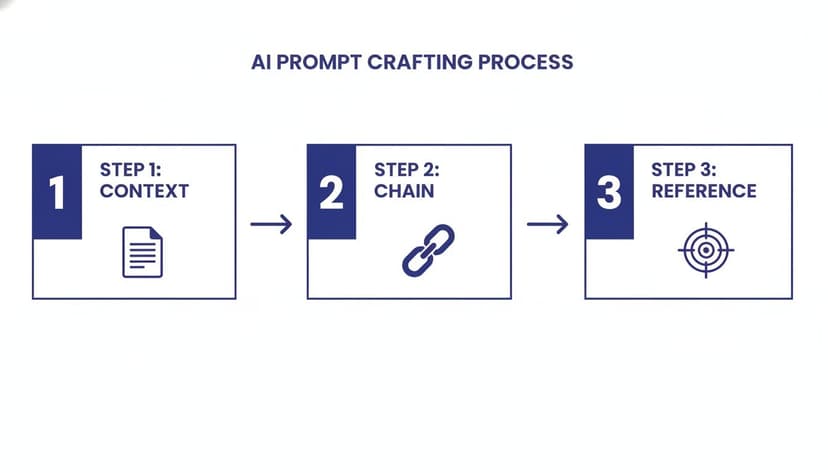
Essentially, a killer prompt combines specific context (what you're working with), chained commands (the sequence of actions), and clear cell references (where to do the work). When you nail this, you unlock some serious automation power.
Workflow 1: Clean a Messy CRM Data Export
We've all been there. You export a report from your CRM, and it’s a disaster—inconsistent names, extra spaces, and duplicate entries everywhere. Manually cleaning this up can easily burn 30 minutes you don't have.
Instead, you can fix it all with one command.
Prompt: "In the 'Export' sheet, remove all duplicate rows based on the 'Customer ID' in column A. Then, for the entire 'Contact Name' column, remove leading/trailing spaces and format the text to proper case. Finally, format the 'Last Purchase Date' column to a short date format."
Just like that, the AI executes three tasks that would have involved hunting for the "Remove Duplicates" button, writing a TRIM and PROPER formula, and messing with cell formatting. This one example is often enough to show people how much time they can get back.
Workflow 2: Build a Monthly Financial Summary
Month-end reporting is a classic time-sink. You’re pulling raw data, building a pivot table to summarize it, adding a few custom calculations, and then formatting it all to be presentable. It's the same sequence of clicks, every single month.
An AI can handle that entire routine for you.
Prompt: "On the 'Sales Data' sheet, create a pivot table on a new sheet named 'Summary'. Show the sum of 'Revenue' and 'Profit' as values, with 'Region' as rows and 'Product Category' as columns. Calculate the profit margin for each region and add it as a new column in the summary. Format all currency values with a dollar sign and two decimal places."
This prompt doesn't just build the pivot table; it also performs a calculation that isn't a standard pivot field and applies precise formatting. Automating repetitive reporting like this is a game-changer. If you're looking for more ideas, check out our guide on how to automate repetitive tasks.
Workflow 3: Create a Project Management Dashboard
If you’re a project manager, your life revolves around translating long lists of tasks and deadlines into something a stakeholder can understand at a glance. That usually means creating charts and KPIs.
With an AI agent, you can generate a dashboard directly from your raw project data.
Prompt: "Using the data in 'Project Tasks' sheet, create a pie chart showing the distribution of tasks by 'Status' (Not Started, In Progress, Completed). Next to it, create a bar chart showing the total 'Hours Logged' for each 'Team Member'. Place both charts on a new dashboard sheet and give it the title 'Project Status Overview'."
In one go, this command produces two different charts and organizes them neatly on a new dashboard. Your static to-do list is now a visual progress report, and you didn't have to touch the chart wizard once.
Workflow 4: Analyze Marketing Campaign ROI
Trying to figure out which marketing campaigns are actually paying off involves pulling together cost and revenue data and then running the numbers.
Here, the AI can function as your junior analyst. To calculate ROI for a campaign in row 2 with cost in B2 and revenue in C2, you would typically use the formula =(C2-B2)/B2. An AI can apply this logic across your entire dataset instantly.
Prompt: "On the 'Campaign Data' sheet, for each campaign, calculate the ROI using the formula
(Revenue - Cost) / Cost. Place the result in a new column named 'ROI'. Then, apply conditional formatting to the 'ROI' column to highlight the top 10% of campaigns in green."
This is a great example of how these tools are evolving. The generative AI market is on a steep trajectory, expected to jump from USD 103.58 billion in 2025 to USD 161 billion in 2026, partly because it’s helping finance and BI professionals save up to 10 hours weekly.
Workflow 5: Apply Corporate Branding to a Report
Last but not least, there's the final, often tedious, step of making sure a report looks professional and aligns with company branding. It’s all about the details—colors, fonts, and readability.
An AI can be your personal formatting assistant.
Prompt: "Format the entire 'Q4 Report' sheet. Set the header row (A1:F1) to have a navy blue fill with bold, white font. Apply alternating light gray row colors to the data range A2:F50 for readability. Change the font for the entire sheet to Arial, size 10."
This simple command instantly standardizes a report, ensuring it looks clean and consistent. It’s the perfect way to let an AI handle the small, time-consuming details that make a huge difference in the final presentation.
Getting the AI Output Just Right: 4 Tips for Review and Refinement
An Excel AI macro generator is a fantastic tool, but it's important to remember that it’s your co-pilot, not the pilot. You're always in the driver's seat. The real magic happens when you learn how to guide the AI, check its work, and tweak the results until they're exactly what you need.
Think of it like training a new analyst who happens to work at lightning speed. You wouldn’t just hand over a critical report and walk away; you’d review their work first. The same mindset applies here. Let's go through four practical tips I use to create a smooth feedback loop with any AI tool.
1. Start Small: Test on a Data Sample
Before you ask the AI to tackle your entire 20,000-row dataset, always test your prompt on a small, manageable chunk of that data first. I usually just copy a couple of hundred rows into a new sheet and run my command there.
This quick check can save you a world of frustration. You'll immediately see if the AI understood your request or if you need to rephrase something. It’s a low-stakes way to fine-tune your instructions without waiting ages for the AI to process a massive file, only to find out it missed the mark.
2. Look Under the Hood: Review the AI’s Steps
Good AI tools don't just give you an answer; they show you their work. Many will provide a summary of the actions they took. Make a habit of reading this. Did your instruction to "clean the data" mean removing duplicates, standardizing text cases, or trimming white space? The AI's log will tell you exactly what it did.
This is one of the most important habits you can build. Understanding the AI’s logic not only helps you fix any odd results but also teaches you how to write much clearer and more direct prompts next time. It turns what feels like a black box into a process you can actually trust.
For a deeper look at getting your data completely spotless, our guide on using AI for data cleaning in Excel has some great techniques.
3. Just Talk to It: Use Follow-Up Commands for Tweaks
You don't need to write a perfect, all-in-one prompt on your first try. Modern AI is conversational. If the initial result isn't quite right, just tell it what to change in plain English.
Here are a few follow-ups I use all the time:
- "That’s almost perfect, but can you change the chart type from a bar to a line graph?"
- "Okay, now sort that pivot table by revenue from highest to lowest."
- "Great. Now add conditional formatting to make any negative profit figures show up in red."
This back-and-forth feels natural and makes the whole refinement process incredibly quick.
4. Don't Reinvent the Wheel: Save Your Best Prompts
Once you’ve nailed a prompt that perfectly automates one of your regular tasks—like a weekly sales summary or a monthly expense report—save it! I keep a simple text file with my go-to prompts. Over time, this becomes a personal library of proven commands.
This habit of building your own template library is a massive time-saver. While AI macro generators are great for in-the-moment tasks, you can also explore broader low-code automation with Microsoft's Power Platform for more complex, multi-step workflows. By saving what works, you’re essentially creating a custom toolkit that gets your repetitive work done faster every single time.
3 Ways to Take Your Excel AI Agent to the Next Level
Okay, so you've got the basics down. You’ve used your Excel AI macro generator to clean up messy data and maybe create a quick chart or two. That’s great for saving a few minutes, but the real magic happens when you start throwing sophisticated, multi-step workflows at it. This is how you go from saving minutes to reclaiming hours once spent on tedious manual work.
Let’s be honest, a huge chunk of any analyst's time is spent on Excel drudgery. Industry surveys show that finance and data pros can lose 15-20 hours a month just cleaning data, building charts, and spotting trends. An AI agent like Elyx AI is designed to tackle exactly that, with some financial analysts reporting they save 3+ hours per week. This isn't just a gimmick; it's a productivity powerhouse. It’s no surprise that installs for AI Excel add-ins on Microsoft AppSource shot up by 200% in 2026, with a massive 75% user retention rate. The market is exploding, as documented by Fortune Business Insights in their generative AI market analysis.
So, let's get into three advanced plays that will make you a true power user.
1. Run Trend Analysis and Forecasting in Seconds
Forecasting is the bread and butter of financial analysis, but building models in Excel can feel like a chore. You’re either wrestling with complex formulas or spending way too much time getting trendlines just right. With an AI agent, you can just ask for what you need.
Imagine you're staring at a spreadsheet of historical sales data. Instead of manually using functions like FORECAST.LINEAR, you can give your AI a simple command:
"Analyze the monthly sales data in Column F on the 'Sales History' sheet. I need you to project the next quarter's results using a linear trend. Put the projected monthly figures on a new sheet called 'Forecast'."
Just like that, the AI does all the heavy lifting. It runs the regression, calculates the future values, and organizes it all in a new, perfectly labeled worksheet. What used to be a multi-step process involving data prep and complex formulas is now done in seconds.
2. Consolidate Data from Multiple Workbooks—Without the Headache
Here’s a task that every analyst dreads: pulling data from a dozen different workbooks into one master file. The process of opening, copying, and pasting is not only mind-numbingly boring but also a perfect recipe for copy-paste errors.
This is where your AI agent becomes your most reliable assistant. It can stitch everything together flawlessly. Try a prompt like this:
"I need to build a master sales report. Can you look at all the open workbooks with 'Q3_Sales' in the file name? For each one, copy the data from the 'Summary' sheet in range A2:G50 and add it to the 'Master_Report' sheet in this file."
This single instruction automates a task that could have easily burned an hour of your day. Best of all, it ensures the data is consolidated the exact same way, every single time. If you're curious about how these agents work under the hood, you can learn more about what an Excel AI agent is and what makes them so powerful.
3. Generate Complex Dashboards for Executive Review
Building a good dashboard is an art. It’s a mix of creating pivot tables, generating insightful charts, and arranging everything on the canvas so it tells a clear story. Instead of doing it all piece by piece, you can brief your AI agent just like you would a junior analyst.
Expert Tip: The more detail you provide for a dashboard, the closer you'll get to the final product on the first try. Think through the narrative you want the data to convey and spell it out.
You can hand it a comprehensive, multi-part instruction all at once:
"Create a new sheet named 'Executive Dashboard'. Using the data from the 'Financials' tab, I need you to build three things: a line chart showing our revenue trend over the past 12 months, a bar chart comparing profit by product category, and a small table with our key KPIs like Gross Margin and Operating Income. Please arrange them neatly and use a professional blue and gray color theme."
Your 3 Biggest Questions About AI in Excel, Answered
Whenever I talk about using AI inside Excel, a few key questions always come up. It’s smart to be cautious, especially when it comes to your data and workflows. Let's tackle the big ones head-on so you can feel confident moving forward.
1. Is My Excel Data Safe When Using an AI Add-In?
This is always the first and most important question, and for good reason. The short answer is: with the right tool, yes, your data is completely safe.
A properly built add-in like ElyxAI is designed so your spreadsheet data never leaves your computer. The only thing sent to the AI model is the plain-text instruction you type into the prompt box. Your sensitive financial models, client lists, and confidential reports stay right where they belong.
A non-negotiable rule for any AI tool you consider: it must explicitly state that your spreadsheet data is never stored or used to train its models. If that isn’t crystal clear, walk away. Security isn't a feature; it's the foundation.
2. What Version of Excel Do I Need?
Most modern AI add-ins are built for the current generation of Excel. If you're running Microsoft 365 (what used to be called Office 365) on either a Windows PC or a Mac, you're almost certainly good to go. These tools are typically installed right from the official Microsoft AppSource, which handles all the compatibility checks for you.
Where you might run into trouble is with older, standalone versions like Excel 2019 or 2016. These versions often lack the updated architecture needed to support modern add-ins. A quick look at the tool's AppSource page will always list the specific versions it supports.
3. Can an AI Handle Truly Complex, Multi-Step Tasks?
Yes, and this is where you’ll see the biggest return on your time. A simple AI might help you write a VLOOKUP, but a true AI agent can execute an entire workflow from a single command. This is what separates a neat trick from a genuine productivity multiplier.
I’ve personally used it to turn dozens of manual clicks into one simple request. For instance, you could tell it to:
- Pull in data from three separate tabs.
- Clean it up by removing duplicate rows and trimming extra spaces.
- Build a pivot table to summarize sales by region.
- Create a bar chart visualizing that pivot table data.
- Finally, apply a clean, professional format to the new report.
Being able to chain commands like this is what really starts to free up your day for more analytical work instead of just data janitor tasks.
Ready to stop wrestling with manual tasks and let an AI do the heavy lifting? Give ElyxAI a try and see how much time you can get back. Get your free 7-day trial and start automating in minutes.
Reading Excel tutorials to save time?
What if an AI did the work for you?
Describe what you need, Elyx executes it in Excel.
Sign up