What Is Data Preprocessing? A 7-Step Guide for Excel Users

So, what exactly is data preprocessing? Imagine a chef getting ready to cook a gourmet meal. They don't just throw everything into the pot. They carefully wash the vegetables, trim the fat, and measure every spice. That's exactly what we do with data. It’s the essential prep work of cleaning, organizing, and reshaping raw, messy information into a high-quality format you can trust for analysis in tools like Excel. This article provides a clear, educational guide focused on solving this concrete problem using practical explanations and actionable tips, with a special focus on Excel and the use of artificial intelligence.
What Is Data Preprocessing in 4 Simple Concepts
Raw data is almost always a chaotic mess. It's often incomplete, filled with typos, and wildly inconsistent. If you try to analyze it as-is, you’re basically trying to build a house on a shaky foundation. Your results won't just be a little off; they'll be completely unreliable. That’s why data preprocessing is so critical—it turns that chaos into a trustworthy asset for your Excel analysis.
It's no surprise that data professionals report spending up to 80% of their time just on this cleanup phase. Think of it like finally tackling that junk drawer in your kitchen. Before you can find anything useful, you have to sort through the clutter, organize what's worth keeping, and toss out the rest. Data preprocessing is the same idea, just for your spreadsheets. It ensures every piece of information is clean, consistent, and exactly where it needs to be, so you can leave with a new skill or a useful solution.
Spending too much time on Excel?
Elyx AI generates your formulas and automates your tasks in seconds.
Sign up →1. The Before and After Transformation
The change from raw data to preprocessed data is night and day. A great way to visualize this is by looking at how the characteristics of your data evolve.
Here's a simple table to show you what I mean:
Data Transformation At a Glance
| Data Characteristic | Before Preprocessing (Raw Data) | After Preprocessing (Clean Data) |
|---|---|---|
| Consistency | "New York," "NY," "new york" | "New York" (Standardized) |
| Completeness | Blank cells, "N/A" values | Gaps filled or rows removed |
| Relevance | Duplicate entries, extra columns | Only relevant, unique data remains |
| Formatting | Dates as "01/10/24" & "Oct 1, 2024" | "2024-10-01" (Uniform format) |
| Structure | Unstructured text blobs | Data parsed into organized columns |
As you can see, the goal is to create a dataset where every entry is predictable, reliable, and ready for whatever analysis you have planned in Excel.
So, what does that look like in practice?
- Inconsistent Entries Become Standardized: Things like "New York," "NY," and "new york" are all converted into a single, uniform value.
- Missing Information Is Handled: Those empty cells are either filled in intelligently (maybe with an average value) or removed so they don’t throw off your calculations.
- Irrelevant Data Is Removed: Duplicate rows or extra columns that just add noise are deleted to keep your analysis focused.
- Data Is Formatted Correctly: Text that should be a number, or dates in all different styles, are all converted into a consistent, standard format.
Data preprocessing isn't just a technical task; it's the most important quality control step you'll take. The old saying, "garbage in, garbage out," is the golden rule of data analysis. If you start with flawed data, you'll end up with flawed insights.
Ultimately, getting this right sets the stage for everything else. Whether you're building a sales forecast, training an AI model, or creating a dashboard, the accuracy of your work hinges entirely on the quality of your data. For example, a key part of this is standardization, and you can learn more about how to get started with data normalization in our detailed guide. This foundational work ensures your conclusions are built on solid ground, not a pile of digital junk.
The 7 Essential Steps of Data Preprocessing in Excel
Ever opened a spreadsheet and felt overwhelmed by the jumble of raw data? Turning that mess into a clean, analysis-ready dataset isn't magic—it's a process. Think of it like prepping ingredients before you start cooking. You have to wash the vegetables, trim the fat, and measure everything out.
By following a clear workflow, you can tackle every issue systematically. This ensures your data is not just clean, but perfectly structured for whatever you need to do next, whether that’s building a report, creating a chart, or even training an AI model right inside Excel.
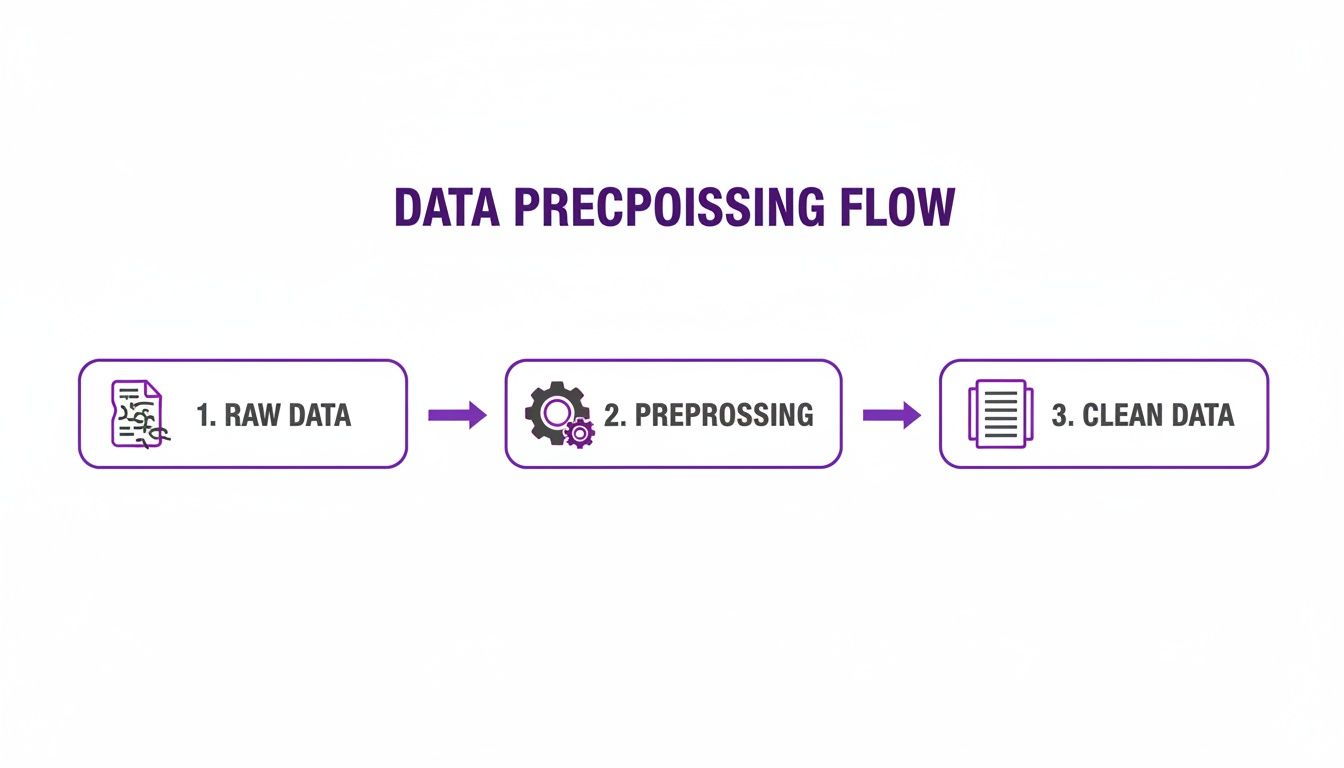
This journey from messy, raw information to clean, structured data is fundamental. Here are the seven essential steps to make it happen right inside Excel.
1. Data Cleaning
First things first, you have to clean house. Data cleaning is all about finding and fixing the inevitable errors, typos, and inconsistencies lurking in your dataset. Things like extra spaces, duplicate entries, and simple misspellings can seriously throw off your results. A single duplicated sales record, for instance, could make your revenue numbers look better than they actually are.
Excel gives you some great tools to handle these common problems:
- Remove Duplicates: Head to the Data tab and use the "Remove Duplicates" feature. It’s a quick way to get rid of identical rows.
- Correct Typos: You can fix obvious errors by hand or use Find and Replace (Ctrl+H) to correct widespread mistakes in one go.
- Eliminate Extra Spaces: The
TRIMfunction is your best friend here. It zaps any leading, trailing, or extra spaces between words, making sure entries like "New York " and "New York" are treated as the same thing.
2. Handling Missing Values
Blank cells are another classic headache. You can't just ignore them—they can break formulas and completely distort calculations like averages or sums. You have a couple of solid options for dealing with them in Excel.
Your first choice is to simply delete any row that has a blank cell. This works well if you have a massive dataset where losing a few records won't hurt. But be careful. If your dataset is small, deleting rows could mean losing a big chunk of valuable information.
A more common approach is to impute the data, which is just a fancy word for filling in the blanks. You could replace them with a zero, the column's average, or its median (the middle value). For example, if you're missing a few sales figures, filling them in with the monthly average is often a pretty safe bet.
Deciding whether to remove or fill missing data really comes down to context. If a record is missing something crucial like a customer ID, it might be useless. But if it’s just missing a secondary detail, filling the gap is usually the smarter move.
3. Data Transformation
With the most obvious errors fixed, it's time for data transformation. This means changing your data's format or structure so it’s ready for analysis. A big part of this is scaling, which helps you compare different types of data fairly.
Imagine you have "Customer Age" (18-70) and "Annual Income" ($30,000-$250,000) in the same dataset. The massive difference in the scale of these numbers can trick some AI models into thinking income is way more important than age.
By standardizing these values—for instance, by converting them to a common scale from 0 to 1—you make sure every feature gets an equal say. This is absolutely critical for many machine learning algorithms that are sensitive to the scale of the numbers you feed them.
4. Data Reduction
Sometimes, more data is just more noise. Data reduction is about simplifying your dataset by cutting down on the number of variables (columns) or records without losing the main story. This isn't about deleting data at random; it's a strategic move to cut clutter and make your analysis more efficient.
For example, you might have columns for street, city, state, and zip code. But if your analysis only cares about location at the state level, you can safely remove the other address columns to simplify things. If you want to get better at organizing and summarizing large datasets in Excel, learning how to build a pivot table is a fantastic skill to have.
5. Feature Engineering
This is where you get to be a bit of a data detective. Feature engineering is the art of using your own expertise to create new, more insightful columns (or "features") from the data you already have. This can uncover patterns that were completely hidden before.
Let's say you have a "Transaction Date" column. From that one piece of information, you could create several new features:
- The day of the week ("Monday," "Tuesday," etc.)
- The month of the transaction
- Whether it was a weekend or a weekday
In Excel, you could use a formula like TEXT(A2, "dddd") to get the day of the week from a date in cell A2. These new features can give you powerful new ways to look at your analysis.
6. Managing Outliers
Outliers are data points that are way off from everything else. They can be legitimate—like a CEO's salary in a dataset of employee wages—or they can be simple data entry errors, like typing an age as 150 instead of 15. Either way, they can dramatically skew your averages and mislead your entire analysis.
The first job is to spot them. In Excel, you can sort your columns and look for values that seem suspiciously high or low. You can also use conditional formatting to make them pop visually. Once you find an outlier, you have to decide what to do: remove it, correct it if it’s a typo, or keep it if it's real but extreme.
7. Standardizing Formats
Finally, the last sweep. Make sure all your data follows a consistent format. This is a huge source of errors in Excel, where it's easy for people to enter the same information in different ways.
- Dates: Pick one format, like YYYY-MM-DD, and stick to it.
- Currencies: Make sure all money values use the same currency symbol and number of decimal places.
- Text: Standardize common entries. For example, convert "USA," "U.S.A.," and "United States" into a single, consistent value.
This final polish ensures your data can be sorted, grouped, and analyzed without tripping over tiny formatting differences. To learn more about one of these key steps, check out our guide on data cleaning best practices.
5 Common Data Preprocessing Pitfalls to Avoid in Excel
Knowing the right steps is one thing, but knowing the traps to avoid is what separates good analysis from bad. When you're deep in an Excel spreadsheet, it's surprisingly easy to make small mistakes that can completely throw off your results. These errors are often subtle, but they can have a huge ripple effect on your final conclusions.
Let's walk through 5 of the most common pitfalls I see people fall into. Being aware of them is the best way to protect your work and make sure your insights are built on solid ground.

1. Ignoring Missing Data
It's tempting to just work around those empty cells, but this is a huge mistake. Simply ignoring missing data can seriously warp your results. For instance, Excel’s AVERAGE function skips over blank cells entirely, which could give you a misleadingly high or low average.
Think about it: if you're calculating average customer satisfaction, but a bunch of unhappy customers skipped the rating question, your average will look fantastic. But it won't be real.
2. Overlooking Duplicates
Duplicate rows are another sneaky problem that can kill your data's credibility. They can inflate counts and skew your metrics, making it seem like you have more sales or customers than you really do. This is especially dangerous for financial reports or inventory management.
Imagine a sales report where one large order was accidentally entered twice. That single error could bloat your revenue numbers, leading to bad forecasts and a false sense of security. It’s always worth taking a moment to find and deal with them. For a quick walkthrough, check out our guide on how to remove duplicate rows in Excel.
3. Inconsistent Formatting
This is probably the most common headache in Excel, especially when data comes from multiple sources or people. To a person, "USA," "U.S.A.," and "United States" all mean the same thing. But to Excel, they are three totally different categories.
When you try to create a PivotTable or a chart, these little inconsistencies will fragment your data. What should be one solid group gets split into several smaller ones, making your summaries and visuals totally unreliable.
4. Forgetting About Outliers
Outliers are those extreme data points that sit way outside the rest of your numbers. If you forget to check for them, they can pull your entire analysis in their direction. This is especially true for anything involving averages.
For example, if you're analyzing company salaries and you include the CEO's seven-figure income, the "average" salary will look much higher than what most people actually make. That skewed number would be useless for understanding typical employee compensation.
5. Unintentional Data Snooping
This one is a bit more advanced, but it's a critical pitfall to avoid. Data snooping (also called data leakage) happens when you use information from your entire dataset to make decisions about how to clean it. For instance, using the average of a whole column to fill in a few missing values.
This becomes a problem when building predictive AI models. You're essentially letting future or unseen data influence how you prepare your past data. You should only use your "training" data to inform these steps. Using the whole dataset gives your model a sneak peek at the answers, making it seem more accurate than it will actually be when it encounters brand new data.
3 Essential Excel Formulas for Data Preprocessing
Alright, let's move from the "what" and "why" of data preprocessing to the "how." Theory is great, but the real magic happens when you start applying these ideas to your own spreadsheets. For many of us, Excel is home base, and its formulas are the trusty tools we can rely on to get the job done.
Mastering a few key formulas can save you hours of manual work and turn a messy dataset into something clean and reliable. We're going to walk through 3 common scenarios and the exact formulas you can use to solve them. Think of these as your foundational skills for hands-on data cleaning in Excel.

1. Clean and Standardize Text Data
We've all been there. You get a list of names, and it's a complete mess: extra spaces, random capitalization, and who knows what else. " john SMITH " and " JANE doe " have no business being in a clean dataset. Luckily, there’s a powerful three-function combo that cleans this up beautifully: TRIM, CLEAN, and PROPER.
Let's say your messy names are in column A. Here’s the formula to standardize them.
- Formula:
=PROPER(CLEAN(TRIM(A2)))
Here’s a detailed explanation of how it works from the inside out:
- TRIM(A2): First,
TRIMattacks all the extra spaces—at the beginning, at the end, and any double-spaces between words. It leaves just a single, clean space. - CLEAN(…): Next, the result from
TRIMis passed toCLEAN. This function is a lifesaver for removing weird, non-printable characters that sometimes sneak in when you copy-paste data. - PROPER(…): Finally,
PROPERtakes the clean text and applies consistent title case, capitalizing the first letter of each word. The result? A perfectly formatted "John Smith."
2. Identify and Fill Missing Values
Blank cells can throw a wrench in your calculations, but just deleting the entire row often means losing valuable information. A much better strategy is to fill in, or impute, those empty cells with a logical value, like the average of the column. This keeps your dataset whole. With IF, ISBLANK, and AVERAGE, you can create a smart formula to do this automatically.
Imagine a "Sales" column (B2:B100) with some empty cells. You want to fill each blank with the average of all the filled-in sales numbers.
Filling missing values with a column's average is a common statistical technique. It prevents empty cells from skewing calculations while preserving the overall distribution of your data as much as possible.
Here's the formula to make it happen, with a detailed explanation:
- Formula:
=IF(ISBLANK(B2), AVERAGE($B$2:$B$100), B2)
Let's break that down:
- ISBLANK(B2): This is a simple check. It asks, "Is cell B2 empty?" and returns either TRUE or FALSE.
- AVERAGE($B$2:$B$100): This calculates the average for the entire sales column. The dollar signs (
$) are crucial—they lock the range, so it doesn't change when you drag the formula down. - IF(…): This function pulls it all together. It says: IF B2 is blank, then use the overall average. Otherwise (if it's not blank), just keep the original value that’s already there.
3. Create New Features from Existing Data
Sometimes the most valuable insights are hiding within the data you already have. Feature engineering is the art of creating new, more useful columns from existing ones. A classic example is breaking a "Full Address" column into separate "Street" and "City" columns, which makes sorting, filtering, and analyzing much easier. You can do this by cleverly combining text functions like LEFT, RIGHT, LEN, and FIND.
Suppose cell A2 contains "123 Maple Street, Anytown". We need to split it at the comma.
To pull out the street address:
- Formula:
=LEFT(A2, FIND(",", A2) - 1) - Detailed Explanation:
- FIND(",", A2): First, we find the exact position of the comma in the cell.
- LEFT(…): Then, we tell Excel to grab all the characters from the left of the cell, stopping just one character before that comma.
To pull out the city name:
- Formula:
=TRIM(RIGHT(A2, LEN(A2) - FIND(",", A2))) - Detailed Explanation:
- LEN(A2) – FIND(",", A2): This bit of math calculates how many characters come after the comma.
- RIGHT(…): This function grabs that exact number of characters from the right side of the cell.
- TRIM(…): We wrap it all in
TRIMas a final touch to get rid of the pesky leading space before "Anytown."
These formulas are just the beginning, but they give you a sense of the control you have to whip your data into shape directly in Excel. And if you ever run into numbers that Excel thinks are text, you might want to learn about the Excel functions that convert text to numbers.
The 2 Paths to Preprocessing: Manual vs AI Automation
When it comes to getting your data ready in Excel, you’re standing at a crossroads. There are really only 2 ways to go: you can roll up your sleeves and do it all by hand, or you can bring in an AI assistant to automate the work.
Both paths lead to the same place—clean, usable data. But the journey couldn't be more different.
The traditional, manual route is where most of us start. It involves using your own Excel know-how with formulas, filters, and built-in features like "Remove Duplicates." Honestly, it’s a great way to learn what’s happening under the hood. You get a real feel for the data and maintain total control over every single change.
But that level of control comes at a cost. Manual work is incredibly slow and can easily eat up most of your project time. It’s also surprisingly easy to make a mistake. A single typo in a formula or an overlooked outlier can quietly throw off your entire analysis. And if you're dealing with a large dataset? Forget about it. This method just doesn’t scale.
The Modern Approach: AI-Powered Automation
This is where AI steps in and completely changes the equation. Think of it like having an expert data assistant sitting right next to you, ready to execute your instructions in seconds. That’s exactly what an AI tool like ElyxAI does—it acts as your intelligent partner, right inside your spreadsheet.
Instead of wrestling with complex formulas or clicking through endless menus, you just tell it what you need in plain English. For example, you could type a simple command like: "Clean this sheet: remove all duplicates, fill missing sales with the column average, and standardize all dates to YYYY-MM-DD."
The AI gets to work immediately, completing tasks in a few moments that would have taken you an hour of tedious clicking and typing. This isn’t just about being faster; it’s about being more accurate and efficient. The AI takes care of the repetitive, error-prone steps, so you get consistently clean data every single time. While manual Excel work is a great starting point, its limitations often lead people to consider when it's time to upgrade from spreadsheets to accounting software.
The real power of AI here is that it frees you from the how of data cleaning so you can focus on the why—analyzing results, finding insights, and making smart decisions.
To make this crystal clear, here’s a direct comparison between the two approaches.
Manual vs AI-Powered Data Preprocessing in Excel
| Aspect | Manual Preprocessing (Formulas & Tools) | AI-Powered Preprocessing (With ElyxAI) |
|---|---|---|
| Speed | Slow and methodical; can take hours for large datasets. | Blazingly fast; complex tasks are done in seconds. |
| Accuracy | High risk of human error from typos or incorrect logic. | Highly accurate and consistent, minimizing mistakes. |
| Effort | Requires significant hands-on effort and intense focus. | Minimal effort; you give the instruction, AI does the work. |
| Scalability | Poor; becomes nearly impossible for very large or complex data. | Excellent; handles massive datasets without slowing down. |
By automating the grunt work, AI agents like ElyxAI give you back your most valuable resource: time. It allows you to shift your energy to the strategic parts of your job that truly matter.
If you’re curious to see more, our guide to Excel AI for data cleaning has even more practical examples. For anyone looking to work smarter and get more reliable results, the path of AI automation is a clear winner.
Your 4 Most Common Questions Answered
Once you move past the basics, you start hitting the real-world trade-offs of data work. Knowing what data preprocessing is is one thing; knowing what to do when you’re staring at a messy spreadsheet is another entirely. Here are my answers to four of the most common questions that pop up the minute you start cleaning data in Excel.
1. How Do I Choose Between Removing or Filling Missing Data?
I get this question all the time. You find a row with a blank cell—what's the right move? Honestly, the answer depends on the context and how much that choice might affect your final numbers.
A good rule of thumb is to look at the percentage of missing data. If you have a huge dataset and only a tiny fraction of your records (say, less than 5%) have blank cells, just removing those rows is often the fastest and cleanest solution. It avoids introducing any made-up data and won't really dent your overall analysis.
But what if a big chunk of your data is missing? Deleting all those rows could mean throwing away incredibly valuable information. In that case, filling (or imputing) the gaps is a much better strategy. You could, for instance, fill a missing sales number with the average or median for that column. This saves the record and keeps your totals from getting skewed.
My Mental Checklist: If the blank is in a critical column (like a customer ID), the whole row is probably useless—delete it. But if it's in a less important column (like a secondary phone number), filling it with a placeholder or a calculated value is the smarter way to save the rest of the row's data.
2. Can My Preprocessing Actions Accidentally Introduce Bias?
Yes, absolutely. This is a huge risk you need to stay on top of. While we clean data to improve its quality, some of our actions can unintentionally skew the results if we're not careful. Biased data leads to biased insights, which can lead to really bad decisions.
One of the most common ways bias sneaks in is by mishandling missing values. Let’s say you’re analyzing employee performance and decide to fill all missing "performance review scores" with the company average. You might accidentally make underperforming departments look better than they are, pulling everyone toward the middle. You've just created a bias that hides the real story.
The same goes for how you treat outliers. If you automatically delete all high-value sales from a dataset because they look like outliers, your analysis will completely miss the impact of your star products or top sales reps. You're left with an incomplete picture of what’s actually driving success.
To avoid this, always ask yourself:
- Why is this data missing? Is it just random, or is there a pattern I'm not seeing?
- Is this outlier a typo or a real, extreme value that tells an important story?
- Am I applying this cleaning rule fairly, or am I accidentally favoring one group in my data over another?
Keeping these questions in mind is your best defense against accidentally poisoning your own data.
3. Is Data Preprocessing a One-Time Task or a Recurring Process?
The honest answer? It can be both. It really just depends on your data and the project you're working on.
It’s often a one-time task when you're working with a static, unchanging dataset. Think about pulling a single data export for a year-end report. You’ll run through all your cleaning and transformation steps once, build the report, and you’re done. The data isn't going to be updated, so there's no need to repeat the process.
On the other hand, it becomes a recurring process when you’re dealing with data that’s always being updated. This is common for things like a weekly sales dashboard or a monthly financial forecast. New data flows in all the time, and it needs to go through the exact same cleaning steps every single time to keep things consistent.
For these recurring jobs, the goal is to build a repeatable, automated workflow. This is where AI assistants in Excel, like ElyxAI, can be a game-changer. You can show the AI how to clean the data once (e.g., "remove duplicates, fill empty cells with the column average, and format all dates"), and it can handle that entire sequence on its own every time a new file comes in. It saves a ton of time and cuts out the risk of human error.
4. What Is the Most Time-Consuming Part of Preprocessing in Excel?
Every dataset has its own quirks, but if you ask a group of regular Excel users, you’ll probably hear a consensus. The single biggest time-sink is almost always cleaning and standardizing inconsistent text and formatting.
Think about manually fixing thousands of rows with variations like "New York," "NY," and "new york." Or trying to fix dates that have been entered as "10/01/2024," "Oct 1, 2024," and "2024-10-01." It’s incredibly tedious work that often turns into a messy web of TRIM, PROPER, FIND, REPLACE, and other formulas that are a pain to build and even harder to debug.
Another huge time-drain is spotting and dealing with outliers and anomalies. This isn't just a simple find-and-replace task; it requires actual investigation. You have to sort, filter, and often build charts just to find the values that don't look right. Then comes the hard part: deciding if that outlier is a typo that needs fixing or a real data point that needs to be understood. These two areas—text standardization and outlier management—are where good intentions for clean data often get bogged down in manual effort.
Ready to stop wasting hours on manual data preprocessing and get straight to the insights? ElyxAI is an AI agent that works directly within your spreadsheet to automate these tedious tasks. Just describe what you need in plain English, and ElyxAI handles everything from cleaning duplicates to creating pivot tables autonomously. Start your free trial today and reclaim your time. Learn more at the ElyxAI website.
Reading Excel tutorials to save time?
What if an AI did the work for you?
Describe what you need, Elyx executes it in Excel.
Sign up