7 Steps to Master Excel AI Formulas Explained: Boost Your Data Analysis

If you've ever spent hours wrestling with a monstrous Excel formula, you know the frustration. You know what you want the data to tell you, but getting the syntax just right feels like learning a new language. AI-powered formulas are changing all of that. Now, you can simply describe what you need in plain English, and the AI will build the formula for you.
1. What Are AI Formulas In Excel?
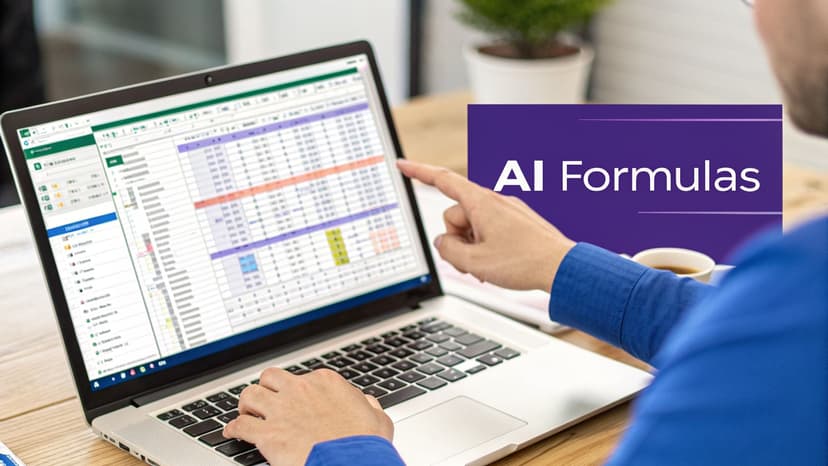
Think of it like having an Excel guru sitting at your desk. You can just say, "Find the total sales for the marketing team in Q4," and instead of giving you a long-winded explanation of SUMIFS or XLOOKUP, they just type out the perfect formula and hand it back. That’s exactly what AI formulas do.
Spending too much time on Excel?
Elyx AI generates your formulas and automates your tasks in seconds.
Sign up →This is a massive shift from how we've always used spreadsheets. For years, complex analysis meant you had to be a master of nested IF statements, array formulas, and obscure functions. Now, the most important skill is being able to clearly explain your goal.
So, how is this possible? It comes down to how artificial intelligence works. The AI has been trained on countless examples of text and Excel formulas, so it understands the patterns connecting a human request to the specific syntax Excel needs to execute it.
Let's quickly compare the old way with the new approach.
1.1. Traditional vs AI-Powered Formula Creation
This table gives a quick snapshot of how much things have changed, moving from painstaking manual work to instant AI generation.
| Aspect | Traditional Excel Formulas | AI-Generated Excel Formulas |
|---|---|---|
| Input Method | Manual typing of syntax, functions, and cell references. | Natural language prompts (plain English). |
| Required Skill | Deep knowledge of Excel functions, syntax, and logic. | Ability to clearly describe the desired outcome. |
| Speed | Slow, especially for complex formulas. Requires trial and error. | Nearly instant, generating formulas in seconds. |
| Error Rate | High potential for human error (typos, incorrect logic). | Significantly lower, as syntax is automated. |
| Accessibility | Challenging for beginners or non-technical users. | Accessible to anyone, regardless of Excel expertise. |
As you can see, the focus is no longer on how to write the formula, but on what you want to achieve.
This new way of working brings some obvious benefits:
- It’s for everyone: You don’t need to be an Excel wizard to run sophisticated reports anymore.
- It’s fast: You save a ton of time that was once spent searching forums, writing, and debugging formulas.
- It’s more accurate: The AI handles the tricky syntax, which cuts down on simple human mistakes.
The big takeaway is that your job shifts from being a formula writer to being an analyst. You get to spend your brainpower on what the data actually means and what decisions to make, not on wrestling with the technical details.
This kind of smart collaboration turns Excel from a simple grid of cells into a genuinely interactive tool. We're seeing this change happen with tools from Microsoft and specialized AI assistants. To get a bigger picture of this trend, you can read our guide on what Excel AI is and how it's changing the game for professionals everywhere.
2. The 4 Big Wins of Using AI for Excel Formulas

Bringing AI into your Excel workflow isn't just about writing formulas a little faster. It’s a genuine shift that gives you a real-world advantage. When you let an AI handle the technical heavy lifting of data analysis, you free yourself up to be more productive and strategic.
So, what does this actually mean for your day-to-day work? It boils down to four huge wins.
2.1. Win 1: Get Hours of Your Day Back
This is the benefit you'll feel almost immediately: the massive amount of time you save. Think about all the time you've spent hunting for the perfect function, wrestling with nested syntax, or debugging a formula that just won't work.
Now, imagine turning that entire process into a simple, two-minute task.
A sales manager who needs to whip up a regional performance dashboard could spend an afternoon piecing together SUMIFS, VLOOKUPs, and INDEX/MATCH functions. With AI, they can just describe the dashboard they want. The formulas are ready in seconds, leaving them to actually analyze the results.
2.2. Win 2: Make Data Analysis Easy for Everyone
AI completely changes who can perform powerful data analysis. It levels the playing field, so you don't have to be an Excel guru to get answers from your data. Think of it as a translator for the language of Excel.
This means a marketing associate can figure out campaign ROI without waiting for a data analyst. An HR coordinator can track employee retention on their own. It empowers people to find their own answers, which builds a more self-sufficient and data-savvy team.
For a deeper look, check out our post on whether AI can excel beyond human capabilities in these very tasks.
2.3. Win 3: Improve Accuracy by Cutting Out Human Error
Even the most experienced Excel pros make mistakes. A misplaced comma or a wrong cell reference can derail an entire financial model, and those tiny errors are incredibly hard to find.
By having AI generate the formula for you, the risk of human error plummets. The system handles the precise syntax every single time, giving you clean, reliable outputs you can actually trust for big decisions.
2.4. Win 4: Focus on Strategy, Not Syntax
This is the ultimate benefit. When you’re not bogged down in the mechanics of how to build a formula, you free up mental space for what really matters: thinking strategically.
Your primary question shifts from, "How do I build this?" to "What is this data telling me?"
This fundamental change lets you focus on the important stuff:
- Spotting trends and patterns in the numbers.
- Identifying new business opportunities or potential risks.
- Developing clear, actionable insights.
You move from being a data technician to a strategic advisor, and that’s where you can deliver the most value.
3. 3 Practical Examples of AI-Generated Excel Formulas
Alright, let's get our hands dirty. Theory is one thing, but seeing AI-generated formulas tackle real-world Excel problems is where the lightbulb really goes on.
We're going to walk through three examples, breaking down some seriously complex-looking formulas that were generated from simple, everyday language. You’ll see how the AI "thinks" and, more importantly, you'll start to see how you can use this to solve your own spreadsheet headaches.
For each scenario, I’ll give you the business problem, the plain English prompt given to the AI, and then we’ll dissect the formula it spits out.
3.1. Example 1: The Multi-Condition Lookup Problem
We've all been there. You need to find a specific piece of information, but a simple VLOOKUP just won't cut it. Imagine you're looking for an employee's bonus, but your only starting points are their Department and Job Title. You need to match both at the same time. This usually sends people down a rabbit hole of complicated INDEX/MATCH arrays or fragile nested IF statements that break if you look at them wrong.
AI Prompt: "In the table A1:D100, find the bonus in column D for the employee who is in the 'Marketing' department (column B) and has the 'Manager' job title (column C)."
AI-Generated Formula:
=XLOOKUP(1, (B:B="Marketing") * (C:C="Manager"), D:D)
Formula Breakdown:
This is an incredibly clever use of XLOOKUP that many seasoned Excel users wouldn't think of right away. Here's what's happening under the hood:
- (B:B="Marketing"): This part scans column B and creates a temporary list of TRUEs and FALSEs. It’s TRUE for every cell that says "Marketing" and FALSE for everything else.
- (C:C="Manager"): It does the exact same thing for column C, creating another list of TRUEs and FALSEs for the "Manager" title.
- The
*Operator: This is the secret sauce. When Excel multiplies these two lists of TRUEs and FALSEs, it treats TRUE as a 1 and FALSE as a 0. The only way to get a 1 is if a row is TRUE in both lists (i.e., 1 * 1 = 1). The result is a new list of 0s and a single 1 marking the exact row that meets both your criteria. - =XLOOKUP(1, … , D:D): Now, the formula simply looks for that lone 1 in the new list it just created. When it finds it,
XLOOKUPreturns the corresponding value from column D—the bonus amount you were looking for.
It's elegant, isn't it? A single, clean formula replaces a clunky, multi-step process. It's a perfect example of how AI can find the most efficient path to solve a common multi-condition lookup.
3.2. Example 2: The Live, Self-Updating Leaderboard
Creating a "Top 5" list is a frequent request. Think top salespeople, best-performing products, or most visited web pages. The real challenge is making it dynamic—so it updates automatically as new data flows in, without you having to manually re-sort and re-filter everything.
AI Prompt: "From the sales data in A2:B50, where column A is Salesperson and column B is Sales Amount, create a list of the top 5 salespeople, sorted by sales in descending order."
AI-Generated Formula:
=TAKE(SORT(FILTER(A2:B50, B2:B50<>""), 2, -1), 5)
Formula Breakdown:
This formula is a beautiful symphony of Excel's modern dynamic array functions. You read it from the inside out.
- FILTER(A2:B50, B2:B50<>""): First,
FILTERcleans up the data. It looks at your range (A2:B50) and only keeps the rows where the sales amount in column B isn't empty (<>""). This prevents errors and keeps your list clean. - SORT(…, 2, -1): The filtered data is then passed to
SORT. It sorts the list by the 2nd column (Sales Amount) in descending order (the -1 tells it to go from largest to smallest). - TAKE(…, 5): Finally,
TAKEdoes exactly what its name implies. It takes the freshly sorted list and just gives you the top 5 rows.
The best part? Because these are dynamic array functions, the formula creates a "live" leaderboard. Change a sales number in your source table, and the top 5 list instantly reshuffles itself to reflect the new reality. If you're new to these powerful tools, an Excel AI formula generator can be a fantastic way to get comfortable with them.
3.3. Example 3: Laser-Focused Sales Totals
Sometimes you need to sum numbers, but only if they meet a very specific set of criteria. For instance, a manager might ask for the total sales of a particular product, but only in one region, and only counting sales over a certain dollar amount. This is a classic job for the SUMIFS function.
AI Prompt: "Sum the total sales from column C where the region in column A is 'North', the product in column B is 'Gadgets', and the sale amount in column C is greater than $500."
AI-Generated Formula:
=SUMIFS(C:C, A:A, "North", B:B, "Gadgets", C:C, ">500")
Formula Breakdown:
The SUMIFS function is tailor-made for this kind of task, and the AI assembles the syntax perfectly. Let's break down the arguments:
- SUMIFS(C:C, …): The very first thing you tell
SUMIFSis the range of numbers you want to add up—in this case, all the sales figures in column C. - A:A, "North": This is your first condition pair. It tells Excel to look in column A and only consider rows where the value is "North."
- B:B, "Gadgets": Your second condition. Now, look in column B for the word "Gadgets."
- C:C, ">500": And the third. Look in column C for values that are greater than 500.
This formula will only sum a value from column C if its row satisfies all three conditions simultaneously. It’s an incredibly efficient way to get a precise, highly-filtered total without creating extra columns or pivot tables.
4. How AI Agents Like Elyx AI Go Beyond Just Formulas
AI-powered formula generators are incredibly useful, but they're really just one part of the data analysis puzzle. To truly speed up your work in Excel, it helps to understand the next step up: the autonomous AI agent.
Think of a formula generator like Microsoft Copilot as a great GPS—it gives you the perfect directions, but you still have to drive the car. An autonomous agent like Elyx AI, on the other hand, is more like a self-driving car. It doesn't just give you instructions; it takes you to your destination, handling the entire trip from start to finish.
A formula generator typically follows a simple three-step process: you write a prompt, it gives you a formula, and you get a result.
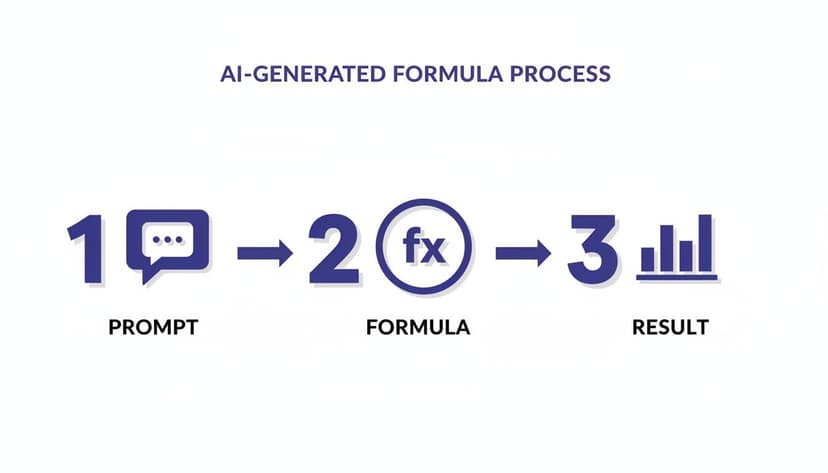
This is a fantastic starting point, but an AI agent takes it much further by completing the entire workflow—from cleaning the data to visualizing the final results, all in one go.
4.1. The Power of Executing Full Workflows
Instead of asking for a formula and then having to copy, paste, and adjust it yourself, you can give an AI agent a much broader command.
For instance, you could tell Elyx AI: "Analyze last quarter's sales data, find the top three performing products for each region, and show me the results in a chart."
The agent then gets to work, executing the entire sequence for you:
- First, it cleans up the data, getting rid of duplicates and fixing messy entries.
- Next, it builds the right formulas or even a pivot table to perform the analysis.
- Finally, it creates a clean, presentation-ready chart to display its findings.
An AI agent essentially acts like an expert analyst sitting right next to you, working directly inside your spreadsheet. It figures out your main goal and handles all the tedious steps to get you there, all while keeping your data private and secure on your own device.
This shift from just getting formula suggestions to having tasks fully executed is making a huge difference. The global data analytics market, which was valued at $60.5 billion in 2025, is expected to grow to $143.1 billion by 2035, and tools like these are a big reason why. Even as recently as 2026, office workers spend hours every week just cleaning and formatting data. By cutting out that friction, people in finance, sales, and marketing are already seeing 30% efficiency gains and saving over three hours a week.
4.2. What Is An Excel AI Agent?
So, what makes an Excel AI agent different from a simple chatbot or formula helper? It’s a smart add-in that can understand complex, multi-step instructions and perform actions directly on your spreadsheet. It sees the context of your data—your headers, the sheet's layout, and how different columns relate to one another.
This contextual awareness is the key to its autonomy. You don't have to point it to specific cell ranges or walk it through every single little step. It just understands what needs to be done. To get the full picture of this technology, you can learn more about what an Excel AI agent is and see how it’s fundamentally changing how we work with spreadsheets.
5. 3 Best Practices for Mastering Excel AI Tools
Getting the hang of AI in Excel is less about technical wizardry and more about developing a smart approach. Think of the AI as an incredibly bright but very literal assistant—it needs clear instructions to get the job done right.
Vague prompts will get you incorrect formulas, and blindly trusting the output on a critical report is a recipe for disaster. By building a few key habits, you can use these tools responsibly, keep your data clean, and confidently automate your work. Here are three essentials I've learned from experience.
5.1. Best Practice 1: Be Specific and Give Your Prompts Context
The single biggest mistake I see people make is being too vague. A request like "sum my sales" is almost guaranteed to fail because it leaves too much to interpretation. All sales? For what time period? By which region? The AI has no choice but to guess.
You'll get much better results by being crystal clear. Treat the prompt like you're explaining the task to a new team member. Be sure to include:
- The exact action: Use words like “Sum,” “Average,” “Count,” or “Find.”
- The specific columns: Refer to them directly, like "column C" or "the ‘Sales Amount’ column."
- All conditions: Spell out your criteria, such as "where the region in column A is ‘North’ and the product in column B is ‘Gadgets’."
Instead of "sum my sales," a much better prompt is: "Sum the total sales from column C for the ‘North’ region in column A." This removes all the guesswork and guides the AI to the correct formula.
5.2. Best Practice 2: Always Double-Check the Formula’s Logic
Never, ever copy an AI-generated formula into a critical spreadsheet without checking it first. It’s tempting, but you have to treat the AI's output as a highly educated first draft—one that still needs your final sign-off. This step isn't just about catching errors; it's about understanding what's happening under the hood.
Before you hit Enter, take a second to read the formula. Ask yourself: "Does this logic actually do what I wanted?" If you see a function you don't recognize, just ask the AI to explain it.
This simple habit ensures your numbers are right and, as a bonus, makes you a better Excel user. For more practical advice on this, check out our guide on how to use Excel AI tools to sharpen your skills.
5.3. Best Practice 3: Start Small to Build Your Confidence
Jumping into the deep end by using AI to overhaul your most complex financial model is a risky move. It's much smarter to start with smaller, low-stakes tasks. This lets you get a feel for how the tool works and how it interprets your requests without putting any important data at risk.
Try it out on simple jobs first:
- Cleaning up messy text data.
- Creating a basic
SUMIFSorCOUNTIFSformula. - Sorting a list based on one or two rules.
As you get more comfortable, you can slowly start tackling more complex problems. This gradual approach builds your confidence and teaches you the art of writing effective prompts, ultimately making you a faster and more efficient analyst.
6. How AI in Spreadsheets Will Shape Your Career
Getting a handle on AI-generated formulas isn't just about learning a new Excel trick; it’s about future-proofing your career. The days of being the office "Excel guru" who could write complex formulas from memory are fading. The real value is shifting.
Instead of wrestling with syntax and debugging nested functions, you can now focus on the bigger picture. AI tools act as your expert partner, taking care of the tedious mechanics so you can spend your time interpreting data, uncovering insights, and making recommendations that actually drive the business forward. The conversation is moving from how you wrangled the data to what the data is telling you.
6.1. The Shift from Guru to Strategist
An analyst's worth is no longer measured by their technical wizardry alone, but by their ability to provide clear, actionable insights. When AI can generate the formula or even build an entire analytical model for you, your domain expertise becomes your true superpower. Knowing your business and asking the right questions is what will make you indispensable.
The productivity gains are not just theoretical—they're staggering. In 2026, professionals saw their output jump by 3-4x by integrating AI. For finance teams, building a 10-year cash flow model went from a multi-day ordeal to a task completed in minutes. AI-powered sales forecasting improved accuracy by 15-20% and helped shorten sales cycles by 25%. You can see a full breakdown of the numbers in this research on AI agent performance.
The real power of AI in Excel isn't about replacing jobs; it's about amplifying your skills. As one expert put it, AI can deliver 1000x leverage on complex models, allowing one person to do the work that once required a team.
By getting comfortable with tools like Elyx AI, you’re not just adopting new tech—you’re stepping into a new role. Your spreadsheet transforms into an intelligent workspace where you call the shots and the AI does the heavy lifting. This makes you faster, more strategic, and a whole lot more valuable to any organization that runs on data.
7. Your Top 4 Questions About Excel AI, Answered
As you start exploring what AI can do inside your spreadsheets, you're bound to have some questions. We get it. Let's tackle some of the most common ones we hear from users just like you.
7.1. Question 1: Can AI Create Formulas That Work Across Multiple Sheets?
You bet. A good AI tool can definitely build formulas that pull data from all over your workbook.
The trick is to give it clear directions. Instead of being vague, you have to be very specific about the sheet names and cell ranges you're working with. For example, tell it to look "in the 'Q1 Sales' sheet" or to grab data "from cell A1:B50 in the 'Inventory' sheet." The more precise your prompt, the better the formula.
7.2. Question 2: Is My Data Safe When Using an AI Add-in for Excel?
It's completely understandable to worry about your data's security—it's one of the first things people ask.
Reputable AI tools like Elyx AI are built with a privacy-first approach. Here’s how it works: your actual spreadsheet data never leaves your computer. Only your instructions (the prompt you write) are sent to the AI model. No sensitive information is ever stored or used for training, which means your work stays completely confidential.
7.3. Question 3: How Is Elyx AI Different From Microsoft Copilot?
Think of it as the difference between having a guide and having an assistant who can do the work for you.
Microsoft Copilot is great for suggesting or explaining formulas. Elyx AI, on the other hand, acts more like an autonomous agent. It can take a single command and execute a whole series of steps—like cleaning up your data, building a pivot table from it, and then creating a chart—all on its own. It's designed to handle entire workflows, which can save you a ton of time.
7.4. Question 4: Do I Still Need to Learn Excel Formulas If I Use an AI Tool?
Yes, but what you need to know changes. You can stop trying to memorize every bit of complex syntax, which is a huge relief.
However, having a solid grasp of basic Excel logic is still essential. This knowledge helps you double-check the AI’s work, make small tweaks, and know if the result is what you actually wanted. The AI becomes your co-pilot, handling the heavy lifting so you can focus on the bigger picture.
Ready to see how this actually works in your own spreadsheets? Elyx AI acts like an expert colleague right inside Excel, running complex tasks from a single command. Start your free 7-day trial and save hours every week.
Reading Excel tutorials to save time?
What if an AI did the work for you?
Describe what you need, Elyx executes it in Excel.
Sign up