5 Steps to Master an Excel AI Formula Generator for Smarter Spreadsheets

So, you’re ready to let AI handle your Excel formulas. Great choice. At its core, using an Excel AI generator means you open a built-in assistant, like ElyxAI, and just tell it what you need in plain English. For example, you might type, "sum up all the sales in column D for the 'East' region," and the AI will pop the correct formula right into your cell. No more hunting for the right syntax.
Why an Excel AI Generator Is Your New Secret Weapon
Before we get into the step-by-step, let's talk about the why. If you've ever found yourself hours deep in a battle with nested IF statements or staring at a frustrating #REF! error, you know the feeling. We've all been there—stuck on the mechanics of a spreadsheet instead of actually analyzing the data. It's a massive time sink for everyone from finance pros to marketing coordinators.
An AI formula generator, especially a tool like ElyxAI, is more than just a formula-suggester. Think of it as the difference between getting a complex recipe and having an expert chef cook the meal for you. Instead of just giving you a formula, it can handle entire tasks from a single, simple command.
Spending too much time on Excel?
Elyx AI generates your formulas and automates your tasks in seconds.
Sign up →From Manual Drudgery to AI-Powered Efficiency
The amount of time we lose to tedious Excel work is genuinely shocking. Research from a 2025 McKinsey Global Survey really puts it into perspective: 68% of finance and accounting professionals waste over 15 hours every week on manual spreadsheet tasks. About 40% of that time is spent just trying to build and fix formulas. It’s a huge drain on productivity that hits businesses where it hurts.
This infographic paints a clear picture of just how much time is slipping through our fingers.
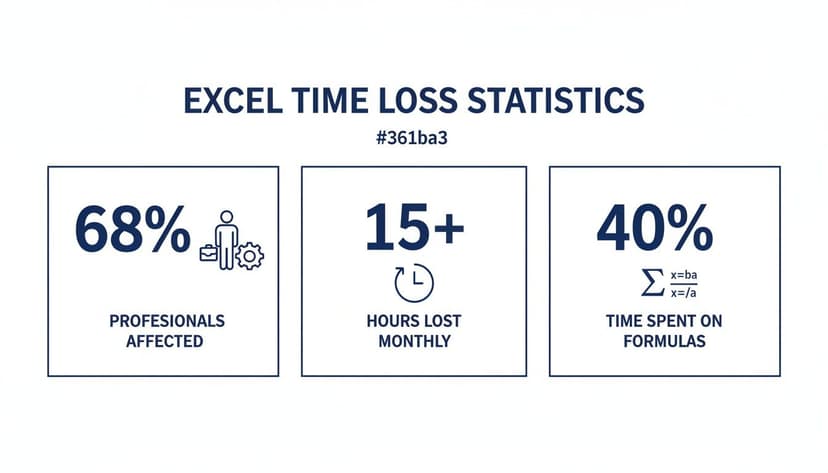
Those numbers don't lie. Most of us are getting bogged down in repetitive work, and formulas are a big part of the problem.
The table below gives you a quick snapshot of how much of a difference this makes in the real world.
4 Examples of Manual Excel Tasks vs AI-Powered Automation
| Task | Manual Method (Average Time) | ElyxAI Method (Average Time) | Key Benefit |
|---|---|---|---|
| Complex Formula Creation | 10-20 minutes | 30-60 seconds | Eliminates syntax errors and the need to look up functions. |
| Data Cleaning | 30-60 minutes | 2-5 minutes | Instantly standardizes formats, removes duplicates, and fills gaps. |
| Pivot Table & Chart | 15-25 minutes | 1-2 minutes | Generates a full report and visualization from a single instruction. |
| Weekly Reporting | 1-2 hours | 5-10 minutes | Automates the entire workflow of data consolidation and summarization. |
As you can see, the time savings aren't just minor—they're significant. This frees you up to focus on strategy instead of getting stuck in the weeds.
The Real-World Impact
So, what does this look like in practice? Here are 3 common scenarios where an AI assistant completely changes the game:
For Financial Analysts: Instead of spending an hour building a model, an analyst can simply ask, "create a 3-year cash flow projection using the data in the 'SalesData' and 'Expense_Log' sheets."
For Marketing Managers: Need a quick ROI report? Try prompting, "Analyze my campaign performance in 'CampaignData', calculate the ROI for each channel, and show me the results in a bar chart." Done.
For Project Managers: Daily updates become a breeze. A simple prompt like, "Update the 'ProjectTracker' sheet by calculating the percentage complete for all tasks and highlight anything overdue in red," automates a task that used to take 20 minutes every morning.
By automating these multi-step processes, an AI-powered tool reduces human error and gives you back hours of your week. It’s about reclaiming your time to focus on what really matters—finding insights and making smart decisions.
Your 3-Minute ElyxAI Quick Start Guide
Ever wish you had an Excel expert sitting next to you? That’s what getting ElyxAI feels like. You can get this powerful Excel AI formula generator up and running in about the time it takes to grab a coffee. I’ll show you how to go from zero to your first AI-powered formula in just a few minutes.

The entire process is dead simple—no complex setups, no technical headaches. Let's dive in.
Step 1: Finding and Installing ElyxAI
First things first, you need to add ElyxAI to your Excel ribbon. Since it's an official Microsoft AppSource add-in, it’s already been vetted for security and plays nicely with Excel.
Here’s the quick rundown:
- Head over to the Home tab in Excel.
- Click the Add-ins button.
- In the add-in store's search bar, just type "ElyxAI".
- Click Add next to the ElyxAI result and you're good to go.
That's it. Seriously. No credit card is needed to get started with the free trial. You can find more details about the Excel AI add-in on our website.
Once it’s installed, you’ll see a new ElyxAI icon on your Home ribbon. That little button is your new best friend for automating all those tedious spreadsheet tasks.
Step 2: Launching the AI for the First Time
Now for the fun part. Just click that ElyxAI icon on your ribbon. A chat panel will slide open on the right side of your screen. This is your command center.
Think of this chat panel as having a direct line to an expert Excel colleague who is always on call. You just type what you need in plain English, and the AI gets it done right in your sheet.
There's no clunky interface or steep learning curve. If you know how to send a text message, you already know how to use ElyxAI.
You’ve now installed a powerful Excel AI formula generator and are ready to start saving hours of manual work. Let's put it to the test.
Putting AI to Work: 5 Real-World Excel Tasks You Can Automate
Alright, you've got the ElyxAI panel open and you're ready to go. This is where the magic happens—where a simple sentence can save you from a mountain of manual clicking and head-scratching. We're going to walk through five common business tasks that ElyxAI handles beautifully, turning raw data into clear, actionable insights in seconds.
Each example tackles a different challenge, showing you the tool's versatility. We'll go from generating complex formulas to building entire reports from scratch.
Let's dive in and see what this AI can really do.
Task 1: Generate a Tiered Sales Commission Formula
Writing a tiered commission formula by hand is a classic Excel nightmare. You end up with a tangled mess of nested IF statements that are a pain to write and even worse to troubleshoot later.
Let's say you have sales figures in column B and need to calculate commissions based on a few tiers:
- Sales under $5,000 earn a 3% commission.
- Sales from $5,000 to $10,000 earn a 5% commission.
- Sales over $10,000 earn a 7% commission.
Instead of fighting with that logic yourself, just tell ElyxAI what you need.
Your Prompt:"In cell C2, create a formula to calculate the commission for the sale in B2. The rules are: 3% for sales under $5000, 5% for sales between $5000 and $10000, and 7% for sales over $10000. Then apply this formula down to the last row of data."
The Formula Generated:=IFS(B2<5000, B2*0.03, B2<=10000, B2*0.05, B2>10000, B2*0.07)
Explanation:
The IFS function is a modern and clean way to handle multiple conditions.
B2<5000, B2*0.03: If the sale in B2 is less than $5,000, it calculates 3%.B2<=10000, B2*0.05: If the first condition isn't met and the sale is less than or equal to $10,000, it calculates 5%.B2>10000, B2*0.07: If neither of the above is true (meaning the sale is over $10,000), it calculates 7%.
This is much easier to read and debug than a long IF(IF(...)) chain.
Task 2: Instantly Clean a Messy Dataset
Let's be honest: data cleaning can be the most mind-numbing part of working in Excel. Inconsistent capitalization, extra spaces, and duplicates can wreck your analysis.
Imagine a contact list where names in column A are a jumble of "john smith," "JANE DOE," and " Peter Jones ". To make things worse, you know there are duplicate email addresses in column C.
Your Prompt:"Clean the data in this sheet. Standardize the names in column A to proper case. Trim all leading and trailing spaces from columns A, B, and C. Finally, find and remove any rows with duplicate email addresses in column C, keeping the first instance."
With a single command, the AI runs through a multi-step cleaning routine that would have taken you ages. This prompt combines the logic of formulas like PROPER(), TRIM(), and the "Remove Duplicates" feature into one seamless action.
Task 3: Build a Dynamic Sales Report with a Chart
Creating a decent summary report is usually a whole process: make a PivotTable, drag the fields around, format it, and then build a chart. With an AI assistant, you can do it all in one shot.
Suppose your data lives in a table named SalesData and includes columns like Region, Product, and Revenue.
By bundling data prep, analysis, and visualization into a single command, you stop worrying about how to build the report and start focusing on what the report is telling you. It's a faster path from raw data to smart decisions.
Your Prompt:"Using the 'SalesData' table, create a new sheet named 'Sales Summary'. On that sheet, build a pivot table showing total revenue by region. Then, create a clustered column chart based on the pivot table data."
The AI gets to work immediately. It creates the new sheet, inserts a perfectly configured PivotTable, and places a clean, formatted chart right beside it. This shows how an Excel AI formula generator is for much more than just formulas—it handles entire workflows.
Task 4: Perform a Quick Trend Analysis
Spotting trends is crucial for making good business decisions, but manually adding trendlines and calculating growth rates can be clunky.
Let's say you have monthly sales data from January to December sitting in columns A and B.
Your Prompt:"Analyze the monthly sales data in A2:B13. Create a line chart to visualize the sales trend. Add a linear trendline to the chart and display its equation and R-squared value on the chart."
This one request gets your data visualized and performs a basic regression analysis. You get an instant snapshot of your sales performance without ever opening the chart formatting menus.
Task 5: Apply Professional, Branded Formatting
A well-formatted report is not only easier to read but also looks far more professional. Applying consistent formatting, however, is tedious.
Picture a raw data table in the range A1:F50. You want it to look sharp and align with your company's branding.
Your Prompt:"Format the table in range A1:F50. Make the header row (row 1) have a navy blue fill (#002060) with bold white text. Apply light grey alternating row colors to the rest of the table. Autofit all column widths."
The AI acts like your personal design assistant, giving your data a clean, polished look in an instant. This is a huge time-saver when you're prepping reports for a presentation, ensuring everything looks consistent.
3 Essential Tips for Writing Prompts the AI Understands Perfectly
The results you get from an Excel AI formula generator are only as good as the instructions you give it. This is probably the single most important skill to master if you want to get truly impressive results. Think of it like giving directions: "head downtown" is vague, but "go three blocks east on Main Street and turn left at the bank" gets you exactly where you need to be.

It’s the same idea here. A fuzzy prompt will get you a generic, or just plain wrong, result. A precise prompt, on the other hand, lets the AI do some seriously heavy lifting for you. Learning to communicate clearly is what turns an Excel AI formula generator from a neat trick into an essential part of your workflow.
Tip 1: Be Specific and Detailed
Ambiguity is the enemy. The more details you provide, the better the AI can figure out what you're asking for and do it right the first time.
Try to build these key details into every prompt you write:
- Sheet Names: Always tell the AI which worksheet to look at (e.g.,
'Sales Data'or'Q3_Forecast'). If you forget, it will just work on whatever sheet is currently active, which might not be what you wanted at all. - Cell Ranges and Tables: Don't just say "the data." Give it an exact cell range like
A1:D50. Even better, if your data is in a named table likeSalesTable, use that. It removes all the guesswork. - Action Words: Use clear, direct verbs. Instead of a weak phrase like "do something with sales data," tell it exactly what to do with words like "Calculate," "Summarize," "Format," "Create," or "Sort."
Being this precise right from the start stops the AI from making assumptions, which is where things usually go wrong. It focuses the AI's attention on the exact data you want to touch. If you're curious about the tech behind these tools, getting a basic understanding of Large Language Models (LLMs) can really help you craft better prompts.
Tip 2: Compare Good vs. Better Prompts
Let's look at this in practice. The difference between an okay prompt and a great one can be huge. Sometimes, just a few small tweaks in how you phrase things will lead to a much more accurate result.
It really helps to see some examples side-by-side. This table shows how adding a little more detail can dramatically improve the AI's output, saving you from having to fix things later.
| Goal | Good (But Vague) Prompt | Better (Specific) Prompt | Why It's Better |
|---|---|---|---|
| Summarize Sales | summarize sales |
On the 'SalesData' sheet, create a pivot table summarizing 'Total Revenue' by 'Region' and 'Sales Rep'. |
It specifies the sheet, the type of summary (pivot table), and the exact fields to use. |
| Clean a List | clean up the names |
In column A of the 'Contacts' sheet, trim all extra spaces and convert all names to proper case. |
It defines the location, the column, and the two specific cleaning actions to perform. |
| Make a Chart | chart the data |
Create a clustered column chart from the pivot table in the 'Sales Summary' sheet. |
It specifies the chart type and its exact source, eliminating ambiguity. |
As you can see, being explicit isn’t about writing more—it’s about writing smarter. Those few extra details can save you a ton of rework.
Tip 3: Break Down Complex Requests
For those really big, multi-step tasks, you don't have to try and cram everything into one perfect paragraph. While an advanced AI assistant like ElyxAI can handle pretty complex commands, sometimes it's just easier to break your request into smaller, logical chunks. Treating it like a conversation lets you guide the AI and check its work at each stage.
Let's say you want to build a whole report from some messy, raw data. You could approach it like this:
- First Prompt:
"Clean the data in the 'RawData' sheet. Remove duplicate rows based on the 'OrderID' column and fill any blank cells in the 'Sales' column with 0." - Follow-up Prompt:
"Great. Now, create a pivot table on a new sheet summarizing sales by 'Product Category' and 'Month'." - Final Prompt:
"Perfect. Now create a line chart from that pivot table to visualize monthly trends for each category."
This step-by-step method turns a daunting task into a manageable conversation with your AI. You maintain full control, refining the output at each stage until it's exactly what you need.
This is also a fantastic way to learn. By seeing how the AI handles each individual command, you get a much better feel for how to phrase your requests in the future. For anyone just starting out, an AI assistant for Excel is an amazing learning tool. The more you use it, the better you'll get at asking for exactly what you want and getting it on the first try.
Automating Workflows for 4 Different Professions
An Excel AI formula generator is a game-changer, but its real magic shines when you stop thinking in single formulas and start thinking in entire workflows. This is where a tool like ElyxAI really distances itself from the pack. It doesn't just hand you a recipe; it cooks the whole meal for you. You'll go from saving a few minutes to getting back entire hours of your day.
Let's walk through four real-world scenarios for different jobs. Each one kicks off with just a single, detailed prompt, showing you how the AI can handle a whole chain of complex tasks on its own, turning raw data into a finished product with zero manual steps in between.
Example 1: The Financial Analyst Building a Dynamic Model
If you're a financial analyst, you know that data models are your world. But building one from scratch is a grind. You're pulling data, cleaning it up, writing beastly formulas, and then trying to make it all look good in a chart. It’s a process that can take hours and is frustratingly easy to mess up.
Imagine you've just been handed raw sales and expense data on separate tabs and need to spin up a profitability model.
The Prompt:"On a new sheet named 'Profit Model', use the 'SalesData' and 'ExpenseData' sheets. First, clean both datasets by removing any duplicate rows based on 'TransactionID'. Then, calculate the Gross Profit for each transaction by subtracting 'COGS' from 'Revenue' in the 'SalesData' sheet. Next, create a summary table that aggregates total Revenue, COGS, and Gross Profit by month. Finally, generate a line chart visualizing the monthly trend for all three metrics."
With that one request, ElyxAI gets to work. It cleans the data, runs the numbers, builds the summary table, and even creates the chart. What you're left with is a complete, presentation-ready model, and you just skipped all the tedious, step-by-step labor.
Example 2: The Marketing Manager Creating an ROI Dashboard
Marketing managers are under constant pressure to prove their campaigns are working. That means digging through data from different channels, calculating return on investment (ROI), and packaging it up for leadership to understand at a glance. It's a reporting cycle that can easily become a weekly headache.
While basic generators stop at providing the formula, advanced agents like ElyxAI execute the entire task. Financial teams in Fortune 500 firms using similar autonomous tech have cut reporting cycles from 4 days to 12 hours, boosting ROI on data tasks by 40%. This is a major shift for the 78% of professionals in BI and finance who cite formula errors as their top Excel frustration.
The Prompt:"Create a new 'ROI Dashboard' sheet. Using the data in 'CampaignData', calculate the ROI for each campaign using the formula (ConversionValue - Cost) / Cost. Create a pivot table summarizing the average ROI by 'Campaign Channel' and 'Quarter'. Next to the pivot table, generate a bar chart comparing the ROI of each channel. Format the ROI values as percentages with two decimal places."
The AI agent just takes that and runs with it, building the entire dashboard. Suddenly, you have a clear, visual report without ever having to wrestle with a VLOOKUP or mess with chart formatting. This lets you spend your time actually analyzing the results and figuring out what to do next, not getting bogged down in spreadsheet mechanics.
Example 3: The HR Coordinator Generating a Turnover Report
Human Resources teams are drowning in metrics, and employee turnover is a big one. Compiling the data, calculating rates, and spotting trends usually means a lot of manual filtering, sorting, and summarizing. It's time-consuming and, let's be honest, pretty boring.
Picture an HR coordinator staring at a massive table of employee records, complete with hire and termination dates.
The Prompt:"On a new 'Turnover Analysis' sheet, analyze the 'EmployeeData' table. Calculate the tenure in years for each employee. Identify all employees who left in the last 12 months. Create a summary table that shows the monthly turnover count. Finally, create a column chart visualizing this monthly turnover trend."
That single instruction sets off a complete analytical workflow. The AI calculates tenure, filters for the right employees, groups the data by month, and spits out a visual report. Just like that, the HR coordinator has an accurate turnover report ready for the next management meeting, done in a tiny fraction of the usual time.
To really get good at writing prompts, it's worth seeing how different tools work. Learning about specialized applications like ChatGPT for Excel can give you a better feel for how these AI models think.
Example 4: The Operations Lead Automating Inventory Tracking
For an operations lead, inventory management is a constant juggling act. You have to know what you have, what's running low, and what to reorder—all at the same time. An automated system in Excel can be a lifesaver, preventing stockouts and cutting costs, but setting it up manually is a real chore.
Let's say you've got one sheet with current inventory levels and another with recent sales data.
The Prompt:"Create an 'Inventory Status' dashboard. Using the 'CurrentStock' and 'SalesLog' sheets, calculate the remaining stock for each 'ProductID'. In a new column, flag any item with less than 20 units remaining as 'Reorder'. Sort the entire table to show 'Reorder' items at the top. Apply conditional formatting to highlight the entire row in light red for any item flagged for reorder."
With that command, the AI builds a dynamic inventory dashboard. It pulls data from two places, does the math, adds a logical flag, and uses color to make the critical items pop. The operations lead now has a powerful tool that turns static data into an actionable alert system, making it much easier to manage inventory on the fly.
Got Questions About Excel AI? 4 Common Questions Answered
Jumping into any new tool, especially one that works with your data in Excel, is bound to bring up a few questions. It's smart to be curious. Let's walk through some of the most common things people ask when they're getting started with an AI formula generator.
My goal here is to give you straight, clear answers so you can feel completely comfortable putting this thing to work.
Question 1: Is My Data Safe When I Use an Excel AI Add-in?
This is the big one, and for good reason. The short answer is: yes, your data is safe. Tools like ElyxAI are built from the ground up with a privacy-first mindset.
Here’s how it actually works, so you can see for yourself:
- Your spreadsheet data stays put. All your numbers, customer lists, and sensitive information never leave your computer.
- Only your instructions travel. The only thing sent to the AI is the text you type into the chat box—your request. The AI gets the "what to do," not the "what with."
- Security is ironclad. The connection uses top-tier encryption like AES-256 and TLS 1.3. We're talking about the same security standards your bank uses.
Most importantly, your data is never, ever stored or used to train AI models. This keeps your information confidential and compliant with strict regulations like GDPR.
Question 2: What Happens if the AI Gets My Request Wrong?
Let's be real: AI is smart, but it's not a mind reader. Sometimes it might misinterpret what you asked for, and that’s perfectly fine. The tool is designed for back-and-forth, not just a single, perfect command.
If the first formula or chart isn't quite right, you don't have to start over. The AI remembers the context of your conversation. Just tell it what to change.
Think of it like talking to a human assistant. You could follow up with:
- "Actually, change that to a pie chart."
- "Okay, now sort those results from largest to smallest."
- "That's close, but can you highlight any value over $10,000 in green?"
You're always in the driver's seat. You guide the AI, tweak the results, and you always have the final say. This interactive process quickly becomes second nature.
The real magic happens when you treat the AI like a partner. You provide the strategy, it does the tedious work, and you both refine the output together. It's way faster than going it alone.
Question 3: Can This AI Handle My Messy, Complicated Spreadsheets?
Absolutely. In fact, that's where it really shines. ElyxAI is designed to drop right into your existing workflows, no matter how complex they are. You don't need to clean everything up or start from a blank sheet.
The moment you open the chat panel, the AI gets to work understanding your workbook's layout. It sees things like:
- All your sheet names: It knows the difference between 'Q3_Forecast' and 'Client_List'.
- Your named tables and ranges: It recognizes custom names like
SalesDataTablethat you've already set up. - The way your data is organized: It adapts to your file, not the other way around.
This means you can give it commands specific to your spreadsheet, like, "In my 'Q3_Forecast' sheet, fix the VLOOKUPs in column G to pull from the 'Client_List' table." It's like having an assistant who can instantly find their way around even your most labyrinthine files.
Question 4: How Is ElyxAI Different From Microsoft Copilot?
Both are powerful tools, but they’re built for slightly different jobs. Microsoft Copilot is fantastic for brainstorming ideas and summarizing information across different Microsoft 365 apps.
ElyxAI, on the other hand, is an agent that actively does the work for you, right in the spreadsheet. When you give it a complex, multi-step instruction, it physically performs every action—creating the formulas, formatting the cells, building the chart.
For complete, start-to-finish tasks, like turning a raw data export into a full-blown dashboard, ElyxAI's ability to execute the entire workflow on its own gives you a huge leg up in speed and efficiency.
Ready to stop wrestling with formulas and start automating your workflows? ElyxAI turns your text instructions into finished work, saving you hours every week.
Start your free 7-day trial of ElyxAI today and see the difference for yourself.
Reading Excel tutorials to save time?
What if an AI did the work for you?
Describe what you need, Elyx executes it in Excel.
Sign up