Excel AI: A Practical Guide to Using Artificial Intelligence in Spreadsheets

We've all been there: staring at a spreadsheet nightmare on a tight deadline. It's that feeling of dread when you know hours of mind-numbing, manual work lie ahead. This guide is about your new secret weapon: Excel AI. Think of it as a smart assistant living right inside your spreadsheet, ready to handle tedious tasks with simple, plain-English commands.
This guide will provide you with practical, actionable steps to solve common spreadsheet problems using AI, so you can leave with a new skill and get your day back.
The End of Manual Excel Work Is Here
Picture this: you've just been handed a massive, messy dataset. The old way meant manually deleting duplicate rows, trying to standardize text formats, and painstakingly building pivot tables one by one. This isn't just a time sink; it’s a minefield for costly mistakes.
Spending too much time on Excel?
Elyx AI generates your formulas and automates your tasks in seconds.
Sign up →This is exactly where Excel AI steps in. Instead of doing all the heavy lifting yourself, you just tell an intelligent assistant what you need done. It’s less like using a calculator and more like having a skilled data analyst at your side, ready to take on the grunt work.

From Static Grid to Dynamic Assistant
Traditionally, Excel demanded you know the "how"—which specific formulas to write, what buttons to click, and in what precise order. With AI, all you need to know is the "what." This simple but powerful shift completely changes how you work with your data.
You can now use simple instructions to kick off complex tasks. For example, instead of manually filtering for unique values, you simply ask the AI, "Remove all duplicate rows." Your spreadsheet is no longer just a passive grid of cells; it becomes an active, responsive workspace that helps you get to the finish line faster.
The benefits become obvious almost immediately:
- Massive Time Savings: Tasks that used to eat up your afternoon, like cleaning data or building reports, can now be done in minutes.
- Fewer Human Errors: Let the AI handle the repetitive work with perfect accuracy. No more typos or broken formulas.
- Focus on What Matters: Free yourself from data prep to spend your time on strategic thinking and making smart decisions.
By automating the repetitive tasks that dominate your workday, you're not just working faster—you're working smarter. It's about shifting your focus from the tedious mechanics of spreadsheet management to the critical insights hidden within your data.
This isn't just another feature update. It’s a genuine change in how people can use one of the most common tools in business. The whole point is to make powerful data analysis accessible to everyone, not just the Excel gurus.
How Excel AI Actually Works
So, what’s really going on under the hood? At its core, AI turns your spreadsheet from a passive calculator into an active partner.
Think of it this way: traditional Excel is like a tool that comes with a dense instruction manual. You have to know the exact formula or function to get the job done. Excel with AI, however, is more like having a data analyst sitting next to you, ready to help when you just explain what you need in plain English.
This conversational power comes from something called Natural Language Processing (NLP). It’s a branch of AI that teaches computers how to understand human language, with all its nuances and intentions. When you type, "Summarize last quarter's sales by region and create a bar chart," the AI doesn't just see a string of words—it understands your goal.
From Words to Actions
Once the AI understands your goal, the real work starts. It breaks down your request into a series of logical steps, much like you would if you were mapping out a task, but it all happens in a fraction of a second.
For that sales summary request, the AI’s internal to-do list might look something like this:
- Identify the data range: First, it scans your sheet to locate the sales figures and relevant columns.
- Clean the data: It checks for any duplicates, empty rows, or messy formatting that could corrupt the results.
- Choose the best tool: It determines that a pivot table is the most efficient way to group sales by region.
- Build the chart: It then creates a bar chart from that new summary table.
- Apply professional formatting: Finally, it formats the chart with appropriate labels and titles so it is clear and easy to read.
Each of these steps could easily take a person several minutes of clicking, typing, and formatting. The AI doesn't just tell you how to build the pivot table; it builds it for you. That’s a massive shift in how we work with data. You can learn more about how this changes day-to-day tasks in our guide to AI in Excel.
The Engine Behind the Scenes
This whole process is powered by advanced large language models (LLMs). These models have been trained on vast amounts of information, which allows them to recognize patterns, understand context, and generate surprisingly human-like responses. When integrated with Excel, they can write complex formulas, structure data, and even spot insights on their own.
The big idea is simple: You focus on the "what," and let the Excel AI handle the "how." It closes the gap between your goal and the technical steps required to get there, opening up complex analysis to anyone, regardless of their Excel skill level.
When you break it down, Excel AI isn't some unknowable magic. It’s a practical tool that applies proven AI concepts to do one job really well: getting your spreadsheet tasks done faster and more accurately. This frees you up from the tedious, mechanical work so you can focus your brainpower on actual strategy and analysis.
How Excel AI Changes Your Day-to-Day Work
It's one thing to talk about what Excel AI is, but it’s another to see how it completely changes how you work. For anyone in finance, marketing, or operations, this isn't just theory—it's a practical way to get hours back in your week. Let's look at some real-world examples of how AI transforms those tedious, everyday tasks.
Think about a marketing manager who just downloaded a contact list with thousands of names. Before AI, cleaning it up was a nightmare. You’d spend hours hunting down duplicate entries, fixing weird capitalization, and trying to standardize city names.
Now, imagine this: you just tell your AI assistant, "Remove all duplicate contacts, standardize the capitalization in the 'Name' and 'City' columns, and highlight any rows with missing email addresses." A few seconds later, it's done. You have a clean, reliable list ready to use.
Automated Data Preparation
One of the biggest time-wasters for anyone working with data is just getting it ready for analysis. Cleaning and organizing your information is a necessary, but often tedious, step.
Let’s take a common problem: cleaning up first and last names in separate columns. Often, you get inconsistent capitalization (e.g., "john," "SMITH," "DeMarco"). The traditional solution is to use the PROPER() formula. You would create a new column and enter a formula like:
=PROPER(A2) & " " & PROPER(B2)
PROPER(A2): This part of the formula takes the text in cell A2 (the first name) and converts it to proper case, where the first letter is capitalized and the rest are lowercase (e.g., "john" becomes "John")." ": This adds a space between the first and last names.PROPER(B2): This does the same for the last name in cell B2.&: The ampersand is used to join the different text pieces together into one full name.
You would then have to drag this formula down for every single row. With Excel AI, you simply select the data and instruct it: "Combine the first and last name columns into a new 'Full Name' column and format them in proper case." The AI performs the entire operation instantly.
Here are a few other common data prep jobs that AI handles effortlessly:
- Standardizing Formats: Fixing inconsistent date formats (e.g.,
MM/DD/YYYYvs.DD-MM-YY), currency symbols, and text case. - Removing Duplicates: Instantly finding and deleting redundant rows.
- Handling Missing Data: Smartly filling empty cells based on context or flagging them for review.
So many manual processes, like tracking information with an Excel trading journal template, are perfect for an AI makeover.
Instant Reports and Charts
Once your data is clean, you still have to build the report. A financial analyst can simply type, "Create a pivot table showing quarterly sales by region and generate a corresponding bar chart." The AI understands the request, builds the table, and creates a polished chart without you ever having to open the PivotTable menu. This means you can explore different views of your data in seconds, not minutes.
The real win here is how you spend your time. Instead of dedicating 80% of your effort to the mechanics of cleaning data and building reports, you can put that brainpower toward understanding what the data is telling you.
This isn't just a small tweak to your workflow; it's a fundamental shift. Professionals often lose 10-15 hours a week to repetitive Excel tasks. By automating this work, you can focus on analysis and strategy.
Ultimately, Excel AI acts like a partner that multiplies your efforts. It allows one person to do what used to take hours of careful, manual work. Whether you're building financial models, analyzing marketing results, or keeping an eye on operational dashboards, the outcome is always the same: faster insights, fewer mistakes, and more time to focus on what really matters.
Step-by-Step: Automating a Sales Report with AI
Let's walk through a real-world example to see how Excel AI can take a messy, raw sales dataset and turn it into a clean, presentation-ready report with a single command. It's the perfect way to see how those complex, multi-step tasks you dread can become instant.
Imagine you receive a raw sales spreadsheet. It's a disaster—inconsistent date formats, duplicate entries, and no clear summary. Fixing all that manually means a tedious session with filters, the REMOVE DUPLICATES tool, and the PivotTable wizard.
From Raw Data to Insightful Report in One Go
Instead of wrestling with each problem one by one, an AI assistant lets you simply state your end goal in plain English. For this sales report, we can give the AI a single, all-in-one instruction that covers everything from cleanup to final chart.
Here’s the kind of prompt that does the trick:
"Clean this data by removing duplicates and standardizing the date formats. Then, create a pivot table that summarizes total sales by product and by region. Finally, generate a bar chart to visualize these results."
This one sentence bundles three separate jobs—data cleaning, summarization, and visualization—into a single, easy request. The AI doesn't just spit out formulas for you to use; it does the work for you.
The image below shows this exact journey, from a disorganized spreadsheet to a clean, insightful report, all kicked off by that one AI command.
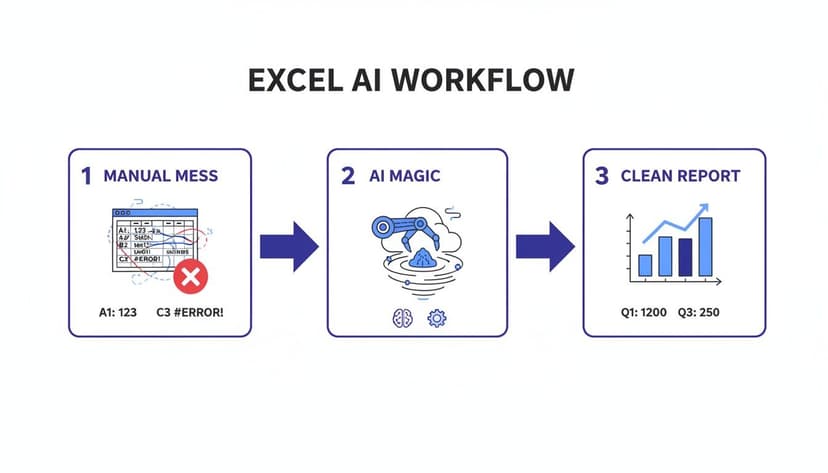
This illustrates how the AI works as your intelligent agent. It understands what you want and handles all the technical steps without needing you to hold its hand.
What the AI Does Behind the Scenes
Once you execute that command, the Excel AI tool gets to work, moving through the tasks logically.
Here's a breakdown of the AI's actions:
- Autonomous Data Cleaning: First, the AI scans your data. It spots and removes any duplicate rows to ensure your numbers are accurate. Then, it finds all the date entries and standardizes them into one consistent format (e.g.,
MM/DD/YYYY). - Intelligent Pivot Table Creation: With the clean data, it builds a new pivot table. It correctly identifies the 'Product,' 'Region,' and 'Sales' columns and sets up the table to show total sales broken down by both, just as you asked.
- Automatic Chart Generation: To finish, the AI creates a professional-looking bar chart directly from the pivot table's summary data. This gives you an instant visual of your key sales figures, making the story behind the numbers easy to understand at a glance.
This whole process, which could easily take 15-30 minutes of clicking and typing, is done in less than a minute. That’s the core benefit of having an autonomous AI agent inside your spreadsheet. If you want to dive deeper into this, check out our guide on how to automate Excel reports.
Ultimately, this isn't just about saving a bit of time. It's about fundamentally changing how you work with your data. The technical barriers are gone. You can now go straight from asking a question to seeing the answer, without needing to be a wizard with every Excel function. You get to focus on what matters: analyzing the insights the AI uncovers and making smarter, faster decisions.
Built-In AI vs. Specialized Add-Ins: What's the Right Fit for You?
As AI becomes a standard part of our spreadsheet toolkits, you have two primary options: built-in assistants like Microsoft Copilot and specialized, autonomous agent add-ins designed for deep workflow automation.
Understanding the core difference between them is the key to picking the tool that will actually solve your problems.
Assistant vs. Autonomous Agent
The main difference boils down to their core purpose. A built-in assistant is more of a “co-pilot”—it's there to help you write a tricky formula, suggest a few ideas, or explain what a function does. It’s a guide. An autonomous agent add-in, however, acts more like a “doer.” It takes a high-level command and executes an entire multi-step process without you needing to manage each step.
Think of it this way: asking a built-in tool for help is like asking a coworker for the formula to calculate quarterly growth. It's helpful, but you still have to plug in the formula, create the summary table, and then build the chart yourself.
With an autonomous agent like Elyx.AI, you state your end goal: "Analyze this sales data, figure out the quarterly growth, summarize it in a pivot table, and create a bar chart to show the results." The agent then performs all of those steps for you. This is a leap from simple assistance to genuine, end-to-end automation—a crucial difference for anyone with a packed schedule.
Key Factors for Your Decision
When you're trying to decide which type of Excel AI tool is for you, here are the things that really matter:
- True Automation: Does the tool just suggest steps, or does it actually execute them? For complex tasks like cleaning a messy dataset and then building a report from it, an autonomous agent saves a massive amount of time.
- Complex Workflow Handling: Can the AI understand and complete a multi-step request in a single command? Assistants typically handle one task at a time, whereas agents are designed to chain multiple actions together.
- Ease of Use: Is the tool intuitive for people who aren't Excel experts? Autonomous agents that use plain English commands make advanced analysis accessible to a much wider group of people. You can check out a variety of these in our guide to the best add-ons for Excel.
- Data Security and Privacy: You need to know how your data is being handled. Tools like Elyx.AI are built with a privacy-first approach, ensuring your spreadsheet data stays on your computer and is never used to train AI models.
The choice really comes down to what you need help with. If you're looking for pointers on formulas and functions, a built-in assistant is a fantastic resource. But if you want to offload entire workflows and get hours of your week back, a specialized autonomous agent is the more powerful solution.
Excel AI Tools: A Feature Comparison
To see these differences in action, let's put the two approaches side-by-side.
| Feature | Microsoft Copilot | Elyx.AI (Autonomous Agent) |
|---|---|---|
| Primary Function | Suggests formulas, generates insights, answers questions. | Executes multi-step tasks from a single command. |
| Automation Level | Assisted: Helps the user perform tasks. | Autonomous: Completes entire workflows for the user. |
| Workflow Handling | Best for single, discrete tasks (e.g., "write a formula"). | Designed for complex, sequential tasks (e.g., "clean data, then create a report"). |
| User Interaction | Requires step-by-step guidance for complex processes. | Understands high-level goals and works independently. |
| Learning Curve | Low, integrated directly into the Excel interface. | Minimal, uses natural language commands. |
| Data Privacy | Subject to Microsoft's broader data policies. | Privacy-first architecture; data is not stored or used for training. |
As you can see, the decision isn't about which one is "better" overall, but which one is better suited for the specific work you do in Excel every day.
Microsoft's push with Copilot in Excel reflects a wider trend; by 2025, global private AI investment in generative tech hit $33.9 billion. Tools like Elyx.AI are a perfect example of this, using advanced models to automate tasks and save users over three hours every week. You can find more insights on the biggest AI companies shaping the future on elearningindustry.com.
Ultimately, the best way to choose is to look at your own day-to-day challenges in Excel. That will tell you exactly which solution you need.
Protecting Your Data with Secure Excel AI
Anytime you bring a new tool into your workflow, especially one that touches sensitive company information, security should be a top priority. This is particularly true for Excel AI. The best AI tools are built with security as a core feature, not an afterthought.
A critical point to understand is how your data gets processed. Some cloud-based AI systems require you to upload your entire spreadsheet to an external server. For many businesses, that’s a non-starter. This is where privacy-focused AI add-ins make a crucial difference.

These secure tools are designed to keep your spreadsheet data right where it belongs: on your own computer. The only thing sent to the AI model is your text-based command—your instruction for what you want to do. The actual data itself—your financial reports, customer lists, or sales forecasts—never leaves your machine.
Key Security Standards to Look For
To ensure your data stays safe, you should always look for tools that meet enterprise-grade security standards. These aren't just marketing terms; they are proof that a tool is committed to protecting your information.
Two of the most important certifications to check for are:
- Microsoft AppSource Certification: This is Microsoft's official seal of approval. It means the add-in has passed a rigorous security and compliance review, confirming it’s safe and reliable to use within Excel.
- AES-256 Encryption: This is the gold standard for encryption, used by banks and governments to secure their most sensitive information. It ensures any communication happening between your computer and the AI model is completely scrambled and unreadable.
When you pick a tool that meets these standards, you can leverage the power of AI without risking your company's data. For an added layer of protection, you can also learn how to encrypt an Excel file.
Trust is built on transparency. A secure Excel AI tool will always be clear about its data handling policies, explicitly stating that your data is not stored or used for training AI models.
The massive growth in the global AI market—with tech giants expected to spend $402 billion by 2026—has pushed the development of these secure tools forward. As more and more companies adopt AI (an estimated 72% will be using it by 2025), the demand for privacy-first solutions has never been higher. You can dig into more of these artificial intelligence statistics and trends on Technource.com. This intense focus on security means you can get all the benefits of automation without making any compromises.
Getting Started with Your AI Assistant in Excel
You've seen what's possible when AI comes to Excel. We're talking about taking those mind-numbing, repetitive tasks that eat up your day and turning them over to an assistant that does the work in seconds. This isn't just about working faster; it's about changing how you work. You get to stop focusing on the "how-to" of Excel and start focusing on the "what-if" of your data.
When you bring an AI assistant into your spreadsheet, you’ll notice a few things right away:
- You reclaim your time. Think about all the time you spend cleaning data, building reports, or making charts. Now imagine that's all automated.
- Costly mistakes are eliminated. When a human performs the same task a thousand times, errors are bound to creep in. AI handles repetitive work with perfect accuracy, so you can trust your numbers.
- You discover new insights. The AI can spot trends and create visualizations instantly, helping you find those hidden gems in your data that lead to better decisions.
Your Two-Minute Path to a Smarter Spreadsheet
This isn't some far-off future technology; you can have a powerful AI agent running in your copy of Excel in about two minutes. You don’t need to be a tech expert or sit through a complicated setup.
Here’s how simple it is:
- Open Excel. Go to the “Insert” tab in the ribbon and click on “Get Add-ins.” This opens Microsoft's official AppSource store right inside your workbook.
- Find your AI assistant. Type the name of the add-in you're looking for (e.g., "Elyx AI") into the search bar.
- Click 'Add'. Just hit the "Add" button, and it installs immediately. You’ll see a new tab pop up in your Excel ribbon, ready to use.
The only way to truly grasp how much this changes the game is to try it yourself. A free trial lets you use your own data and see how it handles the exact tasks that slow you down.
Once it's installed, you can start your free trial and just start typing commands. No formulas to learn, no weird syntax to memorize. You just tell it what you want in plain English, and it gets to work. This is your chance to join the thousands of other professionals who have stopped fighting with their spreadsheets and started using them to get real work done.
Ready to stop wrestling with spreadsheets and start getting answers? Try Elyx AI and see what it’s like to have a true autonomous agent in Excel. Your free 7-day trial takes less than two minutes to set up.
Start Your Free Elyx AI Trial Now
Reading Excel tutorials to save time?
What if an AI did the work for you?
Describe what you need, Elyx executes it in Excel.
Sign up