5 Ways to Open Excel VBA & Automate Your First Task

You're probably here because Excel is eating your afternoon.
You open the same workbook every day. You clean the same columns, copy the same ranges, fix the same formats, and rebuild the same report. Formulas help, but they don't click buttons, open files, move results between workbooks, or handle the awkward parts of a real business process.
That's where Excel VBA still matters. If your goal is to open Excel VBA and do something useful right away, the shortcut is only the beginning. The practical workflow starts earlier, with access and security, and it goes further, into opening other files and automating tasks that people still do manually.
Spending too much time on Excel?
Elyx AI generates your formulas and automates your tasks in seconds.
Sign up →Why You Still Need to Open Excel VBA in 2026
Excel users still run into the same hard limit. A worksheet can calculate beautifully, but it won't manage a full workflow on its own. When the job involves repeating clicks, importing files, pushing results into a report, or building a one-click internal tool, VBA is still the built-in automation layer that gets the work done.
Microsoft's Excel ecosystem has carried Visual Basic for Applications for decades, and that longevity matters. Microsoft's own documentation around the Analysis ToolPak still reflects the classic add-in and automation model, where users enable an add-in through Excel options and then run statistical or engineering analyses directly from the workbook interface via the Data tab, as shown in Microsoft's Analysis ToolPak guidance. That's a reminder that Excel has never been only about formulas. It has long supported programmable, repeatable analysis workflows.
In practice, that means VBA still solves a specific class of problems that formulas don't touch well.
- Repeated workbook chores become one macro instead of a checklist.
- Multi-step reporting stops depending on whoever remembers the order of operations.
- Custom user actions like buttons, prompts, and workbook events become possible.
- Cross-file work becomes manageable because code can open, read, and update other workbooks.
Practical rule: If you do the same Excel steps often enough to describe them clearly, you can usually automate them.
That's also why learning to open Excel VBA is still worth your time even with newer tools around. VBA remains relevant across desktop Excel on Windows and Mac because it's embedded in how many finance, operations, and analytics teams already work, not because it's trendy. If you want a wider view of where classic macros fit into today's spreadsheet work, this guide on automation in Excel is a useful companion.
The big shift is this. Opening the editor isn't about “learning code” in the abstract. It's the first move toward turning a repetitive spreadsheet routine into a repeatable process.
Your 3 Gateways to the Excel VBA Editor
The first blocker is usually not VBA itself. It's access.
A lot of people search “open Excel VBA,” press keys, nothing happens, and assume Excel is broken. Usually it isn't. The Developer tab is often hidden, and if you don't know where code should live, the editor feels more confusing than it needs to be.
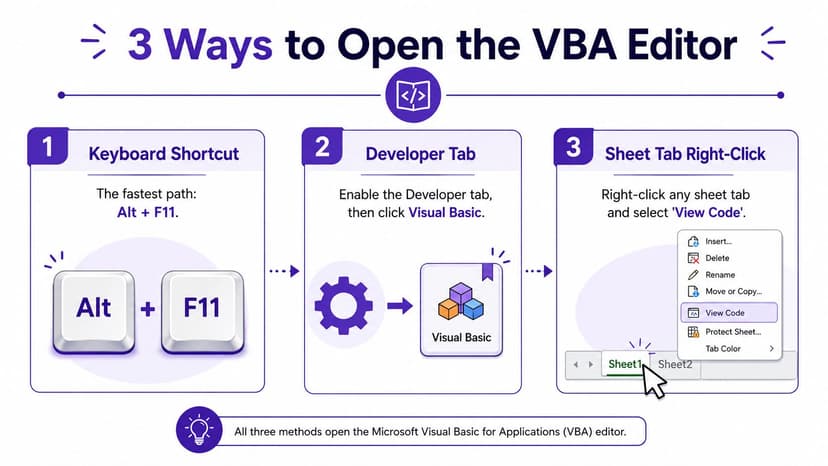
Enable the Developer tab first
Before using the ribbon method, make sure the Developer tab is visible. If it isn't, go into Excel's ribbon settings and enable it. That one-time setup removes a lot of friction.
Once the tab is available, the standard documented workflow is simple: Developer > Visual Basic. On Windows, Alt+F11 is the fast keyboard route. On Mac, a common path is Tools > Macro > Visual Basic, as summarized in this practical walkthrough on how to run VBA code in Excel.
After the editor opens, insert a standard module with Insert > Module. That gives you a clean place to write and run macros.
Method 1 with Alt+F11
If you work fast and don't want to leave the keyboard, Alt+F11 is usually the quickest way to open the Visual Basic Editor.
This is the method most tutorials lead with, and for good reason. It's fast, reliable, and ideal when you're bouncing between worksheet testing and code changes.
What works well about it:
- Fast toggling between worksheet and editor
- Better debugging rhythm when you're making small edits
- No ribbon hunting when you already know where you're going
What doesn't work well is relying on it as your only mental model. If a colleague doesn't know what the editor window is, where to insert a module, or why their macro isn't visible later, the shortcut alone won't help.
A quick video can make the navigation easier to see before you try it in a live workbook.
Method 2 through the ribbon
The ribbon route is slower, but it's clearer for beginners and easier to explain in a team setting.
Use this path:
- Open Excel
- Click Developer
- Click Visual Basic
- In the editor, choose Insert > Module
- Paste or write your macro
- Press F5 or click Run
If you support non-technical users, this is the path I'd document in an internal SOP because it matches what people see on screen.
Method 3 from a sheet tab
There's another practical entry point that beginners often miss. You can right-click a worksheet tab and choose View Code.
That doesn't drop you into a standard module. It opens the code area for that specific worksheet object. That matters because worksheet code behaves differently from general-purpose macros. If you want something like “run when this sheet changes,” that's the right place. If you want a macro to appear cleanly in the Macros dialog, a standard module is usually the better home.
Put event-driven code in worksheet or workbook objects. Put reusable macros in a standard module.
Opening Workbooks with 5 Lines of VBA Code
Once you can open the editor, the next useful step is controlling other Excel files. Through this capability, VBA starts feeling less like a coding exercise and more like automation.
A very common real task is this: you receive a daily or weekly workbook, and you need your master file to open it, pull data, and continue the process without manual browsing. VBA has handled that kind of bridge work for a long time. A published Statistica integration example shows VBA opening data, running an analysis, and copying results back into the active worksheet, which illustrates how Excel has long acted as a front end for broader automated analysis workflows in TIBCO Statistica's Excel integration guide.
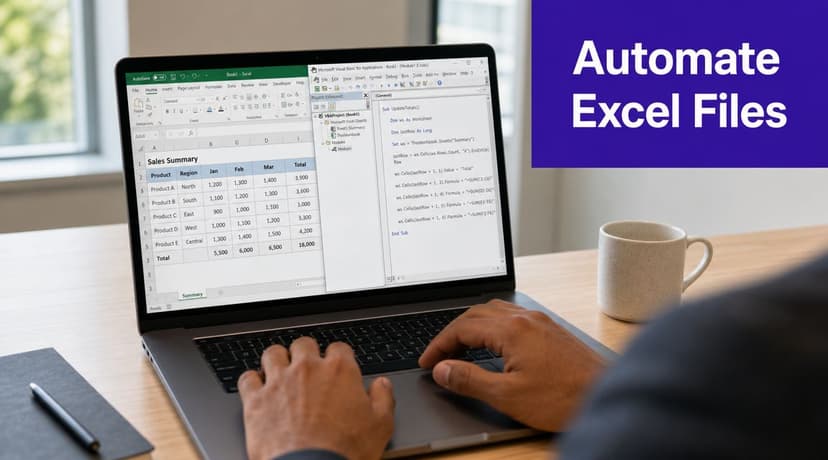
A simple workbook open macro
Paste this into a standard module:
Sub OpenReportFile()
    Dim wb As Workbook
    Dim filePath As String
    filePath = "C:\Reports\DailyReport.xlsx"
    Set wb = Workbooks.Open(filePath)
    wb.Activate
End Sub
That's short enough to copy, but it already teaches the core pattern.
What each line does
| Line | What it does |
|---|---|
Dim wb As Workbook |
Creates a workbook variable so you can refer to the file after opening it |
Dim filePath As String |
Stores the file location as text |
filePath = "C:\Reports\DailyReport.xlsx" |
Sets the exact workbook path |
Set wb = Workbooks.Open(filePath) |
Opens the workbook and assigns it to the variable |
wb.Activate |
Brings that workbook to the front |
Two practical notes matter here.
First, Workbooks.Open is much better than trying to simulate manual clicking. You tell Excel exactly what file to open. That makes your process easier to reuse and easier to debug.
Second, this is the point where many users discover that automation and macro security are connected. Opening a workbook by code is not the same as casually double-clicking a file in Explorer. If you want a fuller example set around this method, this article on VBA open workbook patterns is worth bookmarking.
Make the file path less fragile
Hard-coded paths are fine for a first test. They're fragile in production.
A better beginner pattern is to place the path in a worksheet cell, then read it into VBA. For example, if cell B2 contains the full file path:
Sub OpenFileFromCell()
    Dim wb As Workbook
    Dim filePath As String
    filePath = Range("B2").Value
    Set wb = Workbooks.Open(filePath)
End Sub
This works well because the person running the macro can change the path without editing code. The formula part is simple too. Range("B2").Value tells VBA to read the current value from cell B2 and treat it as the file path string passed into Workbooks.Open.
Navigating Macro Security and 4 Common Errors
A lot of VBA frustration has nothing to do with code quality. The macro never gets a fair chance to run.
That's the gap most basic tutorials miss. They show how to open the editor, but they don't prepare you for the actual blockers: security prompts, Trust Center restrictions, hidden policy settings, and code placed in the wrong module.
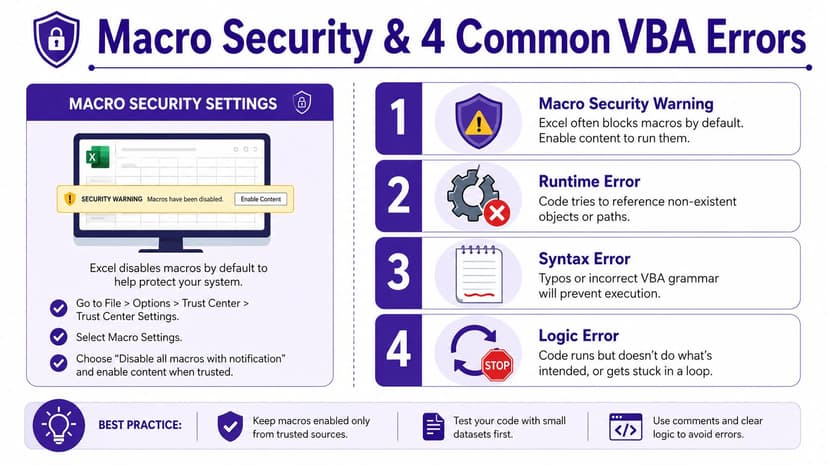
Security friction is normal
In managed workplaces, macros are often restricted through Trust Center settings and admin policy. Microsoft's VBA documentation notes that workbook opening through Workbooks.Open can enable macros in that context, but enterprise environments may still block execution paths. IBM's guidance specifically requires enabling Trust access to the VBA project object model for some automation scenarios, which is a common reason code fails in corporate setups, as noted in the Microsoft documentation for Excel Workbooks.Open.
That means you can do everything “right” and still get blocked by environment policy.
What usually helps:
- Check the yellow warning bar when opening a macro-enabled file. If Excel is waiting for you to enable content, no macro will run until you do.
- Open Trust Center settings if your company allows it. Some automation tasks need extra permissions beyond ordinary macro execution.
- Ask IT early if you're in a locked-down environment. Don't waste an hour debugging code that policy is blocking.
- Use a trusted location if your organization supports that workflow.
If a macro won't run at all, check security before rewriting the code.
If you want starter examples to compare against your own code, these macro samples in Excel can help isolate whether the issue is syntax, placement, or policy.
Four errors beginners hit constantly
Developer tab isn't visible
This one happens before coding even starts. You look for Visual Basic and it's not there.
Fix it by enabling the Developer tab in Excel options. Once it's visible, the normal VBA entry points become available.
The macro doesn't appear in the Macros dialog
Usually the code is in the wrong place.
If you wrote the procedure inside a worksheet object or ThisWorkbook, Excel may not show it as a normal runnable macro. Put general-purpose code in a standard module instead.
The file path fails
This is one of the first runtime problems people see with Workbooks.Open.
Check these basics:
- Exact file name
- Correct extension
- Accessible folder
- No typo in slashes or folder names
A practical habit is to copy the path directly from File Explorer instead of typing it by hand.
The code runs, but not the way you expected
This is the most annoying category because there's no obvious crash. The macro opens the wrong workbook, clears the wrong range, or depends on whatever file happened to be active.
The fix is usually to be more explicit. Use workbook variables like wb, qualify ranges with a worksheet reference, and avoid vague code that leans on ActiveWorkbook unless that's exactly what you want.
Good VBA is less about clever syntax and more about removing ambiguity.
4 Quick Tips for Instant VBA Automation
Once the editor is open and security isn't blocking you, you want a quick win. Not theory. A result.
The easiest way to build momentum is to automate tiny tasks that remove friction today. Power users often switch between Excel and the editor with Alt+F11, and they usually keep macros in a standard module because it makes those macros easier to find and run, a practical point highlighted in this Excel VBA tutorial from DataCamp.
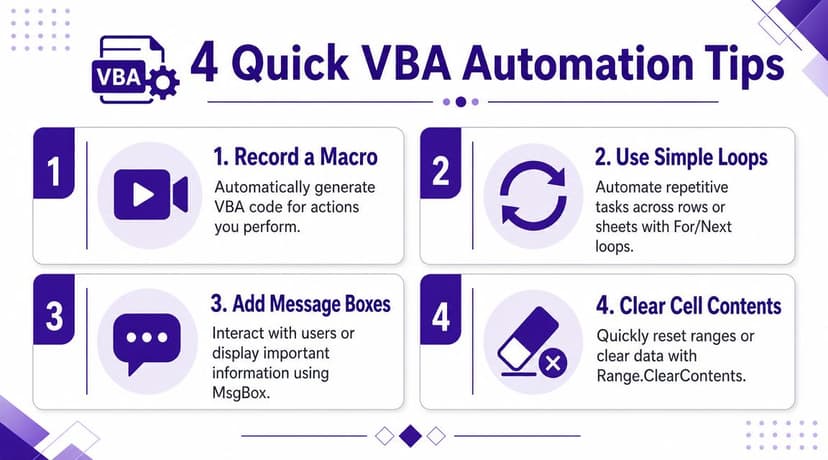
Record first, edit second
If you don't know the object model yet, use the Macro Recorder. Perform the task manually once, stop recording, then inspect the generated VBA.
This works well for formatting actions, filtering, and report layout steps. It doesn't produce elegant code, but it gives you a usable starting point and exposes the Excel objects involved.
Add a simple message box
A MsgBox is a small thing, but it makes macros feel usable because the macro tells you when it's done.
Sub ShowDoneMessage()
    MsgBox "Report update completed."
End Sub
That line displays a message to the user after the macro finishes. It's useful for long or multi-step tasks where silent completion leaves people wondering if anything happened.
Use a loop for repetitive formatting
This is one of the first patterns worth learning because it replaces repetitive edits immediately.
Sub BoldFirstFiveCells()
    Dim i As Integer
    For i = 1 To 5
        Cells(i, 1).Font.Bold = True
    Next i
End Sub
How it works:
Dim i As Integercreates a counter variable.For i = 1 To 5starts a loop from row 1 to row 5.Cells(i, 1)refers to column A in the current row..Font.Bold = Trueapplies bold formatting.Next imoves to the next row.
That single loop replaces five manual formatting actions. Change the row count, column number, or formatting property and you have a reusable pattern.
Clear a range with one command
A lot of workbook prep starts with wiping old outputs.
Sub ClearOldResults()
    Range("B2:D10").ClearContents
End Sub
This clears values from B2:D10 without removing formatting. That's an important distinction. If you want to preserve borders, fills, and number formats while resetting the report area, ClearContents is the right tool.
If you're editing older recorded macros or inherited files, this guide on how to edit Excel macros is handy for turning rough recorded code into something easier to maintain.
Beyond VBA The Future of Excel Automation with AI
VBA still earns its place when you need precise workbook control, event-driven behavior, or custom logic inside Excel. It's built into the desktop app, it can orchestrate workbook actions directly, and it remains useful when your process needs code-level control.
But there's a clear trade-off. VBA asks you to write, test, debug, secure, and maintain code. That's fine if you're comfortable doing that. It's slower if your real goal is to tell Excel what outcome you want.
That's where AI-based automation is changing the workflow. Instead of writing procedures to open files, clean columns, generate pivots, format reports, and build charts, you can describe the task in plain language and let the tool execute the steps. One example is ElyxAI, an Excel add-in that performs multi-step spreadsheet work directly from natural-language instructions. If you're comparing approaches, this overview of an Excel AI VBA alternative is a practical place to start.
The useful mindset isn't “VBA or AI.” It's knowing when each approach fits.
| Use case | VBA fits well | AI automation fits well |
|---|---|---|
| Reusable internal macro logic | Yes | Sometimes |
| Event-based workbook behavior | Yes | No |
| Fast one-off spreadsheet tasks | Sometimes | Yes |
| Non-coders needing automation | Less so | Yes |
| Ongoing maintenance by analysts | Depends on skill | Often easier |
If you follow how AI products are evolving in business tools, curated AI startup news sources can help you track the broader shift without relying on hype.
The practical takeaway is simple. Learn enough VBA to understand Excel automation properly. Then use AI when the mechanics of coding would slow you down more than they help.
If you want Excel to do the work instead of just describing it, Elyx AI is worth testing inside a live workbook. You can ask it to clean data, create pivots, generate charts, and format reports from a plain-language request, which is useful when you need automation without building or maintaining VBA yourself.
Reading Excel tutorials to save time?
What if an AI did the work for you?
Describe what you need, Elyx executes it in Excel.
Sign up