Master Fill Handle Excel: 9 Time-Saving Tricks

You're probably in one of two situations right now. Either you've seen the tiny square in the corner of a cell for years and only used it to copy values, or you're in the middle of a spreadsheet and wondering why something so simple keeps behaving unpredictably.
That tiny square matters more than most Excel users think. The Fill Handle is often the first real productivity breakthrough people have in Excel. You stop typing the same thing over and over. You drag once, and a report starts building itself.
But manual speed has a ceiling. The fill handle in Excel is excellent for repeating one action across a range. It's much less useful when the actual task is a chain of actions: clean the data, apply formulas, fix labels, build a summary, format the output, and send it on. High-performers eventually hit that wall. They don't just want to drag faster. They want the whole workflow handled with less manual effort and more consistency.
Spending too much time on Excel?
Elyx AI generates your formulas and automates your tasks in seconds.
Sign up →The 5 Essential Fill Handle Functions for Daily Tasks
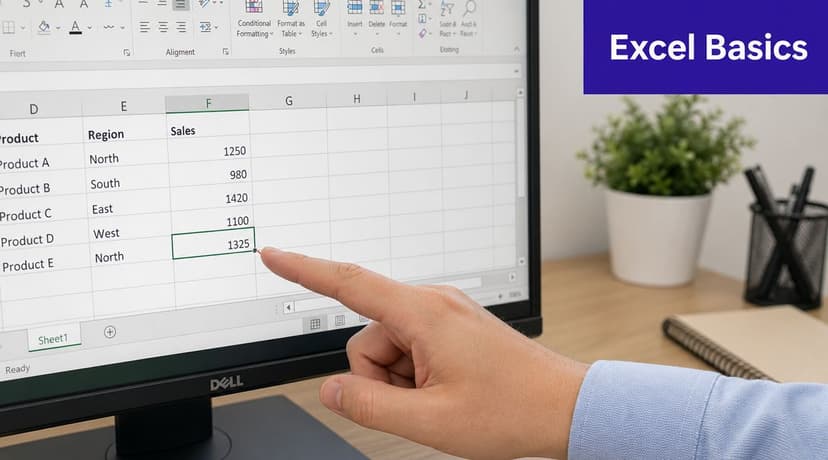
The Fill Handle is the small black square at the bottom-right corner of a selected cell or range. Hover over it and your pointer changes to a black plus sign. Dragging it can copy values, extend numeric or date sequences, or replicate formulas. Microsoft-related training materials also note that double-clicking it can copy a formula down to the end of contiguous data in an adjacent column, which is especially useful in long lists with no blank rows, as explained in this guide to Excel's Fill Handle and AutoFill behavior.
Copying one value fast
Start with the simplest use. If cell A2 contains Approved, drag the fill handle down and Excel repeats Approved in the selected range.
This is useful in review sheets, exception logs, and month-end checklists where the same tag applies to many rows. It's basic, but it removes a surprising amount of typing.
A practical rule: if the destination cells should all contain the exact same thing, the fill handle is usually safe.
Extending number patterns
The second use is where many people get their first real Excel “aha” moment. Enter 1 in one cell and 2 in the next, select both, then drag. Excel continues the series.
That matters in finance and operations work. You can build invoice sequences, line item indexes, or simple planning structures without typing each row manually.
Practical rule: Seed the pattern before you drag. If Excel only sees one value, it may copy. If it sees a pattern, it's more likely to continue it.
Filling dates for schedules and forecasts
Dates are where the fill handle becomes particularly useful. If you enter a starting date and drag, Excel can continue the sequence one step at a time. In practical spreadsheet work, that's ideal for monthly reporting tabs, payment schedules, and planning calendars.
For example, a forecast model might start with one month in B1, then continue across columns. A staffing tracker might begin with a Monday date and extend down a weekly list. The tool handles this far better than manual entry.
Copying formulas across rows and columns
This is the use case analysts rely on most. If C2 contains a formula like =A2-B2, dragging the fill handle down copies the formula while adjusting the row references.
If you drag across columns, Excel adjusts column references too. That's why relative and absolute references matter:
- Relative reference:
=A2-B2changes as you fill. - Absolute reference:
=$A$2-B2keepsA2fixed. - Mixed reference:
=A$2-B2or=$A2-B2locks only one part.
A simple business example: if you calculate margin in one row, the fill handle can propagate that logic through a fresh data dump. If the result looks wrong, the issue is usually the formula design, not the drag itself. If you need a refresher, this walkthrough on how to make a formula in Excel is worth keeping nearby.
Filling across large ranges without hand-dragging forever
Manual dragging works until the dataset gets long. Then it becomes awkward. Scrolling while trying to keep the handle selected is where errors creep in.
For repetitive ranges, use the handle for short jobs and more controlled methods for larger ones. That habit alone makes your work cleaner.
Don't treat the fill handle as a magic trick. Treat it as a fast input method that still needs logic behind it.
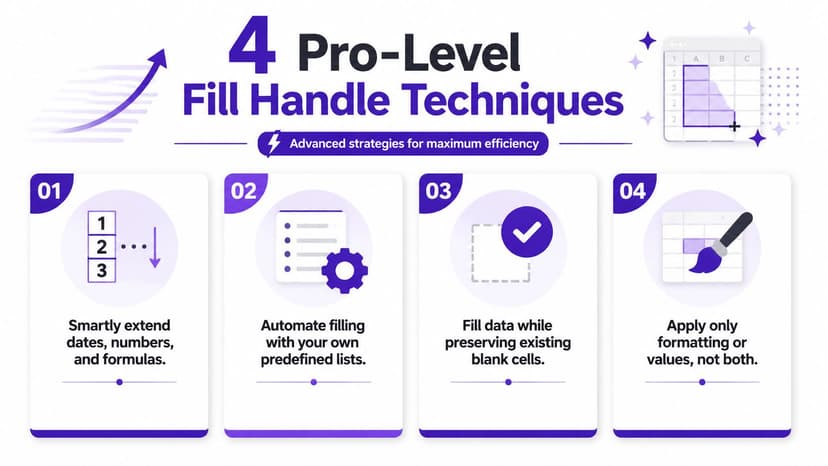
4 Pro-Level Fill Handle Techniques for Analysts
A lot of Excel efficiency starts with a small aha moment. You stop typing the same formula 5,000 times, grab the fill handle, and finish in seconds. For analysts, the next step is learning where that speed holds up under audit and where it starts to break.
Double-click to fill long formula columns
For long datasets, double-clicking the fill handle is usually faster than dragging. Microsoft's Excel help documentation explains that double-clicking fills down based on the contiguous data range in the adjacent column, which is why it works well in clean lists and fails in messy imports, as described in Microsoft's guide to AutoFill and filling cells automatically.
In practice, this is one of the fastest ways to build a working model from a fresh export. I use it constantly in forecast files, reconciliations, and monthly reporting packs.
The catch is simple. Double-click fill stops at the first break in the neighboring range. If your source data has blank rows, hidden junk, or an accidental gap from an export process, Excel can leave part of the column unfilled and do it without much warning. Analysts who work with ERP or CRM exports see this all the time.
Right-click drag for better control
Right-dragging the fill handle gives you options after you release the mouse. That small menu matters more than many teams realize.
You can choose whether Excel copies cells, fills a series, or fills without formatting. In reporting templates, that saves cleanup time because the logic often needs to move, but the visual design of the destination range needs to stay intact. If a workbook is tightly formatted for leadership reporting, right-drag is often the safer choice than a standard left-drag.
Build custom lists for repeated business sequences
Analysts often work with labels that are ordered but not numeric. Review stages, entity names, cost center groups, market tiers, and reporting cycles all show up repeatedly in templates.
Excel lets you create custom lists so the fill handle can continue those labels in your preferred order. Microsoft documents this feature in its instructions for creating custom lists for AutoFill. That is useful when the same workbook structure gets rebuilt every week or month.
A few practical examples:
- Reporting cycle: Draft, Review, Approved, Final
- Regional order: North, South, East, West
- Operating workflow: Intake, Validation, Exception, Closed
Used well, custom lists cut repetitive setup work. Used poorly, they can confuse coworkers who inherit the file and do not know the list exists. In shared finance environments, document custom lists or keep them limited to team-standard workflows.
Use keyboard fills when precision matters more than dragging
Dragging is fast, but it is not always the cleanest method. If the target range is already selected, keyboard fills give tighter control.
Excel's keyboard shortcut reference lists Ctrl+D for Fill Down and Ctrl+R for Fill Right in Windows versions of Excel, which makes them useful for controlled fills across selected ranges, as noted in Microsoft's Excel keyboard shortcuts and function keys. I recommend these shortcuts any time the sheet is large enough that dragging could overshoot, stop short, or carry formatting into places it should not.
There is also a bigger point here. Fill Handle methods are strong for single-step repetition. They are weaker when the actual task includes cleanup, validation, exception handling, and reshaping imported data before formulas even make sense. In those cases, teams usually get better results from Excel AI data entry automation than from trying to stretch manual fill tools past their limit.
Fill Handle vs Flash Fill Which AI Tool to Use?
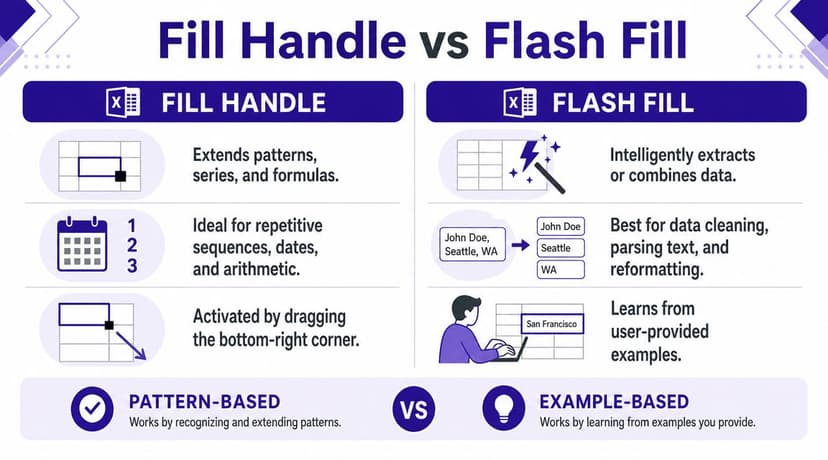
These two tools get confused all the time because both reduce manual work. Their jobs are different.
Use Fill Handle for sequence logic
The fill handle in Excel is built for continuation. It works when the next cell should follow the logic of the previous one.
That includes cases like:
| Task | Better tool | Why |
|---|---|---|
| Continue dates across a forecast | Fill Handle | The pattern is sequential |
| Copy a formula down a cost table | Fill Handle | The logic repeats by row |
Extend 1, 3, 5, 7 |
Fill Handle | Excel can continue the numeric pattern |
This is old-school automation in the best sense. Fast, visible, and easy to audit when the rule is simple.
Use Flash Fill for text transformation
Flash Fill is Excel's pattern-recognition tool for text and structure. Microsoft-related training material notes that it was introduced in Excel 2013 and can separate or combine text after one or two examples. It's available through Ctrl+E or the Data tab, which makes it a distinct AI-like feature compared with the older series-filling behavior of the Fill Handle, as shown in this overview of Flash Fill and pattern-based automation.
Flash Fill is better when the problem is transformation, not sequence. For example:
- Split names: Turn
Garcia, ElenaintoElenaandGarcia - Combine fields: Merge city and state into one label
- Reformat text: Standardize inconsistent phone or code layouts
If you're teaching Excel users to think clearly, the rule is simple. Fill Handle continues. Flash Fill infers.
A quick decision test
If you can explain the task as “repeat this logic across rows,” start with the fill handle.
If you'd explain it as “learn the pattern from my example and apply it to text,” use Flash Fill. For workflows that involve combining text fields before analysis, this guide on combining text in Excel fits naturally with Flash Fill's strengths.
The mistake I see most often is using the fill handle for jobs that require interpretation. It won't interpret. It will only extend or copy what's already there.
6 Reasons the Excel Fill Handle Disappeared or Failed
When the fill handle stops working, it's often assumed that Excel is glitching. Usually it isn't. The issue is configuration, protection, or context.
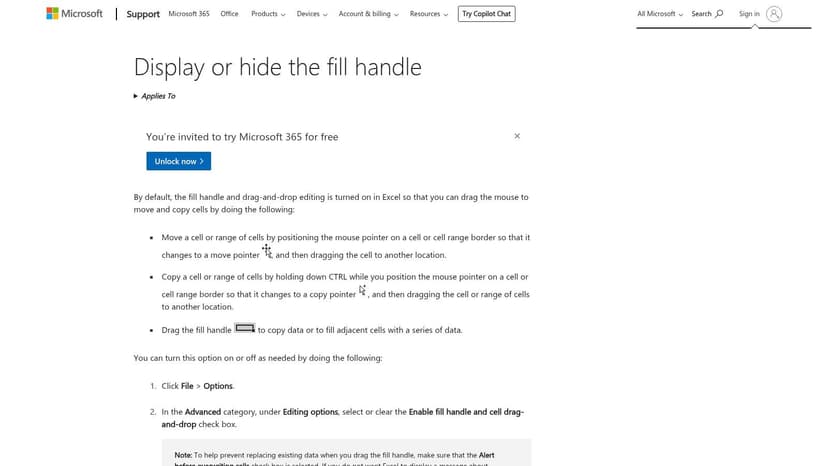
Microsoft's support guidance says the most common cause is a disabled setting. The feature is controlled by the “Enable fill handle and cell drag-and-drop” checkbox under File > Options > Advanced. Microsoft also notes that protected sheets or editing restrictions can block it, which is a common issue in managed IT environments, as shown in this support article about displaying or hiding the Fill Handle.
The setting is turned off
This is the first place to check. If the little square never appears, go straight to Excel options and confirm the feature is enabled.
In corporate environments, this can happen after profile changes, policy updates, or a fresh machine setup. It's not user error. It's often a settings issue.
The sheet is protected
Protected worksheets can block drag-based edits. If you can select cells but not fill them, protection is a likely cause.
That's especially common in finance templates designed to preserve formulas or approved layouts. The workbook may be doing exactly what it was designed to do.
Double-click fill stops early
The double-click trick depends on contiguous adjacent data. If the nearby column has blanks, Excel may stop before the end of the range.
This is one reason imported data causes confusion. A sheet may look complete on screen while hidden gaps break the autofill behavior.
Excel copies when you expected a series
You drag a number down expecting 1, 2, 3, and Excel gives you 1, 1, 1. That usually means Excel saw a value, not a pattern.
Seed the sequence with at least two cells when you want progression. If you want repetition instead, one seed cell is fine.
Troubleshooting shortcut: When fill behavior looks wrong, test the pattern on five rows first. Fix the logic there, then expand.
Formatting spreads where it shouldn't
This happens when the cell you drag contains not just a value or formula, but also formatting you didn't intend to duplicate. Reports with alternating colors, locked presentation rows, or custom borders are especially vulnerable.
Right-dragging is often safer in that situation because it gives you more control over what gets filled.
A quick visual walkthrough can help if you're trying to diagnose the problem while under deadline:
Managed IT restrictions are blocking drag behavior
This is the issue most basic tutorials ignore. In enterprise Excel, local settings, workbook protection, and editing restrictions can combine to make the fill handle seem broken when it's blocked by policy.
That's one reason teams start comparing manual Excel habits with newer tools. If you're evaluating where classic features end and assistant-style tools begin, this comparison of Excel AI vs Copilot approaches is a useful next read.
When to Stop Dragging and Start Automating with AI
It usually starts the same way. An analyst gets a report out faster by dragging one formula down 2,000 rows, then copying the same pattern across a few tabs, then fixing the exceptions by hand. The fill handle feels efficient because, at first, it is.
The problem shows up when the task stops being a single action and becomes a process.
If the workbook is clean and the job is narrow, manual fill tools still earn their place. I still teach finance teams to use drag fill, Ctrl+D, and Ctrl+R for quick propagation because they are fast, visible, and easy to audit in the moment. But speed at the cell level is not the same thing as workflow automation. Someone still has to notice the next step, run it, check it, and repeat it.
Manual shortcuts help, but they do not run the workflow
Keyboard fills are often better than dragging when precision matters. Ctrl+D copies downward. Ctrl+R copies to the right. They remove some mouse work and reduce slip-ups in dense models.
They still depend on a person to drive each step.
That is the practical ceiling of classic Excel efficiency. You can copy faster, but you are still executing the sequence manually. For one-column formula fill, that is fine. For month-end reporting, reconciliation packs, or imported operational data, it breaks down quickly because the actual tasks usually include cleanup, exception handling, validation, and output building.
Use Fill Handle for actions. Switch tools for processes.
The fill handle is still the right tool in a few common cases:
- Extending a tested formula across a stable range
- Continuing dates or periods for a schedule
- Repeating labels or patterns in a controlled sheet
Stop relying on it when the job includes several dependent steps:
- Messy exports with inconsistent names, blanks, or mixed formats
- Multi-stage reporting that requires cleanup, formulas, summaries, charts, and presentation formatting
- Control-heavy workflows where repeatability matters more than speed of hand entry
That distinction matters more in enterprise teams than in solo spreadsheet work. A drag operation is hard to standardize across analysts. A defined automated process is easier to review, rerun, and explain to audit or management.
AI changes the unit of work
The shift isn't that AI fills cells faster. It handles a larger chunk of the job.
Stumptown AI's automation guide makes that point well in the context of repetitive data entry. The same logic applies in Excel. High-performing teams stop asking, “How do I drag this faster?” and start asking, “How do I remove the repeated handoff between cleanup, calculation, review, and output?”
Inside Excel, Elyx AI is one example of that change. It is an add-in that accepts natural-language instructions and executes multi-step work inside the workbook. That can mean cleaning a table, creating a pivot, building a chart, and applying formatting from one request. That is a different category of tool from Fill Handle or even Flash Fill because the goal is not single-step assistance. The goal is process execution.
A simple decision rule
Ask a harder question than “Can Excel fill this down?”
Ask, “Will I need to make judgment calls, clean inputs, or run more than one step after this?”
If the answer is no, keep the fill handle. It is quick and reliable for contained tasks.
If the answer is yes, stop dragging earlier than you think. That is usually the point where teams save more time with scripts, structured workflows, or Excel automation for recurring spreadsheet processes than with another manual shortcut.
If your team keeps rebuilding the same reports, correcting the same imports, and repeating the same sequence every week, Elyx AI is worth a look. It works inside Excel, accepts plain-language instructions, and executes full spreadsheet workflows so the analyst can spend more time reviewing outputs and less time dragging cells around.
Reading Excel tutorials to save time?
What if an AI did the work for you?
Describe what you need, Elyx executes it in Excel.
Sign up