Excel Combine Text: 7 Pro Methods for 2026

You’re usually trying to solve one of three problems when you search for excel combine text.
First, you need a quick join. Maybe first name plus last name. Second, you need a clean output from messy columns, like building addresses or product labels without awkward extra spaces. Third, you need a method that won’t turn into maintenance work next week.
Excel gives you several ways to do this. They don’t all belong in the same job. Some are perfect for two cells. Some are better for repeating monthly data prep. Some are powerful but fragile. And once you add AI into the mix, the whole task shifts from writing formulas to describing the result you want.
Spending too much time on Excel?
Elyx AI generates your formulas and automates your tasks in seconds.
Sign up →Foundational Formulas for Joining Text in Excel
The oldest and most useful place to start is the ampersand operator (&). It’s simple, readable, and works across Excel versions, which is why many teams still use it for fast joins.

Use the ampersand for fast one-off joins
If cell A2 has John and B2 has Smith, use:
=A2&" "&B2
That " " inserts a space between the two values. Without it, Excel returns JohnSmith.
A few practical examples:
- Full name:
=A2&" "&B2 - City and state:
=C2&", "&D2 - SKU label:
="SKU-"&E2
The strength of & is speed. You can glance at the formula and immediately understand it. The weakness is that once the logic gets longer, the formula becomes tedious to maintain.
Practical rule: Use
&when the pattern is short, obvious, and unlikely to change.
Where CONCATENATE fits
Then there’s CONCATENATE. It was a foundational Excel text tool for years, and Microsoft documentation indicates it supports up to 30 arguments and can combine up to 255 characters. It was widely taught as a standard text-combination method, and by the mid-2000s, over 70% of business users in large enterprises relied on Excel, with text-combining functions appearing in 20 to 25% of intermediate-level Excel courses according to the cited training summary in this Excel training reference.
A basic example looks like this:
=CONCATENATE(A2," ",B2)
It does the same job as =A2&" "&B2. For many users, it felt clearer because the function name described the action.
That said, legacy formulas come with baggage. CONCATENATE still works in many workbooks, but it’s no longer the method I’d choose for new files unless I’m maintaining older models.
Why CONCAT is the cleaner replacement
CONCAT is the newer replacement. It keeps the same general idea but fits modern Excel better.
Example:
=CONCAT(A2," ",B2)
That looks close to CONCATENATE, but the newer function is more flexible in modern workflows. It’s the right upgrade when you want a formula-based method and don’t need the extra delimiter controls that come with TEXTJOIN.
A practical way to think about the evolution:
| Method | Good at | Watch out for |
|---|---|---|
& |
Quick joins | Hard to read in long formulas |
CONCATENATE |
Legacy workbook compatibility | Older design, limited scale |
CONCAT |
Modern replacement for basic formula joins | Still not ideal for blanks and list separators |
If you want a reference page with examples for the modern function, this CONCAT formula guide is useful.
Build Dynamic Text Lists with TEXTJOIN
When you need to combine more than a couple of cells, TEXTJOIN changes the game. It solves the two problems that make older formulas annoying: repeated separators and empty cells.
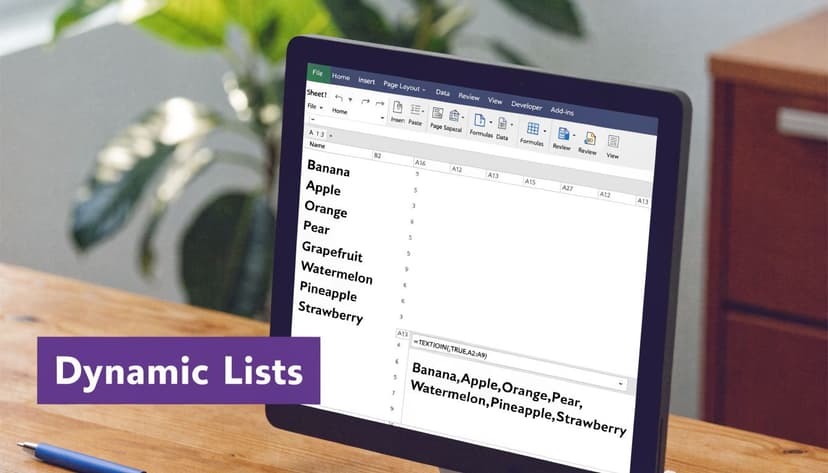
Suppose column A contains product features:
- Waterproof
- Lightweight
- Rechargeable
You want one summary cell with:
Waterproof, Lightweight, Rechargeable
Use:
=TEXTJOIN(", ",TRUE,A2:A4)
What each argument does
TEXTJOIN has a syntax that’s worth learning once because it saves time over and over:
=TEXTJOIN(delimiter, ignore_empty, text1, [text2], ...)
Here’s how that works in real life:
- Delimiter is the separator you want between items, such as
" ",", ", orCHAR(10) - Ignore_empty is
TRUEorFALSE - Text arguments can be cells, text strings, or ranges
So this formula:
=TEXTJOIN(" ",TRUE,A2:C2)
joins values across A2 to C2 with spaces and skips blanks.
That skip-blanks behavior is the killer feature. If one of those cells is empty, TEXTJOIN doesn’t leave ugly double spaces or dangling separators. Microsoft introduced TEXTJOIN in Excel 2016, and adoption data cited in Excel University’s walkthrough indicates that by 2020, roughly 40 to 50% of intermediate-to-advanced Excel users in major markets had migrated at least some CONCATENATE-based workflows to TEXTJOIN. The same source notes an estimated 25 percentage point rise from 2016 to 2022 in organizations using modern Excel functions like TEXTJOIN in core reporting.
A better formula for real datasets
Here’s a common business example. You have:
- Street in A2
- City in B2
- State in C2
- ZIP in D2
Use:
=TEXTJOIN(", ",TRUE,A2:C2)&" "&D2
That gives you a clean address line while still controlling the ZIP separately.
A second useful pattern is line breaks:
=TEXTJOIN(CHAR(10),TRUE,A2:D2)
Turn on Wrap Text, and Excel will stack each part on its own line.
For a deeper formula reference, this TEXTJOIN function guide is a handy companion.
If you want to watch the pattern in action, this video gives a straightforward visual walkthrough:
TEXTJOIN is the formula I reach for when the output needs to stay clean even when the input doesn’t.
Let Excel Learn Your Patterns with Flash Fill
Flash Fill feels like a trick the first time you use it.
Say you have full names in column A:
- John Smith
- Maria Lopez
- David Chen
You need email addresses in the format [email protected]. In B2, type:
In B3, type:
Then press Ctrl+E. If the pattern is consistent, Excel fills the rest.
Where Flash Fill shines
Flash Fill is strong when the logic is visible in the data and the source pattern is stable. It’s great for:
- Email creation: Turn names into a company email format
- Name cleanup: Combine title case first and last names into one column
- Quick ad hoc work: Build a one-time output without storing formulas
It’s also useful when you don’t want extra helper columns or formulas sitting in the sheet.
Where it breaks
The problem is reliability. Flash Fill doesn’t create a transparent rule you can inspect the way you can inspect a formula or a Power Query step. It guesses.
That guess works until your data gets inconsistent. Add middle initials, suffixes, extra spaces, or unusual casing, and Flash Fill can produce a result that looks right in most rows but fails subtly in the critical rows.
Check Flash Fill outputs row by row when names, IDs, or addresses come from multiple systems.
I use Flash Fill for quick cleanup on controlled datasets. I don’t use it for a recurring process that someone else has to trust next month. If the workbook matters, a formula or query is easier to audit.
Handle Large-Scale Text Merging with Power Query
Once text combination becomes part of a recurring process, formulas stop being the cleanest answer. That’s where Power Query earns its place.
Power Query works as a transformation layer instead of a cell-by-cell instruction set. That distinction matters in large files. According to Excel Campus on combining text with formulas and Power Query, for datasets exceeding 10,000 rows, Power Query can reduce recalculation overhead by approximately 30 to 40% compared to traditional formulas because it processes the whole column operation as a single job.
Why Power Query feels different
With formulas, every output cell contains logic. Copy the formula down, maintain the formula, troubleshoot the formula.
With Power Query, you define a transformation once and refresh it later. That makes it much more suitable for recurring imports like monthly sales extracts, CRM exports, or supplier files.

The no-formula merge workflow
A standard merge-columns workflow looks like this:
- Load the data into Power Query from a table or range.
- Select the columns you want to combine.
- Use Merge Columns.
- Choose the separator, such as space, comma, or custom.
- Name the new column and load the result back to Excel.
That’s approachable even for users who don’t want to learn M code.
Here’s when Power Query usually wins:
- Monthly recurring jobs: You get a reusable sequence of steps
- Messy source data: Query steps are easier to audit than long nested formulas
- Larger row counts: Workbook performance holds up better
- ETL-style prep: Text combination becomes one step inside a broader cleaning pipeline
The trade-off
Power Query isn’t the fastest option for a two-cell join sitting next to your data entry form. It’s heavier than that. You open the editor, shape the data, then load it back.
But for repeatable reporting work, that extra setup pays you back. If you’re already standardizing imports and clean-up tasks, this guide to Excel automation workflows fits naturally with a Power Query approach.
If the task repeats on a schedule, build a query. If it’s a one-off cell output, use a formula.
The AI Shortcut for Instant Text Combination
The biggest shift isn’t another formula. It’s moving from syntax to intent.
Most Excel text-combination work has never been conceptually hard. The friction comes from mechanics. You know the output you want, but you still have to choose between &, CONCAT, TEXTJOIN, Flash Fill, Power Query, or a custom macro. AI changes that by letting you describe the result first.

From formula building to plain-language requests
Take a common operations task. You have:
- Street in column C
- City in column D
- State in column E
- ZIP in column F
You want a new column called Full Address with a line break after the street and a comma after the city. Traditionally, you’d build and test a formula with delimiters, CHAR(10), blank handling, and formatting checks.
With an AI workflow inside Excel, the request becomes closer to:
Combine columns C, D, E, and F into a new column called Full Address. Put a comma after the city and a line break after the street.
That’s the useful change. You stop focusing on construction and focus on the output standard.
Where an AI agent fits
Tools differ here. Some explain formulas. Some draft them. Some leave the execution to you. For people comparing options, F1Group's Copilot Excel tips are a practical reference for understanding how AI can assist inside Excel environments.
There are also tools that execute spreadsheet tasks directly. ElyxAI is an Excel add-in built for that style of workflow. Instead of only suggesting a formula, it can act on a natural-language request inside the workbook and perform multi-step spreadsheet work, including text combination tasks. If you want to see that broader category of workflow, this Excel AI and ChatGPT overview gives the context.
The real trade-off
AI isn’t magic. You still need to specify the output clearly, especially when formatting rules matter. If your source data is inconsistent, you also need to review the result, just as you would with Flash Fill or any generated formula.
But AI removes the need to remember every function’s syntax. For many users, that’s the primary bottleneck in excel combine text work. They understand the business rule. They just don’t want to spend time translating it into Excel mechanics.
Advanced Customization with VBA Scripts
Sometimes none of the standard tools fit. That’s when VBA becomes useful.
VBA is the high-effort option for highly specific logic. If you need to combine text based on hidden cells, conditional rules, workbook events, or interactions with other Office elements, formulas can get clumsy fast.
A simple custom function
Here’s a small User-Defined Function you can paste into the VBA editor:
Function JoinUpper(Text1 As String, Text2 As String) As String
    JoinUpper = UCase(Text1 & " " & Text2)
End Function
After adding it to a standard module, use it in a worksheet like this:
=JoinUpper(A2,B2)
If A2 is john and B2 is smith, the result is JOHN SMITH.
That example is intentionally simple, but it shows why VBA still matters. You can build custom rules into the function itself instead of stacking helper columns or complex nested formulas.
When VBA is worth it
VBA makes sense when you need:
- Conditional text logic: Different join patterns depending on values
- Reusable internal tools: A function your team uses in many workbooks
- Automation beyond formulas: Button-driven processes and workbook actions
The downside is obvious. Someone has to write, maintain, and trust the code. That’s a much higher bar than using TEXTJOIN or Power Query. For teams exploring spreadsheet automation patterns more broadly, these Excel macro samples are a practical next step.
Pro Tips and Choosing the Right Method
A few errors show up constantly in text-combination work.
First, numbers and dates don’t always display the way you expect when joined with text. If you concatenate a date directly, Excel may show its serial value instead of the formatted date. Use TEXT() when presentation matters. Second, line breaks need CHAR(10) and Wrap Text turned on. Third, scalability matters. The legacy CONCATENATE function is limited to 30 items, while CONCAT handles 255, and the TRUE parameter in TEXTJOIN can save 10 to 15% of manual data cleaning time by ignoring blanks, according to the training summary in this formula scalability reference.
Quick reference
| Method | Best For | Ease of Use | Scalability |
|---|---|---|---|
& |
Short, visible joins | High | Low |
CONCATENATE |
Older workbook compatibility | Medium | Low |
CONCAT |
Modern basic joins | High | Medium |
TEXTJOIN |
Clean lists and blank-aware outputs | High | High |
| Flash Fill | One-off pattern-based cleanup | Very high | Medium |
| Power Query | Recurring large data prep | Medium | Very high |
| VBA | Specialized custom logic | Low | High |
The pattern is straightforward. Use formulas for direct cell output, Flash Fill for quick one-offs, Power Query for repeatable prep, and VBA only when the business rule is too custom for standard tools.
If you want to skip formula hunting and turn plain-English requests into completed spreadsheet work, Elyx AI is built for that. You describe the text-combination result you want inside Excel, and the agent handles the workflow directly in the sheet.
Reading Excel tutorials to save time?
What if an AI did the work for you?
Describe what you need, Elyx executes it in Excel.
Sign up