5 Essential Steps for Bank Statement PDF to Excel AI Conversion

If you're in finance, you know the feeling. You're staring at a mountain of bank statement PDFs, and you know the only way to make sense of them is to get that data into Excel. The best way I've found to tackle this is with a bank statement PDF to Excel AI tool. It completely automates the extraction and cleaning, right inside your spreadsheet. This gets you out of the manual entry grind, slashes errors, and frees you up for actual analysis.
The 3 True Costs of Manual Bank Statement Entry

The drain from manual data entry is so much more than just the hours you lose. It's a hidden tax on productivity that chains skilled professionals to tedious, low-value work. That inefficiency then ripples across the entire business.
Spending too much time on Excel?
Elyx AI generates your formulas and automates your tasks in seconds.
Sign up →I’ll never forget the weekend I lost to frantically reconciling quarterly reports. The culprit? A single misplaced decimal point from a manual data entry session. That tiny typo snowballed into hours of tracing, checking, and re-checking—all time that should have been spent looking at financial trends, not hunting for my own mistake.
1. Costly Errors
One simple typo can wreck a financial model, lead to an incorrect tax filing, or push you toward a bad business decision. These human errors are almost unavoidable in high-volume, repetitive tasks, introducing significant risk into your financial reporting.
2. Missed Insights
When you're stuck in the weeds of data entry, you have zero time for the strategic thinking that uncovers spending patterns or new cash flow opportunities. The time spent copying and pasting is time you're not spending on high-value analysis that could drive business growth.
3. Compliance Headaches
Keeping manual financial records accurate is a constant battle. It also makes it much tougher to comply with strict regulations like the Australian Tax Office (ATO) record-keeping requirements. Inaccurate records can lead to audit failures and financial penalties.
This is exactly why businesses are finally moving toward automation. It's not just a trend; it's a necessity. Some companies have found they can reclaim 40-80 hours per week just by automating these kinds of workflows. That's a massive efficiency gain. Industry reports, like one on OpenPR.com, show just how much AI is changing the data extraction game.
The real goal isn't just to get numbers from a PDF into Excel. It's to reclaim your time and redirect your focus from tedious transcription to high-impact analysis and strategic decision-making.
And that’s where a bank statement PDF to Excel AI tool comes in. A solution like ElyxAI works directly inside Excel, turning what was once a multi-hour chore into a task that takes minutes. You don't have to leave your spreadsheet. You just tell the AI what to do, and it handles the extraction, cleaning, and formatting for you.
If you’re looking to get started, our guide on how to automate data entry is a great place to dig deeper into streamlining these kinds of workflows.
3 Essential Checks Before Converting Your PDFs
Before you even think about uploading your first file, hold on. A few quick checks upfront can be the difference between a clean, one-click conversion and a night spent fixing frustrating errors. Think of it as your pre-flight checklist. Spending five minutes here can genuinely save you hours of cleanup work later.
I’ve been there. You’re prepping quarterly reports for a client who gets statements from three different banks. One sends perfect digital PDFs, another emails blurry phone snapshots of paper statements, and the last one insists on password-protecting everything. Each of these needs a slightly different touch to get the data out cleanly.
Let's walk through what to look for.
Check 1: Native vs. Scanned PDFs
First, you need to know what kind of PDF you're working with. This is probably the single most important check, as the AI will handle them in completely different ways.
Native PDFs: These are the gold standard. They’re born digital, created when you download a statement directly from your online banking portal. All the text and numbers are already machine-readable, which means an AI can just read and pull the data. Easy.
Scanned PDFs: These are basically just pictures of paper. When you scan a physical statement or snap a photo of it, the PDF you get doesn't contain actual text—it contains a flat image. Your computer sees a photo, not a table of transactions.
How can you tell the difference in two seconds? Open the PDF and try to highlight a sentence with your cursor. If the text selects cleanly, it’s a native PDF. If you can only draw a selection box around the words like you would in a photo editor, it’s a scanned PDF.
Check 2: Document Quality and the Need for OCR
If you’re stuck with scanned PDFs, the quality of that scan is everything. A blurry, crooked, or low-resolution image is a recipe for disaster, leading to missed numbers and jumbled text.
This is where Optical Character Recognition (OCR) comes into play. OCR is the tech that scans the "picture" of the text and translates it back into actual, usable characters. Most modern bank statement PDF to Excel AI tools have this built-in, but the tool is only as good as the image it's given.
For the best results, make sure your scans are at least 300 DPI (dots per inch), evenly lit, and lying flat.
Check 3: File Accessibility and Layout
Finally, give the file a once-over for any roadblocks. Is the PDF password-protected? If so, you’ll have to remove the password before any tool can get in and read the data.
Also, just glance at the layout. Modern AI is incredibly smart, but it can sometimes get tripped up by really bizarre formatting. Look for things like merged cells in tables, multiple transaction lists on a single page, or columns that are arranged in a weird, non-standard way.
Spotting these quirks ahead of time helps you know where to double-check the final Excel sheet for accuracy. A little prep work here makes the whole process smoother and far more reliable.
4 Methods for Extracting Bank Statement Data with AI
Alright, you've done the prep work and your bank statement PDFs are ready to go. Now comes the most important part: getting that data out of the PDF and into a clean Excel sheet you can actually work with.
The goal here is to find a reliable process that's fast, accurate, and repeatable—not just a one-off copy-paste job. The best bank statement PDF to Excel AI tool really depends on what you value most: convenience, cost, security, or pure power.
Let's walk through the four main ways to tackle this, from simple online tools to sophisticated AI assistants. I'll give you the real-world pros and cons of each so you can pick the right one for your specific needs.
Method 1: The Quick Fix with Online Conversion Tools
You've seen them everywhere. Do a quick search for "PDF to Excel converter" and you'll find dozens of free online tools. You just upload your bank statement, wait a moment, and download an Excel file. Simple, right?
The appeal is obvious, especially if you're in a hurry. But that convenience comes at a steep price: security. When you upload a bank statement, you're handing over sensitive financial data to a third-party website. You have no real control over where that data goes, how long it's stored, or who might see it.
For non-sensitive files, they can be a lifesaver. But for regular financial work, the risk is almost always too high to justify.
Method 2: The Dependable Route with Adobe Acrobat Pro
If you're already paying for an Adobe Acrobat Pro subscription, you have a pretty good tool built right in. Acrobat’s “Export PDF” feature is surprisingly capable. It uses its own OCR and AI to turn a PDF into a structured Excel spreadsheet, and it does a decent job of keeping the table formatting intact.
Because all the processing happens right on your desktop, it's a secure option. The main downside is the workflow. You have to open the file in Acrobat, run the export, save the new Excel file, and then open it in Excel to start your analysis. It's a clunky, multi-step process that can get old fast if you're doing this frequently.
Method 3: The Power User's Path with Python Scripts
For the tech-savvy crowd, building a custom Python script offers the ultimate in power and flexibility. By combining libraries like PyPDF2 for handling PDFs, OpenCV for image processing, and Tesseract for OCR, you can create a solution perfectly tailored to your needs. You can even hook into advanced AI models to interpret and structure the data.
This approach gives you complete control. You can build a script that handles the quirkiest bank statement layouts and automates the entire process from end to end.
Of course, this is also the most difficult and time-consuming path. It demands serious coding skills and a deep understanding of multiple AI libraries. It's a fantastic solution for a data science team, but not a practical one for most finance or business pros who just need to get their work done inside Excel. You can dive deeper into the basics in our article on how to extract data from Excel.
The best solution isn't just about getting the data out; it's about getting it into your workflow seamlessly. An ideal tool eliminates the app-switching and turns a tedious, multi-step chore into a single, simple command.
Method 4: The Seamless Solution with Integrated Excel AI Agents like ElyxAI
This is where things get really interesting. An integrated Excel agent like ElyxAI brings the AI directly to you, right inside your spreadsheet. It works as an add-in, so you never have to leave the comfort of Excel. This approach gives you the security of a desktop app with the power of a sophisticated AI, all managed through simple, natural language.
With this method, your private data stays on your machine; only the instructions you type are sent to the AI for processing.
Instead of navigating menus or writing code, you just tell the AI what you want.
For instance, you could just type:
"Extract all transactions from the attached bank statement PDF and create a table in a new sheet."
The AI agent then takes care of the entire process for you:
- It automatically detects that the file is a PDF.
- If it's a scanned document, it runs its own advanced OCR.
- It intelligently identifies the transaction data, ignoring headers, footers, and marketing fluff.
- It extracts key fields like date, description, debits, and credits.
- Finally, it builds a perfectly clean and structured table for you in a new Excel sheet, ready for analysis.
This method is, by far, the most efficient. It completely eliminates the need to jump between different applications and requires zero technical expertise. It’s as easy as asking a question, making it the perfect choice for professionals who need speed, security, and simplicity.
Comparing 4 AI Methods for PDF to Excel Extraction
Choosing the right method comes down to balancing your specific priorities. This table breaks down the key differences between the approaches we've discussed to help you decide.
| Method | Best For | Ease of Use | Security | Integration with Excel |
|---|---|---|---|---|
| Online Converters | Quick, one-off tasks with non-sensitive data. | Very Easy | Low | Poor |
| Adobe Acrobat Pro | Secure, occasional conversions for those who already own the software. | Moderate | High | Poor (Requires app-switching) |
| Python Scripts | Highly customized, automated workflows for users with coding skills. | Difficult | High (Self-managed) | None (Requires building a separate tool) |
| ElyxAI (Excel Agent) | Fast, secure, and frequent data extraction directly within Excel. | Very Easy | High | Excellent (Native add-in) |
Ultimately, for most business professionals, an integrated Excel agent offers the best of all worlds: the power of advanced AI, the security of a desktop application, and the convenience of working within a single environment.
3 Essential AI Data Cleaning Steps in Excel
Getting the data out of a bank statement PDF is a great first step, but it’s rarely the last. What you usually end up with is a messy data dump—a jumble of text with all sorts of inconsistencies. Before you can find any real insights, you have to roll up your sleeves and clean it.
This is where a true bank statement PDF to excel AI tool changes everything. It automates the painful, time-consuming cleanup tasks that used to take me hours of manual work. Let's walk through the three most common cleanup jobs and see how AI tackles them.
1. Standardize Inconsistent Date and Number Formats
We’ve all seen it. You pull data from different statements, and the date formats are all over the place. One column might have '01-May-2026,' another '05/01/26,' and a third '2026-05-01.' If you try to sort or filter a column like that, Excel gets completely confused.
The old-school fix was a nightmare. You’d have to wrestle with Excel's Text to Columns tool, then stitch dates back together with a combination of DATE, LEFT, MID, and RIGHT functions. It's clunky and incredibly easy to mess up.
Now, you can just tell an AI agent what you want in plain English:
"Standardize the 'Date' column to DD/MM/YYYY format."
That’s it. The AI understands all the different formats in the column and instantly converts them into one clean, consistent style. This works just as well for numbers, too—it can easily handle things like removing currency symbols or standardizing thousands separators.
2. Split and Merge Columns for Clarity
Bank statement transaction descriptions are notoriously messy. A single cell can be crammed with information, like "STARBUCKS #10452 SEATTLE WA 839201." If you want to analyze spending by vendor, you need to pull "STARBUCKS" out from all that other noise.
I used to spend ages writing complex formulas with FIND and LEFT to extract text based on its position. For example, if the vendor name was always the first word, you might use:=LEFT(A2, FIND(" ", A2)-1)
A2is the cell with the description.FIND(" ", A2)locates the position of the first space.LEFT(A2, ...-1)extracts all characters to the left of that space.
But that method is fragile; the formula breaks the second the text pattern changes. With an AI tool, you can be much more direct:
"Split the 'Description' column into two new columns 'Vendor Name' and 'Reference Info'."
The AI is smart enough to see the difference between a company name and a string of reference numbers. It's not just splitting on a space or a character; it's splitting based on context. You get clean, usable columns that are perfect for pivot tables and summaries. Our guide on advanced Excel AI data cleaning techniques has even more tips for untangling messy text like this.
3. Automatically Categorize Transactions
This is the big one. Manually sorting hundreds of transactions into categories like "Utilities," "Groceries," "Travel," and "Salary" is the definition of tedious. It’s the task everyone hates.
For years, the best we could do in Excel was build a monster nested IF formula. It would look something like this:
=IF(ISNUMBER(SEARCH("HYDRO", C2)), "Utilities", IF(ISNUMBER(SEARCH("SALARY", C2)), "Income", IF(ISNUMBER(SEARCH("UBER", C2)), "Travel", "Other")))
SEARCH("HYDRO", C2)looks for the text "HYDRO" inside cell C2.ISNUMBER()returns TRUE if it's found.- The
IFfunction then assigns the category "Utilities" if TRUE. - If not, it moves to the next
IFstatement to check for "SALARY", and so on.
These formulas are a headache to write and even worse to maintain. Every time a new expense type popped up, you had to dive back into that tangled mess to add another keyword.
Contrast that with the AI approach. In an integrated agent like ElyxAI, you simply state your goal in plain English. This completely changes the game.
You can give it a simple, direct command:
"Analyze the 'Description' column and create a new 'Category' column. Assign labels like Salary, Utilities, Groceries, Travel, and Rent based on the text."
The AI agent then gets to work:
- It reads every single transaction description.
- It understands the meaning behind terms like "HYDRO OTTAWA," "PAYCHECK," or "AIR CANADA."
- It creates the new 'Category' column for you.
- Finally, it fills it in with the correct labels.
A single prompt does what used to require a massive, fragile formula. What once took an hour of careful work now takes just a few seconds. This is the real power of a modern bank statement PDF to excel AI solution—it handles the mechanics so you can focus on what your data is telling you.
3 AI Prompts for Full Financial Workflow Automation
Alright, we've covered how an AI agent like ElyxAI can tackle specific jobs like pulling data and tidying it up. But the real game-changer is stringing those jobs together into a full-blown automated workflow. This is where you stop giving one-off commands and start handing over an entire project with a simple instruction.
Think about it. Instead of micromanaging every step, you can give your AI a high-level goal and let it figure out how to get there. We're not just saving a few minutes on one task; we're wiping out entire sequences of manual work. This is the core idea behind effective accounting process automation—creating big efficiency wins across your whole financial operation.
Let's look at how you can do this with 3 powerful, real-world AI prompts.
Prompt 1: Consolidate and Clean a Pile of Statements
Here’s a classic headache: you've got a folder stuffed with a year's worth of monthly bank statements. Just getting them into a single, usable master file is a project on its own. With an AI agent, you can turn that entire chore into a single request.
Try giving it a prompt like this:
"Take this folder of monthly bank statement PDFs, extract all transactions, consolidate them into one master sheet, clean the data by standardizing dates, and categorize all expenses."
What happens next is pure magic. The AI agent gets to work, opening every PDF, running OCR on the scanned ones, pulling the data, and adding it all to one table. It then automatically fixes any weird date formats and sorts your expenses into categories, all without you lifting a finger. That one sentence just replaced hours of tedious file wrangling.
Prompt 2: Find and Flag Discrepancies
Once your data is all in one place and sparkling clean, it's time for reconciliation. You need to check the transactions from your bank against your own records, whether that’s an accounting ledger or a simple expense sheet. This is a crucial step for catching mistakes, but it can be an absolute grind.
Instead of manually ticking and tying each line item, you can delegate the detective work to your AI with a prompt built for analysis:
"Compare the extracted transactions against my accounting ledger in the 'Ledger' sheet. Flag any discrepancies over $50 in a new column and create a pivot table summarizing total spending by category."
This prompt shows the AI is more than just a data entry clerk. It can work across different spreadsheets, apply conditional logic (like flagging amounts over $50), and even build a summary analysis for you. It’s actively helping you spot what matters.
This all hinges on a solid data cleaning foundation—standardizing dates, splitting messy columns, and categorizing transactions.
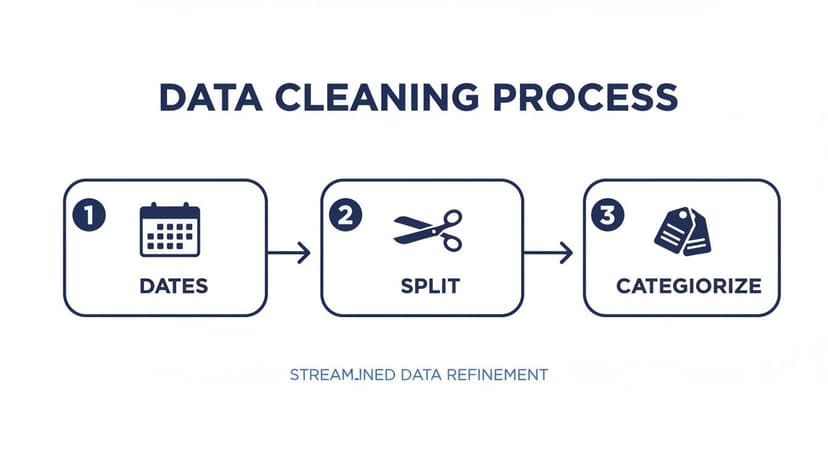
As you can see, the AI systematically gets your raw data into shape, making sophisticated tasks like reconciliation possible.
Prompt 3: Visualize and Explain the Numbers
Finally, you have to present your findings. Turning a spreadsheet of numbers into a clear story usually means wrestling with chart-making tools and writing summaries. Here again, an AI agent can step in as your personal analyst.
Imagine giving this final prompt:
"Using the cleaned data, create a line chart showing monthly cash flow (income vs. expenses) and generate a short, professional summary of key insights, trends, and potential areas of concern."
This prompt doesn't just ask for a chart; it asks for an interpretation. The AI analyzes the patterns in your data, identifies important trends, and drafts a narrative for you. You can go from a folder of messy PDFs to a finished report with almost no effort.
These examples show that modern AI is much more than a simple tool—it's an autonomous assistant waiting for your direction. By describing your end goal, you can automate entire financial workflows securely on your own computer.
If you’re curious about applying these ideas to other parts of your work, our guide on how to automate repetitive tasks is a great place to start.
7 Best Practices for Keeping Your Financial Data Safe and Accurate
When you're pulling data from bank statements, you’re handling some of the most sensitive information there is. Using AI to move that data from a PDF to Excel can save you a ton of time, but you have to be smart about it. Getting this process right from the start means building a workflow you can trust to be both secure and dead-on accurate.
Here are the 7 habits I've learned to rely on over the years.
1. Choose Your Tools Wisely
Let’s get one thing straight: never, ever upload your bank statements to a random, free online converter. That's just asking for trouble. Your financial data is private, and you need to treat it that way. Stick with tools that have a rock-solid security reputation, like an official Microsoft AppSource add-in. For example, a solution like ElyxAI is built on a privacy-first architecture. This is crucial because it means your Excel file and all the data inside it never leave your computer. The only thing sent to the cloud are your plain-text instructions, so your financial details remain completely private.
2. Always Spot-Check the Results
Even the smartest AI can get tripped up by a weird statement layout or a poorly scanned document. That’s why the first thing you should do after any conversion is a quick spot-check. Pick a small, random sample—maybe 5 to 10 transactions—and compare the Excel output directly against the original PDF. Are the dates right? Do the descriptions match? Are the debits and credits in the correct columns? This quick check gives you confidence that the AI has done its job correctly.
3. Run a Final Reconciliation
Before you call the job done, do one last high-level check. It's simple: just sum the debit and credit columns in your new Excel sheet. How do those totals compare to the summary figures on the bank statement? This is a quick sanity check to catch major errors, like a missing page or a whole chunk of transactions that the AI might have skipped.
4. Lock Down the Final File
That finished Excel sheet is a goldmine of sensitive data, so you need to protect it. Use Excel’s built-in tools to set passwords and manage who can open or make changes to the file. Adding encryption is a non-negotiable step, especially if you plan on sharing or storing the file. You can learn how to encrypt your Excel files to add that essential layer of security.
5. Read the Data Policy
Always take two minutes to understand how a new AI tool handles your data before you use it. Look for clear language about data privacy, storage, and whether your files are used for training. A reputable tool will be transparent about this.
6. Use Secure Storage
Don't just save your PDFs and Excel files to your desktop. Keep them in a secure, access-controlled folder, whether it’s on a private server or a secure cloud drive. This minimizes the risk of unauthorized access.
7. Review Permissions Regularly
If you’ve shared the file with colleagues, make a habit of reviewing who has access every so often. If someone no longer needs it, revoke their permissions. This simple housekeeping task is a crucial part of maintaining data security over time.
3 Common Questions About Bank Statement AI
Handing over financial data to a new tool always brings up some valid concerns. It’s a critical part of your work, after all. So, let's walk through some of the questions I hear most often from professionals just like you who are considering an AI tool for converting bank statement PDFs to Excel.
1. Just How Accurate Is This AI, Really?
This is usually the first thing people ask, and for good reason. The short answer is: incredibly accurate. With a clear, machine-generated PDF, you can expect an accuracy rate well over 99%.
The only time I’ve seen it stumble is with really low-quality scans—think blurry, skewed, or coffee-stained documents. For this reason, I always recommend a quick spot-check. Just compare a few lines on the Excel sheet to the original PDF. It’s a simple habit that gives you complete confidence that your analysis is built on solid ground.
2. How Does It Handle Statements From Different Banks?
Here’s where AI really shines compared to older methods. You know those rigid templates that would break the second a bank decided to move a column? AI doesn't work that way. It’s been trained to understand the meaning behind the data.
It doesn’t just look for data in a specific box; it identifies what a "Date" or "Description" column actually is, no matter where it appears on the page. This means you can throw statements at it from virtually any bank, and it will figure it out without needing you to build a custom template for each one.
The real magic here is that the AI isn't just following a script. It’s trained to read a document contextually, much like a person would—just thousands of times faster and without getting tired.
3. What's the Learning Curve Like? Will I Need to Be a Tech Expert?
Honestly, if you can write a simple sentence, you already have all the skills you need. With a tool like ElyxAI, which works right inside Excel, the learning curve is practically nonexistent.
You don't have to learn any new formulas or navigate complicated menus. You just open a chat panel and tell it what you want in plain English.
- "Extract all the transactions from this bank statement."
- "Categorize my spending into groups like 'Rent', 'Utilities', and 'Travel'."
- "Find all payments made to 'Amazon' last month."
It's designed for busy professionals, not data scientists. The goal is to make your job easier, not give you another complex piece of software to master.
Ready to stop wasting hours on manual data entry and start getting instant insights? ElyxAI integrates advanced AI directly into your spreadsheet, turning complex financial tasks into simple conversations.
Start your free 7-day trial of ElyxAI today and see how much time you can save.
Reading Excel tutorials to save time?
What if an AI did the work for you?
Describe what you need, Elyx executes it in Excel.
Sign up