4 Ways to Create a Search Box in Excel (From Easy to AI)

You're probably dealing with one of these situations right now. You have a long Excel list of customers, products, invoices, or transactions. You need to find records fast, but Ctrl+F keeps sending you from one matching cell to the next instead of giving you a usable filtered view.
That's the moment when a search box in excel becomes more than a convenience. It becomes a better interface for the data you already have.
I've seen the same pattern in finance reports, operations trackers, and sales workbooks. The sheet itself is fine. The problem is access. People don't want to scroll, click Find Next ten times, or remember which column contains the exact text. They want to type a word, part of a name, or a code, and immediately see matching rows.
Spending too much time on Excel?
Elyx AI generates your formulas and automates your tasks in seconds.
Sign up →There isn't one perfect way to build that. There are four practical ones, and each fits a different kind of workbook.
Beyond Ctrl+F A Smarter Way to Search Your Data
Excel users know Ctrl+F by muscle memory. Microsoft has treated the Find dialog as a core feature since at least the early 2000s, and it remains part of the standard workflow for a platform used by over 1 billion people according to this overview of the Excel search box and Find dialog.
That matters because Ctrl+F is still useful. It's fast for checking whether a value exists, jumping to a specific term, or reviewing a workbook manually. But it's still a manual inspection tool. It doesn't create an interactive report, and it doesn't give other users a clean experience when they need to search your data themselves.

What people usually want instead
In real workbooks, a search tool usually needs to do one of four jobs:
- Return matching rows: Type part of a customer or product name and show all records that match.
- Help non-technical users filter data: Give managers or colleagues something they can click without editing formulas.
- Support custom logic: Search several columns at once, open records, or drive a dashboard.
- Handle larger operational models: Keep the workbook usable when the data grows beyond a small demo table.
If your workbook is starting to feel more like a small system than a static file, it's worth thinking about using Excel as a database. That shift changes how you design search, filtering, and input areas.
Practical rule: If a user needs to search repeatedly, don't send them to Ctrl+F. Build them a dedicated input or filter surface instead.
The four methods that work
The options below move from simplest to most customizable:
- A live formula-based search box using FILTER and SEARCH
- A visual filter experience using Tables and Slicers
- A VBA or UserForm search tool for power users
- An AI-built solution when you want the tool created for you
The right choice depends on your Excel version, your audience, and how big the dataset is. A finance analyst building a self-serve report won't choose the same method as someone designing a controlled input form for an operations team.
Method 1 The Modern Formula-Driven Live Search Box
For most Microsoft 365 users, this is the best starting point. It gives you a true live search experience directly on the sheet, without VBA, buttons, or forms.
The key is the FILTER function combined with SEARCH. Microsoft 365 introduced FILTER around 2019 to 2020, and it changed what a search box in excel can do. A single formula can return hundreds of matching rows, recalculate on every keystroke, and support dashboard-style filtering in under 1 to 2 seconds on typical business machines, as shown in this live search box walkthrough using FILTER.
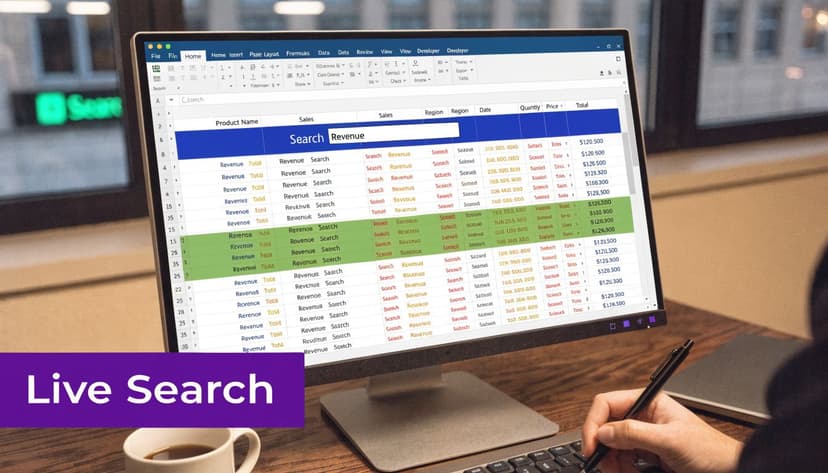
Build it in a simple product list
Assume your data is in cells A5:D200, with these columns:
- Product ID
- Product Name
- Category
- Price
Put your search input in cell G2. Label it clearly, such as Search product name.
Then place this formula in G5:
=FILTER(A5:D200,ISNUMBER(SEARCH(G2,B5:B200)),"No matches")
This is the formula pattern I use most often because it's compact and easy to explain.
What each part does
Let's break it down carefully.
SEARCH(G2,B5:B200)
SEARCH looks for the text typed in G2 inside each cell in B5:B200. If G2 contains wire, Excel checks every product name for that text.
SEARCH returns a number when it finds a match. That number is the starting position of the text inside the cell. If it doesn't find a match, it returns an error.
ISNUMBER(SEARCH(...))
This converts the SEARCH result into TRUE or FALSE.
- TRUE means the text was found
- FALSE means it wasn't
That TRUE/FALSE array becomes the filter condition.
FILTER(A5:D200, ...,"No matches")
FILTER returns only the rows from A5:D200 where the condition is TRUE. If nothing matches, it shows "No matches" instead of an error.
Why this works so well
Users type into one cell and the results spill automatically below. There's no copying formulas down, no helper interface, and no macro security prompt.
If you want to learn the building blocks first, this guide on how to make a formula in Excel is a useful companion before you customize the search logic.
A common upgrade is to search across more than one column. For example, if users might type a product name or category, use:
=FILTER(A5:D200,ISNUMBER(SEARCH(G2,B5:B200))+ISNUMBER(SEARCH(G2,C5:C200)),"No matches")
Because TRUE and FALSE behave like 1 and 0 in this context, the formula keeps rows where either column contains the search text.
If your users don't know exact values, partial matching matters more than exact lookup. That's where SEARCH beats a traditional lookup formula.
Here's a quick visual demo of the same approach in action:
What to watch for
This method is strong, but it isn't universal.
- Best fit: Microsoft 365 workbooks, dashboards, analyst files, operational lists
- Big advantage: No VBA. Fast to build and easy to copy into another sheet
- Main limitation: It depends on modern dynamic array functions, so older Excel versions won't support it
- Another limitation: It can become heavy when you point it at very large ranges or stack too many search conditions
One practical tip makes a big difference. Don't aim the formula at entire columns like B:B if you can avoid it. Use a realistic data range or a structured table reference. The workbook stays cleaner and usually feels more responsive.
Method 2 Visual Searching with Slicers and Tables
Some users don't want to type anything. They want to click a clean filter and move on.
That's where Excel Tables plus Slicers work well. It's not a text search box in the strict sense, but for many reports it's the better user experience. If the goal is “show me one region, one status, or one warehouse,” Slicers are often easier than a formula-driven search area.
The setup that matters
Start by converting the raw range into an official Excel Table.
- Select any cell in your dataset.
- Press
Ctrl+T. - Confirm that your table has headers.
- Give the table a meaningful name in the Table Design tab.
That step is important because Slicers connect cleanly to Tables and PivotTables, not to loose ranges.
Next:
- Go to Table Design
- Choose Insert Slicer
- Select the column you want users to filter by, such as Category, Region, Warehouse, or Status
Excel creates a clickable panel with buttons for each unique value. Users can click once to filter, Ctrl-click to combine values, and clear the filter with one button.
Where Slicers shine
Slicers look more polished than dropdown filters. They're also better for people who don't live in Excel all day.
A dashboard for stock availability is a good example. If a user needs to switch between warehouses, product families, or account managers, Slicers make the interaction obvious. There's no formula to protect and no search logic to debug.
For a practical walkthrough, this guide on creating slicers for tables is a useful reference.
Slicers work best when users are choosing from known values. They work poorly when users only know part of a text string.
The trade-off
This is the key limitation. Slicers filter by existing values, not by arbitrary text fragments.
That means Slicers are great for:
- Known categories: Region, status, month, warehouse
- Repeated review: Dashboards people open every day
- Shared workbooks: Files used by colleagues who prefer clicking to typing
They're not ideal for:
- Partial text searches: Finding every item containing
valve - Messy text fields: Notes, comments, long descriptions
- Open-ended lookup behavior: Anything closer to “search Google inside my spreadsheet”
If the workbook is client-facing or department-facing, I often start with Slicers before formulas. The interface is simpler, and fewer users break it accidentally.
Method 3 The Power User's VBA and UserForm Search
When formulas stop being enough, VBA takes over.
This method makes sense when you need custom behavior. Maybe you want a pop-up search form. Maybe you want results in a ListBox. Maybe selecting a result should jump to a record, open a detail sheet, or trigger another action. That's where a VBA-based search box in excel becomes worth the extra effort.
The first obstacle is basic but common. Building this kind of search tool usually starts in the Developer tab, and a walkthrough on this setup notes that roughly 70% of business users either don't know about it or have it disabled, which makes the Developer tab and ActiveX setup a frequent failure point.
Step 1 Enable the Developer tab
If you don't see Developer in the ribbon:
- Right-click the ribbon
- Choose Customize the Ribbon
- Check Developer
- Click OK
From there, you can insert controls, open the VBA editor, and build a UserForm.
If you want a broader walkthrough after the basics, this guide on creating a UserForm with VBA helps with the form side of the setup.
Step 2 Create a simple UserForm
In the VBA editor:
- Insert a UserForm
- Add a TextBox named
txtSearch - Add a ListBox named
lstResults
Assume your worksheet is called Data and the searchable names are in column B, with related values in columns A through D.
Use this code inside the UserForm:
Private Sub txtSearch_Change()

    Dim ws As Worksheet
    Dim lastRow As Long
    Dim i As Long
    Dim searchText As String

    Set ws = ThisWorkbook.Worksheets("Data")
    lastRow = ws.Cells(ws.Rows.Count, "B").End(xlUp).Row
    searchText = LCase(Me.txtSearch.Value)

    Me.lstResults.Clear

    If searchText = "" Then Exit Sub

    For i = 2 To lastRow
        If InStr(1, LCase(ws.Cells(i, "B").Value), searchText) > 0 Then
            Me.lstResults.AddItem ws.Cells(i, "A").Value
            Me.lstResults.List(Me.lstResults.ListCount - 1, 1) = ws.Cells(i, "B").Value
            Me.lstResults.List(Me.lstResults.ListCount - 1, 2) = ws.Cells(i, "C").Value
            Me.lstResults.List(Me.lstResults.ListCount - 1, 3) = ws.Cells(i, "D").Value
        End If
    Next i

End Sub
What the code is doing
The search runs every time the user types into txtSearch.
LCase(...)makes the comparison case-insensitiveInStr(...)checks whether the typed text appears inside the value from column BlstResults.Clearresets old results before loading new onesAddItemand.List(...)populate the ListBox with matching row values
You can expand this in many directions. Search multiple columns. Add double-click behavior. Show record counts. Write the selected row back to the sheet.
The real pros and cons
VBA gives you the most control of any method in this article. You can build a much better front end than standard grid cells allow.
But the cost is real:
- More setup: You need the Developer tab, form controls, and code
- More maintenance: Someone has to support the workbook later
- File restrictions: The workbook must be saved as a macro-enabled file
- Compatibility concerns: Some organizations block macros or make users wary of them
Use VBA when the search tool is part of a process, not just a formula. If the search result should trigger actions, open forms, or guide users through a workflow, formulas usually won't be enough.
For one-person analyst files, formulas are easier. For controlled internal tools, VBA can still be the right answer.
Comparing 4 Search Methods Which Is Right For You
The wrong search method usually fails for one of three reasons. It's too manual, too fragile, or too slow for the size of the workbook.
That last point gets ignored in many tutorials. Most examples use neat sample data, but a walkthrough focused on search scalability notes that formula-based search demos rarely deal with the slowdown that appears when searching over 100,000 rows, which creates a real pain point for finance and data teams working in larger files, as discussed in this review of Excel search box performance on large datasets.
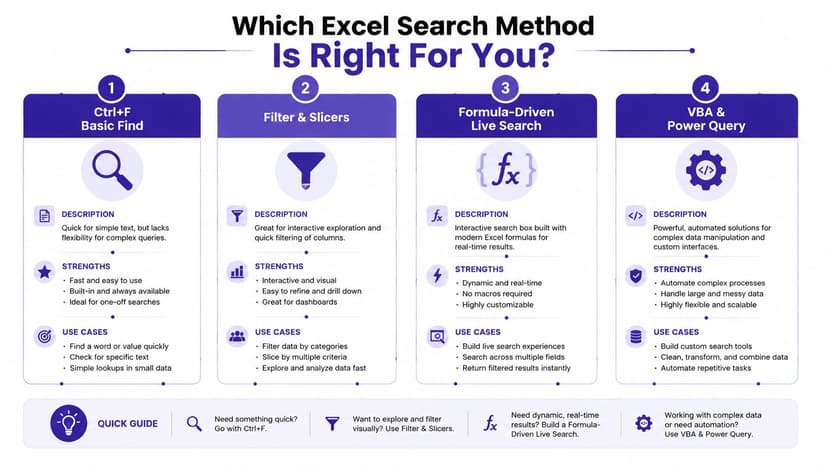
Excel Search Method Comparison
| Method | Ease of Use | Excel Version | Performance | Best For |
|---|---|---|---|---|
| Ctrl+F | Very easy | Almost any version | Good for one-off finding | Manual inspection and jumping to a value |
| Formula-driven live search | Moderate | Best in Microsoft 365 | Strong on smaller to medium lists, can slow down on large ranges | Interactive dashboards and analyst workbooks |
| Tables and Slicers | Easy for end users | Broadly available in modern Excel versions | Usually stable because filtering is built into the table interface | Shared reports with category-based filtering |
| VBA and UserForm | Harder to build, easy to use after setup | Desktop Excel with macro support | Can be tailored well, but depends heavily on code design | Controlled internal tools and custom workflows |
The hidden issue is scale
A FILTER plus SEARCH formula feels excellent on a normal business list. It starts to feel less excellent when the workbook is already calculation-heavy and the search needs to scan large text ranges repeatedly.
That doesn't mean formula search is bad. It means you should match the method to the data.
Here's a practical decision shortcut:
- Use Ctrl+F when you're checking, not building
- Use formulas when users need a live search area inside the sheet
- Use Slicers when users know the categories and want a clean dashboard
- Use VBA when search is part of a broader application-like experience
What usually doesn't work
I see three mistakes repeatedly:
- Searching entire columns with dynamic formulas: Convenient to write, expensive to recalculate
- Using Slicers for messy text fields: The filter becomes long, awkward, and hard to scan
- Using VBA for simple cases: You inherit maintenance work for a problem a formula could solve
Large workbook performance is not just about the search formula. It's about everything else calculating around it at the same time.
If your file already contains volatile formulas, heavy lookups, or complex formatting, the search method needs to be chosen more carefully than a tutorial usually suggests.
The Future of Search Let AI Build Your Solution
At some point, the issue isn't whether FILTER, Slicers, or VBA is theoretically best. The issue is whether you want to spend your time designing the solution at all.
That's where AI changes the experience. Instead of deciding the architecture manually, you can describe the result you want in plain language and let an agent build it inside the workbook. If you want background on how systems interpret those requests, this article on explaining NLP simply gives a clear non-technical overview.

What this changes in practice
The old workflow looks like this:
- decide which Excel method to use
- write formulas or VBA
- test the search behavior
- format the output
- fix the workbook when the first version isn't quite right
An AI agent can reduce that mechanical work. You give it an instruction like:
Create a live search box to filter this customer list by company name and return matching rows on a clean dashboard sheet.
A strong implementation should inspect the worksheet structure, choose a suitable method, create the logic, and format the result so another person can use it.
For larger analytical workbooks, that matters even more. Search isn't isolated. It touches formulas, layout, named ranges, reporting areas, and performance choices. An AI agent for data analysis inside Excel is useful because it can treat the search tool as part of the whole workbook instead of as a one-cell trick.
Why this is a better direction for many teams
The benefit isn't novelty. It's reducing setup friction.
A finance manager doesn't want to debug array behavior. An operations lead doesn't want to maintain a UserForm. A consultant doesn't want to rebuild the same search widget from scratch in every client file.
AI won't remove the need for judgment. You still need to know what users are searching for, which columns matter, and whether the workbook is already too large for a formula-heavy approach. But once that thinking is clear, letting an agent handle the build is often the most efficient option.
If you want that kind of hands-on help inside Excel, Elyx AI is built for it. You can describe the search tool, dashboard, or reporting workflow you want in plain English, and the agent executes the steps directly in your workbook instead of just explaining what to do.
Reading Excel tutorials to save time?
What if an AI did the work for you?
Describe what you need, Elyx executes it in Excel.
Sign up