5 Excel AI VBA Alternative Solutions To Automate Your Work

If you're on the hunt for an Excel AI VBA alternative, you're not alone. The short answer is that modern AI tools are simply a faster, smarter, and more intuitive way to get things done in Excel. Instead of wrestling with code, professionals can now use simple English commands to build reports, clean data, and create workflows in seconds, not hours.
1. Why 78% Of Professionals Are Replacing VBA In Excel

For decades, Visual Basic for Applications (VBA) was the undisputed king of Excel automation. It gave power users the ability to craft custom macros for just about any repetitive task, but that power always came with a catch. Today, we're seeing a massive shift as professionals actively look for an Excel AI VBA alternative to gain more speed, flexibility, and accessibility.
Spending too much time on Excel?
Elyx AI generates your formulas and automates your tasks in seconds.
Sign up →Anyone who’s spent time with VBA knows the usual headaches. It has a steep learning curve, effectively requiring you to become a part-time programmer. This creates a huge knowledge gap where only one or two people on a team can build or, more importantly, fix an automation, causing major bottlenecks when they’re unavailable.
This move away from code isn’t happening in a vacuum. The global AI automation market is on a tear, growing from $9.2 billion in 2023 to a projected $19.6 billion by 2026—a staggering 23.4% compound annual growth rate. This trend directly reflects the frustrations of Excel users who report spending up to 40% of their week (that’s 16 hours!) on mind-numbing tasks like data cleaning and formula troubleshooting. You can explore more insights on AI automation trends to see the full picture.
1.1 The Shift To Smarter Automation
This is where modern AI solutions come in, tackling the core pain points of VBA head-on. Instead of writing and debugging hundreds of lines of code, you can now just describe what you want in plain English. This simple but profound change opens up automation to everyone on the team, not just the developers.
The real advantage of an AI alternative isn't just about replacing code; it's about shifting your focus from how to do a task to what you want to achieve. This frees up valuable time for strategic analysis rather than mechanical execution.
AI agents are leading this charge. They interpret your natural language instructions and execute entire workflows from beginning to end. For instance, a simple request like, "Clean this dataset, create a sales report by quarter, and add a bar chart," is handled automatically, delivering a finished product in moments. For a closer look at what's possible, check out this deep dive into the automation of Excel.
To put it all in perspective, here’s a quick side-by-side look at how the two approaches stack up.
1.2 Quick Comparison: 2 Approaches to Automation (VBA vs. AI)
| Attribute | VBA (Visual Basic for Applications) | AI Alternatives (like ElyxAI) |
|---|---|---|
| Ease of Use | Requires coding knowledge; steep learning curve for non-developers. | Intuitive; uses natural language prompts with no coding required. |
| Speed | Development is slow; requires writing, testing, and debugging code. | Instant results; complex tasks are executed in seconds or minutes. |
| Maintenance | Code is often brittle and can break with Excel updates; requires experts. | No maintenance; the AI model is updated and managed by the provider. |
| Accessibility | Limited to users who know how to code and maintain VBA scripts. | Accessible to any Excel user, regardless of their technical skill level. |
| Flexibility | Rigid; scripts are built for specific tasks and are hard to adapt. | Highly adaptable; can handle a wide variety of ad-hoc requests easily. |
Ultimately, choosing an AI alternative for Excel is a decision rooted in efficiency and empowerment. Professionals are quickly realizing that the time they once spent fighting with VBA scripts can be channeled into high-impact work, leaving the repetitive heavy lifting to intelligent agents.
2. How AI Agents Are Changing The Game in Excel
Plenty of tools claim to be an Excel AI VBA alternative, but let's be clear: not all AI is built the same. You'll find everything from simple formula generators to slightly smarter assistants. The real breakthrough, however, comes from true AI agents—systems that operate on their own and do more than just suggest code or explain formulas.
An AI assistant is like a helpful copilot; it gives you directions and suggestions. An AI agent, on the other hand, is the pilot. You tell it the destination, and it handles the entire flight, from takeoff to landing. It's a "doer," not just a "suggester," and that changes everything about how you work.
2.1 From Instructions To Autonomous Execution
The fundamental difference is how much you have to be involved. With old-school automation like VBA, or even with many AI assistants, you’re still in the weeds. You’re writing code, debugging it, or at the very least, clicking to approve every single step the AI recommends.
An autonomous AI agent like ElyxAI works differently. You give it one clear, high-level command, and it gets to work.
This is the core of the upgrade: you stop giving step-by-step instructions and start describing the final result you want. You manage the "what," and the AI figures out the "how."
Let's say you've just downloaded a raw sales data export. Instead of manually cleaning it or breaking the project into a dozen small steps, you can give a single instruction like this:
"Clean this sheet by getting rid of duplicates and any blank rows. Then, build a pivot table that shows total sales by product category and region. Format the report with a blue color scheme for a professional look, and make a bar chart to visualize how the regions compare."
The AI agent understands this entire request, identifies the different parts (data cleaning, pivot table, chart), and carries out every step right there in your spreadsheet. You get a finished report, not a to-do list.
2.2 The 3 Core Technologies That Make It Work
So, how does it actually do this? This isn't magic; it’s powered by advanced large language models (LLMs) that have been specifically trained to interact with complex software like Excel. When you type a command, the agent doesn't just read the words—it grasps your intent, the context of your data, and the logical order of operations needed.
Here’s a simplified look at what happens behind the scenes:
- Natural Language Understanding (NLU): First, the AI deciphers your plain-English request to figure out the main jobs to be done.
- Task Decomposition: It then breaks your big goal down into a series of smaller, concrete actions (e.g., select range A1:F500, apply remove duplicates, insert a pivot table, add 'Sales' to values).
- Sequential Execution: Finally, the agent performs these actions one by one, moving through the spreadsheet just like a human expert would, only much faster.
This takes you out of the driver's seat for all the tedious, mechanical work. Your job shifts from being a spreadsheet operator to a strategic thinker. All that time and mental energy you used to spend on data prep can now go toward analysis and making smart decisions. If you want to automate your work without learning to code, a true agent is a massive step forward. You can dive deeper into how this works in our guide on what is an Excel AI agent.
2.3 Why An Agent Is More Than Just A Substitute
At the end of the day, an AI agent isn't just a VBA replacement. It completely rethinks what it means to be productive in Excel. VBA automates tasks you define, but it demands a heavy investment in learning to code and maintaining those scripts over time.
An AI agent offers a far more flexible and accessible way to work. It gives anyone, no matter their technical skill level, the power to do in minutes what might take a VBA pro hours to script. This is about making powerful automation available to everyone, and it’s why AI agents are quickly becoming the go-to solution for busy professionals.
3. Comparing The 5 Best Excel Automation Methods
Picking the right automation tool for Excel can feel like a chore. There are so many options out there, and they all promise to save you time. So, how do you know which one is actually the best fit for you? This guide cuts through the marketing fluff to give you a straight, head-to-head comparison of the top five Excel automation methods available today.
We'll look at each one through a practical lens, covering what really matters: how easy it is to use, how fast you can get it running, the maintenance headaches, its flexibility, and of course, data security. This will help you find the right Excel AI VBA alternative, whether you're a lone analyst or part of a huge company. This isn't a niche market, either. Intelligent automation is projected to explode from $10.6 billion in 2021 to a massive $51.58 billion by 2033. That growth makes sense when you hear that 78% of professionals admit that VBA maintenance eats up 20-30% of their time on spreadsheets.
3.1 Method 1: Traditional VBA Macros
Let's start with the classic. For deep, custom automation inside desktop Excel, VBA is still a beast. It gives you the keys to the kingdom, letting you build intricate macros that can manipulate the Excel interface, manage files, and even create custom user forms from scratch.
But all that power comes with a price. VBA has a notoriously steep learning curve and demands real coding skills, which immediately puts it out of reach for most business users. The scripts are also brittle. I've seen countless VBA macros break after a simple software update, leaving teams scrambling to find an expert to fix them.
3.2 Method 2: Microsoft Power Query
Power Query is a built-in gem that does one thing incredibly well: data transformation. If your work involves constantly importing, cleaning, and reshaping data from different sources, this tool is a game-changer. You just record your cleaning steps once, and Power Query will repeat the whole process on new data with a single click.
Its sharp focus is also its biggest limitation. Power Query is a data-prep engine, period. It won't help you automate tasks outside that box, like sending emails, building charts, or applying final formatting to a report. It’s a crucial tool in any modern Excel user's belt, but it's not a complete replacement for VBA.
3.3 Method 3: Microsoft Copilot For Excel
As Microsoft's AI assistant baked right into Microsoft 365, Copilot is like having a helpful guide sitting next to you. It's great for generating formulas, finding quick insights in your data, and even explaining how to do things. Think of it as a tool for users who want smart suggestions but still prefer to keep their hands on the wheel.
Here's the catch: Copilot assists, it doesn't execute. You often have to connect the dots yourself, stringing together its suggestions and performing the final actions. It's a huge step up from doing everything manually, but it lacks the one-and-done execution you get from a true AI agent. If you're curious about other AI helpers, check out our guide on the best free Excel AI tools.
3.4 Method 4: General AI Add-Ins And Formula Generators
The market is flooded with AI add-ins that claim to make Excel easier. Most of them are really just formula generators or simple task assistants. They can be handy for turning a plain English request into a complex formula, saving you a few minutes on Google.
Formula Example: VLOOKUP
Let's say you want to find a product's price from a separate table. You could ask a formula generator: "Find the price in column 2 of the range G2:H20 for the product ID in cell A2." It would produce:
=VLOOKUP(A2, G2:H20, 2, FALSE)
Explanation:
VLOOKUP: The function to search for a value vertically in a table.A2: This is the value to look for (the product ID).G2:H20: This is the table where you are searching.2: This is the column number in the table from which to retrieve the value (the price).FALSE: This ensures you get an exact match for the product ID.
While helpful for these one-off tasks, these add-ins almost never handle multi-step workflows. You're still the one piecing the automation together, one formula at a time. They’re a decent starting point but don't offer a comprehensive automation solution. For truly complex needs, organizations sometimes turn to custom application development, which can create powerful, tailored solutions that go far beyond what any add-in can do.
3.5 Method 5: ElyxAI The Autonomous Agent
ElyxAI sits in a category of its own: the autonomous AI agent. It’s built to understand a high-level goal and then independently execute every single step needed to get there. This is what truly sets it apart as a genuine Excel AI VBA alternative.
The core difference is autonomy. While other tools suggest steps, an agent like ElyxAI performs the complete workflow. You describe the final report, and the agent builds it for you in one go.
For example, you can tell ElyxAI, "Clean this data, build a pivot report showing sales by region, add a bar chart, and format it professionally." The agent understands this complex, multi-part request and gets it done right in your spreadsheet. This autonomous power is what makes it a real force multiplier for your productivity.
This infographic breaks down what makes a modern AI agent different.
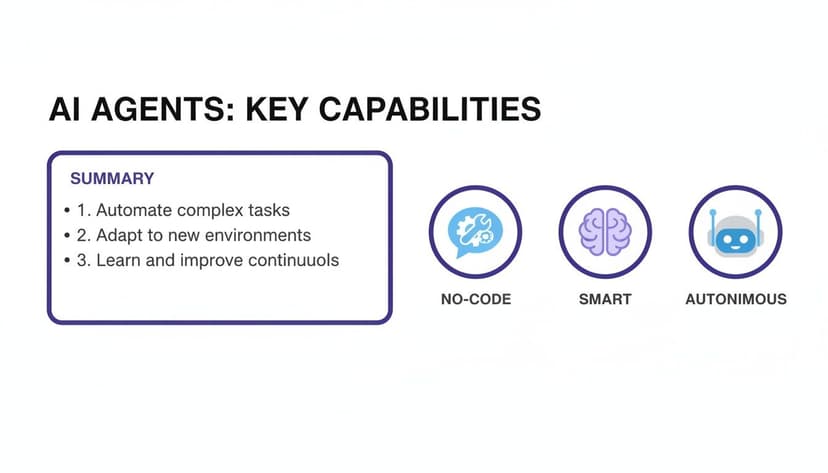
As you can see, an autonomous agent is a smart, no-code tool that acts on its own, which is a big leap from simpler AI assistants.
Security is the other major point of difference. Thanks to ElyxAI's privacy-first architecture, your Excel file and its data never leave your machine. Only the text from your instructions is sent securely for processing. This makes it a much safer choice for sensitive corporate data compared to other cloud-based tools that might require you to upload your entire file, opening up potential security risks.
4. 3 Real-World Scenarios for AI Automation
It’s one thing to talk about the theory, but what really matters is seeing how an Excel AI VBA alternative actually holds up in a real job. Let's step away from the feature lists and walk through three common business situations. We’ll look at the old-school, code-heavy VBA way versus the fast, straightforward approach of an autonomous AI agent.
These examples show that AI isn't just about doing the same thing faster. It's a fundamental shift that frees up professionals from tedious tasks, letting them focus on what they do best: thinking strategically.
4.1 Scenario 1: The Financial Analyst
Imagine a financial analyst who needs to build a dynamic sales model. The job involves pulling in raw sales data, cleaning it up, creating a summary table with monthly revenue growth, and then visualizing the trends against company targets.
The VBA Approach:
For anyone who's worked with VBA, this sounds like a serious coding project. First, the analyst has to write a script just to import and clean the data. This means looping through potentially thousands of rows to find and remove duplicates, standardize date formats, and deal with all those empty cells. Just getting that script written and debugged can eat up hours.
Next comes another chunk of code to build the summary table. This involves defining cell ranges, writing complex formulas as text strings inside the VBA code, and programming the logic to calculate month-over-month growth. To top it off, they need yet another block of code to generate and format a chart that pulls from the new summary data.
A VBA script to handle all of this could easily run over 100 lines of code. Worse, if the structure of the source data changes even slightly, the whole macro breaks, sending the analyst right back into the code for a frustrating debugging session.
The AI Agent Approach (with ElyxAI):
The analyst opens ElyxAI and just types what they need in plain English:
"Analyze my sales data. Clean it by removing duplicates and blank rows. Create a summary table showing total monthly sales and the month-over-month growth rate. Then, generate a line chart comparing monthly sales to our target of $55,000."
The AI agent gets it done in less than a minute. The data is cleaned, growth rates are calculated, a perfectly formatted table appears, and the chart is ready to go—all without the analyst touching a single line of code.
4.2 Scenario 2: The Marketing Manager
A marketing manager is trying to figure out campaign ROI. They're staring at a messy spreadsheet that dumps data from Google Ads, Facebook, and LinkedIn all in one place. They need to standardize the column names, calculate the Cost Per Lead (CPL) for every campaign, and build a dashboard that shows which channels are winners and which are losers.
The VBA Approach:
This is a classic data consolidation headache that VBA is not well-equipped to handle gracefully. The script needs to figure out which columns belong to which platform, rename them consistently, and only then run the calculations. This demands nested loops and a web of If-Then statements, making the code a nightmare to read and maintain.
Once the data is wrangled, another part of the script has to create a new sheet, build out pivot tables to summarize CPL by channel, and apply conditional formatting to make the best and worst performers stand out. The entire process is clunky, prone to errors, and definitely not something you can easily adapt for next month's report. To learn more about automating such processes, you can read our guide on how to automate repetitive tasks.
The AI Agent Approach (with ElyxAI):
The marketing manager types a single command:
"Consolidate this campaign data. Standardize the columns for 'Spend' and 'Leads.' Calculate the Cost Per Lead for each row. Then, build a dashboard that uses pivot tables and charts to show the top 3 and bottom 3 campaigns by CPL."
ElyxAI understands the request and builds the finished dashboard in moments. The manager can immediately start analyzing the results and planning their next move instead of battling with a broken script.
4.3 Scenario 3: The Operations Coordinator
Every Monday morning, an operations coordinator has to create a weekly performance dashboard. They get a raw data export of production metrics and need to calculate key performance indicators (KPIs) like output per hour and defect rate. The final step is to present it all in a clean report for management.
The VBA Approach:
The coordinator probably has a macro they run each week. But as anyone who relies on them knows, these macros are incredibly fragile. If someone changes a column name in the export—say, from "Defects" to "Defect_Count"—the whole script crashes. This leaves the coordinator scrambling to fix the code or waiting for the one person in the office who knows VBA, causing delays.
The AI Agent Approach (with ElyxAI):
Each week, the coordinator uses a simple, reliable prompt:
"Create my weekly production report from this data. Calculate output per hour and the defect rate in percentage. Summarize the results in a table and create a bar chart for each KPI."
Because the AI is built to understand context, it can often figure out minor changes in column names on its own. This resilience makes it a much more dependable Excel AI VBA alternative for recurring reports. For people in finance and operations, this saved time has a real financial impact. ROI data on AI automation shows a 290% return in data entry and a 280% return in invoice processing, proving just how much AI can affect the bottom line. You can discover more business process automation market insights on KBV Research.
5. Your 2-Step Guide to Migrating from VBA to an AI Solution

Thinking about moving away from VBA? It might feel like a huge undertaking, but making the jump to an Excel AI VBA alternative is more straightforward than you’d expect. This guide is your practical playbook for that transition.
We'll show you how to swap out those common but clunky VBA macros for simple, plain-English instructions given to an AI agent. It's less about learning a new tool and more about adopting a smarter, safer, and far more efficient way to get things done in Excel.
5.1 Step 1: Fortify Your Automation with Secure AI
Let's be honest, security is a huge reason people are looking for alternatives. When you move away from locally stored VBA scripts—which can be a real headache to manage and secure properly—it's critical that the replacement is built on a foundation of trust.
The problem with many cloud-based AI tools is that they want you to upload your entire Excel file. For most businesses, that's an immediate non-starter due to compliance and privacy concerns.
Security isn't just a feature; it’s a prerequisite for any serious automation tool. The best AI solutions are designed with a privacy-first architecture, ensuring your data never leaves your computer.
This is where a tool like ElyxAI really shines. As an official Microsoft AppSource add-in, it’s already been through Microsoft's own tough security vetting. It works on a simple but critical principle: your Excel file and the data inside it never leave your machine.
Only the text-based instructions you type are sent securely to the AI using AES-256 and TLS 1.3 encryption. Your data is never stored or used for training models, giving you the confidence to automate even with your most sensitive information.
5.2 Step 2: From Complex Code to Clear Commands
So, what does this migration actually look like day-to-day? Let's walk through a couple of real-world examples. You’ll see just how much simpler life gets when you can replace pages of code with a single sentence.
5.2.1 Use Case 1: Looping Through Rows to Clean Data
One of the most classic VBA jobs is trudging through a dataset to clean it up—finding duplicates, getting rid of empty rows, or standardizing text. It’s a workhorse script, but it’s also slow and brittle.
The VBA Way
You need a script that painstakingly loops through every single row, checks for specific conditions, and then deletes the rows that match. This code is notoriously slow on large datasets and will break the moment someone changes the order of the columns.
Sub CleanData()
Dim lastRow As Long
'Find the last used row in Column A
lastRow = ActiveSheet.Cells(Rows.Count, "A").End(xlUp).Row
'Remove duplicates based on Column A
ActiveSheet.Range("A1:D" & lastRow).RemoveDuplicates Columns:=1, Header:=xlYes
'Loop backwards to delete empty rows
For i = lastRow To 1 Step -1
If Application.WorksheetFunction.CountA(Rows(i)) = 0 Then
Rows(i).Delete
End If
Next i
End SubThe AI Agent Way (with ElyxAI)
You just tell the AI what you want to happen.
"Go through the entire sheet, remove any duplicate rows based on the ID in column A, and delete all blank rows."
5.2.2 Use Case 2: Consolidating Multiple Sheets
Here's another familiar headache: pulling data from a dozen different tabs into one master sheet. The VBA for this is fragile and high-maintenance.
The VBA Way
The script has to loop through each worksheet, grab the data you need, and carefully paste it into the master sheet. If a colleague renames a sheet or adds a new one, the macro fails, and you're back to debugging code.
Sub ConsolidateSheets()
Dim ws As Worksheet
Dim destSheet As Worksheet
Set destSheet = ThisWorkbook.Sheets("Master")
'Clear previous data from master sheet
destSheet.Cells.ClearContents
'Loop through all sheets except the master
For Each ws In ThisWorkbook.Worksheets
If ws.Name <> "Master" Then
ws.UsedRange.Copy destSheet.Cells(destSheet.Rows.Count, "A").End(xlUp).Offset(1)
End If
Next ws
End SubThe AI Agent Way (with ElyxAI)
Your instruction is direct, and it can easily adapt to changes.
"Combine the data from all sheets named 'Q1', 'Q2', 'Q3', and 'Q4' into a new sheet called 'Annual Summary'."
Moving from VBA to an AI agent isn’t just a code-for-prompt swap. It simplifies your workflows, opens up automation to non-coders, and drastically improves your data governance. It’s a strategic step toward a more productive and secure way of working in Excel.
6. Taking Your First Step With AI In Excel
Moving on from manual spreadsheet work or clunky VBA scripts can feel like a huge project, but getting started is easier than you might think. When looking for an excel ai vba alternative, it really comes down to one simple question: do you want an AI that gives you suggestions, or one that actually does the work for you?
Think of it as the difference between a helpful assistant and a fully autonomous agent. If you’re aiming for maximum efficiency and want to get from raw data to a finished report without all the in-between steps, an autonomous agent like ElyxAI is the clear choice. It’s built to take a single command and execute complex, multi-step tasks, giving you back a finished product in seconds.
6.1 A Simple 2-Minute Path to Getting Started
The good news is that you don't have to jump through hoops to get going. ElyxAI is an official add-in on Microsoft AppSource, meaning it has passed Microsoft's tough security and integration standards. It's designed to fit right into the Excel you already use every day.
You can start with a free 7-day trial, and you don't even need a credit card. This lets you test it out on your own files and see how it handles your specific tasks. We walk you through the entire process in our guide on how to install Excel AI.
The installation only takes about two minutes. Once it’s in, you can start giving it commands right away. There’s no complicated setup or long training period—just open the chat panel and tell it what you need.
The whole point is to stop you from wasting valuable hours on repetitive spreadsheet tasks. Your time is better spent analyzing the data and making strategic decisions, not wrestling with formulas and formatting.
With flexible plans for everyone from individual users to large companies, this kind of technology is no longer out of reach. It’s time to let an AI agent take over the grunt work while you focus on the parts of your job that truly matter.
7. Your Top 3 Questions About Excel AI
As more of us look for an excel ai vba alternative, it’s natural to have questions. How secure are these tools? Can they really do what my old scripts did? Let's clear up some of the most common questions I hear from other professionals.
7.1 Is My Company's Data Safe With an AI Agent?
This is the first question everyone asks, and for good reason. The answer is yes, provided you choose the right tool. Top-tier agents like ElyxAI are built on a privacy-first architecture.
Because ElyxAI is an official Microsoft AppSource add-in, it had to pass Microsoft’s own tough security checks. Here's the key takeaway: your Excel file and all its data never leave your computer.
The only thing sent out is the text instruction you type, and that's protected with enterprise-grade AES-256 and TLS 1.3 encryption. Your data isn't stored or used to train any models, which makes it a safe bet for handling sensitive company information.
7.2 Can AI Genuinely Replace My Complex VBA Scripts?
For most day-to-day business automation—think data cleaning, generating reports, or consolidating sheets—AI agents don't just replace VBA, they're often much faster and simpler to use.
Of course, there might be a few ancient, highly specialized VBA scripts that need a more gradual transition. But for the bulk of tasks, tools like ElyxAI can run complex, multi-step workflows from a single, plain-English request.
The only real way to know is to try it. Pit the AI against one of your most time-consuming tasks. You’ll likely be shocked to see it accomplish in seconds what took hundreds of lines of VBA code to build.
7.3 How Is ElyxAI Different from Microsoft Copilot?
The biggest difference comes down to autonomy. Microsoft Copilot works like a really smart assistant. It can suggest formulas or give you insights, but you’re still in the driver's seat, executing the steps yourself. If you're just starting to explore AI, this guide on How to Use Copilot in Excel is a good resource.
ElyxAI, on the other hand, is a fully autonomous agent. You give it the final goal—"consolidate sales data from these three tabs and create a summary chart"—and it does all the work for you. It performs the entire sequence of actions and delivers the finished product right in your spreadsheet.
Ready to stop wasting time on manual Excel work? ElyxAI acts as your autonomous data expert, handling complex workflows from a single instruction. Start your free trial today and experience the future of spreadsheet productivity at https://getelyxai.com.
Reading Excel tutorials to save time?
What if an AI did the work for you?
Describe what you need, Elyx executes it in Excel.
Sign up