Your 7-Step Excel AI Tutorial To Master Data in 2024

Tired of spending hours wrestling with complex formulas and manually cleaning up messy spreadsheets? This guide is your way out. We're going to walk through how to use AI right inside Excel, turning those tedious tasks that take up your entire afternoon into jobs that take just a few minutes.
This Excel AI tutorial is all about shifting from manual grunt work to getting instant insights with simple, plain-English commands.
Your 7-Step Quick Guide To Mastering AI in Excel

Spending too much time on Excel?
Elyx AI generates your formulas and automates your tasks in seconds.
Sign up →Think of this as your personal roadmap to becoming an Excel power user, but without the steep learning curve. The goal is for the reader to always leave with a new skill or a useful solution. Imagine just telling your spreadsheet to "clean up this data" or "create a pivot table showing sales by region," and then watching it happen.
This simple change allows you to focus on strategy and analysis. Instead of spending 80% of your time on repetitive tasks like data cleaning and formatting, you get to spend that time interpreting the results and making smarter decisions. It’s like having a digital assistant who can handle complex, multi-step requests from a single instruction.
This isn't just for data scientists or Excel gurus. Whether you're a financial analyst, a project manager, or run a small business, you can perform advanced analysis just by learning how to ask the right questions and solve concrete problems.
From Manual Methods to AI Automation in 4 Steps
So, how do you make this happen? We’ll cover the whole process, from the initial setup to running your first AI-powered analysis. Getting started is fast—in fact, our guide on how to install an Excel AI add-in will get you up and running in just a few minutes.
To give you a clear picture of the difference AI can make, take a look at the table below. It breaks down a few common Excel tasks, comparing the old, manual way with the new, AI-powered approach.
4 Examples of Traditional Excel vs. AI-Powered Excel Workflows
This comparison shows how AI transforms common Excel tasks, saving time and reducing manual effort, providing a practical solution to a common problem.
| Task | Traditional Excel Method | AI-Powered Method (with ElyxAI) | Time Saved |
|---|---|---|---|
| Data Cleaning | Manually finding/replacing errors, removing duplicates, trimming spaces, and standardizing formats. | Prompt: "Clean the selected data. Remove duplicates, fix capitalization in the 'Name' column, and format dates as MM/DD/YYYY." | 95% |
| Creating a Pivot Table | Clicking through the Insert > PivotTable menu, dragging and dropping fields, and configuring values and filters. | Prompt: "Create a pivot table showing total sales by product category and region." | 80% |
| Building a Chart | Selecting data, choosing a chart type from the menu, and then manually adjusting titles, labels, colors, and axes. | Prompt: "Generate a bar chart comparing Q4 revenue for the top 5 products." | 75% |
| Writing Formulas | Recalling or looking up complex formulas like VLOOKUP, INDEX/MATCH, or SUMIFS and debugging them. | Prompt: "Find the corresponding price for each product ID from the 'Prices' sheet." | 90% |
As you can see, the time savings are immediate and significant. By handing off the mechanical steps to an AI, you free yourself up to focus on work that actually drives results.
3 Reasons Why 1.2 Billion Excel Users Are Turning To AI
If you’ve spent any time in Excel, you know the drill. It’s an incredibly powerful tool, but so much of our day can get swallowed up by tedious, manual work—cleaning up messy data, wrestling with formulas, or building the same pivot tables over and over. For its massive user base, this has always been the productivity tax.
But that’s starting to change in a big way. We’re moving past simple formula suggestions and into an era of AI agents that can run entire workflows on their own. It’s no surprise that 81% of businesses are already bringing AI into their operations to stay competitive.
The game is no longer about who can memorize the most complex formulas. It’s about who can get from raw data to a clear, actionable insight the fastest, solving real-world problems.
1. The Growing Demand For Smart Automation
Think about it: back in 2015, Microsoft Excel already had a mind-boggling 1.2 billion users. Now, smart AI integrations can cut the time analysts spend on those repetitive chores by up to 40%.
This isn't just a niche trend. The AI sector is expected to rocket from $173.56 billion in 2025 to over $976.23 billion by 2035. You can find more details on these trends by reading the full research on AI in business.
This all comes down to a simple, universal frustration. Most of us know exactly what we want our data to tell us, but we get bogged down in the how. An excel ai tutorial like this one shows you how to simply state your goal and let the AI handle the mechanics.
AI agents are now able to do more than just suggest a fix or a formula. They can understand a multi-step request in plain English and execute the entire workflow, from start to finish, just like a human assistant would.
2. From Frustration To Flow
Many data pros have tried to build their own automation tools. They imagine a digital helper that can pull data, scrub it clean, find insights, and even build the final report. But the reality is often a nightmare of tangled APIs, surprise costs, and constant troubleshooting.
This is exactly the problem that a modern AI add-in is designed to solve. Instead of you having to piece together a fragile, custom-built system, you get a reliable agent right inside Excel.
- Predictable Automation: You get the same, reliable result every time, without having to debug a single line of code.
- Cost-Effectiveness: It helps you avoid the high, unpredictable costs that come from stringing together multiple API calls for every little task.
- Focus on Analysis: The AI takes care of the boring stuff—data cleaning, formatting, and writing formulas—freeing you up to actually think about what the data means.
This change puts powerful automation in the hands of everyone, not just developers. If you want to learn more, check out our deep dive into using AI with Excel. You’ll see how projects that once took hours can now be done in minutes.
3. A Solution to the Formula Problem
Let's take a common task: combining first and last names from two different columns (A and B) into a single "Full Name" column (C). Traditionally, you would use a formula like CONCATENATE.
Formula Example: =CONCATENATE(A2, " ", B2)
=CONCATENATE(...): This is the Excel function for joining text strings together.A2: This refers to the cell containing the first name (e.g., "John")." ": This adds a space between the first and last name. Without it, the result would be "JohnDoe".B2: This refers to the cell containing the last name (e.g., "Doe").
The result in cell C2 would be "John Doe". You would then have to drag this formula down for every row. With AI, you simply ask: "Combine the first name from column A and the last name from column B into a new 'Full Name' column." The AI handles the formula creation and application for you.
5 Practical Ways to Automate Your Excel Grind
Enough with the theory. The real measure of any new tool is how it solves a concrete problem on a Tuesday afternoon when you're on a deadline. This is exactly where having an AI assistant in Excel, like ElyxAI, starts to feel like a superpower. It can turn those complex, multi-step headaches into a simple conversation.
Let's walk through a real-world example: you've just been handed a messy, raw data export and need to turn it into a polished report for a client. This is the perfect way to see what AI can do, as it touches on several tasks that usually eat up hours.
1. Getting Your Data Clean in Seconds
Every good analysis is built on clean data. But data cleaning is tedious and mind-numbing. Think about that raw sales file with duplicates, weird date formats, and names typed in all caps.
Instead of manually hunting for duplicates, wrestling with the TRIM function, or fixing capitalization cell by cell, you just tell the AI what you need.
Your Prompt: Clean this data by removing duplicates, standardizing the date column to DD-MM-YYYY, and capitalizing proper nouns in the 'Customer Name' column.
Just like that, the AI handles it all in a flash. This one step gets your data ready for analysis and can save you from a task that, for many data pros, takes up a staggering 80% of their project time.
2. Creating Pivot Tables Without the Clicks
Okay, your data is clean. Now you need to summarize it. Pivot tables are the bedrock of Excel analysis, but they still involve dragging and dropping fields, hoping you get the combination right on the first try. With an AI agent, you just describe the end result.
Your Prompt: Create a pivot table from the cleaned data that shows total sales revenue for each product category, broken down by sales region.
The AI understands the columns and their relationships, building the exact pivot table you asked for. No more fiddling with the Rows, Columns, and Values boxes.
3. Generating Charts Automatically
A pivot table is useful, but a chart tells the story. Instead of going through the whole chart setup process, you can just ask the AI to build on what it just did.
Your Prompt: Now, create a stacked bar chart from that pivot table to compare regional sales within each product category.
A professional-looking chart appears, ready for your PowerPoint slide. You didn't have to touch a single formatting option. You can even ask it to make changes, like switching to a line chart or highlighting the top-performing region.
The big shift here is moving from how to build a chart to what the chart should tell you. You focus on the story, and the AI handles the mechanics.
This is the natural evolution of Excel. We’ve gone from doing everything by hand to a point where the software can handle entire workflows on its own.
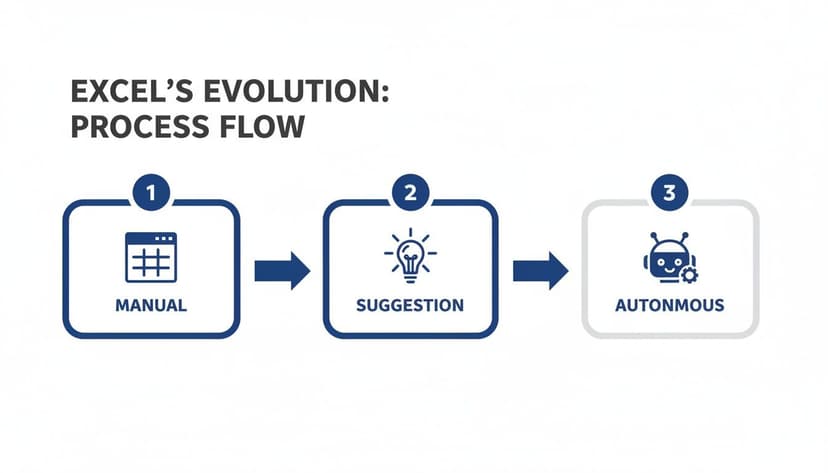
As you can see, we’re moving past simple suggestions and into an era where AI can truly work autonomously.
4. Applying Professional Formatting Instantly
A report full of raw data just looks unfinished. The final touch is always applying consistent formatting—your company's colors, fonts, and branded look. This is another one of those manual, repetitive tasks that AI can completely automate.
Your Prompt: Format the entire report. Use a professional font, apply company colors (#361ba3 for headers), and add borders to the tables.
In seconds, the agent applies these rules across the entire worksheet. It’s the difference between a draft and a final, client-ready document.
5. Uncovering Deeper Insights
This is where things get really interesting. Beyond just cleaning and formatting, you can use AI to ask bigger-picture questions and find insights you might have missed.
Your Prompt: Analyze the sales data to identify the top 3 performing products for Q4 and calculate their year-over-year growth.
This is more than just a simple command. The AI needs to interpret your request, perform the right calculations, and then present the answer clearly. It's this ability to handle complex analytical questions that really sets these new tools apart. If you want to dive deeper, we have a whole guide on how AI can analyze Excel data that explores this further.
6 Productivity Tips For Getting Maximum Value From Your Excel AI
Getting an AI add-in installed is one thing. Actually getting it to do what you want is another. The biggest shift is moving from doing the work yourself to delegating it to an AI. It requires a new way of thinking. These practical tips will help you bridge that gap and start collaborating with AI like a pro, turning your simple requests into powerful, finished results.
The secret is to stop treating the AI like a search bar and start treating it like a very capable, very literal assistant. Clear, detailed instructions get you accurate, fast results.
This is a huge change from the old grind. Many professionals waste a staggering amount of their time in Excel just on manual tasks like cleaning data and hunting down the right formulas. This is exactly where an Excel AI tutorial changes your entire workflow. Tools like ElyxAI can handle those tedious steps for you—privately and locally on your machine. You can dig into the data behind these productivity gains and see how 66% of users are already benefiting by reading the full research on AI in business.
3 Tips to Craft Your Prompts with Clarity
Think of your prompt as a project brief for a junior analyst. The more context you give, the less guesswork is involved, and the better your final output will be.
- Be Specific, Not Vague: Instead of a generic "fix this data," get granular. A much better prompt is, "Remove all duplicate rows based on the 'Order ID' column, then format the 'Date' column to YYYY-MM-DD."
- Combine Multiple Steps: One of the best parts of working with a tool like this is its ability to handle a whole sequence of tasks. String your requests together: "First, clean the data by removing all empty rows. Then, create a pivot table showing total sales by city. Finally, build a pie chart from that pivot table."
- Reference Your Data Clearly: Always tell the AI exactly which sheet or table to use. A good example: "Using the data on the 'Sales2024' sheet, find the top 5 customers by revenue and paste their names into cell A1 on the 'Summary' sheet."
3 Tips to Refine and Iterate for Perfection
Your first shot won’t always be perfect, and that’s normal. The real magic happens when you start refining the AI's work, just like you would with a human colleague.
- Test on a Small Sample First: If you’re about to run a complex command on a spreadsheet with 50,000 rows, grab a small chunk—maybe 100 rows—and test your prompt there first. This is a quick way to see if the AI understood you correctly before you commit to the full dataset.
- Make Small Adjustments: If the output isn't quite right, you don't need to start over. Just ask for a quick change. Simple follow-ups like, "That's great, but can you change the chart type to a line graph?" or "Perfect, now please change the table colors to blue and grey," work wonders.
- Always Review the Output: AI is an incredible tool, but it's still just a tool. It doesn't understand the numbers; it just processes them. Always take a moment to scan the results and make sure everything looks right and makes sense. This final check is your responsibility and is absolutely critical for accuracy.
You can find more hands-on examples and dive deeper into these techniques in our guide on how to use Excel AI tools.
2 Key Points on Security and Privacy with AI in Excel

Let's talk about the elephant in the room. The moment you connect an AI tool to your spreadsheets, the big question is: "Where is my data going?" Sending sensitive company P&Ls, client lists, or HR data to some unknown cloud server is a non-starter. It's a completely valid concern.
With a privacy-focused tool like ElyxAI, the answer is simple: your data never leaves your computer. This is a fundamental part of its design that sets it apart from many cloud-based AI tools. It works by sending only your instructions—the plain-English prompts you type—to the AI model, not the actual data in your cells.
1. How Your Data Stays on Your PC
Think of it like giving a colleague instructions over the phone. You might say, "Please find all the duplicate rows in that sales report and then create a bar chart showing sales by region." You're telling them what to do, but you aren't actually reading the entire report to them.
This is exactly how a privacy-first Excel AI works. The model gets your command, figures out the steps, and sends back a script for the add-in to run locally, right there on your machine.
Your Excel file, with all its confidential numbers and client details, remains securely on your device. Only your instructions travel, and that communication is locked down with enterprise-grade AES-256 encryption and TLS 1.3 protocols.
This approach solves a huge productivity problem. There are over 1.2 billion of us using Excel, but until recently, 66% of companies reported being swamped with manual tasks. With over $200 billion invested in AI startups, we're now getting tools that let us automate our work while keeping our data safe. If you're interested in the numbers behind this boom, you can discover insights about AI's rapid growth on Thunderbit.
2. The Importance of Official Microsoft Verification
Another massive layer of trust comes from finding your add-in on the official Microsoft AppSource. Before any tool gets listed, it has to go through a tough validation process where Microsoft's own team picks it apart.
This official check-off gives you a few key guarantees:
- Security Scrutiny: Microsoft's engineers have reviewed the add-in to confirm it meets their strict security standards.
- Data Handling Policies: The tool must be completely transparent about how it handles any user data.
- Stable Performance: It’s been tested to make sure it plays nicely with Excel and won't cause crashes or other headaches.
Choosing a verified add-in isn't just about convenience; it’s about knowing that Microsoft has given it a seal of approval for safety and reliability. For anyone working with financial reports or proprietary information, this is essential.
For even more peace of mind, you can always double down on security. It’s a good practice to learn how to encrypt an Excel file for an added layer of protection. This combination of local AI processing and official Microsoft validation means you can confidently put these powerful new tools to work on your most important spreadsheets.
4 Common Questions About Using AI in Excel
When you first hear about plugging an AI directly into Excel, a few questions always pop up. Let's tackle the big ones that professionals ask to solve their specific concerns.
1. Is My Company's Confidential Data Safe with an Excel AI Add-In?
This is the most important question, and the answer is yes—but you have to choose your tool carefully. Your top priority should be a privacy-first add-in like ElyxAI, which was built from the ground up for security.
Here’s how it works: ElyxAI is designed so that only your instructions (the prompts you type) are sent to the AI model. Your actual spreadsheet data never leaves your computer. It’s processed locally. This means your sensitive financial reports and private client lists stay exactly where they belong. All the communication that does happen is protected with enterprise-grade encryption, so your data is never stored or used to train other AI models.
2. How Is ElyxAI Different from Microsoft Copilot?
It’s easy to group all AI tools together, but they can work in fundamentally different ways. Microsoft Copilot is a great assistant—it can suggest formulas, help you create a chart, or give you quick analysis insights. But it still needs you to apply the changes and guide the process.
ElyxAI, on the other hand, is built to be an autonomous agent. It’s designed to handle complete, multi-step projects from a single instruction. You can tell it, "Clean up this messy sales data, build a pivot table showing regional performance, and then format the entire report," and it just does it from start to finish.
I like to think of it this way: Copilot is an advisor sitting in the passenger seat, giving you directions. ElyxAI is the chauffeur who asks for the destination and then just drives you there.
3. Do I Need to Be a Data Analyst to Use AI in Excel?
Not at all. In fact, these tools are powerful specifically because they close the skill gap, providing a useful solution for non-experts. An add-in like ElyxAI makes high-level data work accessible to everyone, no matter their job title.
Instead of trying to remember a ridiculously complex formula like INDEX(MATCH), you can just describe what you want in plain English. For example, a marketing manager can solve the problem of analyzing campaign ROI without needing to be an Excel wizard. This is a game-changer for managers, marketers, and consultants who can now create sophisticated reports that used to require specialized skills.
4. Realistically, How Much Time Can I Save with an Excel AI Tool?
The time savings are real and they happen almost immediately. Most professionals consistently save three or more hours every single week. That adds up to over 150 hours a year.
Just picture all the time you currently sink into tedious, repetitive work:
- Manually cleaning up inconsistent data you just exported.
- Building the same weekly or monthly report from scratch, over and over.
- Endlessly fiddling with chart colors and fonts to match your company's branding.
An AI agent takes over these jobs instantly. A task that used to eat up 30 minutes of your morning can now be done with a simple 30-second command. This frees you up to focus on what actually matters—thinking about what the data means and making decisions that move the needle.
Ready to stop wrestling with spreadsheets and start getting answers? With ElyxAI, you can automate your most tedious Excel tasks and reclaim hours of your week. Get your free 7-day trial and experience the power of a true AI agent directly in Excel.
Reading Excel tutorials to save time?
What if an AI did the work for you?
Describe what you need, Elyx executes it in Excel.
Sign up