9 Tips for Flawless Excel AI Data Entry to Automate Your Workflow

Let's be honest: no one enjoys manual data entry. It’s slow, tedious, and a surefire way to introduce errors into your spreadsheets. For anyone who lives and breathes Excel, the hours spent cleaning, sorting, and fixing data feel like a colossal waste of time. This is where Excel AI data entry comes in, using artificial intelligence to handle the grunt work so you can focus on what actually matters—analysis.
Why Manual Data Entry Is Holding You Back
If you’ve ever felt like you're drowning in spreadsheets, you know the feeling. Staring at a dataset with inconsistent date formats, jumbled names, and extra spaces is a familiar headache. The traditional copy-paste-correct routine isn't just boring; it’s a major bottleneck that keeps you from doing more strategic work.
I've seen it countless times. A financial analyst gets sales reports from three different regions, and each one formats dates and currencies differently. Their afternoon is suddenly consumed by manual cleanup instead of analyzing performance.
Spending too much time on Excel?
Elyx AI generates your formulas and automates your tasks in seconds.
Sign up →
And you're not alone in this struggle. An estimated 203,913 companies worldwide will be using Microsoft Excel by 2026, including giants like Walmart and Apple. Even the most advanced power users spend hours on repetitive data prep. This is exactly where AI add-ins like ElyxAI are changing the game. We consistently hear from users that they get back more than three hours a week just by automating tasks they used to do by hand.
The pain points are so universal that they're a common theme in guides on small business bookkeeping tips—because inefficient data handling costs real money.
The core issue isn't a lack of skill; it's a lack of time. Professionals know what they need to do with their data but get bogged down in the how. AI handles the mechanics, freeing you up for critical thinking.
To see just how different the two approaches are, let's compare them side-by-side.
Manual Data Entry vs. Excel AI Data Entry: A 6-Point Comparison
This table breaks down the key differences between the old way of doing things and the modern, AI-powered approach.
| Task | Manual Method (The Old Way) | AI-Powered Method (The ElyxAI Way) |
|---|---|---|
| Data Import | Copy-pasting from PDFs, emails, or other files. Prone to formatting errors. | Import and structure data from any source with a simple text command. |
| Cleaning Data | Manually finding and correcting typos, extra spaces, and inconsistencies. | Automatically detects and standardizes messy data in seconds. |
| Formatting | Tediously applying date, number, and currency formats cell by cell. | Applies consistent formatting across thousands of rows instantly. |
| Finding Errors | Eyeballing the sheet or using complex formulas to spot mistakes. | Flags anomalies, outliers, and potential errors for you to review. |
| Time Spent | Hours, sometimes days, depending on the dataset size. | Minutes. |
| Accuracy | High risk of human error, which can compound over time. | Near-perfect accuracy, with built-in checks for validation. |
The contrast is pretty stark, isn't it?
By embracing Excel AI data entry, you’re doing more than just saving time. You're fundamentally changing how you work with your data. You get to stop being a data janitor and start being a data strategist. If you’re curious about what this shift looks like in practice, our guide on what Excel AI can do offers a deeper dive into specific use cases.
Getting Started with AI in Under 2 Minutes
Believe it or not, you can get a powerful AI assistant running inside your Excel worksheet in about the time it takes to make a cup of coffee. Forget about complicated setups or needing an IT degree. The entire process—from finding the tool to running your first command—is designed to take less than 2 minutes.
It all starts with installing an add-in like ElyxAI directly from the official Microsoft AppSource. This isn't some clunky, third-party software download; it's a secure, one-click process that places the AI right on your Excel ribbon. No messy configurations needed.
Once it's installed, you’ll see a new chat panel pop up right next to your spreadsheet. This is where the magic happens. It’s your command center for telling the AI what to do with your data using plain, everyday language.
A 3-Step Guide to Installing and Activating Your AI Assistant
Your first stop is the Microsoft AppSource marketplace, where you can search for the add-in.
Here's a quick look at the ElyxAI page on Microsoft AppSource. Notice the "Verified Microsoft Partner" badge—that's your assurance that the tool meets Microsoft's strict security and performance standards.
Now, let's put this into a real-world context. Imagine you’ve just been handed a messy CSV file with hundreds of new customer contacts. The names are all over the place, there are extra spaces throwing off your filters, and you're pretty sure there are duplicates.
Instead of blocking off an hour for manual cleanup, you can simply open the AI chat panel. If you want a detailed walkthrough of this step, check out our guide on how to install an Excel AI add-in.
The real win with a quick setup like this is how it changes your mindset. It’s a huge confidence boost. When you see a messy spreadsheet get cleaned up in seconds, you immediately understand just how much time you can get back.
With the AI ready to go, you can type in a simple request like, "Import the customer CSV, remove all the duplicate rows, and standardize the names in the 'Contact' column to Title Case."
The AI gets to work, instantly transforming that raw data into a clean, perfectly formatted list. You didn't have to write a single formula. That immediate result is what makes Excel AI data entry feel less like a chore and more like a secret weapon.
5 Essential Prompts to Automate Your Data Entry
Alright, now for the fun part. With your AI assistant installed, it’s time to put it to work. This is where you get to ditch the complicated formulas and start telling Excel what you want in plain English. The real magic of using AI for Excel data entry is how it understands your goal and handles all the tedious steps for you.
Forget spending 20 minutes trying to remember the right formula syntax. Just tell the AI what you need done.
The whole point is to get you from installation to actually working with your data as fast as possible. This diagram shows just how simple that initial setup is—three quick steps and you're ready to go.
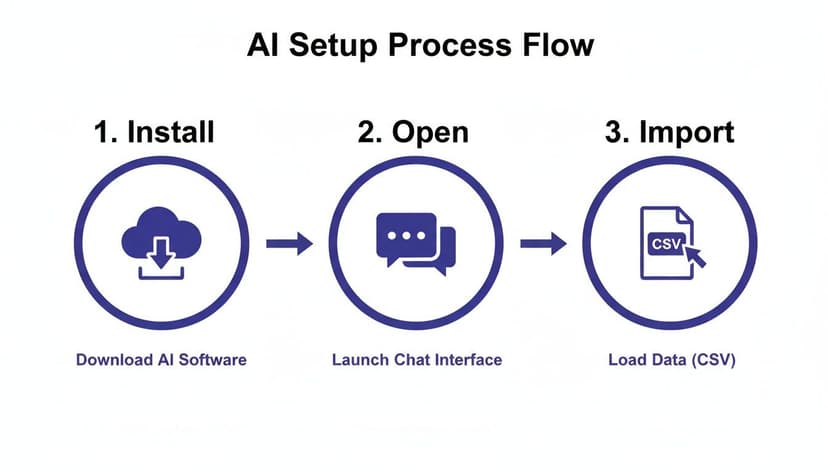
An AI tool like ElyxAI is built to feel seamless, getting you to the real work right away. To show you what I mean, here are five prompts you can copy and paste to tackle some of the most common data headaches.
1. Clean a Messy Contact List
We’ve all inherited a contact list that's a complete disaster—full of duplicate entries, typos, and inconsistent capitalization. Cleaning that up by hand is a soul-crushing task. Instead, try this.
Prompt: "Identify and remove all duplicate rows in this sheet based on the 'Email' column. Then, fix any obvious typos in the 'Company Name' column and format all names in the 'Full Name' column to Title Case."
A single sentence here replaces what would have been a tangled mess of VLOOKUPs, the TRIM function, and endless manual corrections. The AI just scans the list, zaps the duplicates, and standardizes the formatting, giving you a pristine dataset in seconds.
2. Standardize Inconsistent Dates and Addresses
Nothing throws off a report faster than inconsistent data formats. You might have dates written as "05-10-2024," "May 10, 2024," and "10/05/24" all in the same column. An AI can normalize these instantly.
Prompt: "Standardize all dates in column F to 'YYYY-MM-DD' format. In the 'Address' column, ensure all state names are abbreviated (e.g., 'California' becomes 'CA')."
This simple command forces all your data into a uniform standard, which makes sorting, filtering, and running pivot tables far more reliable.
Think of it less like coding and more like delegating a task to a very fast, very literal assistant. The clearer your instructions, the better the result.
3. Extract Key Information into New Columns
Ever need to pull one piece of information out of a cell? A classic example is extracting a first name from a full name, which traditionally requires a specific formula.
Let’s say you have a list of full names in column A (e.g., "John Smith") and you want to extract only the first name.
The traditional formula would be:=LEFT(A2, FIND(" ", A2)-1)
Formula Explanation:
FIND(" ", A2): This part finds the position of the first space in cell A2.LEFT(A2, ...-1): This part extracts the characters from the left of the cell, up to one character before the space.
With AI, you can skip the formula entirely.
Prompt: "Create a new column named 'First Name.' For each full name in column A, extract the first name and place it in the new column."
The AI immediately understands the structure of the name and isolates the first name for you. This is much faster than wrestling with a combination of FIND and LEFT formulas. If you want to see more examples, it's worth learning how an Excel AI ChatGPT integration can interpret and execute commands like this.
4. Merge Two Sheets Using a Common ID
Combining data from different sheets is a fundamental Excel task, but it often involves brittle XLOOKUP or INDEX(MATCH) formulas that break if anything changes. With AI, you can just describe the merge you want.
Prompt: "I have two sheets: 'Sales Data' and 'Customer Info.' Merge them by matching the 'Customer ID' column in both sheets. Bring the 'Customer Name' and 'Region' from the 'Customer Info' sheet into the 'Sales Data' sheet."
The AI handles the entire lookup and join process, saving you from formula errors and the headache of mismatched data ranges.
5. Generate a Quick Summary Report
After all that cleaning and organizing, you finally need to see what the data is telling you. Instead of building pivot tables from scratch, you can ask the AI to give you the highlights.
Prompt: "From the 'Sales Data' sheet, create a summary report. Calculate the total revenue, average order value, and the number of unique customers. Present this in a new sheet named 'Summary'."
This prompt turns a spreadsheet of raw numbers into actionable information in an instant. The AI does the math and arranges the results in a clean report, giving you a high-level overview without any of the manual number-crunching.
4 Ways to Validate AI Output for Flawless Accuracy
Let's be honest: handing over your excel ai data entry to a machine is powerful, but it also requires a bit of trust. You need to be sure the results are not just fast, but correct. Building a solid quality control process is key, but it doesn't mean you have to manually check every single row.
Here are four practical ways I always validate an AI's work to ensure rock-solid accuracy.
1. Spot-Check Random Rows
Sometimes the simplest checks are the most telling. Instead of trying to review an entire dataset, just grab a random sample of rows—maybe 10 to 15—and compare them against the original source data. This quick audit is surprisingly effective at catching any systemic errors or misinterpretations without getting bogged down.
For example, if you asked the AI to standardize state abbreviations, pick a few rows to confirm it correctly turned "California" into "CA" and didn't accidentally mangle a street name in the process. Think of it as your first line of defense against those subtle mistakes.
2. Use Conditional Formatting to Make Outliers Pop
Excel's own built-in tools are fantastic for a quick visual inspection. I often use Conditional Formatting because it makes potential problems practically jump off the screen, highlighting issues the naked eye would easily miss.
You can set up simple rules to instantly flag:
- Blank Cells: Did the AI miss transforming any data?
- Duplicate Values: Did that deduplication prompt actually work?
- Values Outside a Normal Range: Highlight any sales figures that are negative or unusually high, which could point to a calculation error.
This little trick turns your spreadsheet into a visual diagnostic tool.
3. Compare Summary Stats Before and After
A high-level summary is a great sanity check. Before you run any AI task, calculate a few basic metrics. Note the total row count, the sum of a key column (like 'Revenue'), or the average value.
Once the AI has done its job—say, merging two sheets or cleaning out bad entries—recalculate those same stats. If your sheet started with 1,500 rows and now has only 500, you know something big happened that needs a closer look.
This method acts as a quick "health check" on your data. If the big numbers don't align with what you expected, it’s a clear signal to investigate further before moving on.
4. Ask the AI to Check Its Own Work
This is a clever one. A good AI assistant like ElyxAI can actually help validate its own output. After it performs a task, you can simply give it a follow-up prompt to double-check the results.
For instance, you could ask: "Verify that all entries in the 'Postal Code' column are exactly 5 digits long and highlight any that are not." You’re essentially turning the AI into your personal quality assurance partner. If you need more ideas on how to structure these checks, it's worth reviewing some common data cleaning best practices.
The growth in this space is massive; the AI-powered data integration market is projected to hit $33.24 billion by 2030. This expansion, as detailed in this report on AI market projections, is driven by tools that prioritize security and privacy. ElyxAI, for example, uses AES-256 encryption and keeps all your data on your local machine, giving professionals peace of mind when working with sensitive information.
2 Strategies for Getting Your Team on Board with AI in Excel

Getting one person to use an AI tool is a nice little win. But the real magic happens when your entire team starts using it to handle Excel AI data entry. As a manager, you’re not just saving your own time; you’re unlocking dozens, maybe hundreds, of collective hours. The key is to start small by finding those annoying, repetitive tasks that everyone dreads.
This isn’t some future trend—it’s happening right now. By 2026, it's expected that 63% of advanced Excel users will be using at least one AI tool. Microsoft is all in, planning to invest a staggering $80 billion in AI data centers in 2025 to build this tech directly into Excel. With 41% of all users already aware of AI features, the momentum is undeniable. You can dive deeper into the numbers in this Excel AI statistics report.
1. Find the High-Impact Automation Wins
Get your team together and ask a simple question: "What are the 3 spreadsheet tasks that drive you crazy every week?" You aren't looking for complex, one-off projects. You want to find the recurring busywork that eats up a few hours here and there.
Look for routines like these:
- Weekly Sales Reports: Pulling numbers from five different files into one dashboard.
- Monthly Financial Summaries: Cleaning up messy transaction logs from your accounting software.
- Project Updates: Grabbing key metrics from project management exports for a status meeting.
- Customer Data Onboarding: Trying to standardize a new list of contacts from a marketing event.
These are the perfect jobs for an AI assistant like ElyxAI. It can turn hours of clicking and copying into a single, simple command. When you target these common tasks, you get immediate time savings that everyone can see, which builds a strong case for using AI more widely. If you want a deeper look at this strategy, check out our guide on how to automate repetitive tasks in Excel.
2. Build a Shared Library of Prompts
Once you’ve identified the right tasks, the next step is to create a shared "cookbook" of prompts that work. This ensures everyone gets the same high-quality result, and no one has to waste time figuring out the right words to use.
A prompt library turns individual tricks into a team playbook. It standardizes how you tackle common data problems, making your whole workflow faster and more predictable.
You can start with something as simple as a shared document or a dedicated channel in Teams. This is where you’ll store and improve your go-to prompts. For instance, a prompt for that weekly sales dashboard could be:
Prompt for Weekly Sales Dashboard:"Merge the 'New Sales' and 'Returns' sheets using the 'Order ID' column. Then, calculate the net revenue for each product category. Create a pivot table showing total sales by region and a bar chart of the top 5 products. Make the final report look clean and professional."
By creating and sharing prompts like this, you give every person on your team the power to handle complex Excel AI data entry and analysis, no matter their Excel skill level. Suddenly, the AI tool isn't just a personal assistant—it's a shared asset that makes the entire team more productive.
4 Common Questions About AI Data Entry in Excel
Whenever I show people how AI can automate their Excel work, a few key questions always pop up. It makes sense—bringing a new tool into your daily routine, especially an AI one, should come with a bit of healthy skepticism. Let's walk through the big ones.
Thinking about the bigger picture is key. It's not just about one tool; it's about fundamentally optimizing your use of spreadsheets as part of your everyday work habits.
1. How Is ElyxAI Different from Copilot or ChatGPT?
This is probably the most common question I get. While tools like Copilot and ChatGPT are great for giving you a formula or explaining a concept, they’re more like helpful assistants. They tell you what to do, but you still have to do it.
ElyxAI is different. It’s an autonomous agent. Instead of just suggesting a fix, it actually performs the entire task for you. You can give it a simple command in plain English, like "Clean up this messy data, build a pivot table showing sales by region, and make the report look professional," and it just does it all.
Think of it this way: ChatGPT gives you the recipe, but ElyxAI is the chef who cooks the entire meal.
2. Is My Data Safe with an AI Add-In?
Data security is always my first concern, and it should be yours too. The thought of uploading a spreadsheet with sensitive financial data or a private customer list to a random server is a non-starter.
This is where you need to look at the architecture. A tool like ElyxAI is built with a privacy-first approach. All the data processing happens right on your own computer. Your spreadsheet never goes anywhere. Only your non-sensitive instructions (the commands you type) are sent to the AI.
Your actual data is never logged, stored, or used to train the model. This keeps your confidential information completely private, which is an absolute must for any business.
3. Can AI Handle Really Large Datasets?
Yes, but it helps to be smart about it. Modern AI add-ins are built to chew through the kind of spreadsheets most businesses use, even those with tens or hundreds of thousands of rows. ElyxAI, for example, handles datasets of this size just fine without bogging down your machine.
If you’re working with something truly massive—we’re talking millions of rows—performance will depend on your computer’s own power. Here’s a pro tip: Before you run a complex task, ask the AI to do a quick cleanup first. Tell it to remove blank rows or get rid of columns you don't need.
By giving the AI a more focused dataset to work with, you help it deliver results faster. It’s about working smarter, and letting the AI do the heavy lifting in a more efficient way.
4. What’s the Learning Curve Like?
This is the best part. Because these tools run on natural language, the learning curve is almost flat. If you can explain what you want in a simple sentence, you can use it. You don't need to be an Excel wizard or learn a single new formula.
This opens up powerful automation to everyone on your team. Beginners can suddenly perform tasks that used to be out of reach, and advanced users can offload their most tedious work. Your focus shifts from how to do something in Excel to simply what you want to accomplish.
Ready to stop wasting time on manual data entry and let AI do the work for you? With Elyx AI, you can automate your entire workflow with simple, natural language commands. Get your 7-day free trial today and discover what it’s like to have an expert Excel assistant on your team. Start automating at https://getelyxai.com.
Reading Excel tutorials to save time?
What if an AI did the work for you?
Describe what you need, Elyx executes it in Excel.
Sign up