7 Pro Methods for Countif Between Two Numbers in Excel

A familiar Excel moment. You have a column full of values, a lower limit, an upper limit, and a simple question from a manager or client: how many entries fall in that range?
That sounds easy until the sheet gets messy. Some values are true numbers. Some are dates that only look like text. Some cells have hidden spaces. And the first formula that seemed right returns 0.
The good news is that countif between two numbers is one of those skills that becomes reliable once you understand the logic behind it. After that, you can reuse the same pattern for scores, invoice amounts, lead times, dates, and time stamps with very little adjustment.
Spending too much time on Excel?
Elyx AI generates your formulas and automates your tasks in seconds.
Sign up →Your Guide to Counting Data Between Two Values
A sales analyst opens a workbook at the end of the quarter. The file has thousands of rows, and one request is waiting in chat: count every deal that landed inside a target range. Not all sales, not the biggest ones, just the values between two limits.

If you've been solving that with filters and manual counting, you're working too hard. Excel has a cleaner approach, and once you know it, you can reuse it in many settings: scores between passing thresholds, invoices inside a review band, or project dates inside a reporting window. A quick refresher on the base function is available in this COUNTIF formula guide.
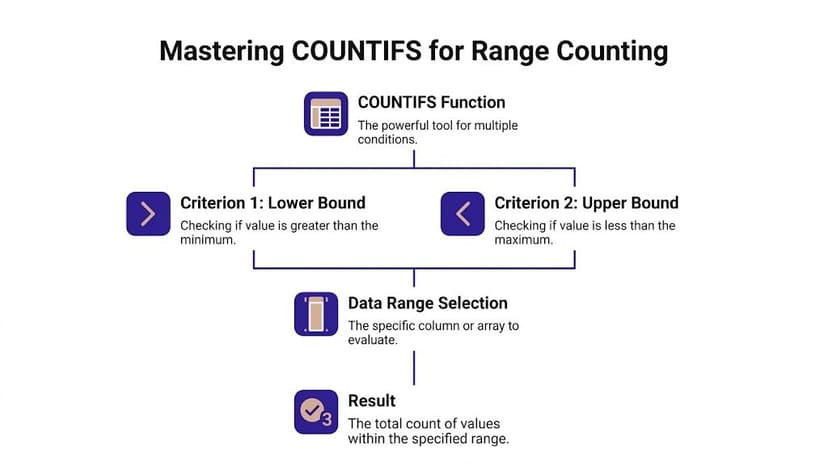
The confusion usually starts with one detail. People search for COUNTIF between two numbers, but the most reliable modern method usually uses COUNTIFS, not COUNTIF. That extra S matters because a range count needs two conditions at the same time. One condition checks the lower bound. The other checks the upper bound.
Practical rule: If your question includes both “greater than” and “less than,” you're almost always in COUNTIFS territory.
Once that clicks, the formulas become much easier to read and troubleshoot.
The Foundational Method Using COUNTIFS
COUNTIFS is the standard tool for this job in modern Excel. It was introduced in Excel 2007, and it changed range counting because it can test multiple criteria at once. In the years after that, adoption became widespread. By 2010, Excel usage hit 1.2 billion globally, and COUNTIFS was cited in 40% of advanced formula queries on forums, with analysts reportedly saving 2 to 3 hours weekly on repetitive counts, according to this COUNTIFS range counting reference.
A helpful companion reference for the syntax is this COUNTIFS formula page.
The basic pattern
Use this structure:
=COUNTIFS(range,">=lower",range,"<=upper")
That tells Excel to inspect the same range twice. The first test checks whether each value is above the lower limit. The second checks whether it is below the upper limit. Only cells that pass both tests are counted.
If your data is in B2:B15 and you want values from 35 to 75, including both ends:
=COUNTIFS(B2:B15,">=35",B2:B15,"<=75")
If you want to exclude the endpoints:
=COUNTIFS(B2:B15,">35",B2:B15,"<75")
That exact pattern works well in a student-score example. A formula such as =COUNTIFS(B2:B15,">35",B2:B15,"<75") counts only the scores strictly between those values.
Inclusive and exclusive ranges
The most common mistake is choosing the wrong operator.
| Range logic | Formula pattern |
|---|---|
| Include both limits | >= lower and <= upper |
| Exclude both limits | > lower and < upper |
| Include lower only | >= lower and < upper |
| Include upper only | > lower and <= upper |
That operator choice is where most off-by-one style errors come from.
Count “between” isn't a universal phrase in Excel workbooks. Some teams mean inclusive. Others mean exclusive. Check the reporting rule before you pick the operators.
Make the formula dynamic with cell references
Hard-coded numbers are fine for a quick check, but cell references are better for reusable reports.
If E5 holds the lower limit and F5 holds the upper limit:
=COUNTIFS(B2:B15,">="&E5,B2:B15,"<="&F5)
That & joins the operator and the cell value into one valid criterion. It lets you change the boundaries without editing the formula.
Here is the logic in plain English:
B2:B15is the range being tested">="&E5means “greater than or equal to whatever is in E5”"<="&F5means “less than or equal to whatever is in F5”- COUNTIFS counts only cells that satisfy both conditions
What about old Excel versions
Before COUNTIFS, many users relied on a subtraction method built from two COUNTIF functions:
=COUNTIF(B2:B15,">35")-COUNTIF(B2:B15,">75")
That can still work. Another classic form uses >= and > to manage boundary inclusion carefully. But it becomes harder to read when your logic gets more complex. COUNTIFS is usually cleaner.
3 Advanced Techniques Beyond Basic Counts
Basic numeric ranges are only the start. Real workbooks often involve dates, time values, imported text, or logic that doesn't fit neatly into COUNTIFS.
A recurring weakness in online tutorials is that they barely address those cases. A gap analysis found that top tutorials under-covered non-numeric data types, and user forums in 2025 showed over 1,200 unresolved queries on "COUNTIFS dates between", with professionals losing over 2 hours weekly on manual parsing, according to this analysis of date-related COUNTIFS problems.
Use SUMPRODUCT when logic gets awkward
Sometimes COUNTIFS is too rigid. Maybe you need to count values in a range while also applying a transformation, or you need logic that depends on arrays.
In those cases, SUMPRODUCT is useful. This SUMPRODUCT formula resource is a good companion if you don't use it often.
A classic range count with SUMPRODUCT looks like this:
=SUMPRODUCT((B2:B15>35)*(B2:B15<75))
Why it works:
(B2:B15>35)creates an array of TRUE and FALSE values(B2:B15<75)creates another array- Multiplying them acts like AND
- SUMPRODUCT adds the final 1s and 0s
This method is handy when you need more control than COUNTIFS gives you.
Count between two dates reliably
Dates look friendly in Excel, but underneath they're serial numbers. That's why formulas can seem wrong even when the cells display normal dates.
If your dates are in C3:C10 and you want to count from 1/1/2012 through 12/31/2012, inclusive:
=COUNTIFS(C3:C10,">=1/1/2012",C3:C10,"<=12/31/2012")
That pattern is valid when Excel recognizes the entries as true dates.
When the formula returns an unexpected result, check these first:
Stored format
The cell may display a date while storing text.Boundary choice
If your upper limit should include the final day, use<=, not<.Workbook date systems
Teams working across files can run into subtle issues because Excel's 1900 vs. 1904 date systems don't align the same way.
If a date range formula looks correct but counts too few rows, treat the cells as suspect data first. In Excel, display format and stored value aren't the same thing.
Make formulas readable with named ranges
A solid formula can still be hard to maintain if nobody can read it quickly.
Suppose you name your data range Scores, your lower bound MinScore, and your upper bound MaxScore. Then this:
=COUNTIFS(Scores,">="&MinScore,Scores,"<="&MaxScore)
is easier to understand than a long formula packed with coordinates.
Named ranges help in three ways:
- They reduce visual clutter in shared files.
- They lower editing mistakes when ranges move.
- They make your workbook self-documenting.
For reporting models and templates, that readability matters as much as the count itself.
Troubleshooting 4 Common Counting Formula Errors
A count formula that returns the wrong answer is usually failing for a small reason, not a mysterious one.
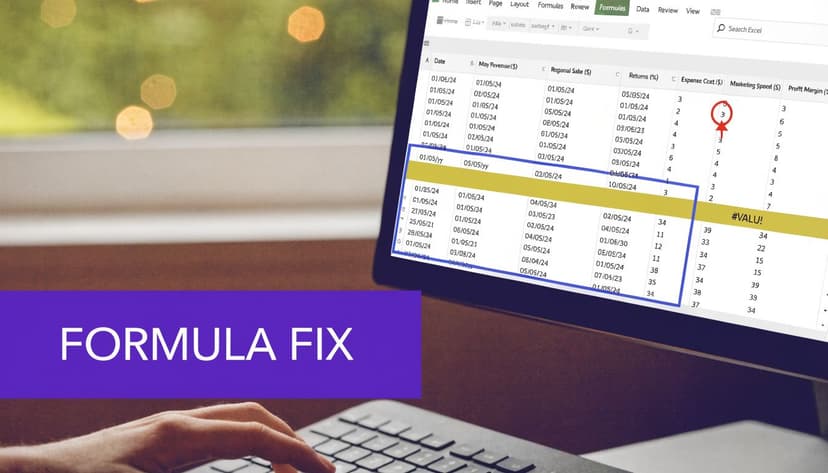
In financial workbooks, this gets worse because imported data often arrives in awkward structures. If you're standardizing sheets before formulas ever touch them, these robust Excel formats are useful examples of how cleaner layouts reduce downstream formula errors.
Error one with numbers stored as text
A cell may show 1234, but Excel may treat it as text. Then a range count can skip it.
This often happens with imported values such as "$1,234" or numbers copied from another system.
Try one of these fixes:
- Convert in place by using Text to Columns or multiplying by
1 - Create a helper column with
=VALUE(A2) - Remove currency symbols and separators before counting if needed
Error two with operator syntax
This is one of the most common COUNTIFS mistakes.
Correct:
=COUNTIFS(B2:B15,">="&E5,B2:B15,"<="&F5)
Incorrect:
=COUNTIFS(B2:B15,">=E5",B2:B15,"<=F5")
Why? Because Excel reads ">=E5" as literal text, not as an operator joined to a cell value.
Error three with hidden spaces and messy text
Imported data often contains leading or trailing spaces. If your counting logic depends on helper columns or cleaned values, those spaces can break things.
Use TRIM in a helper column:
=TRIM(A2)
If you're building a cleanup workflow around recurring import issues, this Excel error reference gives a good checklist for diagnosing strange results.
A short visual walkthrough can help when formulas look correct but still fail:
Error four with dates that look right but count wrong
Date formulas fail unnoticed when workbook settings differ or the imported values aren't true dates. The 1900 and 1904 systems can also create confusing offsets when files move between environments.
Use this quick check:
| Symptom | Likely cause | Fix |
|---|---|---|
| Count is zero | Dates stored as text | Convert to real dates |
| Count misses edge dates | Wrong operator | Check < versus <= |
| Results shift across workbooks | Date system mismatch | Review workbook date settings |
A wrong result from COUNTIFS usually means the data type is wrong, the operator is wrong, or both.
Automating Range Counts Instantly with ElyxAI
Manual formulas are still worth learning because they teach you how Excel thinks. But once your workbook includes mixed formats, helper columns, date cleanup, and repeated checks, syntax becomes the least valuable part of the job.

The practical shift is simple. Instead of writing, testing, and repairing formulas yourself, you give an instruction in plain English and let an Excel AI tool handle the mechanics. If you're comparing options in that category, this overview of best AI automation tools is a useful starting point.
One example is Elyx AI, which works as an Excel add-in and executes spreadsheet tasks from natural-language requests. If you want to see the workflow style, this Excel AI formula generator guide shows the general approach.
What changes in practice
Instead of building a formula like:
=COUNTIFS(C:C,">="&E5,C:C,"<="&F5)
you might type:
- "Count invoices paid between 30 and 60 days late"
- "Count employee start dates between January and March"
- "Count sales amounts between the limits in H2 and I2, excluding both endpoints"
That matters most when the underlying data isn't clean. The hard part usually isn't the count. It's deciding whether the values are numbers, dates, time stamps, or text pretending to be numbers.
When AI helps most
AI is especially useful when your counting task includes:
- Mixed data types that need cleanup before counting
- Natural-language reporting requests from managers or clients
- Repeated workbook updates where the same logic runs every week
- Multi-step analysis that goes beyond one formula
If you already know the manual methods, AI doesn't replace your understanding. It removes the repetitive syntax work so you can focus on whether the answer is meaningful.
From Manual Formulas to Automated Insight
A strong Excel workflow starts with logic. You need to know when a range should be inclusive, when a value is stored as text, and when a date isn't really a date. That's why the formula methods still matter.
The next productivity gain comes from choosing when not to build everything by hand. Once you can recognize the pattern, you don't need to spend your best working time stitching together criteria strings and helper columns. You can move faster and review the result with more confidence.
That broader shift is why so many professionals are paying attention to AI automation in spreadsheet work. If you're interested in the time-saving side of that change, this article on how AI automation can reclaim valuable time gives a practical business perspective.
The main skill isn't just knowing countif between two numbers. It's knowing which method fits the data in front of you, and when to switch from manual formula writing to automated execution.
If you want Excel to handle counting, cleanup, formatting, and analysis from plain-English instructions, try Elyx AI. It works inside Excel and helps turn repetitive spreadsheet work into a faster review-and-decide process.
Reading Excel tutorials to save time?
What if an AI did the work for you?
Describe what you need, Elyx executes it in Excel.
Sign up