Best Ways to add pdf to excel: From Beginner to AI

You open a PDF, see the exact table you need, then try to move it into Excel. The layout breaks. Columns shift. Dates turn into text. Totals land in the wrong cells. If you've ever had to add pdf to excel under deadline, you already know the problem isn't opening the file. It's choosing the right method for the job.
Many begin with copy-paste, only to regret it minutes later. A better approach is to think in levels. Sometimes you only need the PDF attached to the workbook for reference. Sometimes you need one clean table. Sometimes you need data from a full folder of reports. And sometimes you want the whole workflow handled with one instruction instead of a chain of manual steps.
Your 5 Options for Getting PDFs into Excel
There isn't one single way to add pdf to excel. There are five practical options, and each solves a different problem.
Spending too much time on Excel?
Elyx AI generates your formulas and automates your tasks in seconds.
Sign up →The simple end of the spectrum is about display and reference. You can embed the PDF into the workbook as an object, or insert a hyperlink that points to the source file. These methods are useful when the document needs to travel with your analysis, or when you want an auditor, manager, or colleague to open the original source from the spreadsheet.
The middle of the spectrum is about data extraction. If the PDF contains structured tables, Excel's native Power Query import is the first method I recommend. Microsoft added native PDF import in March 2020 through Power Query, which changed how many teams work with reports and statements because they no longer had to rely on awkward copy-paste routines or third-party workarounds (details in this PDF import walkthrough).
The advanced end is about scale. If the same table appears across many PDFs, Power Query can pull from a whole folder and combine the results into one refreshable dataset. That's the point where Excel stops being a manual entry tool and becomes a repeatable reporting system. If you're working on recurring file handling, this overview of Excel automation workflows is a useful next read.
For teams dealing with mixed layouts or broader document workflows, DocsBot's PDF data guide is also worth reading because it frames the extraction problem by document type, not just by tool.
Practical rule: Choose the lightest method that solves the real task. Don't build a Power Query workflow if all you need is a clickable source document. Don't embed a file if what you actually need is analyzable data.
Here’s the hierarchy in plain terms:
- Embed the PDF when you need the file inside Excel.
- Insert a hyperlink when you want a lightweight reference.
- Use Power Query from PDF for one structured document.
- Use Power Query from Folder for many similar PDFs.
- Use AI workflow automation when import is only the first step.
2 Quick Methods for Display and Reference
If you don't need to analyze the PDF's contents, don't overcomplicate it. Keep the document available from Excel and move on.

Embed the PDF as an object
Embedding puts the PDF directly into the workbook as a clickable object or icon. In Excel, go to Insert > Object > Create from File, pick the PDF, then choose whether to display it as an icon.
This method works well in a few specific cases:
- Audit trails: You summarize figures in one tab and keep the original report attached.
- Client files: One workbook can hold the analysis and the source document together.
- Review workflows: A manager can open the original PDF without searching shared folders.
The trade-off is file size. Embedding PDFs as OLE objects can increase workbook size by 300-500% for each 1MB PDF embedded, and using Link to file instead can reduce that size increase by 90%, though it creates a dependency on the file location (video demonstration of the trade-off).
If the workbook needs to be emailed, stored in Teams, or synced through SharePoint, embedding can become a workbook management problem rather than a convenience.
Insert a hyperlink instead
A hyperlink is the leaner method. Select a cell or shape, press Ctrl+K or use Insert > Link, then point Excel to the PDF file.
This is usually the better choice when:
- The PDF already lives in a shared folder
- Several people use the workbook
- You want to keep the Excel file small
- The PDF may be updated separately from the workbook
The weakness is obvious. If someone renames the file, moves the folder, or changes the shared drive path, the link breaks.
Side by side decision
| Method | Use it when | Main strength | Main weakness |
|---|---|---|---|
| Embed as object | You want the PDF inside the workbook | Portable and self-contained | Can make the workbook much larger |
| Hyperlink to file | You only need a reference path | Keeps Excel file light | Breaks if file location changes |
A related task often comes up when source files arrive in Word first and only later become PDFs or tables. In that case, this guide on converting Word tables into Excel can save time before you even touch the PDF stage.
The Best Native Method Power Query for Data Extraction
When you need the actual table, not just the document, Power Query is the native method that matters.

Microsoft introduced native PDF import in March 2020 through Power Query. For machine-readable PDFs with uniform tables, it reaches 90-95% accuracy, while manual methods can have error rates as high as 70-80% (source and methodology details). That gap is why I treat copy-paste as a last resort.
How to import one PDF into Excel
The path in Excel is straightforward:
- Go to Data
- Select Get Data
- Choose From File
- Click From PDF
- Select your file
Excel scans the PDF and opens the Navigator pane. At this point, the tool either proves useful or shows its limits. If the file is structured well, you'll see detected items such as pages and tables. Tables are usually the best starting point because they preserve structure better than page-level imports.
After you choose an item, you have two options:
- Load sends it directly into the sheet
- Transform Data opens Power Query Editor first
In practice, Transform Data is usually the right choice.
Why Transform Data matters
The first import is rarely the final dataset. You often need to clean column names, remove empty rows, fix data types, or split combined fields before the data is ready for formulas, pivots, or charts.
Common cleanup actions in Power Query include:
- Promote headers when the first row contains field names
- Change data types so numbers stop behaving like text
- Remove blank rows that came in from page spacing
- Split columns when one PDF column contains multiple values
- Filter unwanted records such as page headers or repeated totals
Clean the data before loading it into the worksheet. If you fix problems inside Power Query, refreshes stay consistent later.
Once you're done, click Close & Load. Excel creates a table connected to the query. If the source PDF changes, you can refresh the table instead of repeating the import.
What works well and what doesn't
Power Query works best with machine-readable PDFs and consistent table layouts. Financial statements, price lists, survey exports, and standard reports are good candidates.
It struggles more when the PDF has:
- Scanned pages
- Heavy visual formatting
- Merged cells
- Multi-column magazine-style layouts
- Tables split awkwardly across pages
In those cases, Excel may detect pages but not tables, or it may import the table with misplaced headers and broken rows. That doesn't make Power Query useless. It just means you may need a prep step outside Excel, or a different workflow entirely.
A practical workflow example
Say a supplier sends a monthly PDF price list. You need product code, description, and price inside Excel.
A clean workflow looks like this:
| Step | Action in Excel | Why it helps |
|---|---|---|
| Import | Data > Get Data > From PDF | Brings the source in without copy-paste |
| Select table | Choose the detected table in Navigator | Preserves structure better than a raw page import |
| Transform | Remove blanks and promote headers | Makes the dataset usable |
| Set data types | Convert price to number, date to date | Prevents formula and pivot issues |
| Load | Send to worksheet as a table | Keeps the result refreshable |
If your work involves repeated cleanup after import, this article on Excel automation for recurring tasks is a good complement because it focuses on reducing the manual work that starts after the query runs.
Advanced Power Query for Bulk Importing from a Folder
One PDF is manageable. A folder full of them is where manual habits start to fail.
If you receive recurring reports, invoices, statements, or weekly exports, importing files one by one is slow and hard to maintain. This is the point where the From Folder connector becomes more useful than the single-PDF connector.
How the folder workflow works
In Excel, go to Data > Get Data > From File > From Folder and select the folder that contains your PDFs. Power Query lists the files and their metadata.
From there, the process usually looks like this:
- Filter the file list so only PDF files remain
- Use the Content column to access each file's binary content
- Expand and combine the extracted data
- Apply the same transformation steps across all files
- Load one consolidated table into Excel
This workflow can combine data from hundreds of PDF files, and using From Folder can reduce time spent on data preparation by up to 40% for analysts who would otherwise handle files manually (example workflow in this tutorial).
The real win isn't the first import. It's the refresh. Drop a new PDF into the folder, refresh the query, and Excel updates the master table.
When this method is worth setting up
Use folder-based import when the PDFs share a recognizable structure. A monthly sales pack where every file uses the same table position is a strong fit. A random folder of differently designed reports isn't.
The key decision point is consistency. If every PDF has the same target table, Power Query can apply one set of extraction and cleanup rules. If the files vary too much, you spend more time patching edge cases than saving effort.
A practical checklist before you build it
- Standardize filenames so the folder is easier to manage
- Keep one document type per folder when possible
- Open a few sample PDFs first and confirm the target table appears similarly
- Build the query on representative files, not just the cleanest example
- Add source filename as a column so you can trace rows back to the original document
That last point matters more than people expect. Once multiple PDFs are combined into one table, being able to trace a row back to its source file makes review much easier.
If your folder import eventually needs scheduled processing or larger business workflows around it, this resource on Power Automate and Excel automation helps connect the spreadsheet work to broader process automation.
From Manual Steps to Full Automation with AI
Power Query solves the import problem well. It doesn't solve the whole reporting process.
After the data lands in Excel, someone still has to clean labels, check columns, create summaries, build pivots, format charts, and package the output for decision-makers. That's usually where most time goes.

Where AI changes the workflow
The shift with AI isn't just faster extraction. It's that you can treat the full sequence as one job.
Instead of doing this manually:
- import the PDF
- fix the headers
- remove junk rows
- build a pivot table
- create a chart
- apply formatting
- prepare a summary tab
You can describe the result you want in plain language and let an AI agent execute the sequence inside Excel.
That changes the role of the user. You're no longer the person clicking through every menu. You're directing the workflow and checking the result.
What that looks like in practice
A realistic instruction might be:
Combine all PDFs in this folder, extract the sales tables, standardize the date column, create a pivot table by region, and build a chart of the top products.
That's broader than PDF import. It includes transformation, analysis, and output. For recurring monthly or weekly work, that's where AI starts to become more valuable than a standalone extraction tool.
One option in this category is Elyx AI's PDF to Excel workflow, which is designed to operate inside Excel and execute multi-step spreadsheet tasks from a plain-language request. The practical difference is that it doesn't stop at "data imported." It can continue into cleanup, summary building, and reporting actions within the workbook.
Where this approach fits best
AI workflow automation makes the most sense when:
- The import is repetitive
- The workbook always needs the same analysis after extraction
- The user knows the desired outcome but doesn't want to perform every click
- The process mixes extraction with reporting
This is also why adjacent business tools matter. For example, teams that prepare cost documents or estimate packs often need data extracted from source documents before they can structure pricing work. In that context, Exayard AI estimating software is a relevant example of how AI can sit closer to the business process rather than acting only as a file converter.
The trade-off to understand
AI doesn't remove the need for judgment. You still need to validate outputs, especially with sensitive financial or operational data. What it removes is the repetitive mechanical layer.
For an experienced Excel user, that's a major difference. Manual skill still matters, but it stops being the bottleneck.
Choosing Your Method A Summary Table
Most PDF work in Excel goes wrong because the method doesn't match the task. People try to extract data when they only need a file reference. Or they keep doing one-file imports when the need is a repeatable folder workflow.
The right question isn't "How do I add pdf to excel?" The right question is "What do I need Excel to do with this PDF?"
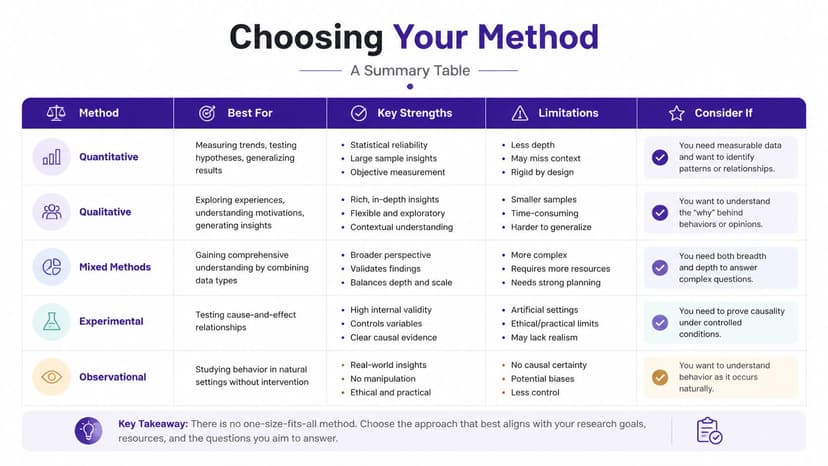
Comparison of PDF to Excel Methods
| Method | Best For | Key Advantage | Key Disadvantage | Effort Level |
|---|---|---|---|---|
| Embed as object | Keeping the source document inside the workbook | Self-contained file with direct access to the PDF | Can make workbook size hard to manage | Low |
| Hyperlink to PDF | Referencing a source file stored elsewhere | Keeps workbook lightweight | Breaks if the file is moved or renamed | Low |
| Power Query from PDF | Extracting one structured table from one PDF | Native Excel method with refreshable output | Struggles with messy or scanned layouts | Medium |
| Power Query from Folder | Consolidating many similar PDFs | Repeatable bulk import into one master table | Needs consistent file structure | Medium to high |
| AI workflow automation | Import plus cleanup, analysis, and reporting | Handles the broader Excel process, not just extraction | Still needs review and good instructions | High setup thinking, low repetitive effort |
A simple rule works well here.
- Need reference only: link or embed.
- Need data from one clean file: use Power Query.
- Need recurring imports from many files: use From Folder.
- Need the whole reporting chain automated: use AI.
The more repetitive the process becomes, the less sense it makes to keep doing it by hand.
If you're doing the same PDF-to-Excel cleanup, summarizing, and charting steps every week, Elyx AI is worth testing inside Excel. It works as an AI agent for spreadsheet workflows, so instead of stopping at extraction, you can ask for the full outcome you want and review the completed workbook.
Reading Excel tutorials to save time?
What if an AI did the work for you?
Describe what you need, Elyx executes it in Excel.
Sign up