7 Ways to Manage 15 Minute Increments in Excel & Sheets

You're probably dealing with one of two headaches right now. Either your spreadsheet has messy times like 9:07, 10:23, and 2:41 that won't fit a clean report, or you're building a schedule and need every slot to land on a predictable quarter hour.
That's where 15 minute increments become useful. They give you a consistent grid for planning, logging, rounding, validating, and automating time-based work. In Excel and Google Sheets, that consistency matters even more because time is stored as a number behind the scenes. Once you understand that, everything gets easier.
The good news is that you don't need to start with advanced automation. You can begin with manual methods, move into formulas, then add validation and automation only when your file grows beyond hand-editing.
Spending too much time on Excel?
Elyx AI generates your formulas and automates your tasks in seconds.
Sign up →Why 15 Minute Increments Are a Productivity Powerhouse
Whole-hour tracking is often too blunt. If someone starts work at 9:15 and finishes at 10:45, logging “2 hours” hides what occurred. If a team plans a day in rough blocks, small delays disappear until the schedule is already off.
15 minute increments solve that by breaking time into a quarter-hour system. Mathematically, 15 minutes equals 25% of an hour, or 0.25, and the same pattern continues with 30 minutes as 0.50 and 45 minutes as 0.75. In practical planning, an 8-hour workday becomes 32 quarter-hour units, which makes time budgets more precise and easier to track than hour-only logging, as explained in Memtime's overview of 15-minute productivity planning.
That precision is why quarter-hour logic shows up so often in scheduling, billing, and time tracking. It creates a shared language between what people see on a clock and what a spreadsheet needs for calculations.
Why analysts like quarter-hour structure
A new analyst usually gets confused by one thing first. Excel shows time as a clock value, but it calculates time as part of a day. That's why quarter hours are so handy. They're regular, repeatable, and easy to convert into formulas.
A few common wins:
- Cleaner planning: You can map a day into consistent slots instead of free-typing times.
- Better analysis: Grouping by quarter hour is much easier than grouping by random timestamps.
- Less rework: Standardized times reduce cleanup before dashboards or summaries.
Practical rule: If people keep entering slightly different times for the same kind of event, standardizing to 15 minute increments usually makes the file easier to manage.
There's also a human side to this. Short time blocks encourage focus and coordination. If you like structured work intervals, Fluidwave insights on productivity offer a useful companion idea because they show how smaller chunks can improve attention and follow-through.
For team operations, standard time blocks also make performance reviews more useful. If your reporting depends on consistent logs, this guide on measuring team productivity in a structured way is worth reading.
3 Manual Methods for Creating Time Increments
If you're building a schedule template, a booking sheet, or a helper list for dropdowns, you don't need formulas first. Manual creation is often faster, especially for a one-off workbook.

Method 1 with the Fill Handle
This is the fastest way for most users.
- In cell A2, type a starting time such as
8:00 AM. - In cell A3, type
8:15 AM. - Select both cells.
- Drag the fill handle downward.
Excel detects the pattern and continues it in 15 minute increments. Google Sheets works the same way.
This method is great when you want a visible list quickly. It's also ideal for building shift templates or appointment slots.
Method 2 with correct time formatting
Sometimes the series is right, but the display looks wrong. You might see decimal values or full date-time stamps instead of neat clock times.
Set the format before or after filling:
- In Excel: Select the cells, open Format Cells, choose Time or Custom, then use a format like
h:mm AM/PM - In Google Sheets: Select the cells, go to Format, Number, then Time
If you skip formatting, you may think the values are broken when they're fine. Only the display is off.
A spreadsheet can store the right time and still show it badly. Formatting fixes the view, not the value.
Method 3 with Fill Series
Use Fill Series when you want more control and don't want to drag manually.
In Excel:
- Enter the first time in a cell
- Select the range where the series should go
- Go to Home > Fill > Series
- Choose the appropriate series direction
- Enter a step value that represents a quarter hour
This method helps when you already know the full range size and want a clean generated list.
A practical example:
- Start at
9:00 AM - Fill downward for your working window
- Apply a time format
- Use the finished list as a source for scheduling or validation
If you're still learning spreadsheet basics, this guide on how to make a formula in Excel is a strong next step because it helps you connect typed values, formulas, and formatted results.
3 Powerful Formulas for Rounding to 15 Minute Increments
Manual lists are useful when you're generating clean slots. Real files are messier. People type actual times from calendars, emails, shift logs, or system exports. That's when rounding formulas become essential.
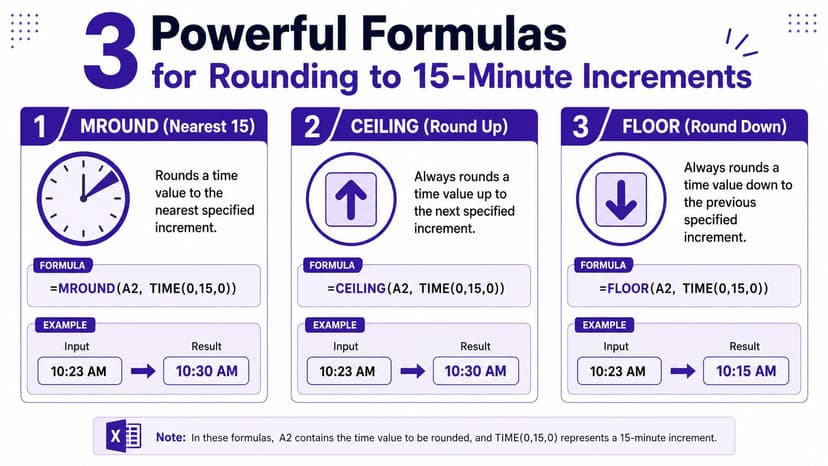
A helpful reminder before the formulas. The issue isn't only how to convert quarter hours. It's also whether quarter-hour tracking is the right level of detail in the first place. Some tools still default to broader time views, which is one reason spreadsheet rounding remains so useful for custom workflows, as discussed in Temponia's analysis of 15-minute timesheet granularity.
MROUND for the nearest quarter hour
Use MROUND when you want the nearest valid slot.
Formula:=MROUND(A2,"0:15")
If A2 contains 10:23 AM, this rounds to 10:30 AM.
Why it works:
A2is the original time"0:15"tells Excel to round to the nearest 15 minutes
This is the best choice for:
- Cleaning imported time logs
- Standardizing operational reports
- Grouping activity into quarter-hour buckets
One common confusion is the increment argument. Some users try a decimal like 0.25, thinking it means 15 minutes. In Excel time math, 0.25 means a quarter of a day, not a quarter of an hour. For time rounding, the text time value "0:15" is safer and clearer.
CEILING.MATH for always rounding up
Use CEILING.MATH when you need the next available quarter hour, even if the original time is only slightly above the previous one.
Formula:=CEILING.MATH(A2,"0:15")
If A2 is 10:23 AM, the result is 10:30 AM.
This is useful when:
- You bill or log to the next allowed interval
- You reserve buffer time for tasks
- You want start times aligned upward for scheduling
This is also the formula I reach for when someone says, “I never want partial slots. Push it to the next block.”
FLOOR.MATH for always rounding down
Use FLOOR.MATH when you want the last completed quarter hour.
Formula:=FLOOR.MATH(A2,"0:15")
If A2 is 10:23 AM, the result is 10:15 AM.
Best uses:
- Calculating completed time intervals
- Building conservative summaries
- Aligning timestamps to the last finished slot
Side by side comparison
Here's the practical difference in one view.
| Formula | Input Time (9:07 AM) | Result | Best For |
|---|---|---|---|
=MROUND(A2,"0:15") |
9:07 AM | 9:00 AM | Nearest standard time |
=CEILING.MATH(A2,"0:15") |
9:07 AM | 9:15 AM | Billing, booking, upward alignment |
=FLOOR.MATH(A2,"0:15") |
9:07 AM | 9:00 AM | Completed intervals, conservative reporting |
Key distinction: MROUND chooses the closest slot. CEILING.MATH pushes forward. FLOOR.MATH pulls back.
In Google Sheets, you can use equivalent rounding logic, though function behavior may vary slightly by setup. Test with a few examples before applying it to a full column.
If your rounded results ever look “off by a little,” the issue may be number storage rather than the formula itself. This glossary note on Excel rounding error helps explain why.
How to Validate Time Entry with Dropdown Lists
The cleanest spreadsheet isn't the one with the best cleanup formula. It's the one that prevents bad data from entering in the first place.
If multiple people type times manually, you'll get variations. One person enters 9:15, another uses 09:15, another writes 9.15, and someone else types text that only looks like time. A dropdown list fixes that.
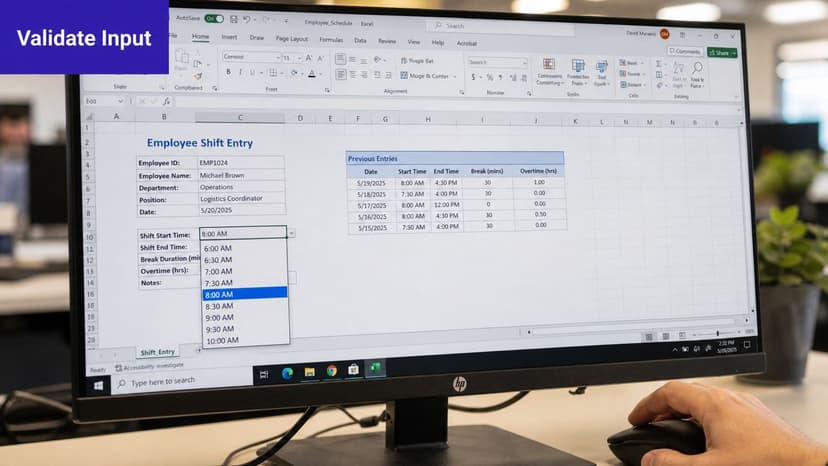
Build the source list
Create a helper column on another sheet. Fill it with quarter-hour values using one of the manual methods above. Format the cells as time so the list displays clearly.
Your helper list might contain:
- Start early: Begin with the first usable time in your business day
- Keep intervals fixed: Use only 15 minute increments
- Name the range if needed: This makes validation easier to maintain in larger files
Apply Data Validation
In Excel:
- Select the entry cells
- Go to Data > Data Validation
- Choose List
- Point the source to your helper range
Now users can select from approved times instead of typing freehand.
This one step improves data consistency beyond initial expectations. Reports sort better, formulas fail less often, and hand cleanup drops sharply.
Why this matters in real files
Dropdown-based entry is especially useful in:
- Shift schedules: Managers choose exact allowed start times
- Timesheets: Employees pick standard reporting slots
- Project trackers: Analysts log review windows in fixed blocks
Use formulas for correction. Use validation for prevention.
If you want a deeper walkthrough of the feature itself, this reference on data validation dropdowns in Excel is a good companion.
2 Advanced Ways to Automate Time Increment Workflows
At some point, formulas stop being the bottleneck. Repetition becomes the bottleneck. If you keep selecting columns, applying the same rounding logic, refreshing helper lists, and rebuilding the same schedule templates, you need automation.

There are two good paths here. One is traditional scripting. The other is AI-driven execution inside Excel.
Option 1 with VBA and Google Apps Script
If you work in Excel desktop, VBA can round a selected range in one action. In Google Sheets, Google Apps Script can do the same.
A simple VBA example:
Sub RoundToQuarterHour()
    Dim cell As Range
    For Each cell In Selection
        If IsDate(cell.Value) Then
            cell.Value = Application.WorksheetFunction.MRound(cell.Value, TimeValue("0:15"))
        End If
    Next cell
End Sub
What this does:
- Loops through each selected cell
- Checks whether the value is a valid date or time
- Rounds it to the nearest quarter hour
- Writes the cleaned result back into the sheet
A simple Google Apps Script version:
function roundToQuarterHour() {
  var sheet = SpreadsheetApp.getActiveSpreadsheet().getActiveSheet();
  var range = sheet.getActiveRange();
  var values = range.getValues();

  for (var i = 0; i < values.length; i++) {
    for (var j = 0; j < values[i].length; j++) {
      var value = values[i][j];
      if (value instanceof Date) {
        var ms = 15 * 60 * 1000;
        values[i][j] = new Date(Math.round(value.getTime() / ms) * ms);
      }
    }
  }

  range.setValues(values);
}
These scripts are useful when:
- You process recurring exports
- You manage a standard workbook every week
- You want one-click cleanup for a team
The tradeoff is setup. Someone has to create, test, save, and maintain the script.
Option 2 with AI agents in Excel
AI changes the workflow because it reduces the gap between “I know what I want” and “I know how to build it.”
Instead of writing code, a user can give an instruction such as:
- Round the time values in column D to the nearest 15 minutes
- Create a clean schedule sheet with quarter-hour slots
- Flag entries that don't match approved increments
- Summarize time by employee and time block
That shift matters for analysts and project managers who understand the business rule but don't want to maintain VBA. It also fits modern team coordination. In agile work, 15-minute time-boxing is used as a formal coordination benchmark, and the daily Scrum is commonly prescribed as a 15-minute check-in to keep coordination cost low and surface blockers early, as described in Wrike's Scrum methodology guide. The same logic applies to spreadsheet operations. Structured blocks reduce drift.
Choosing the right automation level
Not every workbook needs scripting. Not every team needs AI on day one.
Use this rule of thumb:
- Manual methods fit when the file is small and changes rarely
- Formulas fit when data is inconsistent but the cleanup rule is stable
- Scripts fit when the process repeats and the workbook structure stays predictable
- AI fits when the task is repetitive but the surrounding workflow changes often
That last category is common in operations work. One week you're rounding times. The next week you're building a shift planner, then cleaning a log export, then checking schedule gaps. In education or coaching businesses, tools like tutoring scheduling software show how much operational value comes from structured time slots and reduced admin work. Spreadsheets often need the same discipline.
If automation is the direction you're considering, this guide to workflow automation in Excel processes gives a useful framework for deciding what to automate first.
Conclusion From Manual Tasks to Autonomous Workflows
You don't need to master everything at once. The smart progression is simple. Start with manual entry when you're learning, use formulas when your data gets messy, add dropdown validation when multiple people touch the file, and automate when repetition starts wasting your time.
That sequence mirrors how strong spreadsheet skills usually develop. First you control the values. Then you control the rules. Finally, you control the workflow.
For 15 minute increments, that progression is especially powerful because time data tends to spread everywhere. It ends up in schedules, logs, timesheets, staffing plans, project trackers, and recurring reports. If the time structure is inconsistent, the whole workbook becomes harder to trust.
The long-term goal isn't just cleaner cells. It's less manual effort. When your spreadsheet can generate standard time slots, round noisy inputs, prevent bad entry, and automate recurring cleanup, you spend more time analyzing work and less time repairing it.
If you want to move beyond formulas and have Excel do the work for you, Elyx AI is built for that. It works inside Excel as an AI agent that can execute multi-step spreadsheet tasks from a plain-language request, which is a practical next step when managing time-based data starts turning into repetitive workflow maintenance.
Reading Excel tutorials to save time?
What if an AI did the work for you?
Describe what you need, Elyx executes it in Excel.
Sign up