How to Multiply a Formula in Excel: 7 Key Methods

You’re usually not trying to “multiply a formula” in just one sense.
Sometimes you want to multiply values in Excel. Other times you want to take one multiplication formula and copy it down a column without breaking the references. In larger models, you may want to update existing numbers in place without adding helper columns. Those are different jobs, and Excel gives you different tools for each.
That’s why this topic trips people up. The syntax is easy. The decision is harder. If you choose the wrong method, you end up with broken references, overwritten source data, or a workbook full of formulas that are painful to maintain.
Spending too much time on Excel?
Elyx AI generates your formulas and automates your tasks in seconds.
Sign up →Multiplying in Excel Beyond Basic Arithmetic
A common example looks simple at first. You have a column of prices and need to apply a surcharge. Writing =A2*1.12 and filling it down works if you just need a fresh result column.
But that’s only one version of the problem.
You might need to multiply each row by a rate stored in a single cell. You might need to update the original numbers instead of creating a new column. You might need to apply one multiplier to one category and a different multiplier somewhere else. In those cases, knowing how to multiply a formula in excel means understanding whether you are multiplying data, multiplying the result of another formula, or copying a multiplication formula across a model.
Practical rule: Before you type anything, decide whether you need a dynamic formula, a one-time in-place update, or a conditional calculation.
The seven methods in this article fit into those three buckets:
- Basic formula methods for direct multiplication and multiplying the result of an existing formula
- In-place update methods for changing many values quickly without helper columns
- Scalable model methods for copying formulas correctly and handling more complex logic
That distinction matters more than the operator itself. The asterisk is easy. The key skill is choosing the method that won’t create cleanup work later.
3 Core Multiplication Operators and Functions
The starting point is still the simplest tool in Excel.

Microsoft’s support documentation identifies the asterisk (*) operator as the foundational multiplication method in Excel and notes that it works for direct number multiplication and cell-based calculations, with support for up to 255 different number or cell references in advanced scenarios through Microsoft’s Excel multiplication guidance.
Use the asterisk for direct and cell-based multiplication
If you need a quick result, the asterisk is the cleanest choice.
Examples:
=5*10=A2*B2=A2*B2*C2*D2
The logic is straightforward. Excel multiplies the values from left to right according to the formula structure, and the result appears in the current cell.
This method is usually the right default when:
- you’re multiplying two or a few cells
- you want a formula that another user can read instantly
- you expect to copy the formula down a standard table
The asterisk also makes troubleshooting easier. If a result looks wrong, you can inspect each reference directly instead of unpacking a more abstract function.
Use PRODUCT when the range matters more than the syntax
PRODUCT is helpful when you need to multiply a larger set of values without manually chaining references.
Examples:
=PRODUCT(A2,B2)=PRODUCT(A2:A10)
In the second example, Excel multiplies every value in the range. That’s cleaner than writing a long string of asterisks.
For a deeper look at the syntax and common range patterns, this page on the PRODUCT function in Excel is useful when you want a formula built around ranges rather than one-off cell pairs.
PRODUCT shines when you’re building compact formulas in reusable models. It is less useful when the workbook needs to be scanned quickly by colleagues who are more comfortable reading =A2*B2.
Here’s the trade-off:
| Method | Best use | Weak spot |
|---|---|---|
* |
Simple multiplication between cells | Long formulas get messy |
PRODUCT() |
Multiplying many cells or a range | Less transparent at a glance |
A practical video walkthrough helps if you want to see these basics performed in a worksheet rather than just read them.
Multiply the result of an existing formula
Many users ask how to multiply a formula in excel and mean something slightly different.
You may already have a formula such as:
=SUM(B2:F2)
If you need to apply a markup, adjustment factor, or scaling value, don’t rewrite the original logic. Wrap it and multiply the result:
=(SUM(B2:F2))*1.05=(SUM(B2:F2))*H2
That keeps the original calculation intact. You’re not changing how the subtotal is created. You’re multiplying the output after the fact.
When a formula already expresses the business logic clearly, multiply the result outside it instead of rebuilding the entire expression.
This approach is cleaner in financial models, forecasting sheets, and reporting templates where the base formula may change later.
Multiplying an Entire Range with Paste Special
Paste Special Multiply is one of the fastest ways to update a whole block of values, and it’s often the right answer when formulas would only add clutter.

Say you need to apply the same multiplier to an existing dataset and you don’t want a helper column. Paste Special does that directly on the selected cells.
When Paste Special is the better tool
This method is useful when all of these are true:
- You want to change values in place rather than return results elsewhere
- The multiplier is a one-time adjustment
- You don’t need the result to update dynamically later
It’s especially practical for cleanup work, imported reports, and one-off revisions before sending a file to someone else.
How to use it safely
Use this sequence:
- Type your multiplier in an empty cell, such as
1.05. - Copy that cell.
- Select the range you want to update.
- Open Paste Special.
- Choose Multiply.
- Confirm the operation.
Excel multiplies every selected value by the copied multiplier and replaces the original values.
If you often work with worksheet transformations, this guide on adding cells in Excel is also useful because many users combine row or column updates with multiplication changes in the same cleanup pass.
Paste Special Multiply is fast because it skips formula maintenance. It’s risky for the same reason.
That’s the trade-off. You gain speed, but you lose flexibility.
What works and what doesn’t
Paste Special works well for flat data that won’t need frequent revision. It does not work well when the multiplier might change later, when you need an audit trail, or when the workbook depends on transparent logic.
A quick comparison makes the decision easier:
| Need | Better choice |
|---|---|
| Permanent one-time update | Paste Special Multiply |
| Reusable model | Formula |
| Easy auditing | Formula |
| Minimal worksheet clutter | Paste Special Multiply |
If you use this method, save a copy first. Once you overwrite the values, your original inputs are gone unless you undo immediately or restore from another version.
Scaling Formulas with Absolute vs Relative References
Most multiplication errors in Excel don’t come from the multiplication itself. They come from copying the formula and watching the references shift in ways you didn’t intend.
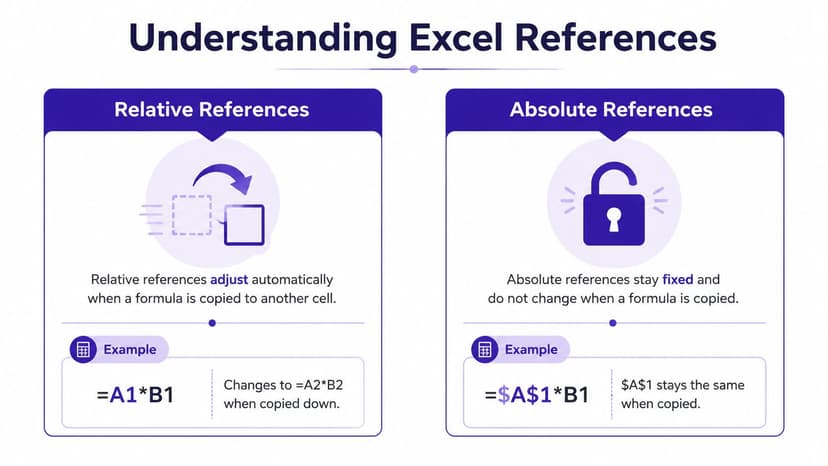
Users often struggle with when to use absolute references like $B$2 versus relative references like B2 when scaling multiplication across datasets, and that distinction is critical in larger spreadsheet models according to this discussion of multiplication methods and references.
The commission-table example
Assume:
- Column B contains sales values
- Cell F1 contains one commission rate
- Column C should calculate commission
The correct formula in C2 is:
=B2*$F$1
Then fill it down.
Why this works:
B2is relative, so it changes toB3,B4, and so on as you copy$F$1is absolute, so it stays locked on the commission rate cell
If you wrote =B2*F1 and filled down, Excel would shift the second reference to F2, F3, F4, which usually breaks the model.
The four reference types
Here is the decision framework I use when reviewing client workbooks:
| Reference type | Example | What changes when copied |
|---|---|---|
| Relative | A1 |
Row and column |
| Absolute | $A$1 |
Neither row nor column |
| Mixed row locked | A$1 |
Column changes, row stays fixed |
| Mixed column locked | $A1 |
Row changes, column stays fixed |
If you’re building reusable worksheets, mixed references matter more than most tutorials admit.
For example:
=$A1*B$2
This locks column A and row 2 while leaving the other dimension flexible. That’s useful in matrix-style models where values are copied both down and across.
A practical test before filling formulas
Before dragging a formula through a large range, do this:
- Read the business logic aloud: Which input should move with the row, and which should stay fixed?
- Copy one cell down: Check whether the moved formula still points to the right source.
- Copy one cell across if needed: Mixed references often fail here first.
- Only then fill the full range: It’s faster to validate one step than to fix a whole broken block.
If you need a refresher on building formulas from scratch before locking references, this guide on how to make a formula in Excel is a useful companion.
The fastest way to break a model is to get the logic right in one cell and the references wrong everywhere else.
That’s how to effectively multiply a formula in excel at scale. You’re not only multiplying. You’re designing how the formula should behave when replicated.
2 Advanced Methods Using Arrays and SUMPRODUCT
Once multiplication becomes conditional or needs to happen across whole ranges without helper columns, basic formulas start to feel clumsy.
Array-style multiplication for compact calculations
A classic pattern is multiplying two ranges and summing the results in one cell:
=SUM(A2:A10*B2:B10)
Conceptually, Excel multiplies each position in the first range by the matching position in the second, then sums the products. This avoids a helper column such as C2=A2*B2 followed by another total.
That’s useful for revenue-style calculations where one column contains quantities and another contains unit prices.
What works well:
- compact reporting sheets
- single-cell summary outputs
- reducing visible helper logic
What doesn’t:
- debugging is harder for less experienced users
- mismatched ranges are easier to miss
SUMPRODUCT for conditional multiplication
SUMPRODUCT is one of Excel’s most practical functions when you need multiplication and filtering in the same expression.
Example:
=SUMPRODUCT(--(C2:C10="Apples"),A2:A10,B2:B10)
How it works:
C2:C10="Apples"creates a TRUE/FALSE test--converts TRUE/FALSE into1and0A2:A10might hold quantitiesB2:B10might hold pricesSUMPRODUCTmultiplies the matching rows and returns the total
That means you can calculate product-specific revenue without adding helper columns or intermediate filters.
For more examples, this reference on the SUMPRODUCT function in Excel is useful when you need to combine conditions and multiplication in one place.
Modeling advice: Use
SUMPRODUCTwhen the formula needs to express both selection logic and arithmetic logic together.
These advanced methods are powerful, but they’re not always the right default. In shared workbooks, readability still matters. If a simple helper column makes the model easier to audit, that may be the better choice.
Stop Multiplying Manually Automate It with AI
All the methods above are valid. They also have a shared limitation. You still need to decide the formula structure, enter it, copy it, check the references, and maintain it when the workbook changes.
That becomes a burden when the request is more operational than mathematical. You’re no longer asking only for multiplication. You’re asking Excel to interpret business rules, apply them to the right rows, and leave the file usable afterward.
The workflow gap is real. Traditional methods require manual formula entry, and users increasingly need to multiply large datasets without writing individual formulas, which creates a maintenance burden in repetitive spreadsheet work as noted in this discussion of multiplying data without manual formula entry.
A lot of teams now look beyond formulas alone and start thinking in terms of implementing AI workflow solutions that can handle repetitive spreadsheet operations as part of a broader business process. In Excel specifically, that shift matters when the task includes conditions, formatting, cleanup, and reporting in one pass.
One option is Excel AI formula generation and workflow execution, where a user describes the intended outcome in plain language and the tool handles the mechanics inside the workbook. Elyx AI works in that category. It operates as an Excel add-in that executes spreadsheet workflows directly rather than only explaining the syntax.
That changes the role of multiplication methods. They’re still essential knowledge. But instead of being the whole job, they become building blocks inside a more automated process.
If you want Excel to handle multiplication tasks, formula creation, formatting, and multi-step spreadsheet work from a plain-language request, Elyx AI is built for that workflow inside Excel.
Reading Excel tutorials to save time?
What if an AI did the work for you?
Describe what you need, Elyx executes it in Excel.
Sign up