What Is Excel AI? 5 Key Capabilities Explained

Ever felt like you're wrestling with your spreadsheets, spending more time cleaning data and building reports than actually understanding them? We’ve all been there. That’s precisely the problem Excel AI is here to solve.
It’s not some single, magical button. Instead, think of it as a whole new category of intelligent features built right into the tool you use every day, turning your static spreadsheet into a dynamic partner.
What Is Excel AI? A 2-Minute Explanation

Spending too much time on Excel?
Elyx AI generates your formulas and automates your tasks in seconds.
Sign up →Simply put, Excel AI is the integration of artificial intelligence directly into Microsoft Excel. The goal isn't to replace you but to amplify what you can do. It’s about upgrading your trusty calculator to a supercomputer that understands what you’re trying to accomplish, even if you just describe it in plain English.
Because "Excel AI" is an umbrella term, it helps to break it down into the different forms it can take. Each one is designed to tackle a different kind of problem, from automating tedious busywork to discovering insights you might have otherwise missed.
The 3 Core Components of Excel AI
To really get a handle on what Excel AI can do, you need to understand its three main components. They aren't mutually exclusive; in fact, they often work together to give you a smarter, more efficient workflow.
Here’s a quick breakdown of how these pieces fit together:
| AI Component | Description | Best For |
|---|---|---|
| Native AI Features | Tools already built into modern versions of Excel. Examples include Flash Fill, Analyze Data, and parts of Power Query. | Automating common data prep tasks and getting quick insights without installing anything extra. |
| AI Assistants (Add-ins) | Add-ins that act as expert advisors. They generate formulas or code based on your prompts, but you still apply them yourself. | Getting help with complex formulas or scripts when you know what you need but aren't sure how to write it. |
| AI Agents (Add-ins) | The most advanced form of Excel AI. These add-ins take a high-level goal and execute the entire multi-step workflow for you. | Completing complex, end-to-end tasks like building a full dashboard or running a multi-step analysis autonomously. |
At the end of the day, these tools are built to solve a universal problem for professionals: our data is getting bigger and more complex, but our time isn't.
The rise of Excel AI is a direct response to this challenge. It gives us a way to automate the hours spent on repetitive manual tasks, freeing us up to focus on the high-value work of strategy and decision-making.
With over 1.2 billion people using Excel worldwide, it remains the go-to tool for data work. The market reflects this, too. The global data analytics software space, where Excel is a dominant force, was valued at $60.5 billion in 2025 and is on track to hit $143.1 billion by 2035.
This explosive growth shows just how much we need smarter tools. Advanced AI agents, like ElyxAI, are at the forefront of this shift, going beyond simple suggestions to execute entire workflows for you.
3 Native AI Features Already Built Into Your Excel

Before you start looking for advanced add-ins, you might be surprised to learn that you already have some impressive AI tools built right into Excel. Many of us use Excel every day without realizing these smart features are humming away in the background, ready to automate tedious work.
These tools are your first and easiest step into the world of AI-powered spreadsheets—no installation required. Let’s take a look at three of the most useful ones that are probably sitting in your Excel ribbon right now.
1. Flash Fill
Ever had a column of full names and needed to split them into first and last names? The manual work is a total drag. That's exactly what Flash Fill was made for. It watches what you're doing and then offers to finish the job for you.
Here’s a practical example of how it works:
- You have a list of names like "John Smith" and "Jane Doe" in column A.
- In the next column (B), you type "John" in cell B1.
- As soon as you start typing "Jane" in cell B2, Flash Fill recognizes the pattern. It will instantly suggest filling in the rest of the first names for your entire list.
Just hit Enter, and the work is done. It’s a lifesaver for splitting, combining, or reformatting text, and it does it all without you having to write a single formula.
2. Analyze Data
The Analyze Data feature is like having a data analyst on call. Instead of wrestling with PivotTables or chart settings, you can simply ask questions about your data in plain English and get answers in seconds.
Analyze Data acts like a junior data analyst. It scans your dataset, identifies key trends and patterns, and suggests relevant charts, PivotTables, and summary statistics that you can insert into your workbook with a single click.
For example, if you have sales figures, you could ask it: "show me total sales by region as a bar chart" or "what is the average unit price by product category?" The AI figures out what you mean and generates the visual for you. It's a game-changer for anyone who wants quick insights without getting bogged down in the technical details.
3. Power Query
While it's been around for a while, the AI enhancements within Power Query have made it a true powerhouse for anyone who handles data. At its core, Power Query is an engine for data transformation and automation. Its job is to connect to your data sources, clean everything up, and get it ready for analysis in Excel.
Think of it as creating a repeatable recipe for your data prep. You can perform all sorts of complex steps—like splitting columns, unpivoting tables, or merging different files—using a simple interface. Once you’ve set up your "recipe," you just hit refresh, and Power Query does all the work for you automatically. It’s an absolute must for recurring reports, saving hours of mind-numbing work each week or month.
Speaking of automation, if you find yourself building lots of formulas, you might want to see how an AI formula generator can speed up your work even more.
5 Ways AI Can Actually Change Your Day-to-Day Excel Work
While Excel's built-in features are a solid foundation, specialized AI add-ins are completely changing the game for people in finance, marketing, and operations. We're moving past simple formula suggestions. These tools can now tackle entire multi-step projects from a single, plain-English command.
This shift couldn't come at a better time. Excel is everywhere, and AI is exploding—the global AI market is on track to hit $312 billion in 2026. Professionals who have already adopted these tools report saving 3+ hours every week on tedious tasks. It’s a trend that's catching on fast, with 70% of financial institutions having brought AI into their operations by 2025.
So, how does this look in practice? Here are five real-world ways these AI agents can make your work life easier.
1. Automate Your Data Cleaning
We all know that good analysis depends on clean data, but getting it clean is a grind. AI agents can take over this whole messy process.
Picture this: you've just exported a raw sales report. It's full of duplicate rows, messy date formats, and empty cells. Instead of spending an hour manually filtering and fixing everything, you can just tell the AI: "Remove all duplicates, change the date column to MM/DD/YYYY, and get rid of any row with a blank 'Customer ID'." In seconds, it's done.
2. Generate Reports Instantly
Building a report isn't just one task; it's a dozen small ones. You have to pull data together, summarize it, and then make it look presentable. An AI agent can do all of that from one simple request.
For example, a financial analyst juggling multiple sheets of monthly expenses can just ask the AI: "Combine all my expense sheets, create a pivot table showing total spending for each category, and format it with our company's blue and grey theme." The AI will build a brand-new sheet with the finished report, perfectly formatted and ready to go.
This is the key difference: AI agents don't just give you advice; they do the work. They understand the end goal and handle all the tedious steps to get you there, changing how you think about building reports from the ground up.
3. Write and Explain Complex Formulas
Who hasn't lost an afternoon hunting for the right Excel formula on Google? With an AI tool, you can just describe what you need to do, and it will write the formula for you.
But the really good tools do more than just write—they teach. You can highlight a monster formula someone else wrote and ask the AI, "What does this do?" It will break it down for you, step by step.
Example Formula Explanation:
Suppose you have this formula:=INDEX(A1:D10, MATCH(G1, A1:A10, 0), 4)
You could ask the AI to explain it. It would reply with:
MATCH(G1, A1:A10, 0): This part finds the row number in the range A1:A10 where the value is an exact match for the value in cell G1.INDEX(A1:D10, ..., 4): This part then takes that row number and returns the value from the 4th column of that same row within the range A1:D10.
This turns confusing formulas into clear, learnable steps.
4. Uncover Trends and Forecast the Future
Spotting trends and making predictions is a huge part of business, but it used to require some serious statistical know-how. AI makes this kind of analysis accessible to anyone. You can simply ask questions like:
- "Go through the last 12 months of sales data and tell me which 3 product categories are growing the fastest."
- "Based on the last two years of website traffic, what will the next six months look like?"
The AI will run the numbers, create summary tables, and even build charts to visualize what it found, all right inside your spreadsheet. This is a perfect example of practical AI automation for business intelligence.
5. Create Smarter Charts and Visuals
Finding the right chart to tell your data's story can feel like a guessing game. AI agents can intelligently pick and create the best visualization based on your data and what you're trying to show.
A marketer analyzing campaign results, for instance, could tell the AI, "Make a bar chart comparing the click-through rates for my last five campaigns and a pie chart that breaks down traffic sources." The agent doesn't just spit out a generic chart—it builds a clear, effective one, complete with titles and data labels.
AI Assistants vs. AI Agents: A 2-Part Comparison
To really get a handle on what Excel AI can do, you first need to understand the difference between an AI Assistant and an AI Agent. They might sound like the same thing, but their functions are fundamentally different—and knowing which is which is the key to unlocking some serious productivity.
Think of it this way: an AI Assistant is like a great co-pilot. It's fantastic at giving you directions. If you need a complex formula, it can generate it for you in seconds. But it's still on you to take that formula, paste it into the right cell, and make sure it works. The assistant gives you the what, but you still have to do the how.
An AI Agent, on the other hand, is the chauffeur. It doesn't just give you directions; it gets behind the wheel and does the driving for you. You just tell it the destination.
Part 1: From Suggestions to Execution
This is where things get interesting in Excel. Instead of just getting a suggestion for a formula, you can give an AI agent a high-level goal and watch it get to work.
An AI Agent takes your complex goal, breaks it down into a series of smaller, logical steps, and then executes each one, right inside your spreadsheet, until the job is done.
For example, you could give it a messy sales report and say, "Analyze this data, get rid of all the duplicates, create a pivot table showing revenue by region, and then build a bar chart to visualize it."
An assistant would give you the steps. An agent just does it.
Part 2: How Do AI Agents Work?
This power to actually do the work comes from more advanced reasoning models. These models don't just spit out text; they can interpret your plain-English request, understand the context of your data, and then generate and run the commands needed to complete the task from start to finish.
This workflow diagram shows how an AI agent can take on entire processes, automating them from the ground up.
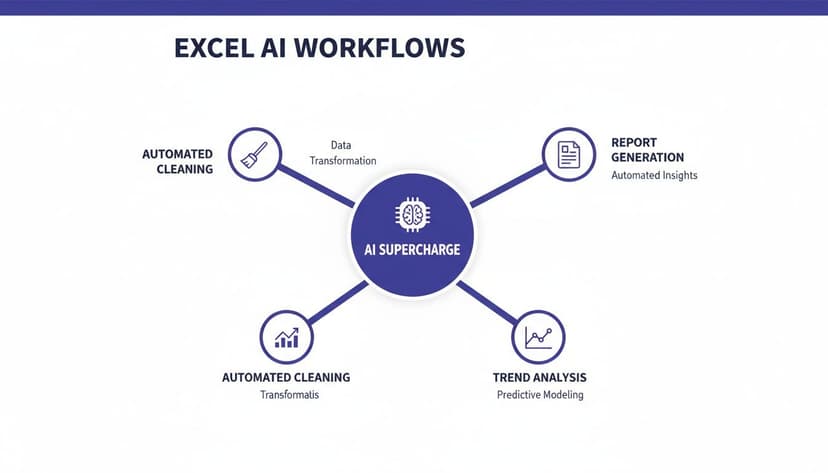
As you can see, the agent acts as a central engine, tackling multi-step jobs like data cleaning and report generation that go far beyond what a simple assistant can handle.
To help clarify the differences, here’s a direct comparison of what each type of AI can do in your spreadsheet.
| Capability | AI Assistant (e.g., Formula Generators) | AI Agent (e.g., ElyxAI) |
|---|---|---|
| Core Function | Provides suggestions, answers, and code snippets. | Executes multi-step tasks autonomously. |
| User Interaction | User copies and pastes suggestions to implement them. | User gives a high-level prompt; the agent performs the actions. |
| Task Complexity | Best for single, discrete tasks (e.g., "give me a formula"). | Handles complex workflows with multiple steps. |
| Example | Generates a VLOOKUP formula for the user to apply. | Cleans data, creates a pivot table, and builds a chart from one command. |
| Outcome | A piece of information or code for the user to act on. | A completed task or a fully finished analysis. |
The table makes it clear: assistants provide the ingredients, while agents cook the entire meal.
Of course, letting an AI have the keys to your spreadsheet naturally raises questions about security. Good AI agents are built with a privacy-first design, meaning your data never leaves your computer. Only the instructions from your prompt are sent to the AI, and none of your sensitive information is ever stored or used for training. You can see more details on how a modern AI assistant for Excel works and how it stacks up against a full-fledged agent.
A 5-Step Guide to Using Your First Excel AI Agent

The best way to really get what an Excel AI agent can do isn't to read about it—it's to see it for yourself. It’s one thing to talk about theory, but it’s another to watch a tedious task get wrapped up in seconds. Let's walk through how you can do just that in 5 simple steps.
Getting your first AI agent running is surprisingly quick, often taking less time than brewing a pot of coffee. This short guide is all about bridging that gap between knowing what Excel AI is and actually putting it to work on a real problem.
Your First AI-Powered Workflow in 5 Steps
Think of this as your quick-start mission. The goal here is to take a raw dataset and turn it into a clean analysis without writing a single formula or manually fiddling with formatting.
Here’s how it works, from start to finish:
Find and Install the Agent: Your first stop is the official Microsoft AppSource. Just search for an AI agent add-in and install it. The whole process takes about two minutes and adds the tool right into your Excel ribbon for easy access.
Open the Chat Panel: With the add-in installed, you'll see a new option to open its chat panel. This usually pops up as a sidebar right next to your spreadsheet, giving you a simple, conversational place to type your instructions.
Write Your Prompt: This is where the fun starts. Forget formulas and functions—just describe what you want in plain English. For instance, if you have a sheet loaded with sales figures, you could type: “Create a pivot table from my sales data showing total revenue by region and month.”
Run the Agent: Hit the 'Run' button. The AI agent will scan your data, figure out its structure, and start executing all the necessary steps right there on your worksheet. You can literally watch it work.
Review the Output: In just a few moments, the agent will have built the pivot table and applied some clean, professional formatting. Your raw numbers are now a structured report, ready for you to analyze.
The real change here is simple: you stop being the one doing all the tedious clicking and typing. Instead, you become the one directing the work. You provide the high-level goal, and the AI handles the execution.
This shift from "doer" to "director" is what makes these tools so powerful. You're free to focus on what the data actually means instead of getting bogged down in how to present it.
If you're ready to give it a shot, you can learn more about getting an Excel AI add-in up and running and see for yourself how much time you can save.
3 Critical Excel AI Questions Answered
As you start to see what AI can do right inside your spreadsheets, you're bound to have some questions. It’s a powerful new way of working, so it’s smart to understand the fundamentals. Let's walk through some of the most common things people ask when they're getting started.
1. Is My Data Secure When Using an AI Add-in?
This is usually the first and most important question people ask. Any trustworthy Excel AI tool is built on a privacy-first architecture, and the answer to this question has to be a firm "yes."
Here’s how it works to keep your information safe: the add-in is designed so your actual spreadsheet data never, ever leaves your computer.
- When you write a command, only your instructions (the prompt) and the basic structure of your data—like column headers—are sent to the AI model.
- All your sensitive numbers, names, and other details stay local on your machine.
- No part of your actual spreadsheet is stored on external servers or used to train AI models.
On top of that, the best tools use AES-256 encryption to protect the instructions sent between Excel and the AI. This is the same security standard that banks and governments rely on, ensuring even your prompts are completely secure.
2. How Is Excel AI Different From Microsoft Copilot?
It’s easy to get these two confused, since they both bring AI into your workflow. The key difference comes down to specialization versus generalization.
Microsoft Copilot is a fantastic general assistant that works across all your Microsoft 365 apps—Word, PowerPoint, Outlook, and Excel. It’s built for broad tasks like summarizing an email thread or creating a first draft of a presentation.
Dedicated Excel AI agents, on the other hand, are specialists. They are built from the ground up for one purpose: to master complex, multi-step tasks inside Excel. They have a deep understanding of spreadsheet-specific jobs, like cleaning messy data, building intricate PivotTables, or generating custom charts with a precision that a general tool can't match.
Think of Copilot as a helpful generalist who can assist with many things. Think of an Excel AI agent as a dedicated financial analyst you hired specifically to master your spreadsheets. Both are useful, but you call on them for very different jobs.
3. Do I Need To Be an Expert To Use Excel AI?
Not at all. Actually, one of the best things about Excel AI is how it levels the playing field, making powerful analysis accessible to everyone.
If you're a beginner, it’s like having an Excel pro sitting next to you. You can just describe what you want in plain English—"find the average sales per month"—and the AI will generate the correct formulas and steps for you.
If you're already an expert, it’s a massive productivity boost. Instead of manually clicking through ten steps to clean and chart your data, you can write a single command and let the AI do the tedious work. It doesn't replace your expertise; it just handles the grunt work so you can focus on strategy and interpreting the results.
This kind of accessibility is why the AI market is exploding. It's projected to grow from $638.23 billion in 2025 to an incredible $3,680.47 billion by 2034. The generative AI that powers these Excel agents is a huge part of that growth, giving tools the ability to understand spreadsheet structures and execute entire workflows automatically. You can discover more insights about this AI market explosion and see how it's reshaping business tools.
Ready to stop wrestling with spreadsheets and start directing them? Elyx AI acts as your autonomous data expert, executing entire workflows from a single command. Save hours each week and transform your data into insights, instantly. Try it free today and see the difference for yourself.
Reading Excel tutorials to save time?
What if an AI did the work for you?
Describe what you need, Elyx executes it in Excel.
Sign up