Translate to Tagalog Instantly Inside Excel

Tired of the endless copy-paste shuffle between Excel and online translators just to get text into Tagalog? There's a much smarter, more efficient way. By leveraging a simple AI formula, you can translate text instantly, right inside your spreadsheet. This guide will show you how to solve this common problem, eliminating the need to jump between tabs and giving you fast, accurate results directly where you need them.
Why Manual Excel Translations No Longer Work
If you've ever found yourself with a spreadsheet full of English phrases that need to be in Tagalog, you understand the painstaking process. The traditional workflow is a classic time-waster: copy a cell, tab over to a translation website, paste, copy the result, tab back, and paste it into the correct destination cell. Repeat. And repeat again.
This manual process is a breeding ground for mistakes.
Spending too much time on Excel?
Elyx AI generates your formulas and automates your tasks in seconds.
Sign up →
This old-school method isn't just inefficient; it poses a significant risk when handling important business data. Consider the practical applications: customer support scripts, marketing campaigns, or product descriptions for the Filipino market all depend on accurate translation. A single copy-paste error can lead to confusing communication, wasted resources, and potential brand damage.
The Hidden Costs of Copying and Pasting
The real problem with manual translation isn't just its slow pace. It's the cascade of issues that arise, each one presenting an opportunity to introduce errors and compromise your data integrity.
Here are a few common frustrations that arise from this outdated method:
- Formatting Disasters: You paste the translated text back into your sheet, and suddenly your carefully formatted cells are a mess. The font is wrong, the cell background color is gone, and now you have to spend even more time on cleanup.
- Human Error: It’s incredibly easy to lose your place. You accidentally paste a translation into the wrong row, and if you're dealing with hundreds or thousands of lines, finding that single mistake later is nearly impossible.
- Lack of Consistency: Using different online tools often results in slightly different translations for the exact same phrase. This inconsistency can undermine your brand’s voice and confuse your audience.
This method is not just inefficient; it's unsustainable for any professional who needs to translate to Tagalog at scale. The risk of errors and the sheer amount of time consumed make it a liability for modern data management.
The Growing Need for Tagalog Translation
The demand for high-quality Tagalog translation is expanding rapidly, largely due to the Philippines' significant role in the global economy. The business process outsourcing (BPO) industry alone is a powerhouse, employing over 1.3 million workers.
What's driving the need for better translation tools is that an estimated 30% of BPO contracts now require Tagalog as a core component for serving local customers and government agencies. This is no longer a "nice-to-have" feature; it's a business essential. Having a fast, accurate, and integrated solution directly within your worksheet has become a practical necessity. You can dive deeper into the trends shaping Tagalog language demand to see just how critical this capability has become.
Setting Up AI Translation in Your Spreadsheet

Before you can start translating directly in Excel, you'll need to install the right tool. Think of it as adding a new, powerful capability to your existing Excel toolkit. For this guide, we'll use the Elyx.AI add-in. The installation process is straightforward.
First, navigate to the official Microsoft AppSource store. Search for "Elyx.AI" and click "Get it now." Excel handles the rest, adding a new Elyx.AI tab to your top ribbon. The entire process is designed to be quick—you’ll be ready to go in just a few minutes.
This new tab serves as your central hub for AI-powered tasks, including seamless translations.
Activating and Exploring the Interface
With the add-in installed, you will see the Elyx.AI tab in the Excel ribbon. Click on it and follow the brief prompts to sign in or create an account. This one-time step connects your spreadsheet to the AI engine, unlocking its full range of features.
Take a moment to familiarize yourself with the interface. It’s designed to feel like a natural part of Excel, not a clunky third-party application. While you'll find options for data analysis and formula generation, our focus here is on the translation functions.
The key benefit of this setup is its simplicity. You don't need a background in coding or artificial intelligence to make it work. It's built for the everyday Excel user who needs to complete tasks efficiently.
The Elyx.AI panel opens on the right side of your worksheet, ready for your commands. Everything you need is right there, so you never have to leave your spreadsheet to get your text translated.
Preparing Your First Translation Task
Now that you're set up, your spreadsheet is more than just a grid of cells—it's a dynamic workspace capable of handling multiple languages. While we are focusing on integrating translations directly into your cells, it’s interesting to see how this compares to general online translation tools, which also use AI for quick language conversions.
This simple setup is what makes the following steps possible. You are now ready to use simple formulas to automate translations instead of manually copying and pasting text. If you ever need to translate an entire document at once, our guide on how to translate an entire Excel file may also be useful.
Translating Single Cells with a Simple Formula
The core of translating directly within Excel is a surprisingly straightforward formula: =ELYX.AI(). Think of this function as your direct line to an AI, allowing you to execute powerful tasks—like translation—with a simple text command right from a cell. No more switching between applications or websites.
The beauty of this function is that it understands plain English. You don't need to learn complex syntax or special codes. For a basic translation, you simply tell it what you want to do and reference the cell containing your source text.
Getting the Formula Right
Let's walk through a practical, real-world example. Imagine you have a list of customer feedback phrases in English located in column A. Your goal is to translate them into Tagalog and place the results in column B. The first comment, in cell A2, is "Excellent customer service."
The process is simple. Click on cell B2 and type the following formula:
=ELYX.AI("Translate this to Tagalog", A2)
Press Enter. In a few moments, Elyx.AI processes the request. Cell B2 will now display the Tagalog translation: "Napakahusay na serbisyo sa customer." It is truly that easy.
This cell-by-cell method is ideal for quick, precise jobs. It's perfect for translating product names, a list of survey questions, or short marketing taglines where you need instant results without disrupting your workflow.
Breaking Down the ELYX.AI Translation Formula
To get the most out of =ELYX.AI(), it helps to understand its core components. The formula is designed for flexibility, allowing you to provide clear, natural language instructions for your translation needs.
| Parameter | Description | Example Usage |
|---|---|---|
| Prompt | The text instruction telling the AI what to do. It should be clear and direct. | "Translate this to Tagalog" |
| Cell Reference | The cell containing the source text you want to translate. | A2 |
These two simple parts give you complete control over the translation process, all from within a single Excel cell.
A Few More Examples
The real power of =ELYX.AI() lies in its flexibility. As long as your prompt is clear, the AI can adapt. If you have text that could be ambiguous, adding extra detail to your instruction can significantly improve the output. Think of it as giving the AI helpful context to avoid guesswork.
Here are a few examples showing how you can tweak the prompt to achieve a more precise translation:
| Source Text (in cell A3) | Formula Example in B3 | Resulting Translation |
|---|---|---|
| Project Deadline | =ELYX.AI("Translate to Tagalog", A3) |
Takdang-aralin ng Proyekto |
| Out of Stock | =ELYX.AI("Translate this phrase into Tagalog for an e-commerce site", A3) |
Wala nang Stock |
| Please confirm your attendance. | =ELYX.AI("Translate this sentence to formal Tagalog", A3) |
Mangyaring kumpirmahin ang iyong pagdalo. |
Notice how adding context, like "for an e-commerce site" or "to formal Tagalog," refines the output? It’s a small adjustment that leads to a much better, more appropriate result.
If you want to explore the mechanics of this function further, we have another guide that goes deep into the Excel translate formula with additional tips and tricks. Mastering this single-cell method is the perfect starting point before moving on to translating entire columns.
Translating Entire Columns to Tagalog at Scale
Translating a few cells is useful, but the real power of this AI-driven approach becomes apparent when you're faced with a large dataset. Imagine manually translating hundreds of product descriptions or thousands of customer feedback entries—it would be a monumental task. This is where applying the =ELYX.AI() formula across an entire column becomes a game-changer.
The secret isn't a complex new feature; it’s built on something you likely already use: Excel's drag-and-fill handle. By setting up the formula just once, you can apply it to your entire list, generating perfectly matched Tagalog translations in seconds. What previously took hours of mind-numbing copy-pasting is now accomplished with a single click.
The Drag-and-Fill Translation Method
Let’s walk through a common business scenario. Suppose you have a list of English product features in column A, and you need a Tagalog version in column B.
You’ll start with the very first cell. In cell B2 (adjacent to your first English term in A2), enter the formula:
=ELYX.AI("Translate this to Tagalog", A2)
Hit Enter, and the first translation appears. Now, select cell B2. Notice the small square in the bottom-right corner? That's the fill handle. Double-click it, or click and drag it down to the end of your data. Excel automatically applies the formula to every row, and column B is instantly populated with the correct Tagalog translations.
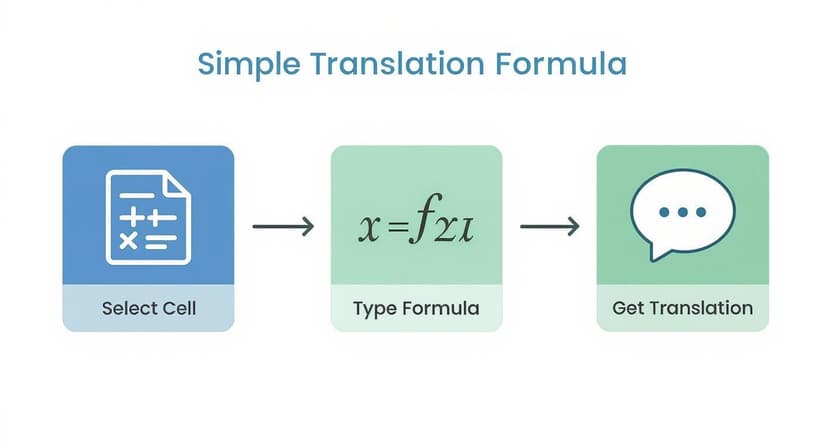
This quick workflow—select, type, get results—is what makes scaling your translation tasks so incredibly easy.
Keeping Your Original Data Safe
One of the most significant advantages of this formula-based approach is that it’s completely non-destructive. Your original English text in column A remains untouched. You are simply creating a new, parallel column for the translations.
This is crucial for data integrity. It means you can easily compare the original and translated text side-by-side to spot-check for accuracy or perform bilingual analysis. Your source data is always preserved.
Key Takeaway: The drag-and-fill method transforms a repetitive, manual task into a simple two-step process. Set the formula once, apply it to the column, and your translation is complete, all while maintaining a clean and organized worksheet.
The need for this kind of efficient translation is growing. With over 83 million speakers globally, Tagalog is a major world language, yet it constitutes less than 0.1% of online content. Businesses are recognizing this gap. Google, for instance, now processes over 10 million Tagalog translation requests every month. For more context on this, you can read the full research on global language statistics.
And remember, this bulk translation method is just as powerful in reverse. If you need to go the other way, check out our guide on how to translate from Tagalog to English for tips on that specific workflow.
Tips for Nailing Your Translation Accuracy
https://www.youtube.com/embed/mUKZa9hKS44
Obtaining a raw translation is one thing; ensuring it is accurate and contextually appropriate is another. While AI is incredibly powerful, it's not a mind reader. The best results always come from providing clear, clean, and specific instructions.
A few small adjustments to your source data and how you structure your translation request can make a massive difference in the quality of the output. Think of the AI as your new assistant: the more context you provide, the better it can grasp your intended meaning. This is especially critical when you translate to Tagalog, a language filled with nuances that simple word-for-word translations often miss.
First, Prep Your Source Data
Before you even write the formula, take a minute to review your source column. The quality of your input directly determines the quality of your output. In practice, messy source text is the leading cause of poor translations.
Here are a few actionable tips for data preparation:
- Fix Typos and Grammar: A simple spelling mistake can confuse the AI, leading to an incorrect or nonsensical translation. Running a quick spell-check is a valuable first step.
- Clarify Ambiguity: If a phrase has a double meaning, reword it for clarity. For instance, instead of just "book," specify "book a flight" or "read a book." This gives the AI the necessary context.
- Maintain Consistency: Ensure you use the same terms for the same concepts throughout your data. If you switch between "Customer ID" and "Client Number," the AI might translate them differently, creating confusion downstream.
Cleaning your data first is a small step that saves a significant amount of time you might otherwise spend correcting the translated column later.
Fine-Tune Your Translation Prompts
The real advantage of using a tool like Elyx.AI is the flexibility of the =ELYX.AI() formula. You don’t have to settle for a generic "Translate to Tagalog" command. You can add layers of detail right into the prompt to guide the AI toward a much better result.
A well-crafted prompt acts like a set of instructions, telling the AI not just what to translate, but how. This is often the difference between a generic output and a truly professional one.
For example, instead of a simple =ELYX.AI("Translate to Tagalog", A2), try getting more specific:
- Define the Tone:
=ELYX.AI("Translate this to formal Tagalog for a business report", A2) - Provide Context:
=ELYX.AI("Translate this marketing slogan to casual Tagalog", A2) - State the Obvious:
=ELYX.AI("Translate this English phrase to Tagalog", A2)
It might seem redundant to add "Translate this English phrase," but it can be surprisingly helpful. It removes any guesswork for the AI, especially with words that look similar across different languages. By using these simple tips, you can produce reliable, high-quality Tagalog translations directly inside your spreadsheet every time.
Frequently Asked Questions
When adopting a new tool to translate to Tagalog directly within your spreadsheets, questions are bound to arise. Let's address some of the most common ones to help you solve problems quickly and get the most out of the =ELYX.AI() formula.
Can I Translate From Tagalog Back to English?
Yes, absolutely. The =ELYX.AI() formula is not a one-way street. You can easily reverse the translation direction.
To translate from Tagalog back into English, you simply adjust the prompt. For example, if you have a Tagalog phrase in cell C2, your formula in cell D2 would be:
=ELYX.AI("Translate this from Tagalog to English", C2)
The AI understands the instruction and provides the English equivalent. This functionality works for any language the tool supports, making it incredibly flexible for anyone working with multilingual data.
Does the AI Translation Keep My Original Formatting?
This is a great question. The short answer is no—the formula is designed to output plain, unformatted text. It will not carry over formatting such as bold text, italics, or cell background colors from the source cell.
This is actually a feature, not a limitation. It ensures your newly translated column is a clean slate, giving you complete control. You can then apply any necessary formatting using Excel's native tools, without conflicting with styles copied over from the AI. This keeps your data clean and your formatting consistent.
What Happens If a Source Cell Is Empty?
If you apply the translation formula down a column that contains blank cells, the tool handles it gracefully. The corresponding cells in your new column will also remain empty.
You won't get a series of "#ERROR!" messages or random text. This is a huge benefit for keeping your translated column perfectly aligned with your source data, which is essential when working with large spreadsheets. The formula simply skips any blank cells it encounters.
Pro Tip: This is especially useful when working with datasets where not every row contains text to translate. It keeps your sheet tidy and saves you from having to manually delete error values later.
Is There a Limit to How Much Text I Can Translate?
While Excel itself has a character limit for a single cell (a generous 32,767 characters), the Elyx.AI tool is built to handle substantial amounts of text across thousands of rows. For almost any practical business task—such as translating product descriptions, customer feedback, or survey responses—you will have more than enough capacity.
The only practical limitations you might encounter would be related to your computer's performance when handling extremely large Excel files or the usage quotas associated with your specific Elyx.AI subscription plan.
As you delve into language processing, it's helpful to be clear on the terminology. If you're curious, this resource offers a great explanation of the fundamental difference between transcription and translation.
Ready to stop the copy-paste grind and start translating directly in your spreadsheet? Download Elyx.AI today and bring the power of AI to your Excel workflow. Visit https://getelyxai.com to get started.
Reading Excel tutorials to save time?
What if an AI did the work for you?
Describe what you need, Elyx executes it in Excel.
Sign up