7 Proven Power Automation Excel Methods to Save You Hours

Think about all those hours spent on tedious, mind-numbing Excel tasks. Copying data, updating reports, sending files… what if you could just make it all happen automatically? That's exactly what you get when you bring power automation in Excel to life with Microsoft Power Automate. It’s a tool that links your spreadsheets to hundreds of other apps, letting you build workflows that do the heavy lifting for you. This guide provides practical, real-world examples to help you master a new, valuable skill.
1. What Is Power Automation in Excel and How Does It Work?
At its core, Power Automate is a service that builds bridges between the apps and services you use every day. When you connect it to Excel, your spreadsheet stops being a static document and becomes an active part of your workflow. Instead of you manually moving data around, a "flow" takes over.
This is a game-changer for tasks that involve multiple applications. For instance, you could set up a flow to automatically capture responses from a Microsoft Forms survey and drop them straight into an Excel table. Or maybe you want to grab attachments from specific emails in Outlook and save their data to a workbook. Power Automate can handle all of that without you lifting a finger, solving the concrete problem of manual data entry.
Spending too much time on Excel?
Elyx AI generates your formulas and automates your tasks in seconds.
Sign up →The 3 Building Blocks of an Excel Flow
Every workflow you build in Power Automate, whether it’s a simple two-step process or a complex, multi-app sequence, is built from the same three fundamental parts. Getting a handle on these is the key to unlocking power automation in Excel.
Here’s a quick rundown of the essential pieces that make any Excel automation tick.
Core Components of a Power Automate Flow for Excel
| Component | Function | Excel Example |
|---|---|---|
| Trigger | The event that kicks off your workflow. | A new row is added to a specific Excel table. |
| Action | The specific job the flow performs once triggered. | Create a new file in SharePoint based on the Excel data. |
| Connector | The API "bridge" that lets apps talk to each other. | The Excel Online (Business) connector lets you read or write data. |
Understanding how these three parts—Triggers, Actions, and Connectors—work together is the first real step. A trigger starts the engine, the connector provides the fuel line, and the action is what gets done.
The push for this kind of efficiency isn't just a hunch; it's a massive trend. The Business Process Automation (BPA) market was valued at $9 billion back in 2019 and is on track to hit $19.4 billion by 2026. This huge jump shows just how much businesses rely on automation to streamline their work, with Excel often sitting right at the center of it all. You can learn more about the automation market's impressive growth on KBV Research.
For a deeper dive into the tool itself, this guide on how to use Power Automate is a great starting point.
2. Automatically Capture Form Submissions in Excel
One of the most practical ways to get your feet wet with Power Automate and Excel is to solve a problem most of us have: getting data from a form into a spreadsheet. Think about it—event registrations, customer feedback, contact forms. Instead of manually exporting and copy-pasting, what if that data just showed up in Excel, perfectly organized, the second someone clicks "submit"?
Let's build that exact flow. We'll connect a Microsoft Forms survey directly to an Excel Online workbook. Every time a new response comes in, Power Automate will instantly add a new row to a specific table. This isn't just a time-saver; it’s a "set it and forget it" process that keeps your data fresh and eliminates those pesky copy-paste errors.
Setting Up Your Trigger and Connectors
The first thing we need to do in Power Automate is tell our flow what to listen for. This is our trigger. For this job, the perfect one is "When a new response is submitted," which you'll find under the Microsoft Forms connector. It does exactly what it says on the tin: it kicks off the workflow the moment a new submission lands.
After you select this trigger and point it to the right form, you need to add your first action. This is a crucial step that many people miss at first. You need to add the "Get response details" action. Why? The trigger only tells the flow that a submission happened; it doesn't actually grab the answers from the form. This second step pulls in all that juicy data.
This simple two-step process gets the data moving from the form right into your spreadsheet.
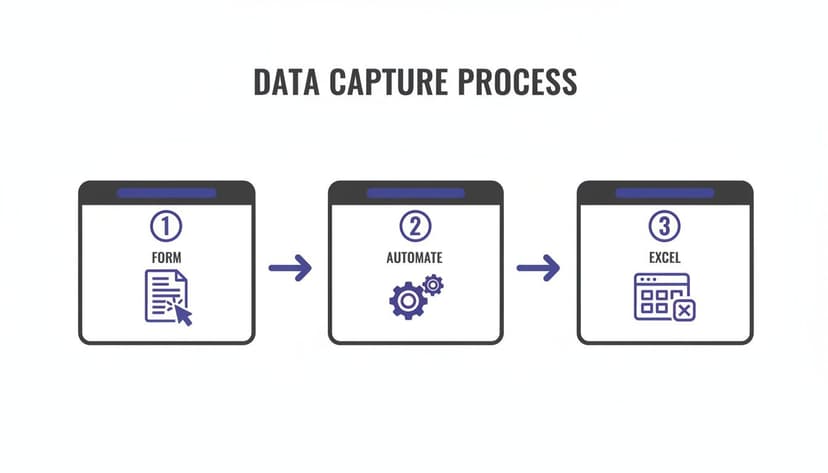
Mapping Form Fields to Excel Columns
Okay, we’ve got the data. Now where does it go? This is where the Excel Online (Business) connector comes in. Find the action called "Add a row into a table." I always recommend using Excel Tables for automation because they are structured, which makes everything more reliable.
Configuring this action is pretty straightforward. You'll just need to point it to the right place:
- Location: Where your Excel file lives—like OneDrive or a SharePoint site.
- Document Library: The specific library or folder.
- File: The name of your Excel workbook.
- Table: The exact table inside the workbook that you want to update.
Once you select your table, Power Automate cleverly pulls in all the column headers and displays them as fields. This is the fun part. You just match the answers from the "Get response details" step to the right columns in your Excel table. For example, the "Email Address" from the form gets mapped to the "Email" column in Excel. It's a simple drag-and-drop.
And that's it! You've just built a hands-free data pipeline. This does more than just save you a few minutes here and there. It creates a bulletproof system that keeps your data clean by taking human error out of the equation, ensuring your reports are always based on real-time information.
3. Automating Data Imports and Cleanup
Let's be honest, raw data is almost never clean. It's often the most time-consuming part of any analysis—fixing inconsistencies and formatting errors before you can even start. This is exactly where a smart Power Automate workflow can step in and save you from hours of tedious manual work.
Think about a common scenario: you get daily sales reports emailed to you as CSV attachments. The old way involves downloading each file, opening it, cleaning up the data, and then copy-pasting it into a master spreadsheet. We can build a flow to do all of that for you, completely hands-free.
This flow will automatically kick off whenever an email with a specific subject line hits your inbox. It will then grab the attachment, pull out the data, and add it neatly into your main Excel workbook.

From Email Attachment to Excel Row
Your starting point is the Outlook 365 connector. The specific trigger you'll want is "When a new email arrives (V3)". This is where you lay down the rules. You can get really specific, filtering by the sender's email address, a subject line like "Daily Sales Report," and even making sure it has an attachment. This kind of precision is key to making sure the flow only runs when it should.
Once the right email arrives, the flow springs into action and grabs the attachment. From there, the next few steps look something like this:
- Create file (SharePoint): First, save that CSV file to a specific SharePoint folder. This gives you a stable, cloud-based home for your raw data.
- Get rows (Excel Online): This is the step you'd normally use to read data from an Excel file. Since we're working with a CSV, we'll need to parse it first before we can add it.
- Add a row into a table (Excel Online): After the flow processes the CSV data, this action takes each record and adds it as a new row in your master Excel table. Now it's ready for analysis.
What you're really doing here is building a reliable data pipeline. It’s no longer just about moving files around; it’s about creating a system that automatically feeds clean data right into your main workbook.
This kind of automation is a huge trend. The global industrial automation market, which is a major force behind tools like Power Automate, is currently valued at $236 billion. It's projected to hit an incredible $448.3 billion by 2033. For anyone working in a data-heavy field like finance, this means getting ahead by automating complex processes that used to take days. You can see more on the growth of the automation market from Persistence Market Research.
Cleaning Data on the Fly with Expressions
Now for the really cool part. Raw data is notorious for having extra spaces, weird date formats, or other junk. You can use Power Automate expressions—which work a lot like Excel formulas—to clean things up before the data even makes it to your spreadsheet.
When you're setting up the "Add a row into a table" action, instead of just plugging in the raw data, you can use an expression to modify it first.
For instance, say a customer's name comes in with extra spaces at the beginning or end. You can use the trim() function to fix it. Here's a detailed explanation:
trim(string): This function removes all leading and trailing spaces from a text string.outputs('Get_file_content')?['body']?['CustomerName']: This is the dynamic content that pulls the 'CustomerName' value from the file content retrieved in a previous step.- The complete expression:
trim(outputs('Get_file_content')?['body']?['CustomerName']). This tells Power Automate to grab the "CustomerName" value, run thetrim()function on it, and then insert the cleaned-up version into your Excel column. It’s a simple trick, but it’s incredibly powerful for keeping your data consistent.
For even more advanced data cleaning, you might find our guide on AI for Excel helpful. By building these small cleanup steps directly into your flow, you ensure your master workbook stays accurate and ready for action.
4. Generate and Distribute Scheduled Excel Reports
Let's be honest, manually creating and sending out the same reports every week is a major time sink. This is where power automation excel really shines. You can build a flow that does all the heavy lifting—pulling data, refreshing charts, and emailing the finished report—so you can focus on work that actually requires your brain. Think of it as putting your reporting on autopilot.
A classic example I see all the time is the weekly sales summary that needs to go out every Monday morning. We can build a flow that runs on a schedule, updates the Excel workbook with the latest numbers, converts it to a clean PDF, and shoots it off to the team before you've even had your first coffee.

Triggering a Flow on a Schedule
The starting point for any scheduled task is the Recurrence trigger. This built-in trigger is your best friend for time-based automation. It’s surprisingly powerful, giving you control over the exact timing of your flow.
You can set it to run:
- Frequently: Every minute, hour, day, week, or month.
- On an Interval: Need something to run every 3 days or every 2 weeks? No problem.
- At Specific Times: You can dial it in to run only on certain days (like Monday) and at a specific hour (say, 9:00 AM).
For our weekly report scenario, you’d just set the frequency to "Week," the interval to "1," and pick "Monday" at "9:00." That's it. This simple trigger is what kicks off the entire reporting process automatically.
From Data Refresh to PDF Delivery
With the schedule set, the flow gets to work. The next few steps are where the magic happens, turning your live spreadsheet into a polished report ready for your team.
First up, you’ll use the "Run script" action, which you can find in the Excel Online connector. This action lets you execute a pre-written Office Script inside your Excel file. I often use this to refresh external data connections or update pivot tables, ensuring the report always reflects the latest information.
Once your data is fresh, you'll want to package it up nicely. The OneDrive for Business connector includes a handy action called "Convert file," which can instantly turn your Excel worksheet into a PDF. This is great because it creates a professional-looking document that’s easy for anyone to open and prevents people from accidentally messing with the numbers.
The final piece is getting the report to your team. You’ll use the "Send an email (V2)" action from the Outlook 365 connector. Here, you can attach the PDF you just created and send it to your distribution list. Pro tip: use dynamic content to create a smart subject line, like "Weekly Sales Report – [Current Date]," so everyone knows what they're getting.
This entire sequence—from scheduling and data refreshing to file conversion and emailing—is a perfect example of how power automation in Excel can handle complex, recurring business tasks. If you're looking to take your analysis even further, our guide on AI-powered data analysis is a great next step.
5. Let AI Do the Heavy Lifting for Smarter Analysis
Basic automation is great for saving time, but this is where things get really interesting. When you inject artificial intelligence into your Excel workflows, you turn your spreadsheets from static data repositories into active, intelligent tools. With Power Automate's AI Builder, you can build flows that don't just shuttle data around—they actually understand it.
Think about it. You could have a flow watching an Excel table where new customer feedback lands. Instead of just sitting there, an AI-powered flow can instantly read each comment, analyze its sentiment, and drop "Positive," "Negative," or "Neutral" into the next column. Suddenly, you have actionable insights without a single person having to read through everything first.
How to Use AI Builder Models in Your Flow
Getting started with AI in Power Automate is surprisingly straightforward. You don't need a PhD in data science. AI Builder comes packed with pre-built models you can simply plug into your workflows.
All you have to do is add a new action from the AI Builder connector. For anyone living in Excel, a few models are incredibly useful right out of the box:
- Text Classification: Got a spreadsheet full of support tickets or product feedback? This model can automatically sort and categorize them based on rules you define.
- Keyword Extraction: This one is perfect for pulling out the most common themes from large blocks of text, like survey responses or customer reviews. It helps you see what people are really talking about.
- Sentiment Analysis: As I mentioned, this model reads the emotional tone of text. It's a fantastic way to keep a pulse on brand perception or even employee morale.
For example, a flow could trigger every time a new row is added to your feedback table. It would grab the comment, send it over to the sentiment analysis model, and then pop the result right back into that same row using the "Update a row" action. Your data gets richer in real-time. We dive deeper into how these systems are reshaping work in our guide to AI automation.
This isn't just about speed; it's about adding intelligence. By embedding AI directly into your power automation excel workflows, you can uncover insights that used to take hours of manual work. Your team can spot trends and jump on opportunities much faster.
It's Not Just About Text
The potential here goes way beyond just analyzing text. You can also get into predictive models. Imagine training a model on your historical sales data from an Excel file. You could then build a flow that automatically calculates the conversion probability for every new lead, filling in a "Likelihood to Close" column all on its own.
This isn't just for general business tasks, either. AI is being applied to highly complex and regulated fields. For example, some companies are now using AI for ESG data collection to automate the incredibly tedious work of gathering environmental, social, and governance data. You can apply the exact same principles to your own industry's unique challenges, effectively turning your Excel files into dynamic, predictive powerhouses.
6. 5 Essential Tips for Managing Your Flows
Getting your first automation up and running is a great feeling. But the real magic happens when you build flows that are dependable, easy to manage, and ready to scale. Once you have more than a handful of flows, keeping everything straight becomes a real challenge. A little organization upfront will save you a world of headaches down the road.
These five habits will help you turn a simple power automation excel workflow into a rock-solid business tool that you can easily fix or adapt when things change.
Always Use Clear Naming Conventions
This sounds almost too simple, but it's the single most important habit you can develop. Six months from now, when a flow inevitably breaks, generic names like "Get a row" and "Update a row" will be completely useless. You have to be descriptive.
Take a few extra seconds to rename your triggers and actions so they explain what they're actually doing:
- Instead of
Get response details, tryGet New Survey Submission Details. - Change
Add a row into a tableto something likeAdd New Lead to Master Sales Sheet.
This tiny bit of effort makes your flows practically self-documenting. It's a lifesaver for you or anyone else who has to look at them later.
Group Actions with Scopes for Better Logic
As your automations get more complex, they can start to look like a long, tangled spaghetti noodle of actions. This is exactly what the Scope control is designed to prevent. Think of a Scope as a container that lets you bundle related actions together.
For instance, you could put all your "Data Cleanup" steps into one Scope and all your "Notification Steps" into another. This instantly makes your flow cleaner and much easier to read at a glance. Scopes are also a game-changer for error handling, as you can set them up to run specific actions only when a step inside them fails.
Pro Tip: I like to think of Scopes as chapters in a book. They create logical breaks in your automation's story, making the whole thing easier to follow and, more importantly, easier to debug when something goes wrong.
Set Up Proactive Failure Notifications
You should never have to wait for a coworker to tell you a critical report didn't run. Power Automate gives you the tools to build proactive error handling right into your flow.
A simple, powerful way to do this is by adding a parallel branch to your main workflow. On one side, you have your main sequence of actions. On the other side, you configure a separate set of actions that will only run if the main branch fails. You can have it send you an email or a Teams message with the specific error details, letting you know about a problem the moment it happens.
This kind of proactive management is becoming non-negotiable, especially with the rise of AI. The AI in Industrial Automation market is projected to skyrocket from $23.76 billion in 2025 to over $131.62 billion by 2035. This trend is a direct response to the 20-30% of the work week many people lose to manual data chores. Automating these tasks, including things like advanced AI data cleaning, is now a fundamental business strategy. You can find more on the explosive growth in industrial AI on Roots Analysis.
7. Answering Your Top 3 Power Automate & Excel Questions
When you start connecting any new tools, you're bound to hit a few snags. It's just part of the process. When it comes to making Power Automate and Excel play nicely together, a few common questions and roadblocks pop up for almost everyone. Let's walk through them so you can get back to building.
Can Power Automate Work with Desktop Excel Files?
This is usually the first big question people have, and for good reason. The simple answer is no—Power Automate can't directly reach into your local C: drive or desktop to grab an Excel file.
Because Power Automate is a cloud service, it needs a stable, web-accessible path to find your file. This means your Excel workbook has to live in a cloud storage service that Power Automate can connect to.
Your best bets for this are:
- OneDrive for Business
- SharePoint Online
- Dropbox
- Google Drive
Once your file is in one of these locations, the Power Automate connectors can see it and interact with it, which is the essential first step for any automation.
How Does Power Automate Handle Large Excel Files?
This is a huge one. Power Automate is powerful, but it's not built for massive datasets right out of the box. For instance, the "List rows present in a table" action will, by default, only grab the first 256 rows. This little detail can trip you up if you’re expecting your flow to process thousands of entries.
To fix this, you have to dive into the action's settings and turn on Pagination. This tells the flow to keep fetching data in batches until it gets everything, up to a limit you can define (like 5,000 rows). Just be warned, performance can take a hit with really big files.
For workflows dealing with tens of thousands of rows or heavy-duty bulk updates, a better approach is often to use Office Scripts. You can have Power Automate simply trigger a script, and that script does all the heavy lifting directly inside Excel. It's way more efficient for processing data at that scale.
And if you're looking to perform complex calculations directly within your spreadsheet, our guide on advanced Excel formulas is a great place to start.
What Is the Difference Between Power Automate and Macros?
I hear this question all the time, and it’s a great one because it gets to the core of what each tool is designed to do. Both are about automation, but they operate in totally different worlds.
Here’s the breakdown:
| Tool | Scope | Best For |
|---|---|---|
| Excel Macros (VBA) | Internal (inside a single workbook) | Formatting cells, complex calculations, and manipulating data within a spreadsheet. |
| Power Automate | External (between Excel and other apps) | Moving data from an email into Excel, or taking a new Excel row and creating a Planner task. |
Think of it this way: Macros are the experts that work inside the walls of your Excel file. Power Automate is the courier that connects Excel to everything else. They solve different problems, and sometimes, they even work great together.
Ready to stop doing the work and start directing it? Elyx AI is your autonomous agent inside Excel. Just describe your entire workflow in plain English—from data cleaning and analysis to creating pivot tables and charts—and watch it get done in seconds. Try it free and save hours this week. Get your 7-day trial of Elyx AI today.
Reading Excel tutorials to save time?
What if an AI did the work for you?
Describe what you need, Elyx executes it in Excel.
Sign up