A Practical Guide on How to Use the COUNTIF Function in Excel

The COUNTIF function is one of the most practical and powerful tools in Excel. Its purpose is simple but essential: it counts the number of cells within a specified range that meet a single condition you define. With its straightforward syntax, =COUNTIF(range, criteria), it is an indispensable function for generating quick data summaries and answering specific questions about your dataset, such as, "How many times did we sell 'Laptops' this quarter?"
This guide provides a clear, value-driven walkthrough to help you master COUNTIF, turning a common data-counting problem into a simple, actionable solution.
Understanding the Core of COUNTIF
Spending too much time on Excel?
Elyx AI generates your formulas and automates your tasks in seconds.
Sign up →At its heart, COUNTIF is a fundamental statistical function, relied upon by professionals for delivering quick answers without the need for complex formulas. It's so foundational that industry surveys show over 78% of regular Excel users depend on COUNTIF for essential data analysis in business, finance, and education. It's one of the first functions that provides a tangible new skill for anyone learning spreadsheet analysis.
If you're building your foundational knowledge, you can explore more key functions in our guide to essential Excel formulas for beginners.
The Two Pillars of a COUNTIF Formula
The elegance of the COUNTIF formula lies in its simplicity. To use it effectively, you only need to understand its two components.
This reference table breaks down the two essential parts of the COUNTIF formula, providing a practical explanation for each.
| Component | Description | Example |
|---|---|---|
| Range | This is the group of cells you want Excel to evaluate. It could be a column of product names (e.g., A2:A100) or a row of sales figures (B2:Z2). | A2:A100 |
| Criteria | This is the specific condition the cells must meet to be counted. It can be a number (100), text ("Complete"), a logical expression (">50"), or a cell reference. |
">50" |
Mastering these two arguments is the key. Once you understand their distinct roles, applying the function becomes second nature.
Key Takeaway: Remember this simple rule: The
rangeis where Excel looks, and thecriteriais what it's looking for. This concept is the foundation for solving countless data-related problems.
Learning a function like COUNTIF builds a solid foundation for more advanced tasks. For instance, in finance, professionals might create a DCF model Excel template, which relies on the same principles of defining ranges and criteria, just at a larger scale. Starting with COUNTIF is the perfect step toward those bigger data analysis goals.
Counting Cells with Specific Text or Numbers
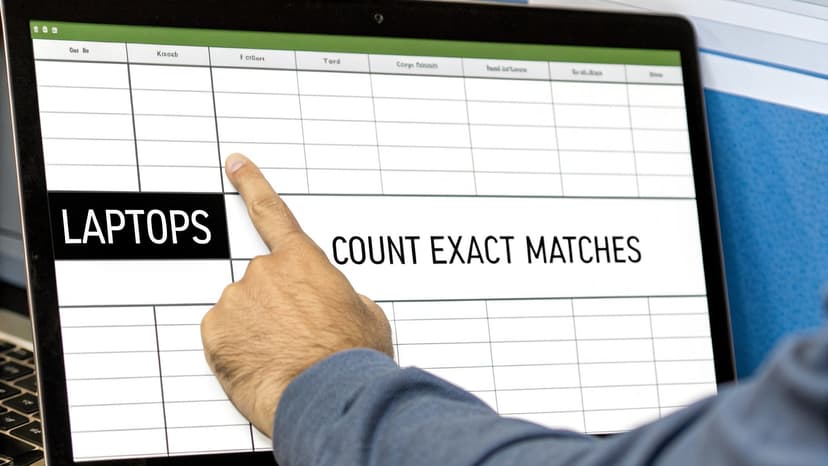
With the syntax understood, let's explore practical applications. The most common use of COUNTIF is counting cells that contain a specific word or number. This provides an immediate solution for tasks like inventory checks, sales report summaries, and data validation, turning raw data into actionable information.
For example, imagine you are a marketing manager reviewing a sales report where Column B lists every product sold. You need a quick count of how many "Laptops" your team sold.
Finding Exact Text Matches
When your criterion is text, it must be enclosed in double quotation marks. This tells Excel to search for that exact string of characters.
For our laptop example, the formula is:=COUNTIF(B2:B150, "Laptop")
Let's break that down:
- B2:B150 is our
range—the list of products Excel will search. - "Laptop" is our
criteria. The formula counts every cell in the range containing the exact text "Laptop".
This method is highly practical. An HR manager could tally employees in a specific department using =COUNTIF(C2:C100, "Sales"), providing an instant headcount without manual sorting.
Pro Tip: COUNTIF is not case-sensitive, meaning it treats
"Laptop","laptop", and"LAPTOP"as identical. This feature is a significant advantage, as it prevents errors from inconsistent data entry.
Counting Specific Numbers
Counting numbers is even more direct, as you typically do not need quotation marks.
Imagine you're managing inventory, and column D shows the stock level for hundreds of items. You need to identify how many products are completely sold out (stock level of zero).
The formula would be:=COUNTIF(D2:D500, 0)
In this instance, Excel scans the range D2:D500 and counts every cell containing the number 0. This simple function delivers an instant, useful insight, transforming a tedious manual task into an efficient, split-second operation.
Using Operators and Wildcards for Flexible Counting

While counting exact matches is useful, the true power of COUNTIF is unlocked when you introduce more flexible conditions. Operators and wildcards allow you to solve more complex, real-world problems by counting cells based on criteria that go beyond a simple match.
A sales manager, for example, is more likely to ask, "How many deals were over $5,000?" than "How many sales were exactly $5,000?" This is precisely the type of practical question COUNTIF is designed to answer.
Using Logical Operators for Deeper Insights
Logical operators such as greater than (>), less than (<), and not equal to (<>) enable you to count numbers that fall within a certain range. The key is to enclose the operator and the value in double quotation marks.
Let's say a professor uses a spreadsheet to track exam scores in column C and needs to count how many students did not pass (a score below 60). The formula is:
=COUNTIF(C2:C35, "<60")
This formula instructs Excel to scan cells C2 through C35 and count how many values are less than 60, providing an immediate answer.
Similarly, our sales manager could find all deals over $5,000 in column F with this formula:
=COUNTIF(F2:F200, ">5000")
Finding Partial Matches with Wildcards
What if your data is not perfectly uniform? You might need to count product codes that start with a specific prefix or find all email addresses from a particular domain. Wildcards are the solution for these partial-match scenarios.
Excel offers two primary wildcards:
- Asterisk (*): Represents any number of characters. For example, the criterion
"*@company.com"will count any email address ending with that domain. - Question Mark (?): Represents exactly one character. A criterion like
"PROD-???"would matchPROD-001but notPROD-ABCD.
A warehouse manager needing to count all items with a 'PROD-' prefix in column A could use:
=COUNTIF(A2:A500, "PROD-*")
Real-World Impact: These techniques are not just academic; they are essential for practical data analysis. A 2023 survey found that 54% of advanced Excel users frequently combine
COUNTIFwith other functions to build powerful reports. You can explore more practical Excel COUNTIF examples to deepen your understanding.
By mastering operators and wildcards, you elevate COUNTIF from a simple counter to a precise analytical tool for extracting meaningful insights.
Counting Dates and Dynamic Criteria

In project management, finance, and logistics, counting based on dates is a common and critical task. Answering questions like "How many tasks are overdue?" or "Which invoices are due this week?" becomes simple with COUNTIF, especially when you make the criteria dynamic.
For a project manager, this means creating a dashboard cell that automatically updates to show the number of overdue tasks. The solution lies in combining COUNTIF with the TODAY() function.
Creating a Dynamic Overdue Task Counter
To make a date-based formula dynamic, you must concatenate a logical operator (like <) with a function or cell reference using an ampersand (&). This symbol joins the two elements into a single criterion that Excel can interpret.
If your deadlines are listed in column A, this formula will count every date that has already passed:
=COUNTIF(A2:A100,"<"&TODAY())
Here's how this practical formula works:
- A2:A100 is the range containing your deadlines.
- "<" is the "less than" operator, enclosed in quotes.
- & is the concatenation operator that joins the string and the function result.
- TODAY() is a dynamic function that returns the current date.
Since TODAY() updates every time the workbook is opened, this formula provides a live count of overdue items without any manual intervention. For this to work reliably, your data must be clean; our guide on how to clean data in Excel offers actionable tips for preparing your data.
This dynamic approach is a cornerstone of business analytics. A Smartsheet study revealed that 67% of organizations use functions like COUNTIF to track project timelines. Their 2022 analytics showed this exact
TODAY()formula was used over 45 million times in six months. You can find more insights on Smartsheet's community forum.
Mastering the & operator is a key skill for building flexible, automated reports that save time and reduce human error.
Solving Common COUNTIF Errors and Issues
https://www.youtube.com/embed/slFI_8yVPfE
Even a straightforward function like COUNTIF can sometimes produce errors. Encountering an error is a natural part of learning Excel; the key skill is learning how to diagnose and solve the problem efficiently.
Let's address the most common issues that cause a COUNTIF formula to fail.
Why Is My COUNTIF Formula Not Working?
Often, the issue lies not with the formula but with the data itself. A frequent culprit is hidden characters. A cell that appears to contain "Laptop" might actually contain "Laptop "—a trailing space that makes it a different value to COUNTIF. The TRIM function is an excellent tool for cleaning these extra spaces.
Another common mistake is forgetting to enclose criteria in quotation marks. A formula like =COUNTIF(A1:A10, >50) will not work because Excel needs the criteria >50 to be formatted as a text string. The correct syntax, =COUNTIF(A1:A10, ">50"), resolves this ambiguity.
If formula errors are a recurring challenge, sharpening your diagnostic skills is essential. Our guide on Excel formula troubleshooting provides a systematic approach to solving any formula problem.
Troubleshooting Common COUNTIF Errors
When your formula doesn't work, a targeted troubleshooting approach is more effective than guesswork. This quick-reference table helps you pinpoint and fix the most frequent COUNTIF issues, providing a clear solution for each problem.
| Error / Issue | Common Cause | Solution |
|---|---|---|
| #VALUE! Error | The formula references an external workbook that is closed. | Open the source workbook. For more stable results, consider consolidating the required data into your current worksheet. |
| Incorrect Count | The data range contains hidden spaces or other non-printing characters that cause mismatches. | Use a helper column with the =TRIM() function to create a clean version of your source data before applying COUNTIF. |
| Zero Count | The criteria (text or logical operators like > or <) are not enclosed in quotation marks. |
Always enclose text and logical operators in double quotation marks to ensure Excel interprets them correctly. |
This table covers the primary issues, but there's one more crucial point.
The main limitation of COUNTIF is its inability to handle more than one condition. If you need to count based on multiple criteria—for instance, sales of "Laptops" in the "North" region—you must use its more powerful sibling, COUNTIFS. Learning COUNTIFS is the natural next step for more complex data analysis.
Got a Question About COUNTIF?
Even after mastering the basics of COUNTIF, certain questions frequently arise. This section provides clear, practical answers to the most common queries, serving as a quick reference to help you solve problems and continue your work.
Can I Use COUNTIF for More Than One Condition?
No, the standard COUNTIF function is designed to evaluate only a single condition. It is highly effective for simple tasks like counting sales over $1,000 or finding all occurrences of a specific product.
When your analysis requires multiple criteria—such as finding all "Laptop" sales in the "North" region—you should use COUNTIFS. This function is specifically designed to handle multiple range/criteria pairs, enabling more layered and specific data counts.
Is COUNTIF Case-Sensitive?
Fortunately, COUNTIF is not case-sensitive. This is a significant advantage when working with data that may have inconsistent capitalization.
For example, the formula =COUNTIF(A1:A10, "apple") will correctly count cells containing "apple," "Apple," or "APPLE." If you ever require a case-sensitive count, a more advanced solution using a combination of the SUMPRODUCT and EXACT functions is necessary.
How Can I Use a Cell as My Criteria?
Using a cell reference for your criteria is a powerful technique for creating dynamic spreadsheets. Instead of hard-coding a value into your formula, you can point to a cell. When the value in that cell changes, your formula result updates automatically.
For a direct match, you can omit the quotation marks.
To count how many cells in the range A1:A10 match the value in cell B1, the formula is:
=COUNTIF(A1:A10, B1)
When using a logical operator like ">" or "<", you must concatenate the operator (in quotes) with the cell reference using an ampersand (&). To count cells in A1:A10 that are greater than the value in B1, you would write: =COUNTIF(A1:A10, ">"&B1). Mastering this technique is essential for building flexible and interactive reports.
Ready to stop wrestling with formulas and let AI handle the hard work? Elyx.AI is an AI assistant that integrates directly into Excel, allowing you to generate complex formulas, clean data, and derive instant insights using simple text prompts. You can transform your Excel workflow by downloading the add-in at https://getelyxai.com.
Reading Excel tutorials to save time?
What if an AI did the work for you?
Describe what you need, Elyx executes it in Excel.
Sign up