How to Learn Excel Fast Using Smart Strategies & AI

You don't need to spend months becoming an Excel whiz. The secret to learning Excel fast is to focus on the practical skills that solve the real-world problems you face every day. Forget about memorizing hundreds of functions. You can master the vital 20% of skills that handle 80% of common business tasks, especially when you have modern AI tools to accelerate your learning.
Your Fast Track to Mastering Excel
Let’s ditch the old-school methods. Flipping through dense textbooks or slogging through hours of tutorial videos just isn't the most efficient way to learn anymore. The modern path to Excel proficiency is smarter, more intuitive, and heavily focused on practical application. The goal is to shift your mindset from "learning everything" to "learning what actually solves my problem right now."
This guide is your roadmap to doing just that. We'll cut through the noise and show you what truly matters. I'll also explain how AI tools like Elyx.AI can act as your personal tutor, helping you generate and understand complex formulas without getting lost in confusing syntax.
Spending too much time on Excel?
Elyx AI generates your formulas and automates your tasks in seconds.
Sign up →A Modern Approach to Learning
The traditional way of learning Excel usually starts with a ton of theory and rote memorization. It’s slow, and honestly, pretty discouraging for most people. An AI-accelerated approach flips that on its head by putting practical, hands-on problem-solving first.
This infographic captures the difference between the two journeys.
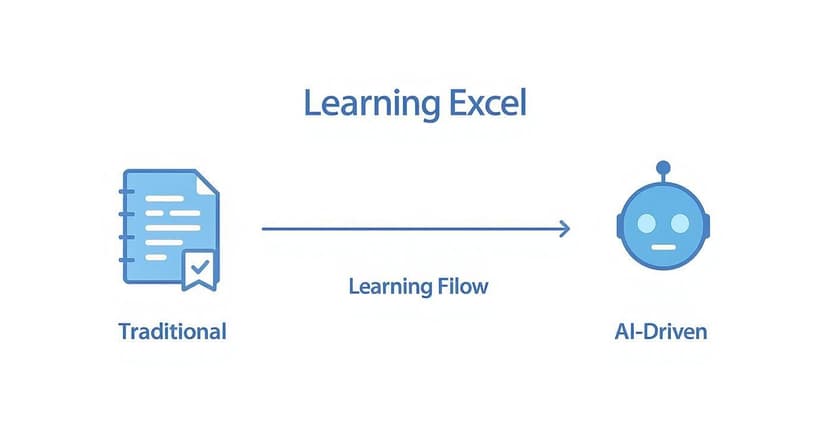
The big takeaway? You move from a rigid, often frustrating process to an interactive, problem-solving loop where AI gives you instant support. This builds your confidence and delivers tangible results much faster.
The impact of this focused, AI-assisted learning is significant. Professionals who dedicate just 10 hours a week to targeted training can see a 50% improvement in their data analysis speed in just one month. For businesses, this translates into a 20% jump in overall productivity and a 15% drop in data-related errors. You can learn more about how professionals are using Excel in 2024 to get ahead.
The table below breaks down exactly how the learning journey has evolved.
Modern vs Traditional Excel Learning Path
| Learning Aspect | Traditional Method | AI-Accelerated Method (with Elyx.AI) |
|---|---|---|
| Starting Point | Memorizing function lists and syntax from a book or video. | Starting with a real-world problem (e.g., "How do I forecast sales for next quarter?"). |
| Pace & Flow | Slow, linear progression through predefined modules. | Fast, on-demand learning. Get unstuck in seconds by asking the AI for help. |
| Focus | Theoretical knowledge. "Learn this function, you might need it someday." | Practical application. "Generate a formula to solve my problem now." |
| Feedback Loop | Delayed feedback. You only know you're wrong when the formula breaks. | Instant feedback and formula generation. Learn by seeing the correct solution and getting an explanation. |
| Skill Retention | Low. Skills are forgotten if not used immediately and frequently. | High. Skills are learned in context and applied immediately, making them stick. |
| Confidence | Builds slowly, often with a lot of frustration and "imposter syndrome." | Builds quickly as you solve real business problems from day one. |
This shift from a passive, "just-in-case" learning model to an active, "just-in-time" problem-solving approach is what makes all the difference.
The biggest mistake I see beginners make is trying to learn Excel like a dictionary—from A to Z. The fastest way to get good is to treat it like a toolbox. You just need to learn how to use the right tool for the specific job you have to do right now.
Build a Solid Foundation with Core Skills
The biggest mistake people make when learning Excel is trying to drink from a firehose. They want to master VLOOKUPs and Pivot Tables on day one, and it's a surefire recipe for burnout. The real secret to learning fast is to build a rock-solid foundation with a handful of skills you'll use every single day.
It’s a lot like learning an instrument. You don’t start with a complex solo; you master the basic chords first. In Excel, that means getting comfortable with the layout, understanding how the grid works, and getting a few workhorse functions under your belt.
Master the Essentials First
Let's start with a practical task: you need to create a simple monthly sales tracker for your team. This one project is the perfect training ground for the skills that actually matter. It forces you to learn how to enter data correctly, apply basic formatting (like currency and dates), and, most importantly, write your first formulas.
Before you even think about more complex functions, get these three down cold:
- SUM: It might seem basic, but it's the cornerstone of most spreadsheets. In our sales tracker, you'd use it to get your total monthly sales:
=SUM(B2:B31). - AVERAGE: Instantly find the average sale amount for the month or for a specific team member:
=AVERAGE(B2:B31). - IF: This is your gateway into logical functions. You could use it to create a column that automatically flags "Goal Met" if a salesperson's total is over their target:
=IF(C2>5000, "Goal Met", "Keep Going").
The whole point is to build muscle memory with the tools you'll rely on 90% of the time. When you're confident with the fundamentals, moving on to more advanced topics feels natural, not intimidating.
Understanding Cell References and Formulas
While building your sales tracker, you'll quickly run into cell references—the A1, B2, C3 addresses that tell your formulas where to look for data. It is absolutely critical to understand the difference between a relative reference (like A1) and an absolute reference (like $A$1). One changes as you copy a formula, the other stays locked in place. Nailing this concept early will save you a world of pain down the road.
This is where having an AI assistant can feel like a superpower. Instead of staring at a cryptic #REF! error, you can just ask an AI tool like Elyx.AI to 'Explain this formula' or 'Fix this error'. It will break it down for you in plain English, turning a frustrating roadblock into a genuine learning moment.
By focusing on these core skills through a hands-on project, you’re not just memorizing commands—you're learning how to think in Excel. To really accelerate your progress, start incorporating keyboard navigation. Our Excel shortcuts cheat sheet is a fantastic resource to help you work smarter and faster.
Use AI To Understand Complex Excel Formulas
This is the point where the learning process really accelerates. If you’ve ever tried to teach yourself Excel, you know the feeling of hitting a wall. It usually happens when you encounter powerful but tricky functions like VLOOKUP, INDEX-MATCH, or PivotTables. These are the workhorses of Excel, but mastering their syntax can feel like weeks of frustrating trial and error.

But what if you could skip the headache? Instead of getting bogged down in syntax, an AI formula generator can build and explain these functions for you in seconds. This completely flips the script on learning Excel. The focus shifts from rote memorization to genuine understanding. All you have to do is describe what you need in plain English, and the AI does the heavy lifting.
From Frustration to Instant Clarity
Let’s solve a concrete problem. You have two spreadsheets: one with product IDs and their corresponding names, and another with the same product IDs and their prices. Your goal is to combine them into one master list. The old-school way involves a painful deep dive into VLOOKUP, wrestling with #N/A errors, and constantly double-checking your cell ranges.
With an AI tool like Elyx.AI, you just ask for what you want: “In cell C2, look up the value from cell A2 in the 'Prices' sheet (range A:B) and return the price from the second column.”
Just like that, the correct formula appears: =VLOOKUP(A2, Prices!A:B, 2, FALSE). But this isn't about cheating; it's about learning efficiently. When you see the right formula generated instantly, and then use a feature to "Explain" it, the logic clicks much faster. The AI becomes your personal tutor, showing you how a formula works and why it works, using your own data as the example. For a closer look at this in action, check out our guide on the AI Excel formula generator.
This approach turns learning from a passive chore (like watching endless tutorials) into an active, hands-on experience. You learn by doing, with an expert guide right there to make sure you never get stuck.
Real-World Application of AI-Powered Learning
Think about another common business task: building a dynamic sales dashboard. This isn't just about simple formulas; it requires creating PivotTables and charts that update automatically. An AI assistant can guide you through every step.
- Aggregating Data: You could ask, "Create a PivotTable that shows total sales for each region by quarter."
- Calculating Growth: You might need a formula and ask, "Calculate the percentage growth in sales for Q2 compared to Q1."
- Visualizing Results: Finally, you could prompt, "Generate a bar chart to visualize the sales by region."
This kind of immediate, contextual feedback is incredibly powerful. Platforms using AI for generating formulas and scripts report a 30% increase in user engagement and a 25% reduction in the time needed to master core functions. Better yet, learners who use AI-enhanced tutorials are 40% more likely to actually apply their new skills in practical, real-world situations.
AI isn't just for formulas. There are tons of applications for boosting your overall productivity. You can explore some of the best AI tools for small businesses to see what else is out there. By bringing AI into your workflow, you’re not just learning commands; you're building a deep, intuitive understanding of how to work with data that will stay with you for years.
Turn Raw Data into Actionable Insights
Knowing a few formulas is a great start, but the real magic of Excel happens when you turn a messy pile of raw data into a clear, compelling story. This is the skill that separates the casual user from the data-savvy pro. When you can take a chaotic spreadsheet and pull out genuinely useful insights, you become invaluable to any team. Mastering this is a huge part of learning Excel fast.
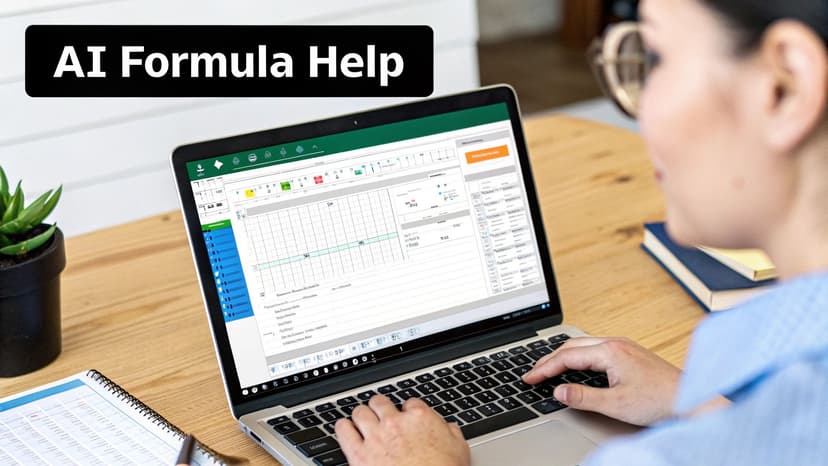
Before you can analyze anything, you have to clean your data. Real-world data is almost never perfect. It's often disorganized, full of duplicates, riddled with formatting errors, and packed with inconsistent entries. Getting good at data cleaning isn't just a suggestion; it's a non-negotiable skill for anyone who wants to produce trustworthy reports.
Here are a few core cleaning tasks to master:
- Sorting and Filtering: These are your best friends for wrangling data. Sorting lets you arrange everything alphabetically or numerically, while filtering helps you zero in on specific subsets of your data to focus on what’s important.
- Removing Duplicates: This simple, one-click tool is a lifesaver. It instantly scrubs redundant entries from your lists, which means your counts and calculations will finally be accurate.
- Structuring Your Data: Sometimes the data isn't set up right for analysis. Knowing how to quickly rearrange it is key. A common practical skill is understanding how to transpose data from columns to rows in Excel.
Once your data is squeaky clean and organized, it's time to make it talk. A good chart can reveal a trend or an outlier in a way that a wall of numbers never could.
Choosing the Right Chart to Tell Your Story
The secret to great visualization is picking the right tool for the job. Every chart type tells a different story, and using the wrong one is a surefire way to confuse your audience and bury your insights. Nailing this is a massive leap forward in your quest to learn Excel fast.
Here’s a practical guide:
- Bar Charts are your go-to for comparing different categories, like sales figures across products or regions.
- Line Charts are perfect for showing trends over a period of time, like tracking monthly website traffic or quarterly revenue.
- Pie Charts should be used carefully, but they're still useful for showing parts of a whole when you have few categories, like market share percentages.
This is another spot where AI can give you a serious leg up. Instead of agonizing over which chart to use, you can lean on an assistant like Elyx.AI. It can look at your dataset and recommend the best visualization in seconds. Just ask it, "Create a chart showing the trend in customer satisfaction scores over the last 6 months," and it’ll generate the right graph for you. No more guesswork.
Transforming data isn't just a technical skill; it's the art of finding the story hidden within the numbers. Your goal should be to create reports that are so clear and compelling that anyone can understand them at a glance.
For example, imagine you're analyzing customer feedback surveys. After cleaning the data, you could use a bar chart to highlight which product features get the most praise and a line chart to see if overall satisfaction has been climbing over the past year. By dropping these two visuals into a simple dashboard, you've just turned a boring spreadsheet into a powerful tool for making business decisions.
Automate Repetitive Tasks with Macros and Scripts
Knowing your way around a few functions is one thing, but the real mark of an Excel pro is making the program work for you. This is where you graduate from manual grunt work to saving serious time. Automation is the secret sauce for next-level productivity, and it’s much more accessible than you think, especially with AI tools.

You don't need to be a coder to start. Excel has a fantastic built-in tool called the Macro Recorder, which acts like a screen recorder for your actions. Just hit "record," perform your repetitive task once—like formatting a monthly report—and then stop. Excel writes the VBA script for you.
Think about a weekly report you have to clean up. You know the drill: delete a few columns, add some color-coding, sort the data just right. What if that 15-minute task could be done in a single click? That’s what a macro does. It’s not just about convenience; it’s about reclaiming hours in your week and eliminating human error.
Taking Automation to the Next Level with AI
The Macro Recorder is a great starting point, but what happens when your tasks get more complex? This is where an AI script generator completely changes the game. Instead of spending months learning programming languages like VBA or Office Scripts, you just describe what you want to do in plain English. The AI does the heavy lifting and writes the code for you.
This approach lets you leapfrog the frustrating learning curve that used to be a major barrier. You can start building powerful, custom automations immediately without getting lost in programming syntax.
Here are some practical examples of what becomes possible with an AI assistant:
- Automated Reporting: "Write a script to copy the summary table from 'Sheet1', paste it into a new email, and send it to my boss every Friday at 4 PM."
- Data Consolidation: "I need a script that finds all the
.csvfiles in my 'Q3-Reports' folder and merges them into one master worksheet." - Custom Alerts: "Create a script that highlights any product in my inventory sheet with a stock level below 20 and sends me an email notification."
Using an AI script generator shifts you from being a simple user to a power user. You’re no longer just working in Excel; you’re telling it what to do, building smart workflows that save time and cut down on human error.
This move lets you focus on the bigger picture—analysis and strategy—instead of getting bogged down in repetitive tasks. If you want to dive deeper, our guide on how to automate Excel has even more actionable tips to get you started.
Making Your New Skills Stick
https://www.youtube.com/embed/IJQHMFLXk_c
So, you've picked up some serious Excel skills in a short amount of time. That's a huge win, but the real test is making sure they don't fade away. The secret isn't cramming more tutorials; it's about putting what you've learned into practice immediately.
To truly master Excel, you need to start using it to solve your own real-world problems. Don't wait for a massive, intimidating project to land on your desk. The best way to make these skills permanent is to find small, nagging issues in your daily routine and solve them with Excel.
Think Like a Problem-Solver
Look for opportunities to apply your skills. Is there a weekly report you dread putting together? Could you build a simple dashboard to visualize your team’s KPIs? What about that messy data export you have to manually clean up every single time?
Tackling these smaller, practical challenges does two things. First, it gives you an immediate win and makes your job easier. Second, it cements your new skills by connecting them to a tangible, valuable outcome.
It’s all about a mental shift. You stop thinking, "I learned how to do a VLOOKUP," and start thinking, "I used VLOOKUP to solve this specific problem." That's how you turn theoretical knowledge into a practical, usable skill.
The data backs this up. People who follow a structured, problem-focused learning path can become proficient with Excel's core functionalities in just 4 to 6 weeks.
Even better, after completing these kinds of training modules, learners often report a 70% improvement in managing real-world data. They also feel 85% more confident taking on complex tasks at work. If you're curious about the numbers, you can explore detailed education market research that dives deeper into this.
Got Questions? Let's Get Them Answered
If you're just starting your Excel journey, you probably have a few questions. That's a good thing. Asking the right questions is the first step to learning efficiently. Here are the answers to the ones I hear most often.
So, How Long Does It Really Take to Learn Excel?
Honestly, this depends entirely on your approach. If you just click around aimlessly, you could spend months and still feel lost.
But if you are strategic—focusing on core skills and using an AI tool to help you over the hurdles—you can become proficient in the most important functions in just 4 to 6 weeks. The trick is to stay consistent and apply what you learn to real-world problems immediately.
Your goal isn't to memorize every single function in Excel's library. It's about building the confidence to find the solution you need, when you need it. An AI assistant gives you that instant backup, turning a frustrating dead-end into a quick learning opportunity.
What Excel Functions Should I Learn First?
It's tempting to try and learn everything at once, but that's a recipe for burnout. To get up to speed quickly, forget the advanced stuff for now and master the fundamentals. This small set of functions handles most of what you'll need day-to-day.
Here’s where I always tell people to start:
- The Basics: Get comfortable with
SUM,AVERAGE,COUNT, andCOUNTA. These are your bread and butter for summarizing data. - Making Decisions: The
IFfunction is a game-changer. It’s the key to making your spreadsheets dynamic and intelligent. - Finding Information: Everyone talks about
VLOOKUPorXLOOKUP. The core skill isn't memorizing the formula, but understanding the concept of looking up data from one table to use in another.
How Can AI Actually Make Me Learn Faster?
Think of AI tools like Elyx.AI as your personal, on-demand tutor, available 24/7. It completely changes the learning dynamic.
Instead of staring at a #NAME? error for twenty minutes, you just describe your goal in plain English. The AI gives you the correct formula instantly. More importantly, it can explain why that formula works in simple terms, so you’re not just copying and pasting—you’re actually understanding the logic. It cuts out the frustrating trial-and-error and replaces it with a guided, interactive experience. That’s how you build skills that stick.
Ready to stop struggling and start solving problems? Elyx.AI is your personal Excel assistant, helping you generate formulas, clean data, and create insights in seconds. Try Elyx.AI for free and see how fast you can learn Excel.
Reading Excel tutorials to save time?
What if an AI did the work for you?
Describe what you need, Elyx executes it in Excel.
Sign up