How to Extract Data from Excel: A Practical Guide

At its core, extracting data in Excel is about pulling specific pieces of information from a larger dataset into a new, more manageable format. You can do this with simple built-in tools like filters, more sophisticated formulas like FILTER or XLOOKUP, or even tap into serious automation with Power Query and AI. The goal is to move beyond manual copy-and-paste routines to get the exact data you need, fast.
Why Mastering Data Extraction in Excel Matters
We've all been there: staring at a sprawling, messy spreadsheet, feeling overwhelmed. Picture a business analyst buried in thousands of rows of raw sales data, just trying to find the top performers for a quarterly report. The real roadblock isn't the analysis itself—it's the tedious, error-prone chore of manually picking out the right information.
Spending too much time on Excel?
Elyx AI generates your formulas and automates your tasks in seconds.
Sign up →This is exactly where knowing how to extract data efficiently becomes a game-changer. It’s the engine that powers everything from accurate financial forecasts to targeted marketing campaigns and smart operational decisions. When you can pull the right data subsets quickly and reliably, you stop fighting with your spreadsheet and start finding valuable insights.
The Real-World Value
The need for this skill isn't just a hunch; it's a rapidly growing market. The global data extraction market was valued at $2.14 billion in 2019 and is on track to hit $4.90 billion by 2027, growing at a steady 11.8% annually. This boom shows just how central data handling has become to business strategy.
Once you get a handle on extraction, you can:
- Build pinpoint-accurate reports by pulling data based on specific criteria, like sales from one region or expenses over a certain period.
- Prep data for charts and dashboards by creating clean, focused tables that are ready for visualization.
- Automate your most repetitive tasks, saving yourself hours every week that used to be lost to manual data wrangling.
Your Roadmap to Becoming a Data Pro
This guide is your roadmap, taking you from the basics to advanced automation. We’ll cover everything you need to know about how to extract data from Excel, starting with simple filters and working our way up to dynamic formulas. From there, we'll dive into the heavy hitters like Power Query and AI-driven tools like Elyx.AI, which open up a ton of new possibilities for professionals.
Before we dig in, here’s a quick overview of the methods we'll be covering.
Excel Data Extraction Methods at a Glance
This table gives you a quick snapshot of the different ways to get data out of Excel, what they’re best for, and how tricky they are to learn.
| Method | Best For | Complexity Level |
|---|---|---|
| Filters & Advanced Filter | Quickly isolating and viewing data based on simple criteria. | Low |
| Formulas (FILTER, XLOOKUP) | Creating dynamic, real-time lists that update automatically. | Medium |
| Power Query | Cleaning, transforming, and automating complex data from multiple sources. | Medium to High |
| VBA & Macros | Automating highly customized, repetitive extraction tasks. | High |
| Elyx.AI Prompts & Formulas | Generating complex formulas, pivot tables, and insights using natural language. | Low |
Understanding the right tool for the right job is key. For instance, knowing the comparative advantages of spreadsheets versus databases helps you decide when Excel is the perfect fit and when you might need something more robust.
By following along, you’re taking the first real step toward becoming a genuinely data-driven professional. Let's get started.
1. Start with Excel's Built-In Toolkit

Before you even think about complex formulas or automation, it's worth getting really good with the tools Excel already gives you. These built-in features are your first line of defense for pulling information out of a spreadsheet. They're fast, surprisingly powerful, and you don't need to write a single line of code.
Think of them as your go-to manual tools. They're perfect for those one-off requests and quick analyses where you just need to get an answer now.
Mastering the Basic Filter for Quick Wins
The most direct way to extract data in Excel is the standard Filter. You'll find it on the Data tab. When you click it, little dropdown arrows appear on your column headers, letting you instantly slice and dice thousands of rows based on values, text, or even cell colors.
Let's say you have a huge sales log and your boss wants to see all the deals closed by "Jane Doe." Instead of scrolling forever, you just filter the 'Salesperson' column for her name. Instantly, Excel hides everything else, giving you a clean view of just her activity.
Pro Tip: The keyboard shortcut Ctrl+Shift+L is your best friend here. It toggles the filters on and off for whatever data you've selected. This one shortcut can save you hundreds of clicks over the course of a week.
When to Step Up to the Advanced Filter
The basic filter is fantastic for viewing data, but the Advanced Filter is built for actually extracting it. This tool lets you pull a unique list of records or copy data that meets multiple, complex criteria to a completely different spot in your workbook. It’s a huge leap from just hiding rows.
Imagine you have a messy customer list with duplicates. You need to pull a unique list of every customer in California who has spent more than $500. This is a perfect job for the Advanced Filter.
You'd just set up a small criteria range on your sheet that looks something like this:
- State: "CA"
- Total Spend: ">500"
You can then tell the Advanced Filter to copy only the unique records matching both rules to a new sheet. In seconds, you have a clean, ready-to-use list for a targeted marketing campaign, completely separate from your source data.
Splitting Data with Text to Columns
Half the battle with data is that it’s rarely formatted the way you need it. A classic headache is getting a 'Full Name' column when you really need separate 'First Name' and 'Last Name' columns for a mail merge. That’s where Text to Columns comes in.
This handy wizard, also on the Data tab, walks you through splitting a single column into several. You can split your text based on a delimiter—like a space, comma, or dash—or at a fixed width.
For our 'Full Name' problem, you'd just select the column, choose the 'Delimited' option, and tell Excel the separator is a space. Voilà. The names are instantly split into two adjacent columns. This simple tool can save you hours of mind-numbing manual work.
While these tools are powerful, you can take your skills even further by diving into our comprehensive guides on Excel formulas for more dynamic solutions.
Using Dynamic Formulas for Real-Time Results
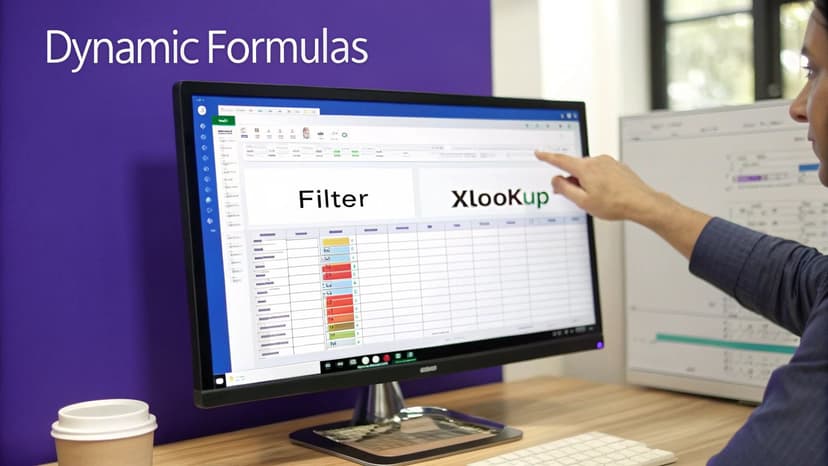
While built-in tools like filters are handy for a quick pull, their results are frozen in time. The moment your source data changes, your extracted list is obsolete, forcing you to start over. This is where formulas completely change the game.
By using dynamic formulas, you create a living connection to your data. Your extracted reports and summaries update automatically, in real-time, as the original dataset evolves. This is a huge leap—it moves you from just pulling data to building responsive, automated dashboards right inside your worksheet.
The FILTER Function: Your Go-To for Live Lists
The FILTER function is one of the most powerful tools for pulling a dynamic subset of data based on rules you define. It sifts through a range and "spills" all the matching rows into a new area. The magic is that this new area updates instantly when you add, remove, or change data in the source table.
Real-world example: Imagine you're a project manager with a master task list. You need a separate, always-current view of all tasks assigned to the 'Marketing' team that are still 'In Progress'.
The formula to achieve this is:
=FILTER(A2:C100, (B2:B100="Marketing")*(C2:C100="In Progress"))
Formula breakdown:
FILTER(array, include, [if_empty]): This is the basic syntax. You tell it what to look through (array) and what conditions to apply (include).A2:C100: This is thearray, your entire task table.(B2:B100="Marketing"): This is the first condition. It checks the 'Department' column for the text "Marketing".(C2:C100="In Progress"): This is the second condition, checking the 'Status' column.*: The asterisk acts as an "AND" operator, telling the function that a row must meet both conditions to be included in the result.
The moment you enter this, Excel builds a new table with just those specific tasks. If someone updates a marketing task to "Complete" on the master list, it instantly vanishes from your filtered view.
XLOOKUP: The Modern Way to Find Anything
For years, VLOOKUP was the standard for looking up data, but it had limitations (like its inability to look to the left). XLOOKUP is the modern, powerful replacement that solves these issues. It can find a value in any column and return corresponding data from another column, regardless of the table's structure.
Real-world example: You have an HR master file and need to grab an employee's email address using only their Employee ID.
The formula would be:
=XLOOKUP(G2, A2:A500, D2:D500, "Employee Not Found")
Formula breakdown:
XLOOKUP(lookup_value, lookup_array, return_array, [if_not_found], ...): The core syntax.G2: This is thelookup_value—the Employee ID you're searching for.A2:A500: This is thelookup_array—the column where Excel will look for the Employee ID.D2:D500: This is thereturn_array—once the ID is found, Excel will return the value from the same row in this column (the emails)."Employee Not Found": This optionalif_not_foundargument is a huge improvement. It tells Excel what to display if the ID doesn't exist, helping you avoid ugly#N/Aerrors.
When your logic gets complex, using an AI formula generator can be a lifesaver, giving you the right formula without the headache.
The Classic Duo: INDEX and MATCH
Before XLOOKUP, the preferred method for advanced lookups was combining INDEX and MATCH. It's more complex to set up but is incredibly versatile and essential knowledge, especially if you're working in older versions of Excel. Together, these two functions can perform a two-way lookup, finding a value at the precise intersection of a specific row and column.
Real-world example: You need to extract the Q2 sales figure for "Product B" from a large sales grid.
The formula is:
=INDEX(B2:E10, MATCH("Product B", A2:A10, 0), MATCH("Q2", B1:E1, 0))
Formula breakdown:
INDEX(array, row_num, [column_num]): This function returns a value from a specific location within a range.MATCH(lookup_value, lookup_array, [match_type]): This function finds the position (the row or column number) of a value.INDEX(B2:E10, ...): The formula starts by defining the entire range of data values (B2:E10).MATCH("Product B", A2:A10, 0): This first MATCH finds which row "Product B" is in. The0at the end forces an exact match. Let's say it returns3.MATCH("Q2", B1:E1, 0): The second MATCH finds which column "Q2" is in. Let's say it returns2.- The
INDEXfunction then uses these results:INDEX(B2:E10, 3, 2). It goes to the 3rd row and 2nd column of the specified range and returns the value located there.
Taming Complex Data with Power Query Automation
When you find yourself doing the same data cleanup tasks over and over again, it's a sign that you've outgrown simple formulas. This is the perfect time to get acquainted with Power Query, Excel's built-in tool for serious data transformation. It’s designed to handle the kind of messy, real-world data that makes formula-based solutions clunky and inefficient.
Think of Power Query as creating a repeatable recipe for your data. You point it to a data source, apply a series of cleaning and shaping steps, and then load the clean, final result back into Excel. The real magic happens when new data arrives—you just hit 'Refresh,' and Power Query runs through the entire recipe for you, saving you a ton of time.
A Real-World Power Query Workflow
Let’s walk through a classic business problem. Imagine you get a new sales report as a CSV file every week. Each file is a bit of a mess, with empty rows, extra columns you don't need, and inconsistent text formatting. Cleaning this up by hand is not only boring but also a surefire way to introduce errors.
This is where you can build a hands-off, automated workflow. Instead of dealing with individual files, you tell Power Query to connect to the folder where you save these reports. It will automatically combine them into one master table. From there, you use its point-and-click interface to build out your cleaning process.
- Filter Out Junk: Easily get rid of any blank or irrelevant rows.
- Keep What You Need: Just select the columns you want for your analysis and discard the rest.
- Standardize Your Data: Trim annoying extra spaces or convert text to a consistent case, like all uppercase.
Every action you take is recorded as a step in your query. When next week's file shows up, you just drop it in the folder, click 'Refresh' in Excel, and watch Power Query do all the work in seconds.
Breaking Past Excel’s Data Limits
One of the most significant benefits of using Power Query is how it handles massive datasets. A standard Excel worksheet hits a wall at just over a million rows, but Power Query processes everything in its own engine before it ever touches your spreadsheet. This lets you work with millions of rows without bringing Excel to a grinding halt.
Excel simply wasn't built for big data. If you’re an analyst working with, say, 20 million rows of website traffic data, you've already discovered that a traditional spreadsheet just won't cut it. This is why pros turn to tools like Power Query or other Excel data analysis alternatives to get the job done.
This capability makes Power Query the go-to tool for connecting to large external databases or pulling data from web sources without overwhelming your workbook.
Expert Tip: Power Query isn't just about extracting data; it's a full-blown ETL (Extract, Transform, Load) tool. It automates the entire data preparation pipeline, from initial connection to final output, right inside Excel.
Connecting to All Your Data, Wherever It Lives
Power Query dramatically expands what "extracting data" in Excel means. You're not just limited to Excel files. It ships with a whole library of connectors that can pull data from almost anywhere.
Some common sources include:
- Local Files: Excel workbooks, CSV or text files, and even entire folders.
- Databases: SQL Server, Oracle, MySQL, and many more.
- Web Sources: Tables on a webpage or data from an API.
- Cloud Services: Azure, Salesforce, and SharePoint lists.
This means you can pull sales numbers from a SQL database, combine them with marketing stats from a CSV file, and load a consolidated report into a single Excel table. And since the process is automated, your report is always up-to-date with the latest information from every system. For a deeper dive into preparing your data, see our guide on AI-powered data cleaning.
The Future Of Data Extraction With Elyx.AI
So far, we’ve walked through some powerful, built-in Excel tools like formulas and Power Query. They’re a huge step up from doing everything by hand, but they still have a learning curve. You need to know the right function or click the right series of buttons.
This is where the next leap in data handling comes in: artificial intelligence. What if you could skip the syntax and just ask for what you want?
Tools like Elyx.AI are changing how we work with spreadsheets by letting us use plain English. Instead of you needing to speak Excel's language, the AI translates your request into the exact actions needed. This shift turns complex data extraction from a tedious, step-by-step process into a simple conversation.
Conversational Data Extraction In Action
Let's say you're staring at a massive sales ledger and need a quick summary report. The old way is a multi-step dance: apply a filter for the region, add another for the date, create a new column with a formula to flag sales over $1,000, build a pivot table, and finally, copy it all to a new sheet.
With an AI agent, the whole workflow is different. You just type what you need.
"Extract all Q4 sales from the West region that are over $1,000. Then, calculate the total sales and average deal size, and put the results in a new sheet named 'Q4 West Sales'."
Elyx.AI reads that sentence, understands the context of your data, and just does it. It applies the filters, writes the formulas, builds the summary, and creates the new worksheet in seconds. This isn't just about being faster; it's about removing the mental gymnastics of remembering which function does what.
Precision Extraction With In-Cell AI Formulas
This conversational power also applies to tricky in-cell extractions. We’ve all seen it: a single "Notes" field crammed with a name, a phone number, and an email address. Extracting just one piece of that information with traditional formulas can be incredibly complex.
The =ELYX.AI() formula is built for exactly this kind of problem. If you have a jumbled block of text in cell A2 and just need the email, you can use a prompt-based formula.
=ELYX.AI("Extract the email address from this text", A2)
That's it. The AI analyzes the text in A2 and pulls out just the email, saving you from wrestling with a complex combination of FIND, MID, and LEN functions. It’s a smarter, more targeted way to handle those little data-cleaning jobs that eat up so much time.
The diagram below shows the classic data workflow. AI completely simplifies the "Transform" stage by handling all the steps based on simple instructions.
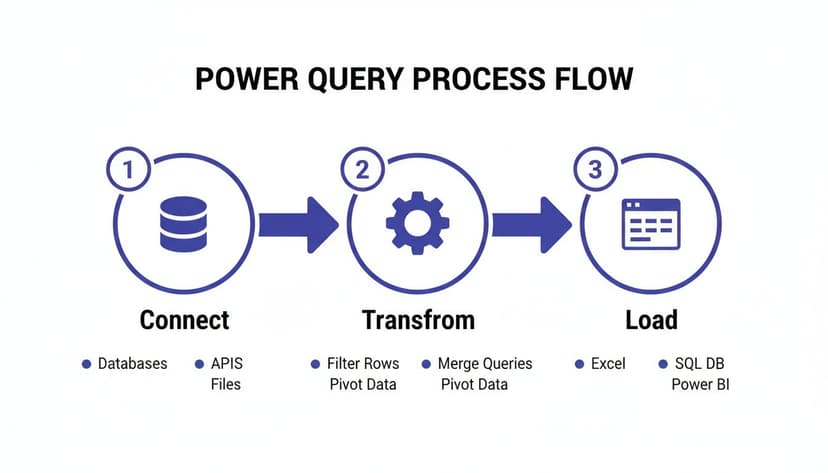
This process flow—connecting to data, transforming it, and loading it—is the foundation of data work. Now, AI agents can manage that entire journey with just a few words from you.
The table below breaks down just how different the experience is. It compares the steps for a common task done the old way versus with a single AI prompt.
Manual Extraction vs Elyx.AI Workflow
| Task | Manual Excel Steps | Elyx.AI Prompt |
|---|---|---|
| Extract Q4 Sales Over $5k | 1. Select the entire data range. 2. Go to the Data tab, click Filter. 3. Click the dropdown on the 'Date' column, filter for Q4 months. 4. Click the dropdown on the 'Sales' column, use 'Number Filters' > 'Greater Than' > 5000. 5. Select the filtered data and copy. 6. Create a new worksheet. 7. Paste the data. |
"Show me all sales from Q4 that were over $5,000 and put them in a new sheet." |
As you can see, what takes seven distinct manual steps can be accomplished with one straightforward sentence. This not only saves time but also significantly lowers the chance of making a mistake along the way.
Reducing Errors And Saving Time
One of the biggest wins of using AI for data extraction is the dramatic drop in human error. A single misplaced parenthesis in a long formula or an incorrect filter can throw off an entire analysis. When the AI handles the technical side, the risk of these small but costly mistakes goes way down.
That reliability gives you back a ton of time, not just in doing the work but also in double-checking it. You can finally focus your energy on what the data actually means, instead of fighting with the mechanics of getting it.
The field is evolving quickly, too. Beyond spreadsheets, advanced tools like Intelligent Document Processing (IDP) solutions are emerging to pull information from even more complex sources like PDFs and scanned images.
If you're curious to see how AI is changing spreadsheet work firsthand, you can learn more about what an Excel AI assistant can do. Ultimately, this kind of technology is the next logical step, making powerful data analysis accessible to anyone, no matter their technical skill level.
Common Questions About Data Extraction in Excel
As you start using these techniques, you'll inevitably run into questions. Knowing which tool to grab for a specific job is just as important as knowing how to use it. Here are answers to some of the most common things people ask, helping you pull data from Excel with more confidence.
Think of this as your go-to guide for making the right call. The goal isn't just to learn a bunch of methods, but to build the instinct for picking the best one for what you need to do right now.
When Should I Use Power Query Instead of Formulas?
This is a classic Excel dilemma. The right answer really boils down to what you're trying to accomplish. Are you building a dynamic dashboard where numbers need to update instantly as you change inputs? Stick with formulas like FILTER and XLOOKUP. They're designed for that kind of live, on-the-spot calculation right inside your worksheet.
But if you find yourself doing the same multi-step data cleaning process over and over again, that's where Power Query is a game-changer. It's built to automate the entire workflow of grabbing, cleaning, and shaping your data—especially from large or external sources—before it even touches your spreadsheet.
Key Takeaway: Use formulas for live, in-sheet results that need to be interactive. Use Power Query to build automated, repeatable workflows for cleaning and preparing data.
Can I Extract Data From a PDF or Website Into Excel?
Absolutely, and this is another area where Power Query really flexes its muscles. It has built-in connectors made just for these situations. The 'From Web' connector is brilliant at pulling structured tables straight from a website URL, which saves you from the tedious, error-prone nightmare of copying and pasting.
The 'From PDF' connector works in a similar way, letting you extract tables locked inside PDF documents. However, if you're dealing with messy, unstructured text from these sources, an AI tool like Elyx.AI often handles it better. It can make sense of and structure jumbled text that traditional tools would choke on.
How Does an AI Tool Handle Ambiguous Requests?
This is where a modern AI tool really stands out. Something like Elyx.AI doesn't just blindly follow instructions; it looks at the context of your entire spreadsheet. If you ask it for "recent sales" but your sheet doesn't have a date column, it's smart enough to ask you for more information instead of just guessing and giving you a wrong answer.
It's designed to make intelligent assumptions based on your data’s layout. If it generates a formula that results in an error, it can often figure out why and either fix it or explain the problem in plain English. That ability to reason and troubleshoot cuts down on the frustrating errors that pop up when you're writing complex formulas by hand.
Is Learning All These Methods Necessary?
Not all at once! The best way to go about it is to build up your skills as your needs grow more complex.
- Start with the basics: Get really good with filters and the core formulas. Honestly, this will solve 80% of your day-to-day data extraction problems.
- Level up when you feel the pain: When you notice you're doing the same tedious tasks over and over or dealing with huge datasets, that's your signal to dive into Power Query.
- Use AI as your sidekick: Think of AI as a power-up you can use at any stage. It can write that one tricky formula you can't remember, or it can automate an entire reporting process from start to finish.
The goal is to have a versatile toolkit. That way, you can always pick the most efficient and least frustrating method for whatever challenge lands on your desk.
Ready to stop wrestling with formulas and start getting answers? With Elyx AI, you can automate complex data extraction, cleaning, and reporting with simple, natural language prompts. It's like having an expert colleague who handles the tedious work for you. Start your free trial today and experience the future of Excel.
Visit https://getelyxai.com to learn more.
Reading Excel tutorials to save time?
What if an AI did the work for you?
Describe what you need, Elyx executes it in Excel.
Sign up