How to Calculate Weighted Averages in Excel: A Practical Guide

A weighted average is a calculation that gives more importance to certain data points over others. To find it, you multiply each number by its designated weight, sum those products, and then divide by the total of the weights. This method provides a more accurate and realistic view when not all values are created equal, a common scenario in business and data analysis. This guide will walk you through how to solve this common problem in Excel, from basic formulas to advanced AI-driven automation.
What a Weighted Average Actually Is and Why You Need It

A simple average treats every number the same. A weighted average, on the other hand, acknowledges that some components are more significant. It's a fairer, more realistic way to measure outcomes where certain inputs have a bigger impact.
Spending too much time on Excel?
Elyx AI generates your formulas and automates your tasks in seconds.
Sign up →Think about your final grade in a course. The final exam, worth 50% of the total, should obviously have a bigger impact on your grade than a homework assignment worth only 5%. A simple average would treat them as equals, which would be completely misleading. This is exactly why knowing how to calculate a weighted average is so crucial for accurate analysis.
To put it in perspective, let's compare the two side-by-side.
Simple Average vs. Weighted Average: Key Differences
| Aspect | Simple Average | Weighted Average |
|---|---|---|
| Value Contribution | All values contribute equally. | Values contribute based on their assigned weight. |
| Calculation | Sum of all values divided by the count of values. | Sum of (each value × its weight) divided by the sum of weights. |
| Best Use Case | When all data points have the same importance (e.g., average test score for one student). | When some data points are more significant than others (e.g., a final course grade). |
| Example | Average rainfall over 30 days. | Average product rating with more weight on recent reviews. |
This table shows that choosing the right type of average depends entirely on whether your data points carry the same level of importance. For most business scenarios, they don't.
Why Weighted Averages Matter in Business
In the business world, this calculation is a bedrock of smart decision-making. Weighted averages aren't just an academic concept; they are a practical tool for combining data points that contribute unequally to an overall picture. For instance, a retailer might assign a 60% weight to sales of a best-selling product and a 40% weight to a niche item. This ensures the average sales figure truly reflects business performance.
The applications are incredibly broad and provide vital insights everywhere:
- Finance: Figuring out the average cost of capital or the real return on a mixed investment portfolio.
- Operations: Determining the average inventory cost when you buy goods at different prices over time.
- Marketing: Measuring customer satisfaction scores when feedback comes from various customer segments (e.g., new vs. loyal).
- Sales: Forecasting revenue by giving more weight to recent sales figures or seasonal spikes.
A weighted average doesn't just give you a number; it tells a story. It highlights what truly matters within your data, preventing smaller, less significant data points from skewing the big picture.
Real-World Financial Applications
The power of weighted averages goes deep into financial analysis. A bank, for example, might use this method to gauge its portfolio's risk by weighting different asset classes based on their volatility.
To see how these concepts are applied in a real banking context, you can learn how to calculate specific financial ratios like the efficiency ratio. Getting a handle on this is the first step toward building more accurate and reliable spreadsheets, which we’ll dive into next using some powerful Excel functions.
The SUMPRODUCT Method: The Best Way to Calculate Weighted Averages in Excel
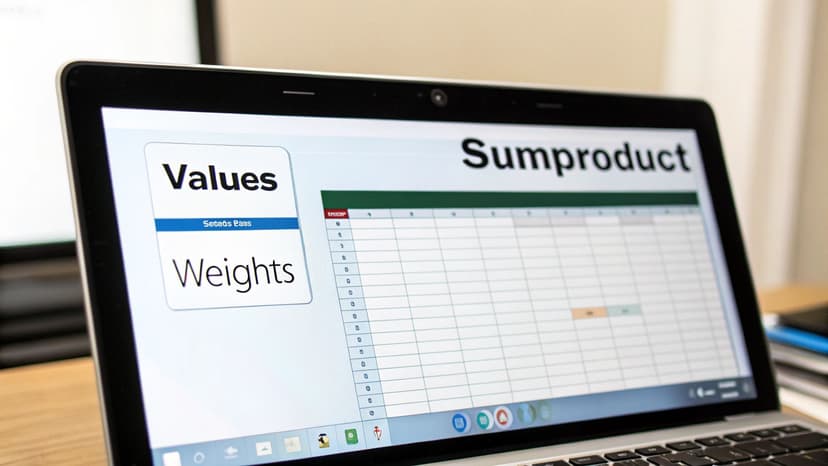
If you spend a lot of time in Excel, you know the value of an elegant formula. When it comes to weighted averages, the SUMPRODUCT function is exactly that. It's the cleanest and most efficient way to get the job done.
You could, of course, add a helper column to your spreadsheet, multiply each value by its weight line by line, sum up those results, and then divide by the sum of the weights. But that’s messy. It clutters your sheet and introduces more places where things can break. SUMPRODUCT lets you skip all of that and do it in one shot.
How the Formula Works
The function itself is pretty straightforward. It takes two or more ranges of cells, multiplies the corresponding items in each range, and then adds up all the products. This handles the entire numerator of the weighted average calculation for you.
The complete formula looks like this:
=SUMPRODUCT(values, weights) / SUM(weights)
Let's quickly break it down:
SUMPRODUCT(values, weights): This is the engine. It multiplies the first value by the first weight, the second value by the second weight, and so on down the list, then adds all those results together.SUM(weights): This is simply the total of all the weights. It's the denominator that correctly scales the final average.- The Division (
/): Dividing the sum of the weighted values by the sum of the weights gives you the final, accurate weighted average.
This simple structure works perfectly whether your weights are percentages that add up to 100% or just raw numbers, like the number of units sold.
A Practical Excel Example
Let's make this tangible. Imagine you're a product manager at an e-commerce company tracking customer ratings for a new product across five different retail websites.
A simple average would be misleading. A platform with 10,000 reviews should obviously have more say in the overall score than one with only 50. This is a classic case for a weighted average.
Here’s our data in Excel:
- Column A: Platform Name
- Column B: Customer Rating (the values)
- Column C: Number of Reviews (the weights)
The sheet might look something like this:
| Platform | Customer Rating (B) | Number of Reviews (C) |
|---|---|---|
| Retailer A | 4.7 | 10,250 |
| Retailer B | 4.2 | 850 |
| Retailer C | 4.9 | 12,400 |
| Retailer D | 3.8 | 320 |
| Retailer E | 4.5 | 5,500 |
To find the true weighted average rating, you’d click into an empty cell and type:
=SUMPRODUCT(B2:B6, C2:C6) / SUM(C2:C6)
That's it. Excel does all the heavy lifting in the background, calculating (4.7 * 10250) + (4.2 * 850) + ... and dividing it by 10250 + 850 + ... to give you the correct average rating.
The beauty of the SUMPRODUCT method is its efficiency. You get a precise answer in a single cell, without any helper columns. This makes your spreadsheet easier to read, audit, and update down the road.
Why This Method Is the Professional's Choice
I always steer people toward SUMPRODUCT because it keeps your data clean. No extra columns means fewer chances for someone to accidentally delete a row and break your formulas.
It's also incredibly scalable. The formula works the same way whether you have five data points or five thousand; you just change the cell ranges. This makes it a robust tool for everything from a quick, back-of-the-napkin analysis to a complex financial model. Honestly, getting comfortable with this one function will make you much faster and more effective in Excel. It turns what could be a multi-step manual process into a single, dynamic calculation. It’s a foundational skill that pays off constantly.
Taking Weighted Averages to the Next Level in Excel
Once you've gotten the hang of SUMPRODUCT, you're ready to tackle some more complex, real-world business problems. The basic formula is a great starting point, but its real power comes alive when you adapt it for specific challenges, like managing inventory or trying to predict future trends.
This is where knowing how to calculate weighted averages moves from a neat Excel trick to a critical business skill. We'll walk through two of the most common and impactful scenarios: valuing inventory and forecasting with a weighted moving average.
Using Weighted Averages for Inventory Costing
One of the most practical uses for a weighted average is in inventory valuation. Think about it: if you buy the same product multiple times at different prices, a simple average cost just won't cut it. To get a true picture of your cost of goods sold (COGS), you have to factor in how many units you bought at each price point.
This is why the weighted average cost method is a standard accounting practice. It creates a single, standardized cost for all identical items you have available for sale, which is absolutely essential for accurate financial reporting.
For instance, imagine a retailer starts January with 100 shirts that cost $10 each. Over the month, they buy 100 more at $12 and another 100 at $14. To find the weighted average cost, you’d divide the total cost ($3,600) by the total number of shirts (300). This gives you a balanced cost of $12 per shirt. This approach smooths out the price fluctuations and provides a reliable figure for your financial statements. So, if 150 shirts are left at the end of the month, the ending inventory value is a straightforward $1,800. You can learn more about how this method ensures consistent financial reporting.
This method is so valuable because it stops volatile purchase prices from messing with your profit margins on paper. It gives you a stable, defensible cost for your inventory, which is crucial for both internal analysis and tax purposes.
Forecasting Sales with a Weighted Moving Average (WMA)
Another powerful application is the Weighted Moving Average (WMA). A simple moving average treats all data points in a time period equally, but a WMA is smarter—it gives more importance to the most recent data. This makes your forecasts much more responsive to what's happening in the market right now.
This technique is a game-changer for analyzing sales trends. Let's be honest, recent sales figures are almost always a better predictor of the future than data from six months ago. By giving more weight to last month's numbers, your forecast will pick up on emerging patterns or recent shifts in customer behavior much faster.
Let's look at a quick example. Say you want to forecast next month's sales using data from the last three months.
- Your Data:
- Month 1 Sales: $10,000
- Month 2 Sales: $12,000
- Month 3 Sales: $15,000
- Your Weights: You decide recent performance matters most. So, you assign a weight of 1 to the oldest month, 2 to the next, and 3 to the most recent month.
In Excel, with your sales figures in cells B2:B4 and the weights you've chosen in C2:C4, the formula looks like this:
=SUMPRODUCT(B2:B4, C2:C4) / SUM(C2:C4)
The math breaks down to ((10000*1) + (12000*2) + (15000*3)) / (1+2+3), which gives you a forecast of $13,167. Notice this is higher than a simple average ($12,333), because it rightly gives more credit to the recent upward trend.
Weighted Average Use Case Examples
To give you a clearer idea of when to use these different approaches, I've put together a table with a few common business scenarios. It really highlights how versatile a weighted average can be.
| Scenario | What is Weighted | Business Insight Gained |
|---|---|---|
| Inventory Valuation | The cost of inventory is weighted by the quantity purchased at each price. | Provides an accurate Cost of Goods Sold (COGS) and ending inventory value, smoothing out price volatility. |
| Sales Forecasting (WMA) | Recent time periods (e.g., months, weeks) are given higher weights than older ones. | Creates a more responsive forecast that quickly adapts to recent trends and seasonal shifts. |
| Customer Feedback | Product ratings are weighted by the number of reviews or the customer's spending level. | Delivers a more accurate overall satisfaction score by prioritizing feedback from more engaged customers. |
| Portfolio Performance | Individual asset returns are weighted by the amount of capital invested in each. | Calculates the true return of a diversified investment portfolio, reflecting the impact of larger holdings. |
As you can see, the core concept adapts beautifully to different needs. If you want to dive deeper into trend analysis, our guide on how to calculate moving averages in Excel is a great next step. By getting comfortable with these variations, you can tailor your calculations to solve just about any business problem that comes your way.
Using Pivot Tables for Dynamic Weighted Average Calculations
If you're someone who regularly needs to slice and dice data, you already know how indispensable Pivot Tables are. They can summarize enormous datasets with just a few clicks. But when it comes to weighted averages, there’s a small catch—there's no built-in “Weighted Average” button.
Don't worry, there's a clever and powerful workaround using Calculated Fields.
This method turns a static calculation into a fully interactive analysis tool. Instead of manually re-running your weighted average every time you want to look at a different product category or time period, you build it once in the Pivot Table. After that, Excel does all the dynamic updates for you. It’s the best way to explore your data on the fly.
Setting Up the Pivot Table
First things first, you need to make sure your source data is set up cleanly in a table or range. You'll need at least three columns for this to work:
- A column for the categories you want to analyze (e.g., Product Type, Region).
- A column with the values you're averaging (e.g., Price, Score).
- A column with the corresponding weights (e.g., Units Sold, Number of Reviews).
Once your data is ready, create a Pivot Table. Drag your category field into the Rows area. Then, pull both your values (Price) and weights (Units Sold) fields into the Values area. They'll probably default to SUM, which is perfectly fine for now. We're about to replace them with our custom calculation.
This is the kind of data flow you often see in business, where weighted averages connect inventory figures to cost calculations, which then drive forecasting.
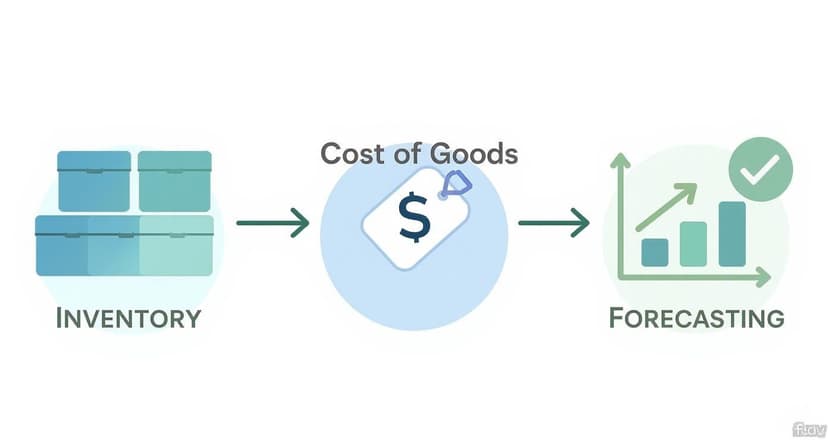
The real insight here is that accurate inventory costing is the foundation for reliable financial forecasting, and the weighted average is the mechanism that links them.
Creating Calculated Fields for the Weighted Average
The magic really happens inside the Calculated Field feature. We’re going to create a new field that performs the weighted average math for us. Since the formula is (Sum of Value * Weight) / (Sum of Weight), we need to build that logic ourselves.
With your cursor inside the Pivot Table, head over to the PivotTable Analyze tab on the ribbon. From there, click Fields, Items, & Sets, and select Calculated Field.
You'll create two simple fields to get the job done:
- Total Weighted Value: This field will be the numerator of our formula. Give it a descriptive name like
TotalRevenue. In the formula box, enter= Price * 'Units Sold'. (Just be sure to replacePriceand'Units Sold'with your actual field names). Click Add. - Final Weighted Average: Now, let's create a second Calculated Field. Name this one
WeightedAvgPrice. The formula for this is simply= TotalRevenue / 'Units Sold'. This divides our brand-new numerator field by the sum of the weights.
Once you add this second field, it will pop up in your Pivot Table, showing the correct weighted average for each of your categories.
The true power of this method is its interactivity. You can add a slicer for 'Region' or a filter for 'Month,' and the weighted average will instantly update for whatever subset of data you're viewing—all without you ever touching the formula again.
Why This Method Is a Game-Changer
While SUMPRODUCT is a fantastic tool for a single, static calculation, the Pivot Table method is what you want when you need to perform exploratory data analysis. It allows you to answer complex questions in seconds, like "What was our weighted average product cost in the North region for Q2?" just by clicking a few filters.
This technique neatly separates the calculation logic from the data presentation. This makes your reports more robust and a lot easier for other people to use. They don't need to understand the underlying formula; they just need to interact with the slicers and filters you've set up.
If you're new to this powerful feature, diving into a detailed guide on creating Pivot Tables in Excel can give you a solid foundation for more advanced applications like this one.
Using AI to Automate Weighted Averages in Excel
While it’s great to have functions like SUMPRODUCT and Pivot Table Calculated Fields in your back pocket, they still rely on you to remember the right syntax, hunt down errors, and build everything out step by step.
But what if you could just ask for what you want instead? This is exactly where bringing artificial intelligence into your spreadsheet workflow can be a game-changer.
Tools like Elyx.AI are fundamentally changing how we get things done in Excel. Rather than thinking in formulas, you can start thinking in outcomes. You just use plain English to tell the software what you need, which saves a ton of time and seriously cuts down on the risk of human error. It’s making complex analysis approachable for everyone, not just the spreadsheet gurus.
Generating Formulas with Simple Prompts
Think about it. You've got product ratings in column C and the number of reviews in column D. The traditional way means carefully typing out =SUMPRODUCT(C2:C10, D2:D10)/SUM(D2:D10) and then triple-checking that all your ranges line up perfectly. There’s a much easier way now.
With an AI add-in, you can simply open a chat panel and ask.
Example AI Prompt for a Weighted Average Formula
"Generate an Excel formula to calculate the weighted average for the data in cells C2:C10, using the weights found in cells D2:D10."
The AI will immediately spit out the correct SUMPRODUCT formula, ready to go. No more typos or syntax headaches, which always seem to pop up when you're on a deadline. It's also a fantastic way to learn, since it shows you the exact formula to use for a specific job. To really see what's possible, exploring the different applications of AI for Excel can give you a much clearer picture.
Instantly Creating Dynamic Pivot Tables
This is where AI in Excel really starts to feel like magic. We just walked through how setting up a weighted average in a Pivot Table involves a whole sequence of manual clicks: creating the table, adding fields, and then carefully building two separate Calculated Fields.
With an AI assistant, you can fire off a single request to do the entire thing.
Example AI Prompt for a Weighted Average Pivot Table
"Create a Pivot Table from the data in A1:D100. Use 'Product Category' for the rows. Then, show me the weighted average price, using 'Price' as the value and 'Units Sold' as the weight."
The AI interprets this, gets to work behind the scenes, and builds the whole setup for you. It generates the Pivot Table, places the fields in the right spots, and—this is the best part—it automatically creates the TotalRevenue and WeightedAvgPrice Calculated Fields. A task that used to take five minutes and required specialized knowledge now gets done in seconds.
This is about more than just speed; it's about making powerful tools accessible. Complex analysis that was once reserved for Excel experts is now available to anyone who can describe the result they want to see.
A Quick Look at the Two Workflows
Let's put the manual and AI-assisted approaches side-by-side.
| Task | The Old-School Manual Way | The AI-Powered Way (e.g., Elyx.AI) |
|---|---|---|
| Formula Creation | Type the =SUMPRODUCT... formula by hand, double-check the syntax, and troubleshoot #VALUE! errors from mismatched ranges. |
Ask in plain English, "Calculate the weighted average of…" and instantly get a correct formula you can use. |
| Pivot Table Setup | Create the Pivot Table, drag fields around, open the Calculated Field menu, build one field for the numerator, then build a second for the division. | Make a single request like, "Build a pivot table showing the weighted average of…" and the entire setup is generated for you. |
| Troubleshooting | Scour online forums for answers to cryptic error messages, manually re-read formulas, and check field settings one by one. | Just ask the AI, "Why isn't this formula working?" or "Fix this Pivot Table," and get immediate help. |
This shift is a huge deal for how we can approach data analysis in Excel. When you let AI handle the tedious, mechanical steps, you get to spend less time fighting with the software and more time thinking about what your data is actually telling you.
Common Mistakes to Avoid and How to Check Your Work
It doesn't matter how simple a formula looks; things can still go sideways. When you're calculating weighted averages, a few common slip-ups can throw your numbers way off. Getting familiar with these is the best way to make sure your analysis is solid.
The most common culprit is that infamous #VALUE! error you get with SUMPRODUCT. Nine times out of ten, this means your value and weight ranges are mismatched. If your values are in B2:B10 but your weights are in C2:C11, Excel throws its hands up because it can't pair the cells to multiply them. Always, always double-check that your ranges are identical in size.
Sanity Checks and Validating Your Results
Beyond specific formula errors, you need to get in the habit of "sanity checking" your numbers. This is just a fancy way of asking, "Does this result even make sense?"
A weighted average must, by definition, fall somewhere between the highest and lowest values in your dataset. If your scores range from 45 to 90, but your calculation spits out 110, you know immediately that something is broken.
This quick gut check is your first line of defense. It instantly flags if you've accidentally swapped your value and weight columns or if a sneaky typo is hiding in your data.
A quick manual check on a small sample can save you from a major error down the line. For a small dataset, multiply the first couple of values by their weights by hand. Does the result seem to be heading in the right direction? This quick validation builds confidence in your final number.
This whole idea of weighting is a huge deal in other fields, too. In finance, for instance, you'll see metrics like Weighted Average Market Capitalization used to understand a portfolio's makeup. This calculation weights each company's market cap against the total portfolio value, giving a much clearer picture of where the risk is by showing how much influence the bigger companies have. You can see more about how market capitalization is weighted on vaneck.com.
Common Troubleshooting Scenarios
Here are a few specific issues I've run into over the years and how to fix them:
- Incorrect Weights: Make sure your weights actually mean what you think they mean. If you're using percentages, they should really add up to 100% (or 1). If they represent quantities, like units sold, give them a quick once-over to confirm they're accurate.
- Pivot Table Glitches: When using Pivot Tables, people often trip up when creating the final Calculated Field. The trick is to do it in two steps: first, create a field for
(value * weight). Then, create a second field that divides that result by the sum of the weights. - Hidden Zeros or Text: A cell that looks empty or contains a zero you didn't expect can wreck the
SUMof your weights, which often leads to a#DIV/0!error. Make sure your weight column is clean and only contains the numbers you need.
For a deeper dive into tackling any kind of mathematical challenge, including those tricky weighted average scenarios, it's worth exploring different strategies for solving math problems step-by-step.
Common Questions Answered
Weighted Average vs. Moving Average: What’s the Difference?
This is a common point of confusion. Think of it this way: a weighted average gives a specific level of importance to each individual number in your dataset. Some numbers simply matter more than others.
A moving average, on the other hand, is all about smoothing out data over time. It calculates a series of averages from different subsets of your data, with each point in a subset typically getting an equal say.
Why Is My SUMPRODUCT Formula Giving a #VALUE! Error?
Ah, the dreaded #VALUE! error. When this pops up with SUMPRODUCT, it's almost always because your two data ranges don't match.
For the formula to work, the range containing your values (like scores or prices) and the range containing your weights must be the exact same size. Go back and double-check your selections—it's an easy mistake to make, but thankfully, it's also an easy fix.
Can My Weights Be Regular Numbers Instead of Percentages?
Yes, absolutely. Your weights don't have to be percentages that neatly add up to 100%.
They can be any number that represents importance—things like units sold, the number of people who gave a certain review, or even a simple 1-5 priority scale. The SUMPRODUCT(values, weights)/SUM(weights) formula is built to handle exactly this kind of real-world data.
Ready to stop wrestling with formulas and let AI handle the heavy lifting? With Elyx.AI, you can generate complex calculations, build dynamic Pivot Tables, and troubleshoot errors just by asking. Install the add-in today and see how easy Excel can be. Find out more at https://getelyxai.com.
Reading Excel tutorials to save time?
What if an AI did the work for you?
Describe what you need, Elyx executes it in Excel.
Sign up