How to Automate Repetitive Tasks in Excel Using AI

Automating repetitive tasks in Excel means using smart tools to handle recurring, time-consuming work. Instead of manually cleaning data, formatting reports, or generating formulas, you can leverage artificial intelligence directly within your spreadsheet. This shift allows you to move from tedious data entry to strategic analysis, focusing on what the numbers actually mean for your business.
The True Cost of Manual Excel Work

Does this sound familiar? You're stuck in a seemingly endless cycle of cleaning data, formatting reports, and updating charts. For many of us, these manual Excel chores feel like an unavoidable part of the job. But the hidden cost of all this repetitive work is staggering.
Spending too much time on Excel?
Elyx AI generates your formulas and automates your tasks in seconds.
Sign up →Those "quick" daily tasks have a habit of snowballing. A simple data export turns into hours of fixing inconsistent formats, hunting down duplicate entries, and wrestling with complex formulas. This grind doesn't just consume your time; it drains your energy and stifles your morale.
The Ripple Effect of Repetitive Tasks
The problem with manual work isn't just about the lost hours. It creates a ripple effect, introducing risks and missed opportunities that can hamstring an entire department.
Consider the real-world consequences:
- Dwindling Productivity: Professionals often lose a significant portion of their week to tasks that an AI could complete in seconds. That's time stolen directly from high-impact, strategic work.
- Costly Errors: We're all human. The more manual a process, the higher the odds of a simple mistake. One incorrect copy-paste can corrupt an entire report, leading to flawed business decisions based on inaccurate data.
- Strategic Blind Spots: Every minute you spend formatting a spreadsheet is a minute you're not spending identifying trends, spotting opportunities, or building strategies that actually drive growth.
This constant administrative burden prevents skilled professionals from applying their expertise where it truly matters.
Real Scenarios Across Different Roles
This isn't just a problem for data analysts. A finance professional might waste the first week of every month manually consolidating budget data from ten different departments. A marketing manager spends every Monday morning exporting campaign stats and restructuring them just to calculate ROI. An operations lead is stuck cleaning up employee data for the weekly HR dashboard.
The real cost isn't just the time spent on the task itself, but the delayed insights and strategic work that never happens because you're stuck in the weeds of manual data manipulation.
This burden isn't limited to spreadsheets, either. Many core business functions suffer from the same manual bottlenecks, and exploring essential small business bookkeeping tips can shed light on other areas ready for an upgrade.
Once you see the true cost of manual work, the need for a better, more efficient method becomes obvious.
Moving Beyond Traditional Excel Automation
For years, automating tasks in Excel meant choosing between two challenging options: wrestling with complex formulas or diving into the world of VBA macros. While both can be incredibly powerful, they often required a level of technical skill that put them out of reach for the average user. It's a rigid, code-first approach that feels outdated in today's fast-paced environment.
VBA (Visual Basic for Applications) has long been the standard for serious Excel automation, but it requires you to think like a programmer. Writing, debugging, and maintaining scripts is a specialized skill. This often leads to fragile workflows that only the original creator can understand, let alone fix when they inevitably break.
On the other hand, you have massive, nested formulas. Many of us have chained together IF, VLOOKUP, INDEX, and MATCH functions into something that looks like a work of art. But the moment something in your source data changes, the entire formula can shatter, leaving you to spend hours deciphering a nearly unreadable string of code.
The Shift to Intelligent Execution
This is where the new wave of AI-powered tools completely changes the game. Instead of you needing to learn the machine's language (like VBA), the machine is finally learning to understand yours. A modern AI tool doesn't just give you a formula to copy; it acts as an intelligent agent, performing the work for you.
The real leap is from instruction-based automation to intent-based automation. You describe your goal in plain English, and the AI figures out the necessary steps to achieve it.
This isn't just a niche trend. By 2024, an incredible 66% of companies globally had already started automating at least one key business process. In finance departments, for instance, automating tasks like invoice processing cuts errors by up to 70%. It’s no wonder that 73% of finance leaders say automation has made their teams more effective. You can see more on this massive shift over at ElectroIQ.
Comparing Old vs New Automation
When you compare traditional methods to AI-driven automation, the difference is stark. Traditional methods are rigid and demanding, while AI is flexible and far more accessible.
Here’s a clear breakdown of the different approaches.
Comparing Excel Automation Methods
| Method | Required Skill Level | Flexibility | Time to Implement |
|---|---|---|---|
| VBA Macros | High (Programming) | Low (Breaks easily) | Hours to Days |
| Nested Formulas | Medium to High | Low (Hard to edit) | Minutes to Hours |
| Recorded Macros | Low | Very Low (Only repeats exact steps) | Minutes |
| AI Agent (Elyx.AI) | Very Low (Conversational) | High (Adapts to new data) | Seconds to Minutes |
What this table clearly shows is how much the barrier to entry has dropped. With an AI agent, you don't have to be a coder to automate a complex, multi-step process. You just need to know what you're trying to accomplish.
For anyone looking to really get a handle on their data workflows, our guide on the best data transformation tools offers a great look at the modern solutions out there. It’s about making powerful automation accessible to everyone, not just the few who know how to code.
Your First Automated Workflow From Start to Finish
Let's move from theory to a real-world example and see how you can automate repetitive Excel tasks with AI. We’ll tackle a common scenario: transforming a raw, messy sales data export into a clean, report-ready spreadsheet. You'll see how this entire process can be handled with just a few simple, plain-English prompts in an AI tool like Elyx.AI.
This highlights the evolution of work in Excel. We've come a long way from wrestling with complex VBA scripts or trying to nest ten formulas together. Now, it's about AI-driven execution.
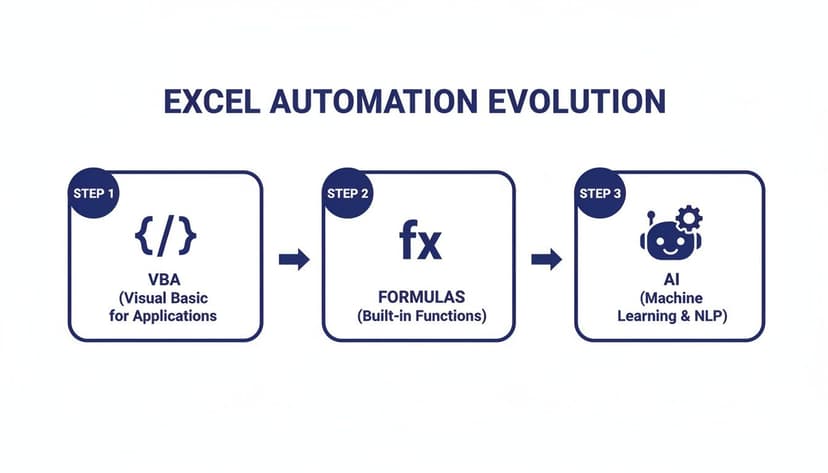
The evolution is clear—it's all about making powerful tools more accessible. It’s your intent, not your coding skill, that gets the job done now.
The Scenario: A Messy Sales Report
Picture this: you've just downloaded the latest quarterly sales data, and it's a disaster. A system glitch left duplicate entries, date formats are inconsistent (MM/DD/YYYY and DD-MM-YY), and the "Product Name" column is riddled with extra spaces. Your task is to clean it, calculate sales by region, and identify the top-selling products.
In the past, this meant a multi-step, manual grind. You'd use the "Remove Duplicates" tool, create a helper column for a TRIM() formula, mess with date formatting, and then finally build a pivot table. With an AI agent, you can bundle all those steps into a single, straightforward request.
Step 1: Prompting the Data Cleanup
First, we need to fix the data quality issues. Instead of tackling each problem one by one, you can give the AI a clear list of instructions to handle everything at once.
Just open the Elyx.AI panel and type a prompt like this:
"First, remove all duplicate rows based on the 'Order ID' column. Then, standardize the 'Order Date' column to a DD-MM-YYYY format. Finally, remove any leading or trailing spaces from the 'Product Name' column."
The AI gets to work, executing each action in order. It identifies the correct columns, applies the necessary functions behind the scenes, and updates your sheet with perfectly clean data. A task that could have easily taken 15-20 minutes is now done in seconds.
For a deeper dive into more advanced cleaning methods, our guide on how to automate data entry has some great tips.
Step 2: Analyzing the Clean Data with Formulas
Now that your data is clean, you can move on to analysis. Let's say you want to calculate the total sales for the "North" region. Instead of building a pivot table, you can ask the AI to generate the correct formula.
Your next prompt could be:
"Write an Excel formula to sum the 'Sales Amount' in column F for all rows where the 'Region' in column D is 'North'."
The AI will provide the SUMIF formula: =SUMIF(D:D, "North", F:F)
Formula Explanation:
=SUMIF(: This is the Excel function that sums values in a range that meet a specific criterion.D:D: This is the range to check for the criterion (the 'Region' column)."North": This is the criterion. The formula will look for cells in column D that contain the text "North".F:F: This is the sum_range. If a cell in column D meets the criterion, the corresponding value from column F (the 'Sales Amount') will be added to the total.
As you get more comfortable, you might want to connect processes across different apps. That's where tools like Power Automate come in, letting you build automations that go way beyond just Excel.
Step 3: Visualizing the Results
Finally, a good report needs a visual to help stakeholders quickly grasp key takeaways. Let's create a pivot table and chart to summarize sales across all regions.
You can give one last command:
"Create a pivot table on a new sheet that summarizes the total 'Sales Amount' for each 'Region' and sort the regions from highest to lowest sales. Then, create a bar chart from this pivot table."
And just like that, the agent generates the pivot table and the corresponding chart. With three conversational prompts, you’ve transformed a raw data dump into a clean, analyzed, and visualized report. This is a perfect example of how to automate repetitive tasks and reclaim your day for more important work.
How This Looks in the Real World: Practical Examples for Your Role

It's one thing to discuss automation in theory, but it’s another to see it solve a problem you face every week. Let's look at some concrete, real-world scenarios where an AI agent like Elyx.AI can completely change the game for different professionals—no coding required.
These examples aren't about shaving a few minutes off your day; they're about winning back hours. The shift is already happening. By 2024, 69% of routine managerial work was being automated. For those of us who live in Excel, this is a massive deal, with 30% of IT professionals seeing huge time savings for their colleagues who use these tools.
And it’s not just about speed. Automating workflows can reduce errors by as much as 70%. That’s a game-changer in fields like finance, where bad processes impact 35% of professionals. The market reflects this, too—the global financial automation market is on track to hit $20.7 billion by 2032. For a deeper look, check out these workflow automation statistics on Flowlu.com.
For the Financial Analyst
It’s the start of the month, and the budget variance report is due. You have two spreadsheets: one with "Budgeted" numbers and another with "Actuals." The task is to merge them, calculate the variance for each line item, and flag anything off by more than 10%. Instead of wrestling with VLOOKUP and conditional formatting, you can use a single prompt.
Here's a practical formula example you could ask for:
"I have Account IDs in column A on both sheets. On the 'Actuals' sheet, give me an INDEX/MATCH formula to pull the corresponding 'Budget' value from the 'Budgeted' sheet."
The AI would generate: =INDEX(Budgeted!B:B, MATCH(A2, Budgeted!A:A, 0))
Formula Explanation:
=INDEX(Budgeted!B:B, ...): This function will return a value from the budget amount column (column B) on the 'Budgeted' sheet.MATCH(A2, Budgeted!A:A, 0): This part finds the correct row. It looks for the Account ID from cell A2 of your current sheet within the list of Account IDs on the 'Budgeted' sheet (column A). The0ensures an exact match.
Once the budget numbers are pulled in, you could follow up with: "Create a new column for 'Variance %' and use conditional formatting to highlight any cell greater than 10% in red."
For the Marketing Manager
You’ve just downloaded raw data from three ad platforms into a single, chaotic spreadsheet. You need to clean it, standardize campaign names, and calculate the Return on Investment (ROI) for each campaign.
Your conversational request could be:
"Clean this data: remove duplicate rows and trim extra spaces from the 'Campaign Name' column. Then, in a new column, calculate ROI using the formula (Revenue – Spend) / Spend. Format this column as a percentage."
The AI agent executes these steps, turning your data dump into an insightful analysis. This frees you up to think strategically about your campaigns instead of getting bogged down in data prep. This kind of efficiency is at the heart of smart business process optimization.
For the Operations Lead
It’s time to prep employee data for a new HR dashboard, but the export you received has full names in one column and start dates formatted as text.
You need to split the names and fix the dates. A simple prompt handles the entire cleanup:
"Use the Flash Fill feature to split the 'Full Name' column into 'First Name' and 'Last Name' columns. Then, convert the 'Start Date' column from text to a standard MM/DD/YYYY date format."
These examples show that you no longer need to be a formula wizard to handle complex, multi-step tasks. You just have to describe what you want the end result to look like, and the AI takes care of the heavy lifting.
How to Write Prompts That Get Results
The magic of an AI agent like Elyx.AI lies in how well it understands what you want it to do. The quality of the output is a direct reflection of the quality of your prompt. Think of it less like a genie in a bottle and more like a highly capable apprentice—the clearer your instructions, the better the final result.
Vague commands yield vague results. Telling the AI to "clean the data" is a gamble. Does "clean" mean removing duplicates, fixing date formats, or trimming extra spaces? Without clear instructions, the AI has to guess, which leads to frustration.
Provide Context and Be Specific
The cornerstone of a great prompt is context. Your AI assistant needs to understand the layout of your data and your ultimate goal. Never assume it knows that "Column F" holds your sales figures or that "Q1" means January through March.
Here are simple ways to add vital context to your prompts:
- Name Your Columns: Be explicit. Instead of "find the highest value," say "find the highest value in the 'Sales Revenue' column (Column G)." This leaves no room for error.
- Explain the Data: Give the AI background. A note like, "This sheet tracks customer support tickets, and 'Resolution Time' in Column D is measured in hours," makes a world of difference.
- Define Your Lingo: If you're using internal acronyms, spell them out. For example, "Calculate the GMV (Gross Merchandise Volume) by multiplying the 'Quantity' column by the 'Price' column."
This level of detail strips away ambiguity, allowing the AI to nail your request on the first try. If you want to dive deeper into how AI interprets these instructions to build formulas, check out our guide on the best AI Excel formula generator.
Break Down Complex Goals
When a task has multiple steps, don't cram it into one messy instruction. It's far better to break your request into a logical sequence. While Elyx.AI can handle complex commands, structuring your prompt like a mini checklist ensures everything gets done correctly and in the right order.
A simple, numbered list is often the best approach. It’s easier for you to think through the steps, and it gives the AI a crystal-clear roadmap to follow.
Let's look at a "before and after" for cleaning up a messy sales report.
The Vague Prompt (Before):
"Fix my sales report."
The Effective Prompt (After):
"Please perform the following steps on this sheet:
- Remove all duplicate rows based on the 'Order ID' column.
- Reformat all dates in the 'Order Date' column to MM/DD/YYYY.
- Trim all extra whitespace from the 'Product Name' column.
- Create a new column named 'Profit' by subtracting the 'Cost' column from the 'Revenue' column."
The difference is clear. The second prompt is a step-by-step plan. By being specific, giving context, and breaking down tasks, you can direct the AI with confidence and get exactly what you need, every time.
Frequently Asked Questions About AI in Excel
Jumping into AI for Excel automation always brings up a few questions. People want to know if their data is safe, how much Excel knowledge they need, and how these new tools differ from what's already available. Let's tackle some of the most common questions.
Is My Data Secure When I Use an AI Add-in?
This is usually the first question, and for good reason. The short answer is yes, completely. A tool like Elyx.AI, for example, is built from the ground up with a privacy-first mindset.
As an official Microsoft AppSource add-in, it is designed so that your actual spreadsheet data never leaves your computer. The only information sent to the AI is the instruction you type—your prompt. Your sensitive numbers and text stay local. Additionally, all communication is secured with enterprise-grade encryption, and your prompts are never stored or used to train any AI models.
Do I Need to Be an Excel Guru to Automate My Work?
Absolutely not. That's the whole point. These tools are designed for people who understand their business but don't want to spend their day searching for the right formula or debugging VBA code. If you can clearly explain your goal in simple language, you can automate it.
Think of it this way: you’re not learning a new technical skill. You’re getting an on-demand Excel expert who instantly understands your goals and performs the work for you, right inside your spreadsheet.
How Is This Different from Something like Microsoft Copilot?
The biggest difference comes down to one word: execution.
Many AI assistants can provide suggestions. They might tell you which formula to use, explain the steps to create a pivot table, or even write a script for you to run. But you still have to do the work yourself.
An AI agent like Elyx.AI is different because it's autonomous. It doesn't just give you instructions; it completes the entire task for you.
You could give it a single, multi-step command like: "Clean up this messy data, turn it into a pivot table summarizing sales by region, and then create a bar chart to visualize it." The agent handles it all, from start to finish. You don't get a to-do list—you get the finished product.
Ready to stop wrestling with tedious tasks and get back to more important work? Elyx.AI is the autonomous agent that actually does your Excel workflows for you.
See for yourself how much time you can save. Start a free 7-day trial and see it in action.
Reading Excel tutorials to save time?
What if an AI did the work for you?
Describe what you need, Elyx executes it in Excel.
Sign up