7 Powerful Ways to Use the Excel Convert Text to Number Function

It's a classic Excel headache: you've got a column full of what looks like numbers, but when you try to SUM them, you get a big fat zero. If you've ever found yourself in this situation, you're not alone. The culprit is almost always the same—your numbers are secretly masquerading as text.
The good news is that fixing this is usually straightforward once you know what's going on. You just need to use an Excel convert text to number function or one of its clever built-in tools to change the data's underlying type. It’s a small change that makes all the difference, allowing you to get back to accurate analysis.
Why Your Excel Formulas Are Failing and How to Fix It
Picture this: you've just imported a fresh batch of sales data from a CSV file or a web report. You go to calculate the total revenue, and your formula returns a frustrating zero. The numbers are right there, plain as day, but Excel just won't add them up.
Spending too much time on Excel?
Elyx AI generates your formulas and automates your tasks in seconds.
Sign up →This happens all the time. When you pull data from other systems, it often comes in as text, even if it looks like a number.
Here's the trap many people fall into: they select the column, right-click to 'Format Cells,' and switch the category to 'Number.' It feels like the right move, but it almost never works. Why? Because you're only changing the cell's "mask"—how the data is displayed—not the actual data type underneath. Excel still sees text.
It's a common misconception. In fact, studies suggest around 80% of Excel users think changing the cell format is enough to convert text. That
SUMfunction returning zero isn't just a bug; it's a diagnostic tool. About 40% of business intelligence pros actually rely on this behavior to quickly flag formatting problems.
Spotting the Problem Before It Starts
So, how do you spot these text-based numbers before your formulas fail? There are a few dead giveaways.
First, check the alignment. By default, real numbers always align to the right side of a cell, while text hugs the left. If your numbers are all bunched up on the left, that’s your first major clue.
To help you quickly diagnose what's happening in your sheet, here’s a quick guide to the most common symptoms.
Quick Guide to 4 Signs of Text-Formatted Numbers
This table breaks down the common signs that your numbers are actually text and what you can do to confirm it.
| Symptom | What It Means in Excel | Quick Check |
|---|---|---|
SUM formula returns 0. |
Excel is ignoring the cells because it sees them as text, not numbers. | Use the ISNUMBER function on a cell. If it returns FALSE, it's text. |
| Numbers align to the left. | This is Excel's default alignment for text values. | Widen the column. If the number stays on the left, it's text. |
| Green triangle in the cell corner. | Excel's error checking has flagged the cell as a "Number Stored as Text." | Click the cell and look for the yellow warning icon to appear. |
| Formulas don't work. | Mathematical operators like +, -, *, / fail or produce #VALUE! errors. |
Try a simple formula like =A1+1. If you get an error, A1 is text. |
Once you've spotted the signs, you're halfway to solving the problem. The next step is to actually convert the data.
Another telltale sign is the little green triangle that sometimes pops up in the top-left corner of a cell. This is Excel’s built-in error checker waving a flag at you, signaling a "Number Stored as Text" issue. While you can click the warning icon and convert the cells one by one, that’s painfully slow for large datasets. Dealing with these issues efficiently is a core Excel skill. For a deeper dive, you can explore our complete guide on solving common Excel errors.
This simple decision path sums it up perfectly. If your math is wrong, the first thing to check is whether your numbers are actually numbers.
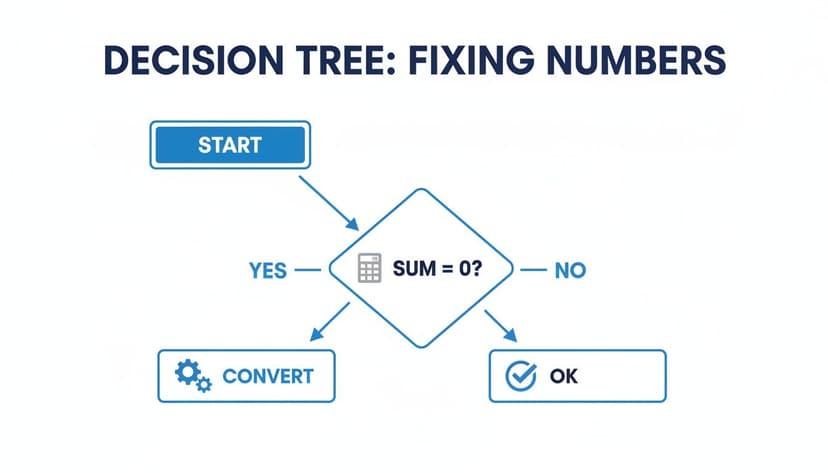
The key takeaway is simple: when a formula like SUM acts up, it’s not a bug. It’s a signal from Excel that it doesn't recognize your data as numeric, and you need to perform a quick conversion to get back on track.
Master 3 Essential Formulas for Converting Text to Numbers
When the quick fixes don't cut it, you need to bring in the formulas. Using a dedicated Excel function gives you much more control, especially when dealing with tricky data like currency symbols or inconsistent formats. Getting comfortable with a few key formulas will make you the go-to person for cleaning up messy spreadsheets.
1. The VALUE Function: Your Everyday Go-To
For most standard conversions, the VALUE function is all you need. It’s built for one simple job: to take a text string that looks like a number and turn it into a real number you can use in calculations.
- Formula:
=VALUE(text) - Explanation: The
textargument is simply a reference to the cell containing the number stored as text. The function then returns a numeric value.
For example, let's say cell A2 contains the text '$1,234.56'. A normal formula like =A2+100 would result in a #VALUE! error. But by using =VALUE(A2), Excel correctly interprets the string and returns the number 1234.56, which is ready for any calculation.
A word of warning: VALUE is fantastic for standard US-style numbers, but it often gets tripped up by international formats that use different decimal or thousands separators. If you're dealing with global data, the next function is a much safer bet.
From what I’ve seen, inconsistent formatting during data imports is a massive headache. Poor data quality is a huge time sink for businesses, and it’s no surprise that 60-70% of these issues come from simple formatting problems. In financial reporting, I've seen text-formatted numbers cause errors in up to 15-20% of automated reports, leading to hours of painful manual corrections.
2. The NUMBERVALUE Function for International Data
If you work with data from different countries, you’ll want to get familiar with the NUMBERVALUE function. This one was specifically designed to handle the various decimal and group separators you see in global business—a common source of errors.
- Formula:
=NUMBERVALUE(text, [decimal_separator], [group_separator]) - Explanation:
text: The cell with your number that's formatted as text.decimal_separator: The character used as the decimal point in the original text (like a comma,). This is a required argument.group_separator: The character used as the thousands separator (like a period.). This is also a required argument.
Imagine you have a European sales figure in cell A3 that reads "1.234,56". The standard VALUE function would fail on this. Instead, you'd use this formula:
=NUMBERVALUE(A3, ",", ".")
This tells Excel exactly how to read the text: treat the comma as the decimal and the period as the thousands separator. It correctly converts the string into the number 1234.56. If you want to explore more ways to simplify your workbook, you can check out our guide on essential Excel formulas.
3. Combining Functions for Complex Data Cleaning
Sometimes, numbers are buried in text with extra spaces, currency signs, or other non-numeric characters. In these cases, you need to clean the data before you convert it. This is where nesting functions comes in handy. Your best friends for this are:
- TRIM: Zaps all extra spaces from the start, end, and middle of a text string.
- SUBSTITUTE: Finds and replaces specific characters with something else (or with nothing at all).
Let's say cell A4 has " $ 500 ", complete with leading and trailing spaces and a dollar sign. A simple =VALUE(A4) won't work.
The trick is to nest the functions to create a cleaning-and-conversion assembly line. First, you get rid of the dollar sign, then you trim the spaces, and finally, you convert the result to a number.
- Formula:
=VALUE(TRIM(SUBSTITUTE(A4, "$", ""))) - Explanation:
SUBSTITUTE(A4, "$", "")finds the dollar sign"$"in cell A4 and replaces it with nothing (""), resulting in the text" 500 ".TRIM(" 500 ")takes that result and removes the leading and trailing spaces, leaving you with"500".VALUE("500")takes the cleaned text and converts it into the number 500.
This combo is incredibly robust. It systematically strips out the junk before converting, making it one of my favorite methods for dealing with the messy, unpredictable data you find in the real world.
2 Formula-Free Methods for a Quick Fix
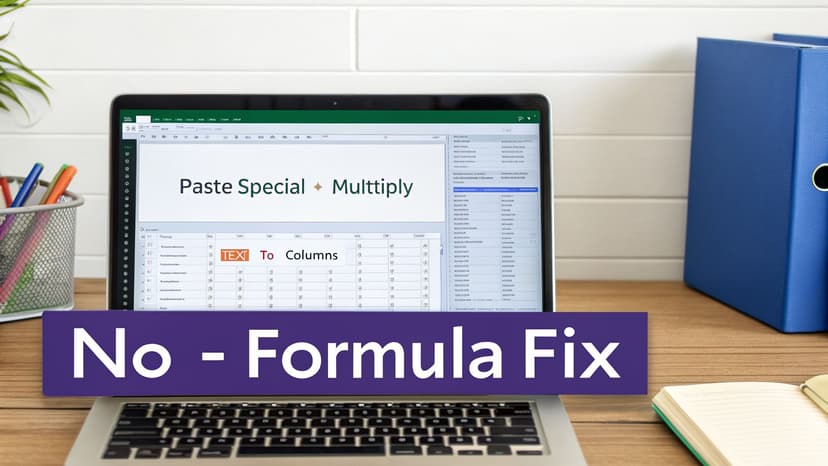
Formulas are great for precision, but sometimes you just need to get the job done fast. When you're staring at thousands of rows where the numbers are stubbornly stuck as text, creating a new helper column with a formula can feel like a chore.
Thankfully, Excel has a couple of built-in tools that can perform this conversion right in place. No extra columns, no formulas—just a quick, clean fix. These methods are my go-to for data prep, especially when I don't need to keep the original text version.
1. The Paste Special Multiply Trick
This is one of my favorite Excel tricks. It’s incredibly simple but so effective. The logic is that if you force Excel to do math on something that looks like a number, it will convert it to an actual number first.
Here’s how to do it:
- Click on any empty cell and type the number 1.
- Copy that cell (Ctrl + C).
- Now, select all the cells with the text-formatted numbers you need to fix.
- Right-click on your selection, go to Paste Special, and choose Multiply. Click OK.
That's it. Excel multiplies every cell by one—which doesn't change the value—and in the process, converts them all from text to numbers. You'll see them snap to the right side of the cell, and any formulas that were failing will suddenly start working. It’s a game-changer for cleaning up data imported from other systems.
2. Using the Text to Columns Wizard
Here’s another tool that does more than its name suggests. The Text to Columns wizard is usually for splitting text, but it has a fantastic side effect: it forces Excel to re-evaluate the data type of the column you're working on. This makes it a perfect bulk-conversion tool.
Here's the quick walkthrough:
- Select the entire column of text-numbers you want to convert.
- Navigate to the Data tab and click Text to Columns.
- A wizard will pop up. Just leave Delimited selected and click Next.
- On the second screen, make sure all the delimiter boxes are unchecked, then click Next again.
- In this final step, just make sure the column data format is set to General and hit Finish.
This simple process nudges Excel to take a second look at your data and correctly format the numbers. It’s a lifesaver for fixing entire datasets, especially after importing a CSV file that got its formatting scrambled. Mastering these formula-free methods lets you dive into more advanced Excel use cases and stop wasting time on manual data cleaning.
It's worth noting just how efficient these tricks are. Using the Paste Special Multiply method can speed up the conversion process by around 400% compared to fixing cells one by one. Despite this, industry surveys have shown that 78% of Excel users aren't aware of these techniques, often falling back on tedious manual work.
Build Automated Workflows with Power Query and VBA
If you find yourself importing and cleaning the same data over and over again, you know how much time it eats up. Manual fixes are fine for a one-off task, but for recurring work, it's time to build a real system. This is where you graduate from single-use formulas to creating automated data pipelines with Power Query and VBA.
Think about that weekly sales report or the monthly data dump from your CRM. When you're dealing with consistent data sources like these, Power Query should be your go-to tool. It's a data transformation engine built right into Excel that essentially records your cleaning steps. You do the work once, and Power Query replays it for you every time.
Instead of manually fixing a column of text-formatted numbers, you just tell Power Query to change the data type. That instruction gets saved as part of a query. The next time a new data file lands on your desk, you simply hit "Refresh." Power Query automatically runs all your saved steps, including the text-to-number conversion, giving you analysis-ready numbers without any extra effort.
Using Power Query to Set Data Types
When you open your data in the Power Query Editor, you'll see a small icon in each column header that tells you the current data type—like "ABC" for text or "123" for a whole number.
- To fix a single column, just click the icon and pick the right format from the menu, such as "Decimal Number" or "Whole Number."
- To update several columns at once, hold down the
Ctrlkey to select them all. Then, right-click one of the selected headers, go to Change Type, and choose the format you need.
Every change you make is recorded as a step in the query. This means every time you refresh the data, that conversion will happen automatically, guaranteeing your reports are always consistent.
Automating with a VBA Script
For situations that require a bit more customization, Visual Basic for Applications (VBA) is an excellent choice. Maybe you want to add a "Convert" button directly to your worksheet for your team to use, or you have a quirky cleaning task that Power Query struggles with.
With VBA, you can write a short script that loops through a selected range of cells and forces any text that looks like a number to become a proper numeric value. It's perfect for building small, custom tools tailored to your specific workflow.
The real power of automation comes from creating truly robust data pipelines. I once had a client who received bi-weekly data drops into shared folders named by date. We used Power Query's dynamic parameters to automatically find the correct folder for the week, pull the data, clean it, and convert all the necessary columns. The entire process became completely hands-off and foolproof.
Here’s a simple but effective VBA script to get you started. This code will run on any cells you've selected, check if a cell contains a number stored as text, and convert it.
Sub ConvertTextToNumbers()
    'Loop through each cell in the user's selection
    For Each Cell In Selection
        'Check if the cell contains a number formatted as text
        If IsNumeric(Cell.Value) And Not IsEmpty(Cell.Value) Then
            'Convert the text-formatted number to a real number
            Cell.Value = Val(Cell.Value)
            Cell.NumberFormat = "General"
        End If
    Next Cell
End Sub
Mastering tools like these helps you move from just doing tasks to designing efficient, repeatable systems. If building these kinds of processes piques your interest, you can explore the exciting possibilities of AI automation and how it's shaping modern data workflows.
Let an AI Agent Automate the Entire Conversion Process

All the formulas and manual tricks we've covered are fantastic, but they still require you to do the work. What if you could just… not? This is where AI Excel agents are changing the game. Instead of wrestling with formulas, you can have a tool handle the entire text-to-number cleanup with a single instruction.
Imagine you've just been handed a messy sales report. You could simply tell an AI agent, "Find every column with numbers stored as text, get rid of the currency symbols and extra spaces, and convert everything to proper numeric values." Then you just sit back and watch it happen.
From Command to Completion
An autonomous AI agent like ElyxAI doesn't just give you a formula to copy and paste; it actually performs the entire workflow for you. It finds the problem, cleans the data, and completes the conversion, often saving hours of tedious work. You don't need to be an Excel guru to use it.
The agent works through the problem just like an expert would, only much faster:
- It Identifies the Problem: First, the AI scans your sheet to find all the columns where numbers are trapped as text.
- It Cleans the Data: Next, it applies the right cleaning logic—trimming spaces, removing currency signs, or handling other junk characters—without you lifting a finger.
- It Converts the Values: Finally, it uses the best method to convert the cleaned text into true numbers across the entire column.
This is how AI makes data cleaning feel less like a chore and more like magic. You no longer have to remember a specific Excel convert text to number function or click through a multi-step wizard. If you want to see this in action, you can learn more about what a dedicated Excel AI agent can do.
Instead of you telling Excel how to do something, you simply tell the AI what you want. It’s a shift from being an operator to being a director, focusing your time on analysis rather than mechanics.
The Power of Autonomous Agents
This kind of automation works because smart AI models can understand your goal and figure out the logical steps to get there. It’s like having an expert analyst working right beside you inside your spreadsheet. If you're curious about the technology that drives this, looking into how a multi agent system functions can give you a peek into the future of autonomous workflows.
By letting an AI handle the repetitive data prep, you get your time back. You can finally focus on what the numbers actually mean and make better decisions. The whole cleanup process, from finding the rogue text to getting clean numbers, is over in seconds. A once-dreaded task becomes a simple, one-step command.
3 Common Questions and Quick Fixes for Text-to-Number Problems
You've learned the main techniques, but what about those specific, tricky situations that always seem to pop up? Let's walk through some of the most common questions I hear and the best ways to solve them.
1. What's That Little Green Triangle, and How Do I Use It?
Ah, the little green triangle. That's Excel's way of politely telling you it thinks something is wrong. When it comes to numbers, it's usually a warning that you have a number formatted as text.
If you click the cell, a small warning icon appears. Clicking that gives you a "Convert to Number" option. This is perfect for fixing one or two cells on the fly. But if you're looking at a column with thousands of rows? It's not the right tool for the job. For that, you’ll want a more powerful method.
2. Is There a Way to Convert a Whole Column at Once Without Formulas?
Yes, absolutely! Forget formulas for a minute. There are two fantastic tricks that every regular Excel user should know for bulk conversions.
- The Paste Special "Multiply" Trick: This is a super-fast, elegant solution. Just type the number 1 into any blank cell and copy it. Then, select your entire column of text-numbers, open the Paste Special menu, and choose to Multiply. This forces Excel to do math on each cell, which instantly converts them to true numbers.
- The Text to Columns Wizard: This might sound strange, but it works like a charm. Select your column, go to the Data tab, and open the Text to Columns wizard. You don't actually have to change any settings—just click "Finish." The wizard re-evaluates the data as it runs, correctly identifying the numbers and converting the whole column.
Both of these are go-to methods for cleaning up large datasets you've imported or pasted from another source.
3. My Numbers Have Currency Symbols ($ or €). How Do I Convert Them?
This is a classic problem, especially when you're pulling data from financial reports or web pages. If you try to use the VALUE function on a cell containing "$1,250.75", it will throw a #VALUE! error because it doesn't know what to do with the dollar sign or the comma.
The key is to clean the text before you try to convert it. You can do this all in one go by nesting functions together.
Think of it as creating a mini-assembly line inside a single formula. First, you have to strip out the characters that aren't numbers. For a cell like A1 containing "$1,250.75", you'd use the SUBSTITUTE function to get rid of the dollar sign.
Then, you simply wrap that entire SUBSTITUTE function inside the VALUE function.
Your final formula looks like this:
=VALUE(SUBSTITUTE(A1, "$", ""))
This tells Excel: "First, take cell A1 and replace the "$" with nothing. Then, take the result of that and convert it into a number." You can use this exact same logic to remove any symbol—just swap the "$" for a euro sign, pound sign, or anything else that's getting in the way.
Ready to stop wrestling with formulas and let an autonomous agent handle your Excel work? Elyx AI acts as your personal data analyst, executing entire workflows from a single instruction. Clean data, create reports, and build charts in seconds. Try it for free and get back hours in your week. Start your 7-day free trial now.
Reading Excel tutorials to save time?
What if an AI did the work for you?
Describe what you need, Elyx executes it in Excel.
Sign up