7 Ways an Excel AI Tool Can Transform Your Workflow

Think of an Excel AI tool as a smart co-pilot sitting right inside your spreadsheet. It’s built to take on the complex, repetitive data chores that eat up your day. But we're not just talking about a glorified formula suggester. A modern AI tool is more like an autonomous assistant that understands plain English commands to execute entire workflows for you, from cleaning up messy data to building full-blown reports and charts.
1. What Exactly Is an Excel AI Tool?
Imagine having a seasoned data analyst at your elbow, ready to jump on any spreadsheet task you hand them. That's the real spirit behind a modern Excel AI tool. It's less of a feature and more of a partner for your whole data process, completely changing the way you work with spreadsheets.
We’ve all been there, spending hours on mind-numbing but essential tasks—manually hunting for duplicate rows, fixing sloppy text formatting, or piecing together the same sales report month after month. An Excel AI tool flips that script entirely. You just describe the end result you're looking for, and the AI takes care of all the steps to get you there.
Spending too much time on Excel?
Elyx AI generates your formulas and automates your tasks in seconds.
Sign up →1.1 From Manual Work to Autonomous Action
Instead of doing the work yourself, you delegate it. The AI can independently run through all the necessary steps, from the initial data scrubbing to creating complex pivot tables and graphs, all based on a single, simple instruction from you.
This is a huge shift. It moves your focus from the process to the strategy. You no longer have to get bogged down in the "how" of writing a tricky VLOOKUP or structuring a pivot chart. Instead, you can focus on the "what"—what story is this data telling me? What decisions can we make with this report?
In short, an AI assistant clears the path from raw, messy data to a polished, insightful report, giving your productivity a massive boost.

This kind of interface is a game-changer. You can just type a command in natural language, and the AI gets to work executing complex tasks right there in your spreadsheet.
1.2 A Growing Need in a Data-Driven World
Our reliance on powerful data tools is only getting stronger. To really get a feel for what Excel AI tools bring to the table, it helps to look at bigger trends, like the AI Banking Revolution and the way machine learning is reshaping entire industries like finance.
Microsoft Excel is still the king of the spreadsheet world, with over 203,913 verified companies relying on it. This huge user base is a major driver behind the data analytics market, which is expected to swell to USD 143.1 billion by 2035. That growth underscores a massive need for smarter, faster analysis tools.
This is exactly where a dedicated Excel AI tool fits in. It gives the millions of people who live in Excel every day the power to work faster, cut down on human error, and pull deeper insights from their data—all without needing a degree in data science.
2. The 5 Core Capabilities of Modern Excel AI Tools
A modern Excel AI tool isn't just a fancy formula generator. Think of it more like an experienced assistant sitting next to you, ready to take on the most tedious parts of your spreadsheet work. These tools are designed to solve the real, everyday frustrations that bog us down, turning hours of manual clicking and typing into a few seconds of automated magic.
Let's break down the five core things these tools do that fundamentally change how you work in Excel.
2.1 Autonomous Data Cleaning
We've all been there. Before you can even think about analysis, you have to clean up the data. This is easily the most soul-crushing part of any project—hunting for duplicates, wrangling inconsistent formatting, and fixing endless typos. A good AI tool just handles it for you.
Imagine you have a sales sheet where names are a mess ("John Doe," "doe, john," and "J. Doe") and dates are all over the place ("10/05/2024" vs. "May 10, 2024"). Instead of wrestling with TRIM, PROPER, and a dozen other functions, you just tell the AI: "Standardize all names to 'First Name Last Name' format, unify date formats to DD/MM/YYYY, and remove any duplicate rows." The tool does it all instantly, leaving you with a clean dataset ready for the real work.
2.2 Complex Formula Generation with 2-Part Explanations
Trying to remember the exact syntax for a tricky INDEX MATCH or a nested IF statement can stop you dead in your tracks. An AI tool doesn't just write the formula for you; it explains how it works. This is a game-changer because it helps you learn on the fly.
Let's say you need to calculate total sales for a specific product in a certain region. You could just ask: "Write a formula to sum sales from column C where column A is 'Laptops' and column B is 'North'." The AI gives you the perfect SUMIFS formula and then breaks it down.
Example Formula: =SUMIFS(C2:C100, A2:A100, "Laptops", B2:B100, "North")
Detailed Explanation:
SUMIFS: This is the function that adds up cells based on multiple criteria.C2:C100: This is the sum range—the column containing the sales numbers you want to add.A2:A100, "Laptops": This is the first criterion. It checks the product column (A) for the word "Laptops".B2:B100, "North": This is the second criterion. It checks the region column (B) for the word "North".
The formula only sums a value in column C if both conditions are met on the same row. The real win here isn't just getting the formula. It's understanding the logic behind it. The AI becomes your personal Excel tutor, building your skills with every single query.
2.3 Automated Data Analysis and Summarization
Building pivot tables is a cornerstone of Excel analysis, but it’s a manual, multi-step process. A smart AI assistant automates this completely. You can get high-level summaries without ever touching the PivotTable Fields pane. If you're curious about the mechanics, you can dive deeper into the essentials of AI data analysis to see how it all connects.
For example, with a massive sheet of transaction data, you could simply say: "Create a summary table showing total revenue and average transaction value for each product category." Just like that, the AI generates a new sheet with a clean, perfectly structured summary. No dragging and dropping required.
This table sums up the 5 core functions modern AI tools bring to the table, solving some of the most common headaches for Excel users.
| Capability | Problem Solved | Example AI Command |
|---|---|---|
| Data Cleaning | Inconsistent formats, duplicates, typos | "Standardize all dates to MM/DD/YYYY and remove duplicate rows." |
| Formula Generation | Forgetting complex syntax, logic errors | "Write a VLOOKUP to find the price in column B for the product ID in A2." |
| Data Analysis | Manual pivot table creation, slow summaries | "Summarize sales by region and show the top 3 performing products." |
| Chart Creation | Time-consuming chart formatting & setup | "Create a pie chart showing the sales distribution by country." |
| Report Formatting | Inconsistent styling, manual branding | "Format this sheet with blue headers and add filters to all columns." |
As you can see, the focus is always on translating a simple, natural language request into a finished product.
2.4 Instant Chart and Visualization Creation
Numbers on a screen are one thing, but a sharp, clear chart is what makes your findings resonate. An Excel AI tool can build professional-looking charts from a single sentence.
- Before: You'd have to manually select your data, pick a chart type, fiddle with the axes, add labels, and hope it looks right.
- After: You just type, "Create a bar chart comparing sales performance across all regions for Q3." Done.
2.5 Intelligent Report Formatting
Finally, presentation matters. A polished report needs clean formatting—consistent colors, clear headings, and a logical layout. Instead of clicking through endless formatting menus, you can just tell the AI what you want.
Imagine saying, "Format this report with our company's blue and grey color scheme, bold all headers, and add alternating row colors to the main table." The AI applies these styles across the entire workbook, ensuring your final report looks professional and consistent.
3. How to Choose the Right Excel AI Tool in 5 Steps
With so many Excel AI tools popping up, picking the right one can feel a bit like navigating a maze. They all promise to make your life easier, but not all are created equal. The wrong choice can lead to wasted time and even put your data at risk. To cut through the noise, you need to know what to look for.
The market for these tools is booming. Valued at USD 11.72 billion in 2025, it's expected to explode to USD 69.22 billion by 2035. That kind of growth means a flood of new options, which makes having a solid checklist even more critical. You can dig into the full market growth analysis on snsinsider.com.
Let’s walk through the five things that really matter when you’re evaluating a tool.
3.1 Step 1: Verify Security and Data Privacy
This one is non-negotiable, especially if you’re working with sensitive company data. The single most important question you can ask is: Where does my data go? Many tools out there will upload your entire spreadsheet to their servers to process your request. That's a huge security red flag.
A truly secure tool operates on a privacy-first model. It ensures your spreadsheet data never leaves your local computer. Only your text-based instructions are sent to the AI for processing, keeping your confidential numbers safe and sound right where they belong.
Before you commit, always get a clear answer: "Does this tool process my data locally?"
3.2 Step 2: Assess the Level of Autonomy
Next, you need to figure out how much work the tool actually does for you. Some are little more than formula assistants. They might suggest a VLOOKUP or give you the steps to create a chart, but you’re still the one doing all the clicking and typing.
A top-tier tool, on the other hand, acts like an autonomous agent. It doesn't just suggest—it does. You give it a high-level command like, "Create a sales report by region," and it handles the entire workflow on its own. It will clean the data, run the analysis, and build the visualizations, all without you having to lift a finger.
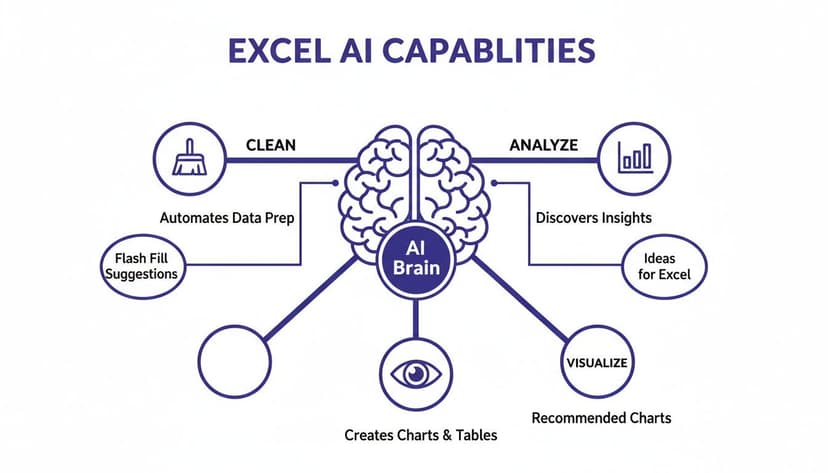
The real power lies in a tool that can connect all the dots for you, from messy data to a polished report, in one go.
3.3 Step 3: Check for Seamless Integration
How well does the tool fit into your daily routine? If you have to constantly switch between Excel and another application, any time you save on the task itself is lost to the clunky workflow.
Look for an add-in that's available on the official Microsoft AppSource. These tools have been vetted by Microsoft for security and reliability, and they integrate directly into the Excel ribbon. A good tool should feel like it was always part of Excel, not some awkward bolt-on. You can explore our guide on the best Excel AI tools to see what a smooth integration looks like in practice.
3.4 Step 4: Test for Accuracy and Reliability
An AI tool that gets things wrong is worse than no tool at all. You have to be able to trust its output. When you're testing different options, throw some of your real-world, messy data at them.
Ask it to perform a complex task. Does it understand what you want? Does it produce accurate formulas and pivot tables without errors? If you find yourself constantly double-checking its work, it’s not the right tool for you.
3.5 Step 5: Evaluate Pricing and Value
Finally, let's talk about cost. It’s easy to get drawn in by a free tool, but if it’s unreliable or can’t handle complex tasks, it isn't actually providing any value.
The better question to ask is, "How much time will this save me?" Think about it. If a tool costs you a bit each month but saves you even three hours a week of tedious spreadsheet work, it pays for itself almost instantly. Focus on the return on investment, not just the price tag.
4. Automating a Sales Report With an AI Tool: A 2-Step Example
Theory is one thing, but seeing an Excel AI tool in action is where you really see what it can do. Let’s walk through a common scenario that almost everyone deals with: turning a messy data export into a clean, insightful sales report. This example will show you how a tool like ElyxAI can take a chore that used to take an hour and boil it down to a single command.
We’ll start with a sales data sheet that looks all too familiar. It’s cluttered with duplicate entries, weird formatting, and a few blank cells—the kind of spreadsheet that makes you sigh, knowing you've got a lot of manual cleanup ahead before you can even start analyzing anything.
4.1 The Old Way: A 4-Step Manual Process
If you were doing this the traditional way, you'd be staring down a tedious list of tasks. You would have to manually:
- Find and Remove Duplicates: Click over to the Data tab, find "Remove Duplicates," and meticulously select the right columns.
- Standardize Formats: Write formulas like
TRIMandPROPERto clean up text, then go through and make sure all the dates are in the same format. - Build a Pivot Table: Insert a PivotTable, then drag and drop the fields for regions, sales figures, and products until it looks right.
- Create a Chart: Finally, you'd select the data from your new table, insert a chart, and then spend even more time tweaking the titles, axes, and colors.
Every one of these steps is a potential headache and a chance to make a mistake. It’s a process that eats up time you could be using to actually think about what the data means.
4.2 The New Way: A Single Command
With an autonomous AI tool, that whole workflow gets collapsed into a single, conversational request. After installing the add-in from Microsoft AppSource, a chat panel appears right inside Excel.
Instead of clicking through all those steps, you just tell the AI what you want.
Prompt Example: "Clean this data, remove all duplicate rows, create a pivot table summarizing sales by region, and then generate a bar chart showing the results."
This is the exact prompt used to take that messy raw data and turn it into a clean, visualized report.

The AI gets to work right away, performing each step right there in your spreadsheet without you needing to do anything else.
The key here is that the AI doesn't just give you suggestions; it actually does the work. You can literally watch as it cleans the data, builds the pivot table on a new sheet, and creates a perfectly formatted chart. What you get is a professional, presentation-ready report in a fraction of the time. This kind of automation is a huge step forward. You can learn more about how this works by reading about AI automation here.
And this isn't just for sales reports. These tools fit perfectly into broader accounting automation strategies, helping finance teams streamline all sorts of tasks. The idea is always the same: let the AI handle the repetitive stuff so you can focus on the bigger picture.
5. How Do These Advanced AI Tools Actually Work in 2 Parts?
So, how does an AI understand a simple English request and then pull off a complex series of actions in your spreadsheet? It’s not magic. It's a clever combination of powerful technology and a secure design that makes a modern Excel AI tool so effective. Let’s peek behind the curtain.
The engine driving these tools is something called a Large Language Model (LLM). You can think of an LLM as a super-smart assistant that has read a library's worth of text and data, including just about every Excel guide and tutorial ever written. When you type something like, "Create a pivot table showing sales by region," the LLM gets what you mean, not just the words you used.
5.1 Part 1: The Brains of the Operation
The LLM is basically a translator. It takes your everyday language and converts it into the exact, technical steps Excel needs to follow. It breaks your goal down into a logical sequence: select the right data, insert a pivot table, put the 'Region' field in the rows area, and drop the 'Sales' data into the values box. It's like having an expert sitting next to you who knows every Excel trick in the book.
This kind of power is why the AI platform market is absolutely exploding. Projections show it growing from USD 18.30 billion in 2025 to an incredible USD 494.14 billion by 2035. That massive investment signals a huge change in how we all think about getting work done. You can read more about this expanding market on Precedence Research.
5.2 Part 2: Why a Privacy-First Design Is a Non-Negotiable
Knowing how the tech works is one thing, but for anyone working with real business data, security is everything. How do you know your confidential numbers are safe? This is where a privacy-first architecture is absolutely critical.
A secure tool like ElyxAI operates on one simple, powerful rule: your spreadsheet data never leaves your computer. Only your text-based commands are sent to the AI in the cloud. Your sensitive financial reports and customer lists stay right where they belong—on your local machine.
This hybrid approach gives you the best of both worlds:
- Cloud-Powered Intelligence: You get all the benefits of a massive, constantly-improving AI model without needing a supercomputer on your desk.
- Local Data Security: Your actual Excel file and all its contents are never uploaded or stored on some remote server, which closes a huge security loophole.
It's a design built on trust. It means you can use a powerful Excel AI tool to make your life easier without ever having to worry about compromising your most important information.
6. Getting Started With Your First AI Project in 3 Easy Steps

We've covered how an Excel AI tool can completely overhaul your workday, swapping hours of manual effort for a few seconds of smart automation. The upside is pretty obvious: you get to spend less time bogged down in repetitive tasks, you make fewer mistakes, and you can finally focus your energy on strategy and analysis.
But reading about it is one thing. The best way to really get it is to try it for yourself. Putting an AI agent to work on your own spreadsheets, with your own unique problems, is where the lightbulb moment happens. This isn't about learning yet another complicated program; it's about getting a new, incredibly capable teammate.
Takeaway: Just think of it like hiring an expert Excel assistant who works 24/7. This assistant can clean your messy data, build reports, and create charts on command, freeing you up to do what you do best: make smart, data-driven decisions.
Ready to see how it feels? You can dive into your first project right now with a completely free trial of ElyxAI. There’s no credit card required to get started, so it's a simple, no-risk way to see the value firsthand.
This is your chance to stop wrestling with spreadsheet functions and start focusing on the actual results. If you want to dig into the details, you can explore the features of the ElyxAI Excel AI add-in to see exactly how it fits with the work you already do.
7. Answering 4 Frequently Asked Questions About Excel AI Tools
Thinking about bringing an AI assistant into your spreadsheets? It's a big step, and it's smart to have questions. Let's tackle some of the most common ones that come up when people are looking at an Excel AI tool.
7.1 Is It Safe to Use an AI Tool With Confidential Company Data?
This is the big one, and the answer is: yes, if you choose the right tool. Security should be your top priority. You need a tool with a privacy-first architecture.
A tool like ElyxAI, for example, is built specifically for this. It’s designed so your actual spreadsheet data never leaves your computer. The only thing sent to the AI model is the text-based instruction you type. Your sensitive financial figures or private customer lists stay right where they belong—with you.
7.2 Do I Need to Be an Excel Expert to Use an AI Tool?
Not in the slightest. Actually, these tools are game-changers for people who aren't Excel wizards.
Instead of getting lost in a sea of VLOOKUPs and nested IF statements, you just describe what you want to do in plain English. The AI does the hard part for you, bridging the gap between what you want to accomplish and how to actually do it in Excel. It turns expert-level tasks into a simple conversation.
7.3 Can an AI Tool Create Complex Charts and Pivot Tables?
Absolutely. This is where you really start to see the magic happen. You can give a simple command like, "Create a pivot table showing sales by salesperson and month," and the tool builds it right there in your sheet in seconds.
The same goes for charts and graphs. Just tell the AI what you want to visualize, and it generates the chart directly from your data. No more fiddling with settings and options.
7.4 How Is This Different From Excel's 3 Built-In Features?
Excel's built-in tools like PivotTables, Power Query, and charting functions are powerful, but they operate on the assumption that you already know what you're doing. You have to know which feature to use, where to find it, and how to configure all the settings.
An autonomous Excel AI tool is different. It understands your goal from a single instruction. It can string together multiple steps—like cleaning up messy data, running a quick analysis, and then charting the results—all from one request. You don't have to micromanage the process.
Ready to stop wrestling with manual tasks and let an AI co-pilot handle the heavy lifting? With ElyxAI, you can automate entire workflows, from data cleaning to report generation, with simple text commands. Start your free trial today and experience a smarter way to work in Excel.
Get started with your free ElyxAI trial
Reading Excel tutorials to save time?
What if an AI did the work for you?
Describe what you need, Elyx executes it in Excel.
Sign up