Your 7 First Steps to Mastering Excel AI for Beginners

What if you could clean up a messy spreadsheet and get a perfectly formatted report just by asking for it? No more wrestling with formulas or spending hours on tedious tasks. That’s the real promise of Excel AI for beginners—it’s like having a spreadsheet expert sitting right beside you, ready to do the heavy lifting.
2 Key Things to Know About Excel AI and How It Works

Simply put, Excel AI tools embed artificial intelligence right into your worksheet. They act as a translator between what you want to do and the technical steps required to get it done. Instead of you needing to remember the exact syntax for a formula or how to build a pivot table from scratch, you can just describe your goal in plain English.
Spending too much time on Excel?
Elyx AI generates your formulas and automates your tasks in seconds.
Sign up →Behind the scenes, these tools use sophisticated language models that understand your instructions. For example, when you type, “Summarize last month’s sales by region,” the AI analyzes your intent, examines your data, and then executes the correct actions—whether that’s generating a formula, creating a chart, or cleaning up your dataset.
The 2 Types of Excel AI
It’s helpful to know that not all Excel AI tools work the same way. They generally fall into two categories: assistants that guide you and agents that act for you.
- AI Assistants: These are like helpful guides. They might suggest a formula you can copy and paste or give you step-by-step instructions to follow. They definitely speed things up, but you’re still the one clicking the buttons and putting the pieces together.
- AI Agents: This is where things get really interesting. An agent like ElyxAI goes a step further. It doesn't just suggest; it does. You give it a command, and it can carry out a whole series of tasks on its own, directly in your spreadsheet.
Think of it like this: an AI assistant gives you a recipe, but an AI agent is the chef who actually cooks the meal for you. You leave with a new skill by seeing exactly how the AI solves your problem.
This difference is key, especially for anyone new to this. While awareness of AI in Excel is growing, many people don't realize what's truly possible. A recent survey from Acuity Training found that only 20% of Excel beginners were aware of AI tools, compared to 63% of advanced users. That's a huge gap, and it shows how many people are missing out on tools that can make complex analysis much more accessible.
To get a better feel for how these tools can understand and act on your requests, it’s useful to know a little about the world of AI software development. Knowing the basics helps demystify how a simple text command can lead to such powerful results in your spreadsheet.
The 3 Core Benefits of Using AI in Your Spreadsheets
So, why even bother with AI in Excel? It’s about more than just speeding up your formula writing. When you add a smart tool to your spreadsheets, you fundamentally change how you interact with data, helping you solve concrete problems with way less effort.
First off, you get a huge chunk of your time back. Think about all the repetitive tasks that eat up your day—weeding out duplicate entries, fixing inconsistent formatting, or building reports from scratch. These jobs can shrink from hours to mere minutes. That two-hour data cleaning slog? It can become a simple, five-minute task, giving you more time for valuable analysis.
Boost Accuracy and Reduce Errors
Let's be honest, even the most meticulous Excel user makes mistakes. A single wrong character in a nested formula or a simple copy-paste error can invalidate an entire analysis. Human error is a reality when working with complex data, but AI acts as an incredible safety net.
By letting an AI agent handle the heavy lifting of formula generation and data cleanup, you sidestep the number one cause of spreadsheet blunders: manual work. The AI applies the right logic consistently, every single time. This means you can finally trust your numbers without having to triple-check every cell, providing a reliable solution to a common problem.
Get Expert-Level Results Without Being an Expert
This is the real game-changer, especially if you're not an Excel guru. You no longer have to be a VLOOKUP wizard or a pivot table master to produce genuinely insightful analysis. AI lets you get professional results just by describing what you need in plain English.
You can ask for a complex pivot table, a chart that shows sales trends, or a polished dashboard, and the AI builds it for you. This practical approach frees you up to think about what the data actually means for your business, instead of getting bogged down in the technical details.
For instance, instead of fumbling through menus for an hour to build a sales dashboard, you could just ask, "Create a dashboard showing sales by region and product, including a bar chart for top performers." You can explore more on how AI elevates standard Excel capabilities in our detailed post. This shift from focusing on the "how" to the "what" is the secret to unlocking better insights and leaving with a useful solution, no matter your skill level.
A 4-Point Comparison: ElyxAI vs. Built-In Copilot
With AI popping up everywhere in Microsoft 365, you might be wondering how a specialized tool like ElyxAI compares to the built-in Microsoft Copilot. It’s a great question, especially if you’re just starting out with AI in Excel. The real difference comes down to a simple choice: do you want an assistant to help you fly the plane, or an agent to fly it for you?
This flowchart gives you a quick visual on how AI can help you hit your goals, whether that’s saving time, making fewer mistakes, or creating reports that look like they were made by a pro.
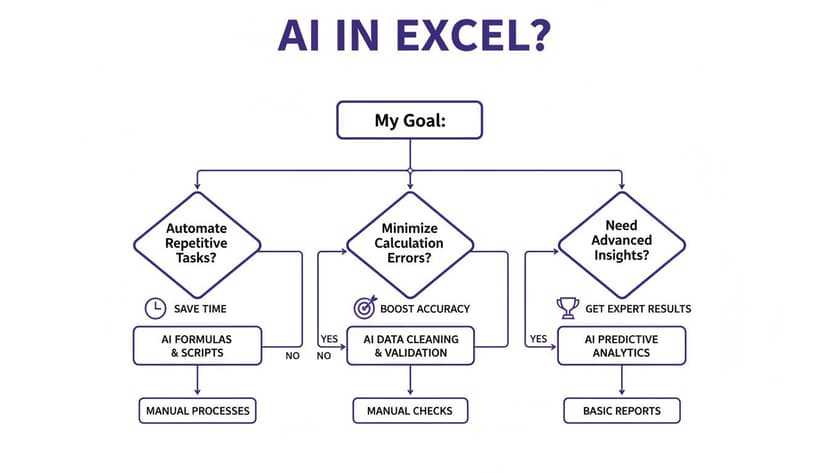
Think of these tools as ways to target specific pain points. You can automate the boring, repetitive stuff or build complex analyses you wouldn't even know where to start with.
To make the choice clearer, here’s a quick table breaking down the key differences for beginners.
ElyxAI vs. Microsoft Copilot: 4 Key Differences for Beginners
| Feature | ElyxAI (Autonomous Agent) | Microsoft Copilot (AI Assistant) |
|---|---|---|
| Primary Role | Does the work for you from start to finish. | Guides you and suggests what to do next. |
| Workflow | Handles multi-step tasks from a single command. | Focuses on one task at a time (e.g., one formula). |
| Data Privacy | Your spreadsheet data never leaves your computer. | Processes data in the cloud (Microsoft's servers). |
| Learning Curve | Extremely low; just describe your final goal. | Moderate; requires learning how to prompt effectively. |
| Best For… | Automating entire reports, cleaning data, and building charts. | Answering questions, suggesting formulas, and summarizing data. |
Ultimately, both tools are powerful, but they are built for fundamentally different jobs. Let's dig into what that means for you.
1. How They Handle Your Workflow
The biggest difference you'll feel is in how you get work done. Microsoft Copilot acts like a true AI assistant—it sits next to you, suggests formulas, explains how to do something, and can generate text or insights about your data. It’s a fantastic guide that helps you work smarter and faster.
ElyxAI, however, is what we call an autonomous agent. Think of it less as an assistant and more as a doer. You can give it a high-level, multi-step command like, "Clean this messy data, build a pivot table that shows sales by region, and then make me a bar chart from that table." ElyxAI will then execute that entire sequence on its own. It doesn't just suggest—it actually does the work for you.
2. What About Data Privacy and Security?
When you’re working with company numbers or personal information, data security is non-negotiable. This is where ElyxAI takes a very deliberate, privacy-first approach. Your spreadsheet data never, ever leaves your computer. Only your plain-text instructions (your prompts) are sent to the AI to figure out what to do.
This gives you total peace of mind, knowing your sensitive data stays local and confidential. Plus, since ElyxAI is an official add-in from the Microsoft AppSource, it has already been reviewed and approved for security.
3. Ease of Use for Beginners
For anyone new to this, the simpler, the better. Both tools let you use plain English, but the experience is quite different. Copilot is built right into the Microsoft ecosystem, which feels familiar. However, its capabilities are vast, and it can sometimes take a bit of trial and error to figure out the exact prompt to get the result you want. If you're curious, you can see how it fits in with other best AI coding tools out there.
ElyxAI was built with one job in mind: handling Excel tasks. This focus makes it incredibly intuitive. You just describe the end result you’re looking for, and the agent takes care of all the technical steps. For a beginner, this often feels much more direct and less intimidating.
4. The Scope of Work They Can Do
Finally, what are you actually trying to accomplish? Your answer will point you to the right tool.
- Microsoft Copilot is your go-to for quick assistance. It’s fantastic for generating a tricky formula, summarizing a table of data, or answering "how-to" questions without you having to leave Excel.
- ElyxAI is built for executing entire workflows. Its specialty is taking a raw, messy dataset and turning it into a polished, presentation-ready report—complete with cleaning, analysis, charts, and formatting—all from a single instruction.
If you want to get even more granular, we’ve put together a detailed breakdown of how ElyxAI and Copilot compare on our site. In the end, it really is about choosing between a helpful guide who can answer your questions or a hands-on expert who can do the job for you.
Your 7 Steps to Getting Started with ElyxAI
Alright, enough talk. Let's get our hands dirty and see what this thing can do. This is your quick-start guide to getting ElyxAI up and running and automating your first task—all in just a few minutes.

We'll start with the installation, which is surprisingly simple, and then jump right into your first prompt. The image above shows you the chat panel where all the action happens, right inside the Excel you already know. That’s a huge part of what makes Excel AI for beginners feel so natural right from the start.
Step 1: Install from Microsoft AppSource
First things first, you need to add ElyxAI to Excel. The whole process takes about two minutes and is completely secure since it comes directly from the official Microsoft AppSource.
- Open up Excel and click the Home tab.
- Look for Add-ins in the ribbon and give it a click.
- In the store window that pops up, just search for "ElyxAI".
- Hit the Add button to install it.
Because it's a Microsoft-vetted add-in, you can be confident it meets their strict standards for security and performance. No guesswork needed.
Step 2: Open the ElyxAI Panel
Once it's installed, you’ll notice a brand new ElyxAI tab in your Excel ribbon. Click on that tab, then select "Open ElyxAI." A chat panel will slide out on the right side of your screen. Think of this as your new command center.
Step 3: Prepare Your Data
Let’s work with a classic problem: a messy contact list. We've all been there. Imagine a spreadsheet filled with duplicate names, phone numbers in ten different formats, and no logical order. This is the perfect "before" photo for our first AI makeover.
Step 4: Write Your First Command
Here’s where the fun begins. You don't need to remember a single formula. Just tell ElyxAI what you want in plain English.
In the ElyxAI panel, you could type something like this:
"Remove all duplicate contacts based on their email address, format all phone numbers to look like (XXX) XXX-XXXX, and then sort the whole list alphabetically by last name."
With just that one sentence, you've given the AI a complete, multi-step workflow.
Step 5: Let the AI Work
After you send your command, just sit back and watch. ElyxAI reads your request, understands what needs to be done, and gets to work. You'll see your spreadsheet transform right before your eyes.
Step 6: Review the "After" Result
And just like that, your contact list is spotless. Duplicates are gone, phone numbers are uniform, and everything is sorted perfectly. You just accomplished a task that might have taken 30 minutes of tedious clicking and ran the risk of human error—all in a matter of seconds.
Step 7: Experiment with New Prompts
Now that you've seen how easy it is, start playing around! Ask it to create a bar chart from your sales data. Tell it to build a pivot table summarizing inventory. With every command, you’ll get more comfortable and confident. The possibilities are wide open.
5 Common Excel Tasks You Can Automate with AI
Okay, theory is great, but let's get to the good stuff. What does this actually look like in your day-to-day work? We're going to walk through five of the most common, time-sucking tasks that drive Excel users crazy and show you how a tool like ElyxAI can solve them with a single, plain-English command.
When you're just starting out with Excel AI for beginners, seeing it in action makes all the difference.

For each example, we'll paint a familiar "before" picture, give you the simple prompt you'd use, and show you the "after" result you get in seconds.
1. Cleaning Messy Data
This one is the absolute king of wasted time. You know the scene: a spreadsheet filled with extra spaces, inconsistent capital letters, random blank rows, and duplicate entries. It's a total mess.
- The Prompt: “Remove all duplicate rows, delete any empty rows, trim all whitespace, and make all text in the 'Category' column proper case.”
- The Result: The AI gets to work, methodically cleaning up your entire dataset. Duplicates vanish, empty rows are zapped, and text formats are standardized. You're left with a clean, trustworthy foundation for your actual analysis.
2. Building Instant Pivot Tables
Pivot tables are one of Excel's most powerful features for summarizing data, but that power comes with a learning curve. For many, the process of dragging and dropping fields into the right boxes feels like a guessing game.
With an AI agent, you can skip the manual setup entirely. Instead of building the pivot table yourself, you just describe the summary you want to see.
- The Prompt: “Create a pivot table that shows the total sales for each region and breaks it down by product category.”
- The Result: ElyxAI generates a perfect pivot table on a new sheet, structured exactly as you asked. You get the valuable insights without ever having to touch the complicated PivotTable Fields menu.
3. Generating Smart Charts
A good chart can tell a story at a glance, but making one usually involves a bunch of clicks. You have to select the right data, pick a chart type, format the axes, add labels… it's a process. AI lets you ask for the final visual directly.
- The Prompt: “Generate a bar chart showing the total sales for each sales representative, sorted from highest to lowest.”
- The Result: A ready-to-use bar chart appears, correctly labeled, sorted, and easy to read. This is a perfect example of how you can automate repetitive tasks and make your reports look more professional with almost no effort.
4. Applying Professional Formatting
Let's be honest, a well-formatted report is just easier to read and makes you look good. But who has the patience to manually apply styles, borders, and colors row by row? It’s incredibly tedious.
- The Prompt: “Format this entire table. Make the header row bold with a light blue background, add alternating row colors for the data, and apply a currency format to the 'Revenue' column.”
- The Result: In an instant, your plain spreadsheet is transformed into a polished, professional-looking report that's easy on the eyes.
5. Writing and Explaining Excel Formulas
We've all been there, staring at the screen trying to remember the exact syntax for a VLOOKUP or a nested IF function. It's a common frustration that can bring your work to a halt. AI can write the formula for you and explain how it works, helping you learn.
- The Prompt: “In the 'Discount' column, I need a formula. If the 'Order Amount' in column D is over $500, the discount should be 10%; otherwise, it should be 5%.”
- The Result: The AI generates the correct formula and instantly applies it down the entire column. For example, it would create:
=IF(D2>500, 0.10, 0.05).IF: This function checks if a condition is true.D2>500: This is the condition. It checks if the value in cell D2 is greater than 500.0.10: This is the value returned if the condition is true (10%).0.05: This is the value returned if the condition is false (5%).
You get the right calculation without the syntax-induced headache, and you learn how the formula works.
3 Frequently Asked Questions About Excel AI for Beginners
Dipping your toes into Excel AI can bring up a few questions. That's perfectly normal. Whenever new tech comes along, it helps to get straight answers to the most common concerns right away.
We've heard these three questions come up time and time again. Let's clear the air so you can get started with confidence.
1. Is My Data Safe When Using an Excel AI Add-in?
This is usually the first thing people ask, and for good reason. The short answer? With a well-built tool, yes, your data is completely safe.
Secure add-ins like ElyxAI are designed with a privacy-first approach. Here’s what that actually means: your spreadsheet data—all the numbers, names, and sensitive details—never leaves your computer. The only thing sent out is your instruction, the plain-text prompt you type. Your Excel file itself stays local and private.
This is a huge deal. Some online AI tools make you upload your entire file to their servers, which opens up potential security risks. By keeping your data on your machine, tools like ElyxAI avoid that risk entirely.
As an extra layer of security, any add-in on the official Microsoft AppSource has been reviewed by Microsoft for security and compliance. It’s a seal of approval that lets you work with sensitive data without worry.
2. Do I Need to Know Formulas to Use Excel AI?
Nope, not at all. In fact, this is one of the biggest wins for anyone new to advanced Excel work. The whole point of an AI agent is to translate what you want into the technical steps needed to get it done.
Think about it. Normally, you’d have to remember the exact syntax for a =VLOOKUP() or a complicated, nested =IF() statement. With AI, you just describe your goal in plain English.
For example, instead of wrestling with a formula, you can just say:
- “For each product ID in this sheet, find its price from the ‘Price List’ sheet and put it in the 'Unit Price' column.”
The AI figures out that a VLOOKUP is the right move and then does it for you. It's an incredible way to get powerful results right away. Plus, by seeing the formulas the AI creates and having it explain them, you gain a new skill in a real-world context.
3. What Is the Difference Between an AI Agent and a Chatbot?
This is a really important distinction that gets to the heart of what modern Excel AI can do. They might look similar on the surface, but how they work is fundamentally different.
- An AI Chatbot or Formula Generator: This is an assistant that gives you suggestions or a set of instructions. You might ask, “How do I remove duplicate rows?” and it will spit out a step-by-step guide for you to follow. It tells you how to do the work.
- An AI Agent: A true agent, like ElyxAI, goes a giant step further—it does the work for you. You give it a command like, “Remove all duplicate rows from this data set,” and the agent directly analyzes and changes your spreadsheet to complete the task.
It’s the difference between being handed a recipe and having a professional chef cook the meal for you. The recipe is helpful, but having the expert do the cooking saves time, prevents mistakes, and ensures you get a great result. That’s what makes an AI agent such a game-changer for solving concrete problems in Excel.
Ready to stop wrestling with formulas and start getting answers? ElyxAI acts as your autonomous spreadsheet expert, turning your plain-English commands into perfectly executed reports, charts, and analyses.
Start your free 7-day trial and save hours of work today!
Reading Excel tutorials to save time?
What if an AI did the work for you?
Describe what you need, Elyx executes it in Excel.
Sign up