How to Convert Table from Word to Excel: 5 Smart Methods

A Word table can look clean, finished, and unusable at the same time.
You open a report, contract appendix, audit summary, or operations document and the data is right there. Rows are aligned. Headers are obvious. The content is ready for sorting, formulas, filters, and charts. But it is trapped in Word, where analysis is slow and each next step feels manual.
Many users try the same move first. Copy. Paste. Hope. Sometimes that works. Sometimes Excel turns a neat table into broken rows, shifted columns, and text that refuses to calculate. That friction is not small. Professionals globally waste 5 to 10 hours weekly on manual table conversions from Word to Excel, and 62% of Office workers cite data transfer friction as a top pain point in 2024 surveys according to BitRecover’s write-up on Word-to-Excel conversion. The same source ties that drag across 1.6 billion Office licenses worldwide to over $50 billion in annual productivity loss.
Spending too much time on Excel?
Elyx AI generates your formulas and automates your tasks in seconds.
Sign up →The core issue is not just how to convert table from word to excel. It is choosing the right method before you lose time cleaning damage from the wrong one.
That Perfect Table Trapped in Microsoft Word
The familiar scenario goes like this. Finance sends a Word report with a tidy quarterly table. Operations adds notes inside some cells. A manager wants totals, filters, and a quick chart in Excel before the meeting starts.
On paper, it looks like a two-minute task. In practice, it can turn into row repair, column realignment, and repeated pastes into blank sheets until one almost works.
That gap matters because Word tables are designed for presentation, not analysis. Excel expects a strict grid. Word tolerates visual structure that looks fine to a human but becomes messy when transferred into cells. The hidden costs show up fast. A single broken import can mean rechecking every amount, every date, and every description before you trust the sheet.
Teams dealing with modern data entry operations know this pattern well. The work is not just entering data. It is preserving structure while moving data between tools without creating new cleanup work.
A second hidden cost is what happens after the import. If the pasted data is inconsistent, every downstream step gets harder. Filters miss values. Pivot tables split categories. Formula ranges become unreliable. That is why data people spend so much time on cleaning before analysis. If you need a useful primer on that part, this overview of https://getelyxai.com/en/blog/what-is-data-preprocessing is worth reading before you automate anything.
Key point: The best method is not the fastest-looking one. It is the one that preserves structure with the least repair work afterward.
2 Simple Copy-Paste Methods for Quick Transfers
The fastest route to convert table from word to excel is still the basic one. Select the table in Word. Press Ctrl+C. Click into a blank area in Excel, starting at A1, then press Ctrl+V.
For a simple table, that is enough. If the Word table has clean rows, no merged cells, and no paragraphs stacked inside individual cells, Excel maps each Word cell into one spreadsheet cell.
Method 1 plain copy and paste
Use this when the table is small and visually boring. That is a compliment.
Good candidates for direct paste
- Single header row: No decorative multi-row title blocks.
- Plain cell content: One value or phrase per cell.
- No merged cells: Every row follows the same column pattern.
- No embedded line breaks: Text does not wrap because someone pressed Enter inside the cell.
When this method works, it is hard to beat. You can paste and move straight into Excel work such as sorting or adding formulas like =SUM(C2:C20) for totals.
The limit is clear. Microsoft notes that direct copy-paste has a high success rate for simple tables but fails in over 20 to 30% of cases involving professionally formatted reports with merged cells or text wrapping, because those features break Excel’s grid logic, as shown in Microsoft’s support guidance for copying a Word table into Excel.
Method 2 paste options that reduce cleanup
After pasting, Excel gives you Paste Options. Two are worth paying attention to.
| Option | Best use | Trade-off |
|---|---|---|
| Match Destination Formatting | You already have an Excel template or house style | Excel styling wins, Word appearance is dropped |
| Keep Source Formatting | You want the pasted table to look close to the original Word version | The sheet can look inconsistent with the rest of the workbook |
If I am dropping data into a reporting template, I pick Match Destination Formatting. It keeps the workbook coherent and reduces cosmetic cleanup.
If I am pasting a one-off reference table and I need visual cues from the source document, Keep Source Formatting can help. It is not better for analysis, but it can make review easier.
When to stop forcing copy-paste
A lot of wasted time comes from trying the same paste again with minor tweaks. If you see any of these, switch methods immediately:
- Rows break apart: Text that belonged in one cell spills into several rows.
- Columns shift mid-table: Some records no longer line up with the header.
- Numbers arrive as messy text: Currency, IDs, or dates stop behaving like data.
- Blank lines appear: The structure is carrying hidden returns from Word.
Rule of thumb: If the first paste needs manual surgery across multiple rows, do not fix it cell by cell. Use a delimiter-based import or Power Query instead.
1 Intermediate Method Using Text Delimiters
When direct paste fails, the most reliable fallback is to stop treating the table like a visual object and start treating it like structured text.
That is what a delimiter does. It marks where one column ends and the next begins. Instead of trusting Excel to interpret Word formatting, you give Excel a cleaner signal.

Convert the Word table into delimited text
Inside Word, click anywhere in the table and use Convert to Text. Choose a delimiter.
Two choices matter most:
- Tabs: Best default if the table is straightforward and you plan to paste directly into Excel.
- Pipe character
|: Better when cell content might already contain tabs or when you want a visible separator that is easy to inspect.
If your Word table contains narrative text, comments, or descriptions, inspect it before conversion. Cells with manual line breaks often cause the biggest damage. That is where a more deliberate separator helps.
Import the text the right way in Excel
You have two practical routes once the table is text.
First route: Paste it directly into Excel.
If you used tabs and the content is clean, Excel often places each value into its own column automatically.
Second route: Use Data > From Text/CSV.
This is slower by a minute, but more controlled. You get a preview, choose the delimiter, and confirm the split before loading anything into the sheet.
That preview matters. It lets you catch problems before they become worksheet cleanup.
Why this method works better than repeated pasting
A delimiter removes ambiguity. Word formatting can hide structure. Delimited text exposes it.
This is also where text functions become useful after import. If one column still contains combined values, Excel functions like TEXTSPLIT can help break content apart. This guide to https://getelyxai.com/en/excel-formulas/text/textsplit is useful if you need to separate values inside one imported cell.
Here is a simple example:
=TEXTSPLIT(A2,"|")
This formula tells Excel to split the text in A2 every time it finds a pipe character.
A2is the original cell containing the full text string."|"is the delimiter.- The result spills across adjacent columns.
That works well when you have imported a line like:
North|Q4|12500|Approved
Excel can split that into separate cells without manual copy-editing.
Best use case for delimiters
Choose this route when:
- The table is too messy for direct paste.
- You need a one-time import with better control.
- You want a method that stays understandable without opening Power Query.
Practical tip: Before converting to text, scan for cells that contain multiple paragraphs. Those are often the reason a paste “almost works” but still breaks row integrity.
1 Advanced Method for Effective Imports with Power Query
If the table matters enough that you cannot risk broken structure, use Power Query.
This is the strongest manual option in Excel because it treats import as a data pipeline, not a paste event. That difference is huge when you are working with recurring reports, compliance summaries, finance packs, or operational documents that need consistent cleanup.

The workflow that holds up better
The practical route is:
- Save the Word document as a PDF.
- Open Excel.
- Go to Data.
- Choose Get Data > From File > From PDF.
- Let Excel scan the PDF and show detected tables.
- Select the right table and open it in Power Query.
- Clean it there before loading it into the workbook.
That last step is the reason professionals stick with Power Query. You can remove top rows, rename headers, split columns, trim spaces, and change data types before the data ever lands in the sheet.
According to the documented workflow cited in the brief, saving Word as PDF and importing with Excel’s “Get Data > From File > From PDF” can reduce errors by an estimated 80 to 90% in complex structures compared to manual copy-paste methods, as shown in this Power Query walkthrough on YouTube.
What Power Query fixes that paste cannot
Power Query is particularly useful for three kinds of Word-origin tables:
- Recurring reports: Same structure every week or month.
- Messy exports: Headers, notes, or extra rows appear around the intended table.
- Mixed data types: Dates, text, and numbers need cleanup before analysis.
If I know the same document type will arrive again, I do not want a clever one-time workaround. I want a repeatable transformation path.
A useful companion read on that broader mindset is https://getelyxai.com/en/blog/automation-excel, particularly if you are trying to reduce recurring spreadsheet work rather than solve one import.
The primary advantage is repeatability
Once you shape the data in Power Query, you can refresh the query later instead of rebuilding the process from scratch. That changes the economics of the task. The first setup takes longer than copy-paste. Every repeat after that is easier, more consistent, and less risky.
A quick visual walkthrough helps if you have not used this interface before:
Best choice for professionals: Use Power Query when the table is important, messy, or recurring. It takes longer up front and saves far more time later.
Solving 7 Common Word to Excel Conversion Headaches
Most failed imports are not random. They follow patterns. Once you know the symptom, the cause is often easy to spot.
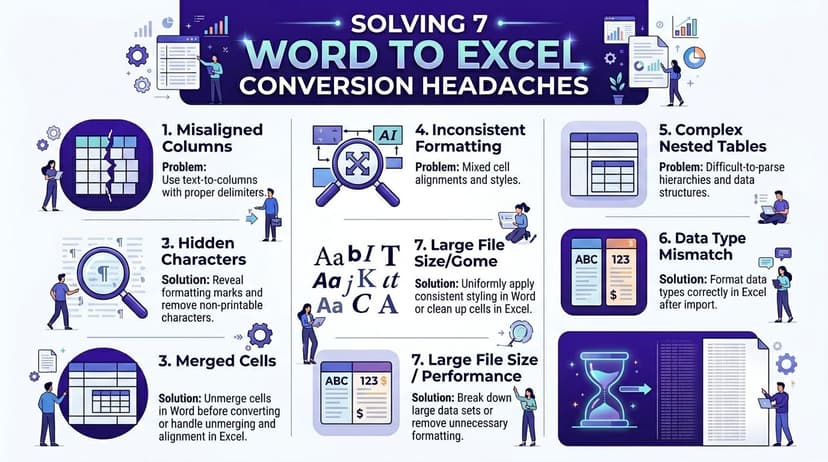
1 Merged cells destroy alignment
Symptom: Headers or labels sit over the wrong columns after import.
Cause: Word uses merged cells for layout. Excel expects one value per cell position.
Solution: Unmerge the structure in Word before transfer if possible. If not, rebuild the header in Excel after import and remove decorative layout elements.
2 Multi-paragraph cells split into extra rows
Symptom: One record becomes several rows.
Cause: Line breaks inside Word cells are interpreted as row breaks during transfer.
This is a major weak spot in many guides. A major gap in most instructions is handling complex multi-paragraph cell content before conversion, especially for narrative-heavy tables where line breaks trigger wasted cleanup and data integrity problems, as noted in this video covering the issue.
Use Find and Replace in Word before copying:
- Find
^por^l - Replace with a space or another safe character
- Review the changed cells before import
That preserves a single-cell idea instead of letting it explode into multiple Excel rows.
3 Numbers come in as text
Symptom: SUM returns zero or ignores values.
Cause: Imported cells contain hidden spaces, apostrophes, or text formatting.
Use this formula in a new column:
=VALUE(A2)
How it works:
A2contains the text version of the number.VALUEconverts a numeric-looking text string into a real number.- Once converted, you can copy and paste values back over the original column if needed.
If you want a broader guide to this cleanup pattern, this article on https://getelyxai.com/en/blog/excel-convert-text-to-number-function is a good reference.
4 Dates get misread
Symptom: Dates flip between day-month and month-day, or stay left-aligned as text.
Cause: Excel applies regional assumptions that may not match the document.
Fix this by importing through a controlled method when possible, then formatting the destination column explicitly as a date. For one-off issues, inspect a few records before filling formulas or building pivots.
5 Hidden characters create silent errors
Symptom: Filters show duplicates that look identical. Formula matches fail.
Cause: Non-printable characters came over from Word.
Use a cleanup formula:
=TRIM(CLEAN(A2))
What each part does:
CLEAN(A2)removes many non-printable characters.TRIM(...)removes extra spaces, especially leading and trailing spaces.- The result is easier to match, sort, and compare.
6 Inconsistent table structures across files
Symptom: One file imports cleanly, the next shifts columns.
Cause: The Word documents are not the same, even if they look similar. One may contain added notes, missing headers, or extra blank rows.
For multiple files, standardize the source before import. If that is not possible, use a method that gives you a preview and transformation layer instead of a straight paste.
7 Data spills into neighboring columns
Symptom: Long strings push unexpected values into the wrong place after split.
Cause: The delimiter you used also exists inside the content.
Use a delimiter that is less likely to appear naturally, then test a few rows before loading the full dataset. If one column contains compound text after import, split only that column rather than rerunning the entire process blindly.
Quick diagnostic habit: Before trusting any converted sheet, test three things immediately. Can you sort the rows correctly, sum the numeric column correctly, and filter categories without duplicates that only differ by spacing?
The 1-Click AI Method for Complete Automation
Manual conversion methods still force you to think about mechanics. You decide the import path. You inspect structure. You clean line breaks. You correct data types. You rebuild reporting objects after the data finally lands in Excel.
That is workable for occasional tasks. It is a poor system for recurring work.

The strategic shift is simple. Instead of performing the workflow yourself, you describe the result you want.
A modern AI agent inside Excel can take an instruction like this:
- Import the main table from this Word document
- Remove empty rows
- Standardize the date column
- Convert amounts to numbers
- Create a pivot table by region
That changes the job from tool handling to intent setting. The value is not just speed. It is avoiding repeated low-value decisions that drain attention.
This is the same reason adjacent workflows are moving toward automation. If you work with documents beyond Word reports, a practical example is this overview of invoice data extraction software, where the primary gain comes from eliminating repetitive manual extraction rather than optimizing each manual step.
There is also a measurable signal that professionals want this shift. AI agents like ElyxAI are already used by over 700 professionals, and users report saving an average of 3+ hours per week by automating multi-step Excel processes, including complex data import and cleaning tasks, according to Elyx AI.
Why this is different from another import trick
This is not just method five in a list of methods. It changes the frame.
With manual conversion, you still own:
- Picking the import technique
- Diagnosing structural issues
- Applying cleanup formulas
- Building the final analysis layer
With AI automation, the system can execute those steps from one request. If your work regularly includes document-to-spreadsheet tasks, that is a better operating model than getting slightly faster at repairs.
For anyone trying to reduce spreadsheet repetition more broadly, this piece on https://getelyxai.com/en/blog/how-to-automate-repetitive-tasks captures the bigger pattern well.
Bottom line: Manual methods help you move data. AI automation helps you skip the manual workflow entirely.
Choosing Your Method From 10 Seconds to 1 Click
The right method depends on three things. Table complexity, how often the task repeats, and how expensive your time is.
If the Word table is simple and you only need it once, use copy-paste. It is fast and adequate when the structure is clean.
If the first paste breaks, switch to delimiters instead of trying to patch the result. Converting the table to text gives you more control and often saves time compared with manual repairs.
If the same kind of report lands on your desk regularly, Power Query is the professional choice. It turns a fragile task into a repeatable import process and gives you a place to clean data before it hits the workbook.
If you do this often enough that the mechanics themselves feel like waste, stop optimizing the manual process and automate the workflow. That is the natural progression.
The bigger lesson behind convert table from word to excel is not technical. It is operational. A bad method creates cleanup work that spreads into every formula, filter, and report you build afterward. A good method protects the sheet before core analysis starts.
If you want to skip the manual import-clean-fix cycle entirely, try Elyx AI. It works inside Excel as an autonomous agent, so you can describe the outcome you want in plain language and let it handle the workflow. For professionals who spend too much time moving and cleaning data before the core analysis starts, that is the faster way to work.
Reading Excel tutorials to save time?
What if an AI did the work for you?
Describe what you need, Elyx executes it in Excel.
Sign up