5 Ways to Add a Calendar Drop Down in Excel

You usually notice the date problem after the sheet is already in use.
A sales tracker has one row with 03/05/2026, another with 5-Mar, another with text that only looks like a date, and one entry that nobody questions until a pivot table groups it incorrectly. Then someone asks for a monthly summary, the chart looks wrong, and the cleanup work takes longer than the original data entry.
That's why people keep searching for a calendar drop down in Excel. They don't want prettier cells. They want fewer mistakes, faster input, and dates that behave properly in formulas, filters, and reports.
Spending too much time on Excel?
Elyx AI generates your formulas and automates your tasks in seconds.
Sign up →The catch is that Excel still makes this harder than it should be. Many tutorials show a single method, often an older one, and skip the question that matters most in real work: will this run in your version of Excel? As noted in this discussion of date-picker limitations across modern Excel environments, many guides don't answer whether a method works in Microsoft 365, Excel for the web, or on Mac. That's exactly where many implementations break.
If your broader issue is messy spreadsheet input in general, not just dates, this guide on Excel AI for data entry workflows is also worth a look.
Why Manual Date Entry Is Costing You Time
Manual date entry looks harmless when the file is small. It becomes expensive when several people touch the workbook, each person uses a different date habit, and the workbook feeds reporting.
A common example is a project tracker. One manager types dates as numbers, another pastes values from email, and a third copies from another system. Excel might recognize some entries as real dates and store others as text. On the sheet, they can look nearly identical. In formulas, they aren't.
Where the friction shows up first
The first problem is speed. Typing dates over and over is repetitive, especially when the date range is predictable, such as booking dates, deadlines, shipment dates, or attendance logs.
The second problem is consistency. Even if everyone enters valid dates, they may not enter them the same way. That forces extra cleanup before sorting, filtering, or grouping by month.
The third problem is trust. Once users see one broken report caused by bad date input, they start double-checking every dashboard.
Practical rule: If a date will be used in formulas, filters, pivot tables, or charts, don't leave entry to free typing unless you also enforce validation.
Why so many tutorials disappoint
There's an expectation that Excel has a built-in pop-up calendar for cells. It doesn't. That gap is the reason there are so many workarounds in the first place.
In practice, there isn't one universal answer. There are several. Some are fast and simple. Some are polished but fragile. Some need VBA. Some only work well on specific Excel setups. That's why choosing the method matters as much as building it.
Here's the practical lens I use with clients:
- If users just need a controlled list of valid dates, data validation is usually enough.
- If users want a visual calendar picker inside a Windows workbook, the classic control can work, but compatibility is the first question.
- If the workbook is a custom internal tool, a VBA UserForm can give the best user experience.
- If the workbook has to travel across devices and security settings, avoid anything that depends on legacy controls unless you've tested the environment.
The 5-Minute Solution Using Data Validation
If you need something that works quickly, start with Data Validation. It isn't a visual calendar, but it is the fastest reliable way to stop free-form date entry.
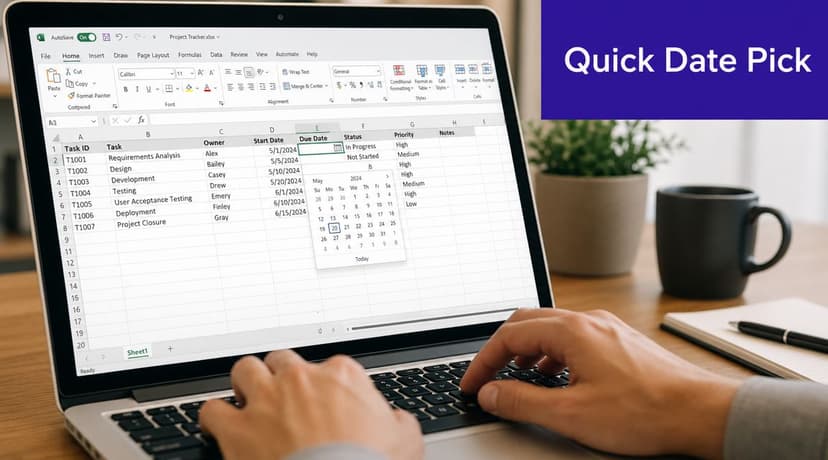
This method is best when users choose from a known date range, such as the next few weeks, the current quarter, or a booking window.
Build a simple date list first
The old way was to type dates down a helper column manually. Modern Excel gives you a better option. Dynamic array functions make date lists much easier to generate. One practical example is =SEQUENCE(90, 1, TODAY(), 1), which can create the next 90 days automatically for a dropdown list, as shown in this dynamic calendar walkthrough using SEQUENCE and related functions.
If you want a refresher on how the current-date function behaves, this page on the Excel TODAY function is useful.
Use this setup:
- In an empty column, enter:
=SEQUENCE(90,1,TODAY(),1) - Format the spilled results as a date.
- Select the input cells where users should pick a date.
- Go to Data > Data Validation.
- Choose List.
- Point the source to the spilled range.
Why this works so well
The strength of this method is that it uses standard Excel features. No Developer tab. No add-ins. No VBA. No security prompts.
That makes it a solid choice for shared workbooks, templates, and operational files that need to survive handoffs between teams.
Formula example explained
=SEQUENCE(90,1,TODAY(),1)
What each part does:
- 90 sets the number of rows returned. Here, that means 90 dates.
- 1 sets the number of columns.
- TODAY() tells Excel to start from the current date.
- 1 increases each next row by one day.
So the formula spills a vertical list of dates starting today and continuing day by day.
A dropdown list of valid dates is often more useful than a fancy calendar when the date range is narrow and the workbook is shared widely.
Where it falls short
This is still not a true calendar drop down in Excel. Users see a list, not a month view. If the range is long, scrolling the dropdown becomes annoying. If someone needs to choose a date far in the future, a visual picker feels better.
It also helps to combine Data Validation with formatting rules:
- Highlight today so users can spot the current date quickly.
- Lock helper cells if you don't want users editing the generated list.
- Use clear labels such as “Select due date” instead of leaving the input cell ambiguous.
A short demo can help if you want to see the flow in action:
Best use cases
| Use case | Fit for Data Validation |
|---|---|
| Team deadline tracker | Excellent |
| Attendance sheet | Good |
| Long-range scheduling | Fair |
| Visual form for non-Excel users | Weak |
If your priority is speed and stability, this is usually the first method to try.
Implementing the Classic ActiveX Date Picker
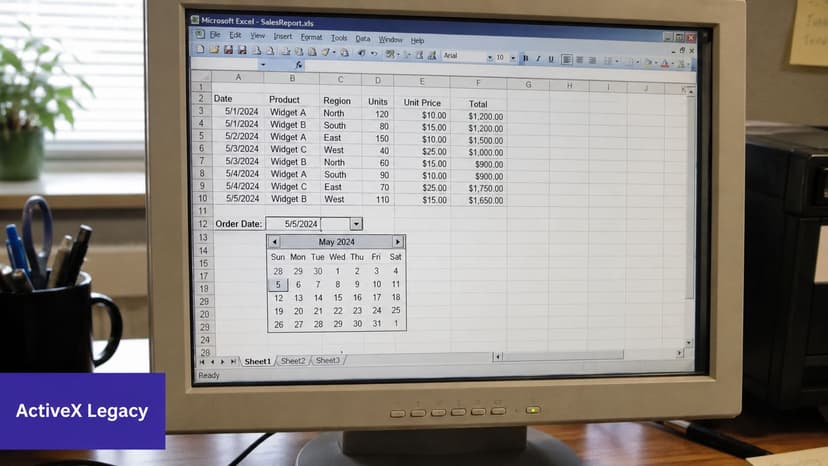
The classic ActiveX date picker is what many people mean when they ask for a calendar drop down in Excel. It gives you an actual pop-up calendar tied to a cell.
That sounds ideal. In the right environment, it is.
The setup that matters most
A robust version of this approach uses the Microsoft Date and Time Picker Control from the Developer tab and connects it to a worksheet cell through the LinkedCell property, as described in this guide to inserting the Microsoft Date and Time Picker Control.
If you're not familiar with the surrounding controls ecosystem, this glossary entry on ActiveX controls in Excel gives helpful background.
The workflow is straightforward:
- Turn on the Developer tab in Excel options.
- Open Developer > Insert.
- Choose the date-picker control if it appears in your available controls.
- Draw it onto the worksheet.
- Open its properties.
- Set LinkedCell to the target cell, such as
B2.
Once linked, the selected date lands in the cell and can feed formulas, lookups, or reports.
When this method shines
This works well in workbook forms where users enter one date at a time, such as:
- Sales logs where reps choose an order date
- Service records with appointment dates
- Internal admin forms where the layout stays fixed
The user experience is better than a plain dropdown list because people can click through months visually.
Consultant's note: If the picker isn't linked to a real worksheet cell, it looks impressive but doesn't help the workbook do any useful work.
What causes most failures
The problem isn't the idea. It's the environment.
This method often fails because users assume any Excel version will support the same control behavior. In real projects, that assumption is where time gets wasted. One machine shows the control. Another doesn't. A colleague opens the file and only sees a broken object or no picker at all.
There's also a maintenance issue. Controls need careful placement and testing so they still behave properly when rows, columns, or layouts change.
When to avoid it
Skip the ActiveX route if any of these are true:
- Your team uses Mac
- The workbook must open in Excel for the web
- Your IT policy blocks legacy controls
- The file will circulate widely outside one controlled Windows setup
For a single Windows-only office process, it can still be practical. For broad compatibility, it's risky.
Building a Custom VBA UserForm Calendar
When the workbook is becoming an application, not just a sheet, VBA UserForm is usually the more serious path.
Instead of dropping a control onto a worksheet, you build a small interface that opens when the user needs it. That can look cleaner and behave more predictably than trying to manage many worksheet-level controls.
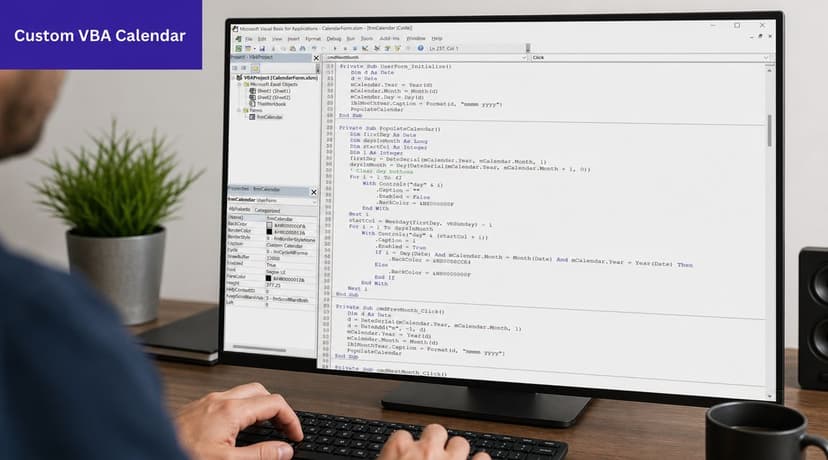
If you want help generating the underlying macro structure, an Excel VBA generator can speed up the draft work.
What the build process looks like
The usual pattern is:
- Open the Visual Basic Editor.
- Insert a UserForm.
- Add calendar-related controls or build your own date-selection interface.
- Add code that captures the selected date.
- Write that date back to the target cell.
In client work, I see this used most often for invoice tools, intake forms, booking sheets, and internal operations templates where the workbook needs a polished front end.
Why this route appeals to power users
With VBA, you're not limited to a generic picker. You can shape the workflow around the process.
For example, a UserForm can:
- Open automatically when the user selects a date field
- Write dates to different cells depending on the form state
- Block invalid actions before the user saves an entry
- Match company workflow with labels, buttons, and required fields
That makes it a good fit when date input is only one part of a larger form.
The trade-off is maintenance
The strength of VBA is control. The cost is ownership.
Somebody has to maintain the code. Somebody has to test it after workbook changes. Somebody has to deal with macro security settings, protected environments, and version-specific behavior. If that “somebody” is clearly identified, VBA can be excellent. If not, the workbook tends to become fragile over time.
Build a VBA calendar when the workbook is a managed internal tool. Don't build one just to avoid teaching users how to pick from a validated list.
What to keep simple
A common mistake is overbuilding. The goal isn't to create a miniature scheduling app inside Excel. The goal is to make date entry reliable.
Keep the first version focused:
| Design choice | Better default |
|---|---|
| Date output | Write to one clear target cell |
| Trigger | Button or double-click event |
| Validation | Keep rules simple and visible |
| Formatting | Return a true Excel date, not text |
If you need heavy customization and you control the workbook environment, this is often the most professional manual solution.
Choosing Your Method and the Modern AI Alternative
Most Excel date-picker advice misses the decision point. The technical steps matter, but the environment matters more.
The single biggest friction point is compatibility. The classic Microsoft Date and Time Picker approach is documented for 32-bit Excel, while modern 64-bit Office often needs another route or add-in, as shown in this video explaining the 32-bit versus modern Office limitation.
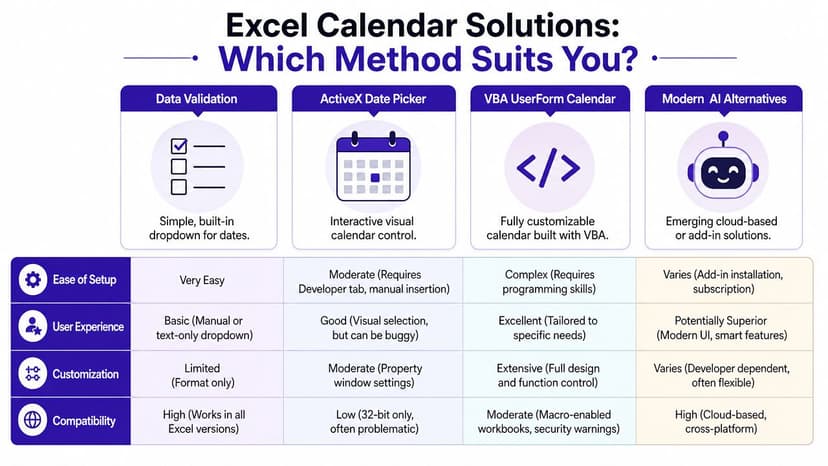
Calendar dropdown method comparison
| Method | Ease of Setup | Compatibility | Best For |
|---|---|---|---|
| Data Validation | Easy | Broad | Simple date selection in shared workbooks |
| ActiveX Date Picker | Moderate | Narrower | Windows-only workbook forms |
| VBA UserForm Calendar | Complex | Mixed | Custom internal tools |
| Modern AI alternatives | Varies | Often broader | Teams that want implementation help, not just instructions |
How I'd choose in practice
If I'm advising a client quickly, the decision usually looks like this:
- Choose Data Validation when the workbook needs to be dependable across users and devices.
- Choose ActiveX only when the Excel environment is controlled and tested.
- Choose VBA when the workbook is part of a managed process and custom user experience matters.
- Choose an AI-assisted route when the primary bottleneck is building and maintaining the solution, not understanding the concept.
Why AI changes the problem
This is the fifth approach, and it's less about a specific control than a different workflow.
Instead of manually stitching together dropdowns, forms, ranges, helper columns, and code, you describe the outcome you need in plain language. That's useful when the date problem is part of a larger spreadsheet issue, such as validating inputs, cleaning inconsistent date fields, rebuilding a reporting template, or standardizing a team workbook.
That broader shift also shows up outside Excel. This Ollo perspective on fixing review bottlenecks is worth reading because it frames the core issue well. People often don't need another manual step. They need fewer handoffs and less spreadsheet babysitting.
If you're evaluating AI as a replacement for custom macro-heavy work, this article on Excel AI as a VBA alternative is a helpful next read.
The smartest solution isn't always the one with the prettiest calendar. It's the one your team can still use six months from now without calling the original builder.
A realistic decision filter
Ask these questions before you build anything:
- Who will use the workbook. One analyst, or an entire team?
- Where will it open. Windows desktop, Mac, web, or all three?
- Can macros or controls be enabled. Some companies won't allow it.
- Is the date picker the whole problem. Or is it just one symptom of a messy spreadsheet workflow?
Those answers usually make the right choice obvious.
Conclusion From Manual Workarounds to Automated Insight
The search for a calendar drop down in Excel exists because users want one simple native feature, and Excel still handles it through workarounds. As explained in this overview of Excel calendar workarounds and the lack of a native built-in calendar chart or picker, Excel does not include a built-in calendar chart or native drop-down date picker in the standard chart set. That's why people keep turning to validation lists, controls, templates, add-ins, and custom forms.
Each method solves a different version of the same problem.
Data Validation is the quickest stable fix.
ActiveX gives a familiar calendar feel, but only in the right setup.
VBA UserForms offer the best manual customization when the workbook is a managed internal tool.
AI-assisted approaches shift the work from hand-building components to specifying the result you want.
The important part isn't the picker itself. It's the quality of the date data that ends up in the workbook. If dates are inconsistent, everything built on top of them becomes harder to trust. Filters break. Reports need repair. Users spend time checking mechanics instead of making decisions.
That's why date entry deserves more attention than it usually gets. A small design choice at input stage can remove a lot of downstream cleanup.
If you're choosing today, keep it simple. Start with the least fragile method that fits your environment. If the workbook is shared widely, favor compatibility. If it's a controlled internal tool, customization becomes more viable. If the workbook keeps growing into a system of its own, it may be time to stop building every piece by hand.
If you want Excel to do the work instead of making you assemble every validation rule, macro, and reporting step manually, try Elyx AI. It works inside Excel, lets you describe the outcome in plain language, and executes multi-step spreadsheet tasks for you, which is especially useful when date entry is only one part of a larger data-cleaning or reporting workflow.
Reading Excel tutorials to save time?
What if an AI did the work for you?
Describe what you need, Elyx executes it in Excel.
Sign up