A 7-Step Guide to the Automation of Financial Statements in Excel

Automating your financial statements, especially within a tool as familiar as Excel, isn't some mystical process. It's a structured, achievable goal that you can break down into seven clear steps. This guide is your roadmap, turning what seems like a huge project into a manageable workflow using Excel's built-in power and a little help from modern artificial intelligence.
1. Your 7-Step Guide To Automating Financial Statements
The path to full automation of financial statements starts with a bird's-eye view. Before you get bogged down in specific formulas or tools, it's crucial to understand the entire workflow from start to finish. This helps you see how gathering raw data connects to creating polished, insightful reports.
To make it simple, we've boiled down the entire process into seven core stages. Each step has a clear goal and uses a mix of classic Excel features and smart AI add-ins like Elyx.AI. Think of it as the blueprint for cutting out manual work and boosting accuracy. This same thinking can be applied to other areas, too, like learning how to automate accounts payable, which is often a key part of the bigger financial automation picture.
Spending too much time on Excel?
Elyx AI generates your formulas and automates your tasks in seconds.
Sign up →
1.1 The Automation Workflow At A Glance
This table is your quick-reference guide for the whole journey. It lays out the goal for each phase and points to the tools you'll need. As you work through this guide, we'll get into the nitty-gritty of how to apply these techniques. You can also see more real-world examples by exploring different Excel use cases and how AI can help.
The whole point of automation isn't to replace financial expertise—it's to supercharge it. By letting the machines handle the repetitive tasks, you get your time back for the strategic analysis that actually drives the business forward.
Here’s a clear overview of the process from beginning to end.
1.2 The 7 Core Steps in Automating Financial Statements
This table breaks down the entire automation process, from pulling in raw numbers to sharing the final analysis. Each step builds on the last, creating a seamless and repeatable workflow.
| Step | Objective | Key Tools & Techniques |
|---|---|---|
| 1. Data Aggregation | Pull all your financial data from different places (ERP, CRM, bank files) into one master Excel workbook. | Power Query, Direct Database Connections, CSV Imports, AI-powered data extraction. |
| 2. Data Cleansing | Tidy up the data by fixing formats, deleting duplicates, correcting errors, and filling in gaps to ensure it's reliable. | TRIM(), CLEAN(), Remove Duplicates, XLOOKUP(), and Elyx.AI for complex cleaning commands. |
| 3. Data Transformation | Reshape the clean data so it's ready for reporting. This involves creating new calculated columns, summaries, and groups. | PivotTables, SUMIFS(), COUNTIFS(), and AI-driven data structuring. |
| 4. Statement Generation | Use the transformed data to automatically fill out your income statement, balance sheet, and cash flow statement. | Dynamic array formulas like FILTER(), cell linking, and template-based generation. |
| 5. Validation & Control | Build in checks and balances to make sure the numbers are accurate and tie out (e.g., Assets = Liabilities + Equity). | Conditional Formatting, Data Validation rules, and formula-based logic checks. |
| 6. Visualization & Reporting | Turn the numbers into dynamic charts and dashboards that automatically update when you add new data. | PivotCharts, Sparklines, and AI-powered chart creation with tools like Elyx.AI. |
| 7. Analysis & Distribution | Uncover key insights, run variance analyses, and then schedule the finished reports to be sent to stakeholders automatically. | AI-driven trend analysis, automated email scripts (VBA), and cloud-based sharing. |
By following these seven steps, you create a robust system that not only saves time but also delivers more reliable and timely financial insights.
2. Why Automating Your Financial Statements Is a Game Changer
Let's move past the theory and talk about what automating your financial reporting actually does for your business. The impact is real, and you'll feel it almost immediately. We're talking faster close times, lower operating costs, and a massive leap forward in data accuracy. This isn't just about new software; it's about transforming your finance team from number-crunchers into strategic thinkers.
Picture this: It's the end of the quarter. One finance team is drowning in a sea of spreadsheets, manually checking accounts, and hunting down data from different departments. The other team? They've already closed the books using automated workflows. Now, they're busy analyzing performance trends to help leadership map out next quarter's strategy. That's the core advantage of embracing the automation of financial statements.
This idea is a cornerstone of modern financial management. The efficiency gains from automation in accounting are so significant that it's a true game changer for any company.
2.1 From Tedious Tasks to Strategic Insights
The daily grind for many finance professionals is filled with repetitive, low-impact work. Manually exporting data, fixing formatting mistakes, and copying and pasting numbers between Excel files eats up hours of their day. These tasks aren't just a time-sink; they're where most costly human errors happen.
Automation steps in and takes over all of this grunt work. Imagine if your team could flip the script—instead of spending 80% of their time just gathering data and only 20% analyzing it, they could reverse that ratio. The effect on your business and the finance department itself is huge.
By eliminating manual drudgery, automation frees up your team's intellectual capital. Their focus shifts from validating numbers to interpreting what those numbers mean for the future of the business.
This shift makes finance roles far more engaging and valuable. When your team can contribute to big-picture decisions instead of just assembling reports, morale and job satisfaction skyrocket. They become genuine business partners, using their skills to drive growth.
2.2 The Real-Time Advantage in Decision Making
In today's market, speed is everything. A business making decisions based on last month's numbers is already behind. Manual reporting is slow by nature, creating a delay between when something happens and when you can actually react to it. Automated reporting closes that gap.
When you have real-time data flowing directly into your financial statements, you can make calls based on what's happening right now. This agility allows you to jump on opportunities, head off risks, and tweak your strategy as you go. You might also want to explore how AI in Excel can accelerate your data processes even further.
This is no longer a niche trend. Three out of four finance teams now use automation tools, making it the most widely adopted technology across all business functions. The results speak for themselves: companies that automate their finance processes have seen invoice costs drop by 70% and cut their close times by around 50%.
3. The 4 Essential Stages of an Automated Reporting Workflow
When you hear about automating financial statements, it’s easy to picture some complicated, untouchable black box. But it's not that at all. The process actually breaks down into four clear, logical stages.
Think of it like an assembly line for your financial data. Each stage takes the output from the one before it and refines it, turning raw numbers from all over the business into a polished, insightful report. Whether you're a die-hard Excel user or embracing new AI tools, this four-stage blueprint is your path to a system that saves time, kills errors, and turns your financial data into a real asset.
3.1 Automated Data Aggregation
First things first, you have to get all your numbers in one place. For most finance teams, this is a huge headache. Your data is probably living in a bunch of different systems—the ERP has transactions, the CRM holds sales data, and various departments have their own budget spreadsheets. The old way of doing this—manually exporting and copy-pasting—is painfully slow and a recipe for mistakes.
Automation changes the game by creating live pipes directly into those data sources. Instead of the manual export/import routine, a tool like Excel’s Power Query can be set up to automatically pull the latest data on a schedule. This means you’re always working with the freshest information, creating a single source of truth right inside your workbook.
3.2 Data Cleansing and Transformation
Okay, so all your data is in one place. But it’s probably a mess. Raw data is rarely clean and ready for a report. You'll find annoying inconsistencies like extra spaces, jumbled date formats, or empty cells where there should be information. This is where the second stage, data cleansing and transformation, comes into play. It’s all about tidying up the raw data so your numbers are accurate and consistent.
Many Excel pros handle this with a battery of formulas. For example, to standardize transaction descriptions by making them all uppercase, you would use the UPPER() function. If your description is in cell A2, the formula would be:
=UPPER(A2)
Explanation:
=UPPER(): This is the Excel function that converts a text string to all uppercase letters.A2: This is the reference to the cell containing the original text you want to convert.
While formulas work, juggling a bunch of them can get complicated fast. This is where an AI assistant like Elyx.AI really shines. You can just tell it what you want in plain English: "Make all text in the description column uppercase, change the date column to MM/DD/YYYY, and fill in the missing region codes based on the city." The AI handles all the underlying steps for you.
The goal of data cleansing is to build a foundation of trust. When you know the underlying data is clean and reliable, you can be confident that everything you build on top of it will be accurate.
3.3 Automated Statement Generation
Now for the fun part. With your data clean and perfectly structured, you're ready to automatically generate your financial statements. This is where the magic really happens. Forget manually plugging numbers into your income statement, balance sheet, and cash flow templates. It's time to build dynamic reports.
You do this by linking your statements directly to your clean data table. Using modern Excel functions like SUMIFS(), you can build reports that update themselves. For instance, to calculate total revenue for a specific department from a table of transactions, you could use:
=SUMIFS(revenue_range, department_range, "Sales")
Explanation:
=SUMIFS(): This function sums the cells in a range that meet multiple criteria.revenue_range: This is the range of cells containing the numbers you want to add up (e.g., C2:C100).department_range: This is the range of cells containing the criteria you want to check against (e.g., D2:D100)."Sales": This is the specific criterion. The formula will only sum revenues where the corresponding department is "Sales".
This creates a living document that's always current, meaning no more frantic, last-minute updates before a big meeting. You can learn more about how modern AI automation can accelerate these workflows to see how this comes to life.
3.4 Analysis and Visualization
The final stage is about making sense of it all. A page full of numbers doesn't tell a story. This last step is about turning that data into clear charts, graphs, and dashboards that instantly show you what’s going on—highlighting important trends, variances, and outliers.
This is where you see the true payoff: automation saves time and money, which in turn leads to far greater accuracy.
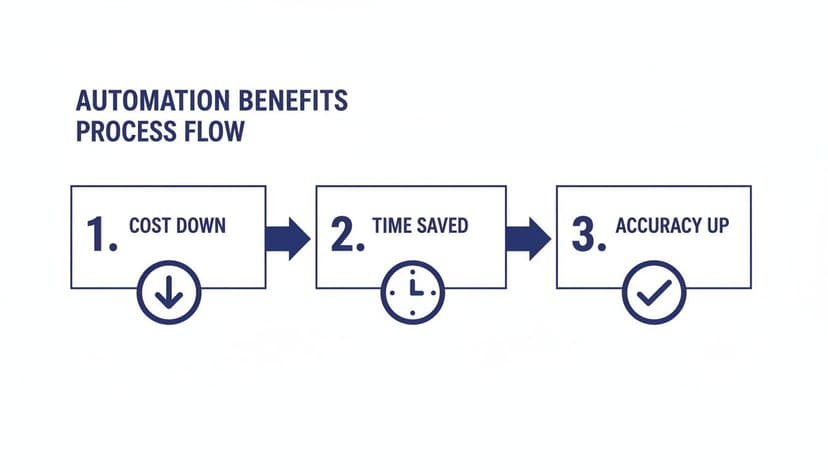
This isn’t just a one-way street; it's a powerful cycle. As you save time, you can focus more on accuracy, which reduces costs and frees up even more time for strategic work.
Excel’s built-in tools like PivotCharts are great for creating interactive dashboards. But AI can take this a huge step further. An AI agent can look at your data and suggest the best chart to use for a particular insight, or even write a quick summary of the key findings for you. This lets your team stop wasting time building charts and start spending their time on what really matters: figuring out what the numbers mean for the business.
4. How AI is Changing the Game for Financial Reporting in Excel
For ages, finance pros have leaned on Excel's traditional automation—think macros and gnarly formulas. They get the job done, but let's be honest, they're often brittle, a pain to maintain, and require a fair bit of technical know-how. Now, artificial intelligence is adding a completely new dimension to the automation of financial statements. It's turning Excel from a silent calculator into a smart, conversational assistant.
Today's AI tools, like the one powering Elyx.AI, aren't just glorified formula suggesters. They're genuine partners that can understand a simple English command and execute an entire workflow based on it. This is a massive shift in how we work with data. Suddenly, powerful automation isn't just for the Excel wizards anymore; it's for everyone.

4.1 Moving Beyond Macros: The AI Advantage
VBA macros were the go-to for Excel automation for a long time. Recording a set of actions and replaying them was a huge time-saver. The problem? They break the second a column moves or the data format changes, and you need to know how to code to fix them. AI-driven automation is a much more flexible and user-friendly way forward.
Here’s a quick look at how they stack up:
| Feature | Traditional Macros | AI-Driven Automation (e.g., Elyx.AI) |
|---|---|---|
| Flexibility | Rigid. Breaks if the data layout changes. | Adapts on the fly to different data structures. |
| Ease of Use | You need to know VBA to create or edit them. | Works with simple, natural language commands. |
| Capability | Limited to repetitive, pre-recorded tasks. | Can perform complex analysis, find insights, and build charts. |
| Maintenance | A nightmare to debug without a specialist. | No technical maintenance needed; the AI figures it out. |
This evolution is a big deal. While only 1% of CFOs have automated more than three-quarters of their finance work, a whopping 85% believe AI will deliver insights that slash manual effort. With 59% of finance leaders already using AI, that belief is quickly turning into reality.
4.2 AI-Powered Anomaly and Fraud Detection
One of the coolest things AI brings to financial reporting is its knack for spotting things that just don't look right—things a human might easily miss. AI algorithms can churn through thousands of transactions in a flash, flagging outliers and weird patterns that could signal an error or, worse, fraud.
For instance, you could tell an AI tool to:
- Go through expense reports and flag any claims that are way higher than the team average.
- Scan your accounts payable data to find duplicate invoices or payments sent at odd hours.
- Keep an eye on revenue and alert you if sales from a certain region suddenly tank or spike for no clear reason.
This kind of proactive monitoring adds a powerful layer of control over your financial processes. It helps protect your assets and keep your data clean without you having to spend hours manually checking everything.
4.3 Advanced Forecasting and Real Insight
AI doesn't just put data in the right boxes; it actually helps you understand what it means. By looking at your historical financials and comparing them to external factors like market trends, AI models can generate forecasts that are much more accurate and insightful than old-school methods. You can dive deeper into this with our guide on AI-powered data analysis in Excel.
AI doesn't just automate the report; it enhances the intelligence within it. It can turn a simple income statement into a strategic document by highlighting key trends and explaining the 'why' behind the numbers.
Imagine asking your spreadsheet, "What were the main drivers of our profit margin decline last quarter?" Instead of a blank stare, an AI agent can analyze the data and give you a straight-up summary in plain English, complete with charts to back it up. This turns what used to be a complex data deep-dive into a simple conversation, giving you answers in minutes, not hours.
5. A 5-Step Plan to Get Started with Automation Using Elyx.AI
Theory is great, but a practical plan is what really gets things done. Here’s a simple, 5-step roadmap to get you started with automating financial statements using a modern AI tool like Elyx.AI. The trick is to start small. Don't try to boil the ocean. Target a specific, nagging problem and get a quick win to build momentum.
This approach breaks the whole process down into manageable steps. You don’t need to kick off a massive, company-wide project to see the benefits. Instead, you can launch a focused pilot and see a real impact in days, not months.
5.1 Step 1: Pinpoint a High-Impact, Repetitive Task
Before you can automate anything, you need to know what to automate. The best place to start is by looking for the most tedious, time-sucking, and error-prone tasks your team tackles over and over again in Excel. These are your prime candidates.
Think about those weekly reports that take hours to put together. Is it consolidating sales data from different regions? Or maybe it’s that painstaking process of cleaning up exported transaction data before you can even start your analysis.
Jot down a list and ask yourself:
- Which tasks do we do on a fixed schedule (daily, weekly, monthly)?
- Which jobs involve the most manual copy-pasting and formatting?
- Where do mistakes and inconsistencies pop up the most?
The goal here is to find one task where automation will deliver the biggest time savings with the least amount of upfront effort. A weekly sales summary or a monthly expense report are perfect places to start.
5.2 Step 2: Prep Your Data and Excel Workspace
Great automation is built on a foundation of good data. Before you bring in an AI tool, take a moment to set up your Excel workbook for success. This doesn’t mean your data has to be flawless—in fact, AI is fantastic at cleaning up messy files—but a little bit of structure goes a long way.
Create a dedicated workbook for your pilot project. Keep your raw data on one sheet and leave a separate, blank sheet where the automated report will be generated. This separation keeps your source data safe and makes the entire workflow clean and easy to follow. Our guide on AI-powered data cleaning shows just how an AI assistant can handle this for you.
Think of it like setting the stage for a performance. By organizing your props (the data) and clearing the stage (your workspace), you ensure the main actor (the AI) can do its job flawlessly.
This simple bit of prep work helps the AI understand what you’re asking it to do and get it right the first time.
5.3 Step 3: Install and Set Up the Elyx.AI Add-in
With a task in mind and your workspace ready, it's time to bring in your AI assistant. Installing an official Microsoft AppSource add-in like Elyx.AI is incredibly fast and straightforward, usually taking just a couple of minutes.
Once it's installed, the Elyx.AI chat panel pops up right inside your Excel window. You don’t have to jump between different apps or learn a new piece of software. It fits right into the tool you already use every day, which makes getting started feel natural.
Here's what the Elyx.AI interface looks like inside Excel, ready for your instructions.
As you can see, it’s a clean, conversational interface where you can type commands just like you’re sending a message.
5.4 Step 4: Run a Pilot Project
Now for the fun part: putting the AI to work. Using the pilot task you picked in Step 1, you’ll give Elyx.AI a clear command in plain English. You don't need to worry about technical jargon or remembering specific formula names.
For example, if you're automating that weekly sales report, your command could be as simple as this:
"Go to the 'Raw Sales Data' sheet. Remove any duplicate rows, then create a summary table on the 'Report' sheet showing total sales for each product category. Finally, create a bar chart visualizing the results and format the table with a professional blue theme."
Elyx.AI gets to work and does the whole thing on its own. It cleans the data, builds the pivot table, generates the chart, and applies the formatting—all from that one simple request. That first run really shows you the power of just talking to your software.
5.5 Step 5: Scale Up and Refine Your Workflows
That successful pilot project is just the beginning. Once you’ve seen how well AI can handle one task, you can start applying the same approach to other parts of your financial reporting. You'll get better at writing your commands, build more complex workflows, and slowly automate bigger and bigger chunks of your financial statement process.
The key is to build on your success. Each task you automate frees up more of your team's time, which can then be used to find the next opportunity for improvement. This creates a powerful cycle that can genuinely transform your finance department, one workflow at a time.
6. 6 Common Mistakes to Avoid in Your Automation Journey
Jumping into the automation of financial statements is a huge step forward for any finance team. It promises efficiency, accuracy, and more time for strategic work. But like any major change, it's easy to stumble if you're not careful. Knowing the common pitfalls ahead of time is the best way to make sure your project is a win, not a new source of headaches.
Too many teams get caught up in the excitement and dive in headfirst, only to find that they’ve built their new automated process on a shaky foundation. Let's walk through the most common mistakes I've seen and, more importantly, how you can sidestep them.
6.1 Mistake 1: Starting with Messy Data
This is, without a doubt, the number one reason automation projects fail. You can't automate a process that runs on messy, inconsistent data. If your spreadsheets are filled with typos, formatting errors, or duplicates, your shiny new automated system will just give you bad reports, faster.
Automation is an amplifier. It takes whatever you give it—good or bad—and magnifies it.
It's tempting to skip the cleanup and get right to the fun part, but that's a recipe for disaster. Before you even think about building a workflow, you have to roll up your sleeves and get your data in order. Use Excel’s Remove Duplicates tool, make sure all your dates are in the same format, and run functions like =TRIM() to zap extra spaces. Think of it as laying the foundation before building the house; it's non-negotiable.
6.2 Mistake 2: Lacking a Clear Automation Strategy
Another classic mistake is treating automation like a magic wand you can wave at your problems. Buying a tool without a clear goal is like starting a road trip without a destination—you’ll burn a lot of fuel and end up nowhere. You have to be able to answer one simple question: "What, specifically, are we trying to fix?"
Start by zeroing in on your biggest headaches. Are you hoping to cut the monthly close time by 50%? Is the real goal to stamp out the 90% error rate you’re seeing from manual data entry? Get specific.
A good strategy outlines which tasks to tackle first (hint: go for the quick wins—high-impact, low-complexity jobs), defines what success looks like, and maps out a step-by-step plan.
6.3 Mistake 3: Choosing the Wrong Tools
Not all automation tools are built the same. I've seen teams get stuck with overly complex software that requires a PhD to operate, while others pick a tool that just isn't powerful enough to handle their needs. A tool that doesn’t fit your team's skills or your company's existing tech stack will just gather dust.
The trick is to find something that slots right into how you already work. For finance teams that practically live in Excel, an AI-powered add-in like Elyx.AI is a natural fit because it works in an environment they already know and trust.
When you're looking at options, ask these questions:
- Is it easy to use? Can my team get up and running quickly without needing to learn code?
- Does it play well with others? Will it connect to our data sources and other software?
- Can it grow with us? Will it handle our needs next year, and the year after that?
6.4 Mistake 4: Overlooking Security and Compliance
In the race to get things automated, security and compliance can easily get pushed to the back burner. This is a huge risk. Financial data is incredibly sensitive, and any new system you introduce has to meet strict security and regulatory standards. Ignoring this can open your company up to data breaches, hefty fines, and a lot of sleepless nights.
Make sure any tool you consider has serious, enterprise-grade security. Look for features like end-to-end data encryption and find a provider with a clear privacy policy that guarantees your data is never stored or used to train their models. Your automation of financial statements has to be locked down tight.
6.5 Mistake 5: Failing to Update Existing Processes
You can’t just slap a layer of automation on top of a broken manual process and expect great results. If your current workflow is inefficient, all you'll achieve is a slightly faster, still-inefficient workflow. This happens when people get so focused on the technology that they forget to look at the process itself.
Before you automate anything, map out your current workflow from start to finish. Where are the bottlenecks? Are there redundant steps you can cut? By cleaning up the process first, you make sure your automation efforts deliver the biggest possible payoff.
6.6 Mistake 6: Not Providing Adequate Team Training
At the end of the day, a tool is only as good as the people using it. The final, and perhaps most common, mistake is failing to invest in proper training and change management. If your team feels like this new technology is being forced on them, or if they’re afraid it’s going to replace them, they’ll resist it.
The solution is hands-on training that shows them how to solve their real, everyday problems with the new tool. Be transparent about the benefits—less tedious work for them means more time for the interesting, high-value analysis they actually want to be doing. When you empower your team with the right skills and support, you’re not just implementing a tool; you’re building a smarter, more capable finance function.
7. 4 Questions and Answers About Automating Financial Statements
Thinking about automating your financial statements is a big step. It’s a completely different way of working compared to the old manual grind, so it's smart to have questions. Here are some of the most common ones we hear from finance pros.
7.1 Is This Just for Big Companies?
Not at all. Automation isn't some exclusive tool for huge corporations with bottomless budgets. In fact, small businesses often get the biggest bang for their buck.
When your finance team is just one or two people, every minute counts. Automating the drudgery—like pulling together a monthly P&L or scrubbing transaction data—gives owners and managers their time back. That’s time you can spend growing the business, not getting lost in spreadsheets. Modern tools like AI-powered Excel add-ins are budget-friendly and simple to get started with, putting real automation power in everyone's hands.
7.2 Is Automation Going to Take My Job?
This is probably the number one question on everyone's mind. The short answer is no. The goal of automation isn’t to replace finance professionals; it’s to make their jobs better.
Think about all the repetitive, low-impact tasks that eat up your day, like manual data entry and reconciliations. Automation handles that, freeing you and your team up for the work that actually matters.
Instead of just compiling reports for hours on end, you can actually analyze what the numbers are telling you. You get to spot trends, uncover insights, and provide the strategic advice that helps steer the company. It shifts finance from a back-office function to a strategic powerhouse.
7.3 How Safe Is My Financial Data with an AI Tool?
When you’re dealing with sensitive financial information, security is everything. Any reputable automation tool—especially those that plug directly into Excel, like official add-ins from the Microsoft AppSource—is built with top-tier security from the ground up.
Here’s what you should demand from any tool you consider:
- Total Data Privacy: The provider must have a rock-solid policy that your data never touches their servers and is never, ever used to train their AI models.
- Airtight Encryption: All data moving between your machine and the AI service has to be locked down with strong encryption. No exceptions.
- Official Vetting: An add-in from the official Microsoft store has already been put through a security and compliance gauntlet, which gives you an extra layer of peace of mind.
7.4 How Is This Different from Just Using Macros?
Macros are basically recorded scripts. They repeat the exact same clicks and keystrokes you made, which means they are incredibly brittle. If a column moves, a file name changes, or anything in your spreadsheet is slightly different, the macro breaks. To fix it, you have to dive into VBA code, which is a whole other skill set.
AI automation is a different beast entirely. It’s smart and flexible. You can give it instructions in plain English, and it understands your goal. It can adapt on the fly if your data structure changes. It’s less like a rigid script and more like a sharp assistant who can handle complex workflows without needing step-by-step instructions. This makes it far more powerful and way easier to use.
Ready to stop wrestling with manual reports and start leveraging intelligent automation? Elyx AI is an AI agent that lives inside Excel, executing entire financial workflows from a single command. Try Elyx AI for free and see how much time you can save.
Reading Excel tutorials to save time?
What if an AI did the work for you?
Describe what you need, Elyx executes it in Excel.
Sign up