10 Powerful Ways for the Automation of Excel

Staring at a spreadsheet, knowing you have hours of repetitive clicking and typing ahead of you? We’ve all been there. Excel automation isn't some futuristic tech buzzword; it’s a hands-on strategy for taking back your time. It’s about teaching Excel to do the grunt work so you can focus on what actually matters—analyzing the data.
This guide will walk you through the most effective methods out there, from classic, old-school macros to the latest in artificial intelligence. Our goal is for you to leave with a new skill or a useful solution to a concrete problem, not just superficial text. The tone will remain accessible, professional, and value-driven, focusing on practical explanations and real-world examples using Excel and AI.
1. A Quick Comparison of 10 Excel Automation Methods

Spending too much time on Excel?
Elyx AI generates your formulas and automates your tasks in seconds.
Sign up →Simply put, automating Excel means setting it up to handle repeatable tasks on its own. Imagine the difference between manually updating a sales report every single Monday morning versus having it ready and waiting for you the second you open the file. That’s the power we’re talking about.
The need for smarter workflows has never been more obvious. A staggering 82% of organizations are still stuck routing Excel tasks by hand, even though the process automation market is now worth over $23 billion. This disconnect is why so many data analysts burn roughly 38% of their time on manual data prep—work that a machine could easily do.
To help you find the right tool for the job, the table below provides a quick side-by-side comparison of the most common methods. It breaks them down by how hard they are to learn, what they're best used for, and whether you'll need to write any code. For instance, if you're drowning in receipts, learning how to automate your expense reports can be a massive time-saver.
| Method | Learning Curve | Best For | Coding Required? |
|---|---|---|---|
| VBA Macros | High | Custom, complex tasks | Yes |
| Power Query | Medium | Data cleaning & import | No |
| Power Pivot | Medium | Large dataset analysis | No |
| Advanced Formulas | Medium | Dynamic reporting | No |
| Office Scripts | Medium | Cloud-based automation | Yes (TypeScript) |
| RPA (Robotic Process Automation) | High | Cross-application workflows | Sometimes |
| Third-Party Add-ins | Low | Specific, niche tasks | No |
| Python Integration | High | Advanced data science | Yes |
| AI Copilots | Low | Assisting with tasks | No |
| AI Agents (like Elyx.AI) | Low | Executing full workflows | No |
Each of these tools has its own strengths. The key is matching the right method to your specific challenge, whether that’s a quick-and-dirty fix or a complete overhaul of your entire workflow. To see how AI can instantly help, check out our guide on the AI formula generator.
2. The 4 Traditional Pillars of Excel Automation
Long before AI agents and cloud-based scripts entered the scene, a handful of powerful, built-in tools formed the bedrock of all automation of Excel. These four pillars—VBA, Power Query, Power Pivot, and Advanced Formulas—are still incredibly relevant today and give you different ways to tackle repetitive work.
Getting to know them helps you see how far automation has come, but it also equips you with a solid toolkit for a huge range of tasks. Each one has its own specialty, from writing custom code from scratch to wrangling messy data without any programming at all.
The push to master these tools isn’t just about being more efficient; it's a direct response to a massive business need. The global business process automation market is on track to hit USD 19.4 billion, which shows just how much value companies place on getting their workflows in order. For instance, automating something like report generation can slash operational costs by 30-50% and boost accuracy to nearly 99%. That's exactly why these Excel skills are so critical. You can learn more about the growth of the business process automation market here.
2.1. VBA: The Ultimate Customization Engine
Visual Basic for Applications (VBA) is the programming language baked right into Excel. Think of it as having backstage access to control literally every part of the application. If you can do something by hand in Excel—click a button, format a cell, fire off an email—you can automate it with a VBA script, better known as a macro.
While recording a macro is a fantastic way to start, writing your own VBA code is where the real power lies. You can build custom user forms, create complex financial models that run with a single click, or design a process that pulls data from one file, reshapes it, and drops it neatly into another.
Example Use Case:
Imagine a finance team that needs to create and email 50 personalized sales commission reports each month. Instead of manually filtering, copying, and pasting for every single salesperson, a VBA script can handle it all. The code can loop through a list of employees, build a unique report for each one, save it as a PDF, and attach it to a pre-written email. A full day of tedious work becomes a five-minute task.
2.2. Power Query: The Data Cleaning Powerhouse
If VBA is the engine for custom actions, then Power Query is your ultimate tool for data prep. It’s a data connection technology that lets you find, connect, combine, and clean up data from hundreds of different sources—all without touching a line of code. Its true magic is its ability to remember all your data cleaning steps.
When you clean up a dataset in the Power Query Editor—like removing duplicates, splitting columns, or unpivoting data—it records that sequence of actions. The next time you refresh, Power Query automatically runs through the same cleaning process, making sure your reports are always built on clean, consistent information.
Power Query is your first line of defense against messy data. It automates the most time-consuming part of data analysis: the preparation.
This is a lifesaver for any task that happens on a schedule, like weekly sales imports or monthly data consolidation from different departments.
2.3. Power Pivot: For Massive Dataset Analysis
Excel worksheets have a row limit, but what happens when you need to analyze millions of rows? That’s where Power Pivot steps in. It’s an add-in designed for heavy-duty data analysis and building sophisticated data models right inside Excel.
Power Pivot lets you import huge amounts of data from different places into a single workbook, create relationships between tables, and calculate key metrics using Data Analysis Expressions (DAX) formulas. This allows you to build complex, scalable data models that would easily crash a normal spreadsheet.
When to Use Power Pivot:
- When your datasets blow past Excel’s one-million-row limit.
- When you need to link data from multiple tables (like sales, inventory, and customer data) without a million VLOOKUPs.
- When you have to create complex calculations and Key Performance Indicators (KPIs) for your reports.
2.4. Advanced Formulas: For Dynamic Reporting
Finally, don’t ever underestimate the automation power of a well-written formula. Modern Excel functions like FILTER, SORT, UNIQUE, and XLOOKUP can create incredibly dynamic and automated reports without any scripts or add-ins.
These functions let you build dashboards that update in real-time as your source data changes. For example, you could use the FILTER function to create a report that automatically pulls in all sales transactions for a specific region chosen from a dropdown list.
Example Formula:
Let's say you have a big table of sales data in columns A through C (Date, Region, Sales Amount). To make a dynamic report showing only sales for the "North" region, you'd use this formula:=FILTER(A:C, B:B="North")
A:C: This is the array or range of data you want the formula to return. We are asking for all columns from A to C.B:B="North": This is the condition. The formula will scan column B (the Region column) and onlyincluderows where the value is exactly "North."
As you add new sales data to your main table, this report will instantly update to include any new entries from the North region. It's simple, but incredibly effective.
3. 4 Modern Tools Transforming How We Automate Excel
While the old-school methods for automating Excel still have their place, a new set of tools has emerged, offering way more flexibility, cloud power, and advanced features. These tools are breaking automation out of the single spreadsheet box and letting us automate entire business processes. Better yet, they're designed for everyone—from seasoned coders to business users who just need to get things done without writing a line of code.
These modern approaches are the next evolution in Excel automation, connecting the classic desktop spreadsheet to the interconnected workflows that run today's businesses.
3.1. Office Scripts: The Cloud-First Successor to VBA
If you’ve ever used VBA macros, think of Office Scripts as their modern, cloud-based cousin. Instead of being stuck inside one desktop file, Office Scripts are written in TypeScript (a popular offshoot of JavaScript) and live in the cloud. This simple change is a game-changer, making it possible to automate tasks across the entire Microsoft 365 world.
Because they’re cloud-based, you can schedule scripts to run on their own or have them triggered by other apps like Power Automate or Teams. This unlocks some seriously powerful workflows that just weren't possible with old-school macros.
For instance, this image shows an Office Script being kicked off by a Power Automate flow, all starting with a simple button click.
You can see how smoothly Excel Online connects with a bigger automation platform, letting you start a complex process from literally anywhere.
3.2. Robotic Process Automation: The Digital Worker
Robotic Process Automation (RPA) takes things up a notch. Instead of just working inside Excel, RPA software acts like a "digital worker" that can copy what a human does across different applications. An RPA bot can open an Excel report, copy some data, log into a company portal, paste the data into a web form, and then fire off a confirmation email. It’s like having a digital assistant that never gets tired.
RPA is brilliant for automating those long, multi-step business processes where Excel is just one part of the puzzle. It’s less about tweaking a single spreadsheet and more about automating an entire job.
RPA software doesn't replace tools like Power Query or VBA; it orchestrates them. A bot might run a VBA macro in Excel, then use the output to update a record in a completely different system.
This is especially helpful for dealing with older, clunky systems that don't have modern APIs. The RPA bot just clicks and types on the screen, exactly like a person would.
3.3. Third-Party Add-ins: The Specialists
The Excel ecosystem is packed with thousands of third-party add-ins, each designed to solve a very specific problem. These tools give you powerful, pre-built solutions for tasks that would otherwise demand some gnarly formulas or custom scripts. They're a fantastic way to bolt new capabilities onto Excel without needing a developer on speed dial.
You can find an add-in for almost anything, including:
- Advanced Charting: Creating slick visuals like waterfall or Sankey charts that aren't built into Excel.
- Financial Modeling: Specialized tools for building complex valuation models or forecasts.
- Data Cleaning: Add-ins that offer far more powerful cleaning options than Excel’s built-in tools.
- Connecting to Services: Pulling data directly from sources like Google Analytics or Salesforce.
For finance teams, dedicated accounts payable automation software can drastically cut down on the manual work and errors that come with managing invoices in spreadsheets. And if you’re looking for even more ways to level up, our guide on the best Excel AI tools explores a ton of add-ins that can give your productivity a real boost.
3.4. Python Integration: For Advanced Analytics
For all the data scientists and analysts out there, the ability to run Python directly inside Excel is a huge deal. Python is the go-to language for serious data analysis, machine learning, and statistical modeling. Now, you can run Python code right from an Excel cell, giving you the best of both worlds: Excel’s familiar grid and Python’s incredible analytical muscle.
This lets you tackle highly advanced jobs that would be nearly impossible with Excel formulas alone.
Example Use Cases for Python in Excel:
- Running predictive models on your spreadsheet data.
- Creating complex, publication-quality data visualizations.
- Performing large-scale statistical analysis directly on your datasets.
This integration makes the automation of Excel much more practical for data pros who already live and breathe Python, letting them build and share their work inside the most widely used business tool on the planet.
4. The 2 AI Revolutions in Spreadsheet Automation
The biggest change to Excel automation in years has been the arrival of Artificial Intelligence. Old-school tools always required you to know the exact steps to get something done. AI flips that script. Now, you can just state your goal and let the software figure out the "how." This new way of working is happening thanks to two major breakthroughs: AI Copilots and AI Agents.
These aren't just about doing things faster. They fundamentally change how you interact with your spreadsheets. Instead of you bending to Excel's strict rules, Excel starts working for you, understanding what you want and handling complex jobs from a few simple words.
4.1. AI Copilots: Your Smart Assistant
The first wave of this AI revolution is the AI Copilot. Think of it as a knowledgeable assistant sitting right beside you, ready to help. Tools like Microsoft Copilot are built directly into Excel, offering suggestions, generating formulas, and creating quick insights whenever you ask.
You’re still in the driver's seat, but now you have a top-notch navigator. You might ask, "What's the formula to find the average sales for the West region?" and it will instantly give you the right syntax. It's a fantastic way to get past a mental block or learn a new function without ever leaving your worksheet.
AI Copilots assist you. They are conversational partners that help you execute individual steps more efficiently, but you are still the one piecing the workflow together.
This approach is great for speeding up specific, one-off tasks. The catch is that you still need to direct the process one step at a time. After getting your formula, for example, you would then have to make a separate request to create a chart based on those results.
4.2. AI Agents: The Autonomous Problem-Solver
The next leap forward in AI-driven spreadsheet automation is the AI Agent. This is where things get really interesting. An AI agent, like our own Elyx.AI, does more than just assist. It's not an assistant you guide; it's an autonomous worker that acts on your behalf.
The difference is huge. With an agent, you don't ask how to do something; you tell it what you want to achieve.
You give it a high-level goal in plain English, and the agent figures out the necessary steps, then executes the entire workflow from start to finish. That’s the critical distinction that sets agents apart from copilots.
Example of an AI Agent Prompt:
"Take this raw sales data, remove all duplicate entries, create a pivot table summarizing sales by product category and region, generate a bar chart showing the top five products, and format the entire report professionally."
An AI agent understands this whole multi-step request and performs all the actions for you, right in your file. It handles the cleaning, analysis, visualization, and formatting in one seamless operation. You can learn more about how to leverage AI in Excel with tools that understand complex requests.
The difference in approach really boils down to this:
- AI Copilot: You ask for a specific formula. It gives you the formula. You apply it.
- AI Agent: You describe the final report you want. It builds the entire report for you.
This moves the automation of Excel from simple task assistance to complete workflow execution. It's the difference between asking for directions to each street and just telling your GPS the final destination. This shift lets you focus purely on the strategic outcome, leaving the tedious, mechanical work entirely to the AI.
5. Choosing the Right Automation Method for Your 5 Key Tasks
With so many ways to automate Excel, it’s easy to feel a little lost. Where do you even start? The secret is to stop trying to learn everything and instead focus on the one tool that solves your most pressing problem right now.
Think of it like a toolbox. You wouldn't use a sledgehammer to hang a picture, and you shouldn’t build a complex VBA script when a simple formula would work just fine. It’s all about matching the tool to the job at hand. This simple mindset will help you make the right choice.
5.1. A Scenario-Based Approach to Selection
Let's get practical. The best tool for you depends entirely on what you're trying to do, how complicated the task is, and whether you need to involve other software.
Here are a few common scenarios:
- Doing the same data cleanup every week? If you’re constantly importing and scrubbing CSV files, Power Query is about to become your new best friend. It simply remembers all your cleaning steps and does them for you automatically next time.
- Need a special button for a custom job? Maybe you want a button that formats a report and emails it to your boss. For that kind of specific, in-Excel task, VBA is the classic, powerful choice.
- Is your workflow spread across different apps? If your process starts in Excel but then moves to your email and a web portal, RPA is the way to go. It acts like a digital assistant, clicking and typing just like a person would across different programs.
- Trying to run a complex analysis without the headache? Want to get from raw data to a finished report without wrestling with formulas for an hour? An AI Agent like Elyx.AI is built for this. You just tell it the goal, and it handles the entire multi-step process for you.
There's a reason so many tools exist—the need is massive. The industrial automation market is expected to hit USD 448.3 billion, and "programmable automation" (the kind perfect for Excel) accounts for 45% of that. Still, a surprising 54.2% of finance teams are stuck with only partial automation, according to Persistence Market Research. Choosing the right tool is the first real step to breaking free.
5.2. The 2 AI Decision Points: Assist or Act?
When you bring AI into the picture, the decision gets even clearer. Are you looking for a helper, or do you need a worker? In other words, do you want assistance with the steps, or do you want the entire task done for you?
This is the key difference between AI Copilots and AI Agents. Our guide on AI Automation dives deeper into how these two approaches work in the real world.
This diagram helps visualize the choice.
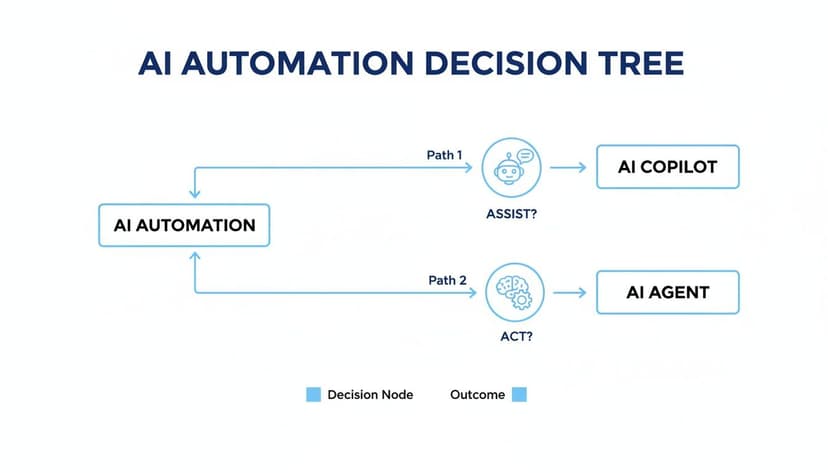
As you can see, if you need a smart assistant to help you figure out a single task, an AI Copilot is a great fit. But if you need an autonomous tool to handle a complete, multi-step workflow from start to finish, an AI Agent is the far more powerful and efficient choice.
5.3. A 5-Point Guide to Choosing Your Excel Automation Tool
To make things even simpler, the table below maps common goals to the best tool for the job. Find the scenario that sounds most like yours to see where you should begin your automation journey. This will help you invest your time where it will pay off the most.
| If Your Goal Is… | Consider Using | Why It's a Good Fit |
|---|---|---|
| To clean and import data automatically every week | Power Query | It records your cleaning steps and repeats them on a schedule, ensuring consistent data with no manual effort. |
| To create a custom button for a complex, repeated action | VBA Macros | It gives you complete control to build bespoke solutions, like generating and emailing 50 reports with one click. |
| To automate a process across Excel, email, and a website | RPA (Robotic Process Automation) | It mimics human clicks and keystrokes across different applications, bridging gaps between systems that don't talk to each other. |
| To get help writing a complex formula or making a chart | AI Copilot | It acts as a conversational assistant, providing code snippets and suggestions to help you complete a specific step. |
| To perform a multi-step analysis from a single instruction | AI Agent (like Elyx.AI) | You describe the end result (e.g., "clean data, build pivot table, create chart"), and it executes the entire workflow for you. |
By matching your goal to the right tool, you'll be on the fast track to saving time and eliminating those repetitive tasks for good.
6. Getting Started with AI Automation in Elyx.AI in 3 Steps

Putting AI agents to work in Excel is a lot easier than you might think. Unlike the old-school methods that require coding skills or drawn-out setups, tools like Elyx.AI are built to be used right away. You can start saving hours of your time within minutes. This is how the automation of Excel stops being a concept and starts becoming your daily reality.
Getting set up is simple. You just install the add-in securely from the official Microsoft AppSource. Since Elyx.AI is a vetted Microsoft Partner, you know it will integrate smoothly and safely with your version of Excel. After a quick install, it just appears as a handy side panel in your worksheet, ready to go.
6.1. From Messy Data to a Dashboard in 1 Go
Let's get practical. Picture this: you've just downloaded a raw, messy sales report. It's a jumble of duplicate entries, inconsistent formatting, and columns that are all over the place. In the past, cleaning this up would have been a painful, multi-step process—filtering data, deleting extra rows, building a pivot table, creating a chart, and then wrestling with the formatting.
With an AI agent, you can bypass all of that.
You just type a single, direct request into the chat panel. Think of it like talking to a very capable assistant.
For instance, you could tell it: "Analyze the sales trends by quarter, find the top 5 products, and create a summary chart."
The AI doesn't just spit out a formula for you to figure out. It actually performs the entire workflow from start to finish. It reads your data, understands what "sales trends" and "top products" mean in context, and completes every task needed to produce the final dashboard.
This is the big shift: you're moving from giving step-by-step instructions to simply stating your end goal. It completely changes how you approach the automation of Excel.
6.2. Step 2: Your Data Stays on Your Machine
One of the most common—and valid—concerns about AI is data privacy. This is where a security-focused approach really matters. With a privacy-first tool like Elyx.AI, your actual spreadsheet data never leaves your computer.
Only the text instructions you type are sent to the AI model for processing. Your data is never stored or used to train the AI. This means you can confidently automate work even with sensitive or confidential information. To see how this works in more detail, you can explore this powerful Excel AI add-in.
7. 3 Common Questions About Automating Excel
As you start exploring how to automate Excel, a few questions always seem to pop up. Let's tackle some of the most common ones to help you feel confident about taking the next step.
7.1. Is VBA Still Worth It with AI and Office Scripts Around?
Absolutely. While newer tools like Office Scripts and AI are definitely easier for most people to pick up, VBA is still the heavyweight champion for building highly specific, complex applications inside Excel, especially if you're working offline on a desktop.
It offers a level of deep control with the Windows operating system that cloud-based tools just can't match. If you're dealing with old, established systems, complex financial models, or need a completely custom user interface, VBA is often the most powerful and reliable tool for the job.
7.2. What's the Real Difference Between a Macro and an AI Agent?
The core difference comes down to instruction versus intent.
- A macro is like a tape recording of your clicks and keystrokes. It just plays back the exact same steps, in the exact same order, every single time. It doesn't know why it's doing anything.
- An AI agent is completely different. You give it a goal using plain English, like "Clean up this messy sales data and create a dashboard." The AI then figures out the best steps to make that happen on its own.
An AI agent can adapt to variations in your data and handle complex workflows from a single request—something a rigid macro could never do. A macro follows a script; an agent solves a problem.
7.3. How Secure Is It to Use AI with My Company's Sensitive Data?
That’s a critical question, and the answer really depends on the tool you choose. Reputable AI add-ins like Elyx.AI are built with security as a top priority. They use a privacy-first design, which means your actual spreadsheet data never leaves your computer.
Only your instructions (the prompts you type) are sent to the AI model to figure out what to do. Always stick to official Microsoft AppSource add-ins and confirm they use enterprise-grade security like AES-256 encryption to keep your information safe and sound.
Ready to stop doing the repetitive work and start focusing on what really matters? Elyx.AI acts as your personal data analyst right inside Excel, turning complex, multi-step tasks into a simple conversation. See how you can save hours every week.
Download your free trial of Elyx.AI from the official Microsoft AppSource and get started.
Reading Excel tutorials to save time?
What if an AI did the work for you?
Describe what you need, Elyx executes it in Excel.
Sign up