11 Powerful Methods for Automation in Excel to Boost Productivity

Picture this: you tell your spreadsheet to handle its most boring, repetitive chores, and then you just sit back and watch it happen. That’s the real magic behind automation in Excel. It's all about creating smart instructions that let Excel tackle multi-step jobs—like cleaning up messy data, formatting reports, or building charts—all by itself. The goal? To solve a concrete problem: winning back hours of your life from tedious tasks.
2 Key Reasons to Care About Automation in Excel
At its heart, automating Excel means using its built-in features and powerful AI-driven add-ins to run recurring tasks without you having to lift a finger. Think of it as putting your spreadsheet on autopilot. Instead of spending chunks of your week copying and pasting data, fixing formatting, or refreshing pivot tables, you can build a system that just does it for you.
Spending too much time on Excel?
Elyx AI generates your formulas and automates your tasks in seconds.
Sign up →The main reason to do this is to reclaim your time and mental bandwidth. So many of us get stuck in the weeds, buried under mechanical spreadsheet tasks that leave little room for actual thinking or analysis. Automation is the direct solution to that problem—it takes the grunt work off your plate, giving you a new skill to work more efficiently.
3 Real-World Payoffs of Automating Your Workflow
Sure, saving time is the most obvious perk, but the benefits go much deeper. Automation, especially when powered by AI, brings a level of speed and precision to your work that you just can't achieve manually.
Here are 3 practical gains:
- Fewer Mistakes, More Trust: Let's be honest, every time we manually type or copy-paste, there's a chance for a typo. Automated processes follow the rules you set, delivering consistent and accurate results every single time. A report that once took an hour to build and double-check can be generated flawlessly in seconds.
- More Time for What Matters: When you aren't bogged down by repetitive work, you're free to focus on the stuff that actually moves the needle—interpreting the data, finding hidden insights, and making smart business decisions.
- Do More with Less Effort: An automated workflow doesn't care if it's processing 100 rows or 100,000. It handles both with the same ease. This means you can scale up your work without having to scale up your hours.
The tools for this have grown from basic formulas to brilliant AI assistants. If you're curious about how artificial intelligence is changing the game, you can dive deeper into how Excel and AI work together in our detailed guide.
By automating routine Excel tasks, professionals can slash the time they spend on data wrangling by an average of 25%. That frees up nearly 10 hours in a typical 40-hour workweek for more strategic work. This isn't just a win for one person; it elevates the value of the entire team.
At the end of the day, getting good at Excel automation is no longer a "nice-to-have" skill. It’s a must for anyone who wants to work smarter, not harder. It turns your spreadsheet from a simple calculator into a powerful, self-sufficient assistant.
7 Foundational Techniques for Traditional Excel Automation
Before we jump into the exciting world of AI add-ins, it's crucial to get a handle on the bedrock of automation in Excel. These are the classic, built-in tools that have been the secret weapon for pros for decades. Think of them as the essential building blocks—they’re reliable, surprisingly powerful, and can solve a huge range of everyday business problems without needing any extra software.
Mastering these seven techniques will do more than just make you faster today. It gives you a solid foundation and a new skill set to truly appreciate what newer technologies like AI bring to the table.
1. Powerful Formulas and Functions
Formulas are the original form of automation in Excel. At their core, they’re designed to do the work for you—whether it's running calculations, grabbing information from another table, or cleaning up text. Everyone knows basic functions like SUM, but modern Excel has taken this to a whole new level.
For instance, the newer XLOOKUP function has made the old, clunky VLOOKUP and HLOOKUP practically obsolete by offering a much more flexible and error-proof way to find data. Functions like SUMIFS and COUNTIFS are also game-changers, letting you add up or count data based on several criteria at once. The result is a dynamic summary that updates itself whenever your data changes.
Example: Automating Sales Totals with SUMIFS
Let’s say you have a big table of sales data with columns for "Region," "Product," and "Sales Amount." Instead of manually filtering and adding, you can solve this problem with one formula:
=SUMIFS(C2:C100, A2:A100, "North", B2:B100, "Widgets")
Here is a detailed explanation of how this formula works:
C2:C100: This is the sum range—the column with the sales numbers you want to add.A2:A100: This is the first criteria range, the column where the regions are listed."North": This is the first criterion. The formula will only include rows where the region is "North."B2:B100: This is the second criteria range, the column with all the product names."Widgets": This is the second criterion. It further filters to only include rows where the product is "Widgets."
This one formula instantly sifts through all your data and gives you the exact answer, saving you from tedious manual work. If you want to dive deeper, we have a complete guide to help you learn more about advanced Excel formulas.
2. Dynamic Reporting with Pivot Tables
If there's one feature that feels like magic, it's Pivot Tables. They are, without a doubt, one of Excel's most powerful automation tools. They let you take a massive, intimidating dataset and summarize, group, and analyze it with just a few drags and drops.
Instead of spending hours building summary tables by hand, a Pivot Table does all the heavy lifting. You can instantly see totals, averages, and counts sliced and diced by any category you want. The best part? They’re completely dynamic. When your original data gets updated, you just hit "Refresh," and your entire report is instantly current.
3. Data Integrity with Data Validation
We’ve all been there: a tiny typo in a dataset throws off an entire report. Human error is a constant battle, but Data Validation is your first line of defense. It automates the process of preventing mistakes by letting you set rules for what can be typed into a cell.
You can create dropdown lists to make sure people only pick from approved options, set limits so only numbers within a certain range are allowed, or enforce a specific date format. It’s a simple trick that solves the problem of messy data entry and keeps your data clean and trustworthy right from the start.
4. Automated Visual Analysis with Conditional Formatting
A spreadsheet full of numbers can be overwhelming. Conditional Formatting helps by automatically changing a cell's appearance—like its background color or font style—based on what’s inside it. This instantly turns that wall of data into a visual dashboard that tells a story.
With Conditional Formatting, you can spot trends, outliers, and red flags without having to read a single number. For instance, you could set a rule that automatically colors any sales figure below your target in red, making it impossible to miss where performance is lagging.
This tool essentially automates the visual part of data analysis, pointing your eyes exactly where they need to go.
5. Power Query for Data Transformation
Meet your data-cleaning superhero: Power Query. It's Excel's built-in engine for getting data from almost anywhere and whipping it into shape. Power Query lets you build a repeatable, automated recipe for cleaning and transforming your data.
You can set up steps to solve problems like:
- Getting rid of duplicate rows and unneeded columns.
- Splitting a single column (like "First Name Last Name") into two.
- Restructuring a messy table to make it perfect for a Pivot Table.
Every step you take gets recorded. The next time you get a new file with the same messy layout, you just hit refresh. Power Query will automatically repeat every single cleaning step in seconds. It’s a true time-saver.
6. VBA Macros for Custom Automation
What happens when you need to solve a problem that Excel's built-in tools can't handle? That's where Visual Basic for Applications (VBA) comes in. VBA is a programming language that lives inside Excel, allowing you to write custom scripts, or macros, to automate just about anything.
A macro can be programmed to follow any sequence of steps you can do manually, from formatting a complex report to automatically generating and emailing a PDF copy. Think back to the early 2000s, when Excel was cementing its place in the business world. Microsoft introduced VBA way back in 1993, and it completely changed the game for repetitive work. Fast forward to 2023, and a McKinsey report found that knowledge workers still spend a whopping 40% of their time on data tasks. Tools like VBA are proven to cut that down by 25% on average. You can read the full research on the industrial automation market evolution.
7. A Simple Macro Example
You don't have to be a coding genius to get started with macros. Excel's built-in Macro Recorder can watch what you do, then write the basic VBA code for you.
Here's a quick, commented example of a macro that sets up a standardized header for a new monthly report.
Sub FormatReportHeader()
    'This macro sets up the header for a new monthly report

    'Select the first cell
    Range("A1").Select

    'Set the title and make it bold
    ActiveCell.FormulaR1C1 = "Monthly Sales Report"
    Range("A1").Font.Bold = True

    'Merge cells for the title
    Range("A1:D1").Merge

    'Add date and time stamp
    Range("A3").FormulaR1C1 = "Report Generated:"
    Range("B3").FormulaR1C1 = "=NOW()"
    Range("B3").NumberFormat = "m/d/yyyy h:mm AM/PM"
End Sub
This little script automates a five-step formatting chore, making sure every report you create starts with a consistent, professional look. It's just a small taste of how VBA can take complex, multi-step processes and boil them down to a single click.
4 Modern No-Code and AI-Powered Automation Solutions
While the classic methods like VBA and Power Query are workhorses, a new generation of tools is making Excel automation easier and far more powerful. These modern solutions are built on no-code ideas and artificial intelligence, which means you no longer need a developer's skillset to build sophisticated workflows. The focus has shifted from how you build the automation to what concrete problem you want to solve.
Instead of writing code or manually clicking through a dozen data transformation steps, you can now connect apps through simple visual designers or just describe your goal in plain English. This completely changes the game, opening up automation to everyone and turning tedious processes into simple, repeatable tasks.
1. Power Automate
Think of Power Automate (which you might remember as Microsoft Flow) as the central nervous system for all your work apps. It's a cloud-based tool designed to create automated workflows that bridge the gap between Excel and everything else you use. Its real magic is turning your spreadsheet into a command center for actions happening far beyond its cells.
With Power Automate, you build "flows" that spring into action to solve specific problems. For instance, you could create a flow that automatically:
- Pulls attachments from new emails in Outlook, saves them to a specific folder, and then adds a new row to an Excel log with the file details.
- Pings a Microsoft Teams channel with an alert whenever a new high-priority task is logged in your Excel project tracker.
- Takes new submissions from a Microsoft Form, neatly organizes them in an Excel sheet, and generates a quick summary report.
This tool is a master at getting different programs to talk to each other, breaking down the digital walls that usually keep them separate.
2. Office Scripts
If you've ever dabbled in VBA, you'll feel right at home with Office Scripts. It's essentially VBA's modern, cloud-native successor. Built on TypeScript (a more structured version of JavaScript), it lets you record and write automations for Excel on the web. The huge advantage here is security and collaboration.
VBA macros can often get flagged or blocked by IT departments for security reasons. Office Scripts, on the other hand, run safely within the managed Microsoft 365 environment, making them much easier to share and schedule with your team. You can even set them to run at a specific time or have Power Automate trigger them, creating powerful automations that work behind the scenes without you even having Excel open.
3. Built-In AI Features like Analyze Data
Lately, Microsoft has been weaving AI directly into Excel's DNA to make data analysis feel less like a chore. The "Analyze Data" feature is a perfect example. Give it a messy table of data, click the button, and it instantly suggests relevant Pivot Tables, charts, and summaries.
This feature automates that crucial first step of data exploration. Instead of agonizing over which chart type to use or which data to pivot, Analyze Data gives you a head start, often pointing out trends or outliers you might have missed. It’s like having a junior data analyst sitting right on your ribbon, ready to help you solve analysis problems.
4. Dedicated AI Add-Ins like Elyx AI
The biggest leap forward in Excel automation, however, comes from specialized AI add-ins that act like autonomous assistants inside your spreadsheet. These tools do more than just suggest a formula or a chart; they understand plain English commands and carry out complex, multi-step jobs all on their own. Elyx AI is a fantastic example of this new wave, focusing on using artificial intelligence to provide practical solutions.
The impact of no-code automation is already massive. By 2022, Microsoft reported over 500 million monthly active Power Automate flows connected to Excel. A 2024 IDC study found companies using these tools slashed manual data entry time by 35%. In finance, 78% of CFOs now rely on automated Excel workflows, which has cut error rates in half. You can find more data about the business process automation market on kbvresearch.com.
While tools like Power Automate connect different apps and Office Scripts give coders a modern tool, an AI agent like Elyx AI translates your goal directly into a finished result, all inside Excel. It closes the gap between knowing what you want and knowing how to do it.
That's the fundamental difference: you're not building a workflow piece by piece. You’re just stating the final outcome you need.
Here’s a look at the Elyx AI interface, where you can see how simple it is to make a request.
The screenshot shows a user simply typing what they want. The AI agent figures out the request and handles all the technical steps on its own.
For example, you could tell it: "Clean this messy sales data by removing duplicates and blank rows, then create a pivot table showing total revenue by product category, and finally generate a bar chart visualizing the results." The agent just does it, turning a 20-minute task into a 20-second one. If you're curious how this kind of technology is becoming more common, this Your Guide to No Code Artificial Intelligence is a great read.
This approach truly changes everything, giving every user their own virtual Excel expert on call. To really grasp the possibilities, you can see a deep dive into how AI automation works inside Excel.
1 Guide to Choose the Right Automation Method for Your Task
Picking the right tool for automation in Excel can be tricky. You’ve got everything from simple formulas to AI-powered assistants, and the "best" option isn't always clear at first glance. The secret isn't finding one perfect tool for everything, but rather matching the right tool to the specific job you need to get done.
Think of it less like a feature-to-feature comparison and more about your unique situation. To make a smart choice, you need to weigh each method—VBA, Power Query, Power Automate, and AI Add-ins like Elyx.AI—against the complexity of your task, who’s building it, and who will have to keep it running a year from now.
This decision guide gives you a quick visual starting point. Just follow the flowchart based on whether you need coding, app integrations, or are dealing with a complex task.
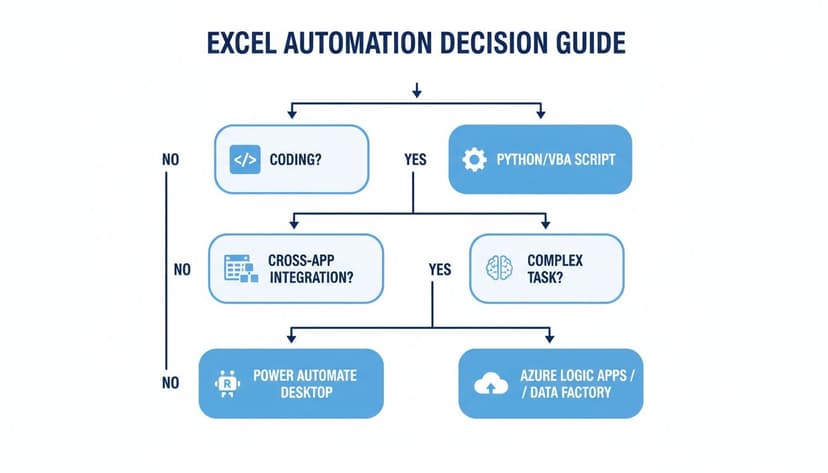
As you can see, answering just a few basic questions can quickly point you toward the most effective automation path for your needs.
3 Key Questions to Ask Before You Start
Before you get lost in the technical weeds, just stop and answer three simple questions. Your answers will act like a compass, guiding you straight to the most practical solution.
How Complex Is the Task?
Are you just trying to clean up a messy column of data every month? Or are you trying to build a multi-step process that cleans data, runs an analysis, creates charts, and then formats a final report? Simple, one-way tasks are a perfect fit for a tool like Power Query. But for complex projects with lots of interconnected steps, the power of VBA or the speed of an AI assistant is a much better bet.Does This Automation Need to Talk to Other Apps?
Let's be honest, most of our work doesn't happen only in Excel. If your workflow needs to send an email notification, save a PDF to SharePoint, or grab the latest numbers from an online service, then your choice becomes much simpler. Power Automate was built from the ground up for exactly this kind of cross-app workflow, connecting your spreadsheet to everything else you use.Who Is Going to Use and Maintain This Thing?
This is the one everyone forgets. A brilliantly coded VBA macro is completely worthless if nobody on your team can figure out how to tweak it when a business process changes. If your automation needs to be built, used, and updated by people who don't write code, then no-code options like Power Automate or an intuitive AI add-in are far more realistic and sustainable choices.
The best automation isn't the most technically impressive one; it's the one that can be easily understood, adapted, and managed by the people who depend on it. Matching the tool to your team's skills is just as critical as solving the technical problem itself.
4 Excel Automation Tools: A Head-to-Head Comparison
To make the decision even clearer, this table breaks down the main contenders across the factors that matter most. It helps you see the trade-offs at a glance.
For instance, VBA gives you incredible control inside Excel, but that power comes with a steep learning curve and can be fragile. A single broken script can grind a critical report to a halt, and finding someone who can fix it quickly isn't always easy.
| Method | Best For | Skill Level | Scalability | Maintenance |
|---|---|---|---|---|
| VBA/Macros | Highly customized, complex in-Excel tasks | Advanced (Coding) | Moderate | High (Requires code knowledge) |
| Power Query | Automated data cleaning & transformation | Intermediate | High | Low (Steps are easy to edit) |
| Power Automate | Workflows connecting Excel to other apps | Beginner-Intermediate | High | Low (Visual, no-code interface) |
| AI Add-ins (Elyx.AI) | Complex, multi-step tasks with natural language | Beginner (No-code) | High | Minimal (Managed by the AI) |
On the other hand, an AI assistant like Elyx.AI offers amazing flexibility with zero coding required. This makes it a fantastic option for business users who need to automate sophisticated, multi-step tasks without spending months learning to program. It lets you focus on the what problem you're solving, not the how.
Ultimately, the right choice comes down to aligning the tool’s strengths with your specific goals, available resources, and your team's real-world capabilities.
1 Practical Example: Building an Automated Sales Report Step by Step
Alright, let's roll up our sleeves and move from theory to practice. A classic task for almost any business is creating a weekly sales report. We're going to build one, but we'll do it two very different ways to show you the evolution of automation in Excel.
First, we’ll go through the traditional route using Power Query and Pivot Tables. Then, I’ll show you how a modern AI agent like Elyx.AI gets the exact same job done in a fraction of the time, providing an actionable solution.
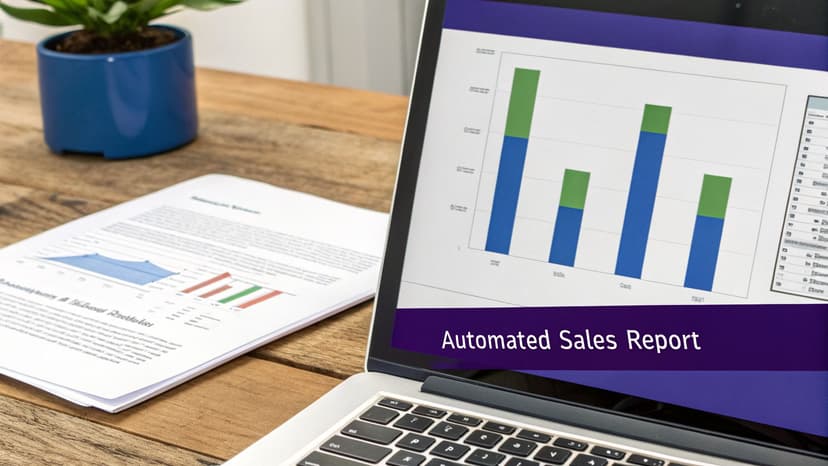
This side-by-side comparison is the best way to see the incredible efficiency you gain when you switch from building things step-by-step to just telling an AI what you want.
The 5 Steps of the Traditional Method: Power Query and Pivot Tables
The classic approach is powerful and reliable, no doubt. But it definitely requires you to build each piece of the workflow by hand. Think of it like assembling IKEA furniture—you have all the parts, but you have to follow the instructions carefully to get the result you want.
Here are the 5 steps that process looks like:
- Connect to Your Data Source: First up, you head to the
Datatab and use Power Query to pull in your data, whether it'sFrom Table/Rangeor another source. This is where you point Excel to your raw sales numbers. - Clean and Transform the Data: Now you're in the Power Query Editor, where the real work begins. You start applying a series of cleaning steps: removing duplicates, filling blank cells, splitting columns, or fixing data types. Every click is recorded as a step that can be repeated later. (For a deeper dive, our guide on how you can use AI for data cleaning in Excel is a great resource).
- Load the Data: Once your data is sparkling clean, you click
Close & Load To...and tell Excel to load it into a new PivotTable Report. - Build the Pivot Table: This is where you manually drag and drop fields to slice and dice your data. You might put "Region" in the Rows, "Product Category" in the Columns, and "Sales Amount" in the Values area to get a clear summary.
- Create a Chart: With the Pivot Table ready, you select it, head to the
Inserttab, and add a PivotChart. Then comes the formatting—adding titles, labels, and making it look presentable.
This method gives you total control, but it's a multi-stage process where every step needs your direct attention.
The 1-Step Modern Method: Using an AI Agent
Now, let's see how an AI agent like Elyx.AI tackles the exact same task. The entire process gets condensed into a single, simple instruction. It’s less like building furniture and more like describing what you want to a professional designer and having them hand you the finished product.
You just open the Elyx.AI panel and type a prompt in plain English:
"Clean this sales data by removing duplicates. Then, create a pivot table showing total sales by region and product. Finally, generate a formatted bar chart from this pivot table and place it next to the data."
That's it. The AI interprets your request and executes all the behind-the-scenes steps on its own. It connects to the data, runs the cleaning operations, builds the Pivot Table, generates the chart, and even applies slick, professional formatting—all in seconds.
This shift toward AI-driven tools is more than just a neat trick; it’s a massive market trend. The intelligent automation market is expected to jump from $10.6 billion in 2021 to a staggering $51.6 billion by 2033. Studies have shown AI tools can boost an analyst's productivity in Excel by 40%, and many finance pros are already saving over three hours a week.
The difference is night and day. The traditional method is a sequence of manual actions you have to perform. The AI approach is a single directive you give. This really gets to the heart of what modern AI in Excel is all about: it lets you stop worrying about the "how" and focus entirely on the "what."
While we focused on a sales report here, these principles of clear data visualization apply everywhere. For instance, you can find similar techniques used by people who build your own stock market dashboards to make sense of complex financial data.
1 Next Step Toward Mastering Excel Automation
If there’s one thing to take away from this guide, it’s that automation in Excel isn't just for coders anymore. It's a fundamental skill for anyone looking to work smarter. We've walked through the whole landscape, from the familiar territory of formulas and VBA all the way to the new frontier of AI agents.
The right tool still depends on the job, of course. But it's pretty clear that for those messy, multi-step workflows, AI agents like Elyx.AI are a game-changer. They take on the heavy lifting so you can focus on what the data actually means. For a better idea of what this looks like in practice, check out our guide to common Excel use cases.
Ultimately, the message is simple: stop letting manual, repetitive tasks eat up your day. The time you'll save is massive, and you can reinvest it into the kind of strategic thinking and analysis that actually moves the needle.
We encourage you to see what the future of Excel feels like for yourself. Give Elyx.AI a try. It’s the fastest and easiest way to put the advanced automation ideas we’ve talked about into action, turning your goals into results from your very first request.
4 Common Questions About Excel Automation Answered
Diving into anything new always brings up a few questions. Let's tackle 4 of the most common ones people have when they start exploring how to automate their work in Excel.
1. How Hard Is It to Get Started?
Honestly, it depends on where you start, but you can begin today with zero coding knowledge. Tools like Power Query are a fantastic entry point for cleaning up data automatically. AI-powered tools are even simpler—you just type what you want.
Of course, if you want to build highly customized solutions, learning VBA is an option. That path has a steeper learning curve, but the point is, you don't have to start there. Just pick a tool that fits your current skills and solves a real problem you're facing right now.
2. Can Automation Actually Handle Huge Spreadsheets?
Absolutely. In fact, this is where automation really proves its worth. Power Query, for instance, was built to chew through millions of rows without breaking a sweat. It processes all the heavy-duty transformations behind the scenes before the data ever lands in your spreadsheet, which is why it's the go-to for big data jobs.
While you can use VBA for large datasets, it often chugs along and can be a real memory hog compared to the efficiency of Power Query.
3. Is My Data Safe with AI Add-ins?
That's a smart question to ask. Reputable AI tools are built with security as a top priority. Take Elyx.AI, for example—it's designed around a privacy-first model.
This means your actual spreadsheet data never leaves your computer. The only thing sent to the AI is your text prompt (your instruction). The AI processes that instruction and sends the solution back, but your sensitive data stays put. A good rule of thumb is to always stick with official, Microsoft-verified add-ins to make sure they meet strict security standards.
4. What's the Difference Between an AI Agent and Microsoft Copilot?
It really comes down to suggestion versus execution. Think of Microsoft Copilot as a helpful assistant sitting next to you; it's great at suggesting formulas or explaining how to do something. You still have to perform the actions.
An AI agent, on the other hand, is more like an autonomous employee. You give it a high-level goal—like "clean this sales data and create a regional performance dashboard"—and it figures out and executes the entire multi-step process for you. It hands you a finished product, not just the instructions to build it yourself.
Ready to stop wasting time on manual tasks and see what AI can really do? Elyx.AI turns your goals into finished results, handling complex workflows from a single instruction. Experience the future of spreadsheet productivity and get your free 7-day trial at https://getelyxai.com.
Reading Excel tutorials to save time?
What if an AI did the work for you?
Describe what you need, Elyx executes it in Excel.
Sign up