Automation Excel: A Practical Guide to Macros, Power Query, and AI

Are you tired of being stuck in a loop of manual data entry, endless formula checks, and repetitive report formatting? Automating your Excel tasks is the key to breaking free. It's how you boost accuracy, save hours each week, and finally shift your focus from tedious mechanics to high-impact analysis and decision-making.
This guide will provide you with practical, actionable steps to start using automation in Excel, from classic methods like Macros to cutting-edge AI assistants that respond to plain-English commands.
Why You Should Automate Your Excel Tasks
For so many of us, Excel is the backbone of our daily work. I've seen it firsthand: finance analysts spending their days reconciling reports, operations managers cleaning up messy data exports, and project managers manually updating trackers.
Spending too much time on Excel?
Elyx AI generates your formulas and automates your tasks in seconds.
Sign up →These tasks are necessary, but they eat up valuable time and are dangerously prone to human error. We've all been there—one bad copy-paste can throw off an entire analysis. This is exactly where Excel automation shows its true worth. It’s not just about working faster; it's about working a whole lot smarter. By the end of this article, you'll have a clear understanding of which automation method to use for your specific needs.
When you automate these routine processes, you fundamentally change your relationship with data. You stop being a data janitor and become a data strategist, using the time you've saved to uncover insights, spot trends, and contribute to critical business decisions.
Reclaim Your Time for High-Impact Work
The biggest win from automation is getting your time back. Think about a world where your monthly sales reports are generated, formatted, and charted with a single click or even a simple text command. This isn't science fiction; it’s a practical reality that lets you focus on strategic thinking instead of mechanical execution.
Shifting your effort from manual data handling to actual analysis directly impacts your professional growth and your company's bottom line. For more on how this kind of efficiency drives real value, take a look at our guide on powerful strategies for cost reduction.
By delegating repetitive tasks to automation, you free up your mental energy to solve complex problems, innovate, and drive strategic initiatives—the kind of work that creates lasting value.
This shift isn't happening in a vacuum; it's part of a much larger business trend. The global Business Process Automation Market is on track to grow from USD 9 billion in 2019 to USD 19.4 billion by 2026. That's a clear signal that companies everywhere are replacing manual grunt work with intelligent technology. You can read the full research on this market surge to see just how big this movement is.
The evolution of automation in Excel mirrors this perfectly. We've gone from basic formulas and macros to sophisticated AI agents that can run entire workflows from simple instructions, setting a completely new standard for what it means to be productive.
Choosing the Right Automation Tool for Your Job
Picking the right approach for automation in Excel is the first, and most important, step. Before you dive into building a workflow, you need a solid grasp of the tools available. Each one has its own personality—its strengths, its learning curve, and the kinds of jobs it was built for. Getting this match right from the start is what separates a frustrating afternoon from a workflow that genuinely saves you hours.
The big question you have to ask yourself is simple: Is this task repetitive? If you find yourself doing the same clicks, copies, and pastes every week, that’s your sign.
This decision tree nails it down perfectly.
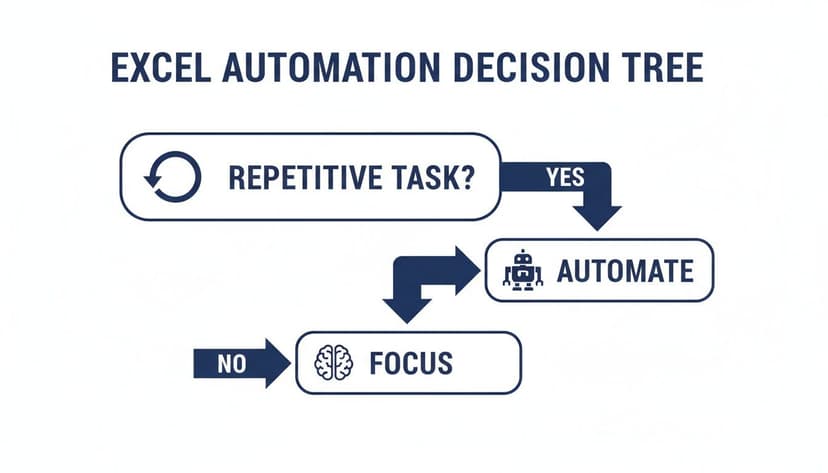
The takeaway here is pretty clear. If a task is a repeat offender, automate it. Free up your brainpower for the kind of strategic thinking a machine can't do.
Excel Automation Methods Compared
To help you decide, let's look at the main options side-by-side. Each tool shines in different situations, so knowing the landscape is crucial.
| Method | Best For | Learning Curve | Key Limitation |
|---|---|---|---|
| Macros (VBA) | Highly specific, complex tasks that need total control over every detail in Excel. | High. Requires a real understanding of coding principles. | Can be brittle; a small change in the spreadsheet can break the entire script. |
| Power Query | Pulling in, cleaning up, and reshaping messy data from almost any source. It's a data transformation beast. | Medium. The interface is user-friendly, but mastering the M language takes time. | It's all about the data before it hits the grid. It won't format your cells or build a chart. |
| Office Scripts | Automating tasks in Excel for the web and integrating them with other cloud tools like Power Automate. | Medium. Easier to pick up than VBA if you have some JavaScript knowledge. | Not as powerful or widely adopted as VBA yet; it's the newer, less-tested option. |
| AI Assistants | Quickly cleaning data, building reports, and creating charts using plain English commands. No code needed. | Low. The main skill is learning how to write clear, effective prompts. | The result is only as good as your instructions and the AI's current capabilities. |
Ultimately, the right tool often boils down to a simple question: Is your bottleneck in preparing the data, or in presenting it? Power Query is the undisputed champion of the former, while AI and VBA offer more muscle for the latter.
A Breakdown of Your Options
Let's dig a little deeper into what makes each of these tools tick.
-
Macros (VBA): For decades, Visual Basic for Applications was the way to automate Excel. It gives you god-mode control, letting you manipulate every cell, chart, and object. Think of it for those incredibly niche, complex processes that just have to be done a certain way. The trade-off? You have to learn to code, and it can be a steep climb for a beginner.
-
Power Query: This tool is an absolute game-changer for anyone who deals with messy data. It lives inside Excel and is designed to connect to different sources (like databases, web pages, or other files), let you clean and transform the data through a user-friendly interface, and then load it perfectly into a table. It automates the grunt work of data prep.
-
Office Scripts: As the world moves to the cloud, Office Scripts are Microsoft's answer to VBA for Excel on the web. They use TypeScript (a variant of JavaScript), which is a more modern language, and they plug into the wider Microsoft ecosystem through Power Automate. They're not as powerful as VBA, but they are fantastic for connecting your spreadsheet to other online services.
-
AI Assistants (like Elyx.AI): This is the new frontier. Instead of learning a programming language or clicking through menus, you just tell the AI what you want in plain English. "Remove all duplicate rows based on the 'Email' column," or "Create a pivot table showing sales by region and month." It’s incredibly fast for common tasks like analysis, report generation, and charting. You can find out more by exploring some of the best data transformation tools available today.
The Big Picture: Workflow automation is no longer a niche skill; it’s becoming a core competency. The global market hit USD 20.3 billion in 2023 and is only getting bigger. For anyone in business intelligence or project management, this isn't just a trend—it's a fundamental shift in how work gets done. Picking the right tool for the job is your first step to being on the right side of that change.
Getting Hands-On With Macros and Power Query
Enough with the theory. Let's dig into Excel's classic workhorses: Macros and Power Query. These tools have been saving people like us countless hours for years, long before AI was on everyone's radar. This is where you can roll up your sleeves and solve real business problems, right now.
First, we'll demystify Visual Basic for Applications (VBA)—the engine behind macros. Then, I'll show you how to wrangle messy data with Power Query, all without writing a single line of code.
Your First Macro: A Real-World Example
Picture this: you have to prepare a monthly sales report. Every single time, you start by creating a standardized header. You merge some cells, add a background color, make the font bold, and pop in the current date. It’s tedious, it's repetitive, and it's a perfect job for your very first macro.
The best part? You don't need to write any code. You can just record your actions.
It's a simple process. Just head to the Developer tab and hit Record Macro. Give it a memorable name, like Format_Report_Header, and then perform all your usual formatting steps. When you're done, click Stop Recording.
Just like that, you have a process that does all that work for you with one click. But what's really happening? If you peek behind the curtain by opening the VBA Editor (Alt + F11), you'll see the code Excel generated. It might look a little intimidating at first, but it's just a script that mimics every click and keystroke you made.
Seeing your actions instantly translated into code is an amazing way to start understanding VBA. It makes the whole thing feel much more approachable, even if you're not a developer.
Taming Messy Data With Power Query
Now for a different, but equally frustrating, problem: messy data. Imagine you get a weekly CSV export of customer contacts. The file is a mess—riddled with duplicates, and you need to split a "Full Name" column into separate "First Name" and "Last Name" columns.
Trying to fix this manually every week is a nightmare. But with Power Query, it becomes a simple, automated workflow.
Power Query is Excel's built-in data transformation tool. It's fantastic for tasks like consolidating information, especially when you're managing data by exporting your database to Excel. Think of it as creating a repeatable recipe for cleaning your data.
The real magic of Power Query is that it never touches your original source file. It creates a refreshable query that applies your cleaning steps every time new data arrives, guaranteeing your final table is always perfect.
Here’s how you’d tackle that messy contact list:
- Connect to Your Data: First, go to the Data tab, select From Text/CSV, and point it to your file. This will open the Power Query editor.
- Ditch the Duplicates: Select the column you want to check for duplicates (like "Email Address"), right-click, and choose Remove Duplicates. Done.
- Split the Column: Now, select the "Full Name" column. On the Transform tab, click Split Column and choose By Delimiter. Power Query is smart enough to detect the space between names. You just need to name your new columns.
- Load the Clean Data: Finally, click Close & Load. Your perfectly cleaned and structured data pops into a new worksheet as a formatted table.
The best part is what happens next week. When the new CSV file comes in, all you have to do is right-click your table and hit Refresh. Power Query repeats every single step automatically. It’s a true set-it-and-forget-it solution.
For a closer look at these concepts, our guide on how to automate data entry is a great place to start.
The Next Wave: AI-Powered Excel Automation
While macros and Power Query are workhorses, they still demand that you learn their specific language—whether it's writing VBA code or navigating the Power Query editor. This is where the latest leap in automation in Excel completely changes the game.
We're now seeing AI tools that act like an expert sitting at your shoulder, ready to tackle complex jobs based on simple, plain-English instructions.
Instead of writing scripts or clicking through endless menus, you just describe what you want done. This move from rigid, step-by-step procedures to conversational commands is breaking down old barriers. Suddenly, powerful automation isn't just for the tech-savvy; it's for anyone who knows what they need. If you're new to the concept, it helps to understand what artificial intelligence means in a business context first.
From Dozens of Clicks to a Single Prompt
Let's put this into a real-world context. Imagine you have a dataset of employee performance with columns for Employee Name, Department, Date, Sales, and Hours Worked. You need to calculate each employee's sales per hour.
The manual way involves adding a new column and writing a formula. With an AI assistant, you simply type:
"Create a new column named 'Sales per Hour' by dividing the 'Sales' column by the 'Hours Worked' column."
The AI understands the request, adds the new column, and correctly applies the formula =D2/E2 (assuming Sales are in D and Hours Worked are in E) down the entire column. It handles the logic for you.
Let's take a more complex example. You need to analyze this data to find top performers. You could type:
"Find the employee with the highest 'Sales per Hour' in the Sales department."
An AI assistant can combine filtering and sorting functions to provide the answer directly. Behind the scenes, it might generate a formula like this:
=INDEX(A2:A100, MATCH(MAX(IF(B2:B100="Sales", F2:F100)), IF(B2:B100="Sales", F2:F100), 0))
IF(B2:B100="Sales", F2:F100): This part first checks the 'Department' column (B) for "Sales". If it matches, it returns the corresponding 'Sales per Hour' value from column F; otherwise, it returns FALSE.MAX(...): This finds the highest 'Sales per Hour' value from the filtered list of sales department employees.MATCH(...): This finds the position (row number) of that maximum value within the filtered list.INDEX(A2:A100, ...): This retrieves the employee's name from column A at the position found by the MATCH function.
Instead of you needing to construct this complex array formula, the AI builds and executes the logic based on your plain-English goal.
As you can see, the interface is dead simple—just a chat panel where you tell the AI what to do, and it does it right on your worksheet. This conversational approach means your ability to clearly state your goal is more important than your technical know-how.
How AI Automation Is Different
The fundamental difference comes down to intent versus execution. With VBA or Power Query, you have to be the architect, mapping out every single step. With an AI assistant, you just declare your desired outcome, and the tool figures out the best path to get there.
This new way of working has some huge advantages:
- Speed and Efficiency: A task that used to eat up 30 minutes of your morning can now be done in less than one. This gives you back precious time to actually analyze the data instead of just preparing it.
- Accessibility: You no longer need to be a coding whiz or a Power Query guru. If you can explain what you need, you can automate it.
- Flexibility: AI agents are surprisingly good at handling variations. If next month's data export has a slightly different structure, you don't have to debug a fragile script; you can just tweak your prompt.
This is not a niche trend. AI-driven database automation tools are transforming how companies handle data-heavy Excel tasks. The market was valued at USD 810 million in 2024 and is expected to skyrocket to USD 2,116 million by 2032. This explosive growth points to a massive shift toward tools that can clean, pivot, and analyze data on their own.
For a deeper look at how AI and spreadsheets are coming together, check out our guide on AI in Excel.
A Quick but Crucial Note on Data Privacy
A perfectly valid question with any cloud-connected tool is, "What happens to my data?" When you use AI in Excel, you need to know how your information is being handled. Is your entire spreadsheet being uploaded to some third-party server?
Top-tier solutions like Elyx.AI are built with a privacy-first mindset. Your actual spreadsheet data never leaves your computer. Only your instructions—the text prompts you write—are sent to the AI model to figure out the right steps. The execution happens locally on your machine, so your sensitive financial or customer info stays completely private.
Pro Tip: Always look for tools that prioritize on-device processing. It's the best way to ensure your data remains secure.
Building Automations You Can Actually Trust
An Excel automation workflow is only worth its salt if you can rely on it. If it’s constantly breaking or spitting out questionable numbers, it's creating more work, not less. The good news is that building trust in your automations isn't about becoming a master coder; it's about adopting a few smart, simple habits from the get-go.
The best advice I can give is to start small. I've seen too many people try to build a massive, all-encompassing automation on day one. Instead, pick one manageable piece of your process and automate just that. Test it, try to break it, and make sure it works every single time. Once you've got that single step rock-solid, you can build on it with confidence, adding the next piece to the chain.
Simple Debugging for Reliable Results
When an automation inevitably hiccups, knowing where to look is half the battle. Each tool leaves its own breadcrumbs. For example, if a Power Query workflow throws an error, the "Applied Steps" pane on the right-hand side is your first stop. You can literally click back through each transformation to see exactly where things went sideways.
With AI tools, it’s all about clarity. If your AI assistant isn't getting it right, the problem is usually the prompt. "Clean the data" is vague. A much better instruction is, "Remove all duplicate rows, making sure to check for duplicates based on the 'Order ID' column." Precision in your request gets you a predictable result.
The real goal here is to build something that doesn't shatter the first time a file name changes. A classic mistake is hardcoding things like file paths or sheet names directly into a script. Instead, use dynamic references or relative paths whenever you can to make your work more resilient.
Avoiding Common Automation Pitfalls
Building something dependable also means thinking ahead about what could go wrong. Here are a few common traps I see people fall into all the time:
- Ignoring Data Quality: Remember the old saying: garbage in, garbage out. Your automation is only as good as the data it receives. A solid workflow should have steps built in to handle errors, empty cells, or weird formatting. We have a whole guide on data cleaning best practices if you want to dive deeper.
- Assuming Consistency: Don't ever assume your source files will look the same every month. Column orders change, and naming conventions get tweaked. Your process needs to be flexible enough to handle these little shifts without breaking down.
- Skipping Documentation: This one feels like a chore, but it's a lifesaver. Just leave a few comments or notes explaining what the automation does and why you built it a certain way. Trust me, your future self will thank you when you have to revisit it six months from now.
Got Questions About Excel Automation?
As you start dipping your toes into Excel automation, you're bound to have some questions. It's totally normal. Getting those questions answered is the best way to feel confident picking the right tool for the job.
Let's tackle some of the most common things people ask when they're getting started.
Is It Still Worth Learning VBA with All These New AI Tools?
Short answer: yes, but for very specific situations. If you need to build a highly complex, custom application inside Excel with granular control over every little detail, VBA is still the king. It’s like a mechanic's specialty tool—incredibly powerful for the right job.
But for the everyday tasks that make up the bulk of our work—think data cleaning, building reports, creating charts—AI tools are a game-changer. They handle over 90% of these common workflows much faster and without needing a single line of code. For most of us, AI is the versatile, powerful tool you'll reach for daily, while VBA stays in the toolbox for those rare, tricky jobs.
How Secure Are AI Add-ins with My Company's Data?
That’s a great question, and probably the most important one. Security should always be a top priority. The key is to look for tools that were built from the ground up with data privacy in mind.
You'll want to find an AI tool where your actual spreadsheet data never leaves your computer. Some tools work by only sending your instructions (the prompt you type) to the AI, while all the heavy lifting and data processing happens locally on your machine. Always check for add-ins from the official Microsoft AppSource and look for assurances of enterprise-grade security, like AES-256 encryption.
Can I Mix and Match Different Automation Methods?
Absolutely! In fact, the most effective automation often comes from a "hybrid" approach. You don't have to pledge allegiance to just one tool. The real power comes from making them work together, each playing to its strengths.
Here's a real-world example of what that could look like:
- First, you use Power Query to automatically pull in raw data from an external database and do the initial heavy-duty cleaning.
- Next, you hand that clean data over to an AI agent to quickly generate summaries, pivots, and charts.
- Finally, a simple VBA macro kicks in to automatically email the finished report to your team.
It’s all about using the best tool for each step in the process. That’s how you build a truly robust and efficient workflow.
Ready to stop wrestling with repetitive tasks and start automating your workflows in seconds? Elyx AI is the autonomous agent that executes your requests directly in Excel, handling everything from data cleaning to report generation with a single command. Try Elyx AI for free and reclaim your time.
Reading Excel tutorials to save time?
What if an AI did the work for you?
Describe what you need, Elyx executes it in Excel.
Sign up