How to Apply the Accounting Number Format in Excel Like a Pro

When you need to format numbers in Excel, the quickest way to apply the Accounting format is to select your cells, head over to the Home tab, and click the dollar sign ($) icon in the Number group. You can also pick "Accounting" from the dropdown menu right next to it. Just like that, your financial data is neatly organized, with currency symbols and decimals perfectly aligned for professional-grade reports.
Why Financial Clarity Starts with the Right Format
Have you ever stared at a messy column of numbers in a report and felt completely lost? It's a common problem where the right formatting can save you from headaches and costly mistakes. Excel's Accounting number format isn't just about aesthetics; it's a professional standard designed to make financial data instantly clear and easy to understand. Using it correctly can turn a jumbled spreadsheet into a polished, professional statement that builds trust.
This format provides distinct visual cues that make numbers far easier to scan and interpret. It's a critical skill, especially when you're learning how to read company financial statements like balance sheets or income statements. An organized layout prevents misinterpretation and keeps everyone on the same page.
Spending too much time on Excel?
Elyx AI generates your formulas and automates your tasks in seconds.
Sign up →Key Benefits of the Accounting Format
The real power of the Accounting format lies in the consistency and professionalism it brings to your financial documents. These small details make a huge difference in readability and comprehension.
Here's what it does for you:
- Improves Readability: It aligns all currency symbols to the left and decimal points vertically. This creates clean, scannable columns that are easy on the eyes, even when dealing with large datasets.
- Highlights Negative Values: Negative numbers are shown in parentheses—like
($50.00)—which is the standard in financial reporting. This makes losses or deficits immediately stand out, instead of being hidden by a small minus sign that's easy to miss. - Handles Zeros Professionally: Zero values are displayed as a simple dash (
–). This declutters your report and helps focus attention on the cells containing significant monetary values.
The consistent application of a standardized format is the first step toward creating financial reports that are not only accurate but also easily digestible. It’s a fundamental practice that elevates the quality and professionalism of your work.
Accounting vs. Currency Format: A Quick Comparison
People often confuse the Accounting and Currency formats, but their key differences significantly impact how your data is presented. This table breaks it down so you can choose the right one for your specific needs.
| Feature | Accounting Format | Currency Format |
|---|---|---|
| Currency Symbol | Aligned to the far left of the cell | Placed directly next to the number |
| Negative Numbers | Displayed in parentheses, e.g., ($1,234.56) |
Shown with a minus sign, e.g., -$1,234.56 |
| Zero Values | Represented by a dash (–) |
Displayed as a zero with currency, e.g., $0.00 |
| Decimal Alignment | Always vertically aligned | May not align if currency symbols vary |
Ultimately, the Accounting format is designed for formal financial statements where clean, uniform columns are essential. The Currency format is more flexible and often used in less formal documents or simple lists.
Standardizing Your Financial Reports
When you apply the Accounting number format in a program like Excel, you're doing more than just changing how numbers look. You're adopting widely accepted conventions in financial reporting that have been standard practice for decades.
This consistency makes large tables of data readable and reduces the risk of misinterpretation. It’s a small step that adds a significant layer of clarity and professionalism to your work.
Getting Started: Applying the Standard Accounting Format in Excel
Putting the Accounting number format into practice is a simple change that instantly makes cluttered data look professional and polished. Whether you're working on a desktop or in the cloud, the steps are quick, intuitive, and easy to build into your daily routine. Once you get the hang of it, you'll see why it's essential for ensuring your reports are not just accurate, but also immediately understandable.
The path from messy, inconsistent numbers to a clean, professional report is much shorter than you might think. It's a simple formatting process.
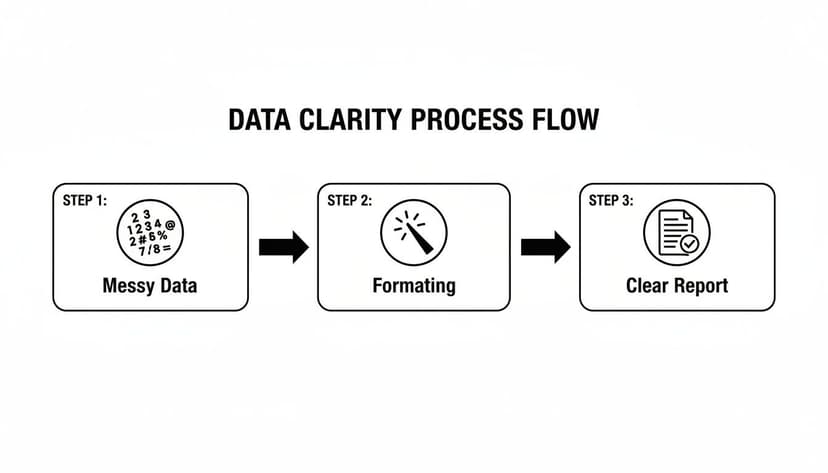
As you can see, applying a consistent format like this is the crucial bridge between raw data and an actionable financial report.
The Quickest Way: Using the Ribbon
The most direct route to apply the accounting number format is right on Excel's Home tab. This method works the same way whether you're on Windows, macOS, or using Excel for the web.
Here's how to do it:
- Highlight the cells or the entire column you want to format.
- Navigate to the Home tab and locate the "Number" group in the Ribbon.
- Click the dollar sign icon ($). That's it!
Excel instantly applies the default accounting format, which typically uses your system's regional currency symbol (like $) and sets numbers to two decimal places.
This is the go-to method for quick formatting tasks. If you need a different currency, click the small dropdown arrow in the "Number" group and select "Accounting" to access other symbols. This kind of standardized presentation is what professional accounting services rely on to maintain clarity.
For Power Users: The Keyboard Shortcut
If you want to work faster, keyboard shortcuts are a game-changer. Once you build this one into your muscle memory, you'll wonder how you ever managed without it.
My Favorite Pro Tip: The shortcut Ctrl + Shift + 4 (or Cmd + Shift + 4 on a Mac) is the absolute fastest way to apply the default Accounting number format to any selected cells. This single key combination achieves the same result as several mouse clicks.
Using this shortcut lets you keep your hands on the keyboard, helping you stay in your workflow and speed through repetitive formatting tasks. It might seem like a small efficiency, but those seconds add up, especially when cleaning up a large dataset against a deadline.
See It in Action: A Real-World Sales Report
Let's imagine you have a raw monthly sales report. The numbers are just dumped in, looking something like this:
- Product A: 15045.7
- Product B: -2300
- Product C: 987.45
- Product D: 0
Now, watch what happens after you select those cells and apply the Accounting format. The transformation is immediate:
- Product A: $ 15,045.70
- Product B: ($ 2,300.00)
- Product C: $ 987.45
- Product D: $ –
Look at that perfect alignment of the currency symbols and decimal points! Notice how the negative value is clearly wrapped in parentheses, and the zero is represented by a clean, simple dash. This is the clarity that makes the Accounting format the undisputed professional standard.
Customizing Formats for Global Financial Reporting
When working with international clients or multinational subsidiaries, the default dollar sign isn't always sufficient. When your spreadsheets cross borders, you need to go beyond the basics to apply the accounting number format in a way that’s regionally correct and professional.
Sending a financial summary to a European subsidiary with all figures in USD would cause immediate confusion. To maintain clarity and professionalism, you must tailor the format to the local currency, such as the Euro (€).
Diving into the Format Cells Dialog Box
Your command center for custom formatting is the Format Cells dialog box. The quickest way to open it is with the keyboard shortcut Ctrl + 1 (Cmd + 1 on a Mac). Alternatively, right-click any cell and select "Format Cells…" from the menu.
Once open, you can fine-tune every aspect of the format:
- Currency Symbol: In the "Accounting" category, the "Symbol" dropdown list contains world currencies, from the British Pound (£) to the Japanese Yen (¥).
- Decimal Places: You can adjust the number of decimal places for the precision you need. Two is standard, but some currencies, like the Yen, typically don't use any.
- Negative Numbers: The accounting standard is to wrap negative numbers in parentheses. For more visual emphasis, the "Number" tab offers other choices, like displaying them in red.
A Practical Example: Creating a Euro Format
Let's walk through the European subsidiary scenario. You have a profit and loss statement that needs to be presented in Euros, with two decimal places and standard parentheses for negative values.
First, highlight all the cells with financial data. Then, open the Format Cells window with Ctrl + 1.
From there, choose the Accounting category on the left. In the "Symbol" dropdown, find and select € Euro. Ensure "Decimal places" is set to 2, then click OK.
Instantly, your numbers are transformed. A value like 54321.89 now reads as € 54,321.89, and a loss like -1234 becomes (€ 1,234.00). Notice how everything stays perfectly aligned—that’s the power of the Accounting format.
Customization is more than just a currency symbol; it's about respecting global standards. For instance, the U.S. uses a comma as a thousands separator and a period for decimals (
1,234.56), while many European countries reverse this (1.234,56). Thankfully, Excel automatically handles these regional differences, helping you avoid serious misinterpretations. You can read more about these global formatting rules on Microsoft's official documentation.
Taking a few moments to set up these custom formats makes a world of difference. It ensures your international financial reports are always clear, accurate, and speak the right language.
Fixing Common Formatting Headaches
We've all been there. You carefully select a column and apply the Accounting number format, but nothing happens. It's one of the most common frustrations in Excel, and the problem is usually that Excel is interpreting your numbers as text.
This classic issue often occurs when you import data from other programs or databases. When numbers are stored as text, they won't respond to numeric formatting. A dead giveaway is that they often align to the left side of the cell, unlike true numbers which align to the right.
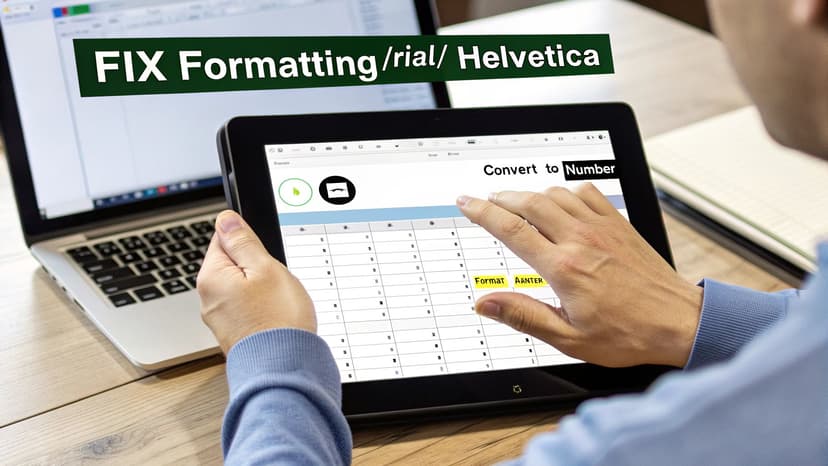
Spotting and Fixing Numbers Stored as Text
Luckily, Excel often flags this for you. Keep an eye out for a small green triangle in the top-left corner of the cell. Click on a cell with that triangle, and a small error icon will appear.
Click that icon, and a menu will offer a simple solution: Convert to Number. Choosing this option tells Excel to recognize the text as a numeric value, and your accounting format will now apply correctly.
If you have a whole column of these text-based numbers, just select the entire range, click the error icon on the first cell, and apply the fix in one go. This single click can save you significant time, especially with large datasets. Getting your data clean and consistent is a fundamental skill, and you can learn more by checking out our guide on how to standardize data.
Using the VALUE Function for a Formula-Based Fix
What if you want to keep your original data intact? In that situation, the VALUE function is your go-to tool. Its purpose is to convert a text string that looks like a number into an actual, usable number.
Let's say your text-formatted number is in cell A2. In a new column, type this formula:=VALUE(A2)
Drag that formula down to create a new column filled with real numbers ready for formatting. From there, you can copy the new column and use "Paste Special > Values" to overwrite the original, problematic data if desired.
Instantly Copy Styles with the Format Painter
Once you've set up one cell with the perfect accounting format—your preferred currency, the right number of decimals, and so on—there's no need to repeat the process. This is where the Format Painter becomes your best friend.
The Format Painter is a massive time-saver. It copies all the formatting from one cell—font, color, borders, and, of course, the number format—and lets you "paint" it onto another.
Here’s the simple way to use it:
- Click on the cell that has the perfect accounting format you want to copy.
- Go to the Home tab and click the Format Painter icon (it looks like a paintbrush).
- Now, just click on any other cell to instantly apply that formatting.
Pro-Tip: Need to format multiple cells that aren't adjacent? Double-click the Format Painter icon. This locks it in "on" mode, allowing you to click and paint the format onto as many cells as you like. When you're done, just hit the Esc key to turn it off. This trick is a game-changer for making reports look consistent and professional.
Taking Your Formatting to the Next Level with AI
While keyboard shortcuts and the Format Painter are great for speeding things up, artificial intelligence is the real game-changer for productivity. Imagine formatting an entire financial report with a single, simple sentence. That's exactly what AI tools like the Elyx.AI add-in for Excel make possible, turning repetitive formatting chores into a thing of the past.
Forget clicking through menus or recalling shortcuts. With an AI assistant, you simply state what you need. A quick chat command can transform a tedious process into an instant action, freeing you to focus on analyzing the numbers themselves, not just their appearance.
Just Tell the AI What You Need
The magic of an AI add-in is its ability to understand plain English. You can give it instructions just as you would ask a colleague for help.
For example, you could type a simple prompt like one of these:
- "Apply the accounting number format with two decimal places to the entire 'Expense' column."
- "Format all values in the 'Revenue' column using the Euro currency symbol."
- "Find all negative numbers in column G and format them with parentheses."
Elyx.AI takes these commands and executes them in seconds. This is a massive time-saver that also enforces perfect consistency across your spreadsheets—a huge win for any team that requires standardized reports.
This consistency isn't just about looking professional; it's a critical control for accuracy. In multinational firms, correct number formats can reduce data-entry mistakes by 10–30%. Finance teams often shave days off their monthly reconciliation process when reports are formatted uniformly. You can dig deeper into these productivity boosts and the importance of the Accounting number format on Simon Sez IT.
AI isn't here to replace your Excel skills; it’s here to augment them. By handling the repetitive, rule-based tasks, it frees you up to tackle the strategic analysis that truly requires your expertise.
More Than Just Basic Formatting
This technology goes far beyond simple requests. An AI assistant can handle complex conditional formatting, build standardized templates from a quick description, and even help you troubleshoot formatting problems. It transforms a manual, often frustrating process into a smart, automated workflow.
This is especially powerful when you're working with large, messy datasets where checking every cell by hand would be impractical. For any professional looking to get ahead, learning how AI can be integrated into Excel is the natural next step toward becoming faster, smarter, and more data-driven.
Answering Your Top Formatting Questions
Once you start using Excel's accounting format, you'll inevitably run into a few common questions. These are the little quirks that can trip you up on a deadline. Let's walk through the most frequent issues and their clear, practical solutions.
Why Does My Cell Show '#####' After I Apply a Format?
The dreaded wall of hash marks is probably the most common "issue" people face, but thankfully, it's an easy fix. When you see a cell filled with #####, it simply means the column is too narrow to display the fully formatted number. Your data is still there and perfectly safe.
The quickest solution is to double-click the right border of the column header (the line between, for example, column B and C). Excel will instantly auto-fit the column to the widest content. It's just Excel's way of politely asking for more space.
What's the Real Difference Between Accounting and Currency Formats?
They look almost identical at first glance, but subtle differences have a huge impact on the professionalism of your reports. There's a reason Accounting is the standard for financial statements.
- Alignment: The Accounting format is all about clean lines. It aligns currency symbols to the far left of the cell and lines up every decimal point vertically. This makes columns of numbers incredibly easy to scan and compare. The Currency format keeps the currency symbol right next to the first digit.
- Zero Values: In the Accounting format, a zero value appears as a simple dash (–), which helps de-clutter reports. The Currency format displays the full value, such as $0.00.
For any formal financial report, the Accounting format's organized presentation is always the better choice.
How Do I Make My Custom Format the Default Style?
While you can't overwrite Excel's built-in default, you can create a reusable Cell Style, which is even more useful for maintaining consistency in complex reports.
Here’s how: first, format a single cell exactly how you want your custom accounting style to look—perhaps with a Euro symbol, no decimals, and red text for negatives. Then, go to the Home tab, find "Cell Styles," and click "New Cell Style…". Give it a memorable name, like "EUR_Report_NegativeRed." Now, you can apply that exact combination of formats to any cell or range with just two clicks from the Cell Styles gallery.
Pro Tip: Creating custom Cell Styles is one of the best ways to standardize your team's reports. It saves significant time and ensures every financial document you create has the same professional look, eliminating sloppy inconsistencies.
Can Elyx.AI Adapt to Different Regional Accounting Formats?
Yes, and this is where an AI tool like Elyx.AI really shines. Instead of digging through custom format codes, you can just tell it what you need in plain English. This removes the guesswork from international reporting.
For example, you could type a command like, "Format this range as German accounting." The AI understands this and will automatically apply the Euro symbol and use the correct regional separators for decimals and thousands (e.g., 1.234,56 €). It saves you the headache of manually looking up and creating tricky custom formats for different countries.
Tired of fighting with manual formatting? Elyx.AI plugs directly into your spreadsheet, letting you clean up, format, and analyze your data with simple commands. See how much faster you can work and get perfect consistency on every report by visiting Elyx.AI.
Reading Excel tutorials to save time?
What if an AI did the work for you?
Describe what you need, Elyx executes it in Excel.
Sign up